Record income
A booking in the calendar is not income yet: record what the platform or guest actually paid you. That is what your monthly overviews and tax papers count.
Step 1
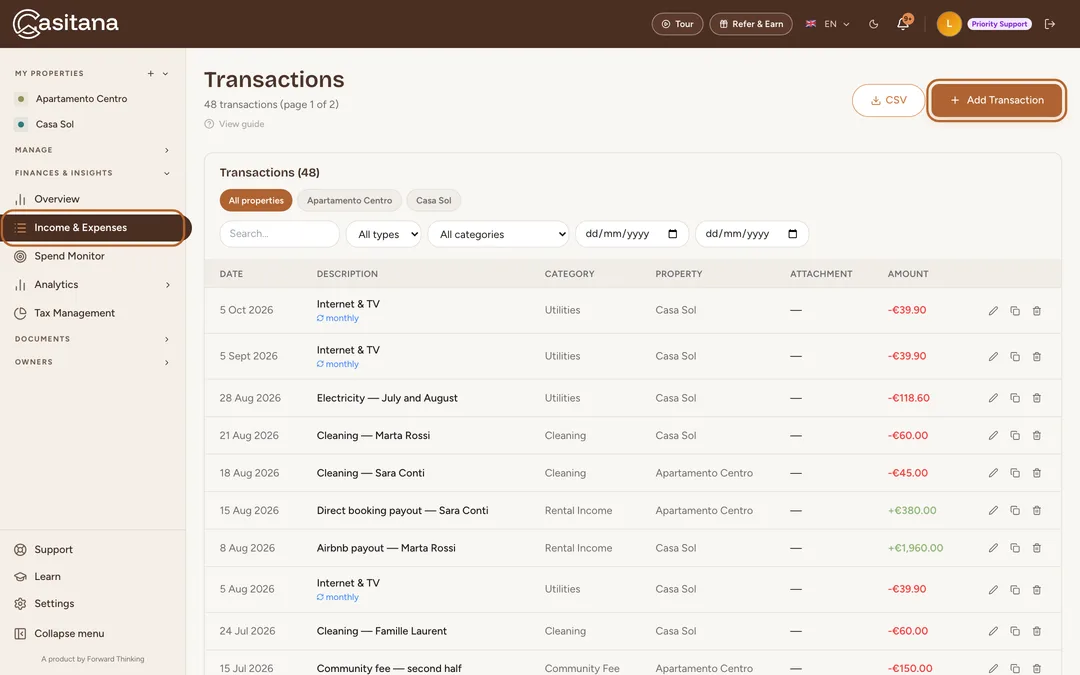
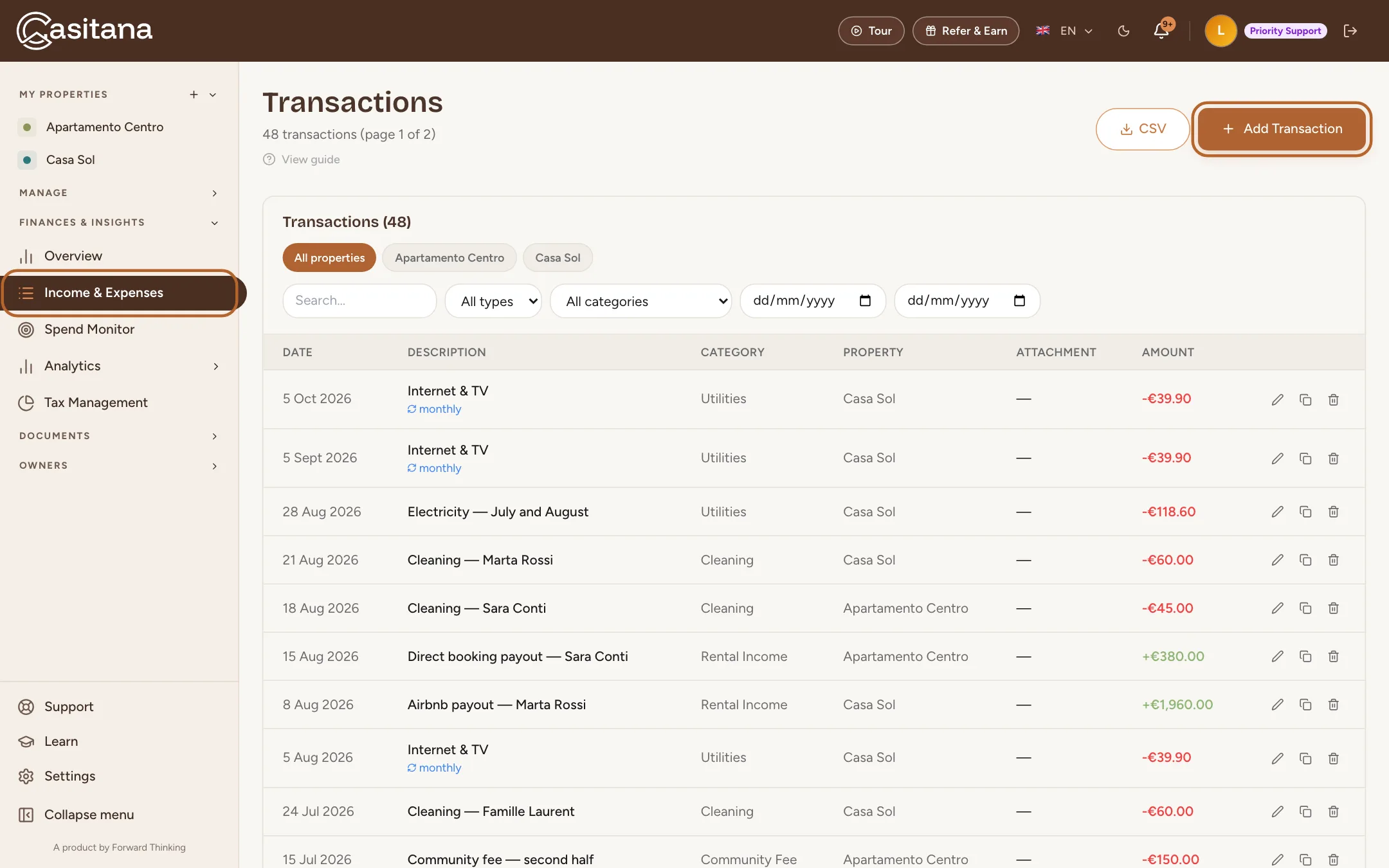
Open Income & Expenses
In the menu on the left, click Income & Expenses. Every transaction is listed here, newest first. Click Add Transaction.
 Enlarge screenshot
Step 2
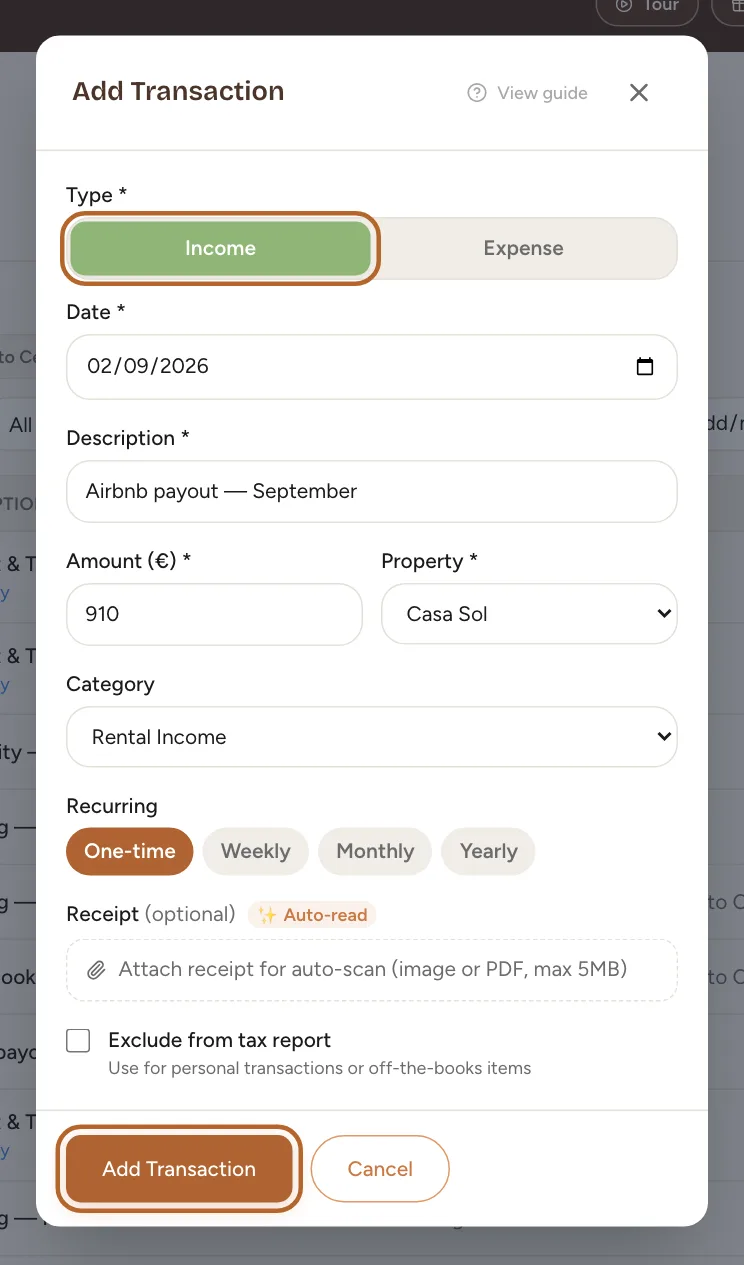
Enter the income
Choose Income, then fill in the Date it was paid, a Description, the Amount (€), the Property and the Category. Click Add Transaction.
 Enlarge screenshot
Tip: Record the payout on the day you received it. For a stay that runs into the next month, the income counts in the month you record it.
Record an expense
Step 3
Enter the expense
Click Add Transaction again and choose Expense. Fill in the date, what it was for, the amount, the property and a category such as Cleaning, Utilities or Repairs. Click Add Transaction.
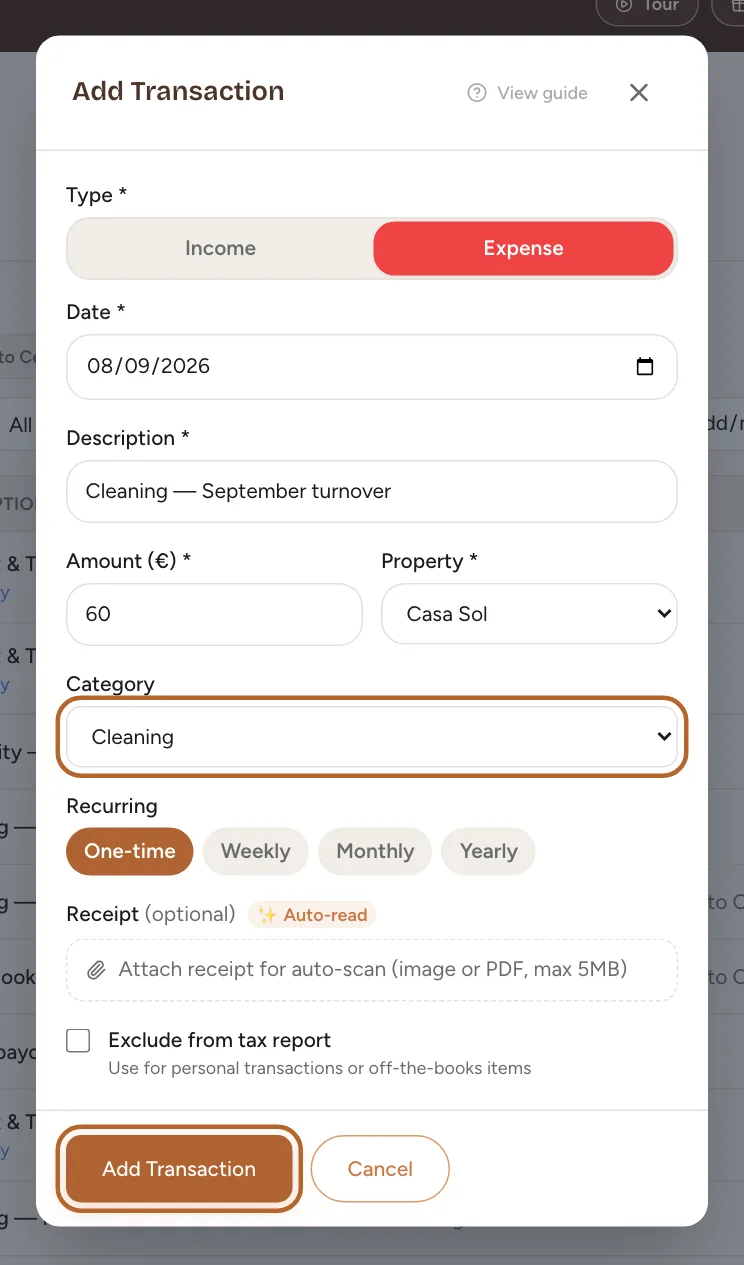 Enlarge screenshot
Tip: Bought an appliance? With Appliances, Casitana offers to add it to your equipment list: Turn an expense into an item.
Step 4
Add a note for property owners
On a property that has property owners, an expense has one more field: Note for property owners. Write what they should know about it, such as why a repair was needed. The note is printed under the expense on their owner statement (Notes on expenses), never on your own monthly overview.
Good to know: A note cannot contain links, web addresses or email addresses, and holds up to 1,000 characters. Receipts are not sent to property owners.
ReceiptsIncluded from the Starter plan
Attach the receipt to the expense it belongs to. Your gestor gets it with the Modelo 210 package.
Step 5
Attach the receipt
In the same window, click Attach receipt for auto-scan (image or PDF, max 5MB) and choose the photo or PDF of the receipt. It shows in the window straight away, and is saved with the expense.
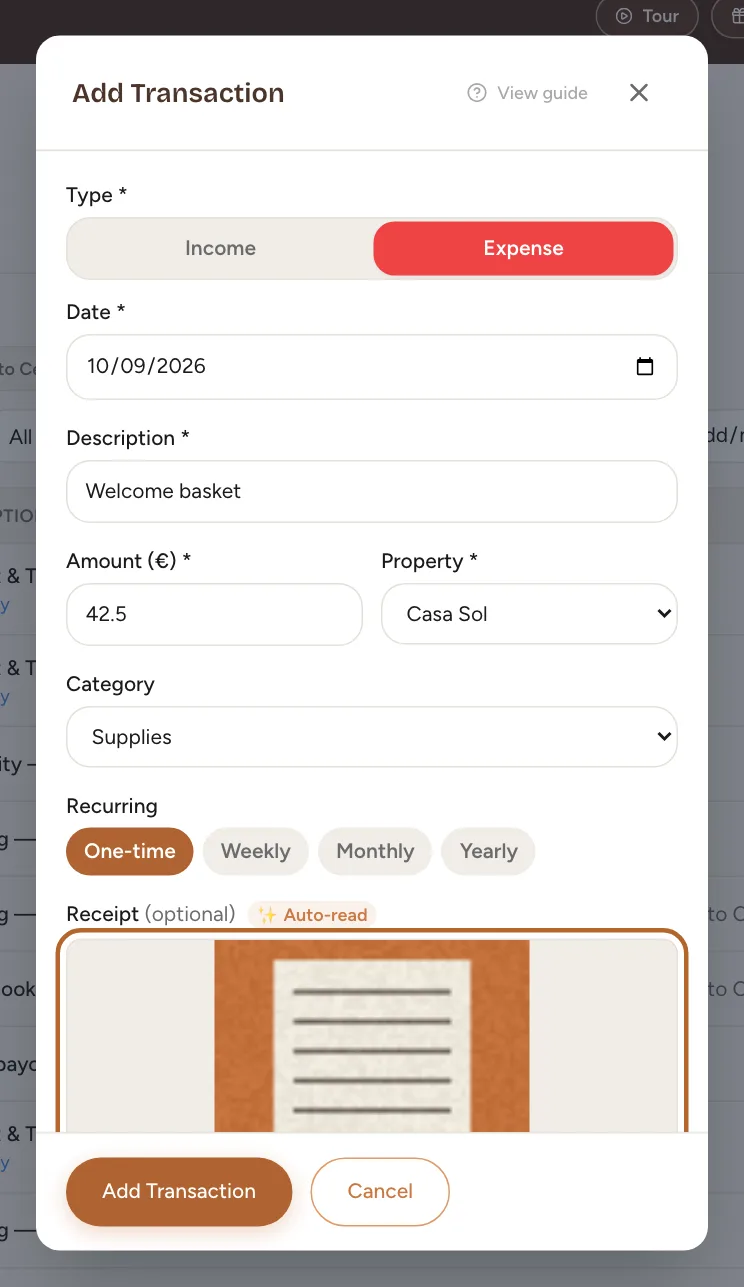 Enlarge screenshot
Tip: On the Growth and Pro plans, Casitana reads the receipt and fills in the amount, description and category you left empty. It can also change the date to the one on the receipt, so check it before you save.
Step 6
Look at a receipt later
In the list, an expense with a receipt has a View button. It opens the receipt, which you can also download from there.
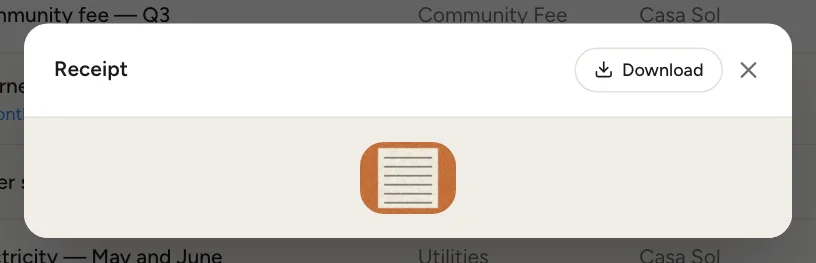 Enlarge screenshot
Step 7
Find all your receipts
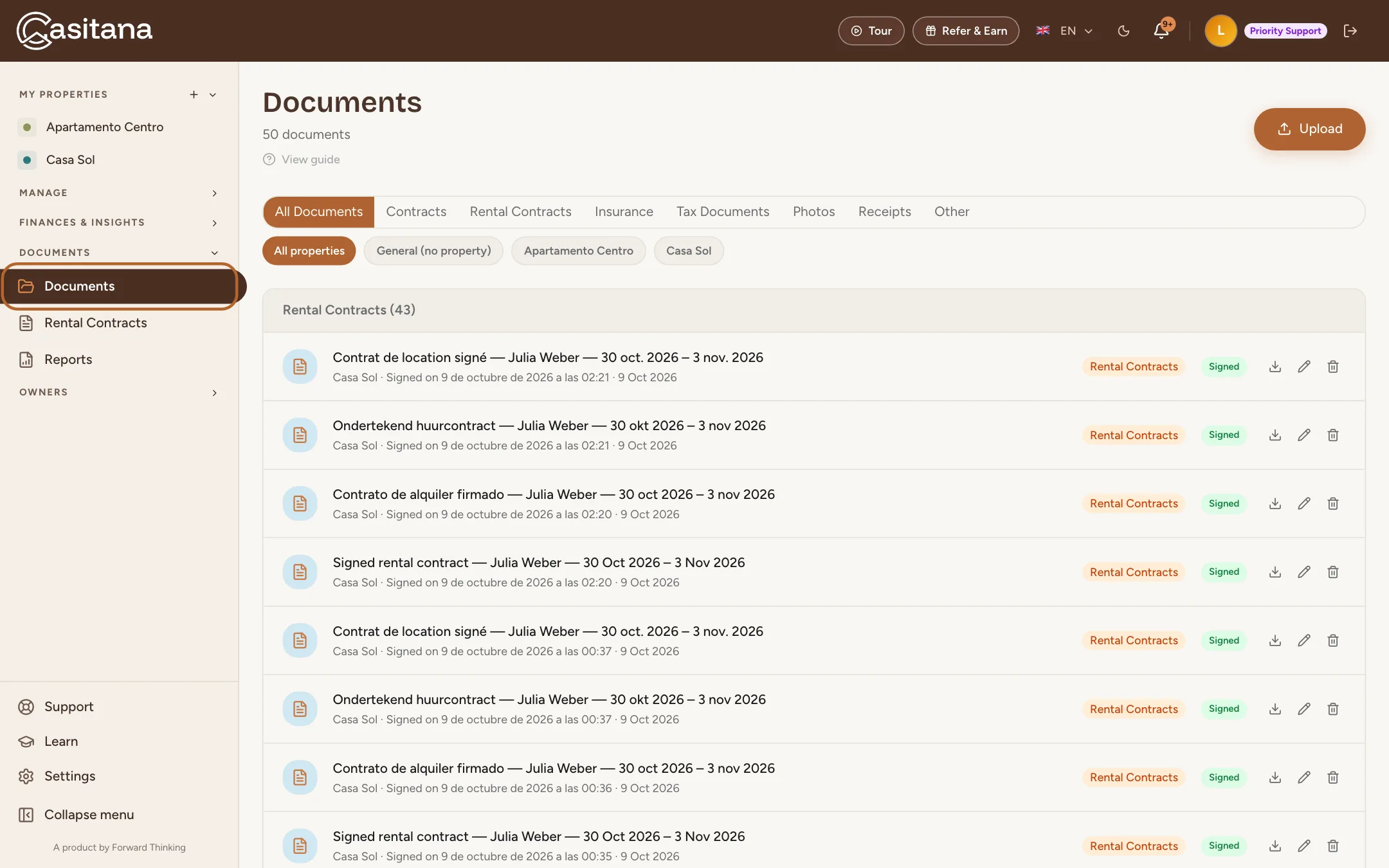
Every receipt you attach is also filed under Documents, as “Receipt:” followed by the expense’s description. Filter on Receipts to see them all.
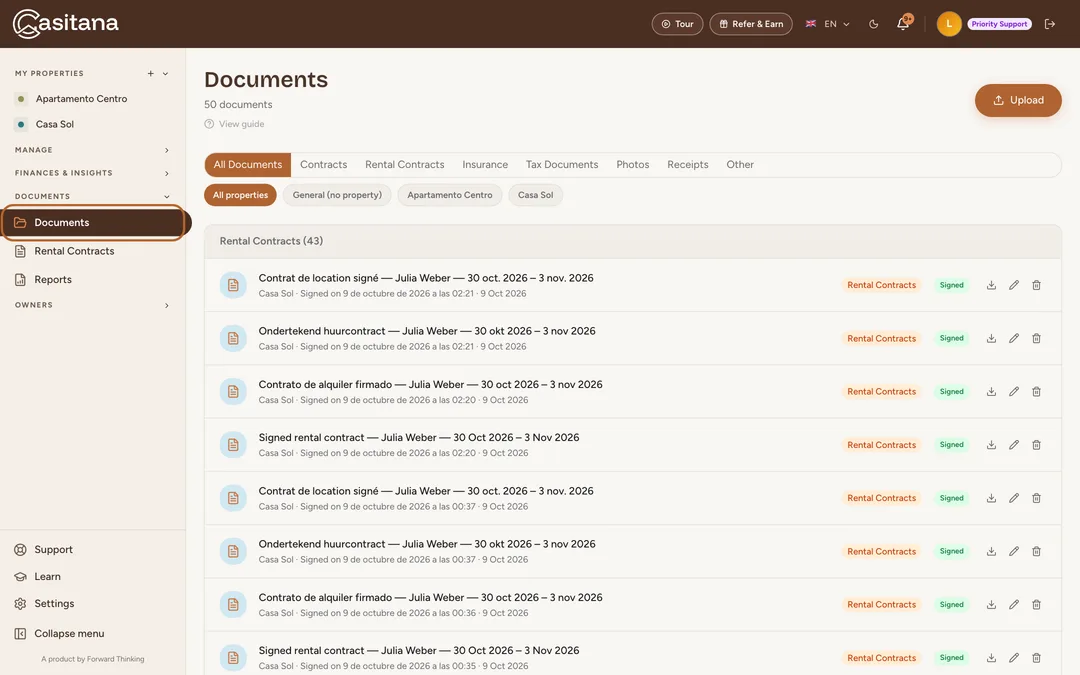 Enlarge screenshot
Tip: What else Documents keeps, and how to upload your own papers: Documents: keep your property papers in one place.
Recurring costs, and costs that are not for the tax report
Step 8
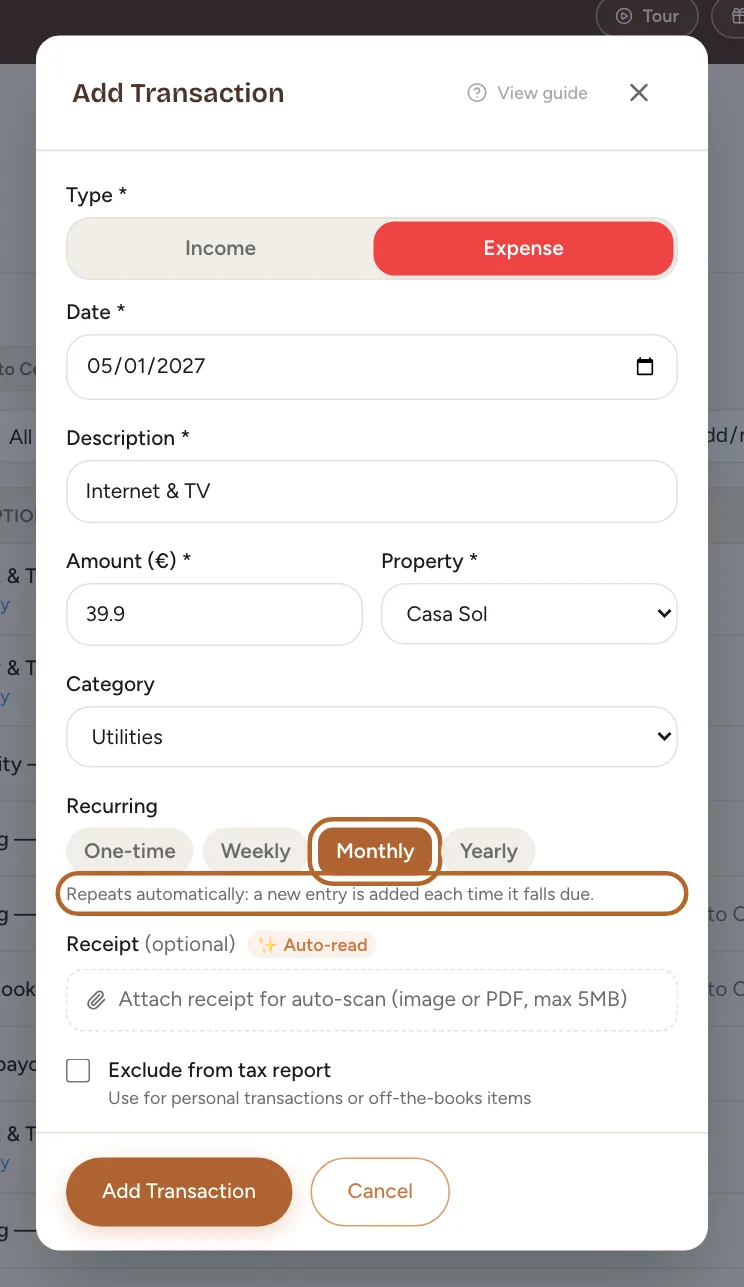
Set up a recurring cost
For a cost that comes back, such as internet or a monthly fee, choose Monthly under Recurring when you add it. Repeats automatically: a new entry is added each time it falls due.
 Enlarge screenshot
Tip: If the first date is in the past, Casitana adds the entries you missed at once and tells you how many before you save.
Step 9
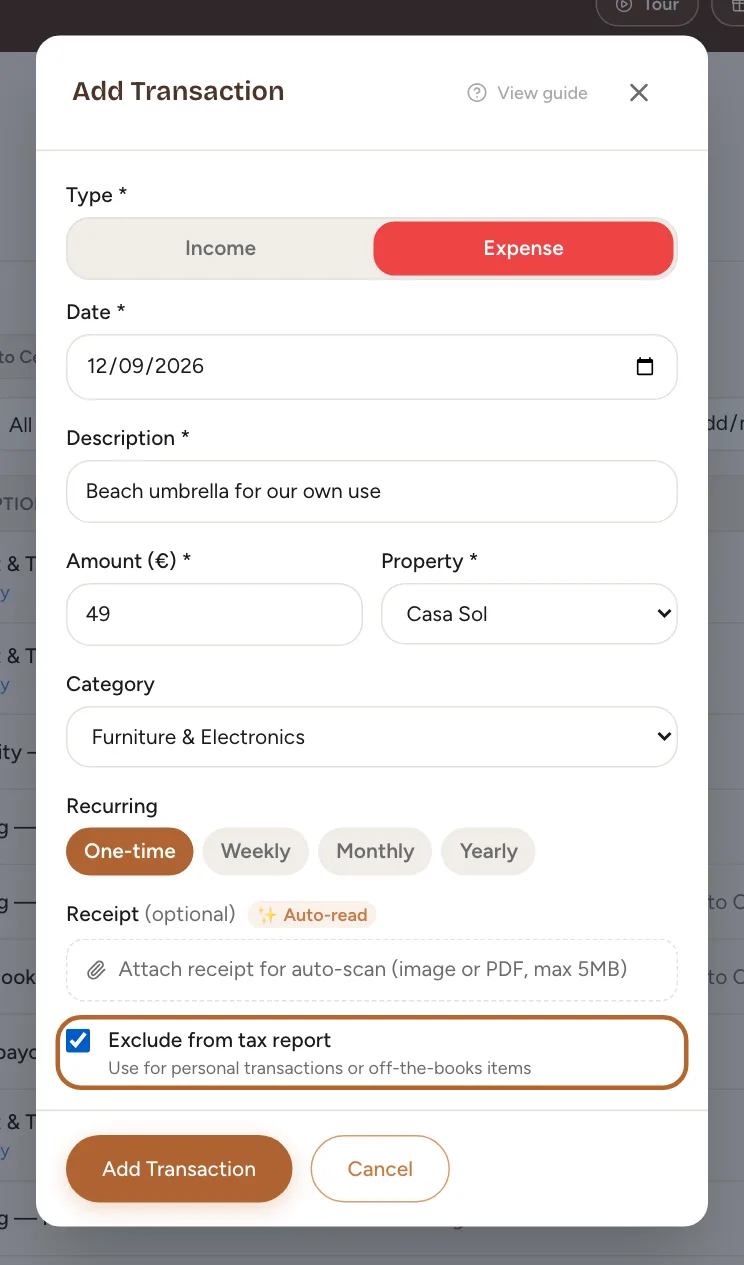
Keep a personal purchase out of the tax report
Something you paid for that is not a cost of letting the property? Tick Exclude from tax report. It stays in your records, marked tax excl., but the tax report and the Modelo 210 dossier leave it out.
 Enlarge screenshot
Change or delete a transaction
Step 10
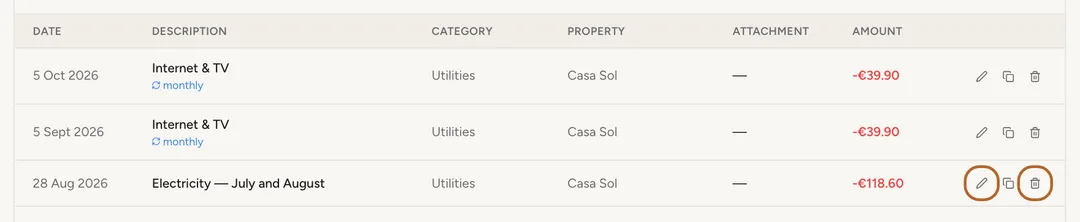
Edit or delete
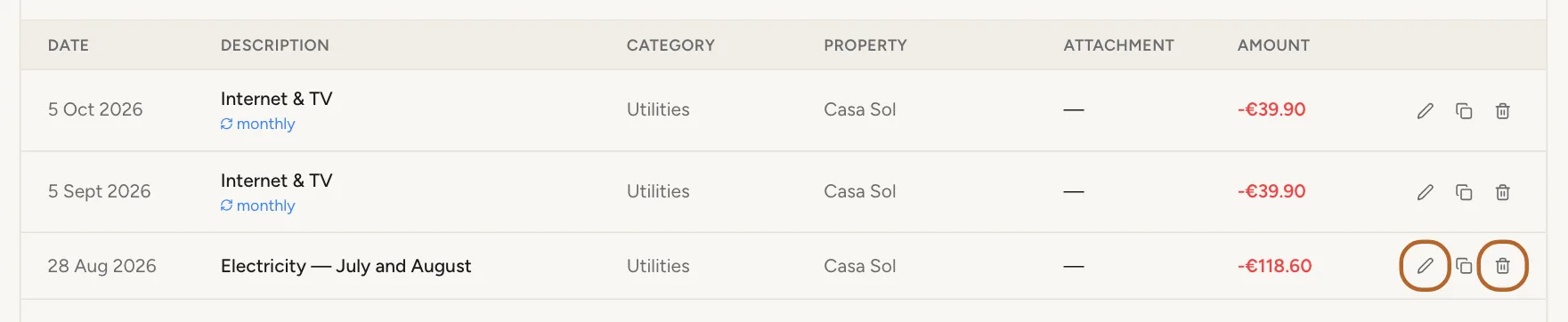
Each row has a pencil to edit the transaction and a bin to delete it. Once you confirm, the transaction goes to the trash with its receipt, and you can restore both for 30 days (The trash: restore what you deleted).
 Enlarge screenshot
Good to know: Deleting the first entry of a recurring cost moves the whole series to the trash; Casitana warns you before it does. Restoring it brings the whole series back.
The finance overview
Step 11
Read the overview
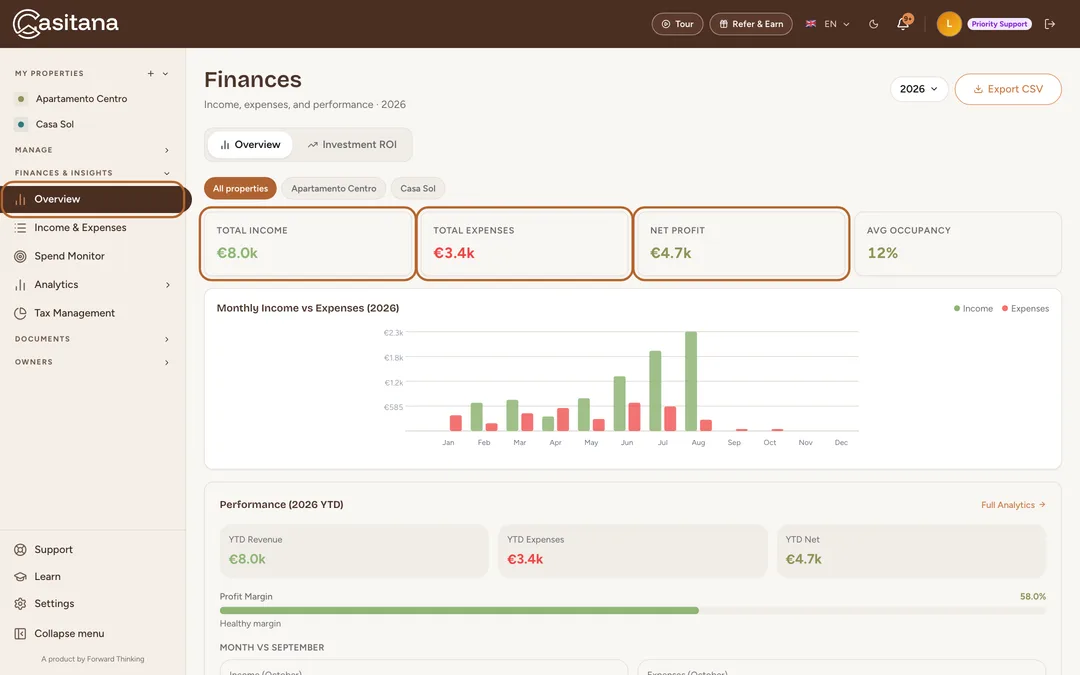
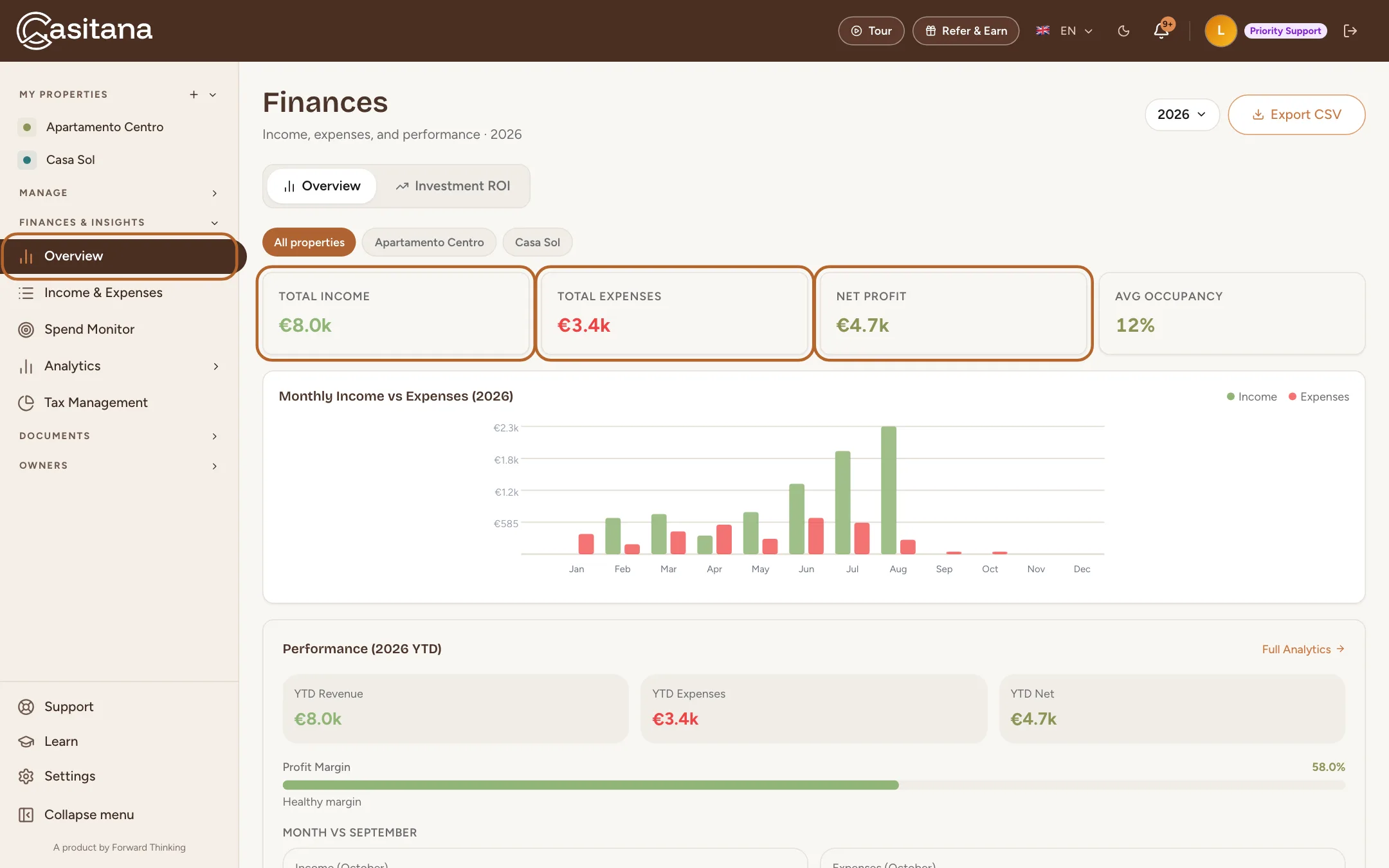
Under Overview, Total Income, Total Expenses and Net Profit add up everything you recorded, with a month-by-month chart of this year and your costs by category. Choose a property at the top to see just that one.
 Enlarge screenshot
Tip: Spending targets per category, and more charts from the same records: Spending limits and analytics.
In the appApp
Step 1
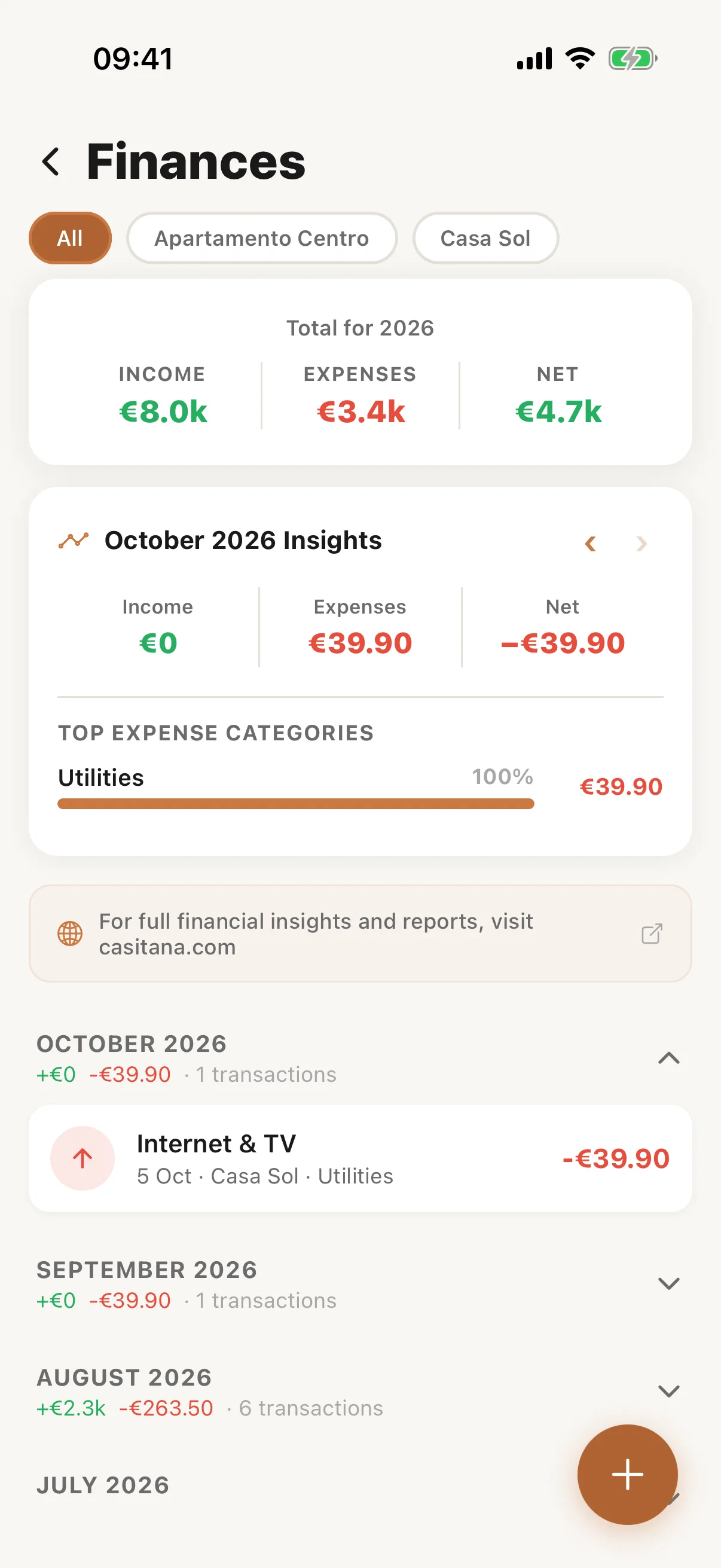
Finances in the app
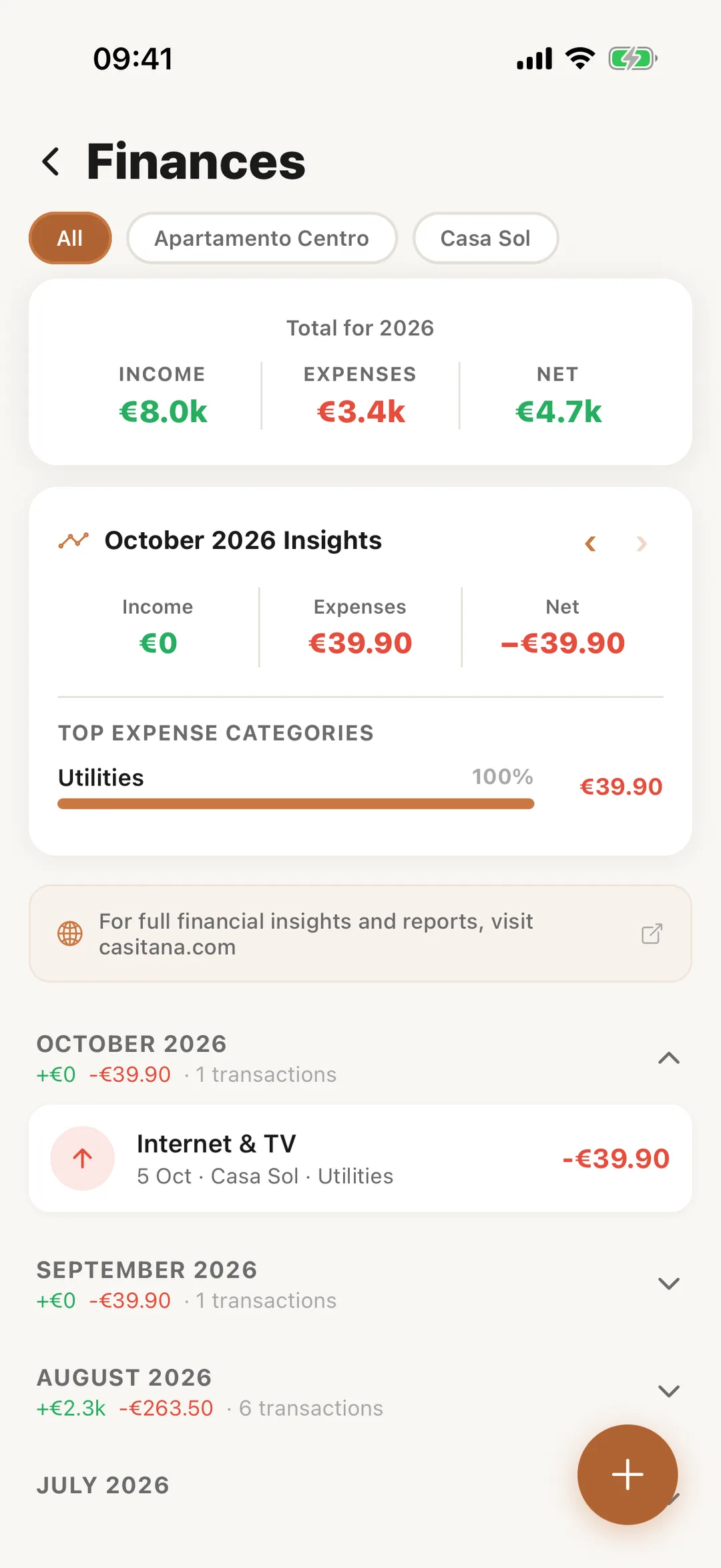
In the Casitana app, open More and tap Finances. It shows the month’s income, expenses and what is left, with every transaction. The + button adds an expense; tap Photograph receipt to take a picture of the receipt: Receipts by camera.
 Enlarge screenshot