Where to find it
Step 1
Four tabs in Property Care
In the menu on the left, click Property Care. The house has four tabs of its own: Maintenance, Inspections, Supplies and Equipment. Repairs and tasks have their own guide: Property care: repairs and tasks.
 Enlarge screenshot
Step 2
What your plan includes
The four tabs are included from the Starter plan; on the Free plan they show a preview. On Starter you can track up to five equipment items. This month’s costs on the Overview tab are on every plan.

Your equipment and its warranties
Step 3
Your equipment
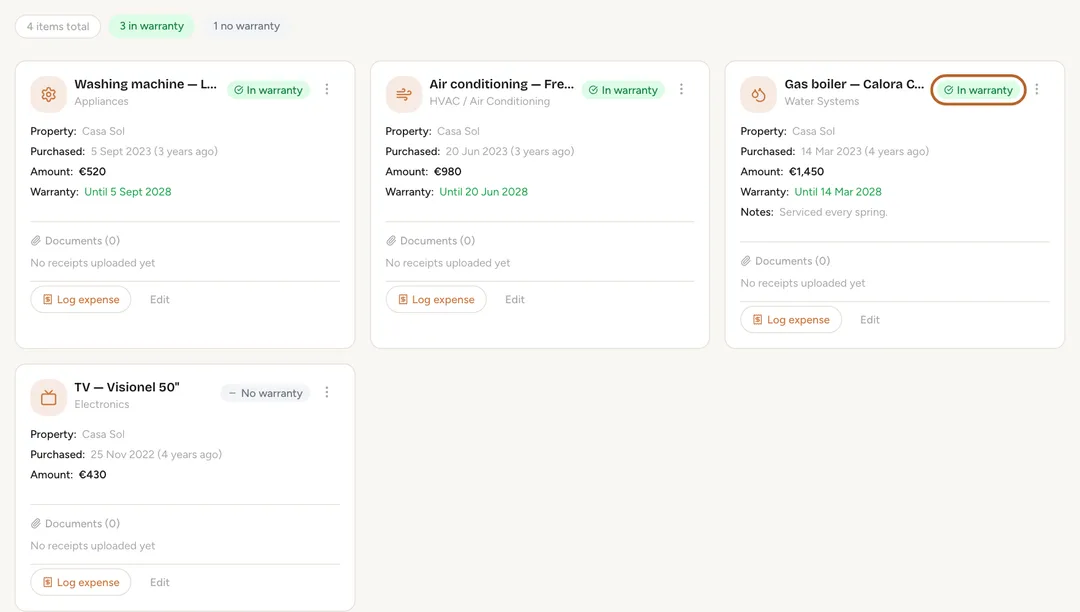
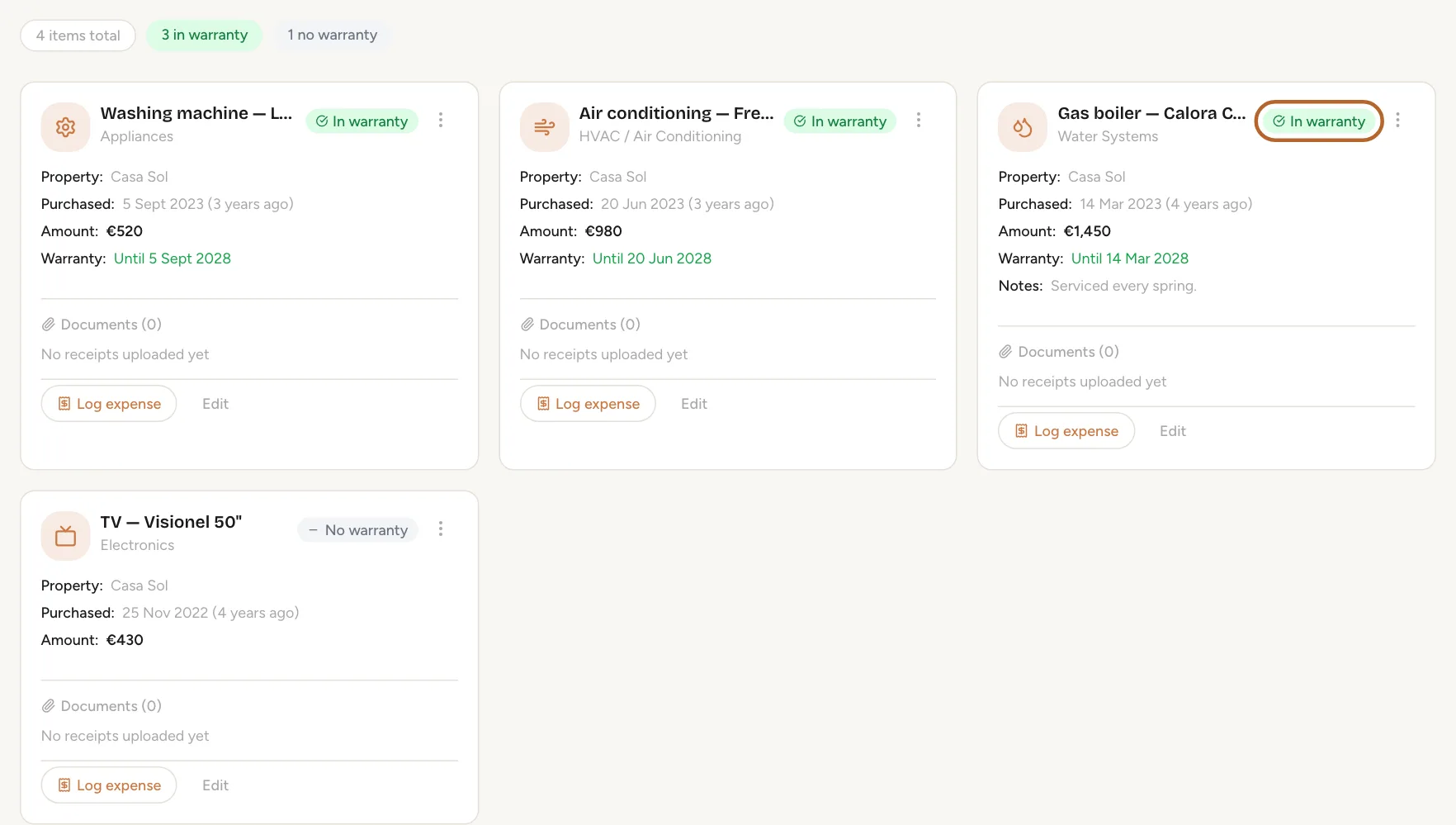
Open the Equipment tab. Each card shows the property, when you bought the item and for how much, and its warranty: In warranty, Expiring soon in its last 90 days, or Warranty expired. Filter by property or by warranty at the top.
 Enlarge screenshot
Tip: A warranty that ends within 90 days is also listed under Warranties Expiring Soon on the Overview tab.
Step 4
Add an item
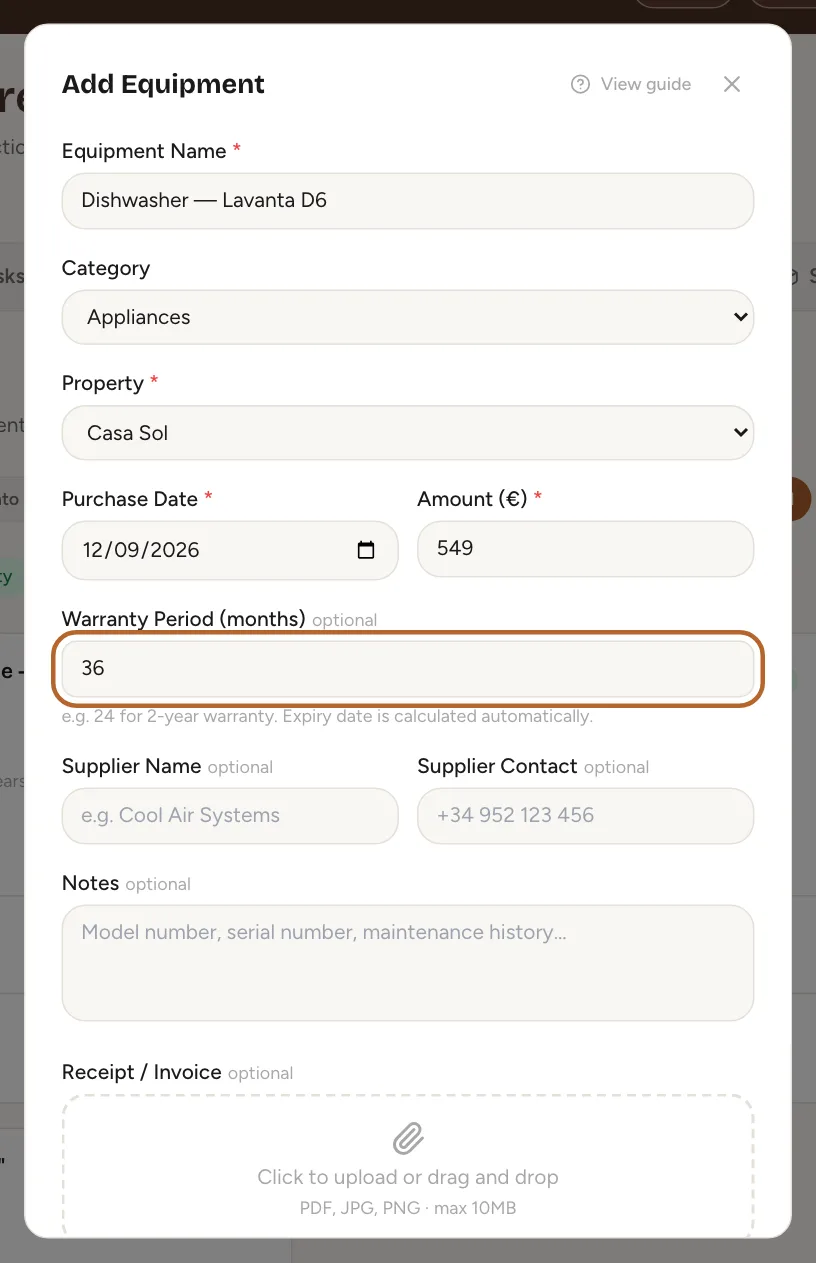
Click + Add Equipment. Give it a name (the brand and model help later), choose a category and the property, and enter the purchase date and the amount. Under Warranty Period (months), type the number of months, for example 24: Casitana works out when the warranty ends. You can attach the receipt straight away. Click Add Equipment.
 Enlarge screenshot
Good to know: With Create expense transaction ticked, as it is by default, the purchase is also recorded as an expense on the property.
Step 5
Keep the invoice and the manual with it
Click an item’s name to open it. Under Attachments, click Add file to keep the invoice, the manual or a photo of the type label; the item’s history is underneath. For a later cost on the item, such as a repair, click Log expense on its card: a new expense opens with the item’s name and property filled in. Check the amount and the date before you save, because they start as the purchase price and today.
Step 6
Turn an expense into an item
When you add a new expense in the category Appliances or furniture and electronics (Record an expense), Casitana asks Track as equipment? Click Yes, add details, add the warranty and the supplier, and save: the expense now appears in your equipment list.
Maintenance schedules
Step 7
Your maintenance schedules
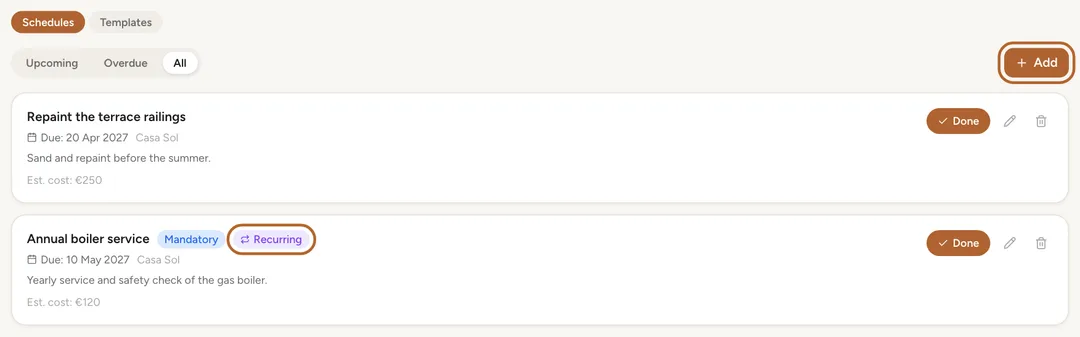
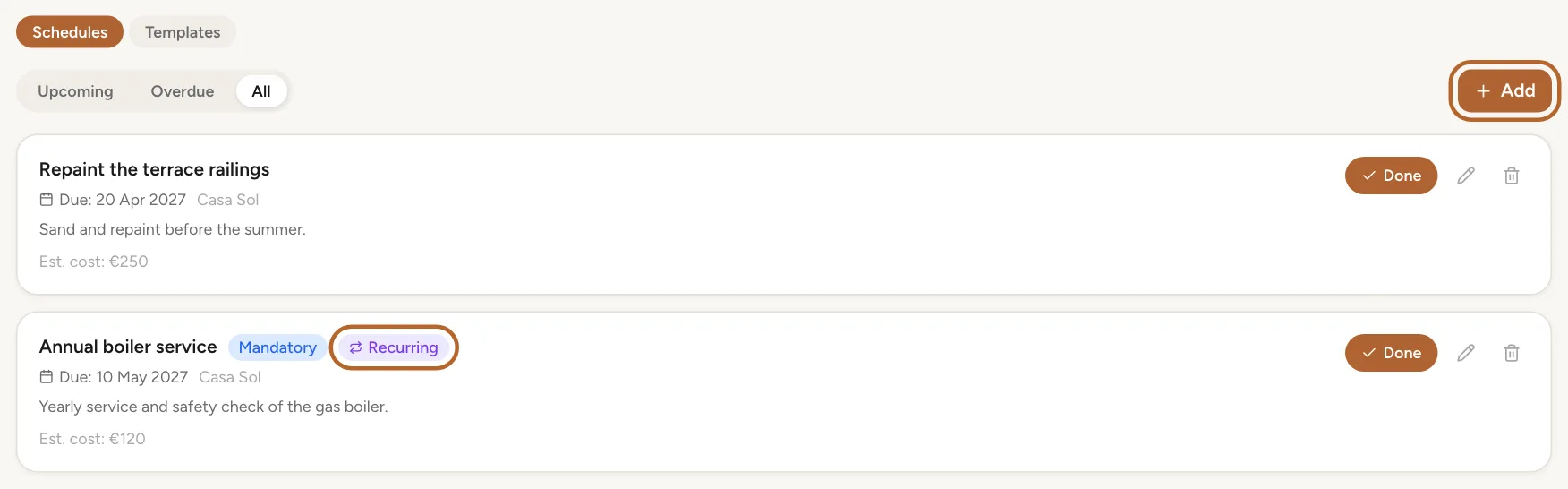
Open the Maintenance tab. Each schedule shows when it is next due, the property, the estimated cost and when it was last done. A schedule past its date is marked OVERDUE and also appears under Attention Needed on the Overview tab. The next due date of each schedule is on your calendar too.
 Enlarge screenshot
Step 8
Add a schedule
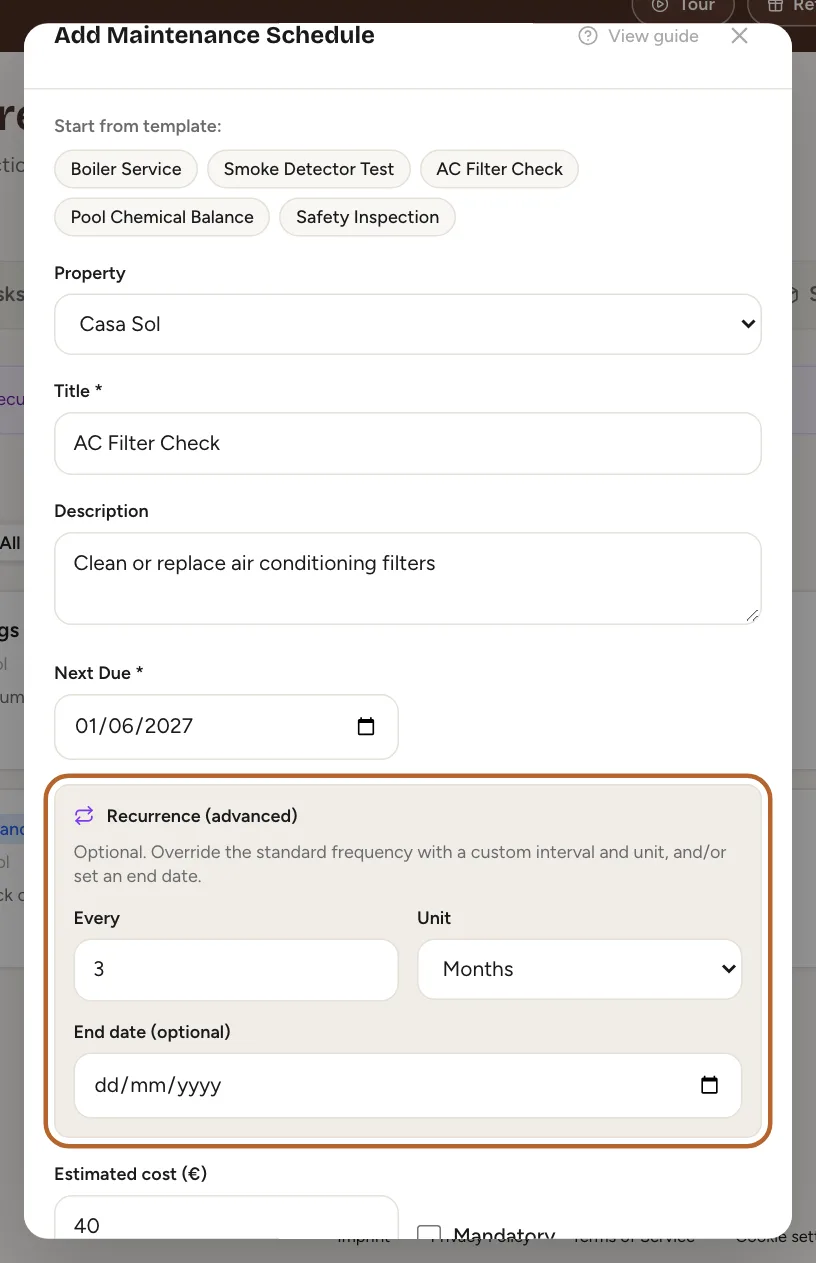
Click + Add. Start from a template such as Boiler Service, or type your own title. Set Next Due, add an estimated cost if you like, tick Mandatory for the ones you cannot skip, and click Save.
 Enlarge screenshot
Step 9
Tick it off
When the work is done, click Done on the schedule. Casitana records it as done today.
 Enlarge screenshot
Step 10
Invoices, photos and the history
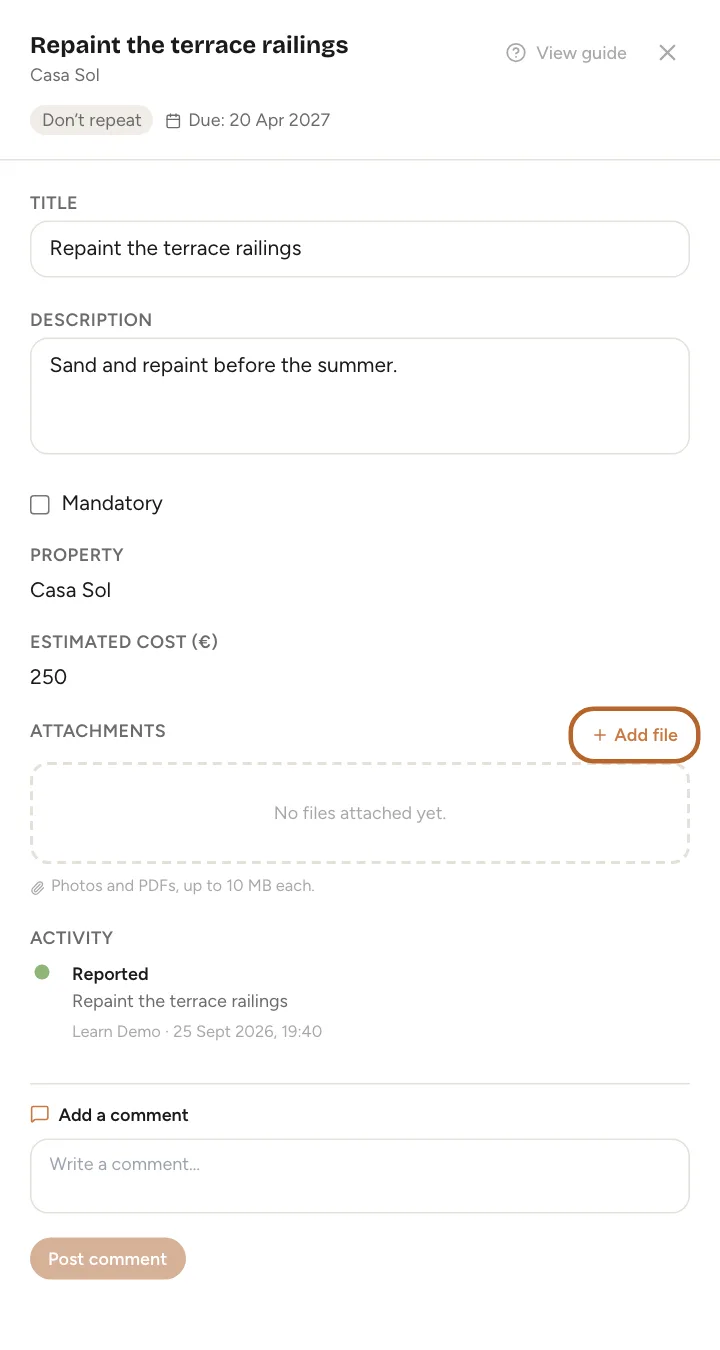
Click a schedule’s title to open it. There you can change the title, the description and Mandatory, keep the invoice or photos under Attachments, and read its history. To change the date, click the pencil on its card.
 Enlarge screenshot

Inspections
An inspection is a visit to check the house: before the season, after guests, or for safety.
Step 11
Schedule an inspection
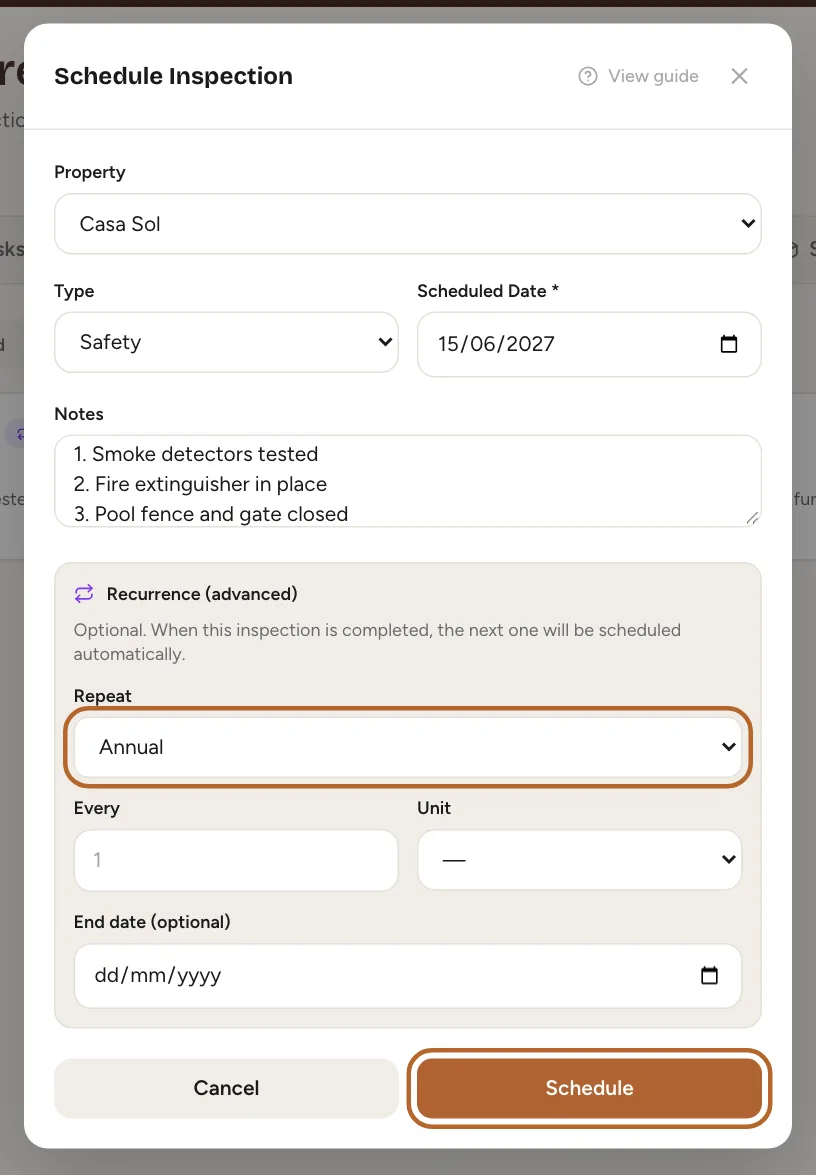
Open the Inspections tab and click + Schedule. Choose the property, the Type, for example Pre-Season, and the date. Write what to check under Notes, one point per line. Click Schedule.
 Enlarge screenshot
Tip: Templates holds ready-made checklists, for a villa’s pool and garden or a yearly safety check, for example. Use copies one into the notes.
Step 12
Photos and the result
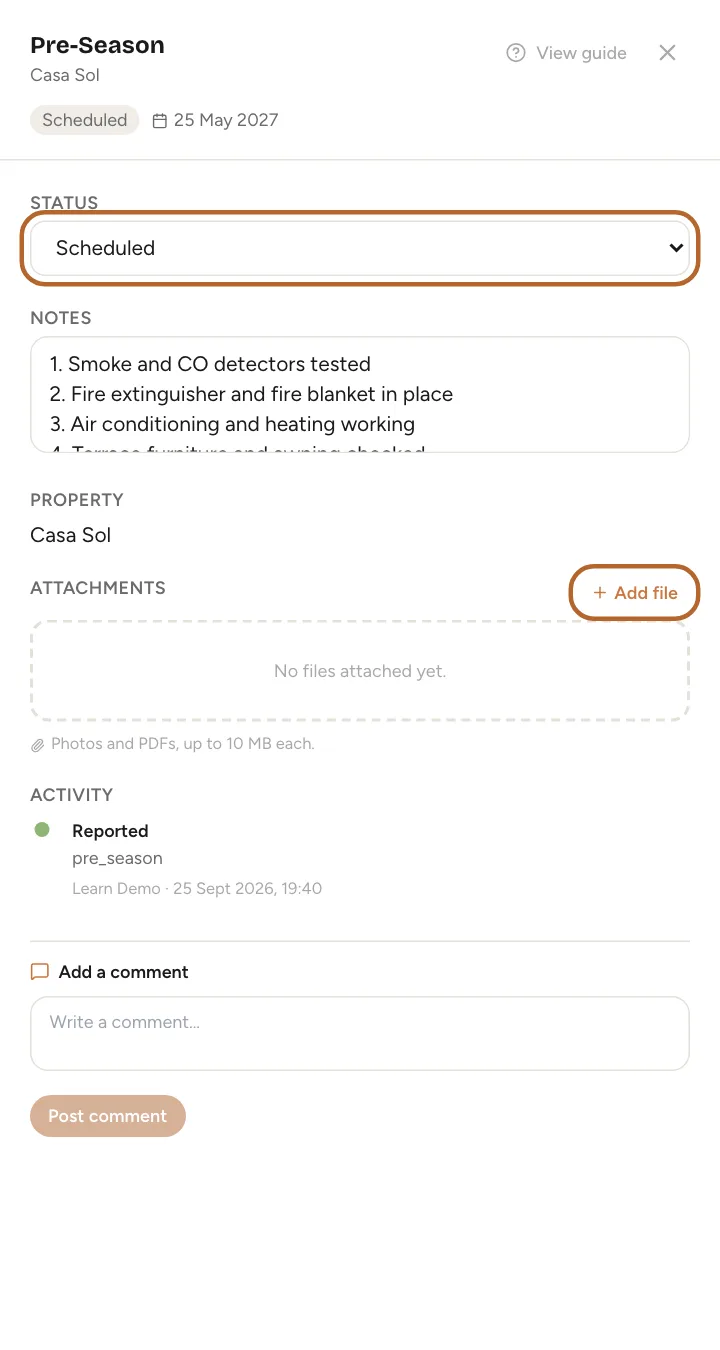
Click an inspection to open it. Change its Status, add to the notes, and keep photos of what you found under Attachments. The history shows every change.
 Enlarge screenshot
Step 13
Tick it off
When the check is done, click Done on its card. It moves to Completed.
Schedules and inspections that repeatIncluded from the Growth plan
Included from the Growth plan. On Starter, a schedule or an inspection happens once.
Step 14
Make a schedule repeat
When you add or edit a schedule, choose under Recurrence (advanced) how often it comes back: Every 1, Years for a yearly service. To make it stop, set End date (optional). A schedule that repeats carries Recurring in the list.
Step 15
Tick off a repeating schedule
When you click Done on a schedule that repeats, Casitana moves the due date on by its rule, counted from the date it was due, and the card shows today’s date next to Last done:. Past its end date, the schedule is closed.
Step 16
Make an inspection repeat
When you schedule an inspection, choose how often it comes back under Repeat. When you click Done on it, Casitana schedules the next one straight away, one interval after this one’s date. The new one starts without notes, so copy your checklist in again or start it from a template.
Supplies
Step 17
Your supplies
Open the Supplies tab. Each item shows how many you have against how many you like to keep. Count with − and +. An item at or below its minimum counts as low and gets a Restock button: click it after shopping to set the stock back to your preferred level. Between the two, an item is running low.
 Enlarge screenshot
Step 18
Add an item
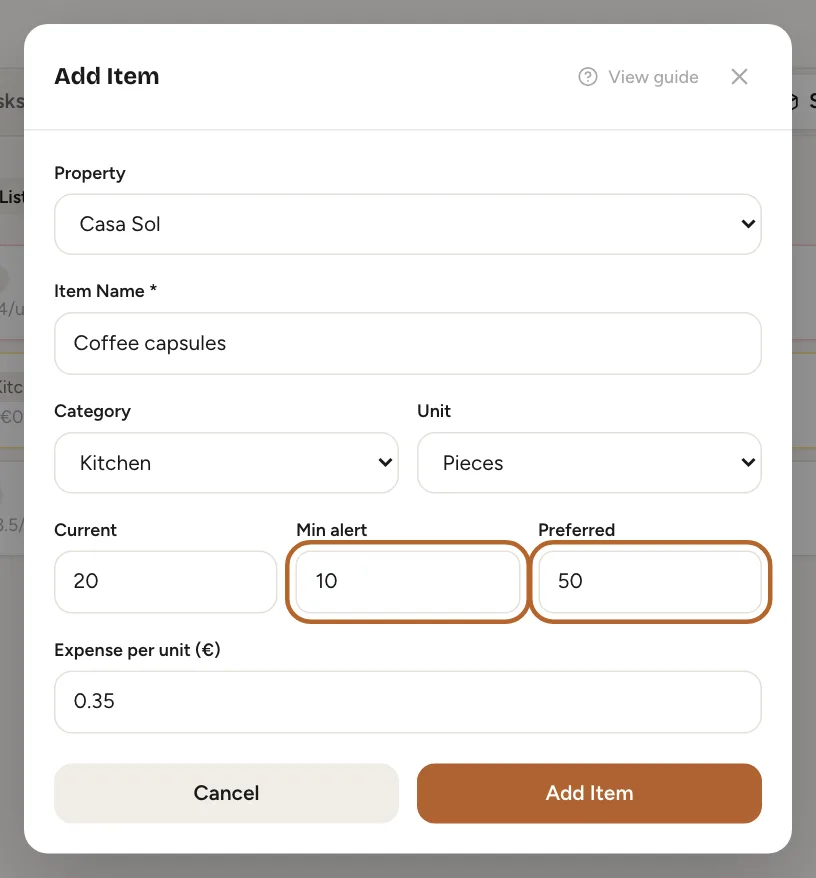
Click + Add Item. Name the item, choose a category and a unit, and enter three numbers: Current, what you have now; Min alert, the level at which it counts as low; and Preferred, how many you like to have. Add the price per unit to keep it at hand. Click Add Item.
 Enlarge screenshot
Step 19
Your shopping list
When something is low, click List at the top. Shopping List: Low Stock shows how many of each low item you need to get back to your preferred level, and for which property.
 Enlarge screenshot
Step 20
An item’s details
Click an item’s name to open it: change the three levels, keep a receipt or a photo under Attachments, and read its history.


What upkeep cost you this month
Step 21
This month’s costs
The Overview tab adds up this month’s upkeep under Monthly Expenses (This Month), per category, for example Maintenance, Repairs and Supplies, with the total underneath. It counts the expenses you recorded this month, not the estimated costs on your schedules.
 Enlarge screenshot
Tip: For a cost to count here, record it as an expense (Record an expense) in the category Maintenance, Repairs or Supplies.

In the appApp
Step 1
On your phone
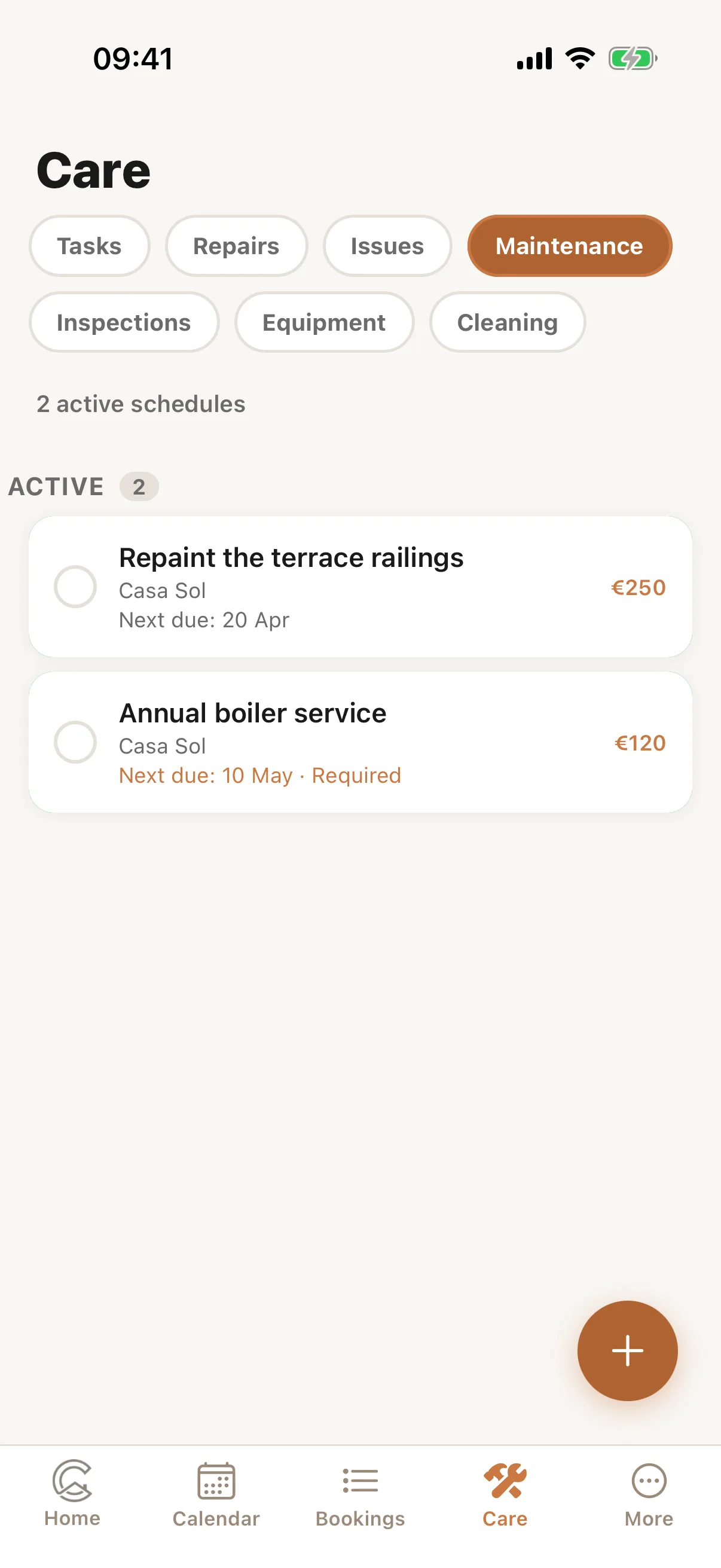
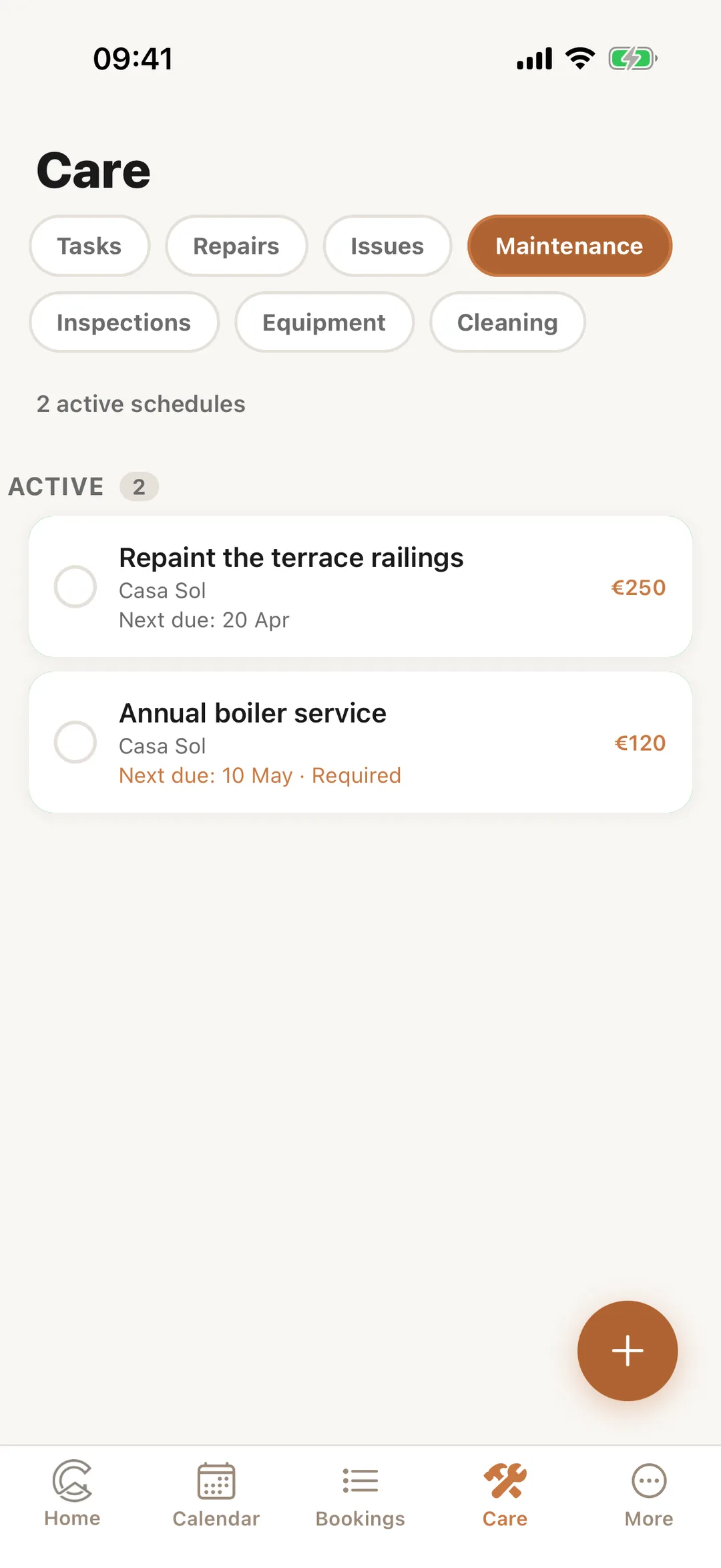
In the Casitana app, the Care tab has Maintenance, Inspections and Equipment next to your tasks. A schedule shows when it is next due; tap it to see it or mark it done.
 Enlarge screenshot