
Get the appApp
Step 1
Download it
Search for Casitana in the App Store on an iPhone or in Google Play on an Android phone, or use the store buttons at the bottom of casitana.com. The app is free; what it lets you do depends on your plan, as on the website.
Step 2
Log in
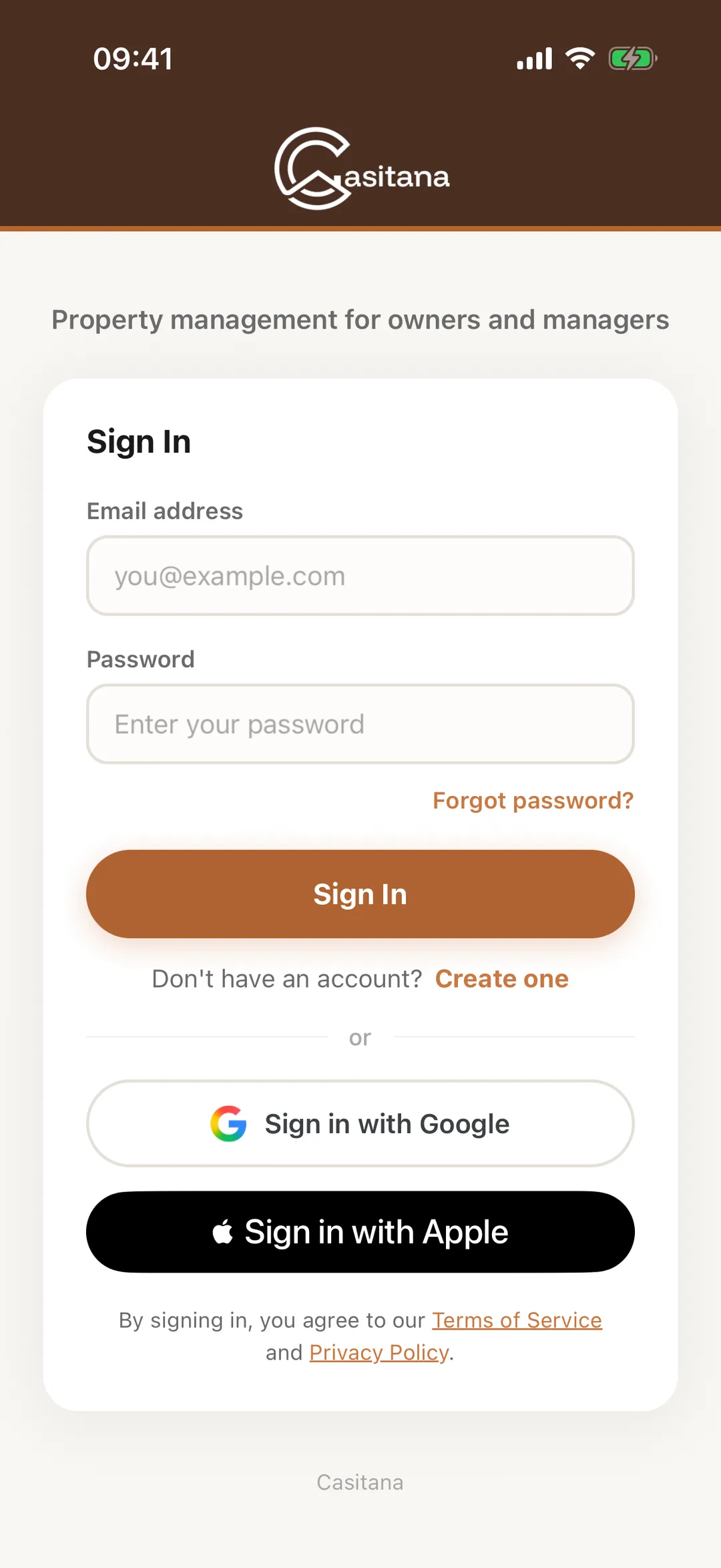
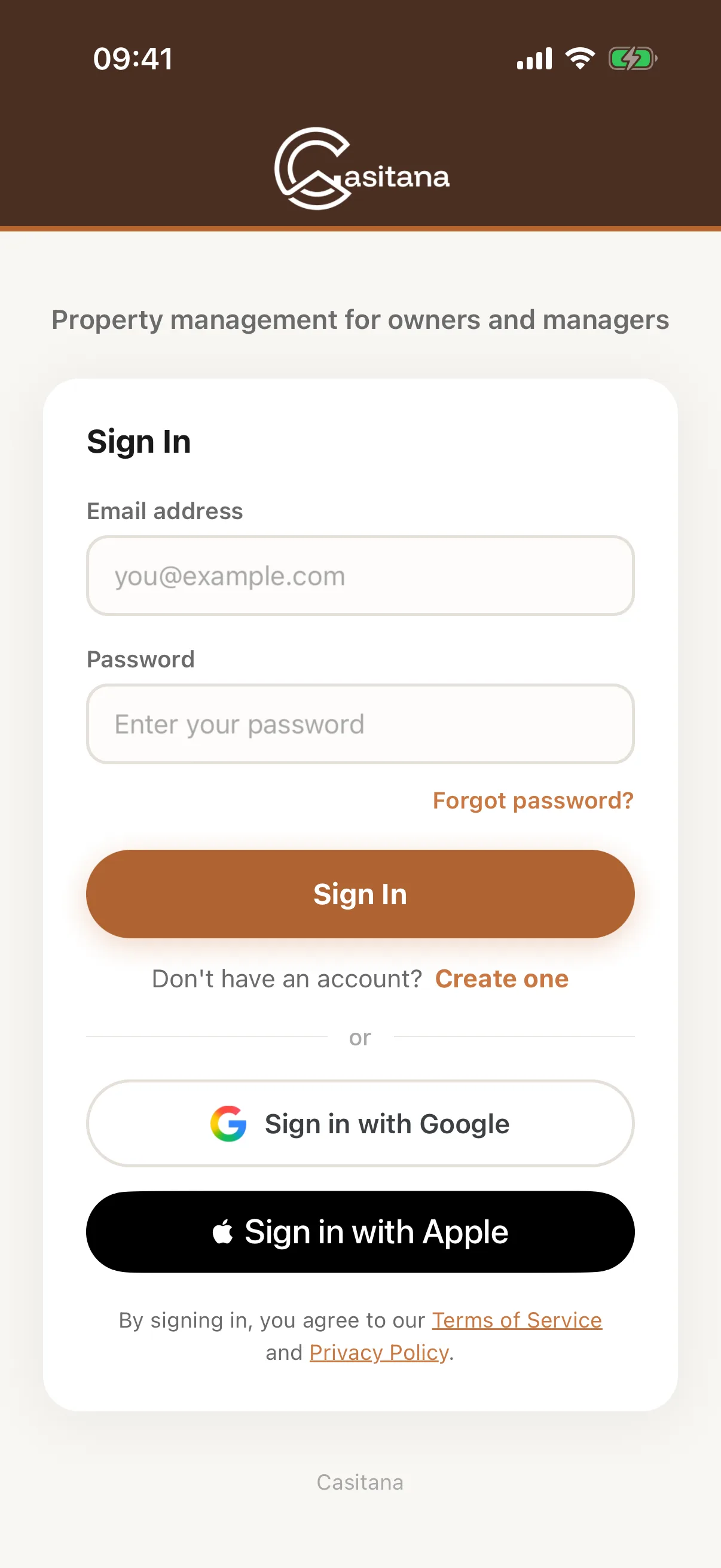
Enter the email address and password you use on the website and tap Sign In, or tap Sign in with Google; on an iPhone you can also log in with Apple. New to Casitana? Tap Create one to make an account. Forgot password? opens the website to reset it. If your account uses two-step verification, the app then asks for your code: Two-step verification.
 Enlarge screenshot
Two layoutsApp
The bar at the bottom of the screen comes in two layouts: one for running a few properties yourself, one for managing many. Both have the same screens; they put different ones within one tap.
Step 3
The app suggests one
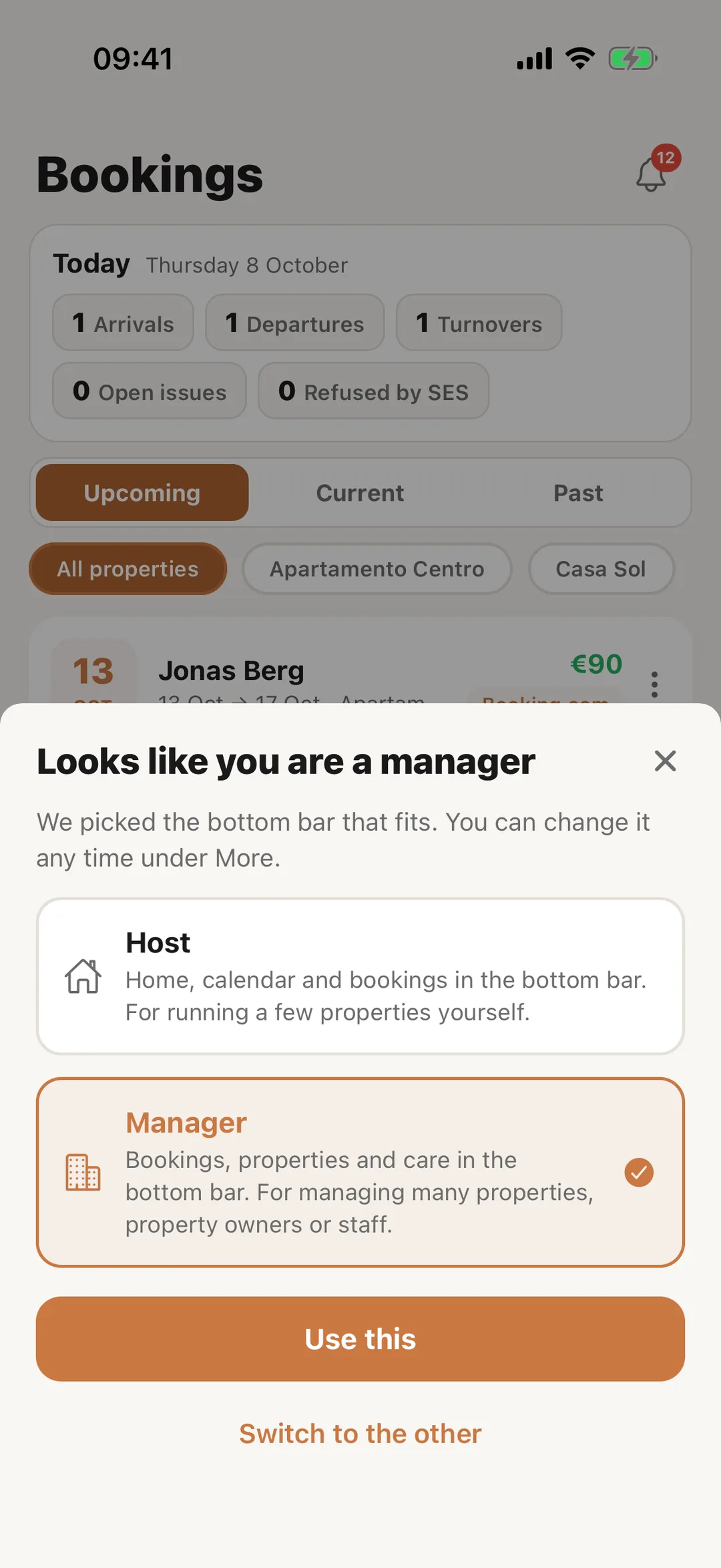
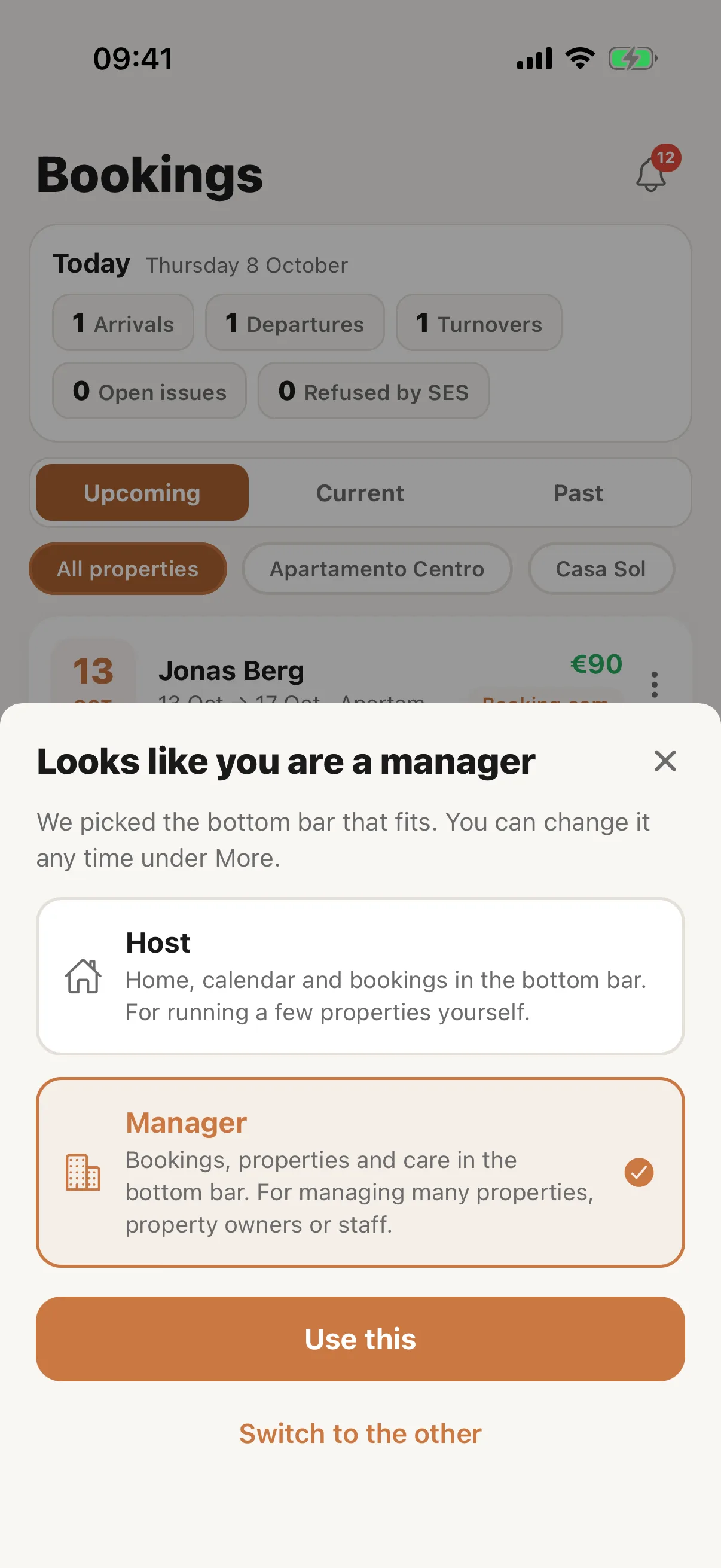
The first time you log in, the app suggests a layout from your account: Manager if it has property owners, staff or more than five properties, otherwise Host. Tap Use this to keep it, or Switch to the other. Either way you can change it later.
 Enlarge screenshot
Step 4
Host
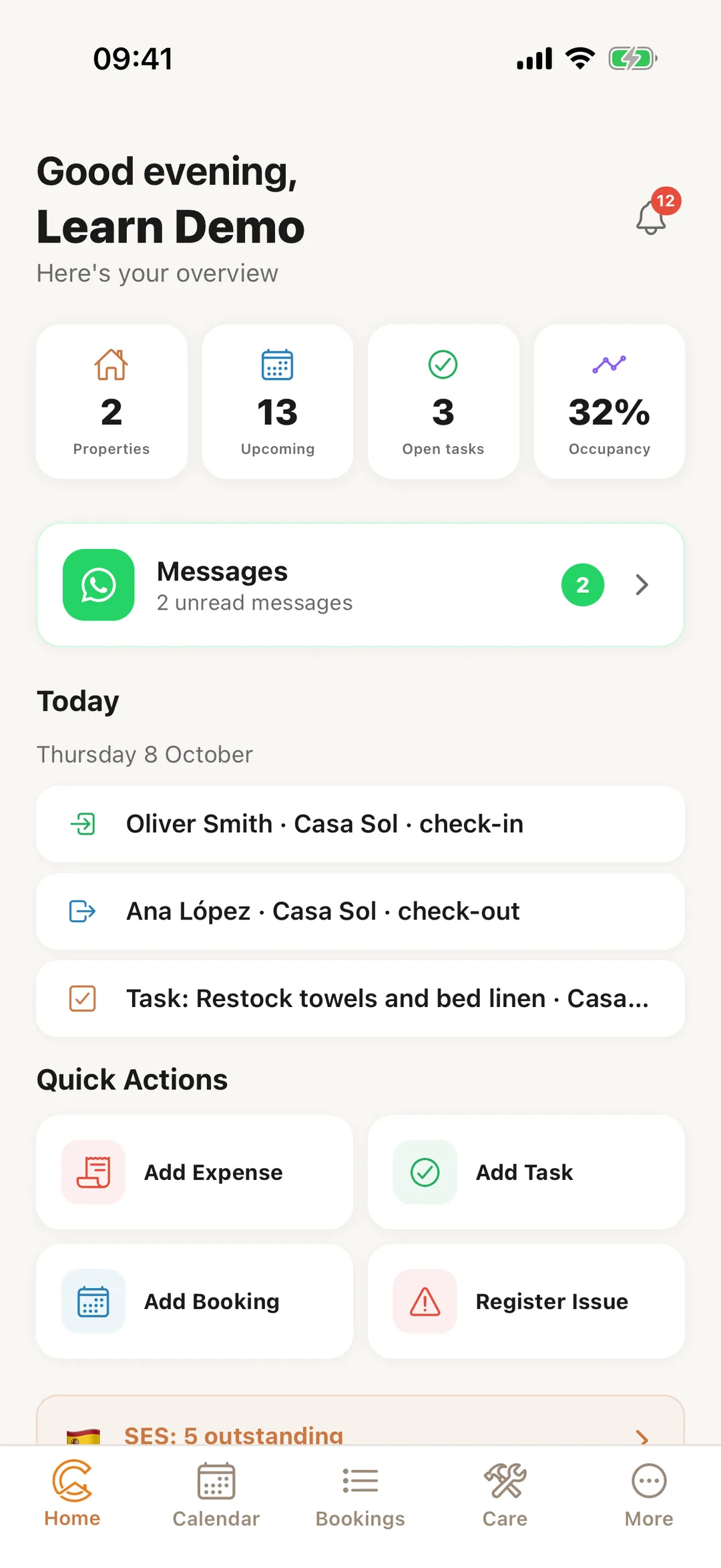
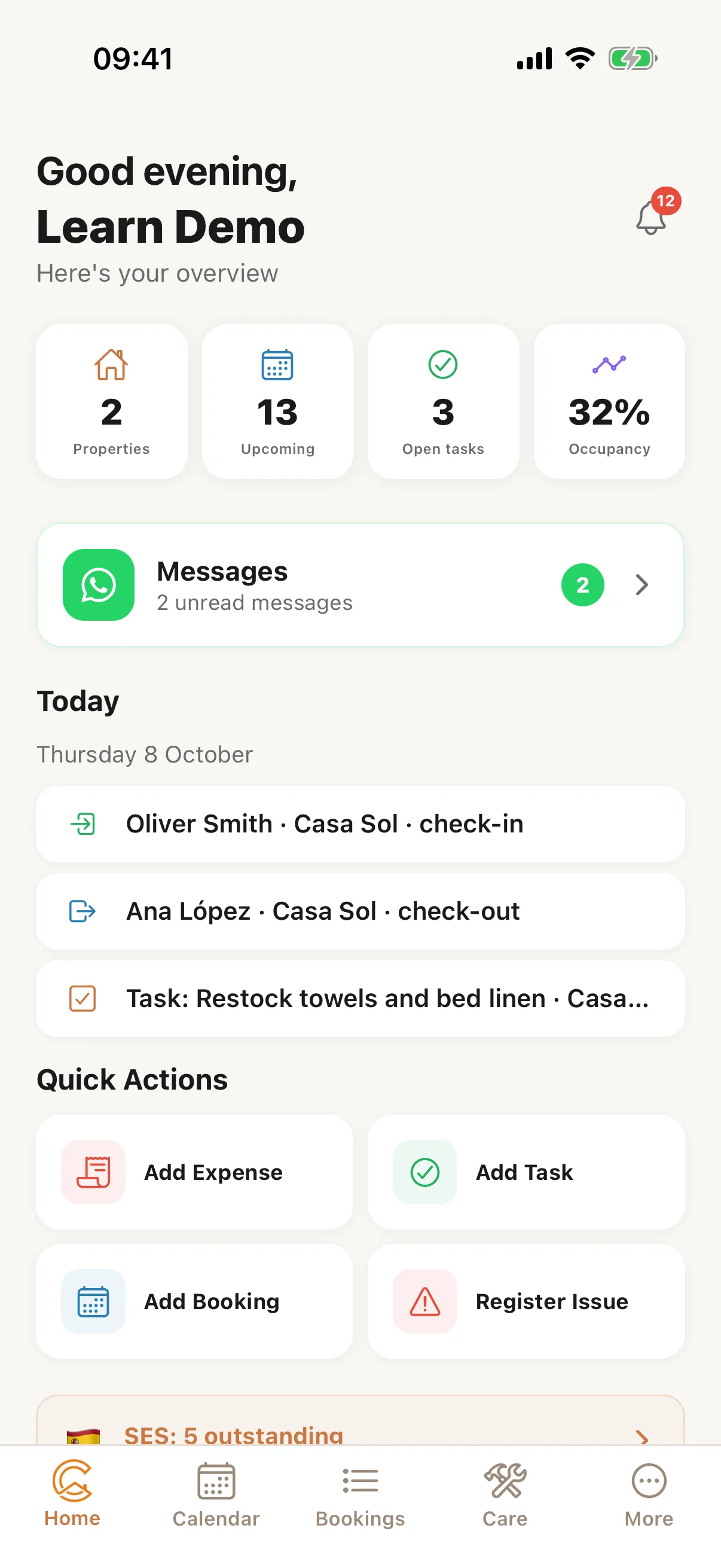
Home, Calendar, Bookings, Care and More. Home shows today’s arrivals and departures, your figures and open tasks, with quick actions to add an expense, a task or a booking or to register an issue. Care holds your tasks, repairs, issues, maintenance, inspections and equipment.
 Enlarge screenshot
Step 5
Manager
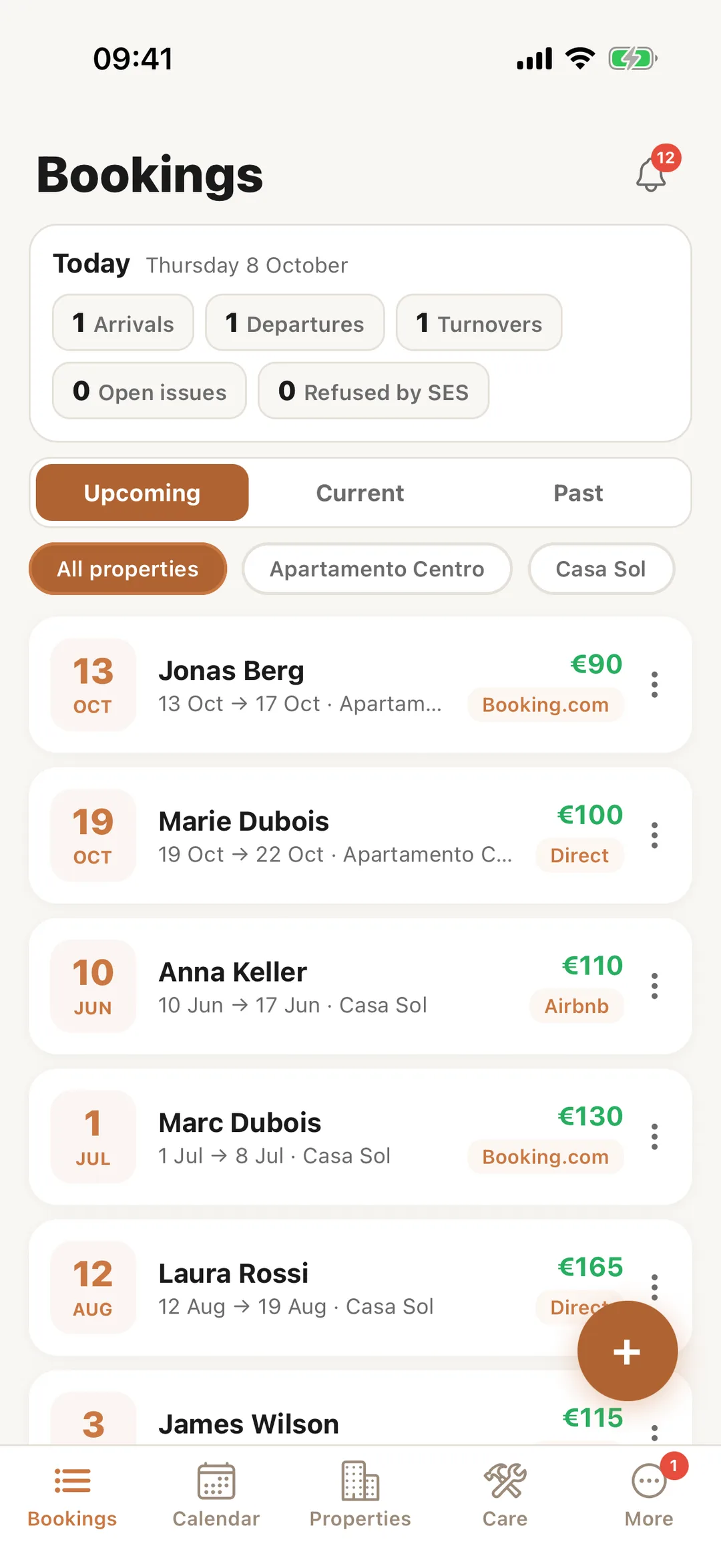
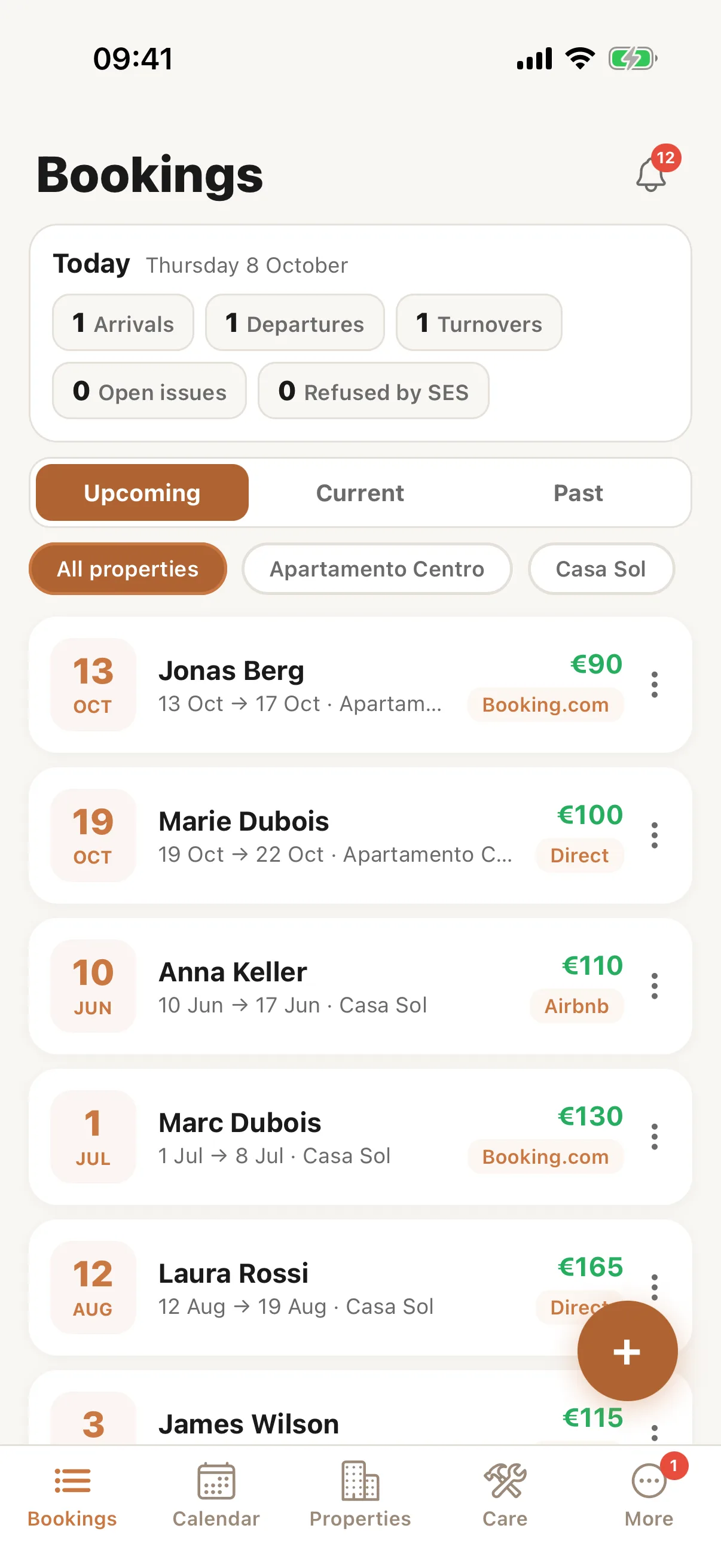
Bookings, Calendar, Properties, Care and More. The app opens on Bookings, with today’s arrivals, departures and changeovers at the top.
 Enlarge screenshot
Step 6
A property, now
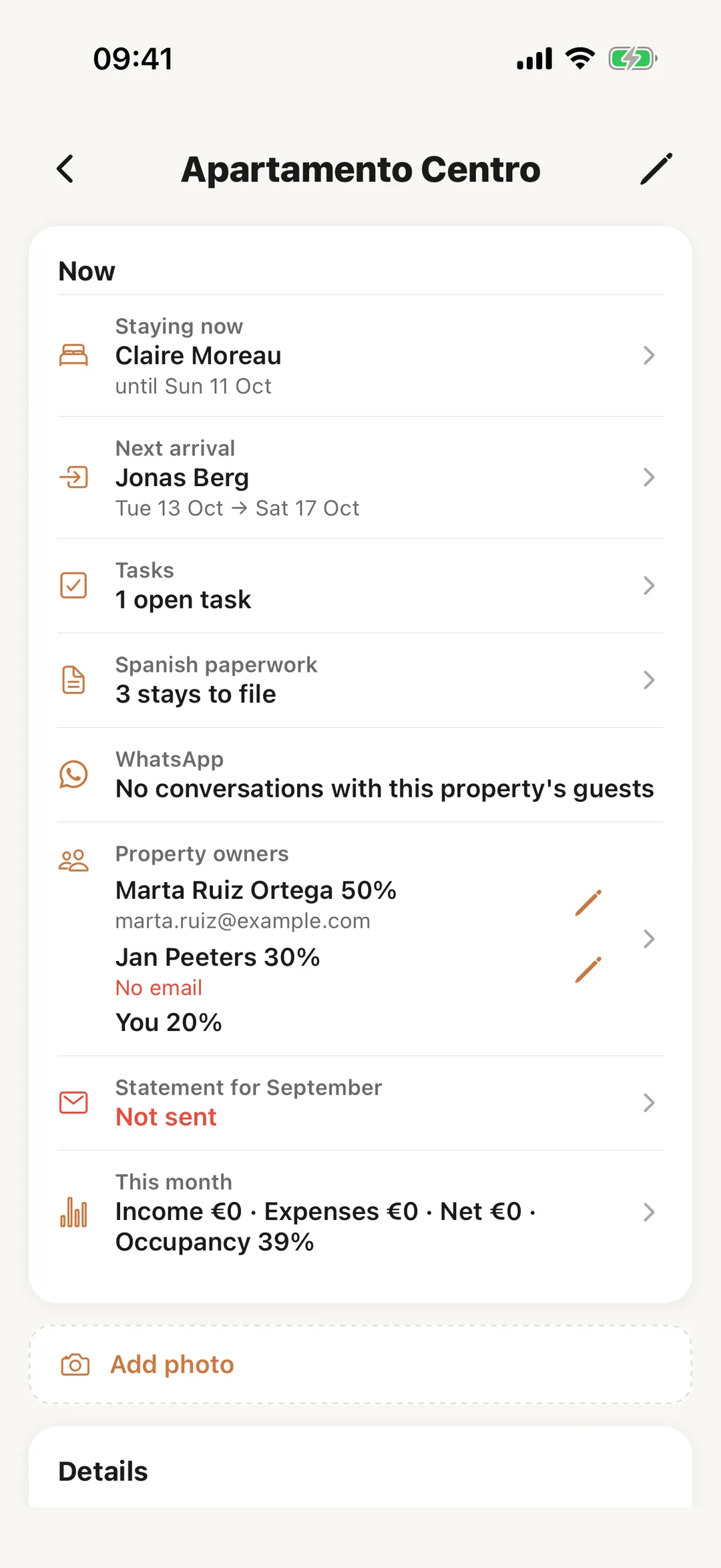
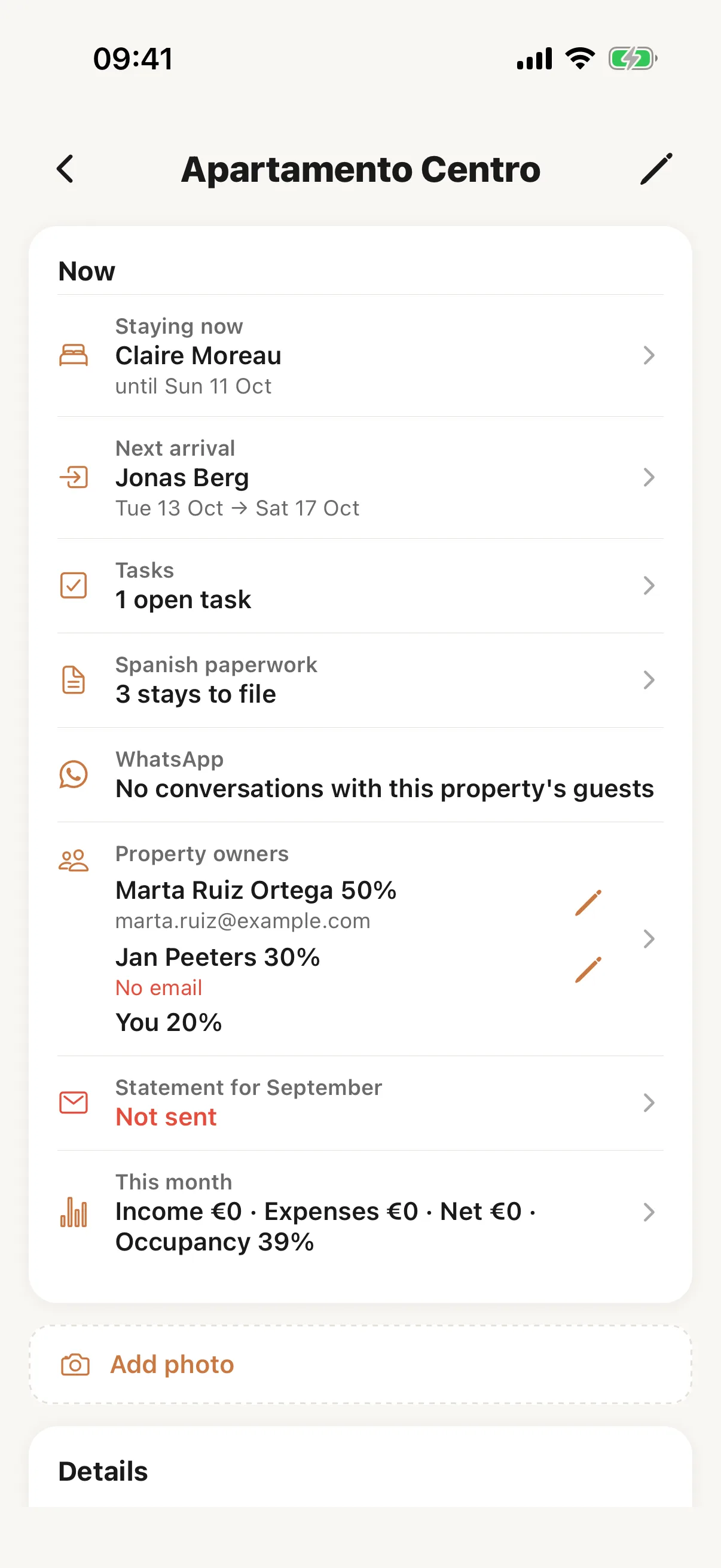
Open a property from Properties and its page starts with Now: who is staying and until when, the next arrival, open tasks and issues, stays still to register with SES, and last month’s statement. Tap a line to open what it is about.
 Enlarge screenshot
Step 7
Change the layout
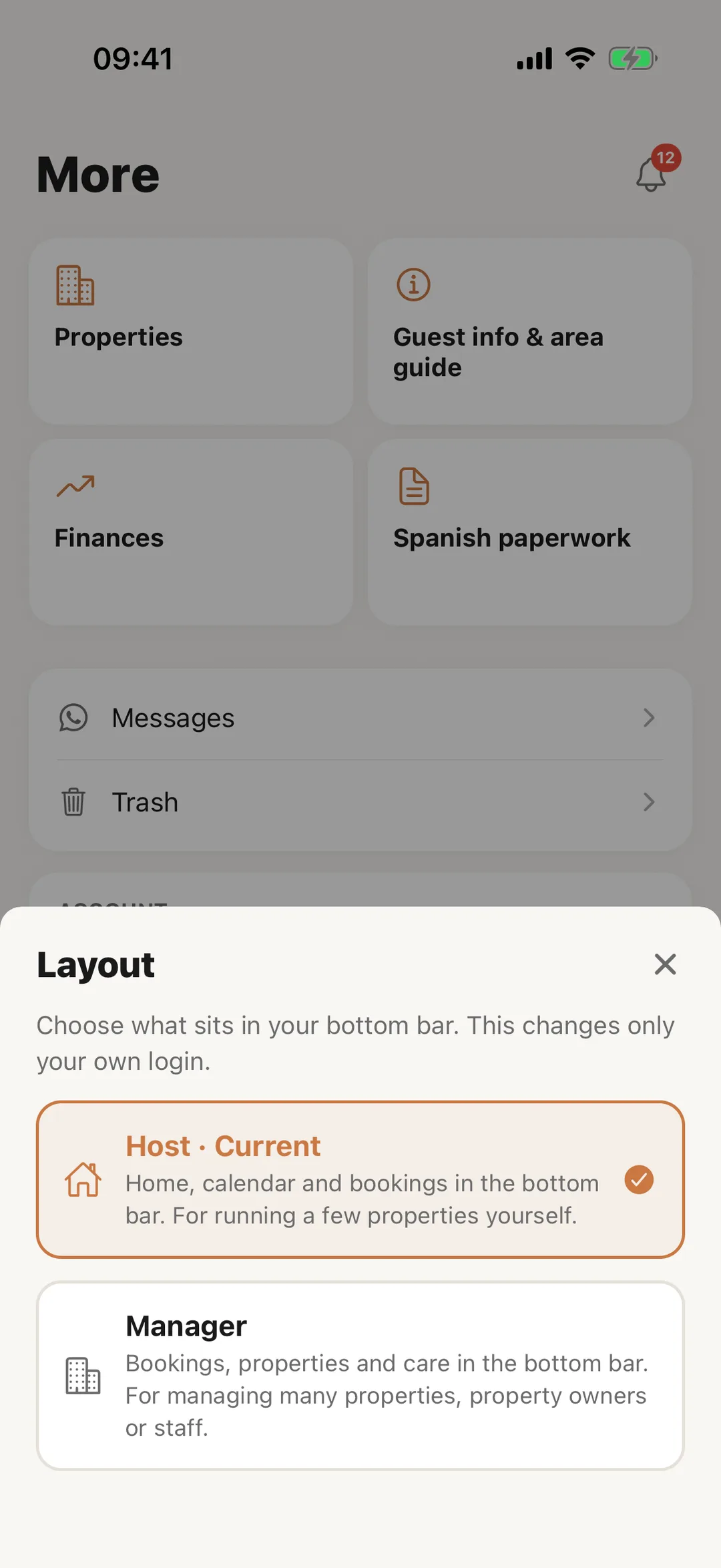
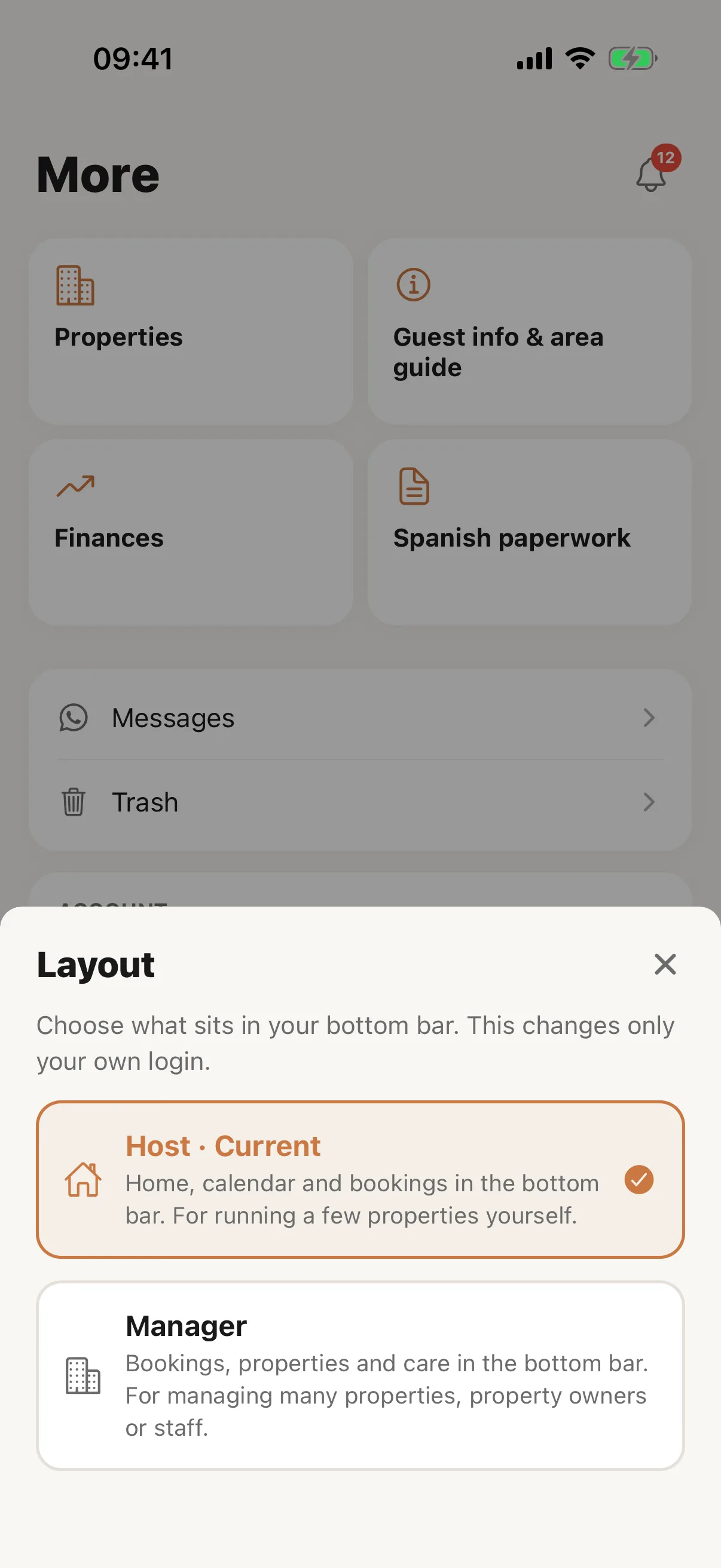
Open More, then Layout under Account, and choose Host or Manager. The bar changes at once. The choice belongs to your login, so a staff member can pick a different layout without changing yours.
 Enlarge screenshot
The More tabApp
Step 8
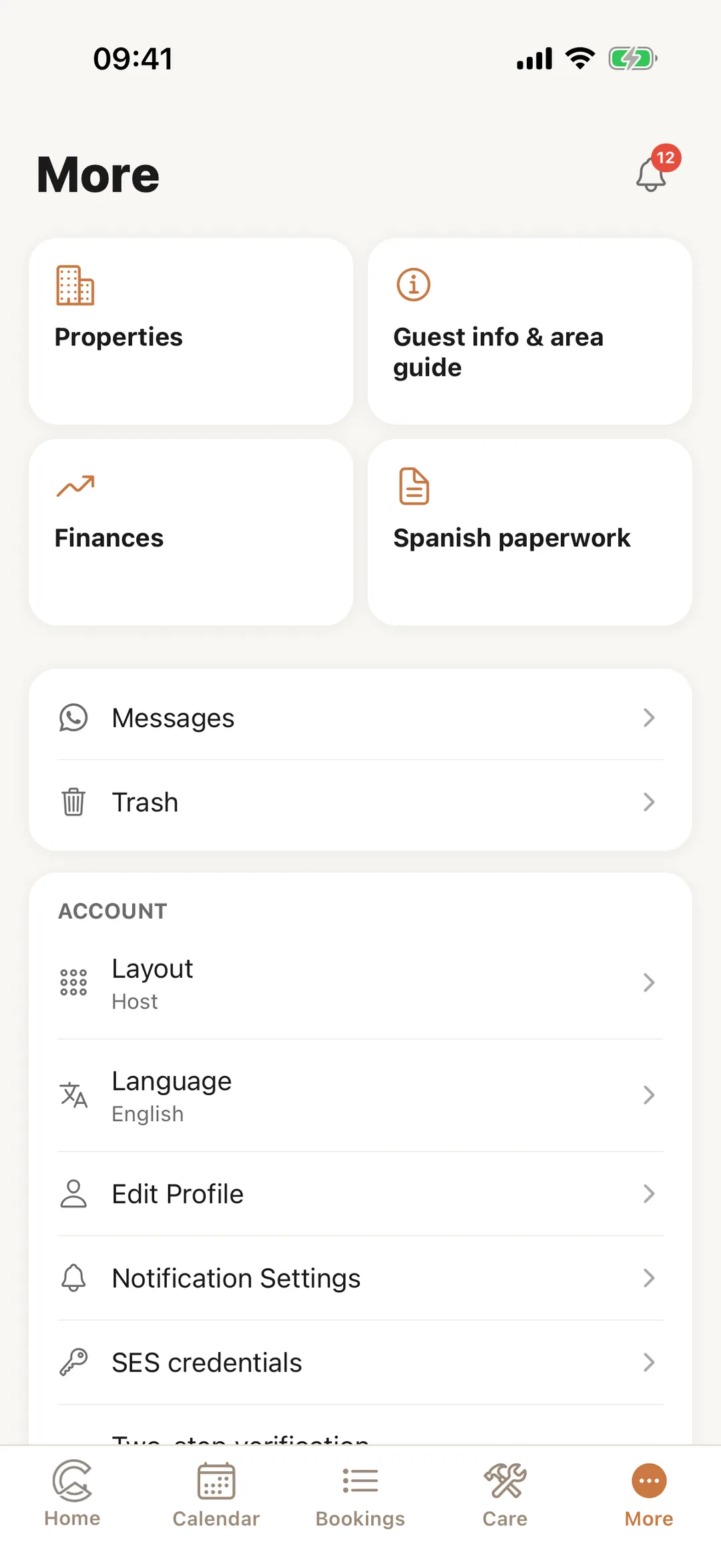
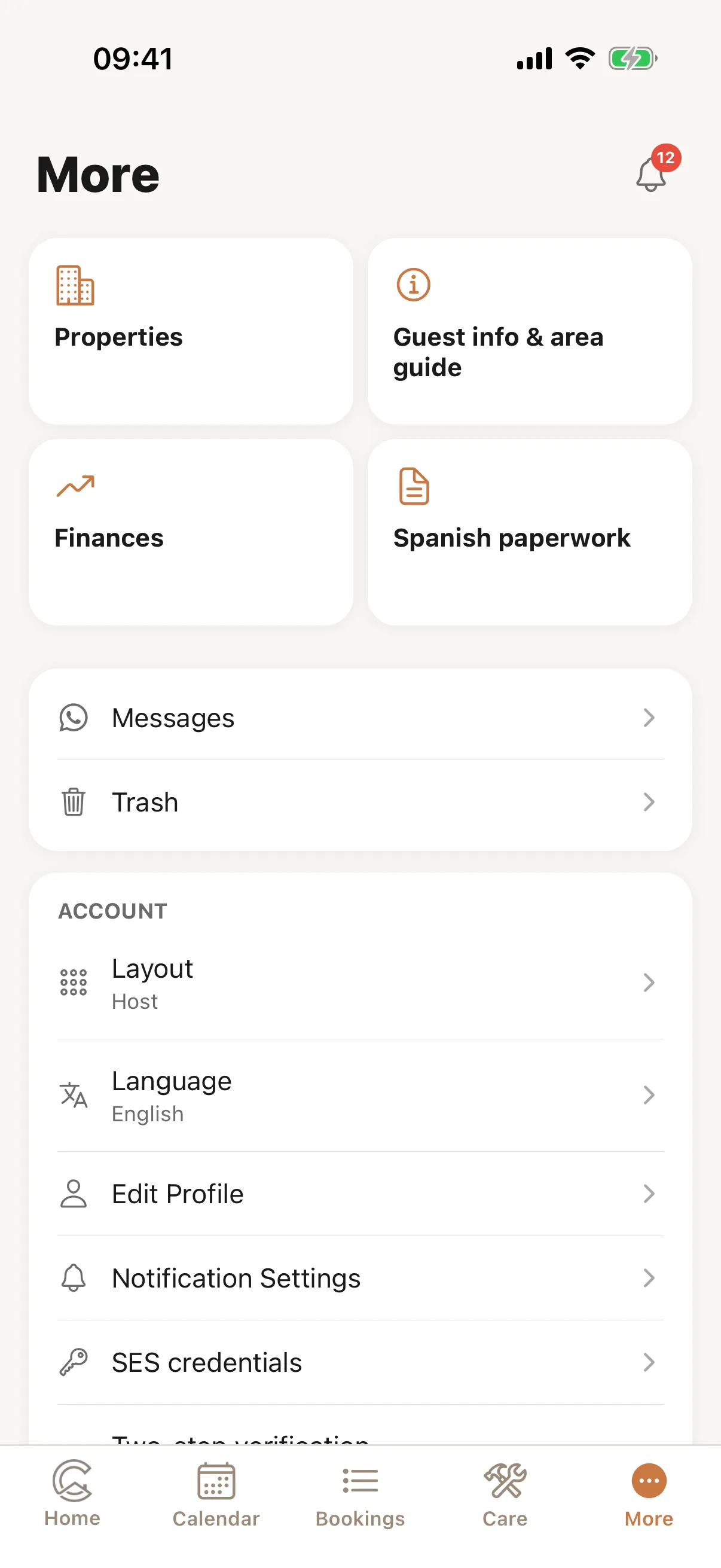
More, as a host
The tiles at the top open Properties, Guest info & area guide, Documents, Finances and Spanish paperwork. Below them are your WhatsApp Messages, where your plan includes them, and the Trash: The trash: restore what you deleted.
 Enlarge screenshot
Step 9
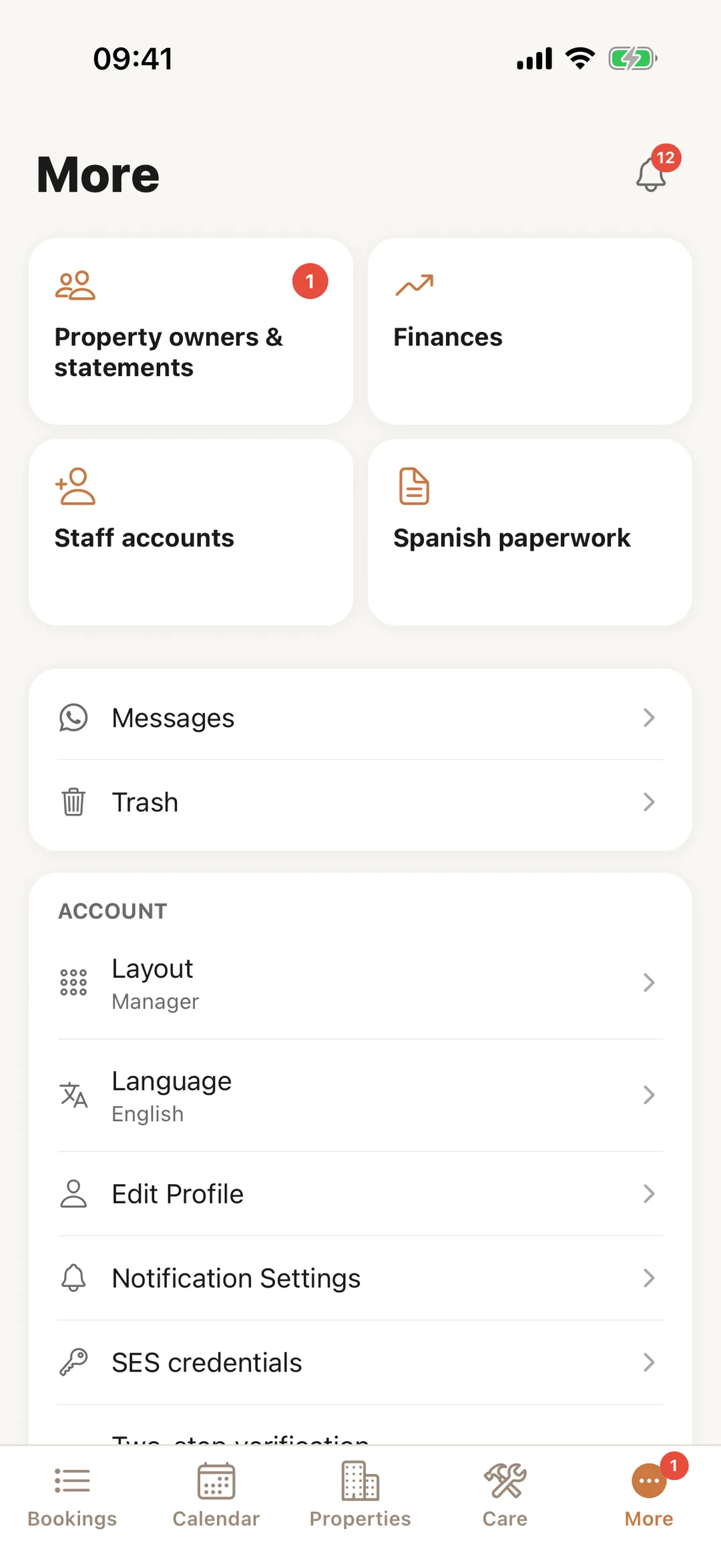
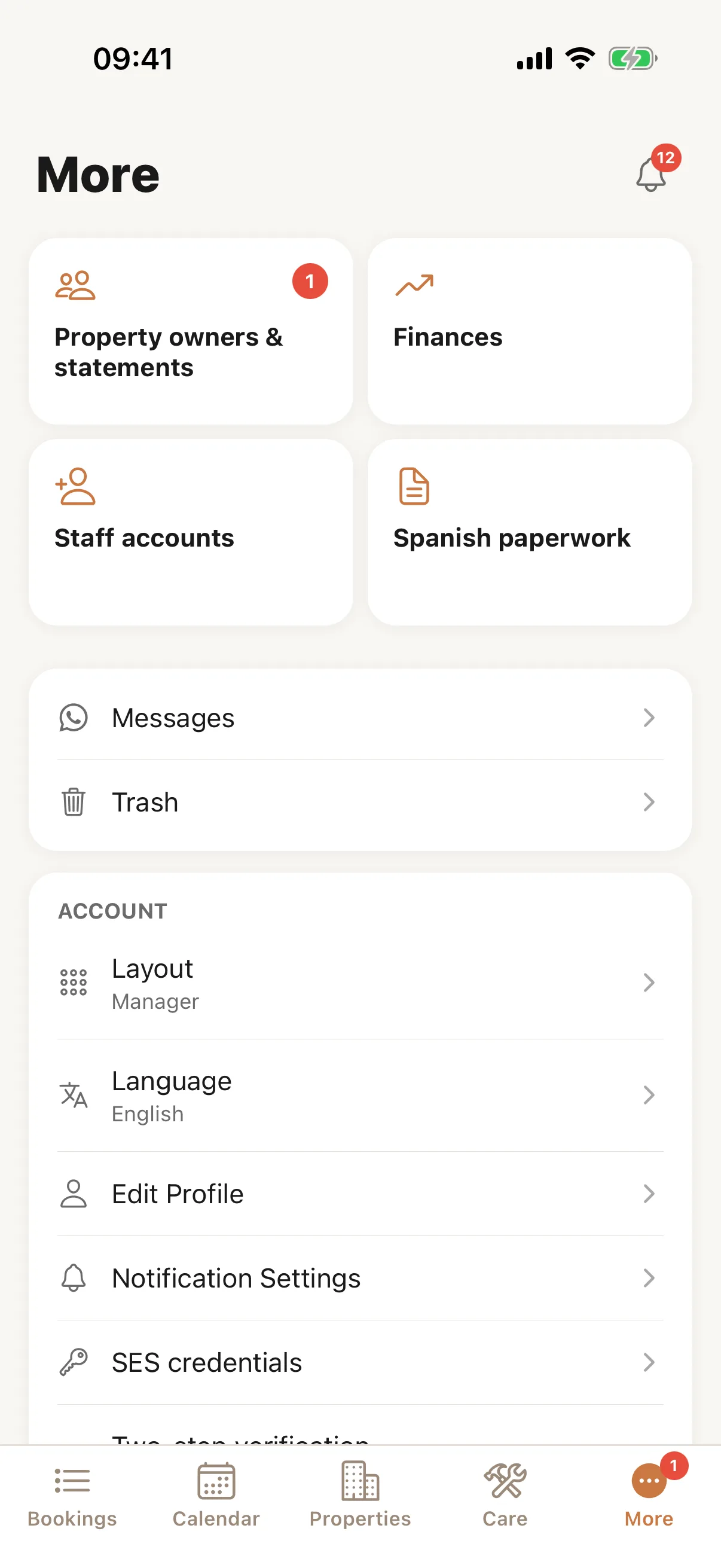
More, as a manager
A manager’s tiles are Property owners & statements, Documents, Finances, Staff accounts and Spanish paperwork; Properties is in the bar. A number on a tile, and on the More tab, counts what is waiting for you: statements not yet sent for last month, or registrations that failed.
 Enlarge screenshot
Step 10
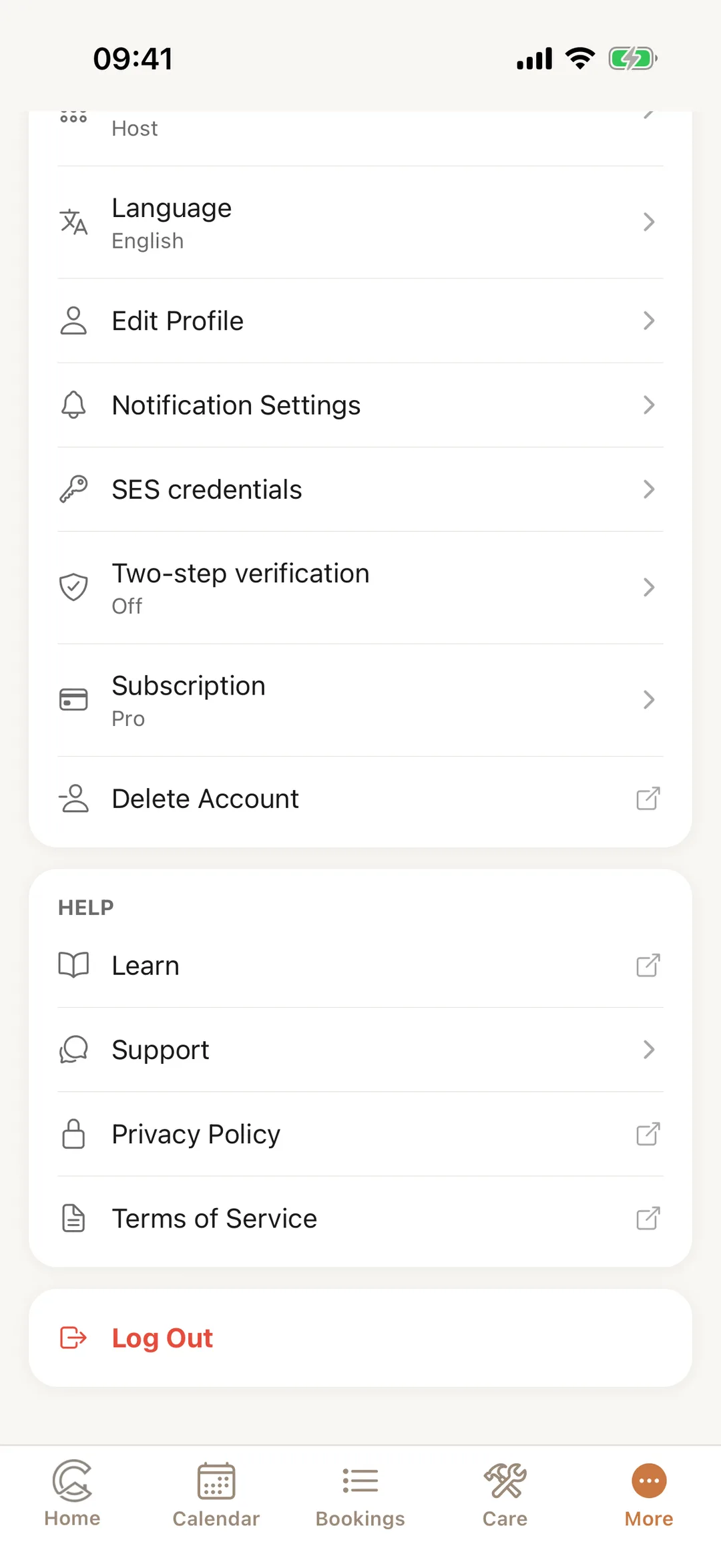
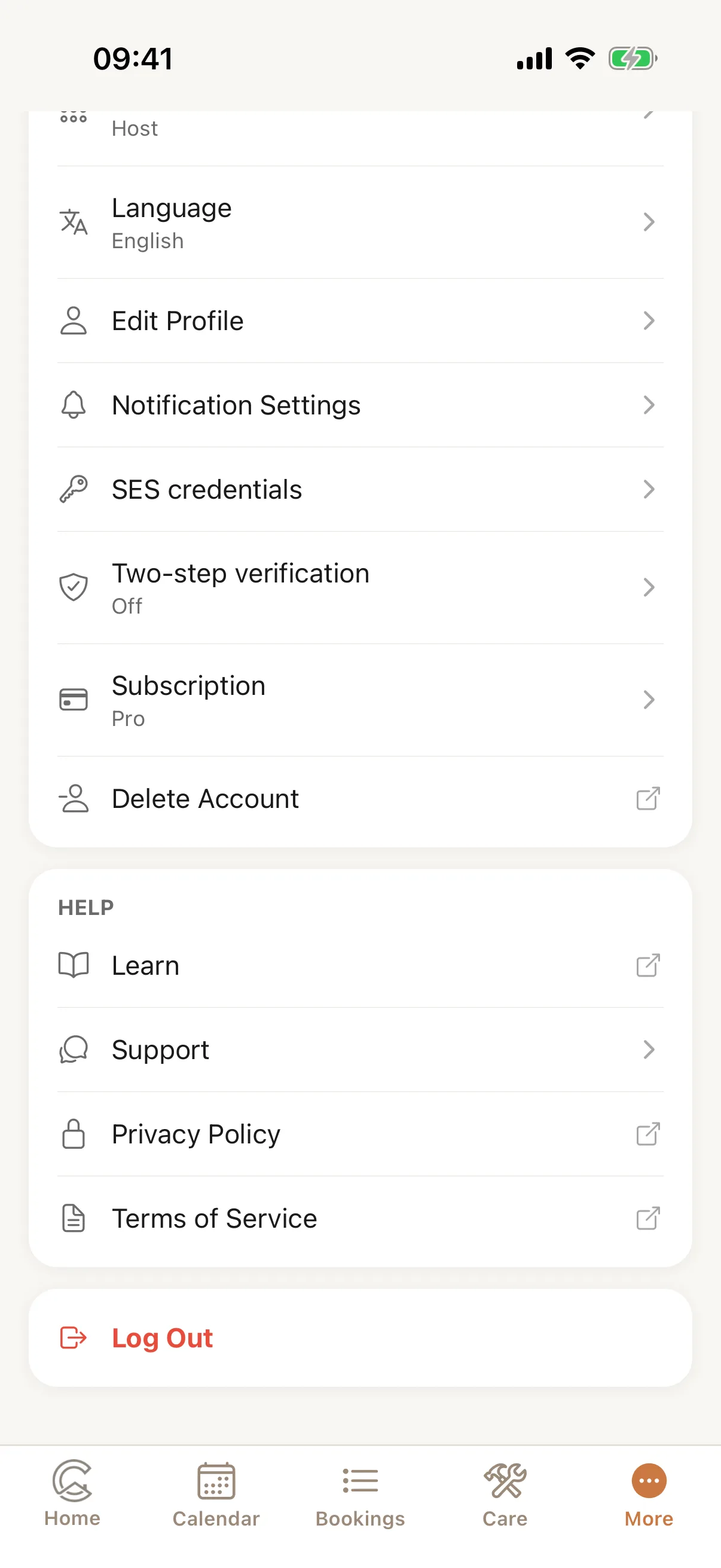
Your account
Under Account: Layout, Language, Edit Profile, Notification Settings, your SES credentials, Two-step verification, Subscription and, last, Delete Account. Under Help: these guides, Support, the privacy policy and the terms. Log Out is at the very bottom.
 Enlarge screenshot
Good to know: Staff see only the rows that apply to their own login: In the app.
Step 11
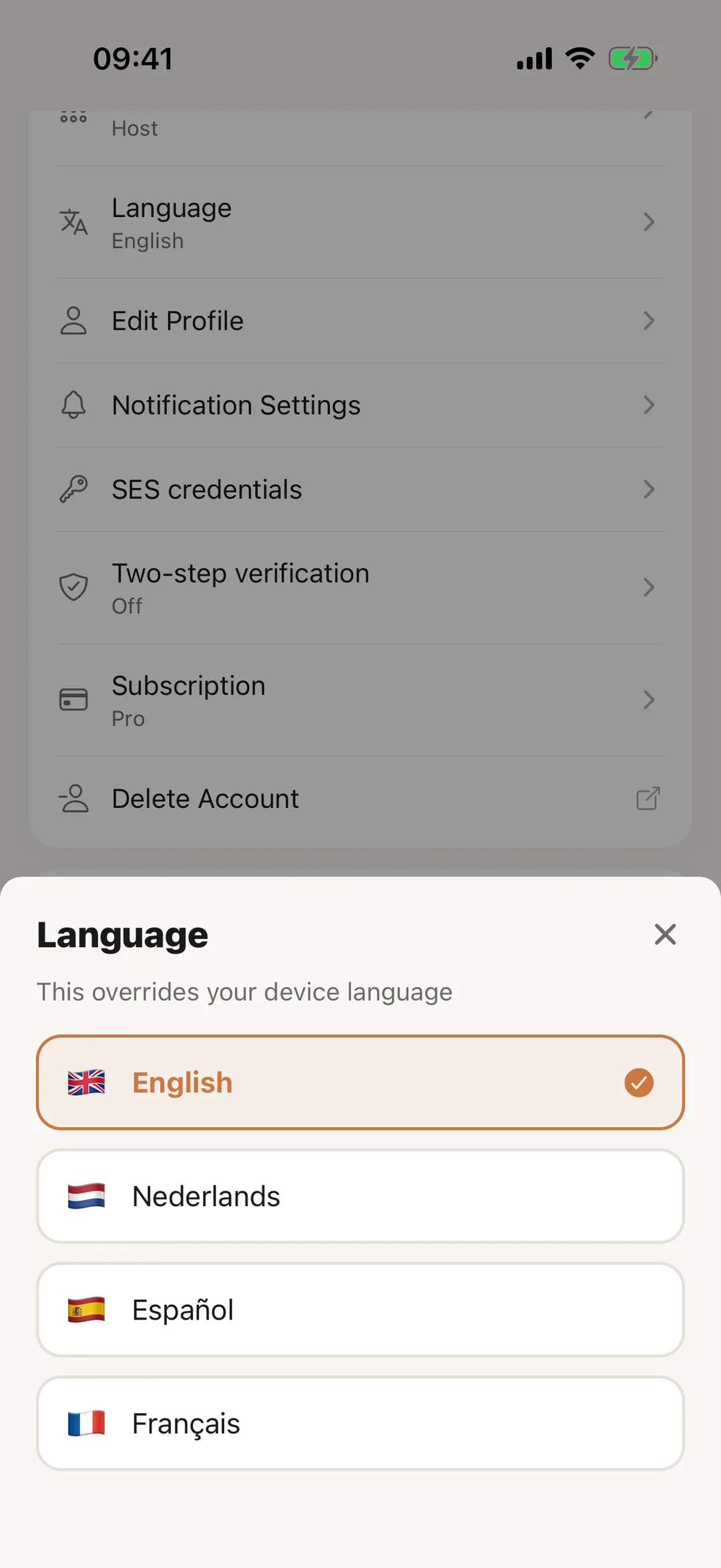
The app’s language
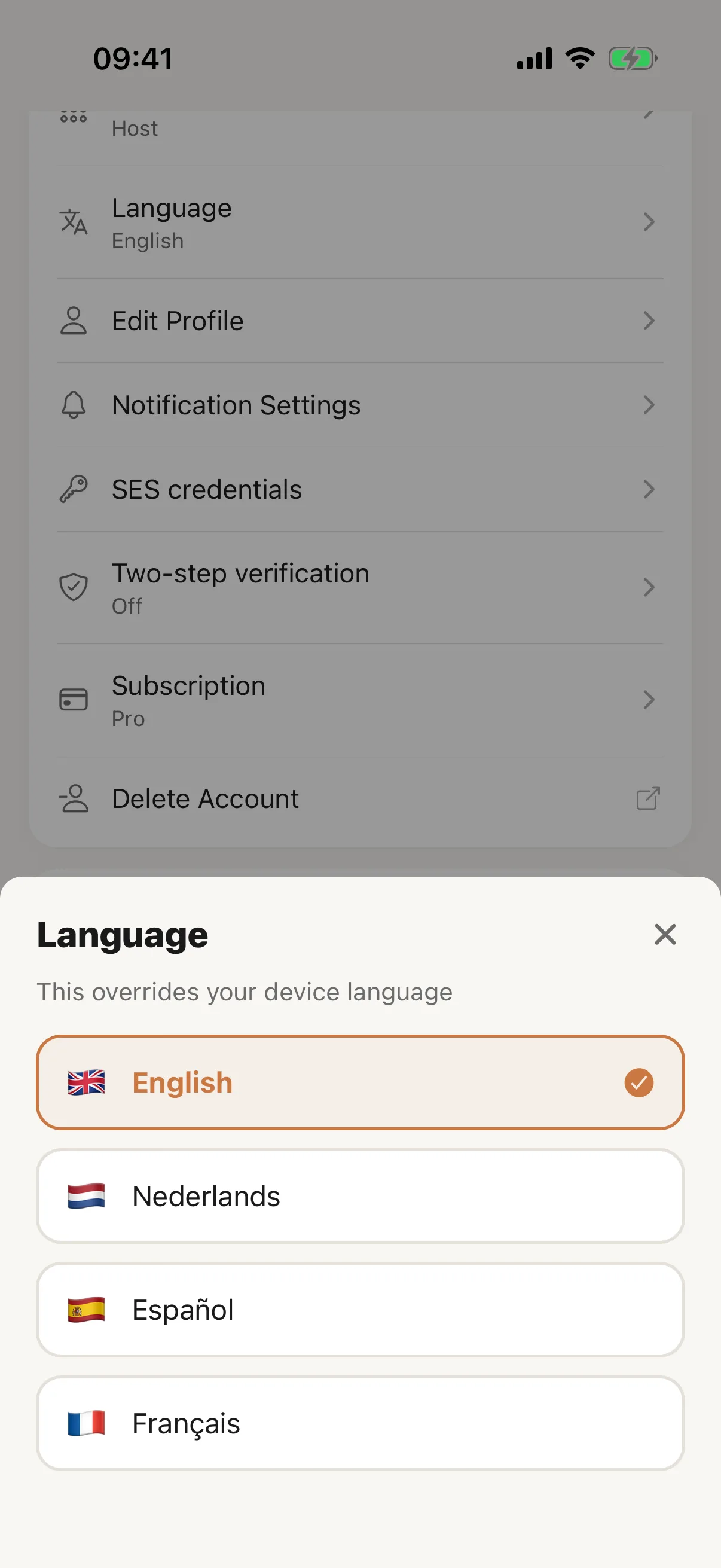
The app starts in your phone’s language when it is English, Spanish, Dutch or French, and in English otherwise. To change it, open More, then Language, and choose. The app switches at once, and your choice is also saved to your account, where it sets the language of your emails. A staff member’s choice stays on their own phone.
 Enlarge screenshot
Step 12
The bell
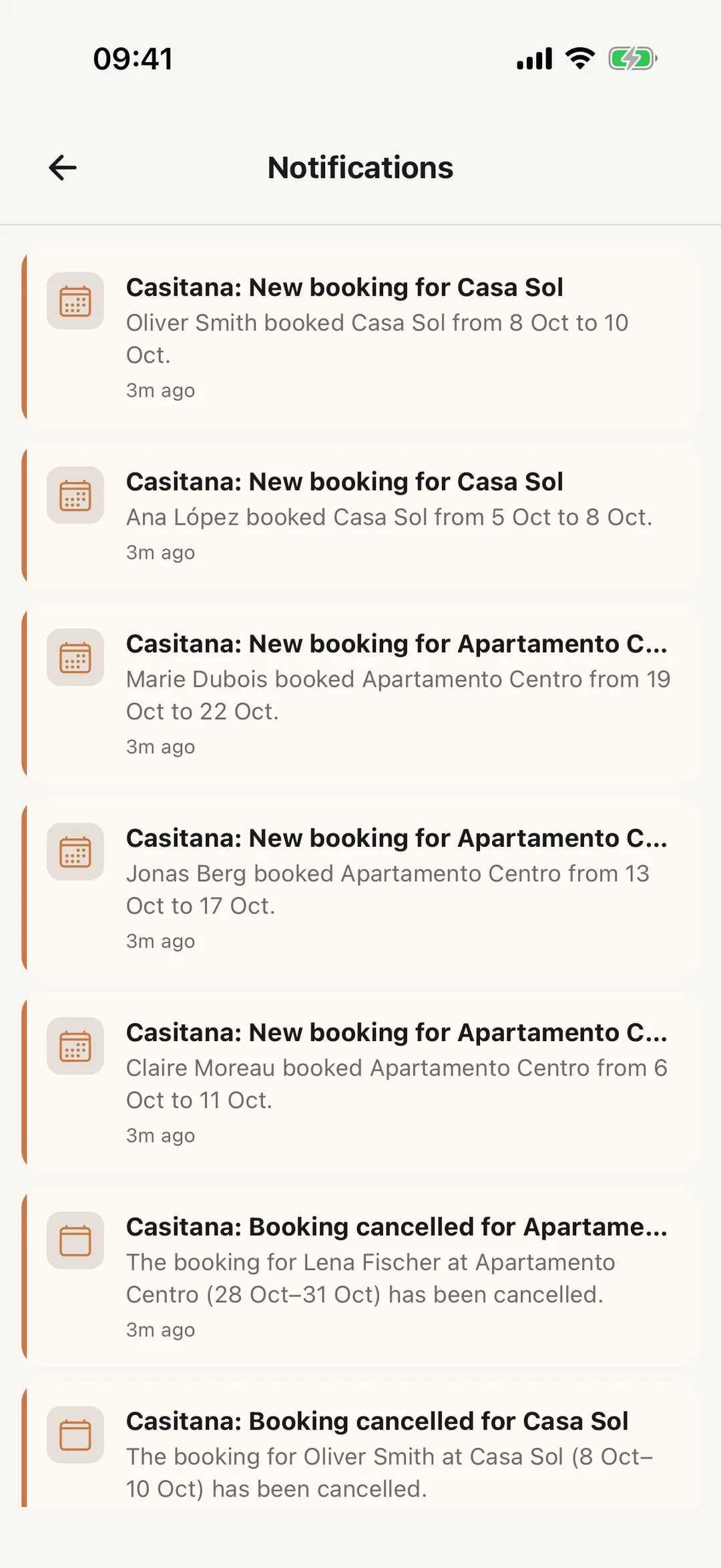
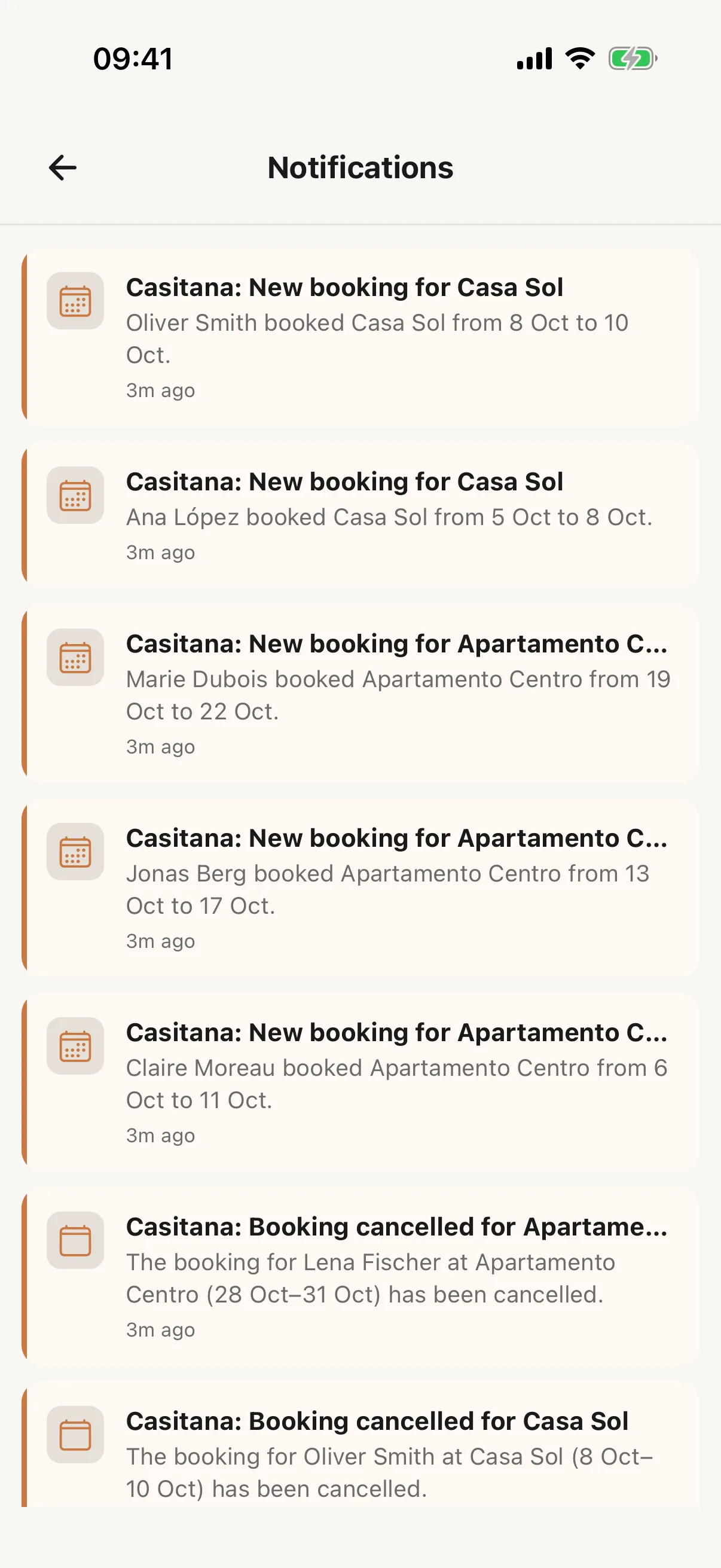
The bell at the top of the screen opens your Notifications: new bookings, cancellations, messages, repairs and more, newest first. Tap one to open what it is about. Which ones also arrive as a push message is set under More, Notification Settings: Notifications and alerts.
 Enlarge screenshot
On the move, and on the websiteApp
Step 13
Receipts by camera
When you add an expense, tap Photograph receipt and take a picture: Casitana reads it and fills in the details for you to check. You can also choose a photo from your library, or type everything yourself.
Good to know: Reading the receipt is part of the Growth plan. On other plans you can still attach the photo to the expense.
Step 14
Photos and PDFs in Care
Open a repair, issue or other item under Care and tap Add: take a photo, choose one from your library, or pick a PDF from your files. When you add a new item, you can attach them before you save. Tap a file to view it. The bin on a file deletes it, if you may delete in Care. Everything is stored with the item, on the website too.
Step 15
Guests on the go
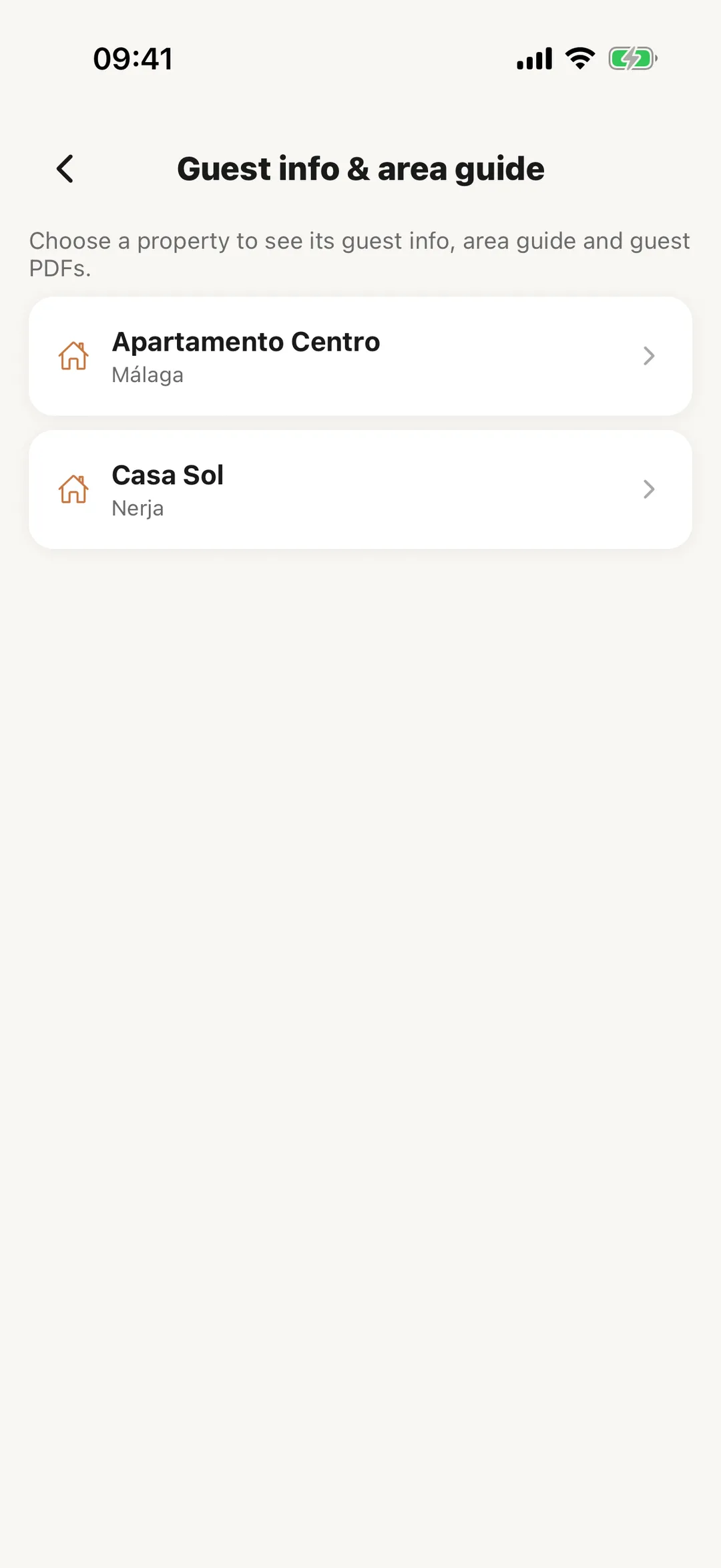
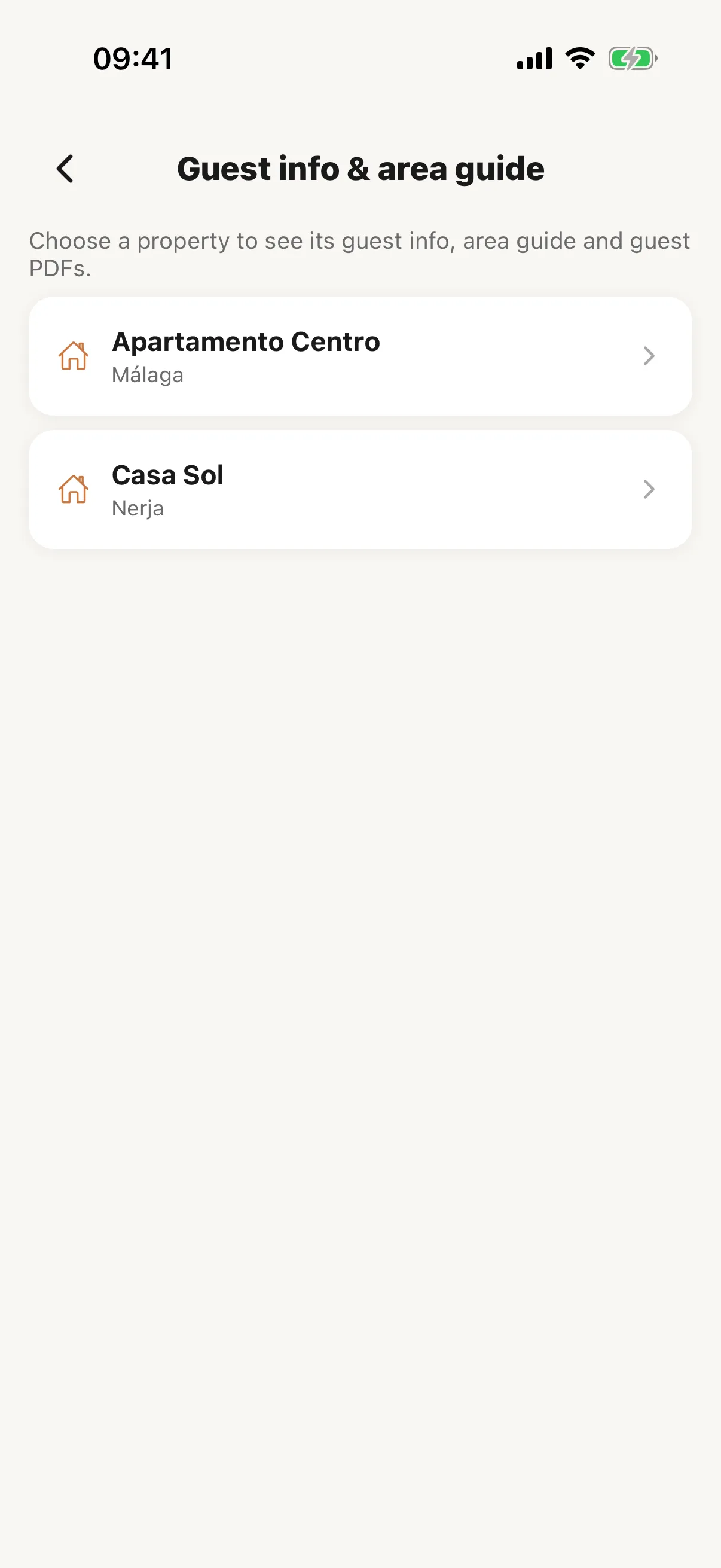
Tap a booking’s ⋮ and Send guest info to share the property’s guest page with your guest in WhatsApp, Mail or any other app on your phone. Pressing and holding the booking, in Bookings or on the Calendar, opens the same list. Each property’s guest information, area guide and guest PDFs are on its page, and in Guest info & area guide under More. Spanish paperwork lists the stays that need a registration with SES Hospedajes: send the guest the form, file it once it is complete, or withdraw a filing.
 Enlarge screenshot
Step 16
Only on the website
Contacts, automations, rental contracts, budgets and analytics, the tax summary and Modelo 210, documents, a property owner’s tax identity, address and IBAN, and the timing of reminders are done on casitana.com. So are a property’s place on the map, your time zone and display currency, and the SES file export and manual upload. In the app, Delete Account opens the page on the website where you delete it.
Step 17
Without a connection
The app needs an internet connection to load and save. Without one it says it could not load your data; tap to try again once you are back online. You stay logged in.
Your plan on the phoneApp
Step 18
On an iPhone
Under More, Subscription, you can take a paid plan through Apple; Apple then bills you and you manage it in your iPhone’s settings. If you already pay for Casitana on the website, the app says so and does not let you buy it twice. Restore Purchases brings back a plan bought with the same Apple ID.
Step 19
On an Android phone
Under More, Subscription, the app shows your current plan and says: “Subscriptions are managed on casitana.com. Open the website to view, change, or cancel your plan.” Change or cancel your plan on the website: Your account and plan.