
Before you start
Step 1
Staff accounts are part of Pro
Staff accounts are available on the Pro plan. Each person gets their own email address and password to work in your account, and you can have up to 25 staff accounts, open invitations included. On another plan, see Choose a paid plan.
Step 2
Open Staff accounts
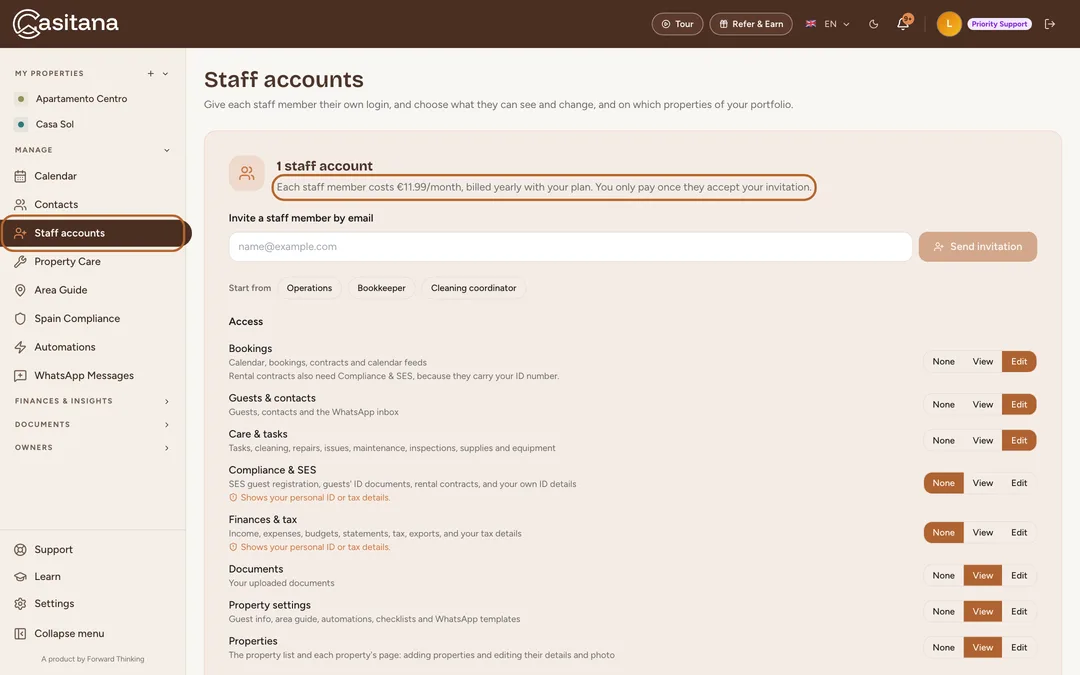
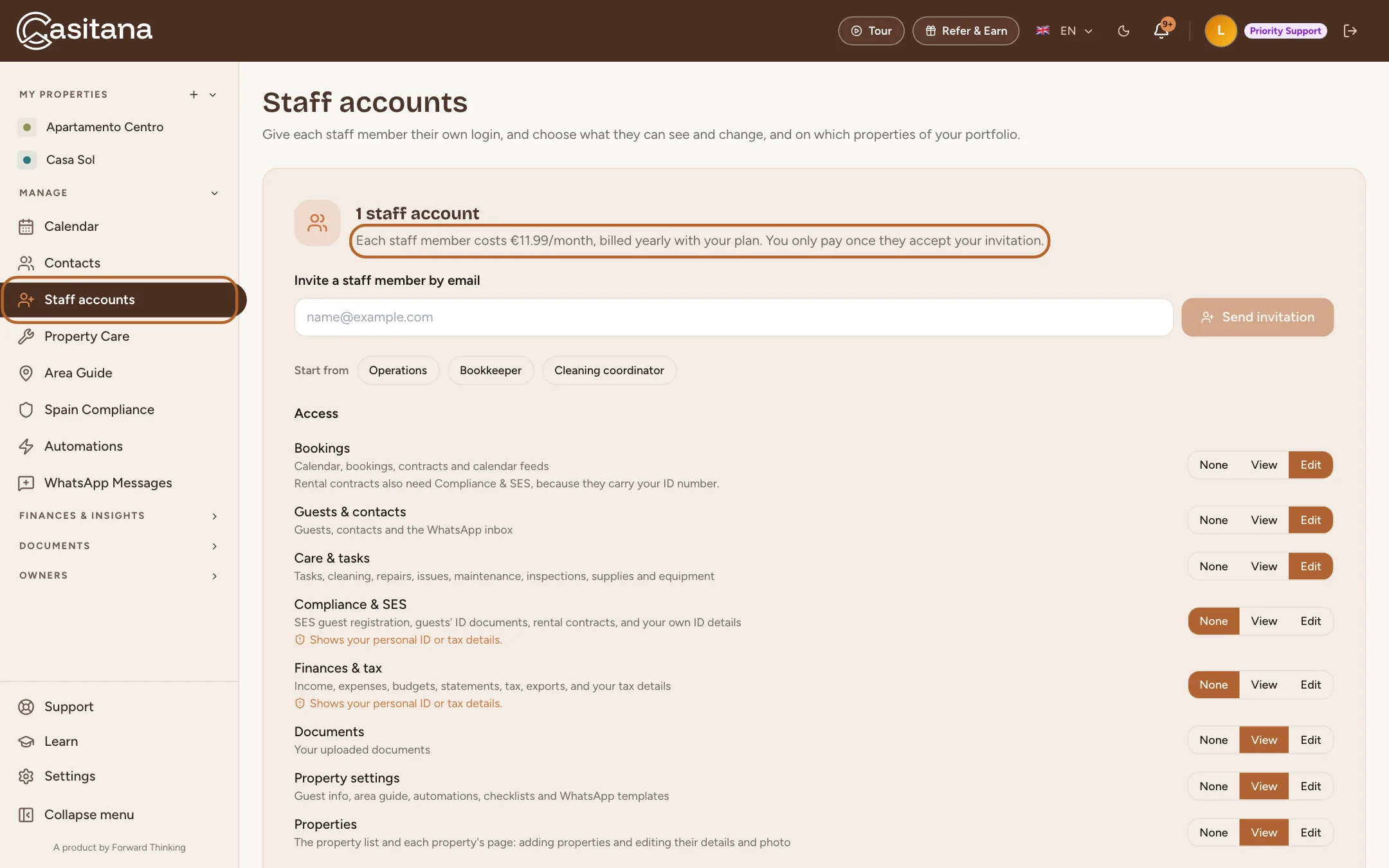
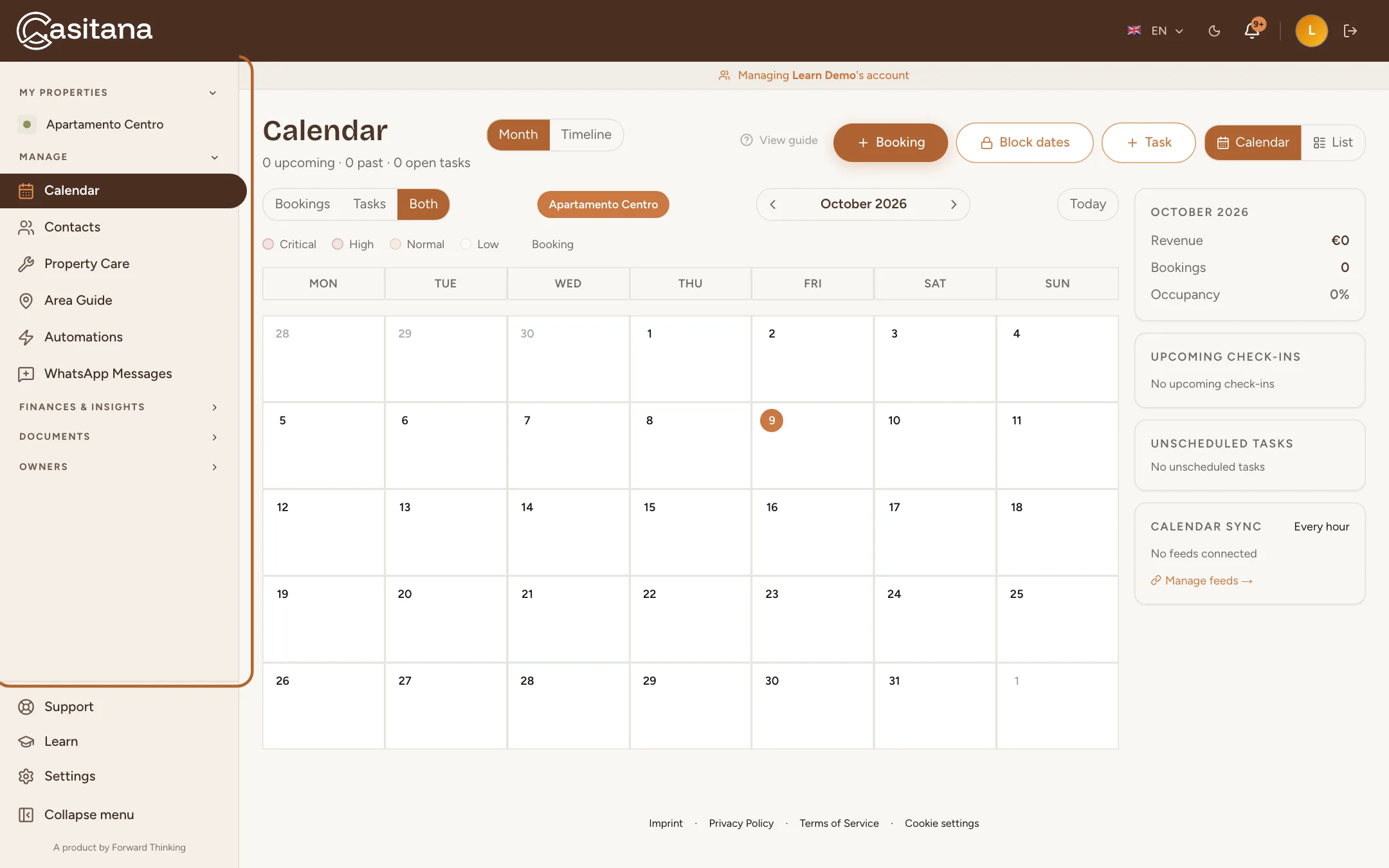
In the menu on the left, click Staff accounts. At the top of the page you see how many staff accounts you have and what each one costs, and below it the form to invite someone.
 Enlarge screenshot
What staff accounts cost
Step 3
One price per staff account
Each staff member costs €14.99/month on a monthly plan, or €11.99/month billed yearly on an annual plan. Staff accounts follow your plan: they are billed with it, monthly or yearly, on the same invoice. The Staff accounts page shows the price that applies to you.
Step 4
You pay once they accept
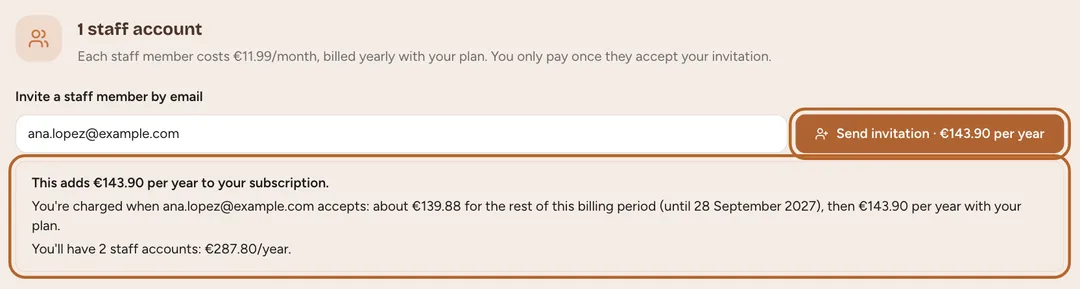
Sending an invitation costs nothing, and neither does an invitation that is cancelled or expires. When the person accepts, the staff account is added to your subscription and you pay straight away for the rest of the current billing period; after that, it renews with your plan. Before you send an invitation, Casitana shows what it adds and your total with it.
Step 5
During your trial
While your trial runs, you can invite staff and they can accept for free. Their staff accounts are billed with your plan from the day the trial ends.
Step 6
If your plan is billed through Apple
Staff accounts are billed on the web only. If you took your plan in the iPhone app and pay through Apple, staff accounts can’t be added to it: the Staff accounts page tells you so instead of showing the invitation form.
Invite a staff member
Step 7
Enter their email address, and check the price
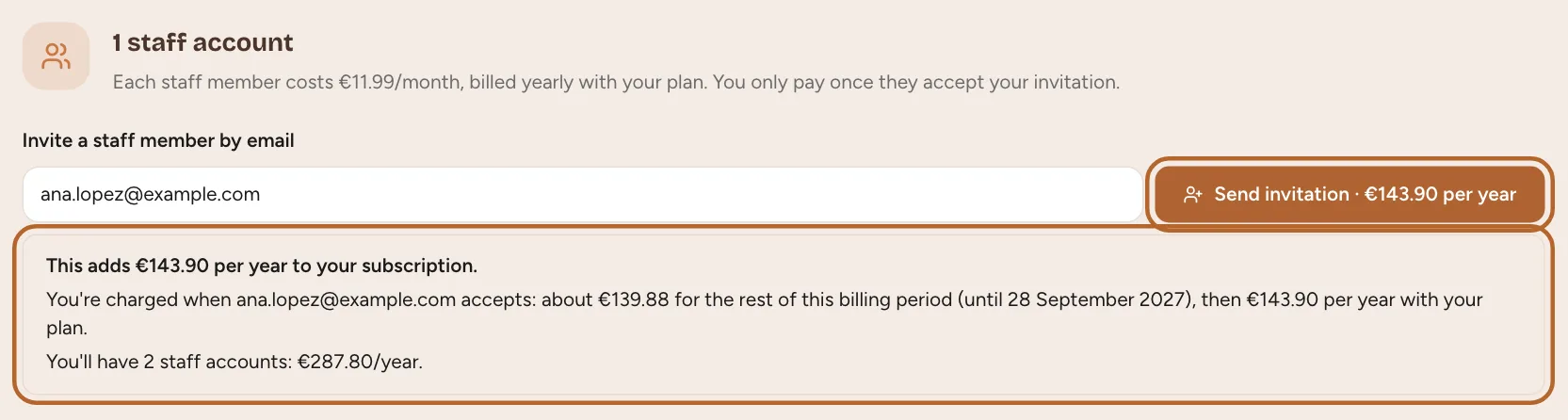
Under Invite a staff member by email, type the email address of the person you are inviting. The invitation, and later their login, belong to that address. As soon as you type, Casitana shows what this staff account adds to your subscription, what you pay when they accept (for the rest of the current billing period) and your total with it. The button shows the price too.
 Enlarge screenshot
Tip: Use an address that has no Casitana login yet. Someone who already has their own Casitana account needs a different address to join yours as staff.
Step 8
Choose what they can see and change
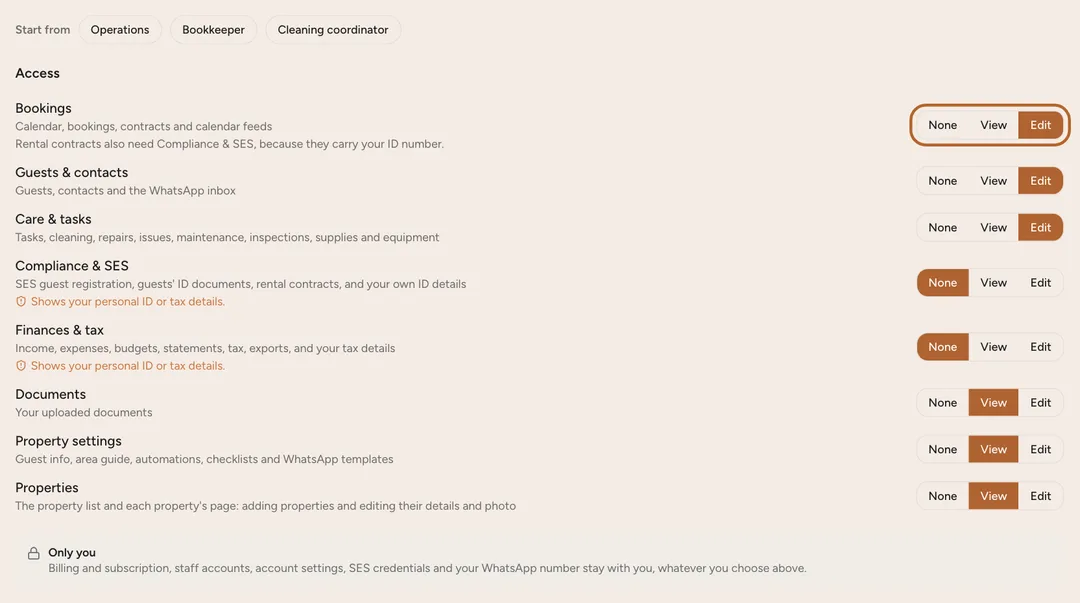
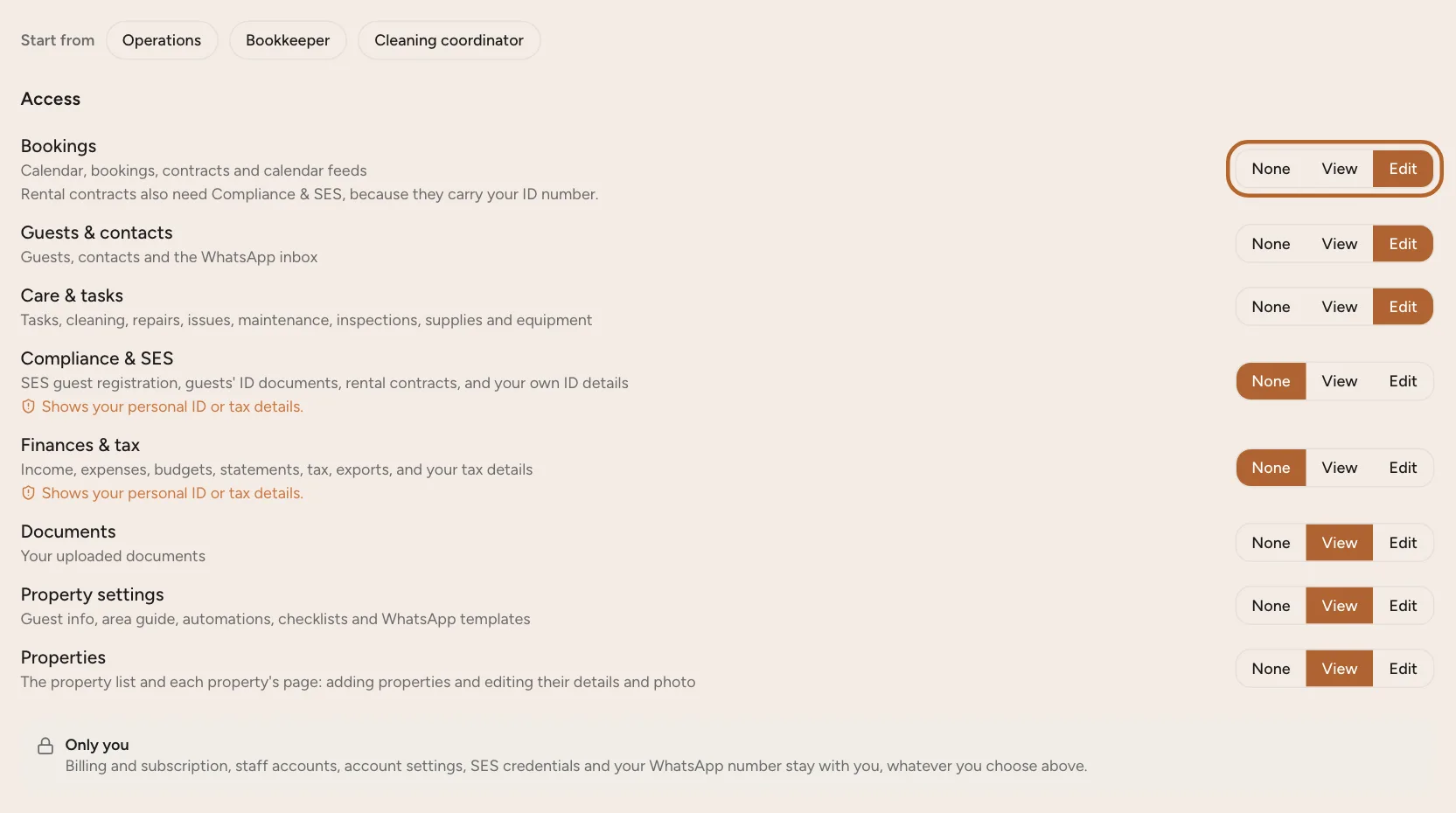
Under Access, each area has three choices. None: the area is hidden and disappears from their menu. View: they can look, but not change anything. Edit: they can look and make changes. The eight areas are Bookings, Guests & contacts, Care & tasks, Compliance & SES, Finances & tax, Documents, Property settings and Properties; the line under each one says what it covers. With Properties on Edit, they can add properties and edit their details and photo. At least one area must be on View or Edit.
 Enlarge screenshot
Tip: Compliance & SES and Finances & tax show your own ID and tax details, which is why a new invitation starts with both on None. Give them only to someone you would hand those details to. Rental contracts carry your ID number, so they need Compliance & SES as well as Bookings. A contract made from a booking also prints your tax details, so generating, previewing or sending one needs Finances & tax too.
Step 9
Or start from a preset
Next to Start from, three buttons fill in all eight areas in one click. Operations: bookings, guests and contacts, and care and tasks to edit; documents, property settings and properties to view. Bookkeeper: finances and tax, and documents, to edit; bookings and properties to view. Cleaning coordinator: care and tasks to edit; bookings to view. A preset is only a starting point: change any area afterwards.
Step 10
Choose which properties
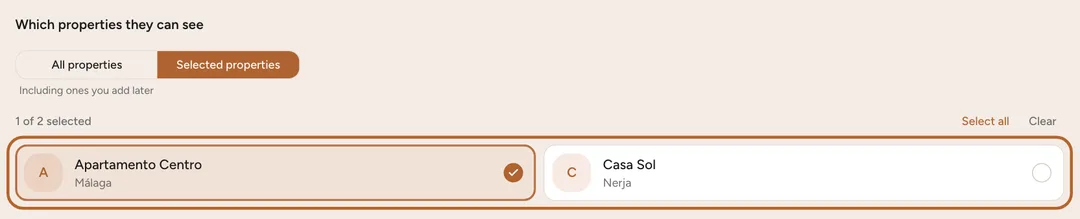
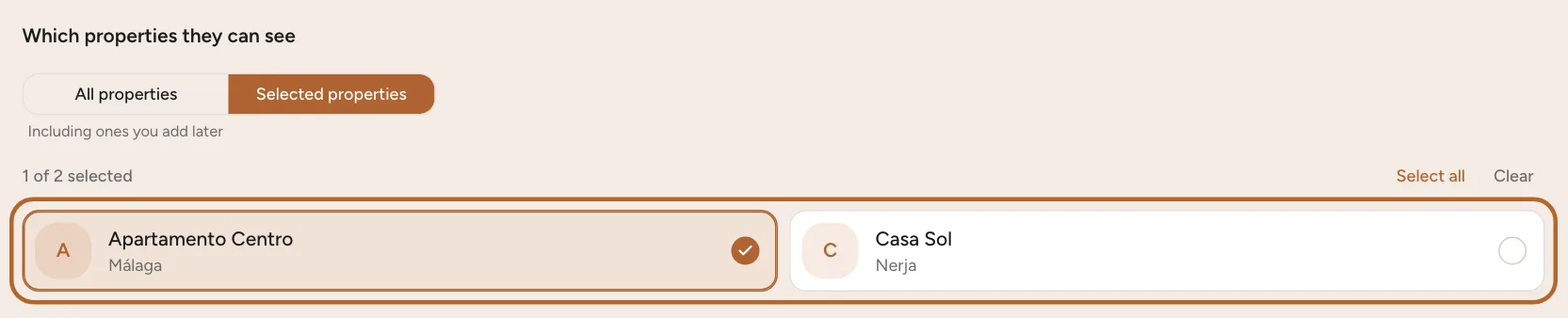
Under Which properties they can see, choose All properties, or Selected properties and tick them. A staff member only sees the bookings, guests, tasks, money and documents of the properties you tick; the others do not exist for them. Tick at least one.
 Enlarge screenshot
Step 11
Send the invitation
Click Send invitation; the button also shows the price. Casitana emails the person a link to create their login. The invitation appears under Pending invitations and stays open for 7 days. Nothing is charged yet: you pay when it is accepted.
For your staff member: accept the invitation
Step 12
Create your staff login
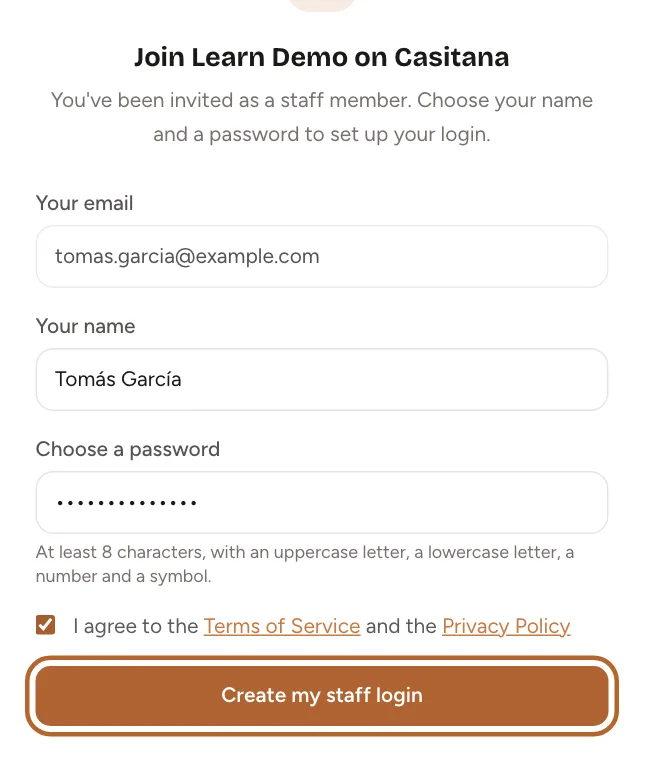
Open the link in the invitation email. The page shows the email address the invitation was sent to. Enter your name, choose a password (at least 8 characters, with an uppercase letter, a lowercase letter, a number and a symbol), tick the box to accept the terms, and click Create my staff login. Then log in on Casitana with that email address and your new password.
 Enlarge screenshot
Tip: An invitation that has expired or was cancelled no longer works: ask the account holder to send you a new one.
Step 13
Log in with Google or Apple
Once your login exists, you can also log in with Google or Apple, as long as they log you in with the same email address the invitation was sent to. Apple’s Hide My Email gives Casitana a different address, which matches no staff login: in that case, log in with your email address and password.
What your staff see, and what they never see
Step 14
Their menu shows only their areas
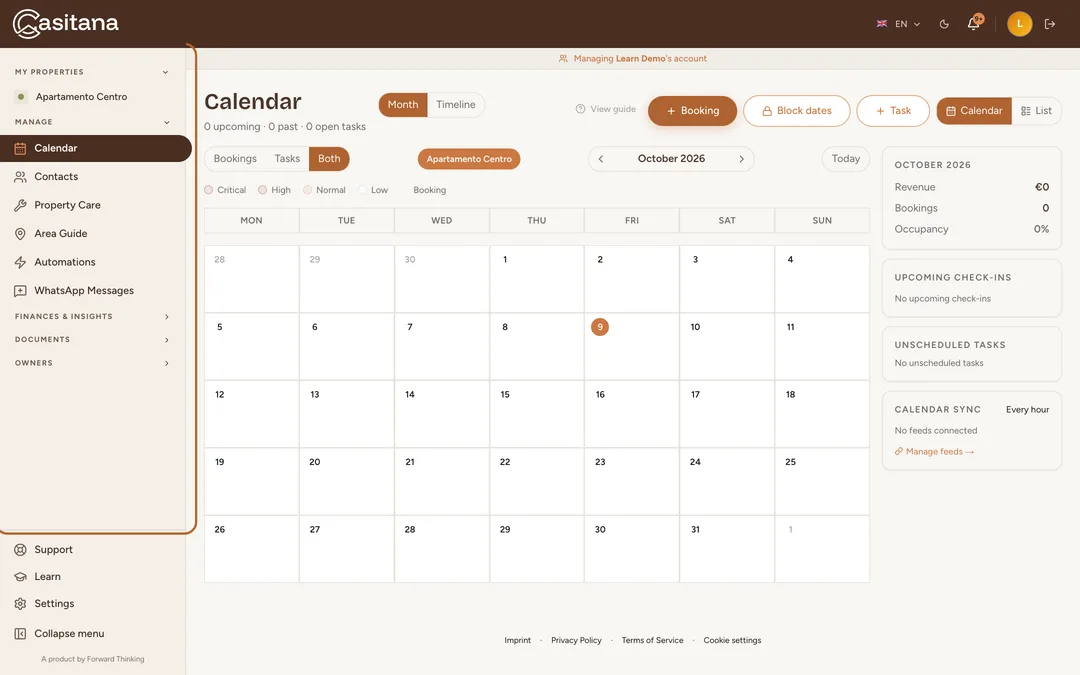
A staff member logs in on the same Casitana as you and sees your portfolio, but only what you gave them. Areas on None are not in their menu, and on the dashboard and each property’s page, what they may not see is left out rather than shown as zero. Staff accounts is never in a staff member’s menu.
 Enlarge screenshot
Step 15
A page outside their access
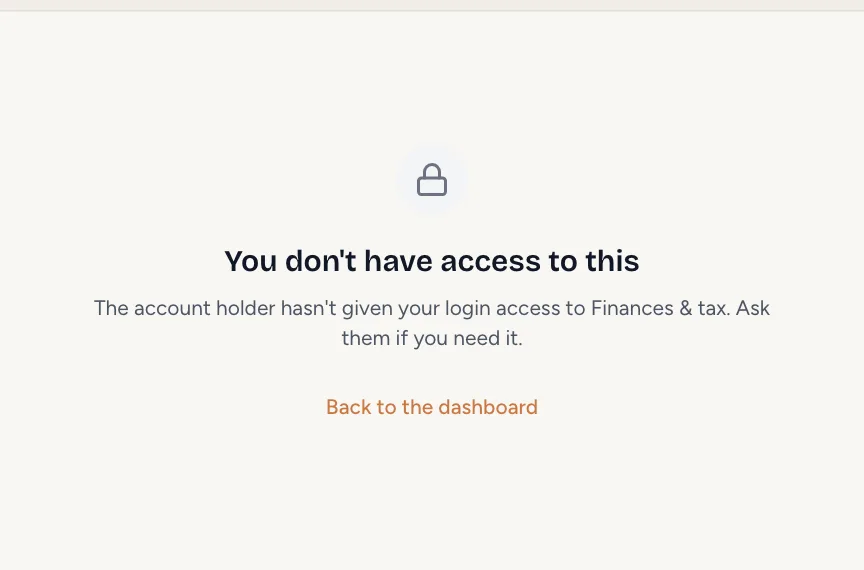
If a staff member opens a page their access does not include (from an old bookmark or a link someone sent), Casitana does not show it. They see You don't have access to this, with the area it belongs to, and a way back to the dashboard. If they need it, you can change their access (see below).
 Enlarge screenshot
Step 16
What stays with you, whatever you choose
Some things are never available to staff, whatever access you give: your billing and subscription, staff accounts, your account settings, your SES credentials and your WhatsApp number. Your personal details are protected too: without Compliance & SES, a staff member does not see your name, ID document, date of birth, nationality or phone number on a property, nor your guests’ ID documents; without Finances & tax, they see none of your tax details, your income and expenses, or what your properties are worth. Where such a detail would be, the property form says it is hidden. When they save the property, what they cannot see stays exactly as you entered it.
Step 17
Staff delete to the trash
With Edit on an area, staff can delete there, on the properties they see: bookings, guests and contacts, tasks and care items, transactions, documents, templates and contracts made with the contract wizard. What they delete goes to the trash for 30 days, and only you can restore it or delete it for good (The trash: restore what you deleted). Properties, billing, staff accounts and your account settings stay yours alone: staff never delete a property.
Step 18
Contracts need Finances
A rental contract carries the landlords’ ID numbers, so it needs access to Finances & tax as well. Staff without it still see the contracts in the list, with the dates they were sent and signed, but cannot open or download a contract or its signed copy. A booking’s contract they cannot generate, preview, send or mark as signed. A contract from the contract wizard they can still make, send and mark as signed, unless its property has property owners: then that needs the access too. Give them that access if they look after contracts for you.
Step 19
Their own settings
When a staff member opens Settings, they see Your staff login: their email address, the account they work in, and Email me a link to change it to change their password. They can also leave your account there, which deletes their login.
Step 20
Your company logo
Staff do not see the Company branding card and cannot upload, replace or remove the logo. The documents they send from your account carry your logo like yours do.
Step 21
Your property owners
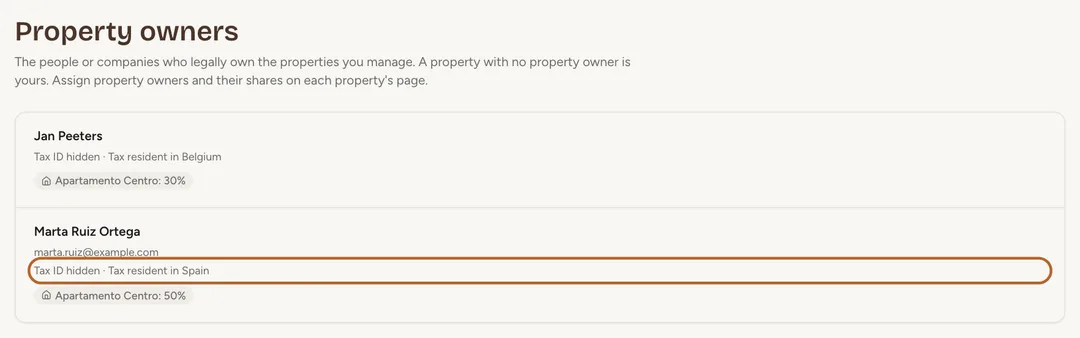
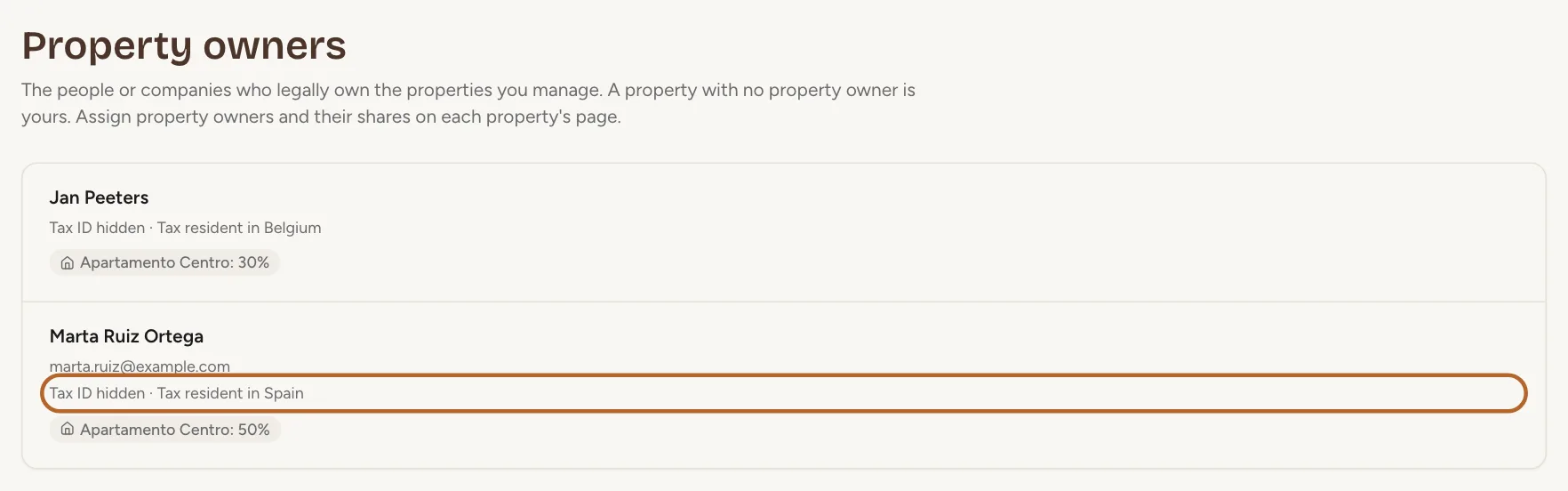
Staff with access to Properties see the property owners and their shares, read only, and only for the properties they can see. The tax ID, address, IBAN and commission stay hidden unless they also have access to Finances & tax. Only you add, edit, assign or delete property owners. Owner statements need both: staff who can view Finances & tax see and download them, and sending them needs edit access to it.
 Enlarge screenshot
In the appApp
Step 1
What staff see in the app
Staff use the Casitana app for iPhone and Android with the same login, and choose their own layout. They see the same areas and the same properties as on the website: a tab or tile for an area they have no access to is not there, and under More, Account holds only their own settings, not your subscription, SES credentials or notifications. What they delete in the app goes to the trash, as on the website.
Step 2
Your staff in the app
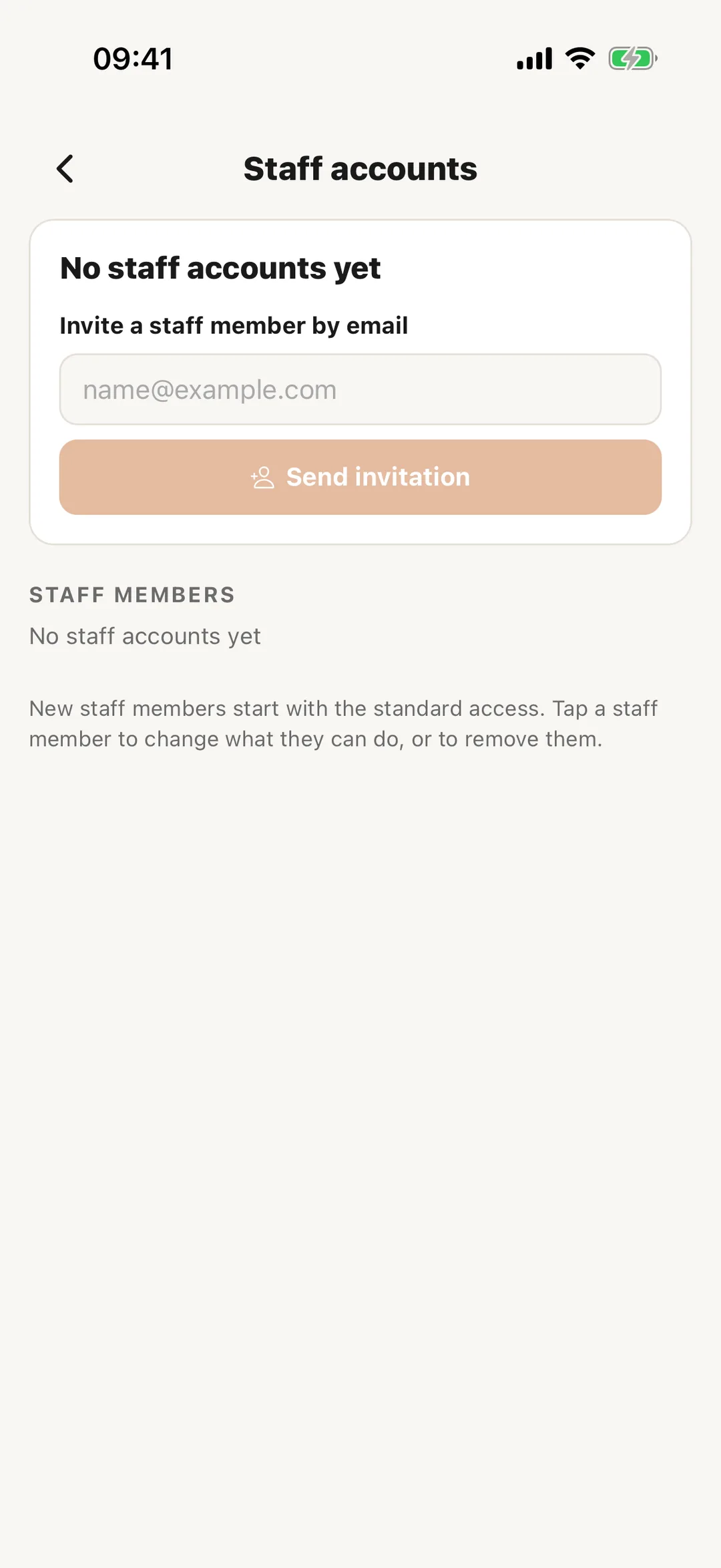
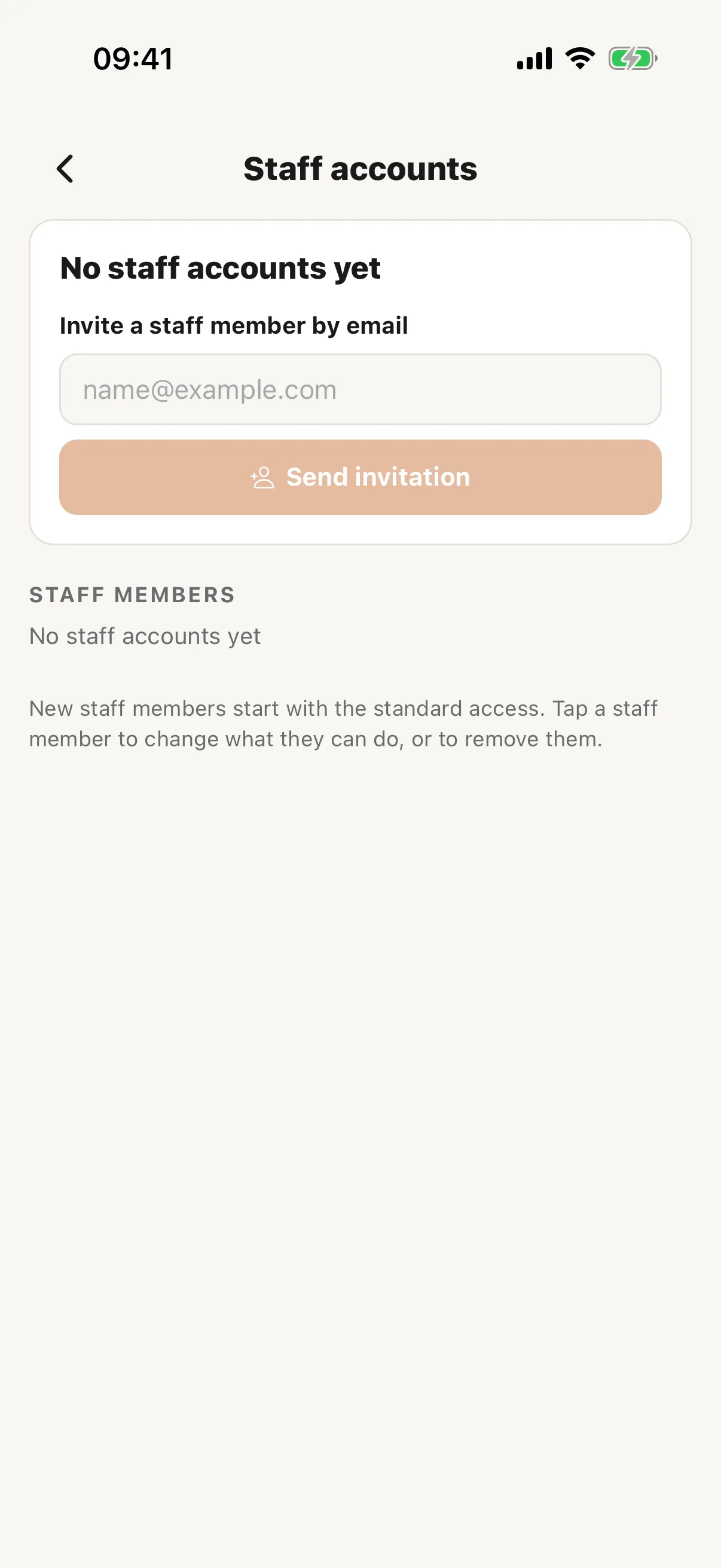
In the Manager layout, More has Staff accounts: your staff members, when each last signed in, and open invitations. Tap a staff member to change what they may do, area by area, and which properties they see, or to remove them. When the next seat is already covered, by a free seat from Casitana or one you have paid for, you can invite someone by email right there. Otherwise, and to resend or cancel an invitation, use the website.
 Enlarge screenshot
Change access, or remove someone
Step 22
Your staff at a glance
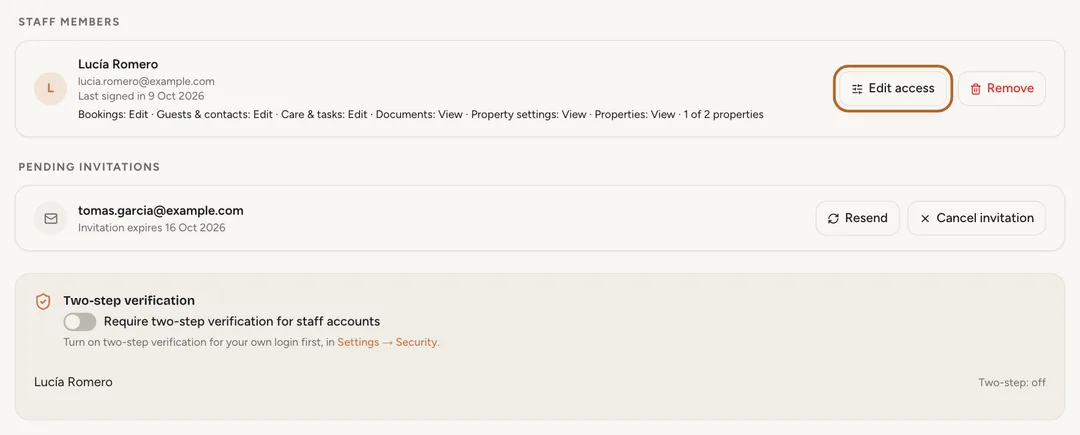
Under Staff members, each person is listed with their name, their email address and when they last logged in. The line under it sums up their access: each area they can view or edit, and how many of your properties they see.
 Enlarge screenshot
Step 23
Change someone’s access
Click Edit access next to the person. The same areas, presets and properties appear as in the invitation. Change what you need and click Save access. The change applies from their next click: they do not need to sign out and in again.
Step 24
An invitation that has not been accepted
Under Pending invitations, each open invitation shows when it expires. Resend sends the email again with a new link, and the old link stops working. Cancel invitation closes the invitation and the link stops working. An invitation that has not been accepted costs nothing.
Step 25
Remove a staff member
Click Remove next to the person and confirm. Their login is deleted and they are signed out straight away. What they did in your account stays in its history. Their staff account stays paid until the end of the current billing period, and until then you can give it to someone else at no extra cost; after that, it is no longer charged.
Two-step verification for your staff
How two-step verification itself works: Two-step verification.
Step 26
Require it for your staff
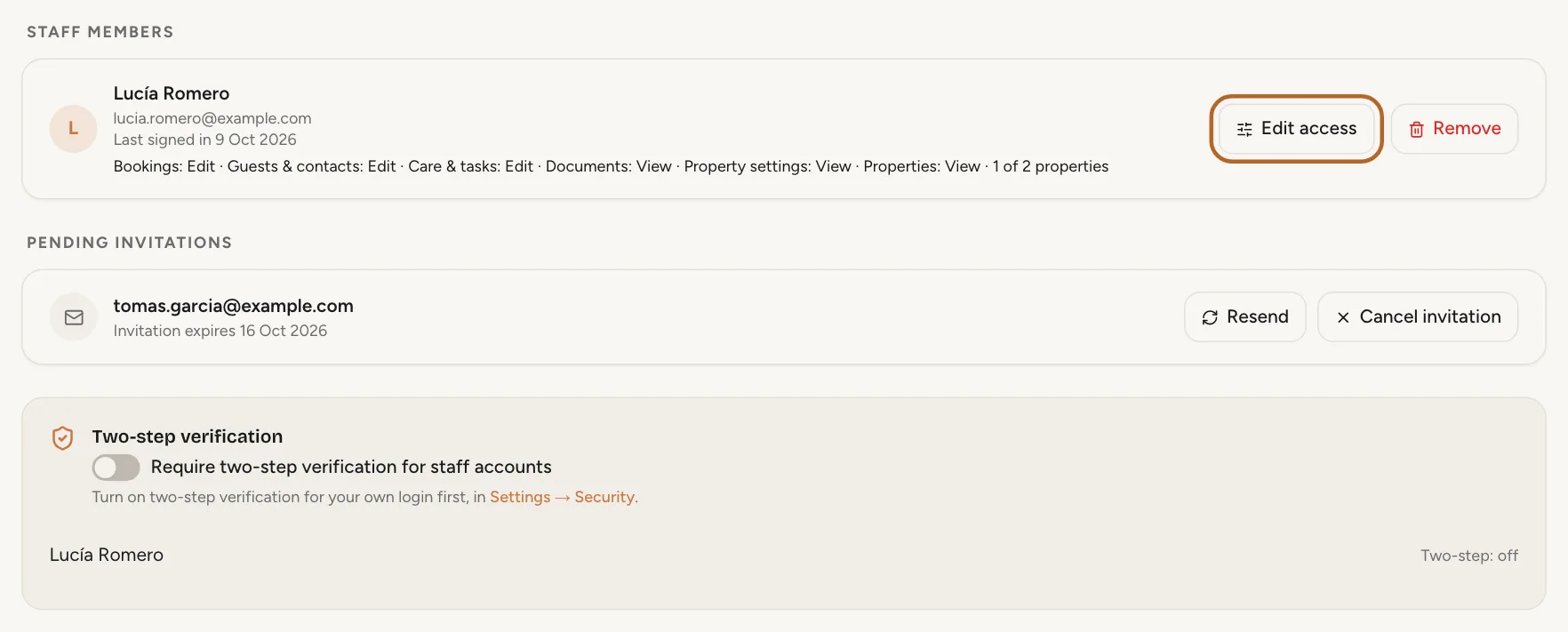
On Staff accounts, switch on Require two-step verification for staff accounts. You need to have two-step verification on for your own login first.
 Enlarge screenshot
Step 27
What happens for your staff
When you switch it on, staff who have not set up two-step verification are signed out, and set it up the next time they log in. Each staff member manages their own two-step verification from their own account page, under Settings. Casitana shows them the setup right after their password, before they can go on.
Step 28
If a staff member loses their phone
On Staff accounts, you can reset a staff member’s two-step verification. They are signed out on every device, and can set it up again with their new phone.

If your account leaves Pro
Step 29
Staff are paused, not deleted
If your account moves to a plan below Pro, or a payment does not go through, your staff can no longer log in: when they try, Casitana tells them their staff access is paused and to ask you. Nothing is deleted: not their logins, not their access. As soon as your account is on Pro again, they log in as before, with the same access.