
Turn it on
Step 1
Optional for account holders
As the account holder, you decide whether to use two-step verification. An account holder can require it for the account’s staff: see Two-step verification for your staff.
Step 2
You need an authenticator app
The codes come from an authenticator app on your phone, such as Google Authenticator, Microsoft Authenticator, 1Password or Authy. If you already use one, use that; otherwise install one before you start.
Step 3
Open the Security tab
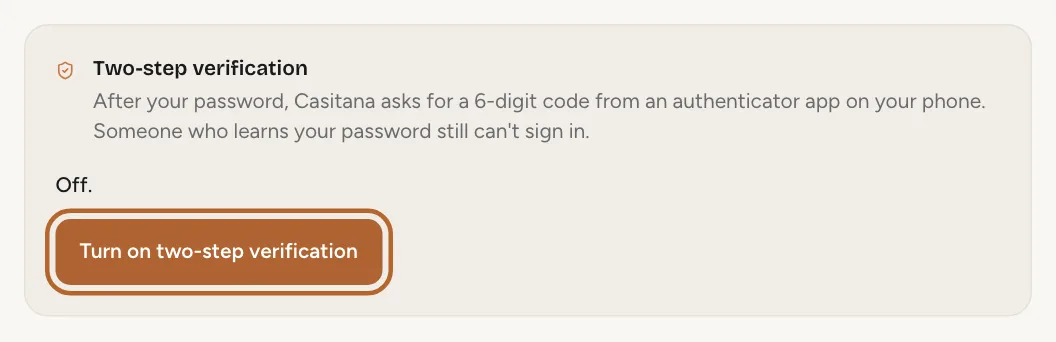
At the bottom of the menu on the left, click Settings, then the Security tab, and click Turn on two-step verification.
 Enlarge screenshot
Tip: For your protection, this needs a recent login: within the last 15 minutes. If it has been longer, sign out, sign back in, and start again.
Step 4
Scan the QR code
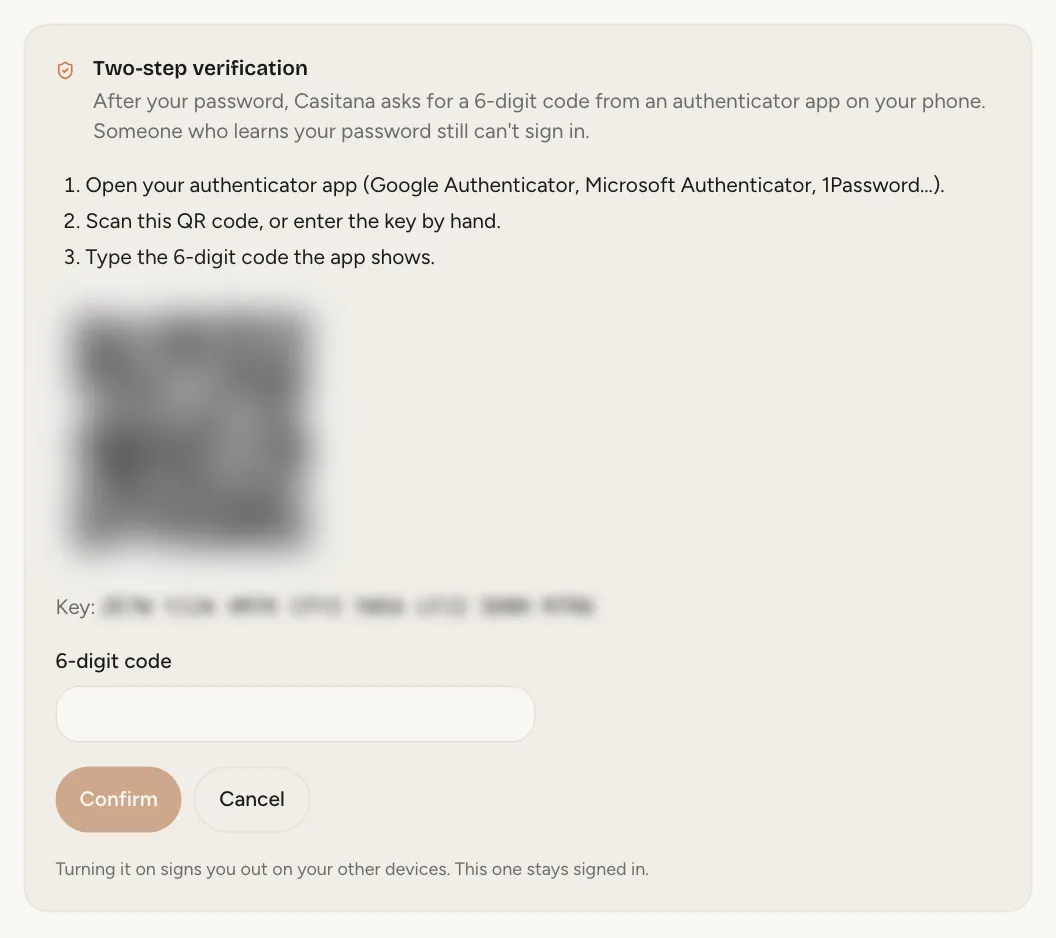
Open your authenticator app, add an account, and scan the QR code Casitana shows. If you cannot scan it, type the key Casitana shows into the app instead.
 Enlarge screenshot
Tip: The QR code is valid for 10 minutes. If it takes longer, Casitana says so: click Start again for a new one.
Step 5
Enter the code
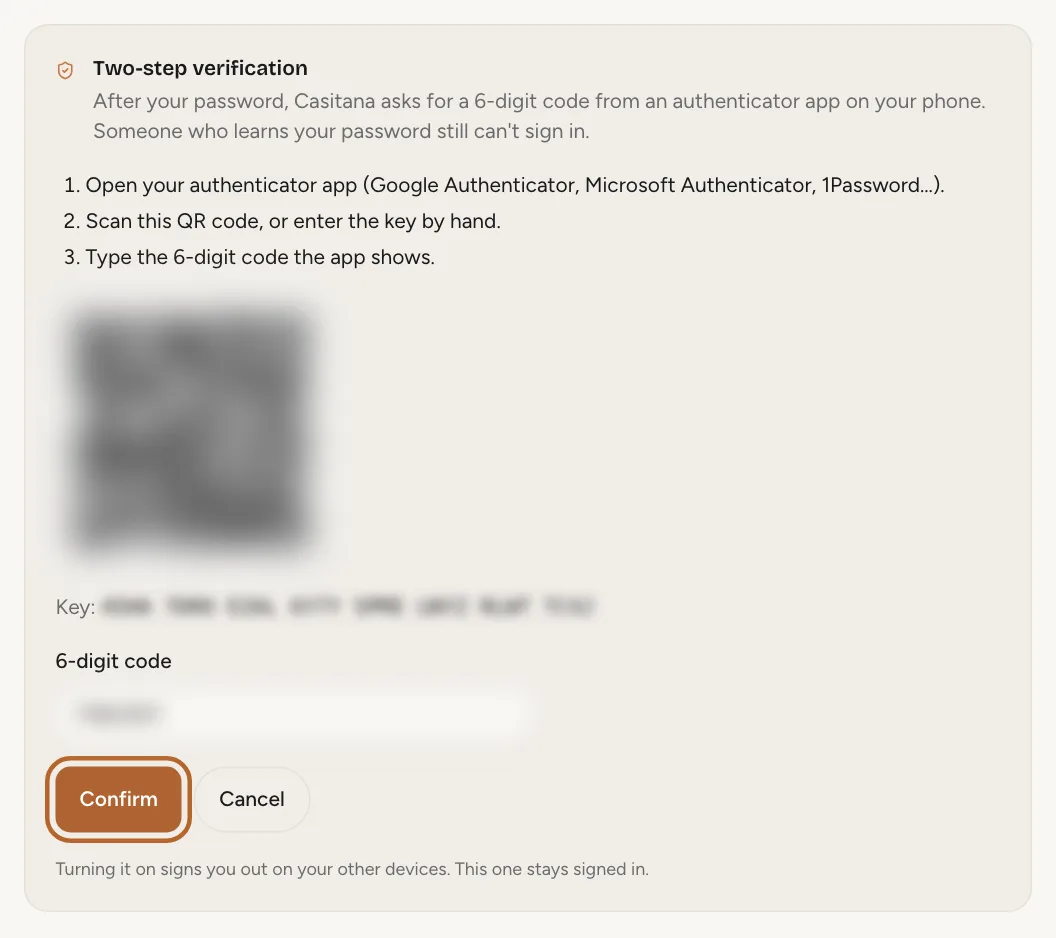
Your app now shows a 6-digit code for Casitana. Type it in: that confirms the app is connected.
 Enlarge screenshot
Step 6
Save your 10 recovery codes
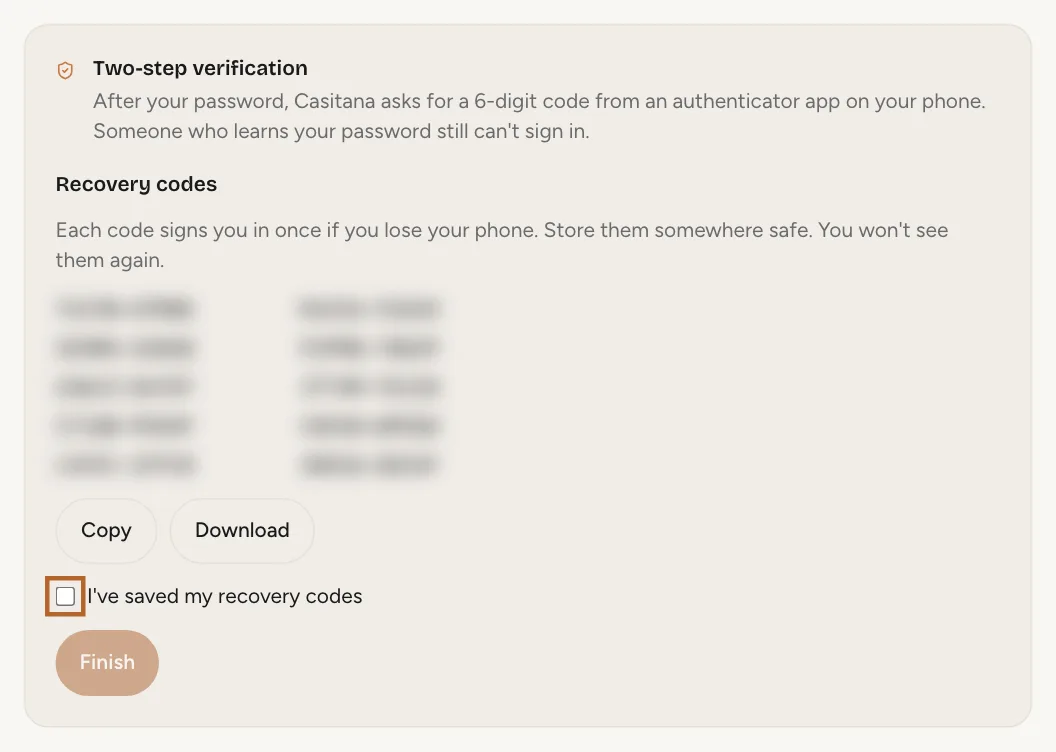
Casitana then shows 10 recovery codes. They are your way back in if you lose your phone, and they are shown only this once. Click Copy or Download to keep them, tick I've saved my recovery codes, and click Finish: you cannot finish without ticking it. How they work: Recovery codes.
 Enlarge screenshot
Step 7
Your other devices are signed out
Turning two-step verification on signs you out of Casitana on your other devices; the one you are using stays logged in. The next time you log in elsewhere, you enter a code. Casitana also emails you to confirm that two-step verification is on.
Step 1App
In the Casitana app
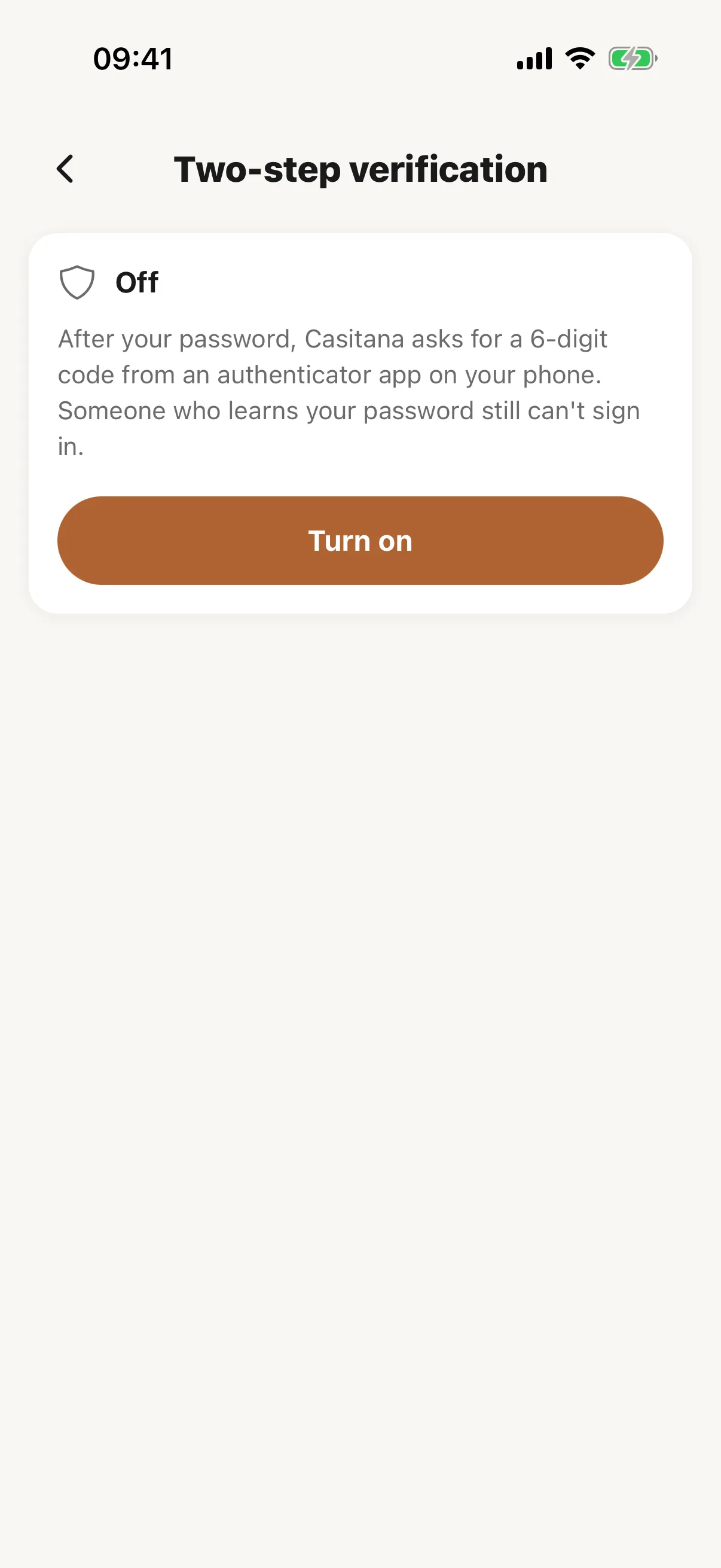
In the Casitana app for iPhone and Android, open More, then Two-step verification under Account.
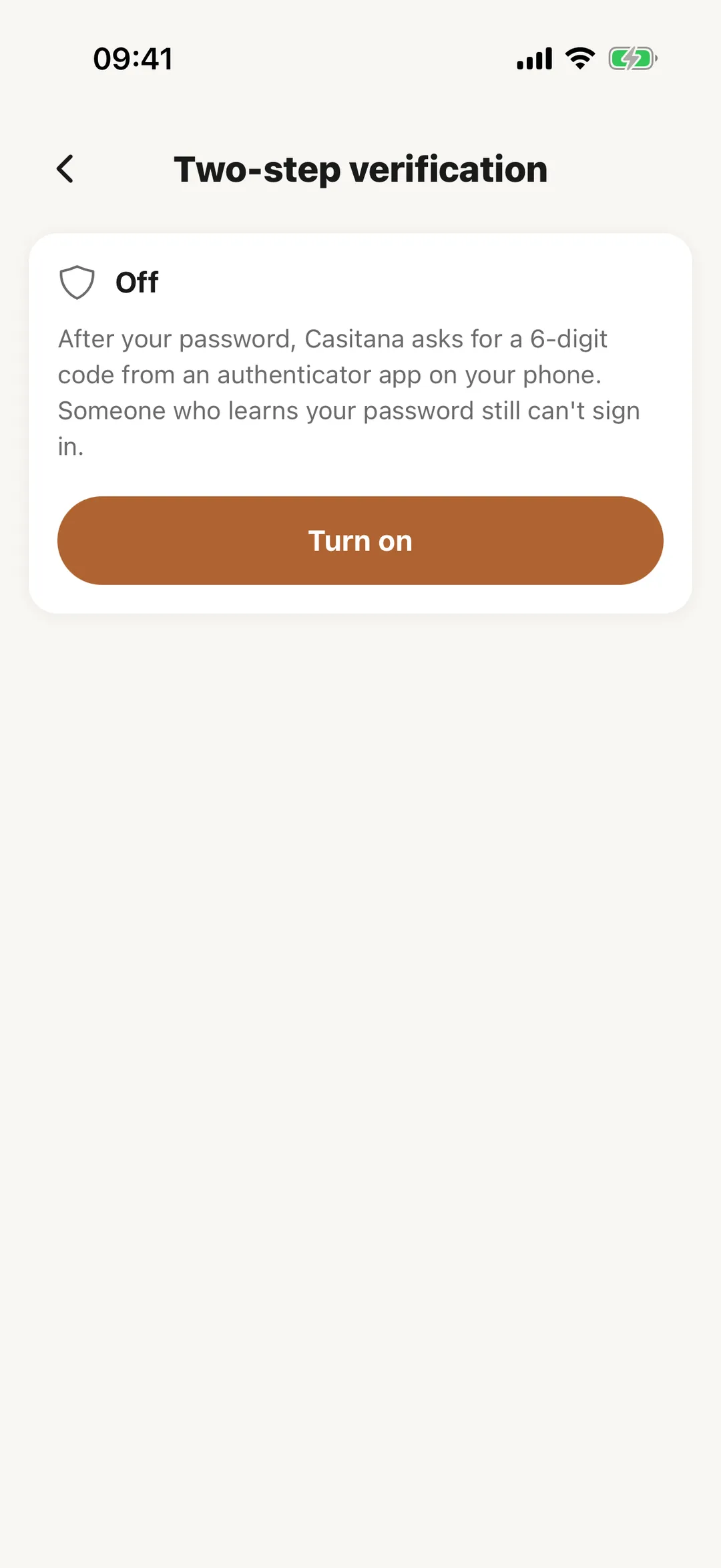 Enlarge screenshot
Good to know: Versions of the app before 2.0 cannot log in to an account with two-step verification. Update the app first.
Logging in
Step 8
A code after your password
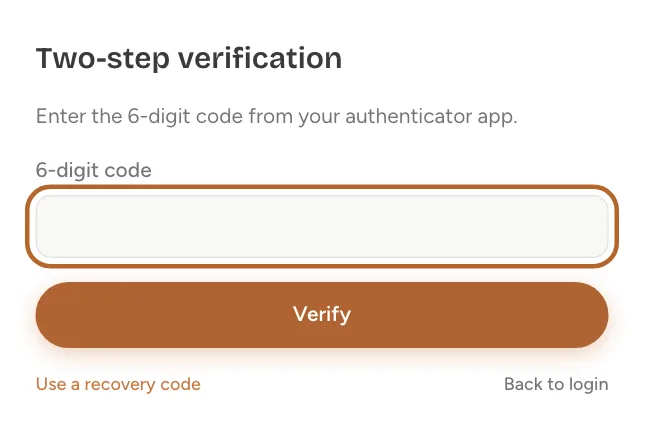
With two-step verification on, logging in takes two steps. First your email address and password, as always. Then Casitana asks for the 6-digit code your authenticator app shows at that moment. If you log in with Google or Apple, the code is asked after that instead.
 Enlarge screenshot
Good to know: After 5 wrong codes, or 10 minutes, you go back to your password and start again. After 10 wrong codes in 15 minutes, code entry is paused for 15 minutes.
Recovery codes
Step 9
Keep them somewhere safe
You get 10 recovery codes. Each one works once, and Casitana shows them only once. Keep them where you can reach them without your phone: in a password manager, or printed and put away safely.
Step 10
Log in with a recovery code
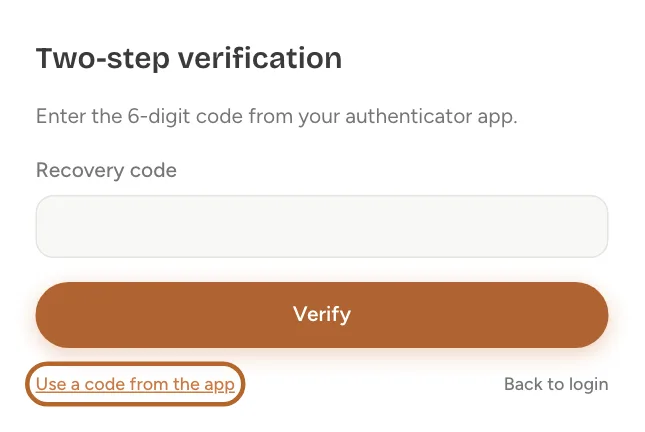
At the code step, choose Use a recovery code and type one of your codes instead of the code from your app. That code then no longer works. Casitana emails you each time a recovery code is used.
 Enlarge screenshot
Step 11
Get a new set
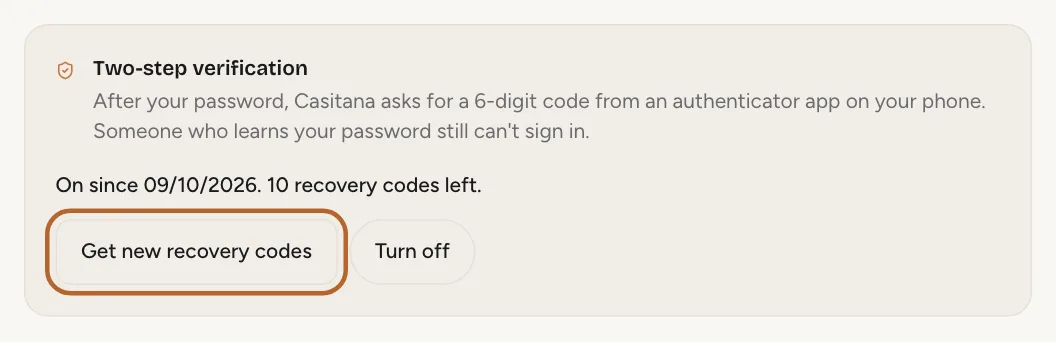
You can get a new set of recovery codes at any time on the Security tab: click Get new recovery codes. This asks for a current code from your authenticator app. You get 10 new codes, and the old ones stop working.
 Enlarge screenshot
Turn it off
Step 12
Turn two-step verification off
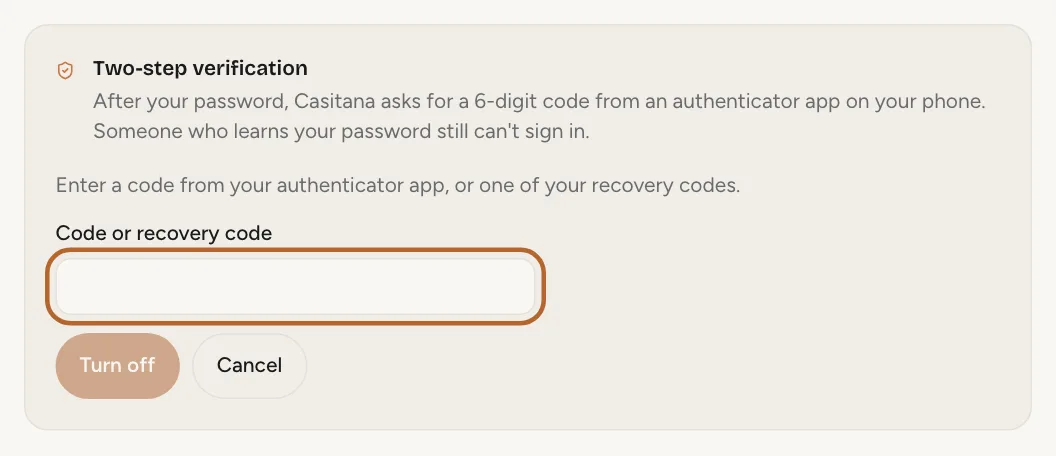
On the Security tab, click Turn off and confirm with a code from your authenticator app or one of your recovery codes. From then on, logging in no longer asks for a code.
 Enlarge screenshot
Step 13
When you cannot turn it off
If you have a staff login and the account holder requires two-step verification for staff accounts, you cannot turn it off for your login.
If you lose your phone
Step 14
Log in with a recovery code
Log in as usual and, at the code step, use one of your recovery codes. Then, on the Security tab, turn two-step verification off and on again: that connects your new phone and gives you a new set of recovery codes.
Good to know: With a staff login, if the account holder requires two-step verification, you cannot turn it off, and a new set of codes needs a code from your old phone. Ask the account holder to reset your two-step verification instead: you then set it up with your new phone at your next login.
Step 15
No recovery codes left
Contact Casitana support at support@casitana.com. To protect your account, support will ask you to reply from your account’s email address, and to confirm either the last 4 digits of your payment card, or the name of one of your properties together with a recent booking.
Tip: Working in someone else’s account with a staff login? Ask the account holder instead: they can reset it for you.
Step 16
After the reset
Once your two-step verification has been reset, you are signed out on every device. Log in again, and you can set it up with your new phone.