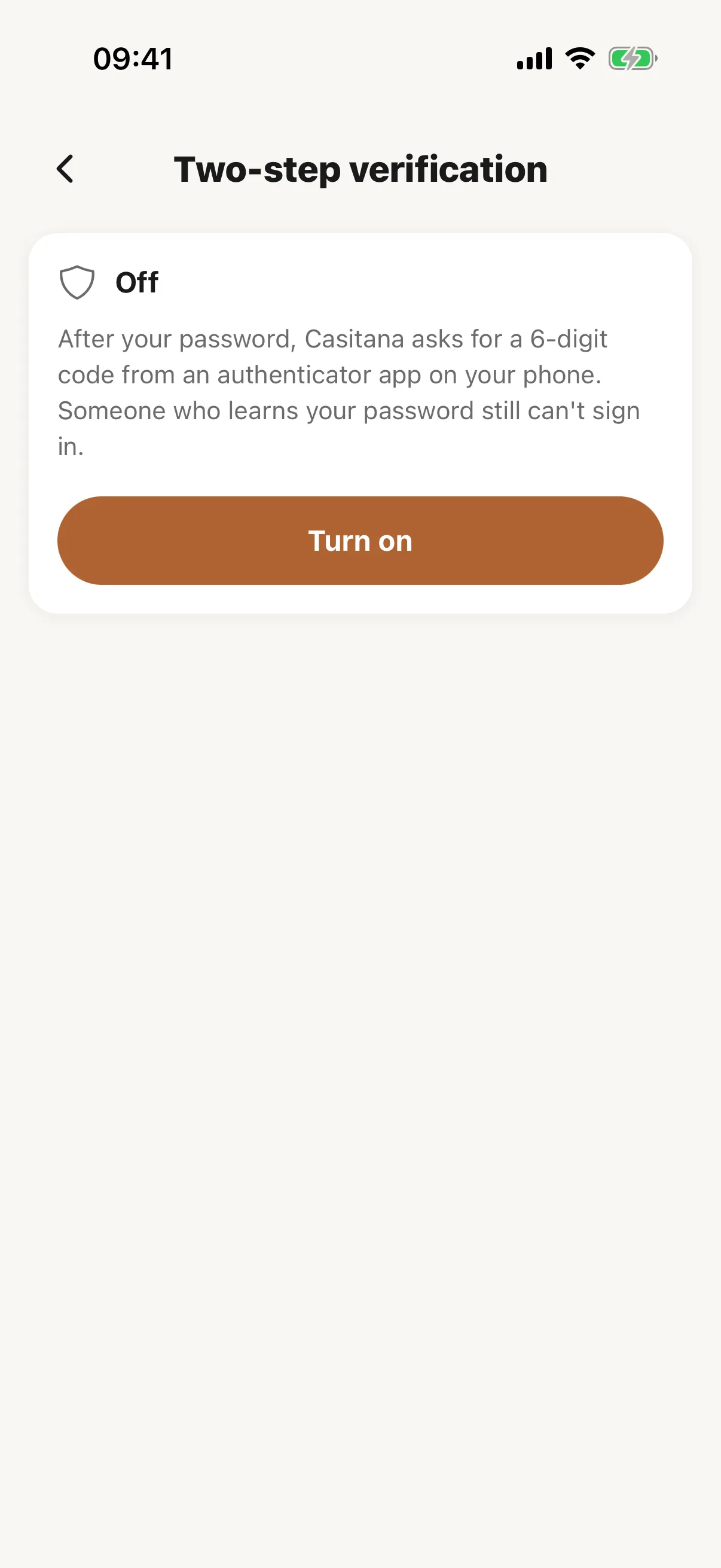
Turn it on
Step 1
Optional for account holders
As the account holder, you decide whether to use two-step verification. An account holder can require it for the account’s staff: see Two-step verification for your staff.
Step 2
You need an authenticator app
The codes come from an authenticator app on your phone, such as Google Authenticator, Microsoft Authenticator, 1Password or Authy. If you already use one, use that; otherwise install one before you start.
Step 3
Your other devices are signed out
Turning two-step verification on signs you out of Casitana on your other devices; the one you are using stays logged in. The next time you log in elsewhere, you enter a code. Casitana also emails you to confirm that two-step verification is on.
Step 4
In the Casitana app
In the Casitana app for iPhone and Android, open More, then Two-step verification under Account.
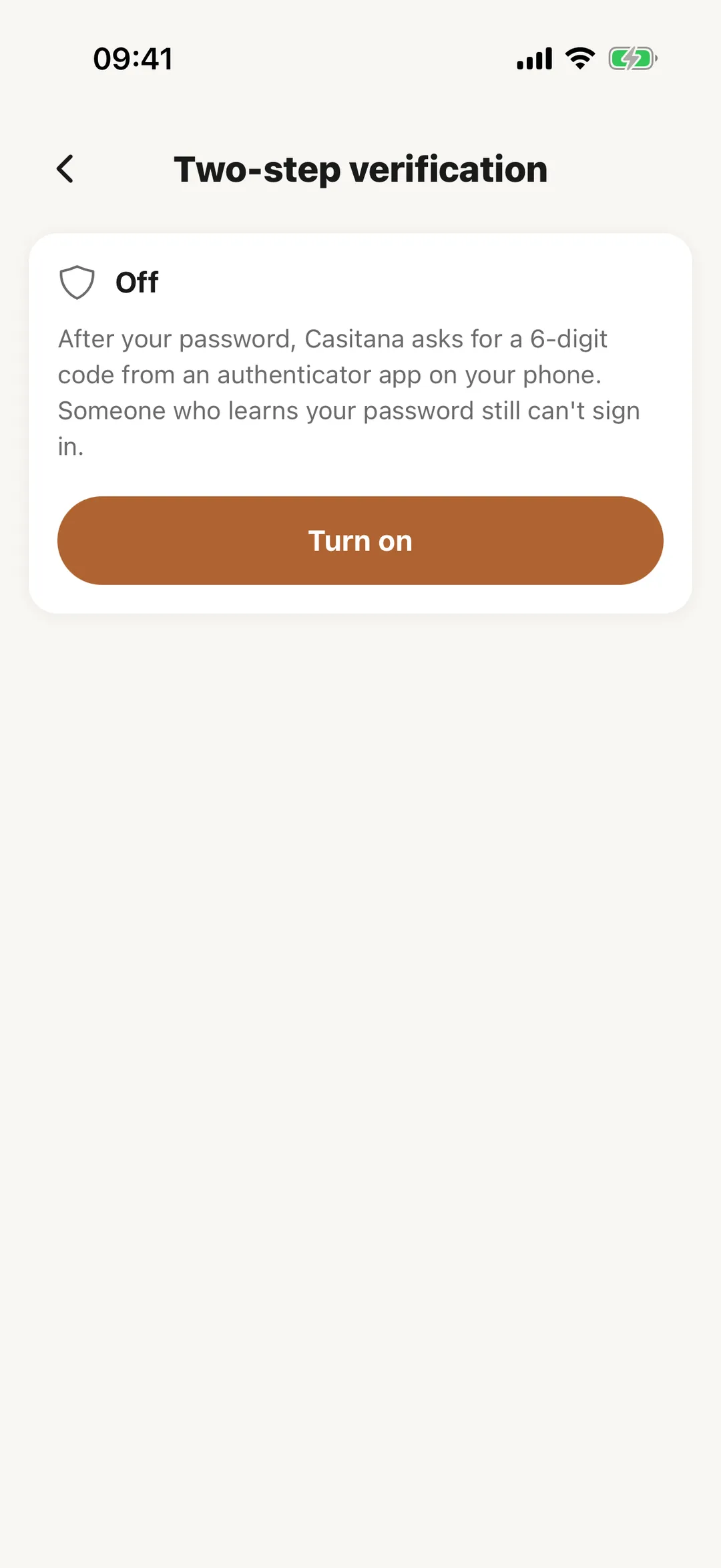 Enlarge screenshot
Good to know: Versions of the app before 2.0 cannot log in to an account with two-step verification. Update the app first.