
Open owner statements
Step 1
Open Owner statements
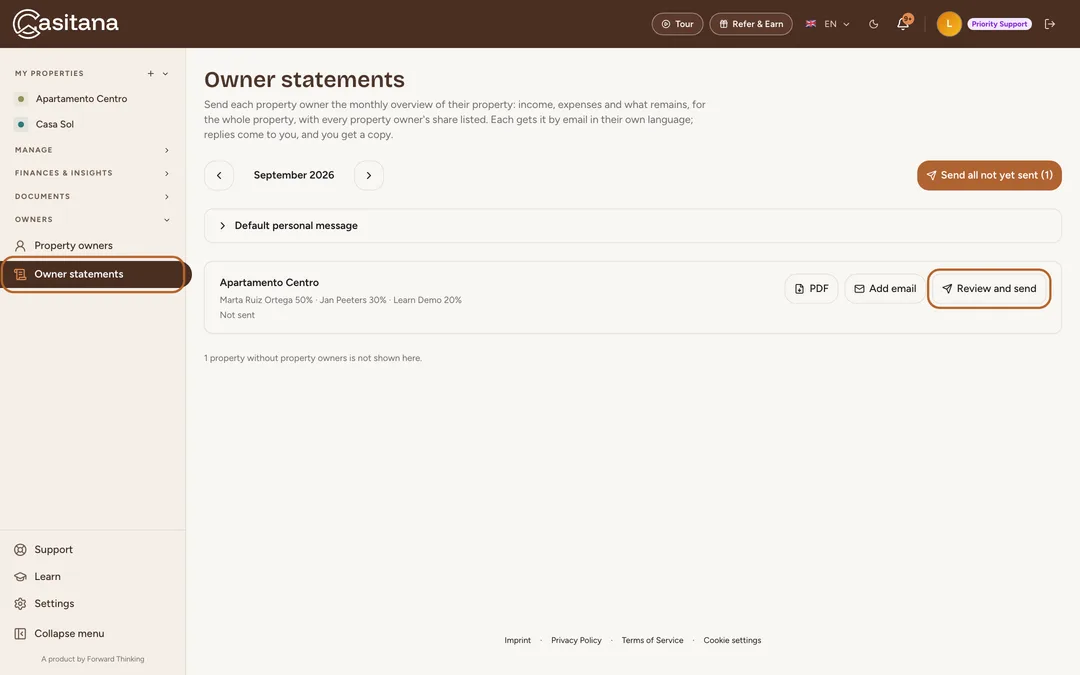
In the sidebar, under OWNERS, click Owner statements. The page opens on the month that just ended and lists every property that has property owners, with their names and shares and whether the statement has been sent. Use the arrows to change the month.
 Enlarge screenshot
Step 2
What a statement contains
A statement is the property’s monthly overview: income, expenses and what remains, for the whole property, with every property owner and their share listed under the figures. Casitana does not split the amounts by share and calculates no tax. PDF on a row downloads the PDF without sending anything.
Tip: If you charge a management fee, record it as an expense of the property and it appears with the other expenses.
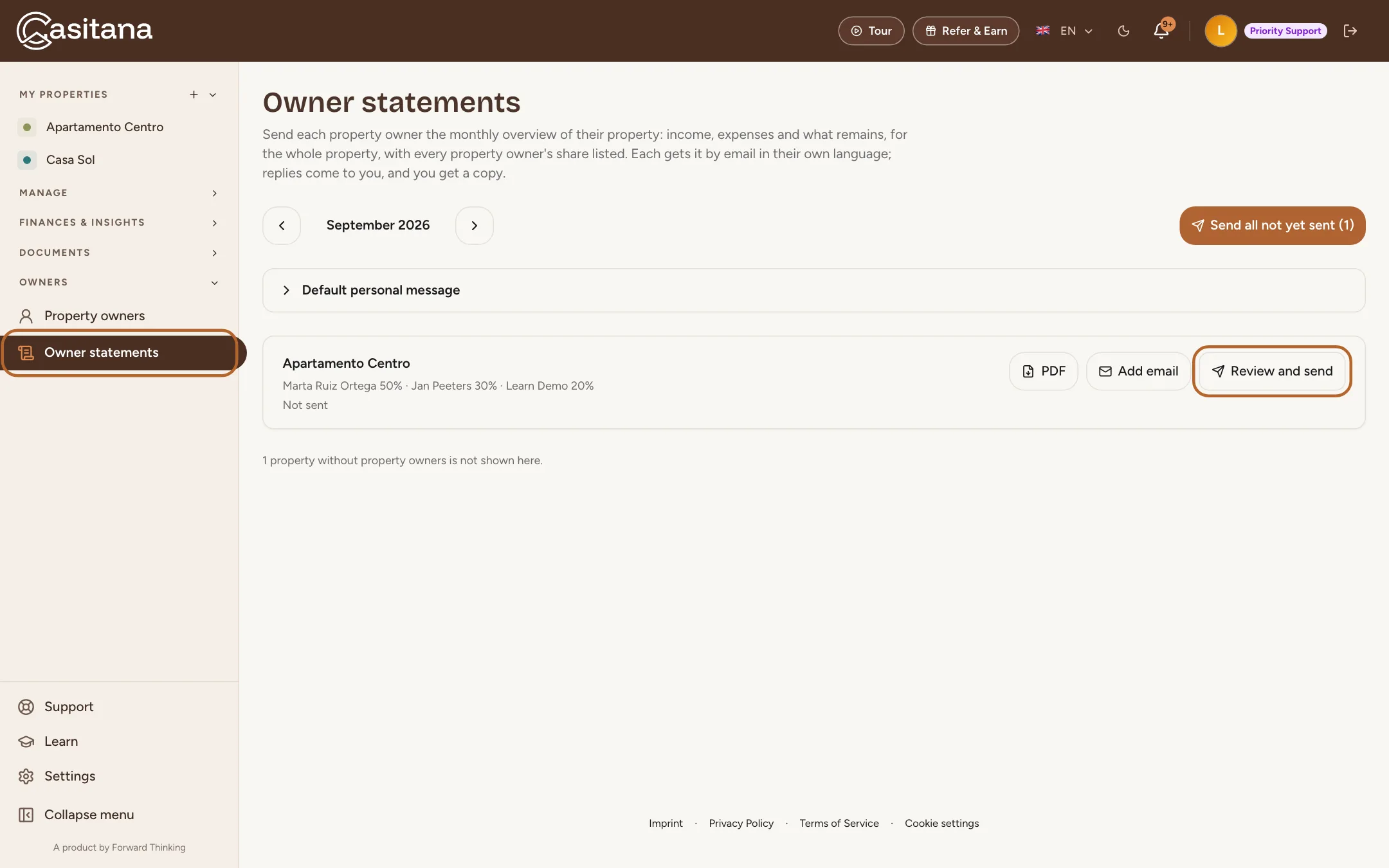
Review and send a statement
Nothing is sent from the list. Every statement goes through Review and send first.
Step 3
Open Review and send
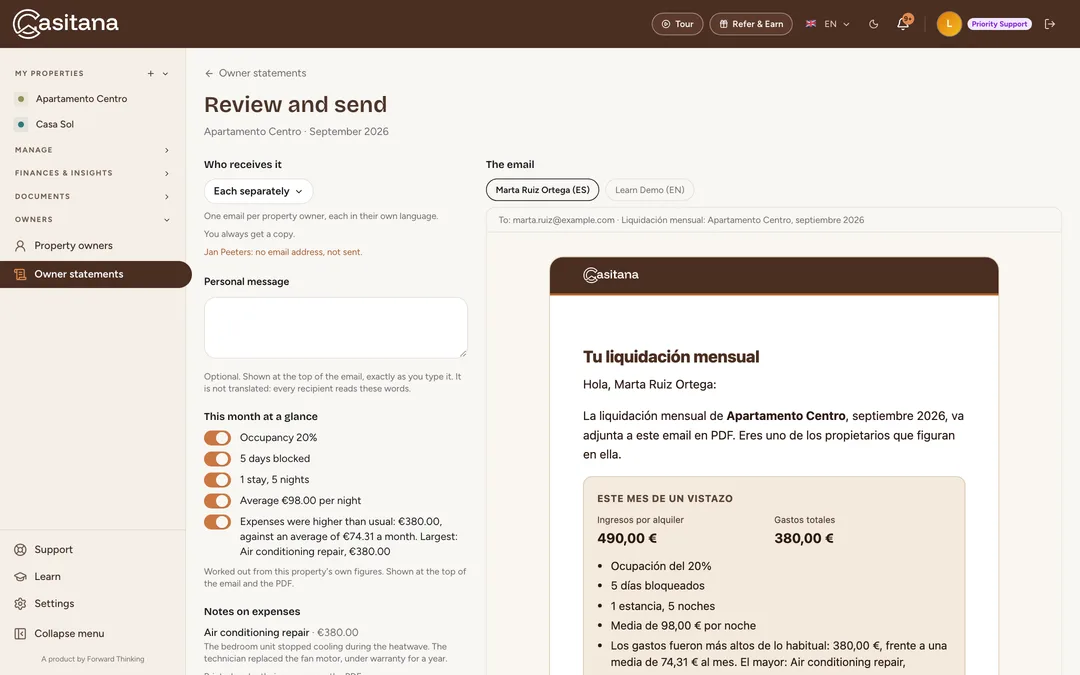
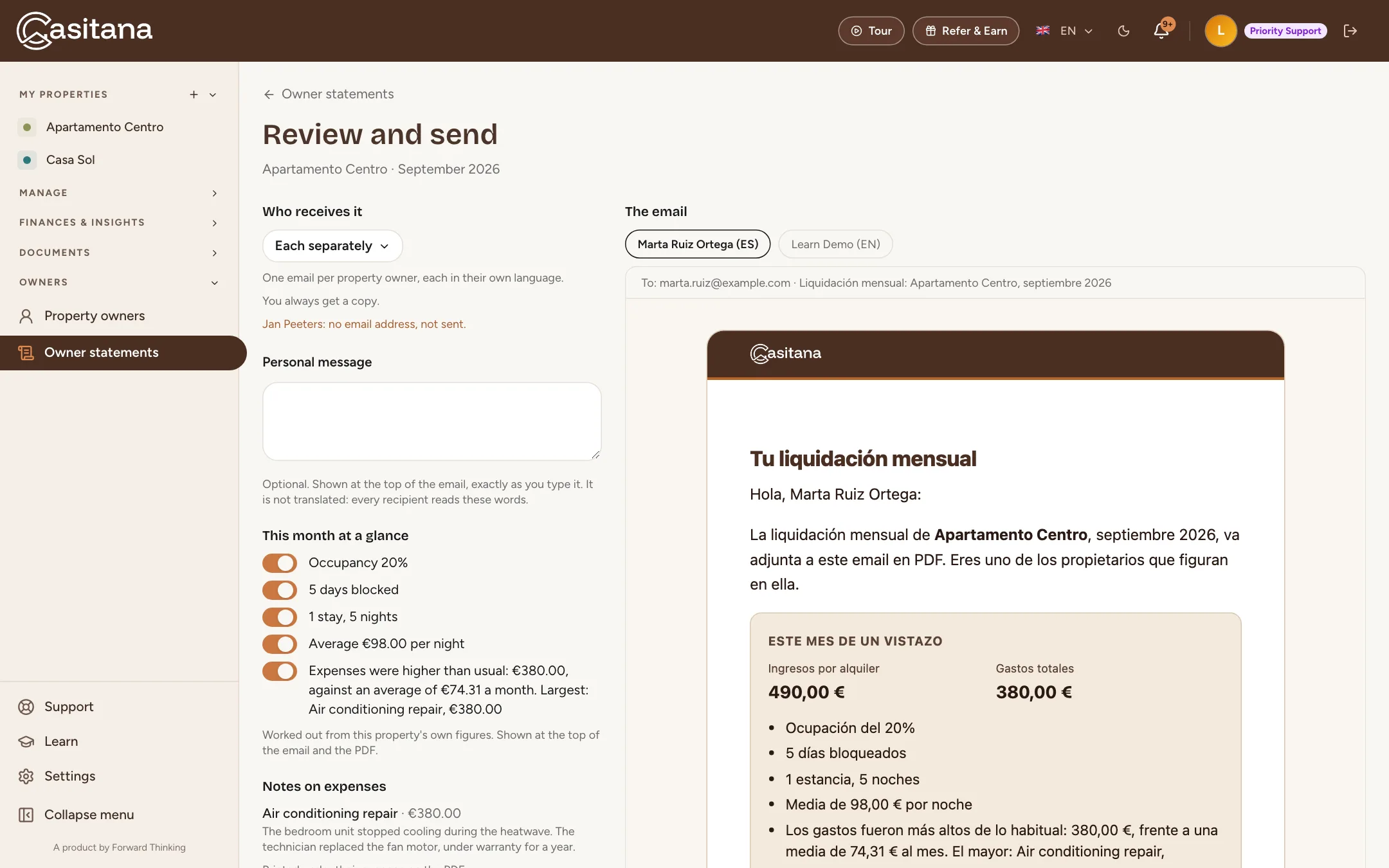
Click a property’s row, or Review and send at the end of it. On the left you choose who receives the statement, add a message and check the highlights. On the right is The email, exactly as it will arrive.
 Enlarge screenshot
Good to know: A staff member who can view Finances but not edit it sees Review: the same screen, without the button that sends.
Step 4
Check the email and the PDF
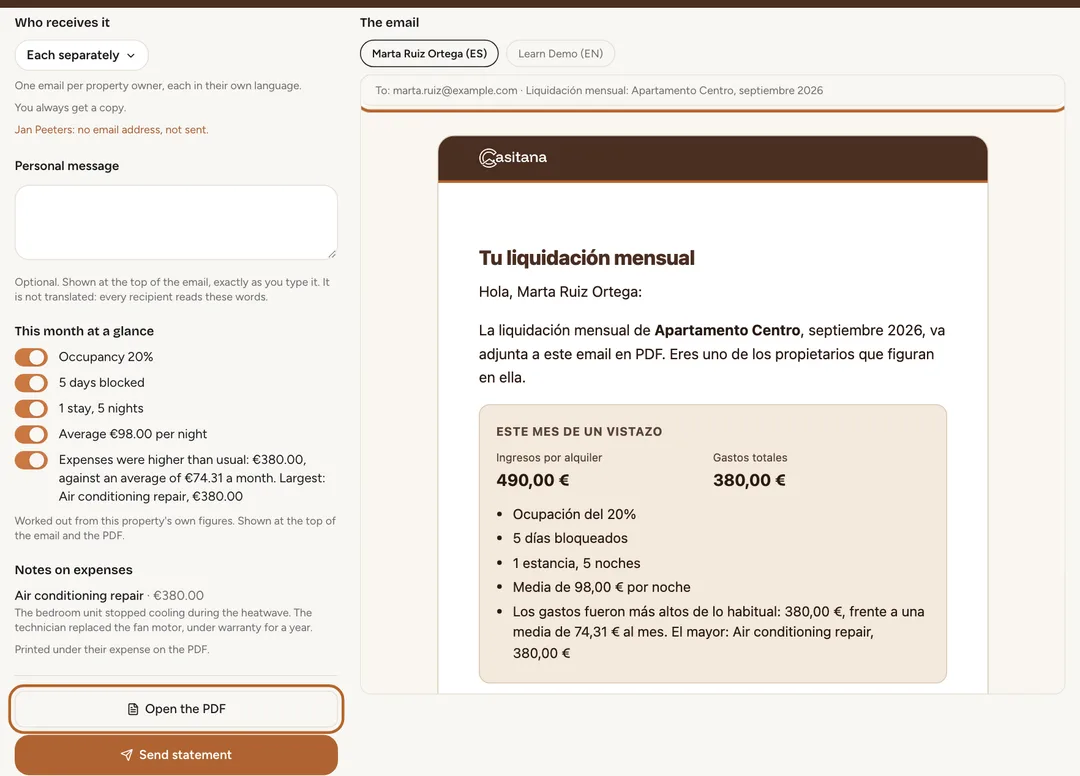
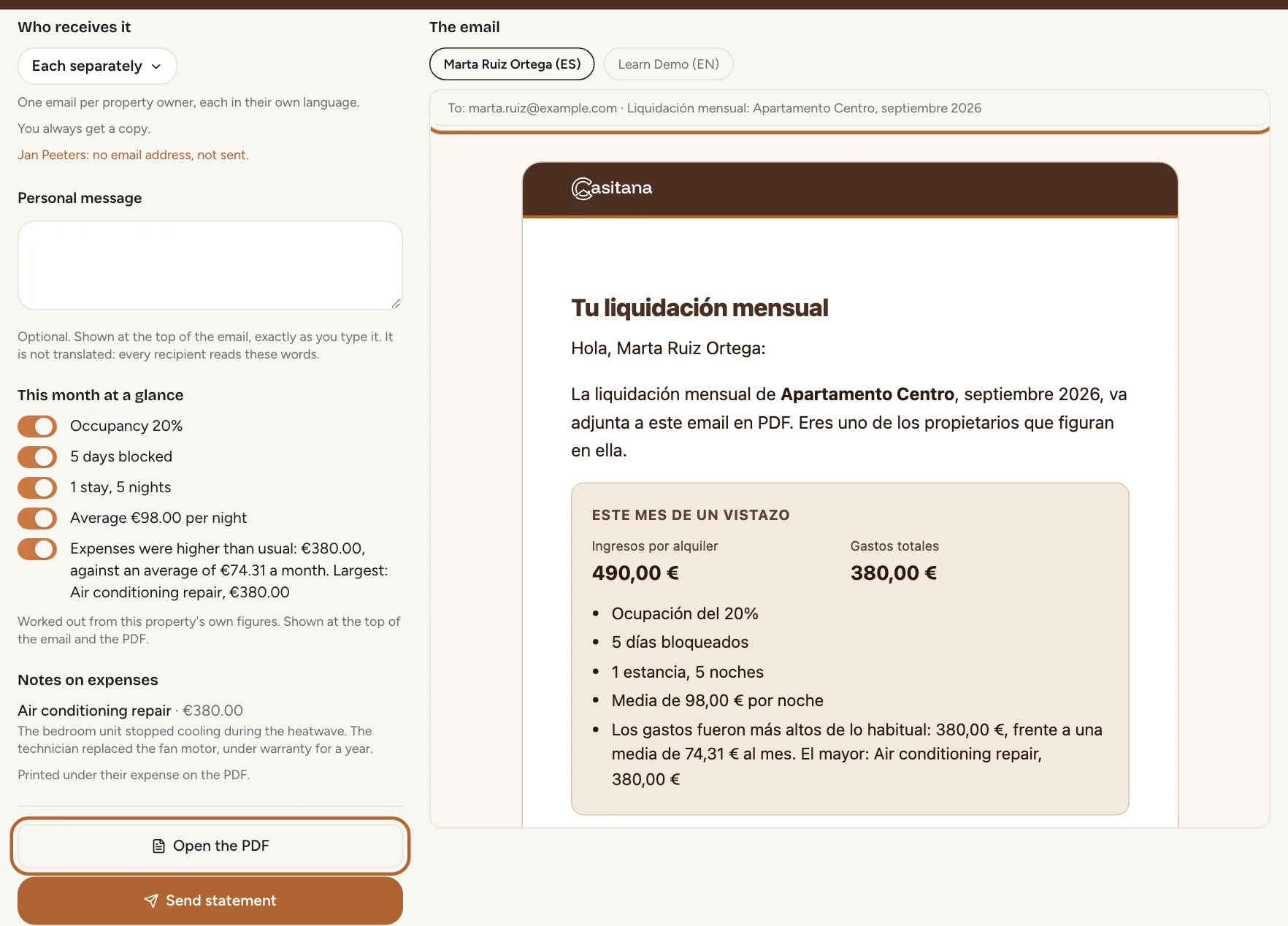
The email is shown as each recipient receives it, in their own language, with who it goes to and its subject above it. When several emails go out, a tab for each one lets you check them all. Click Open the PDF to see the PDF that is attached.
 Enlarge screenshot
Step 5
Send it
Click Send statement. Each recipient gets the email with the PDF attached. It is sent on your behalf, so replies come to you, and you always get a copy. Back on the list, the row shows the date it was sent and how many of the property owners received it.
Choose who receives it
Casitana remembers your choice for each property. Next month’s statement, and one you send from the app, go to the same people.
Step 6
Each separately
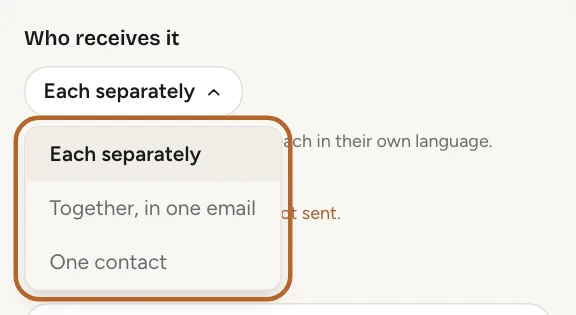
Open the list under Who receives it. With Each separately, the starting choice, every property owner with an email address gets their own email, in the language set on their record.
 Enlarge screenshot
Step 7
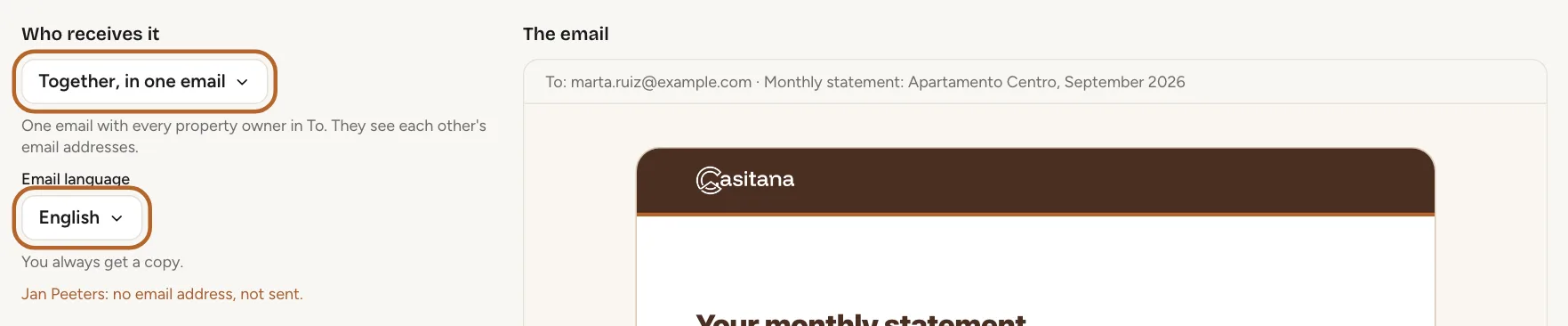
Together, in one email
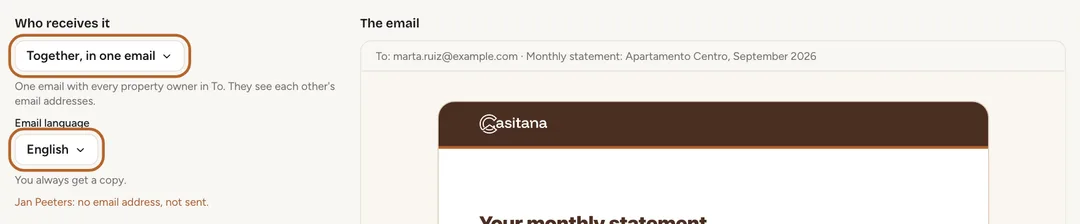
Choose Together, in one email to send one email with every property owner in the To field. Choose its language under Email language: everyone receives the email and the PDF in that language.
 Enlarge screenshot
Good to know: In one shared email, the property owners see each other’s email addresses.
Step 8
One contact
Choose One contact when one person looks after the property for the others, then pick them under Property owner who receives it. Only they receive the statement, in their own language, on behalf of all the property owners.
Tip: If that person stops being a property owner of the property, the statement goes to each property owner separately again, and the screen tells you so.
Step 9
A property owner without an email address
A property owner without an email address, or whose address is blocked, is named under the choice and skipped; the others still receive the statement. Add the address on their record (Edit or delete) and send again.
Add a personal message
Step 10
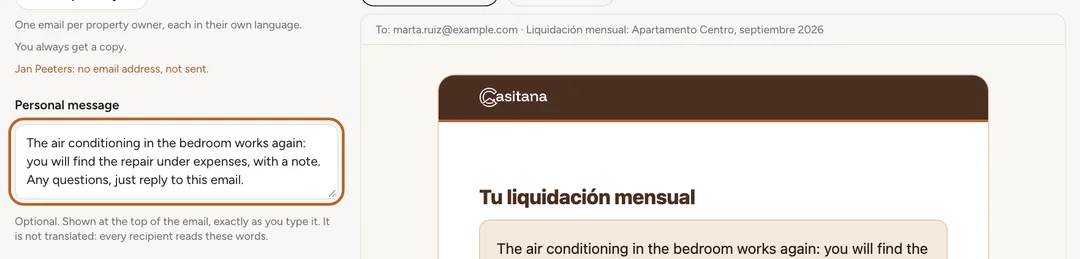
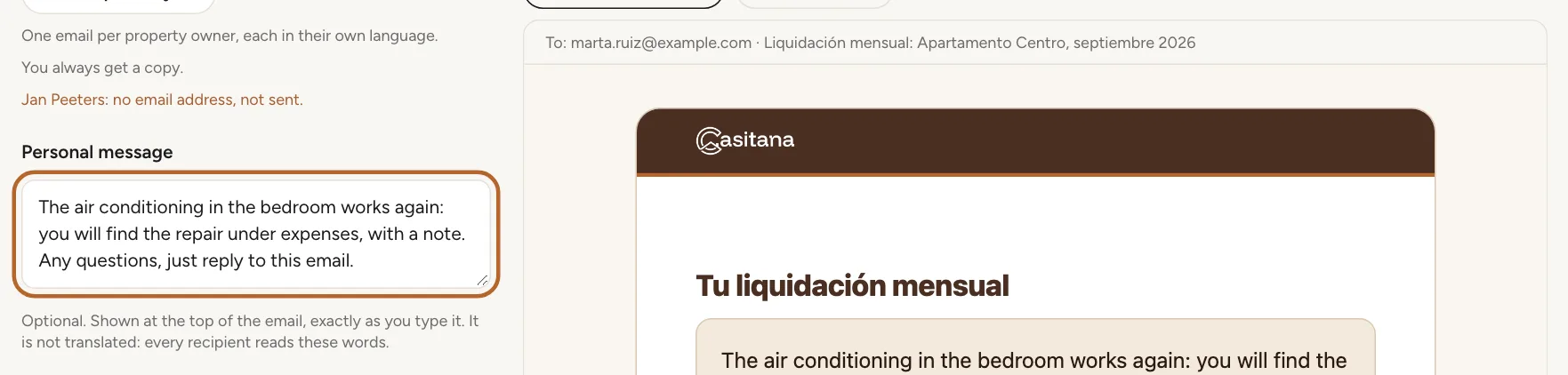
Write a message
Type it under Personal message. It appears at the top of the email, above the figures, and the preview on the right shows it straight away. It is sent exactly as you type it and is not translated: every property owner reads the same words, whatever their language.
 Enlarge screenshot
Step 11
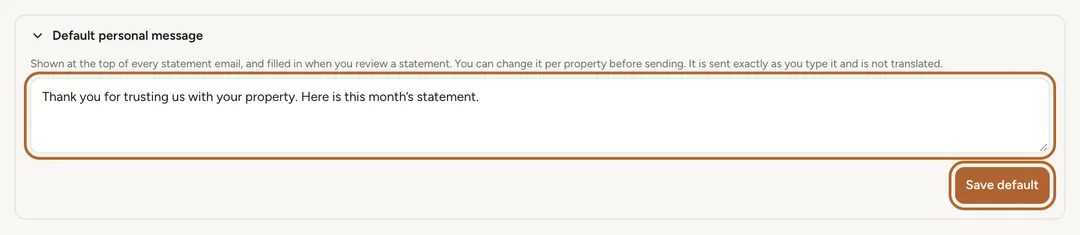
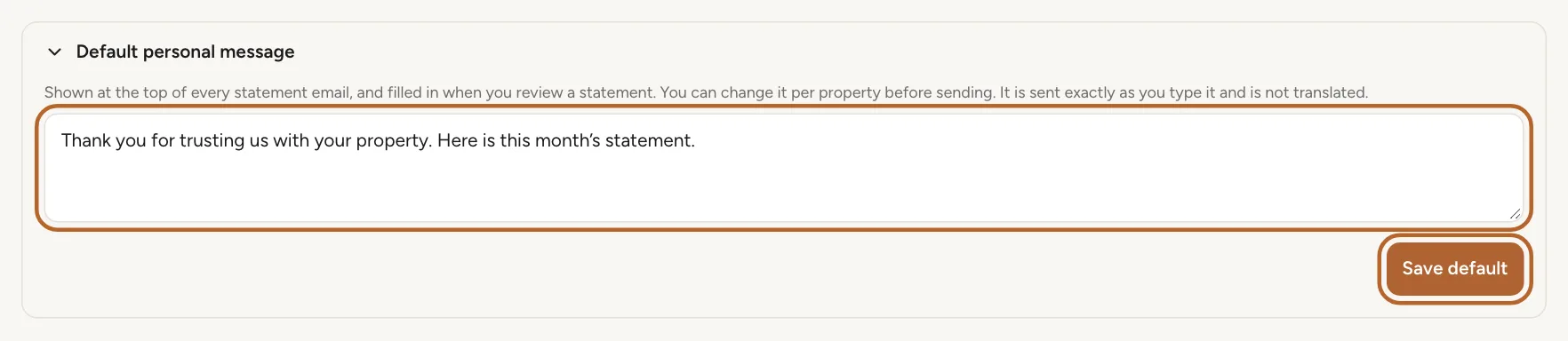
Save a default message
For a message you send every month, open Default personal message on the Owner statements page, type it and click Save default. It is filled in whenever you review a statement, and you can still change it for one property before you send.
 Enlarge screenshot
Step 12
When a message can be added
The personal message is available once your account has made its first payment. During a free trial the field shows “Available after your trial.” and statements go out without one. A message cannot contain links, web addresses or email addresses: Casitana points them out, and the statement cannot be sent until they are removed. Up to 2,000 characters.
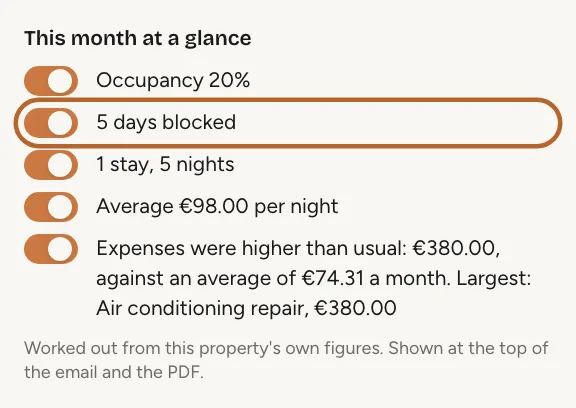
Highlights: this month at a glance
Step 13
What the highlights show
Under This month at a glance, Casitana sums up the month from the property’s own figures, at the top of the email and the PDF: the occupancy, the days you blocked, the stays and their nights, and the average earned per night. Blocked days are left out of the days the occupancy counts, so a month you kept for yourself does not look empty.
 Enlarge screenshot
Tip: A line only appears when there is enough data behind it. Occupancy is compared with the same month last year only when Casitana has that month, and a change under 5 points reads as about the same. Expenses are flagged as higher than usual when they are at least one and a half times the monthly average of the months before, and at least €100 above it, which needs six months of history. That line names the largest expense.
Step 14
Leave a highlight out
Each highlight has a switch. Turn one off and it disappears from the email and the PDF of this send only: next month, every highlight that applies is on again.
Notes on expenses
Step 15
Explain an expense
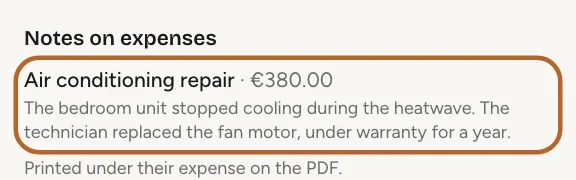
When an expense needs explaining, such as a repair or a replacement, add a Note for property owners to it in Income & Expenses (Add a note for property owners). The note is printed under that expense on the PDF, and Notes on expenses lists them on the review screen so you can read them once more before sending.
 Enlarge screenshot
Good to know: Receipts are not sent to property owners. Only the statement’s PDF is attached.
Send the whole month
Step 16
Review every statement at once
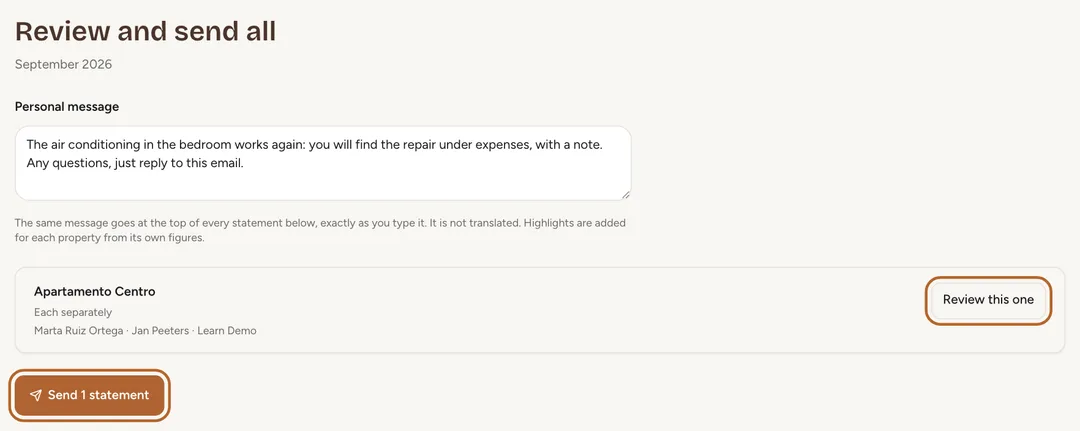
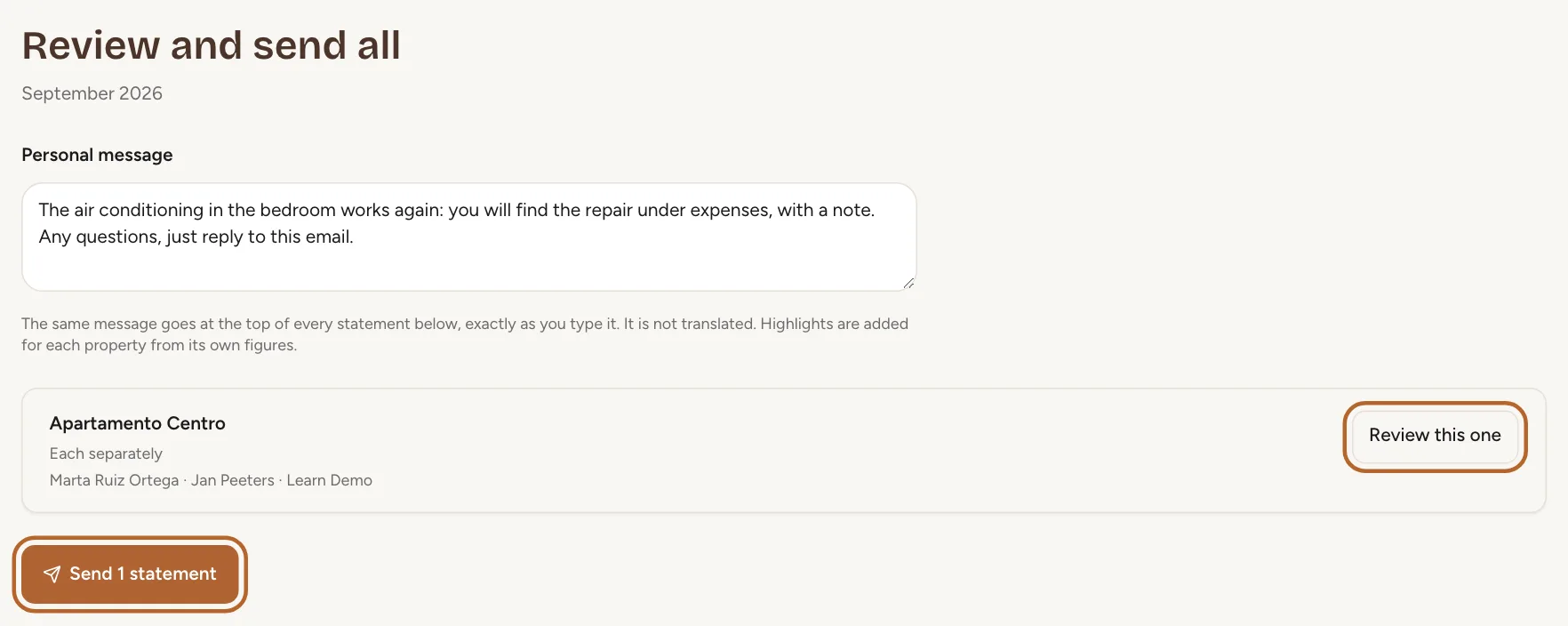
At the top of the Owner statements page, click the button that sends every statement not sent yet. It opens Review and send all: one personal message for all of them, filled in with your default, and a row per property showing who receives it. Click Review this one to check or change one property on its own screen. When everything is right, the button at the bottom sends them one after another and shows how far it is.
 Enlarge screenshot
Step 17
Nothing is sent twice
Statements already sent for the month are left out, so pressing the button again after an interruption sends only what is missing. When everything has gone, the page says “Everything for this month has been sent.”
Send again after the figures change
Step 18
When the figures change after sending
If you add or correct a transaction after sending, the row says “The figures have changed since this was sent.” The statement already sent is not changed, and sending the whole month does not include it again.
Step 19
Send the corrected statement
Click Review and resend on the row. The screen shows the new figures; check them, then click Send again to everyone. Every recipient gets the corrected statement, and you get a copy.