
Create your account
Step 1
Sign up
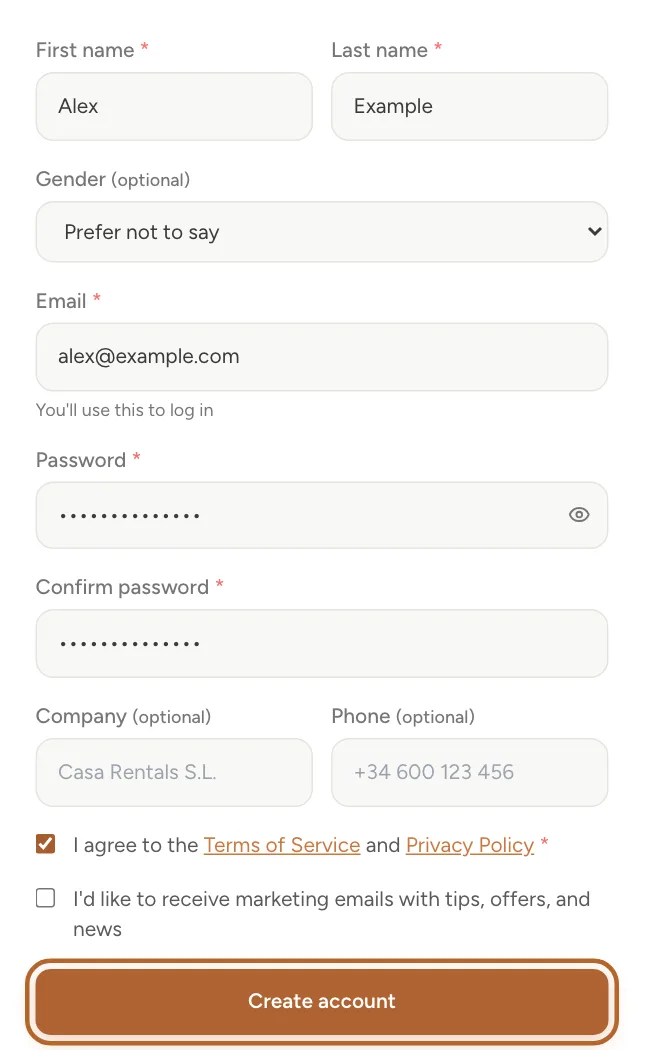
On casitana.com, click Start free at the top. Enter your name, your Email and a Password (at least eight characters, with a capital, a small letter, a number and a symbol), then type it again under Confirm password. Accept the terms and click Create account.
 Enlarge screenshot
Tip: Chose a paid plan on the pricing page first? Then Casitana takes you straight on to secure payment to start its free trial, and you confirm your email afterwards.
Step 2
Check your inbox
Casitana sends you an email with a link. Click the link to activate your account. It expires in 24 hours. Then log in.
Tip: No email? Look in your spam folder, and check that the address you typed is right. Already have an account with that address? Then the email says so, with a link to log in and one to choose a new password.
Log in
Step 3
Log in, and links that open after
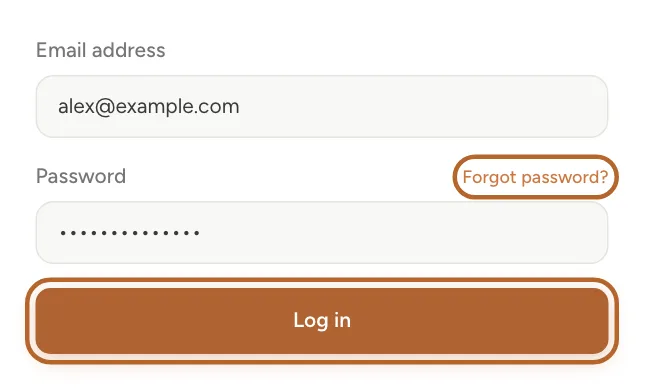
On casitana.com, click Log in. Enter your email and password and click Log in. When you click a link in an email from Casitana while signed out, you log in first and then land on the page the link pointed to.
 Enlarge screenshot
Tip: Forgot your password? Click Forgot password? and Casitana emails you a link to choose a new one.
The welcome tour
Step 4
The tour on your first visit
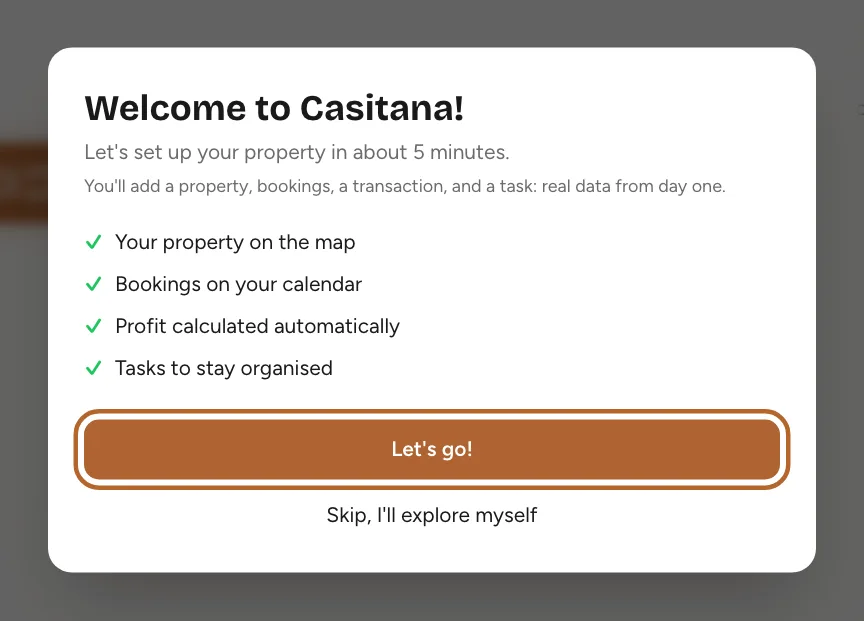
The first time you log in, a short tour offers to set up your first property with you: the property, a booking, a transaction and a task, in about five minutes. Follow it, or skip it and explore on your own.
 Enlarge screenshot
Step 5
Start the tour again
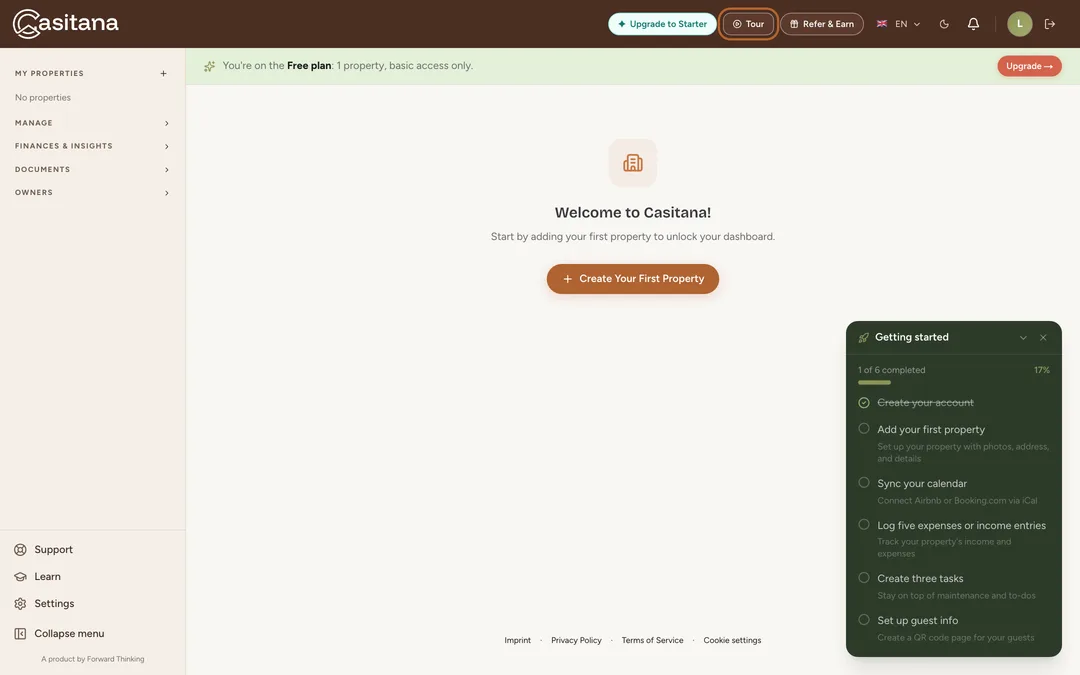
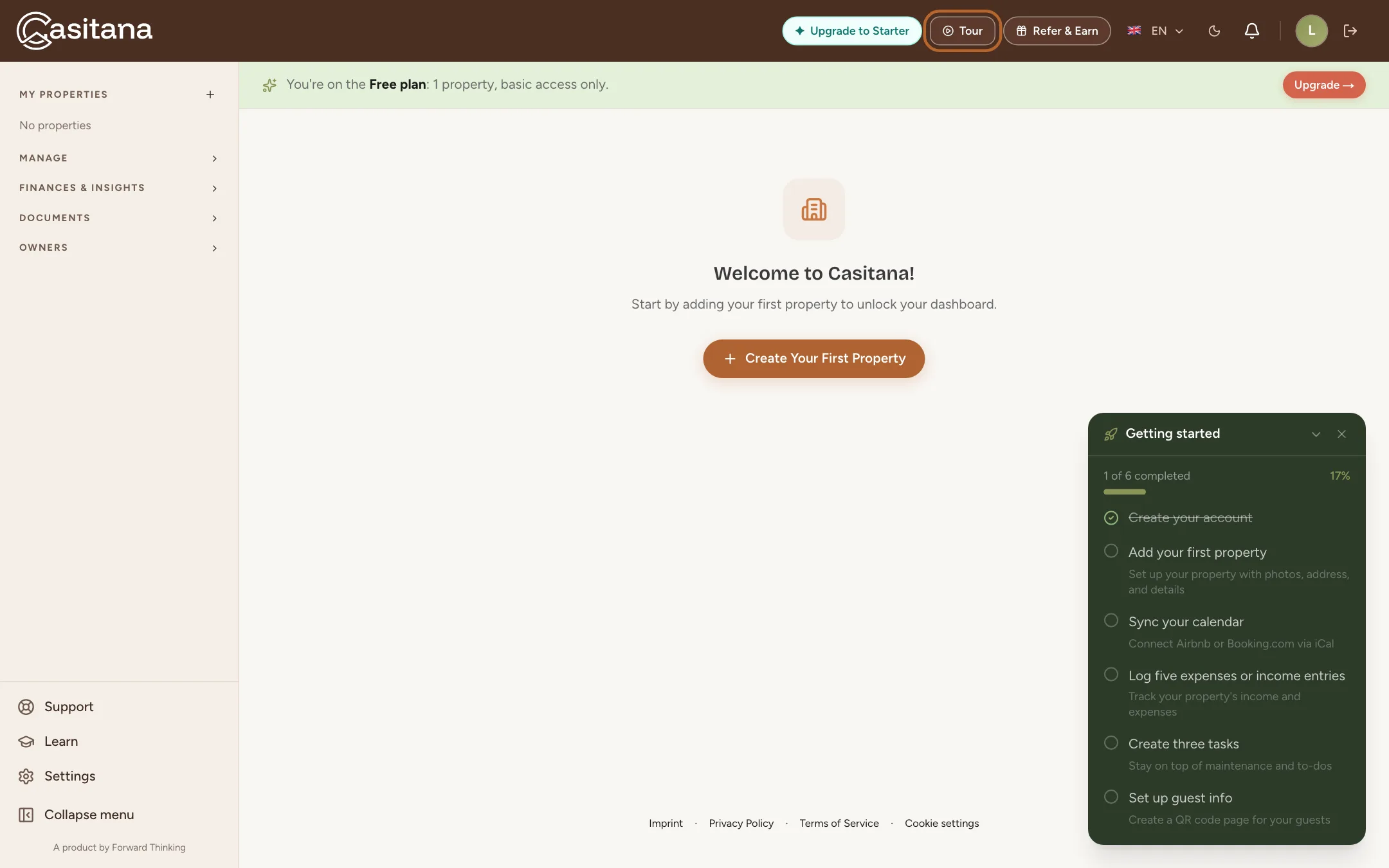
Skipped it, or want to see it again? Click Tour at the top of the screen.
 Enlarge screenshot
What the Free plan includes
The Free plan covers one property with the basics, and up to 10 open tasks at a time. Everything that needs a paid plan stays visible, marked with a lock, so you can see what it does before you decide.
Step 6
Locked in the menu
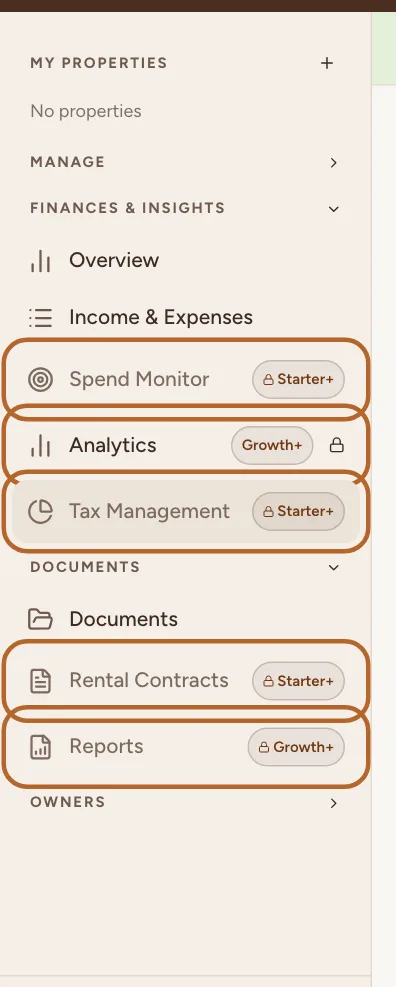
In the menu on the left, open a section such as FINANCES & INSIGHTS: a lock and a plan name mark what that plan unlocks. You can still open these pages: they show what the feature does. On the home page, the quick actions + Equipment and + Maintenance carry the same lock and open the page that explains them.
 Enlarge screenshot
Step 7
A locked page
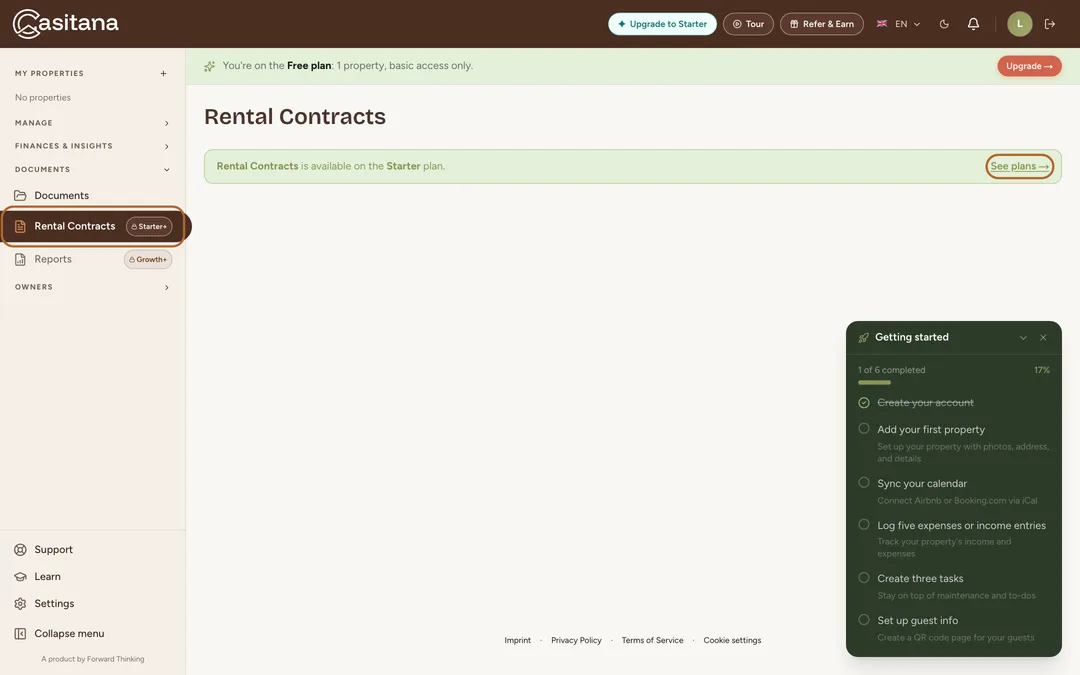
A locked page names the plan that includes it and links to the plans, for example Rental Contracts on the Free plan.
 Enlarge screenshot
Choose a paid plan
Step 8
Choose a plan
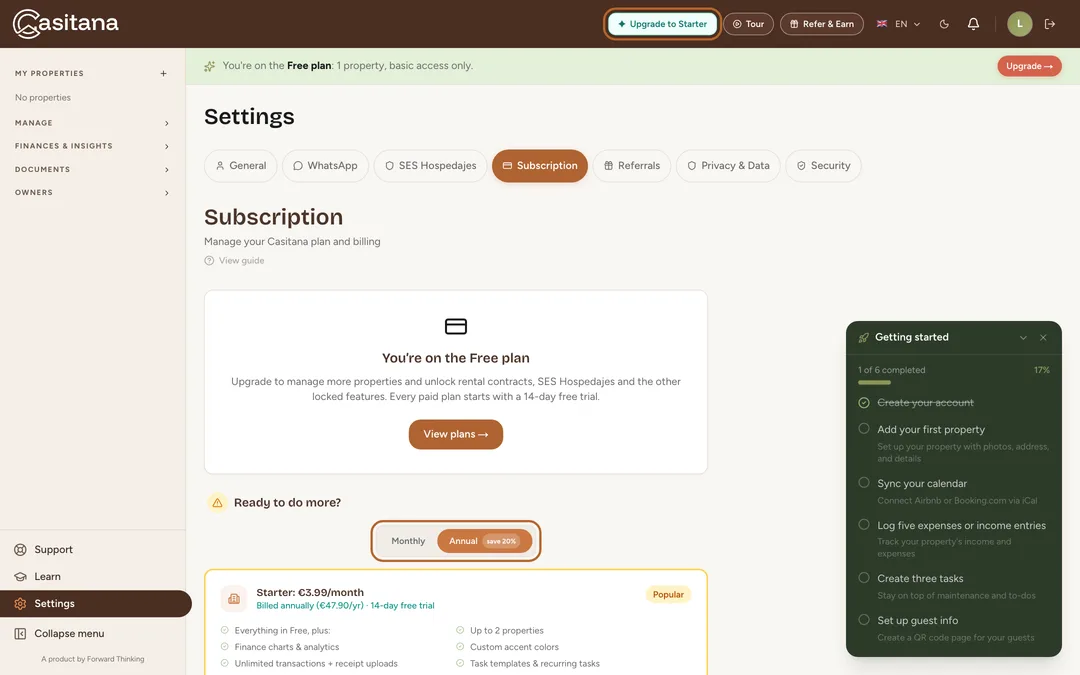
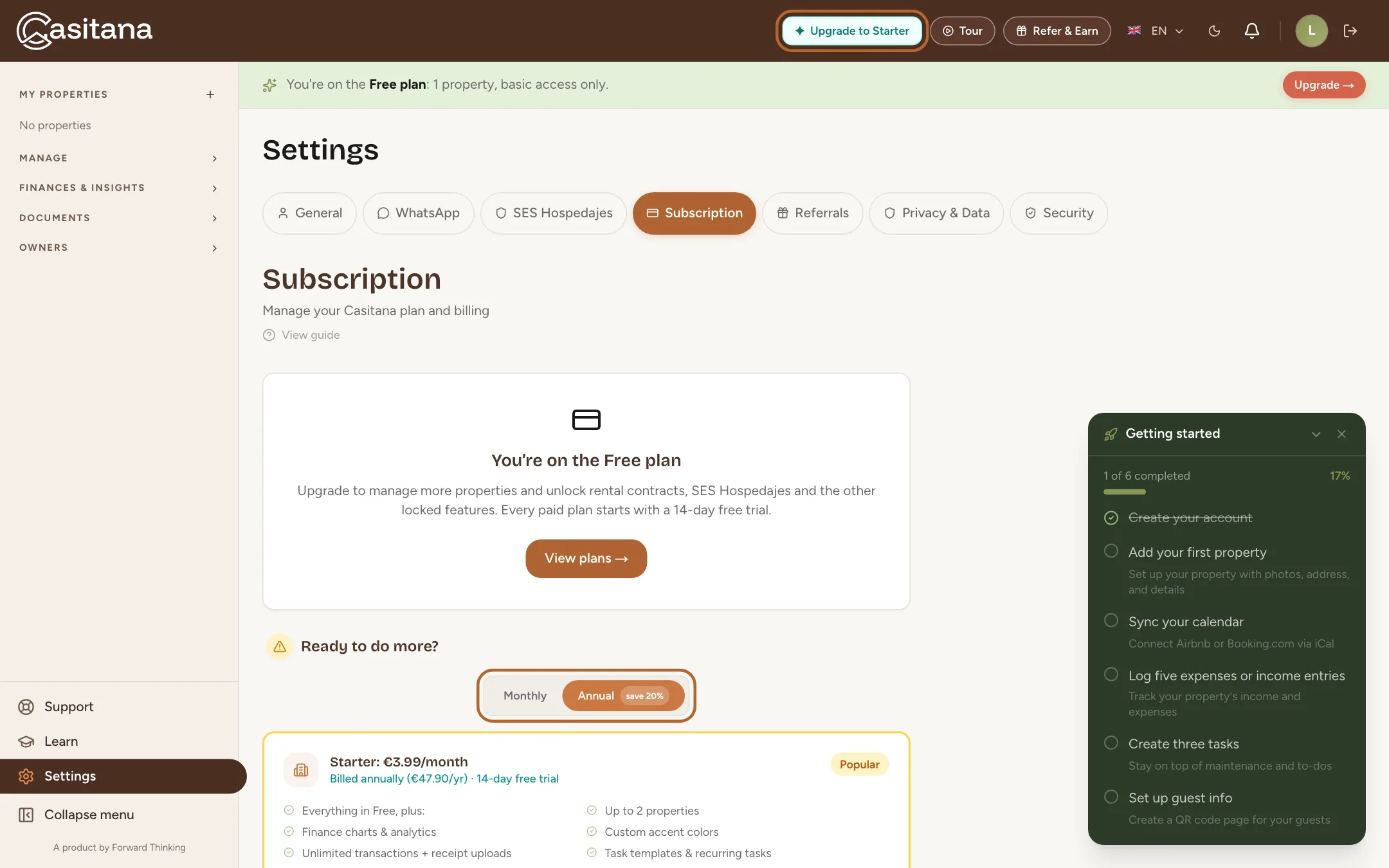
In Settings, open Subscription. On the Free plan, Upgrade to Starter at the top of every screen takes you there too. Annual is selected: each plan shows its price per month, and the line below it the total you pay once a year. Click Monthly to see the monthly prices instead. Then click the plan’s upgrade button. You pay securely through Stripe.
 Enlarge screenshot
Good to know: Every paid plan starts with a 14-day free trial. Its card says what you will pay after the trial.
Change your plan
You always keep one subscription: changing plan updates it, it never starts a second one. A move up applies straight away; a move down waits until the end of the period you have already paid for.
Step 9
Where to change it
In Settings, open Subscription. Under Change your plan, every plan is listed with its price; yours is marked Current plan. Choose Monthly or Annual above the list, then click the button on the plan you want. Before anything changes, Casitana tells you when it takes effect and what you will pay; click Confirm change to go ahead, or Go back.
Step 10
Move up: straight away
A higher plan (Upgrade to Growth, for example) applies at once. You pay only the difference for the rest of the period you have already paid for, charged the same day. If your card is declined, your plan stays as it was.
Step 11
Move down: at the end of your period
A lower plan (Switch to Starter, for example) starts when your current period ends. Until then you keep everything your current plan includes, and nothing is charged today. A notice at the top of the page shows the coming change; click its Keep Growth button to stay on your current plan after all.
Good to know: During the free trial, every change applies straight away and nothing is charged. The trial still ends on the same day.
Step 12
Monthly or annual
To keep your plan and change how often you pay, choose the other period above the list and click Switch to annual billing or Switch to monthly billing on your own plan. Moving to annual applies straight away: you pay the year, less what is left of your current month. Moving to monthly starts when your paid year ends.
Cancel your subscription
Step 13
Cancel
In Subscription, click Cancel subscription, then Yes, cancel subscription. Nothing is refunded and nothing more is charged: you keep your plan until the end of the period you have paid for, and the page shows the date. After that, your account moves to the Free plan. Nothing in your account is deleted.
Step 14
Changed your mind?
Until that date, click Reactivate subscription and your subscription carries on as before. Changing to another plan also withdraws the cancellation.
Tip: To delete your account and everything in it instead, see Your data and privacy: download it, or delete your account.
Your card, your invoices, and Apple
Step 15
Your card and invoices
Click Manage subscription to open Stripe’s billing page. That is where you change your card and see your invoices. You can cancel there too: as in Casitana, your plan then runs until the end of the period you have paid for. Changing plan is only possible in Casitana itself, as above.
Good to know: If a payment does not go through, Casitana says so on the same page and offers Update payment method. You can change plan again once the payment is made.
Step 16
Subscribed in the iPhone app
If you subscribed in the Casitana app on your iPhone, Apple bills you, not Casitana, and the page says so. Change or cancel that subscription on your iPhone: open Settings, tap your name, then Subscriptions. If you already pay on the website, the iPhone app does not let you subscribe a second time. On an Android phone the app shows your plan and sends you to casitana.com to change it: Your plan on the phone.
In the appApp
Step 1
Create an account in the app
On the sign-in screen, under Don't have an account?, tap Create one. On Create your account, enter your first and last name, your email and your password twice, and accept the terms. Tap Create Account. The app shows Check your email: open the link in the email, then sign in.
Step 2
Sign in
Tap Sign In with your email and password, or Sign in with Google; on an iPhone you can also use Apple. Forgot password? opens the website to reset it. If your account uses two-step verification: Two-step verification.
Step 3
Your plan in the app
Open More, then Subscription. This is for the account holder; a staff member sees Managed by the account holder. On an iPhone you can take a plan through Apple; on Android the app sends you to casitana.com. Details: Your plan on the phone.
Step 4
Delete your account or log out
More, Delete Account opens the page on the website where you delete your account: Delete your account. Log Out is the last row; confirm it to sign out.