
What goes to the trash
Step 1
What you delete goes there first
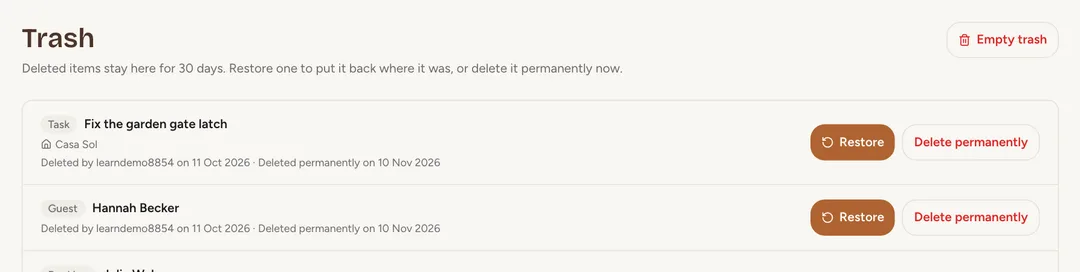
When you delete a booking, a guest or contact, a task or care item, a transaction, a document, a template or a contract made with the contract wizard, it goes to the trash for 30 days, with its files.
 Enlarge screenshot
Step 2
Open the trash
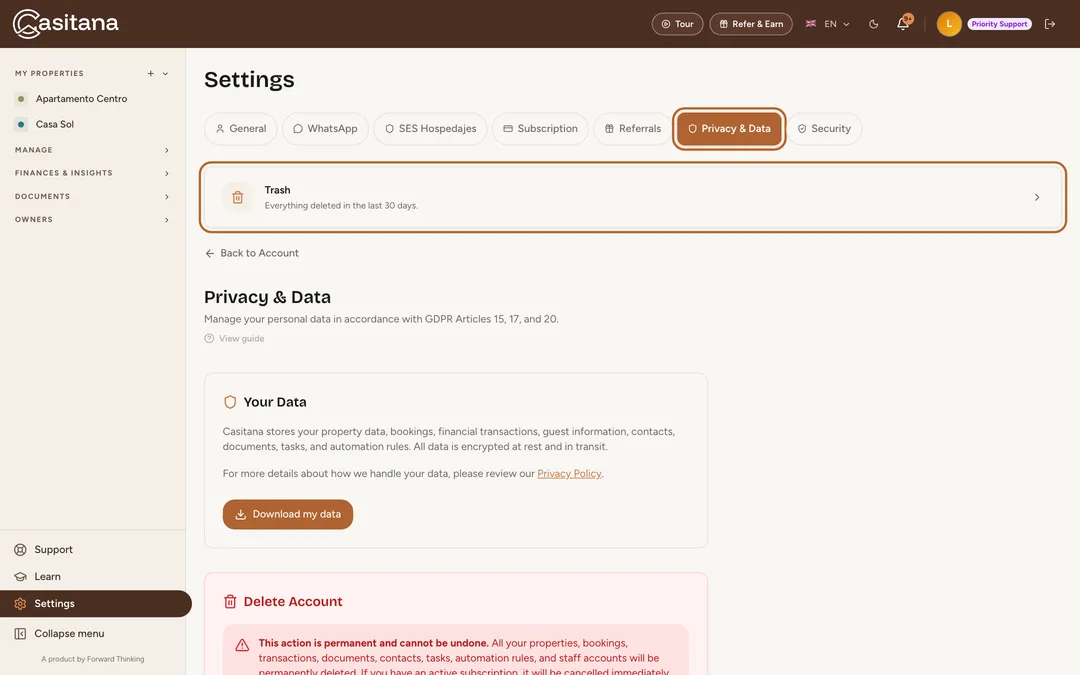
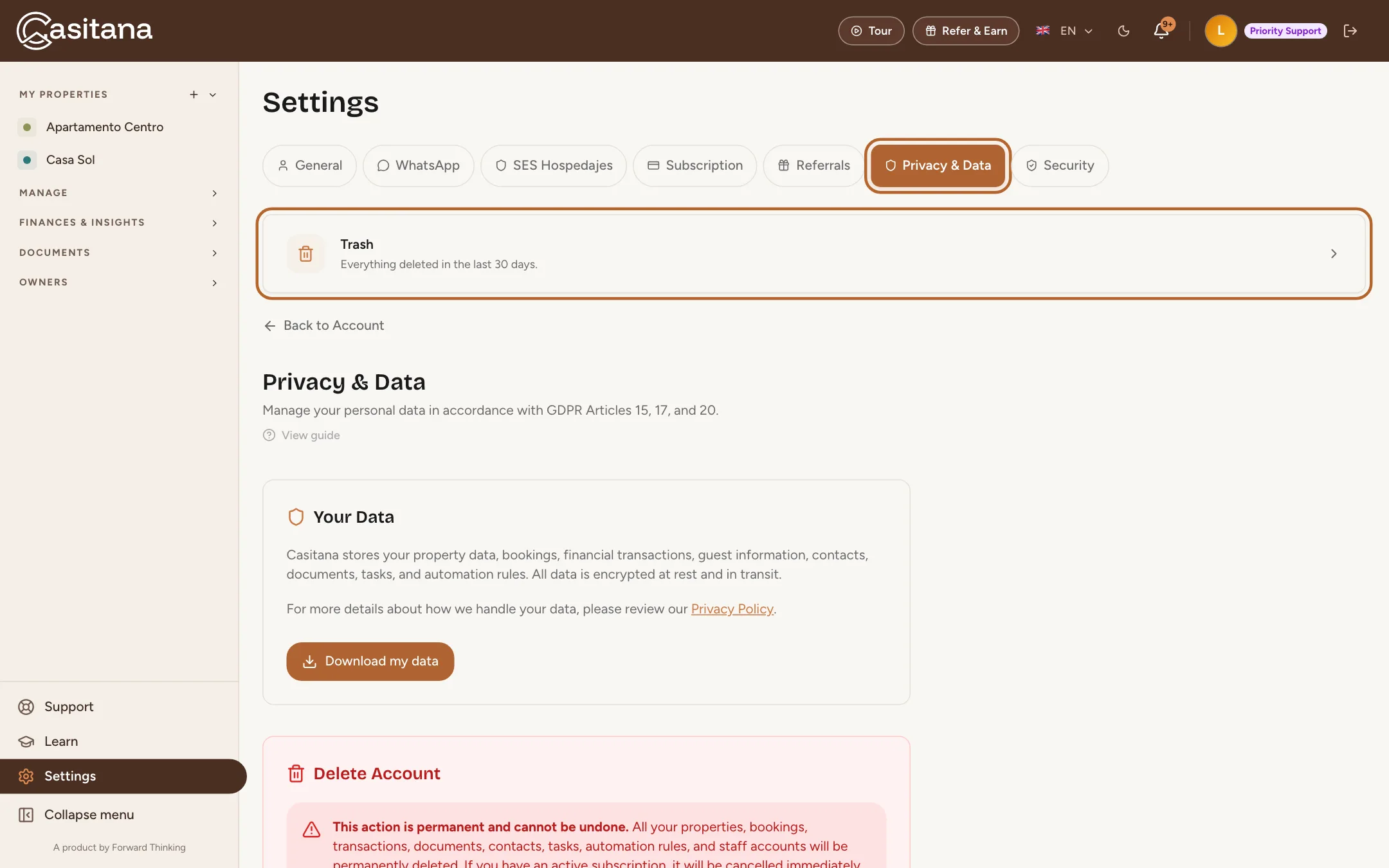
Open Settings, then Privacy & Data, and click Trash to see what is there, who deleted it, and when it will be deleted for good.
 Enlarge screenshot
Step 3
Only you see it
Only the account holder sees the trash. Staff can put things in it when they delete, but never restore anything or empty it: see Staff delete to the trash.
Restore it, or delete it for good
Step 4
Restore an item
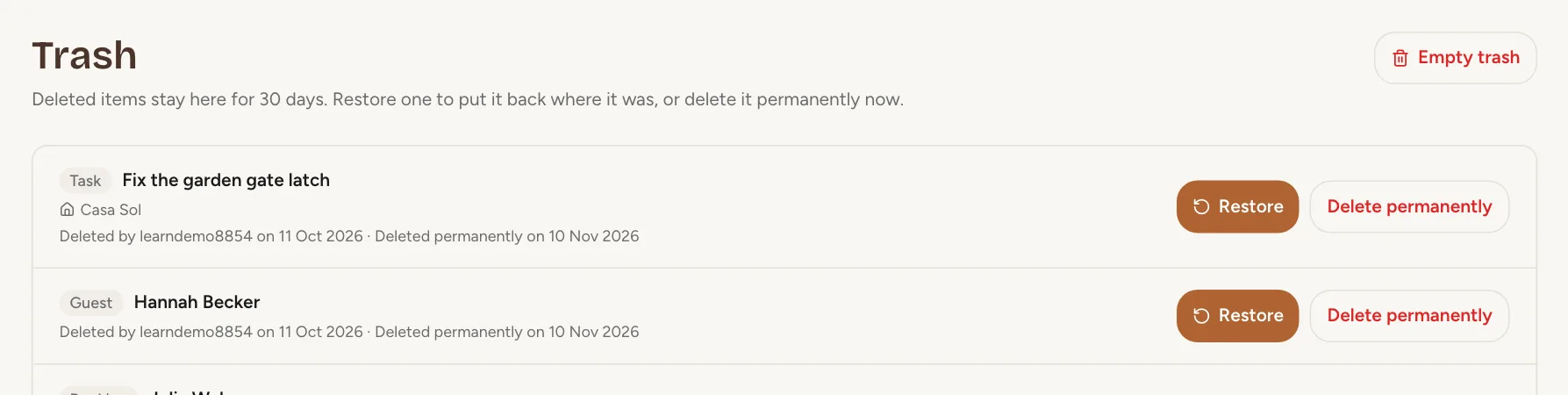
Click Restore to put an item back where it was, with its files and links. If something has changed since (another booking now has the same dates, for example), Casitana says why it cannot be restored and leaves the item in the trash.
 Enlarge screenshot
Step 5
Delete for good
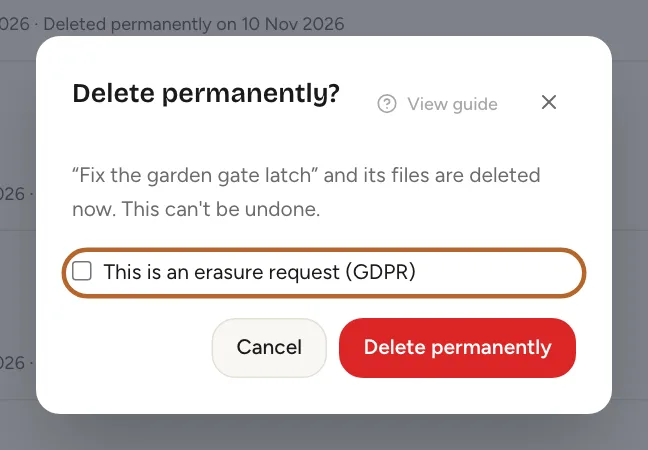
Delete permanently removes one item and its files at once. Tick This is an erasure request (GDPR) when a guest has asked to be forgotten. Empty trash does the same for everything.
 Enlarge screenshot
Step 6
After 30 days
After 30 days, Casitana deletes items for good on its own. Your data download includes what is in the trash, and deleting your account empties it.

Properties are the exception
Step 7
A deleted property cannot be restored
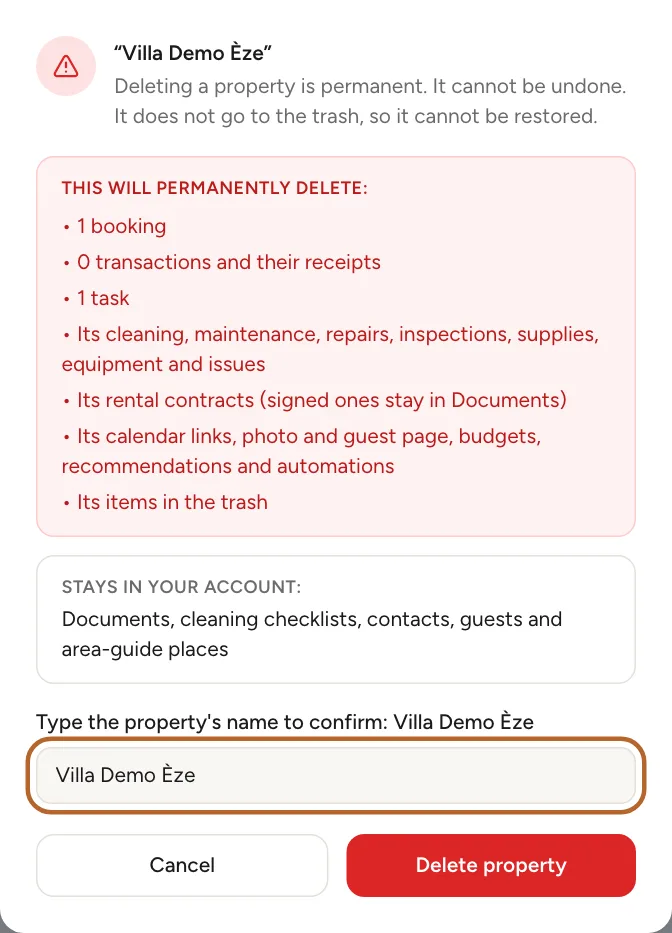
A property does not go to the trash. Deleting it is permanent, so Casitana asks you to type the property’s name before it deletes anything, and anything of that property already in the trash goes with it. How to delete a property: Delete a property.
 Enlarge screenshot