Edit a property
Nothing changes until you click save. Close the form, or click Cancel, to leave everything as it was.
Step 1
Quick changes from your list
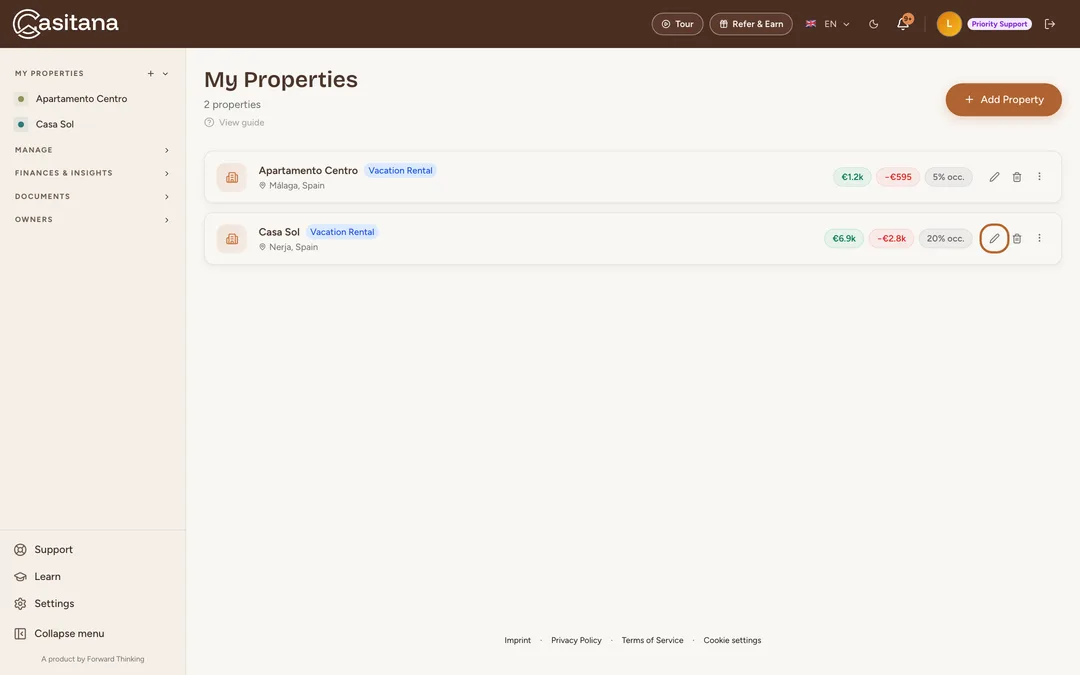
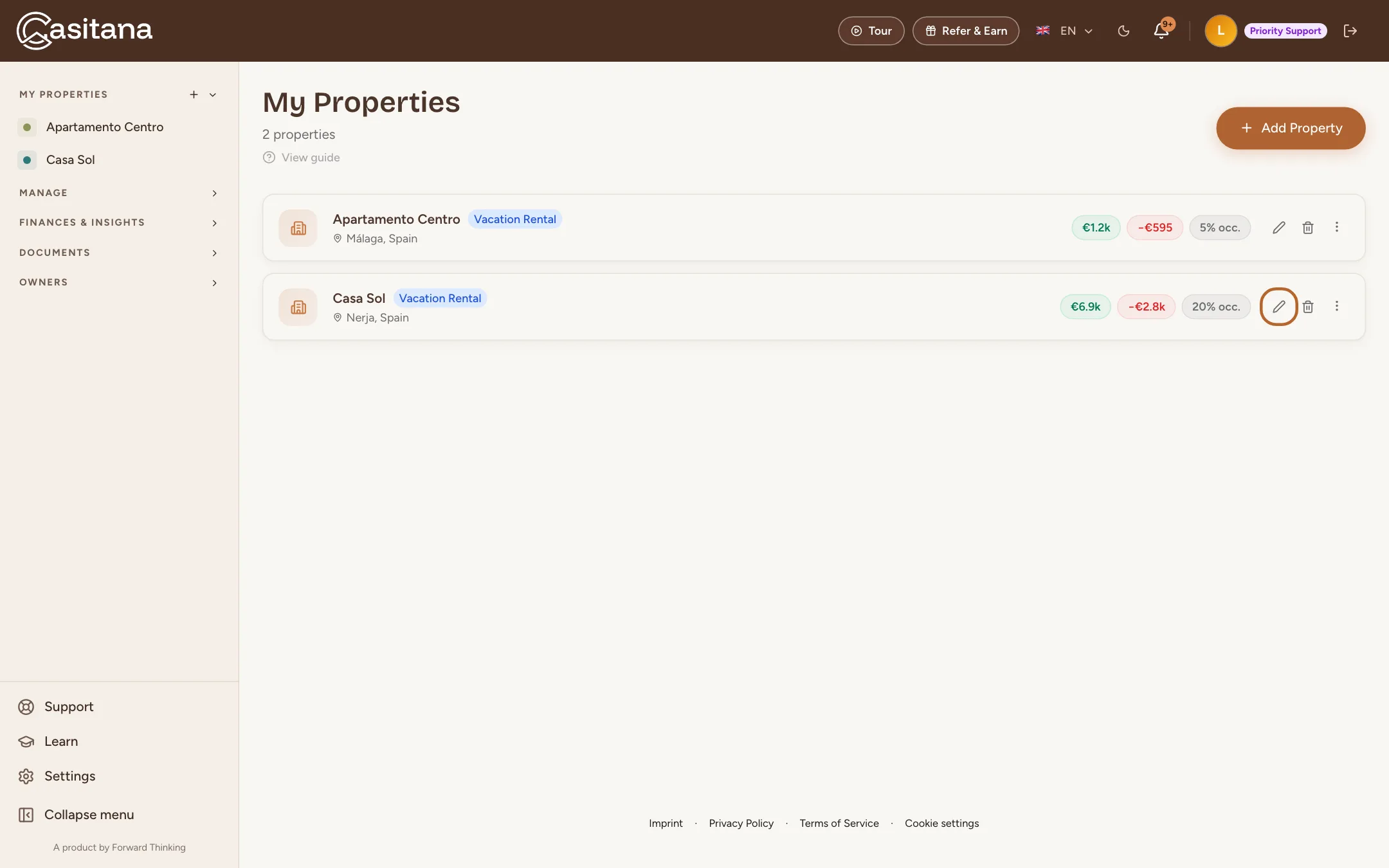
On the My Properties page, where Casitana opens after you log in, click the pencil next to the property.
 Enlarge screenshot
Step 2
Change the basics
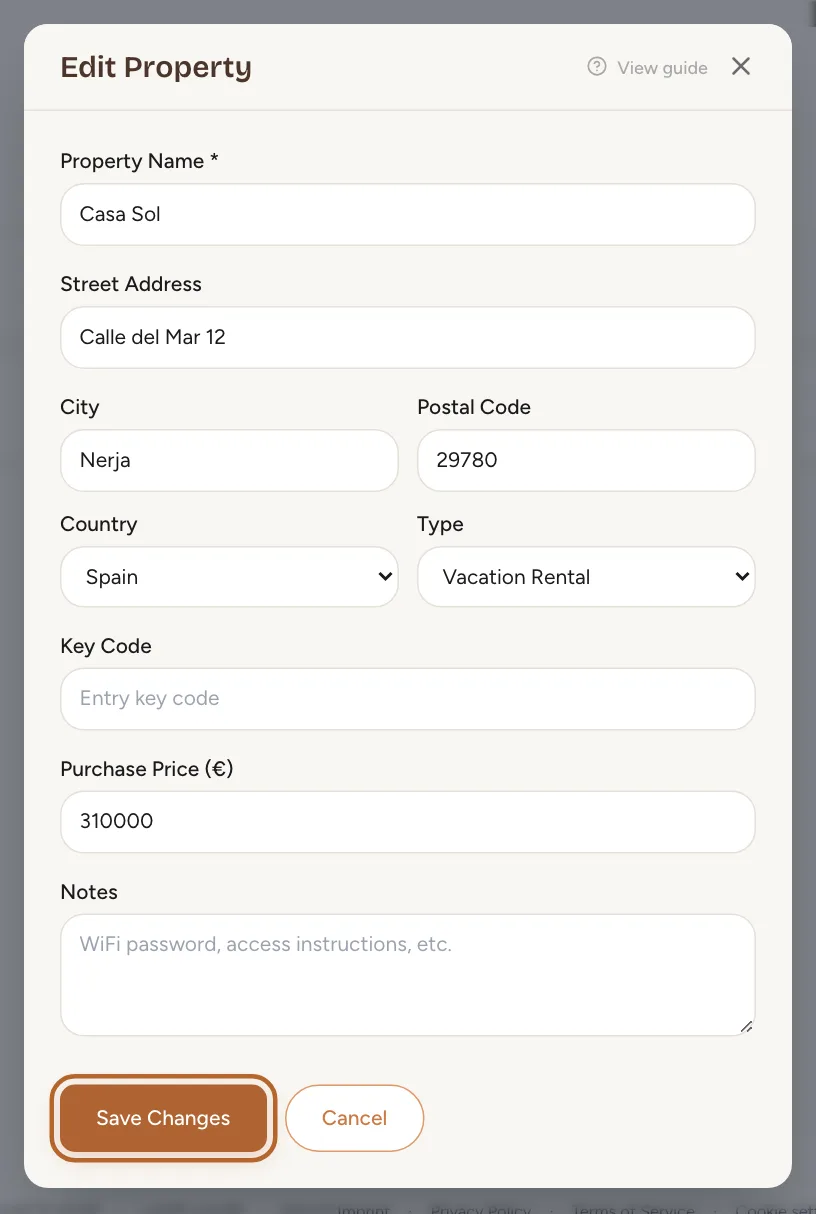
This short form holds the name, the address, Type, Key Code, Purchase Price (€) and Notes. Make your changes and click Save Changes.
 Enlarge screenshot
Step 3
Every setting: the full form
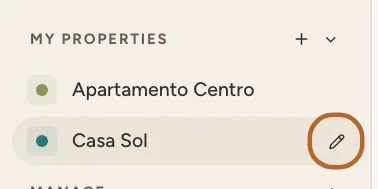
In the menu on the left, under My Properties, point at the property: a pencil appears next to its name. Click it to open Edit Property, with every setting of the property.
 Enlarge screenshot
Tip: On a property in Spain, Edit in the property’s Spain Compliance Setup block opens the same form.
Step 4
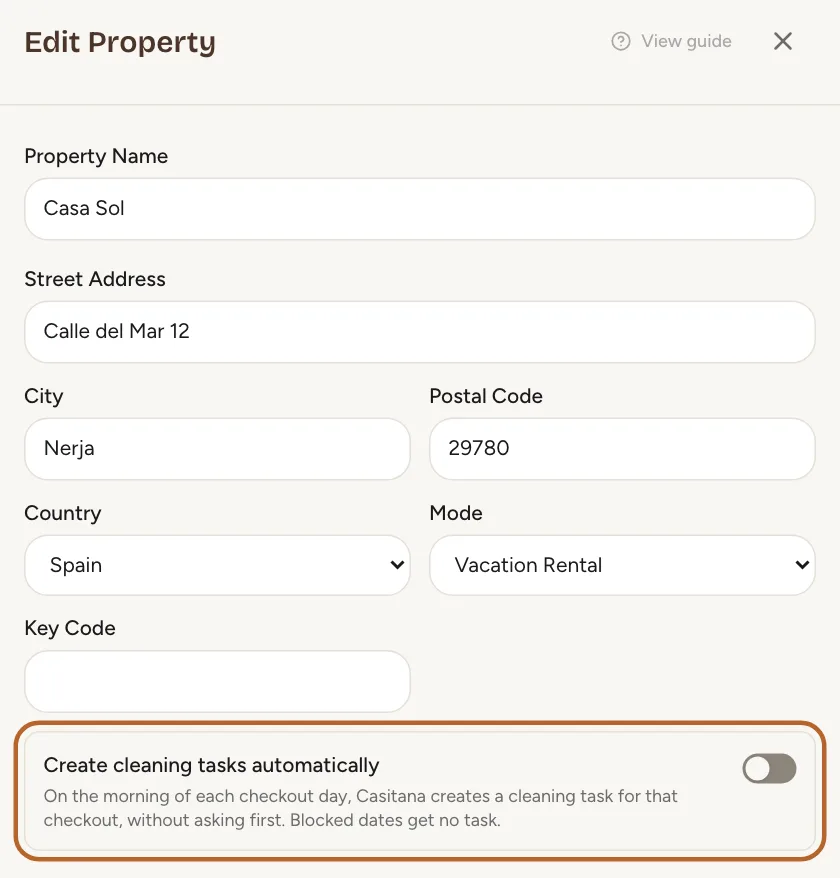
Name, address and key code
At the top: the name, the address, Mode and Key Code. Create cleaning tasks automatically makes a cleaning task on the morning of every checkout; switch it off for a property without a cleaning crew.
 Enlarge screenshot
Step 5
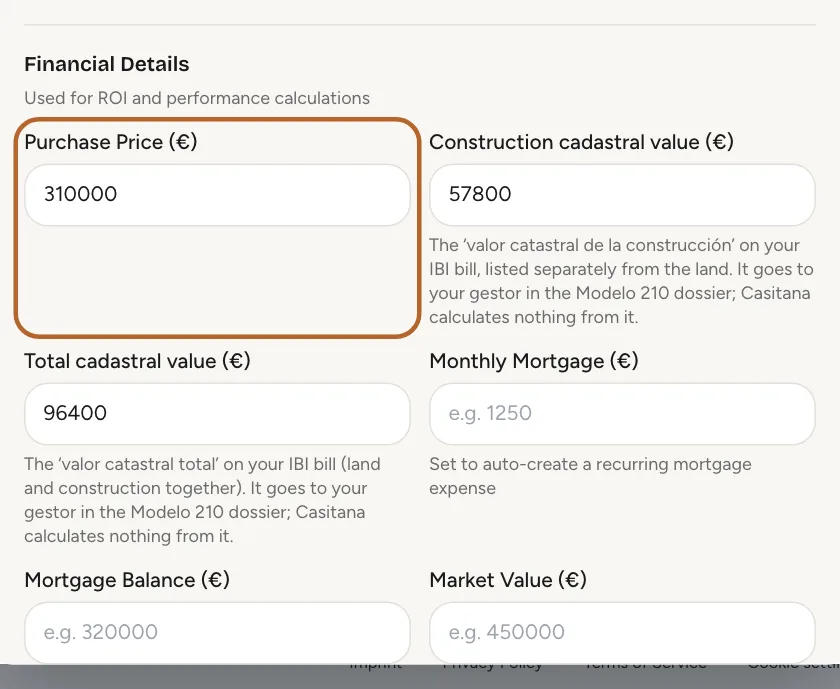
Purchase price and cadastral values
Under Financial Details, enter Purchase Price (€), the cadastral values from your IBI bill and Monthly Mortgage (€). Casitana uses them for your returns and for the Modelo 210: prepare the file for your gestor dossier.
 Enlarge screenshot
Tip: A monthly mortgage amount creates a recurring expense in your transactions when you save, so do not add that expense yourself as well.
Step 6
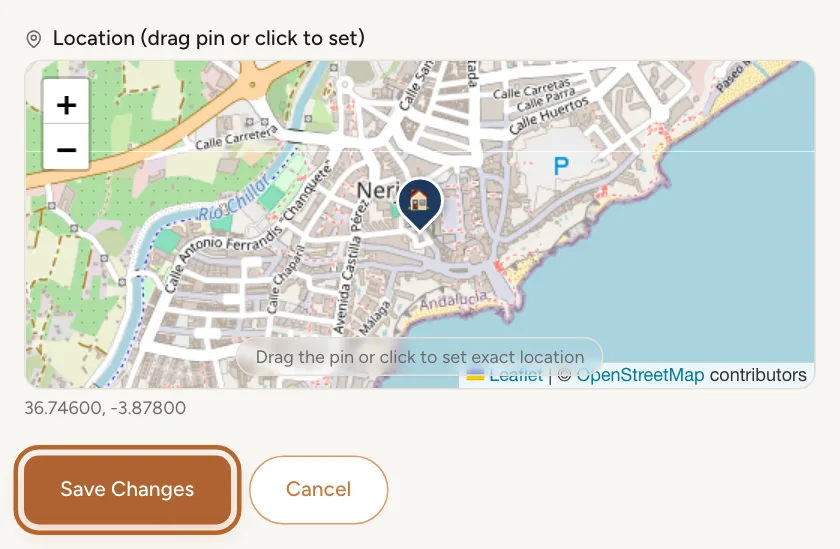
Move the pin and save
If the pin on the map is not quite on your property, drag it to the right spot. Then click Save Changes.
 Enlarge screenshot
Step 7
SES Hospedajes and the rental contract
Further down the same form are the property’s SES Hospedajes details and its rental contract template. They are explained in SES Hospedajes: register your guests and Rental contracts.
Step 8
France: the registration number
On a property in France, the same form has Registration number (déclaration en mairie) under France: registration number: the number the town hall gave you when you declared the furnished tourist rental. It is printed on the police forms your guests sign: see The registration number.
Change the photo
Step 9
Upload or change the photo
Open the property and, on its overview, find Property Photo. Click Upload photo (or Change photo when it already has one) and choose a JPEG, PNG or WebP image of up to 5 MB. The photo is saved as soon as you choose it.
 Enlarge screenshot
Tip: Your guest page can have a photo of its own: see Add a photo and your times.

Delete a property
Deleting a property cannot be undone. Everything that belongs to it goes with it.
Step 10
Delete
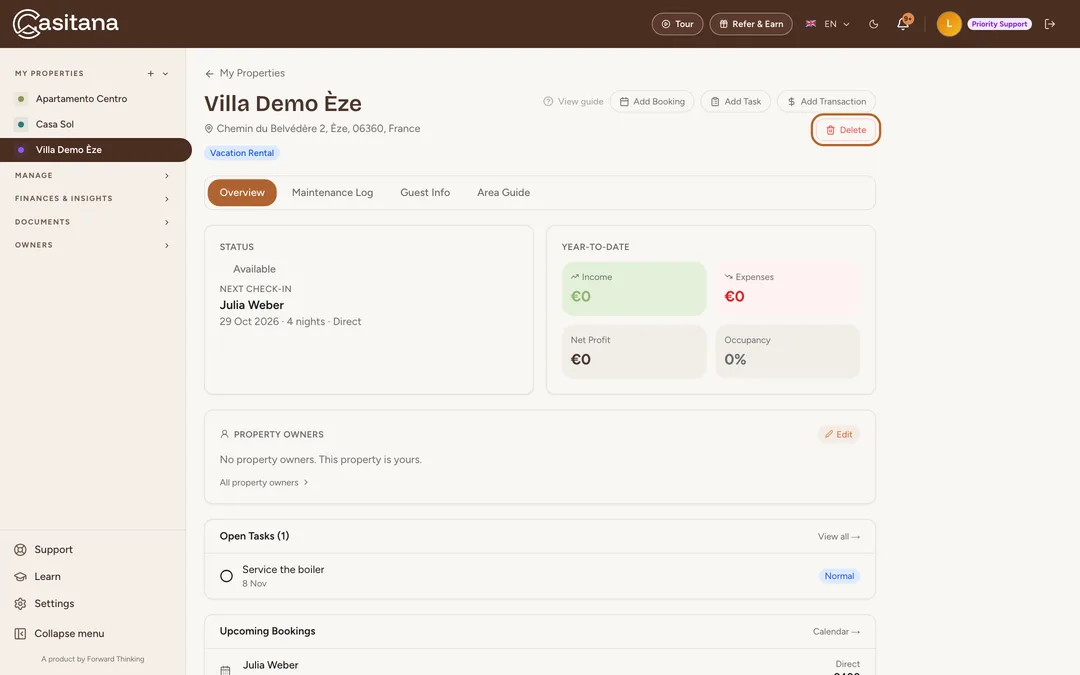
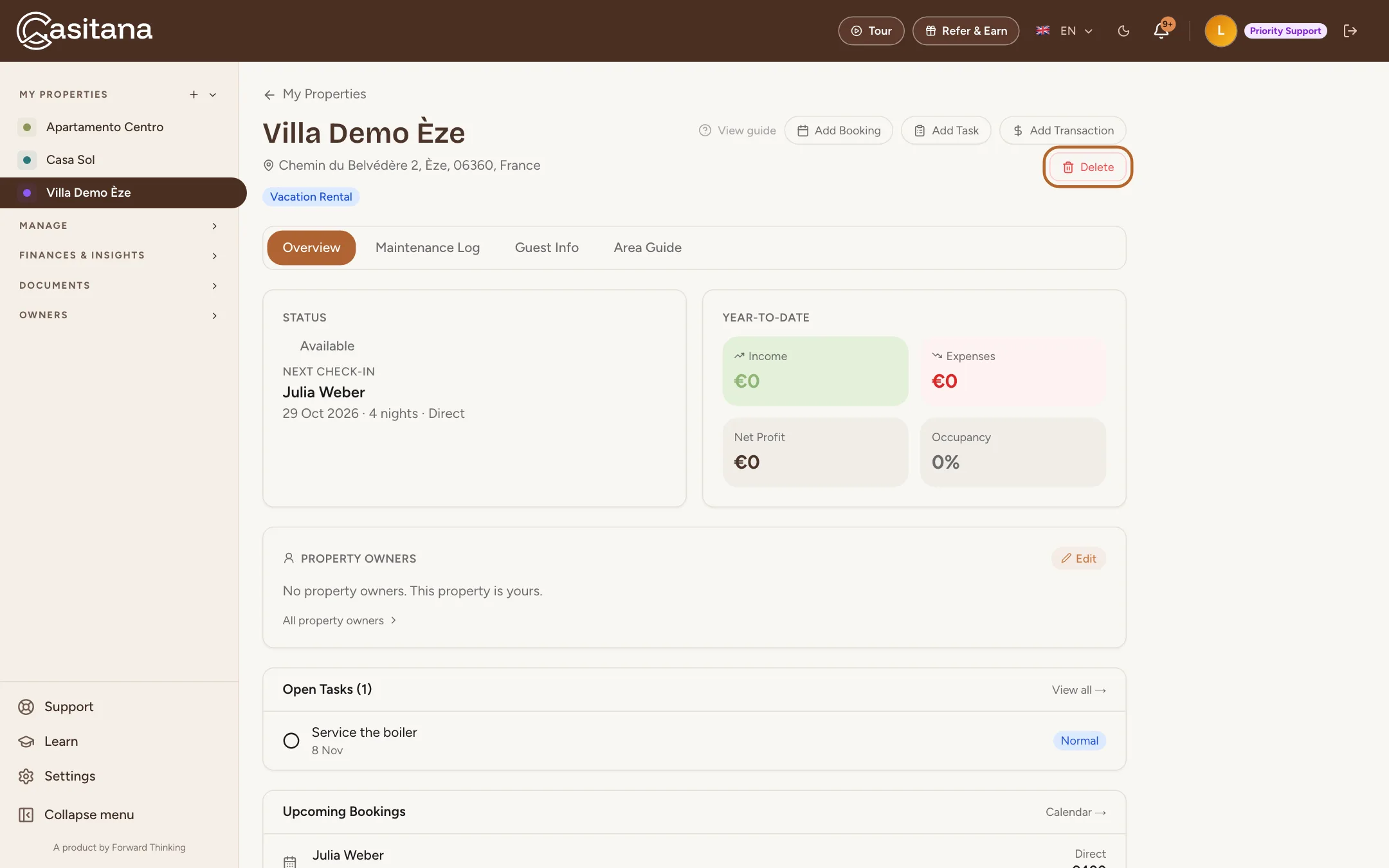
Open the property and click Delete in the top right. On the My Properties page, the bin next to the property does the same.
 Enlarge screenshot
Step 11
Check what goes with it
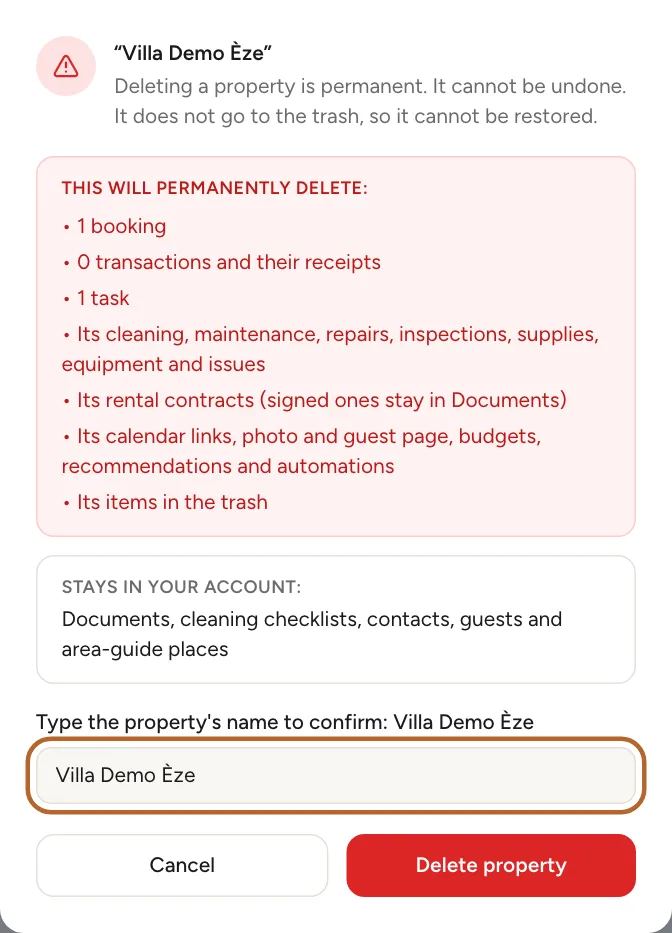
Casitana lists what goes with the property: its bookings, transactions and receipts, tasks, cleaning and maintenance, rental contracts, calendar links and photos. It also says what stays: documents, contacts and guests. To delete it, type the property’s name in the box: Delete property only works once the name matches, and capitals don’t matter. Cancel leaves everything as it is. Anything of that property in the trash goes too. A deleted property does not go to the trash: it cannot be restored.
 Enlarge screenshot
Good to know: A property with stays filed with SES Hospedajes (sent by Casitana or marked as filed by hand) cannot be deleted, even after you cancel those stays. On the property’s page, Casitana says why: “This property has stays filed with SES, so it cannot be deleted. Deleting it would erase the records needed to withdraw or prove those filings.”
In the appApp
Step 1
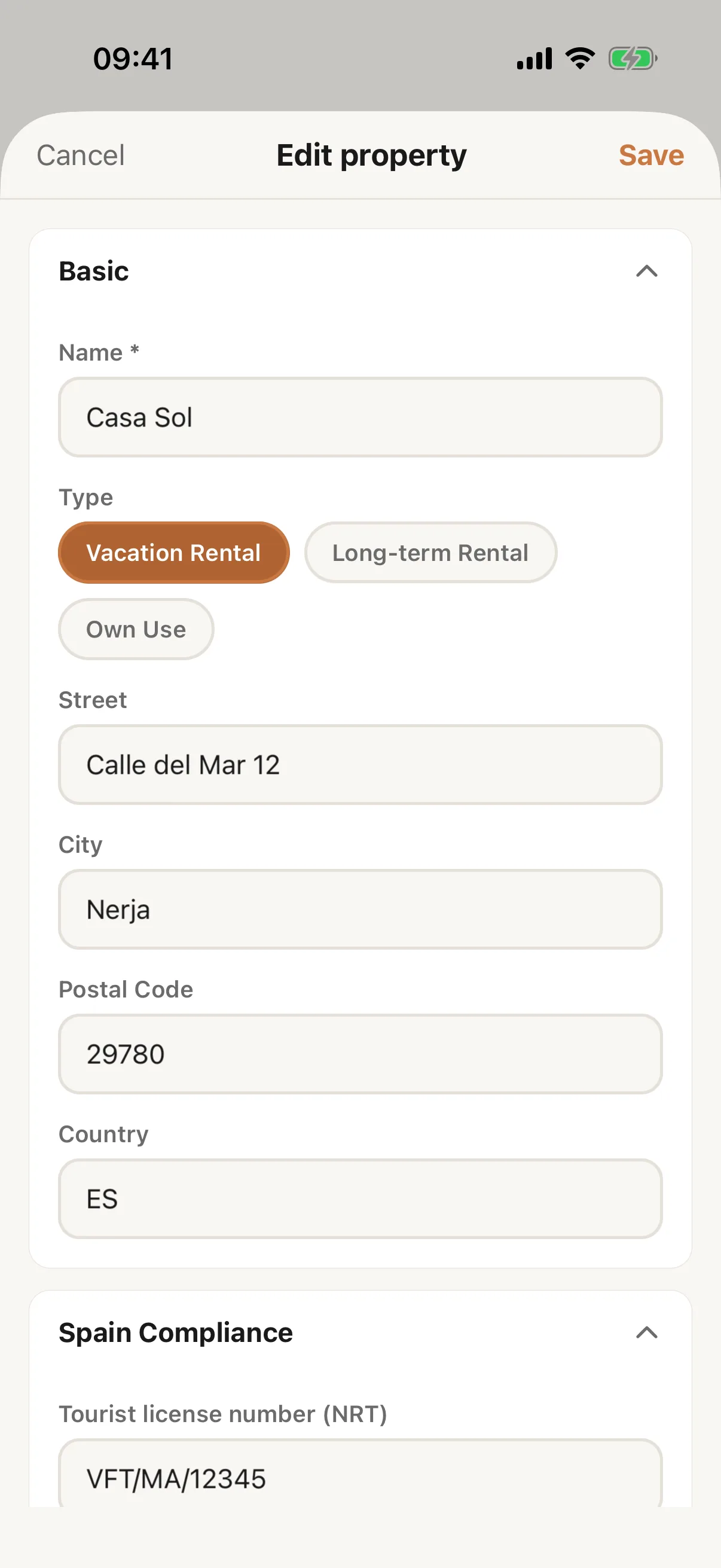
Edit a property in the app
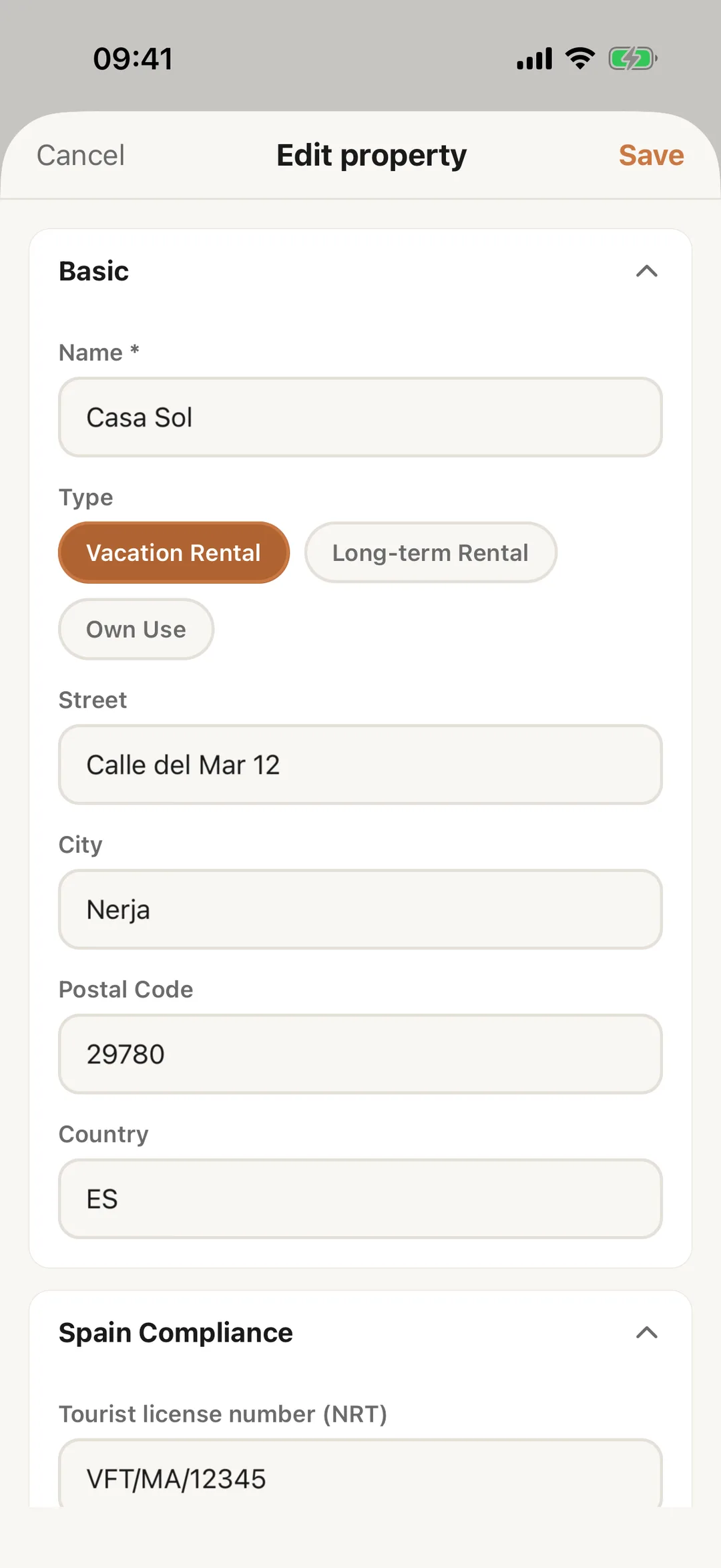
Open the property from Properties and tap the pencil at the top right. Edit property opens with the fields of a new property and also Spain Compliance (tourist licence, SES establishment code, arrendador account), SES Owner Details, Calendar Sync, Rental Contract, Pricing and the switch Create cleaning tasks automatically. Tap Save; the app says Property updated.
 Enlarge screenshot
Step 2
The photo, and the contract template
From the Starter plan, the property’s page has Add photo under Now, or a camera button on the photo it already has: take a picture or choose one from your library. Only the account holder sees Remove photo. Under Rental Contract, Open on web opens the property on the website, where the contract template is edited: Rental contracts.
Step 3
Delete a property in the app
Only the account holder sees Delete property, at the bottom of Edit property. The app lists what goes with the property: bookings, transactions and receipts, tasks and maintenance records, rental contracts and photos. Documents, contacts and guests stay. You type the property’s name to confirm and tap Delete. It cannot be undone, and the property does not go to the trash.
Good to know: A property with stays filed with SES cannot be deleted. The app says: “This property has stays filed with SES, so it cannot be deleted.”