In the app
Step 1
Edit a property in the app
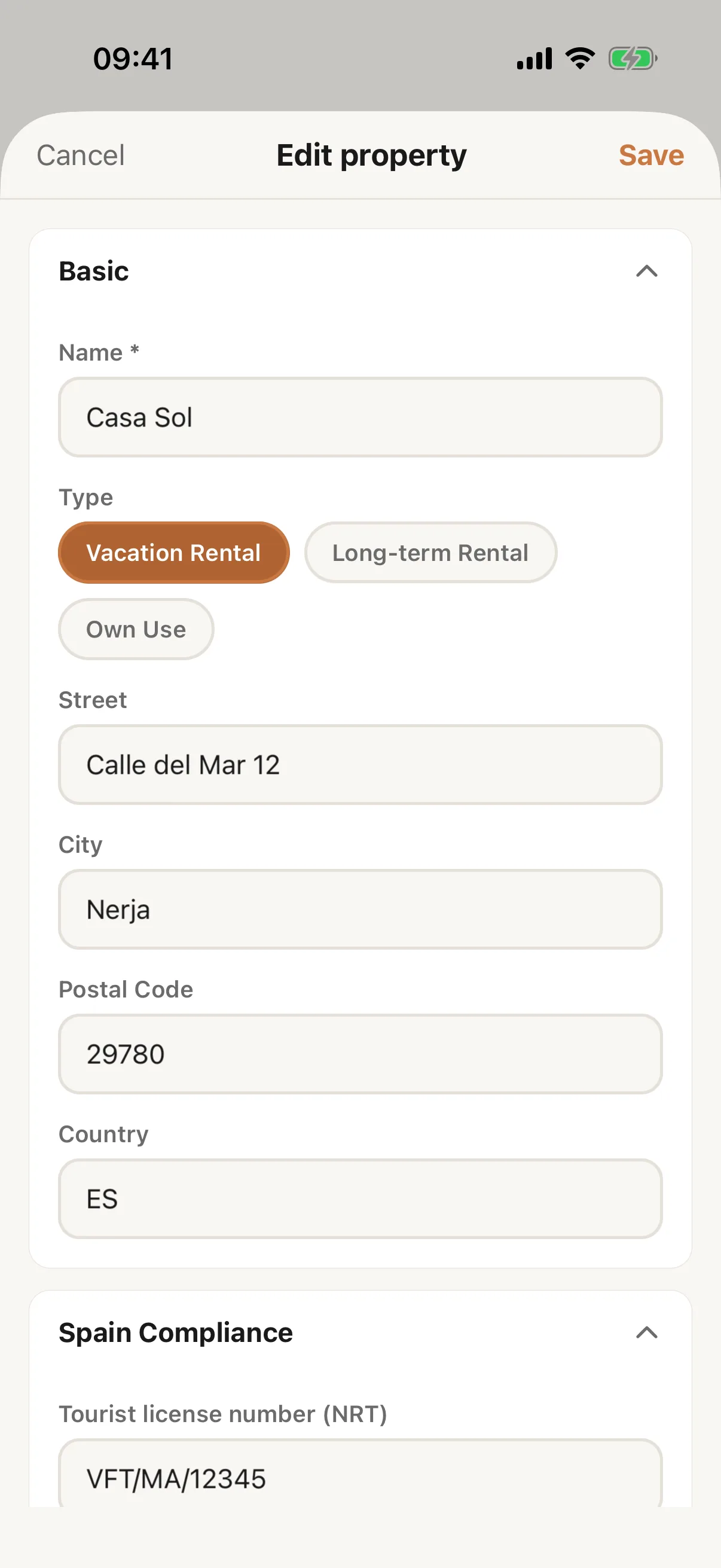
Open the property from Properties and tap the pencil at the top right. Edit property opens with the fields of a new property and also Spain Compliance (tourist licence, SES establishment code, arrendador account), SES Owner Details, Calendar Sync, Rental Contract, Pricing and the switch Create cleaning tasks automatically. Tap Save; the app says Property updated.
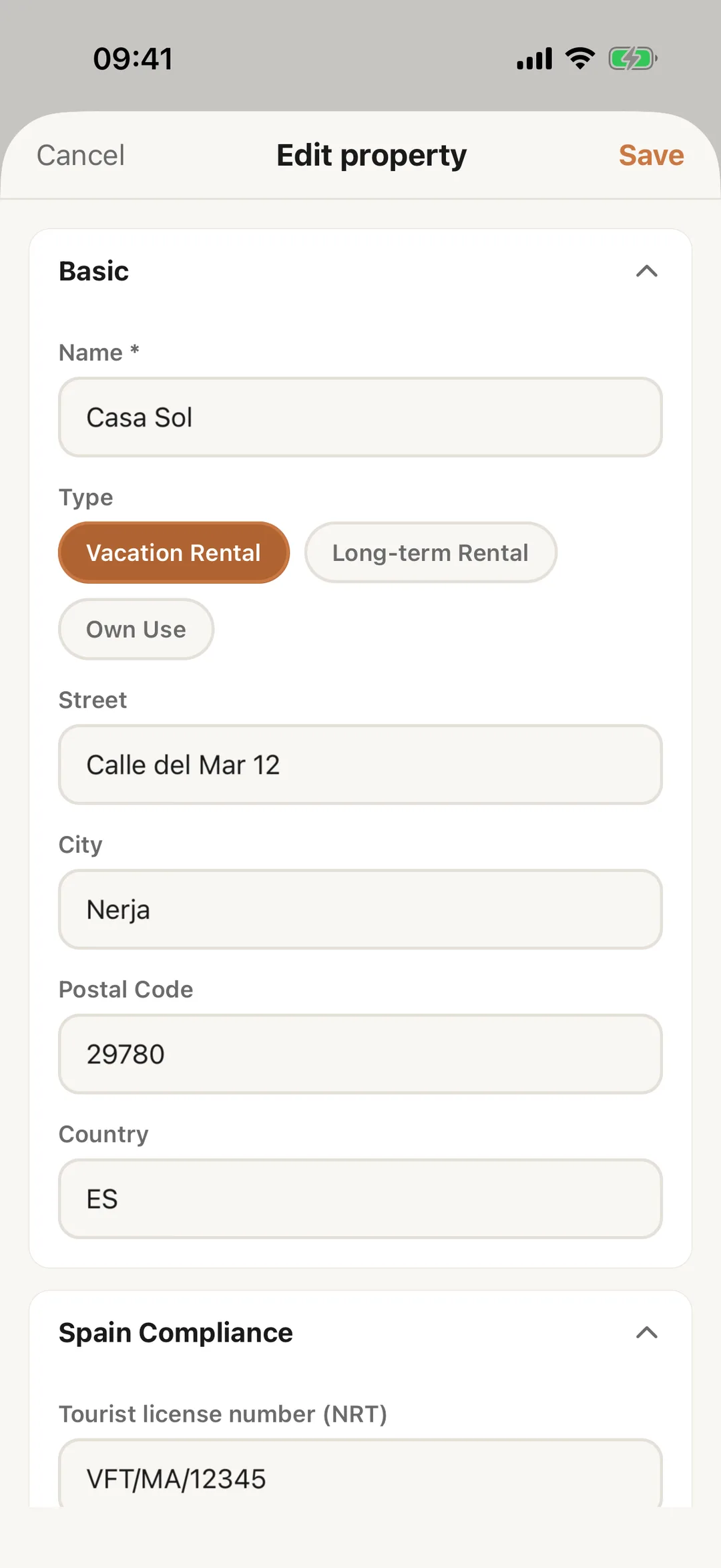 Enlarge screenshot
Step 2
The photo, and the contract template
From the Starter plan, the property’s page has Add photo under Now, or a camera button on the photo it already has: take a picture or choose one from your library. Only the account holder sees Remove photo. Under Rental Contract, Open on web opens the property on the website, where the contract template is edited: Rental contracts.
Step 3
Delete a property in the app
Only the account holder sees Delete property, at the bottom of Edit property. The app lists what goes with the property: bookings, transactions and receipts, tasks and maintenance records, rental contracts and photos. Documents, contacts and guests stay. You type the property’s name to confirm and tap Delete. It cannot be undone, and the property does not go to the trash.
Good to know: A property with stays filed with SES cannot be deleted. The app says: “This property has stays filed with SES, so it cannot be deleted.”