Language
Step 1
Open Settings
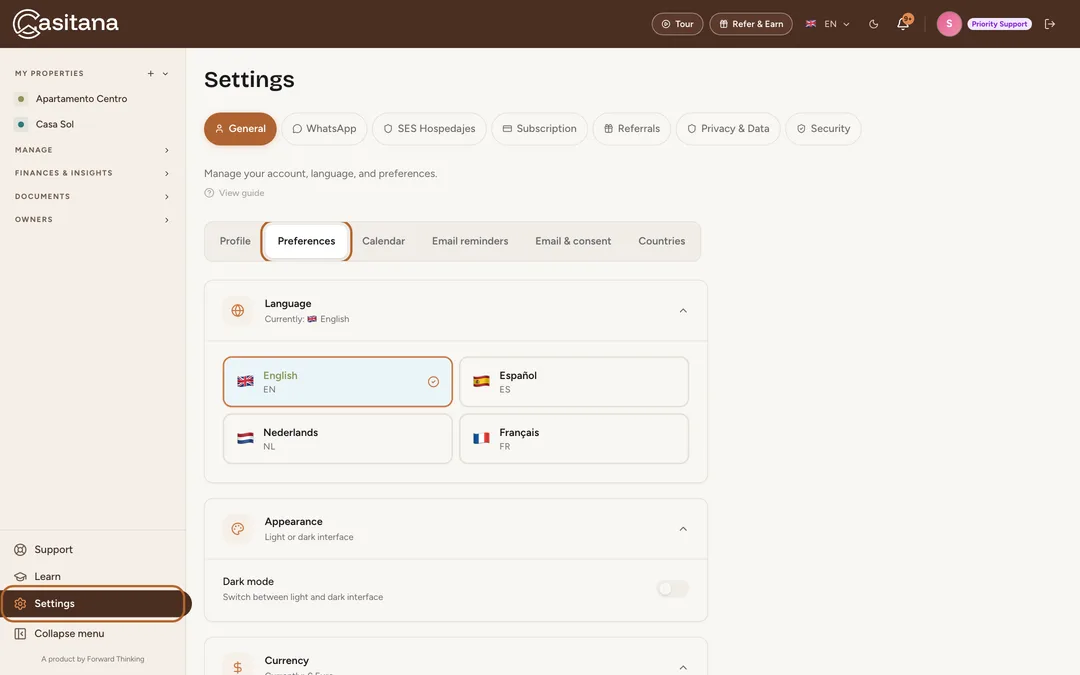
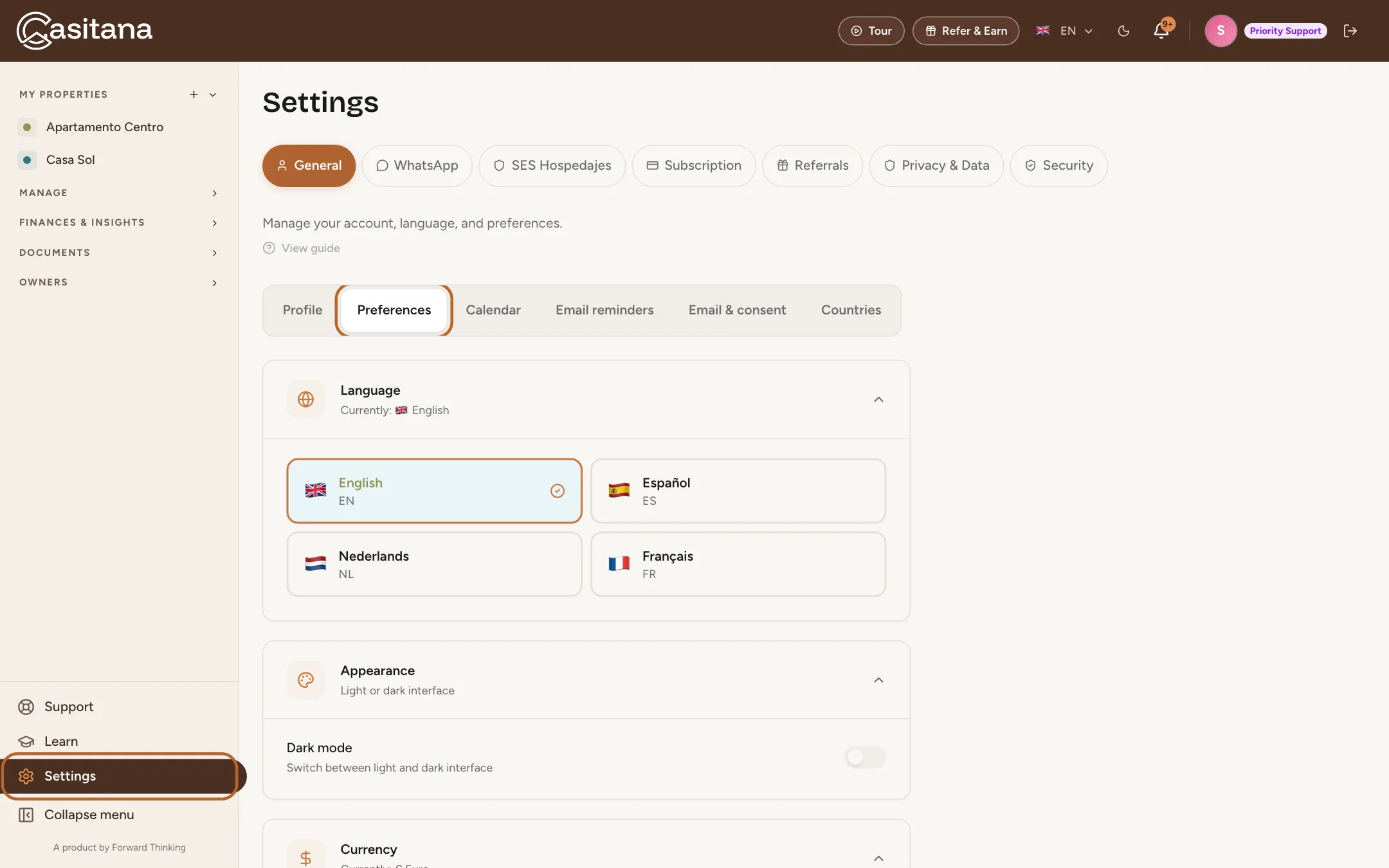
At the bottom of the menu on the left, click Settings. Under General, the tabs Profile, Preferences, Email reminders, Email & consent and Countries hold everything in this guide.
 Enlarge screenshot
Step 2
Choose your language
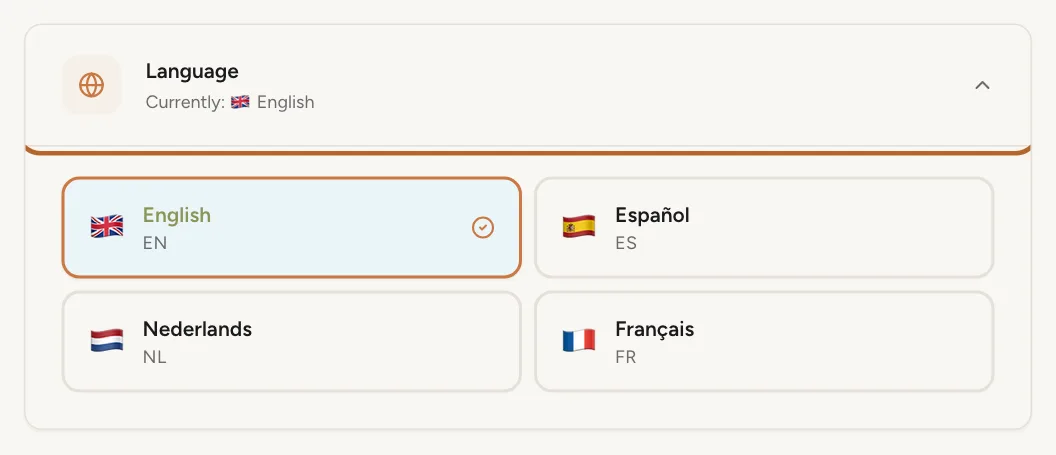
Open Preferences and, under Language, click the language you want. Casitana switches straight away, and the emails and notifications it sends you follow.
 Enlarge screenshot
Tip: In the same tab, Appearance switches Dark mode on or off.
Your name, time zone and currency
Step 3
Your account name and time zone
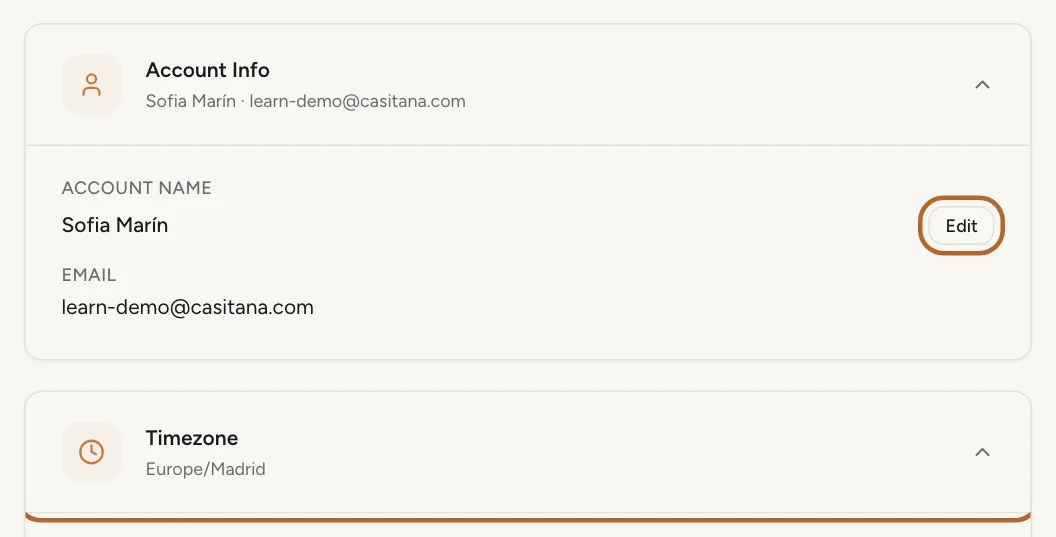
In Profile, Account Info shows your account name; click Edit to change it. Below it, choose your time zone: Casitana uses it for every date and time, such as which day is today.
 Enlarge screenshot
Step 4
The currency you see amounts in
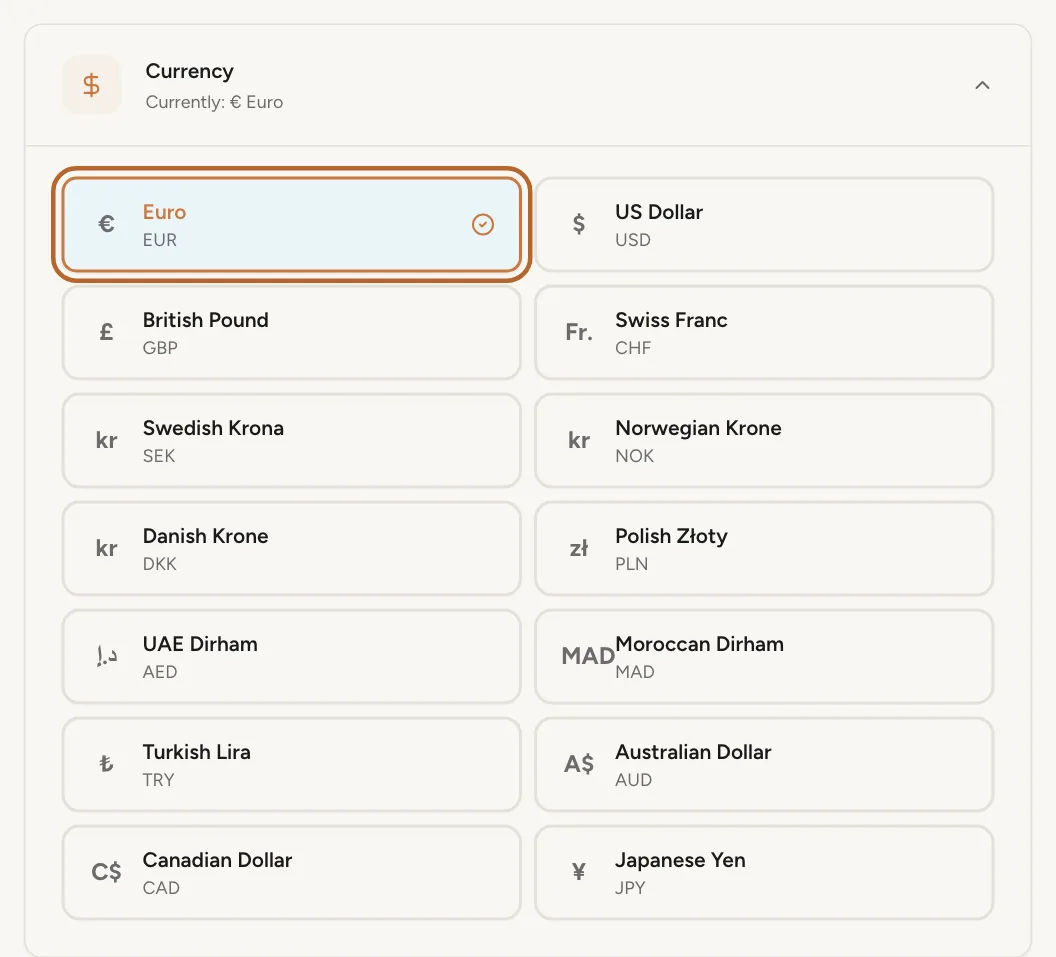
In Preferences, under Currency, click a currency. Casitana keeps your amounts in euros and shows them converted at the day’s exchange rate, so changing it never changes what you recorded.
 Enlarge screenshot
Emails and notifications
Step 5
Reminders by email
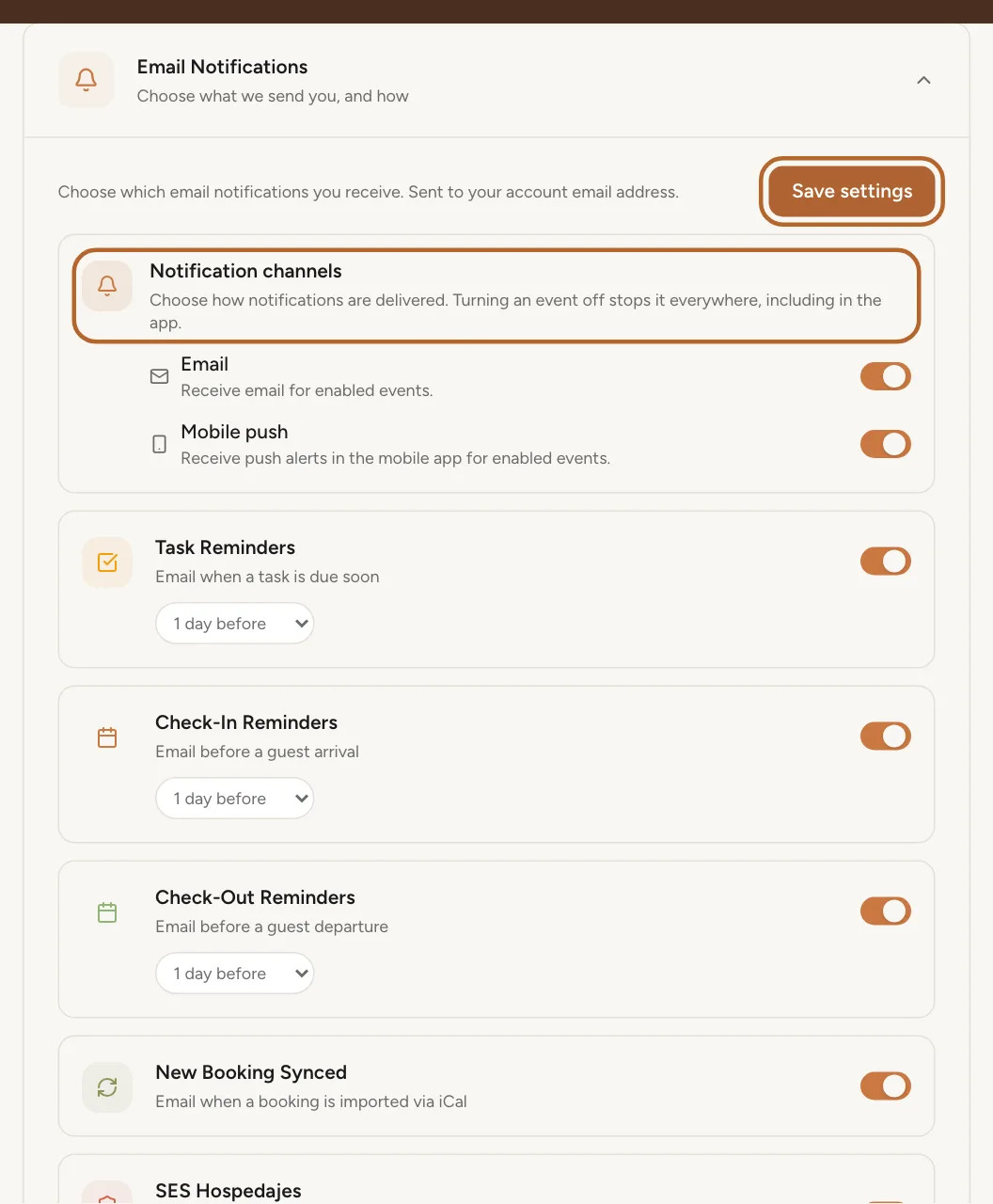
In Email reminders, choose the reminders you want, such as Task Reminders and Check-In Reminders, and whether they come by Email, Mobile push or both. Click Save settings. Reminders are sent on the Growth plan and above. Everything about notifications: Notifications and alerts.
 Enlarge screenshot
Step 6
News and tips
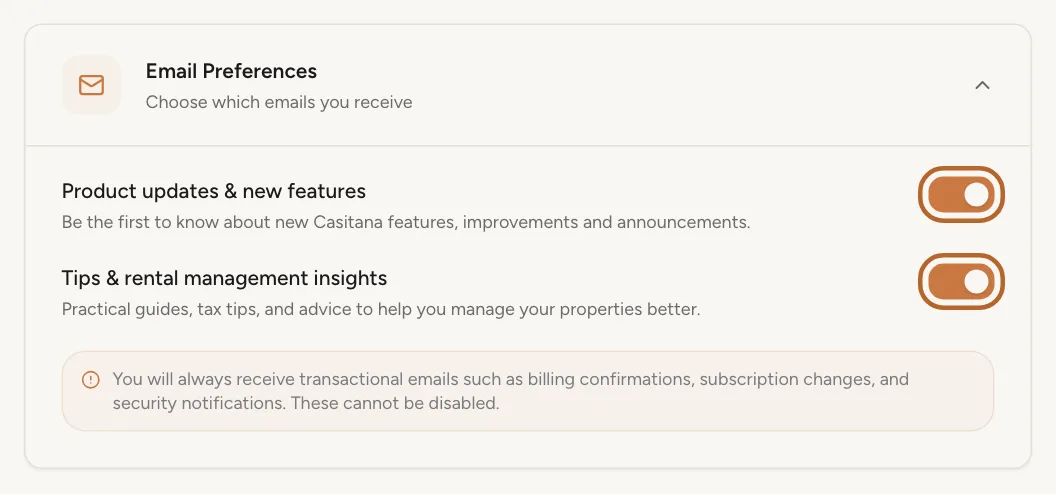
In Email & consent, Email Preferences has two switches: Product updates & new features and Tips & rental management insights. Each one saves as soon as you click it.
 Enlarge screenshot
Good to know: Emails that protect your account, such as confirming your address or resetting your password, always come. Casitana’s emails about your subscription and payments, such as a trial ending or a failed payment, follow the Email switch in Email reminders.
Step 7
The notification bell
The bell at the top right of every screen collects what happened: new bookings, replies to your support tickets, guests arriving tomorrow and more. A number shows how many you have not read. Click a notification to go straight to it, or All read to clear the number.
 Enlarge screenshot
Countries
Step 8
Show or hide a country
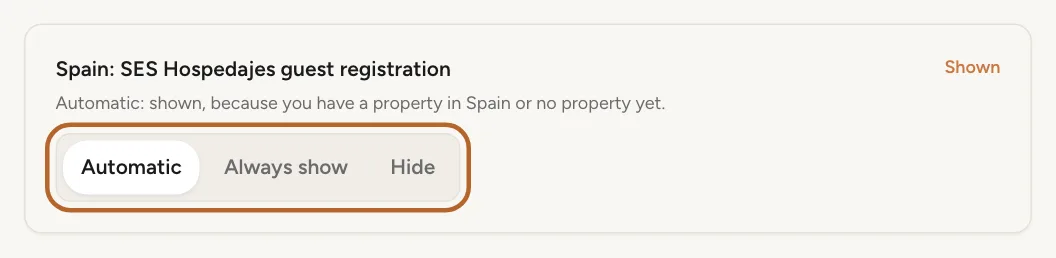
Open Countries. Casitana shows the guest registration tools of each country where you have a property, with one row per country: Spain: SES Hospedajes guest registration and France: police forms for foreign guests. Choose Automatic to show a country while one of your properties is in it, Always show to always show it, or Hide to hide it. Spain also shows automatically before you add a property. France and its police forms: France: police forms for your guests.
 Enlarge screenshot
Good to know: Only the account holder can change this. Staff see the setting but cannot change it.
Step 9
Hiding deletes nothing
Hiding a country only hides its screens: its item in the menu, its settings, its card on the home page, its panels on properties and bookings, and its markers in the calendar. Nothing is deleted, and you can show it again at any time.
Good to know: Hiding Spain does not stop guest registration with SES Hospedajes for your Spanish properties: the guest form still goes out, the details are still filed, and Casitana still lets you know when something needs you. More on SES Hospedajes: SES Hospedajes: register your guests.
Cookies on the website
Casitana’s website asks once which cookies you allow. Refusing is as easy as accepting, and you can change your mind at any time.
Step 10
Your first visit
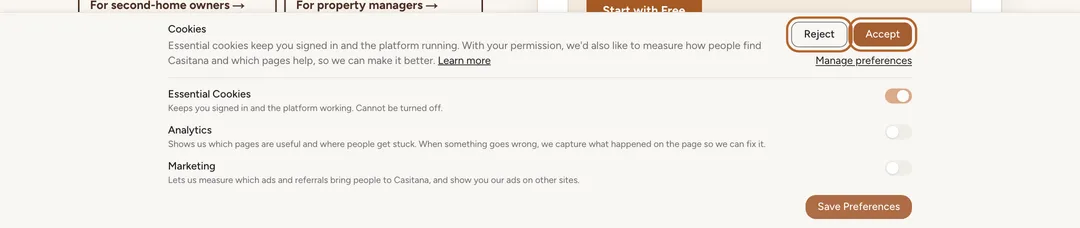
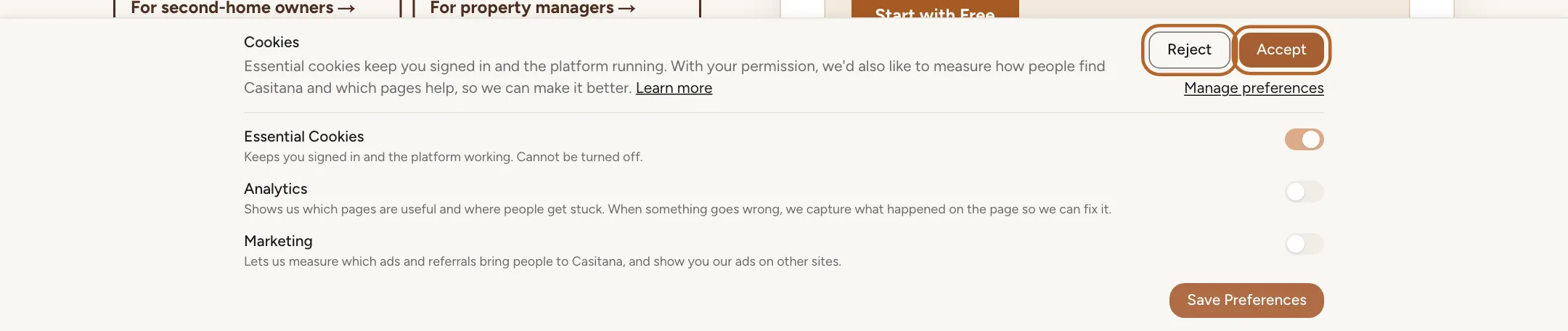
On your first visit, the website asks about cookies. Reject allows only the cookies the site needs to work; Accept allows all of them. Manage preferences lets you choose Analytics and Marketing one by one.
 Enlarge screenshot
Step 11
Change your choice later
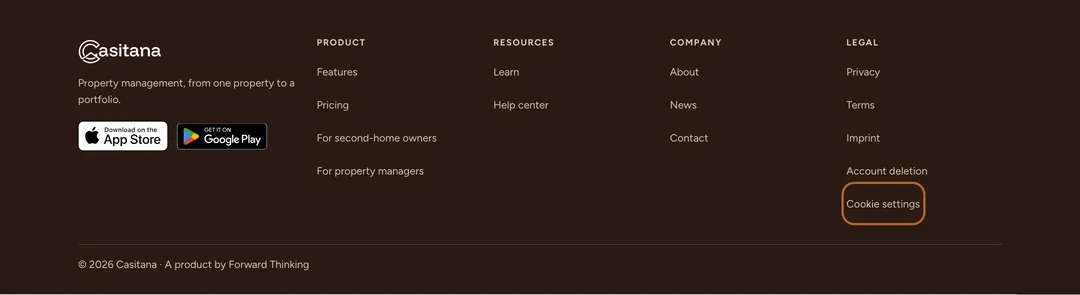
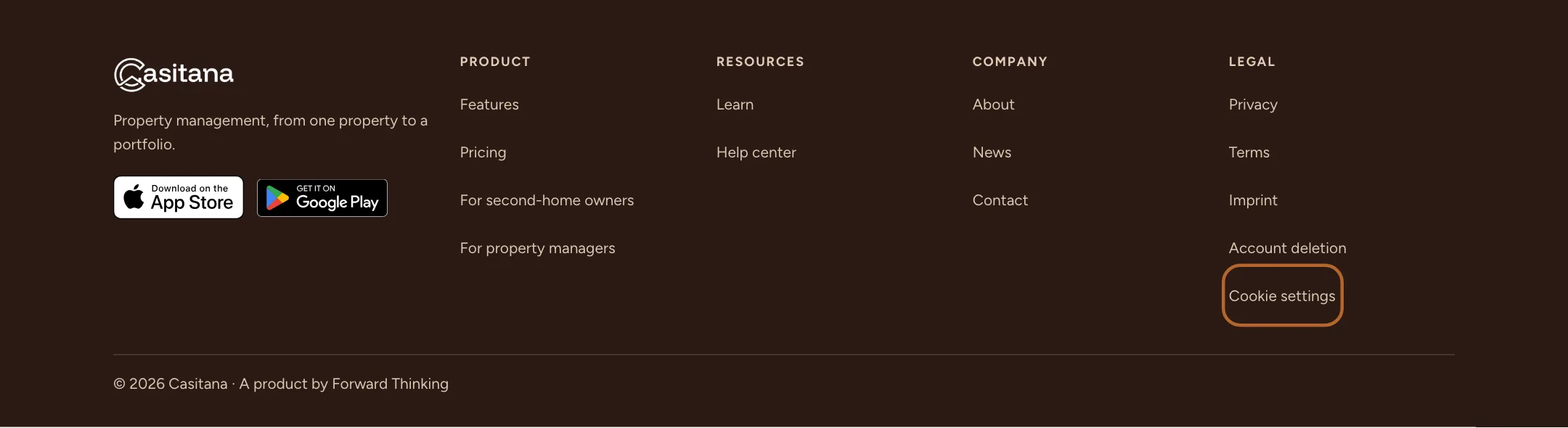
At the bottom of every page of the website, click Cookie settings. The same choices open again, set as you left them. Change them and click Save Preferences.
 Enlarge screenshot
Tip: Downloading your data or deleting your account: Your data and privacy: download it, or delete your account.
In the appApp
Step 1
Change the language
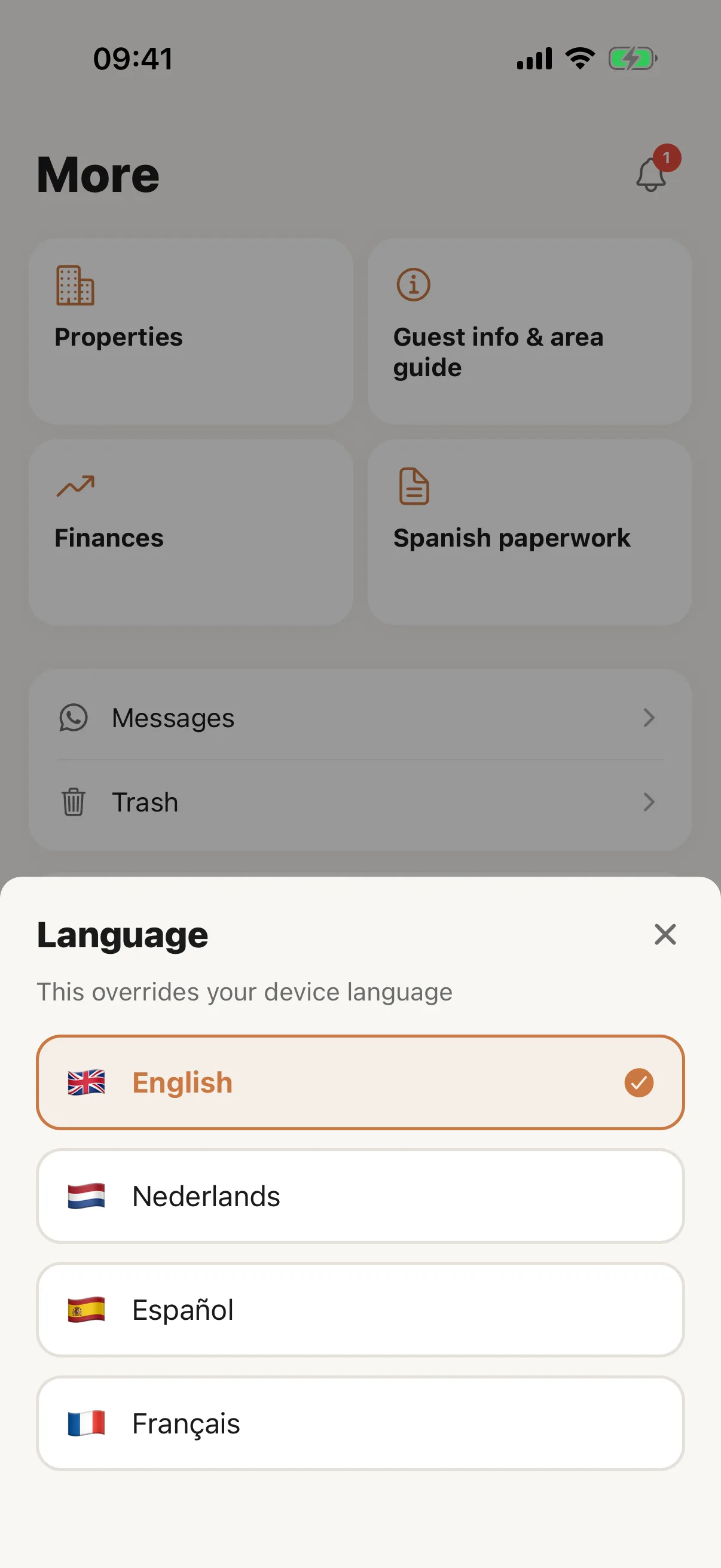
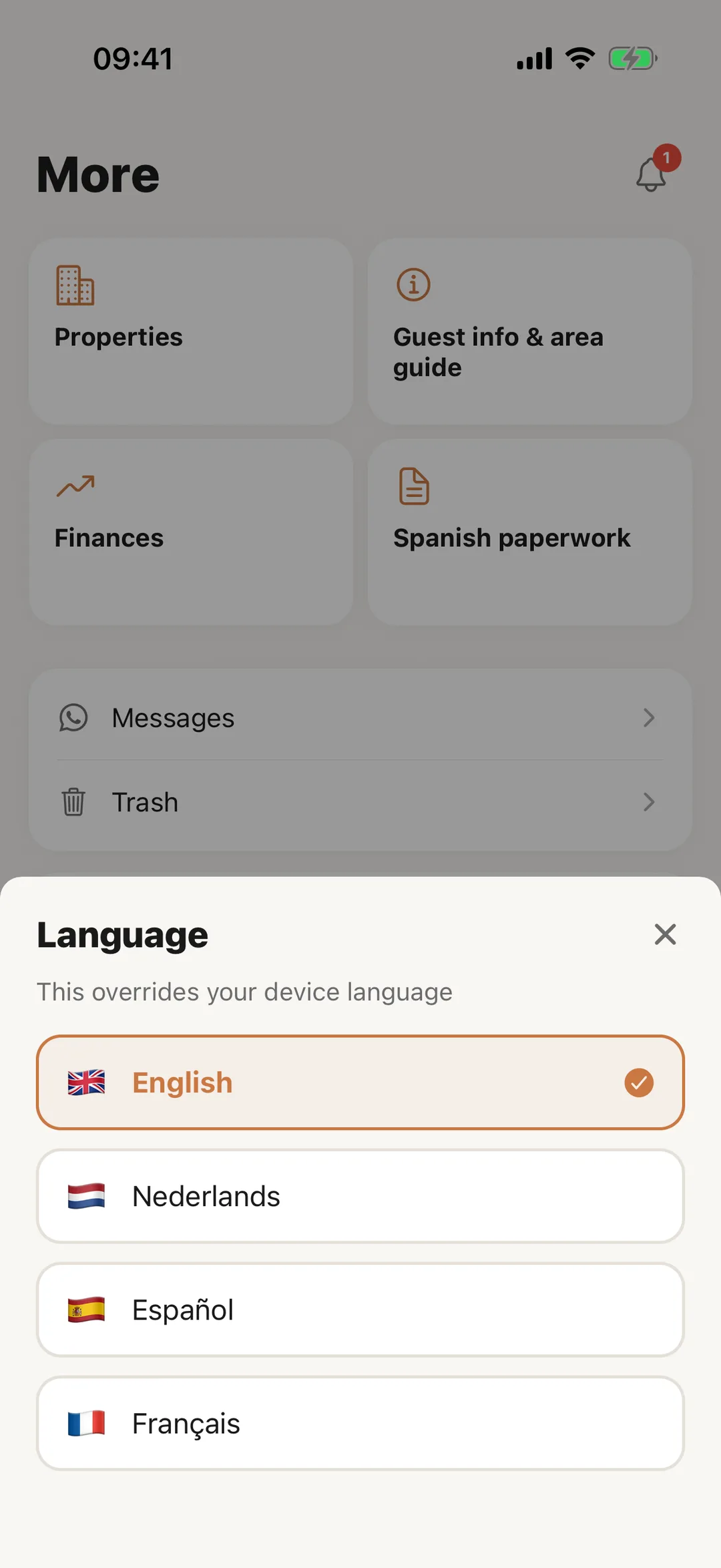
Open More, then Language; the sheet says “This overrides your device language”. Choose English, Español, Nederlands or Français, and the app redraws in it. For the account holder the choice is also saved to the account, where it sets the language of emails. A staff member’s choice stays on their own phone.
 Enlarge screenshot
Step 2
Your profile
Open More, then Edit Profile. Change your Name and Phone and tap Save. The email cannot be changed in the app: it says to contact help@casitana.com. Change password is there too, except for an account that signs in with Google or Apple.
Good to know: A staff member’s name is managed by the account holder.
Step 3
Notification settings
The account holder opens More, then Notification Settings. Under Notification channels choose Email and Push (push goes to this phone). Then there is one switch per event: New bookings, Check-in reminders, Check-out reminders, Task reminders and WhatsApp messages. Each switch saves at once, and turning an event off stops it everywhere, in the app too.
Good to know: Every setting in detail is on the website: Reminders by email.
Step 4
Time zone and currency stay on the website
Your time zone and display currency are set on the website only: Your name, time zone and currency. The app shows amounts in euros.