
Why this exists
Step 1
A legal obligation
Registering your guests is not a Casitana rule. It is set by the Spanish government in Royal Decree 933/2021, which asks anyone who provides accommodation, holiday rentals included, to record their guests’ details and send them to the Ministry of the Interior. That is what SES Hospedajes is for. You can read the decree in the Boletín Oficial del Estado (opens in a new tab), and the ministry’s own information is on its electronic office (opens in a new tab).
Step 2
What Casitana does, and what stays with you
Casitana collects your guests’ details with a link, shows what is still due and, once your property is connected, files the details with SES Hospedajes for you, so you can stay compliant without typing them in yourself. Registering your guests remains your responsibility. This guide explains how Casitana works. It is not legal advice.
What Casitana files, and when
SES Hospedajes expects two communications for each stay: the booking itself (Fase 1, the Reserva de Hospedaje) and the guests’ details (Fase 2, the Parte de Viajeros). You see both on every stay.
Step 3
Open the compliance hub
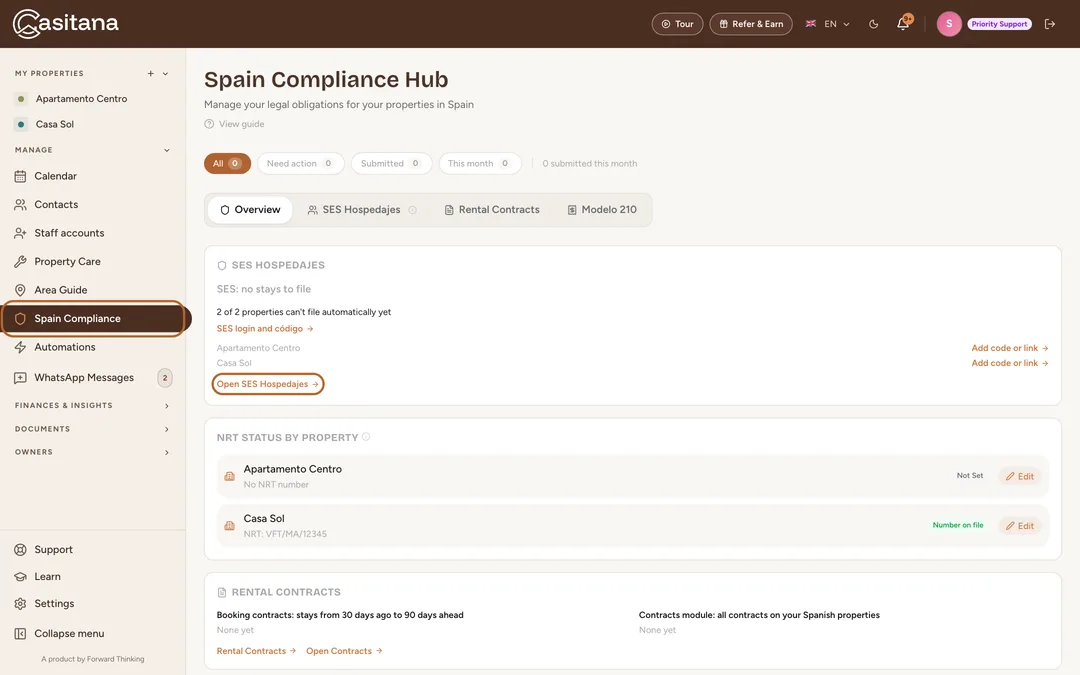
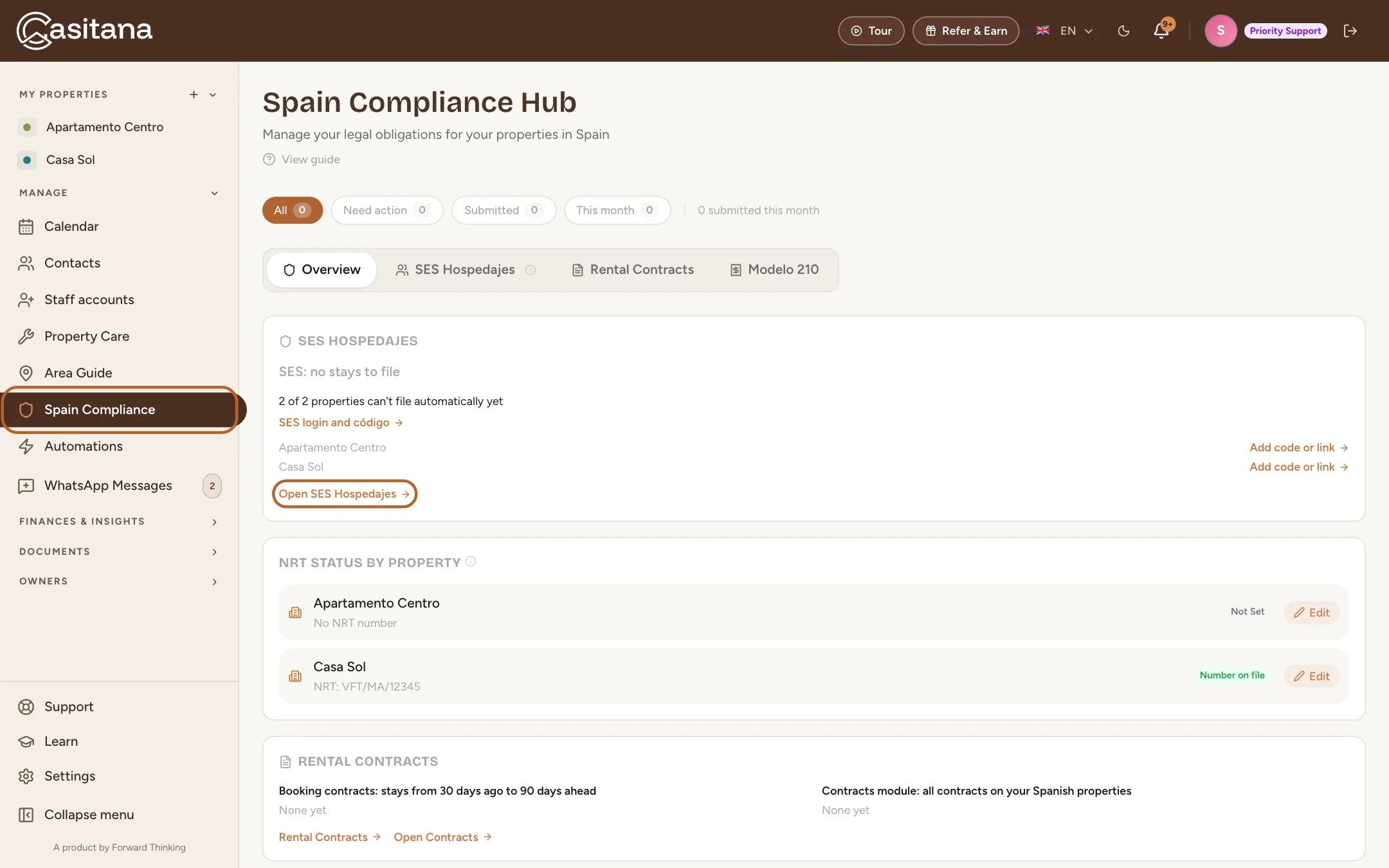
In the menu on the left, click Spain Compliance. The Overview tab shows what still needs doing for SES Hospedajes, your tourist licences and your rental contracts. Click Open SES Hospedajes to see every stay.
 Enlarge screenshot
Tip: SES Hospedajes is included from the Starter plan. On the Free plan, Spain Compliance shows what it does and how to upgrade.
Good to know: Spain Compliance is in the menu while one of your properties is in Spain, or before you have added a property. You can also show or hide it yourself: see Countries.
Step 4
When each one is filed
Fase 1 is filed as soon as Casitana knows the lead guest’s name: when you add or confirm a booking yourself, or, for a stay imported from your booking platform’s calendar, when the guest’s details arrive. Until then the stay shows Not sent: the lead guest's name is needed, or Waiting on the guest, or enter the name yourself to file now while your guest’s registration form is out: either way, click Enter the name to enter the name yourself and file it now. Fase 2 is filed on the day of check-in, once your guests have registered (see Filing the guest details). A stay matched automatically through a property’s link waits a few hours first: see Confirm the guest, or say it is not yours.
Tip: Submit all Reservas files every booking that is still waiting, in one go.
Good to know: The Fase 2 column stays grey until Fase 1 has reached SES Hospedajes. Both need the property to be connected to SES Hospedajes (see below). Without that connection, Fase 1 reads Not sent: without SES credentials Casitana files nothing. Download the XML, upload it at the SES portal, then mark it uploaded.: see File it yourself in SES Hospedajes.
Connect your SES Hospedajes account
Casitana files in your name, so it needs the web service details of your SES Hospedajes account, and the establishment code of each property.
Step 5
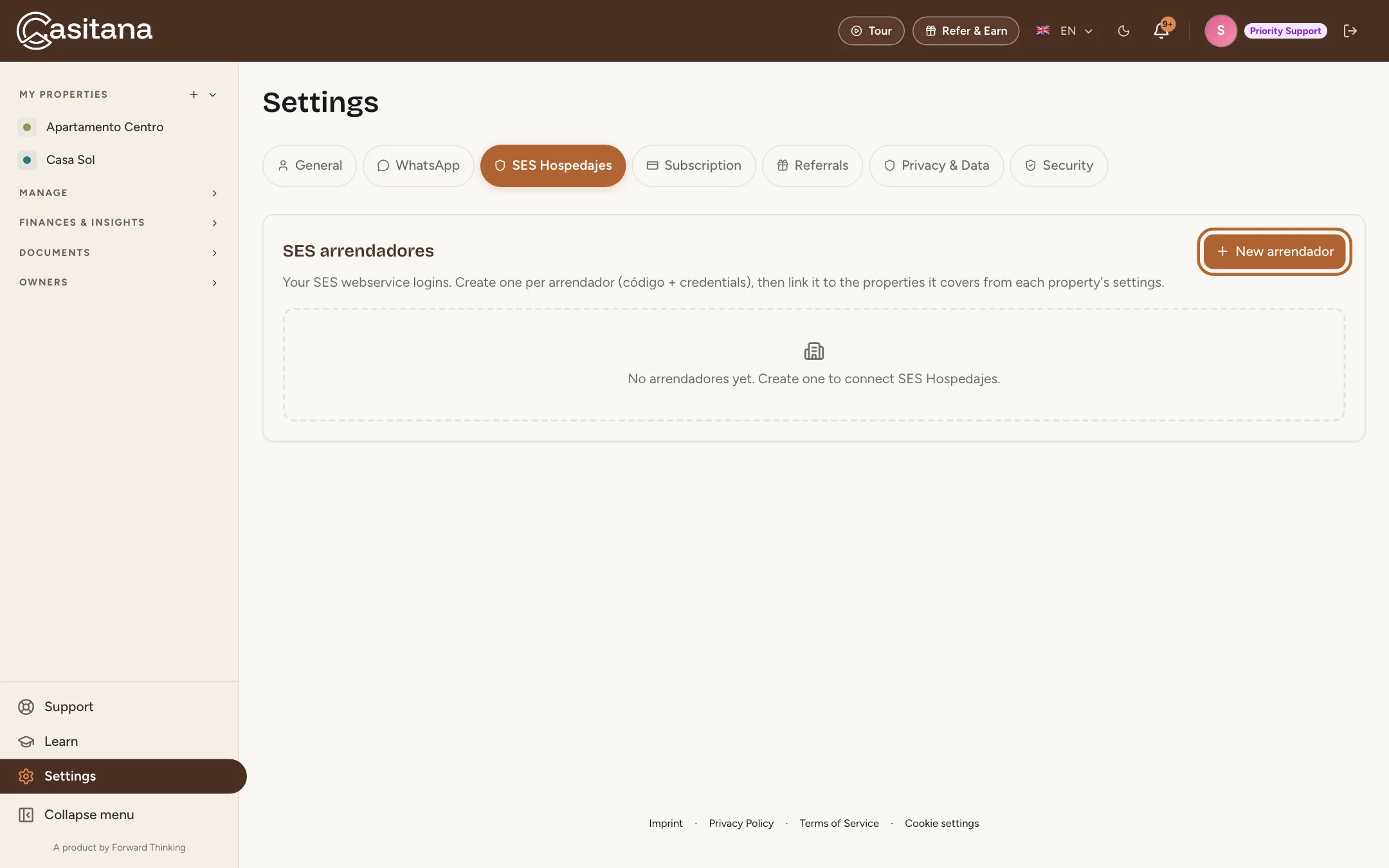
Open the SES Hospedajes settings
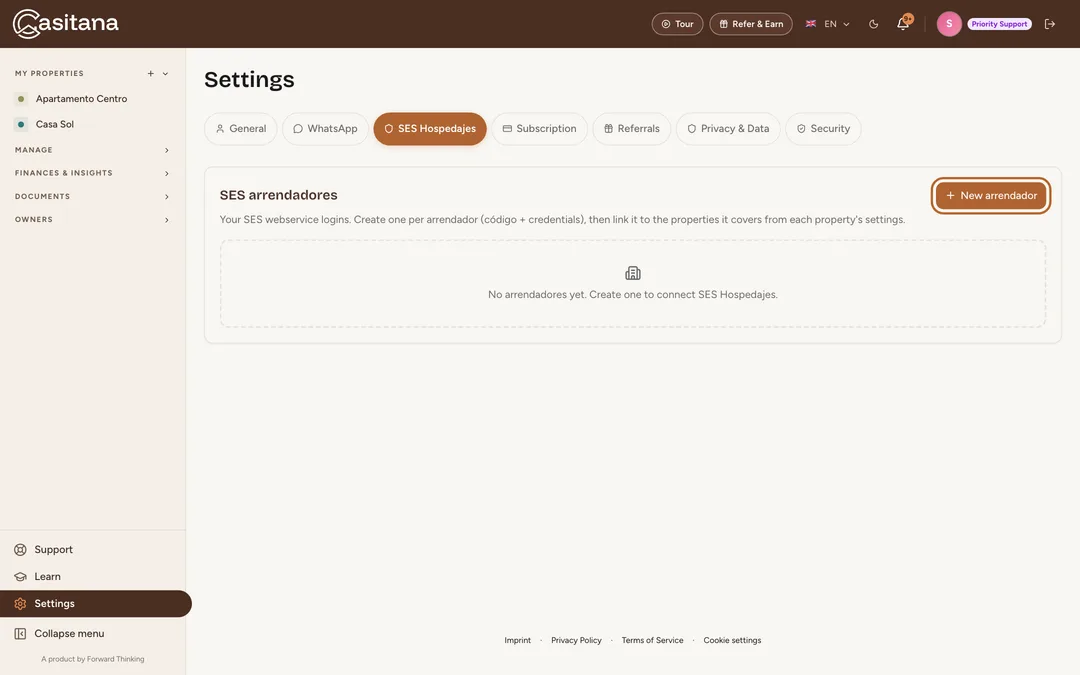
Click Settings at the bottom of the menu, then the SES Hospedajes tab. Under SES arrendadores, click New arrendador.
 Enlarge screenshot
Tip: The arrendador is you, or your company, as registered with SES Hospedajes. One arrendador can cover several properties.
Step 6
Enter your SES Hospedajes details
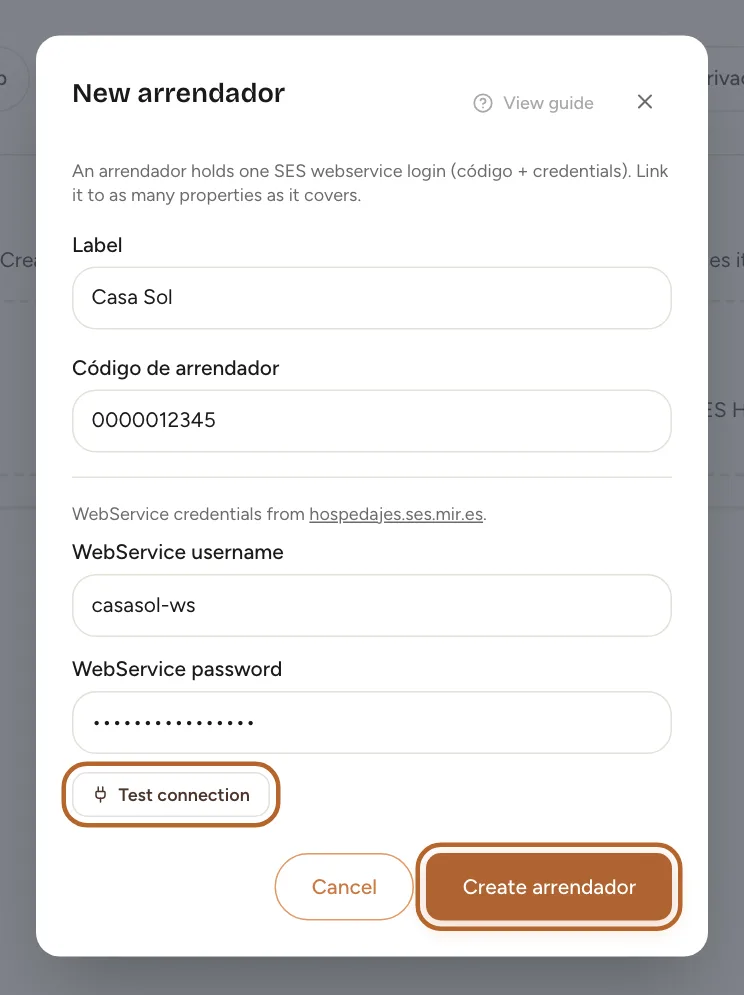
Give it a Label, then fill in your Código de arrendador, WebService username and WebService password. Click Test connection to check them, then Create arrendador.
 Enlarge screenshot
Tip: Your código de arrendador and the web service username and password come from your account at hospedajes.ses.mir.es. Not registered yet? See Get your SES Hospedajes credentials.
Step 7
Link each property
Open the property, and in the Spain Compliance Setup card click Edit. Enter the SES Establishment Code, then under SES Hospedajes Setup choose the SES arrendador. Click Save Changes.
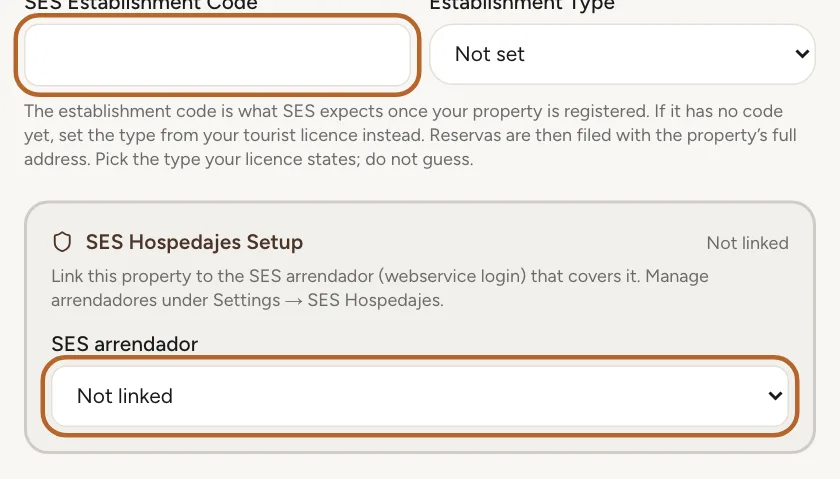 Enlarge screenshot
Tip: You find the establishment code in SES Hospedajes, next to each establishment you registered there. Each property has its own: see Write down the codes.
Add the tourist licence
Step 8
Enter the tourist licence number
On the property’s page, the Tourist Registration (NRT) card holds the licence. Click Edit, enter the Tourist Registration Number (NRT), the Region and, if it has one, the Expiry Date. Click Save.
 Enlarge screenshot
Tip: With an expiry date, Casitana reminds you before the licence runs out.

Send your guest the registration link
Each stay has its own link. Your guest opens it, fills in a form for every guest, and Casitana has everything it needs.
Step 9
Find the stay
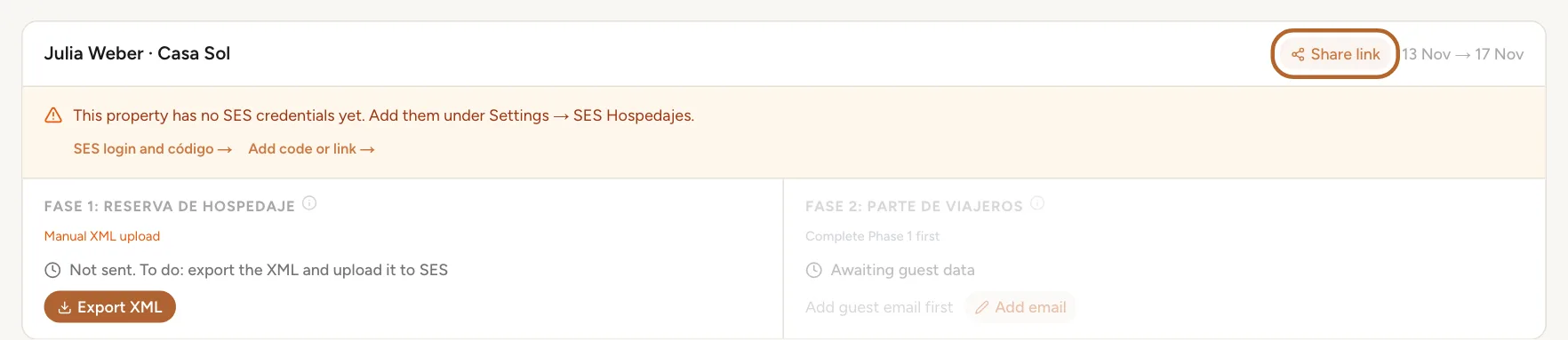
In the compliance hub, click Open SES Hospedajes. Every stay at a Spanish property is listed, from 30 days ago to 90 days ahead. A stay whose guests have not registered yet shows Awaiting guest data. Once the registration form has been sent, it reads Form sent to guest, awaiting reply.
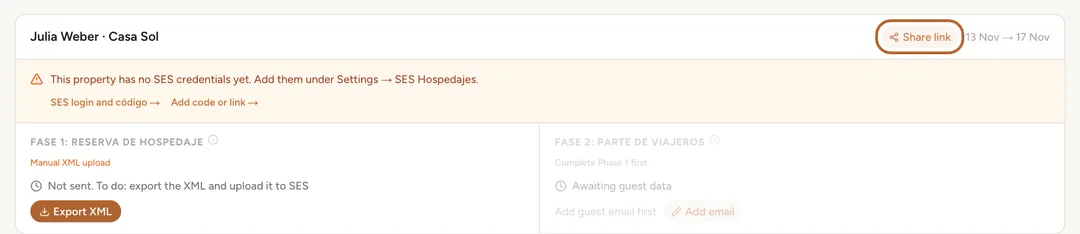 Enlarge screenshot
Step 10
Share the link
Click Share link on the stay. Click Copy link, or Copy message for a ready-written message in the language you choose, and send it to your guest by WhatsApp, email or your booking platform’s messages. Download QR gives you a QR code to print.
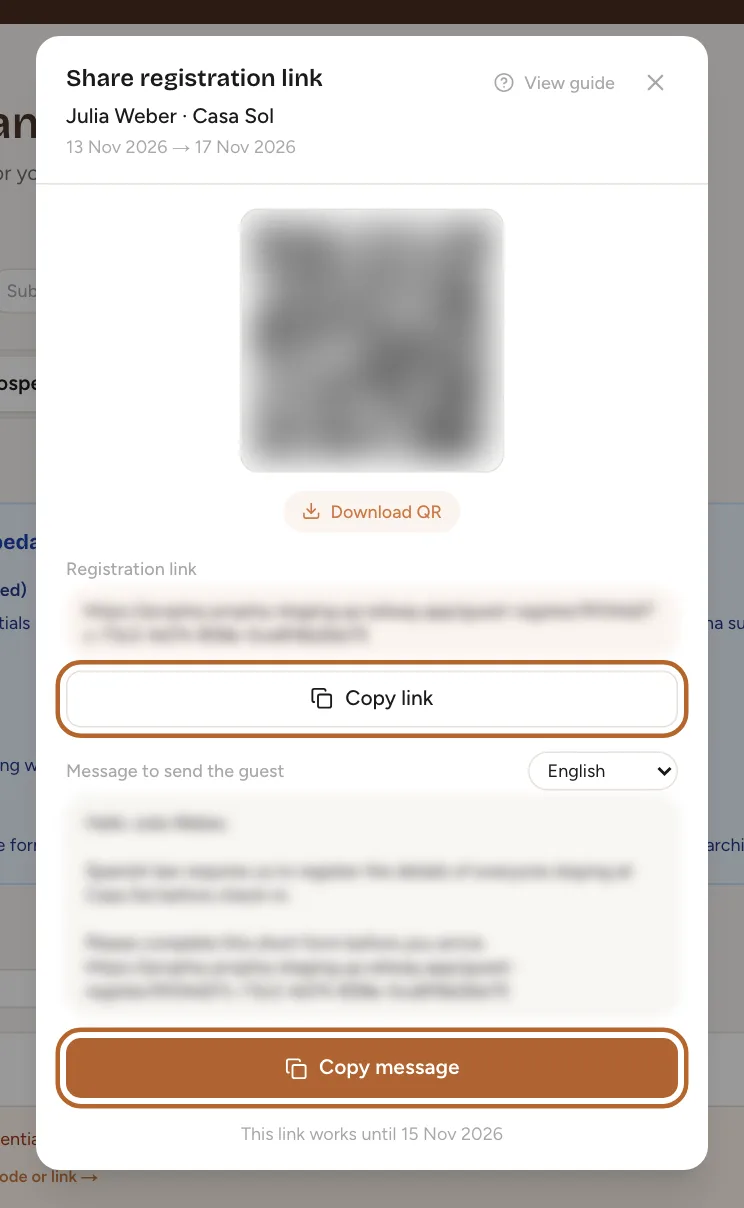 Enlarge screenshot
Tip: What your guest sees, step by step: Register for your stay.
Good to know: For one link that serves every stay at a property, see One link for every guest of a property.
Step 11
Or let Casitana email the form
When the stay has your guest’s email address, click Send registration form on it and Casitana emails the link for you. Without an address, the button reads Add email: add the address, then send. To type the details in yourself instead, click Enter guest details.
Good to know: In the calendar, Send registration form on a stay opens the link to share, as above. It does not send an email.
One link for every guest of a property
Besides the link for each stay, each property in Spain can have one registration link for all its guests. You paste it once into the messages your booking platform sends, and your guests enter their own dates when they fill in the form.
Step 12
Create the link
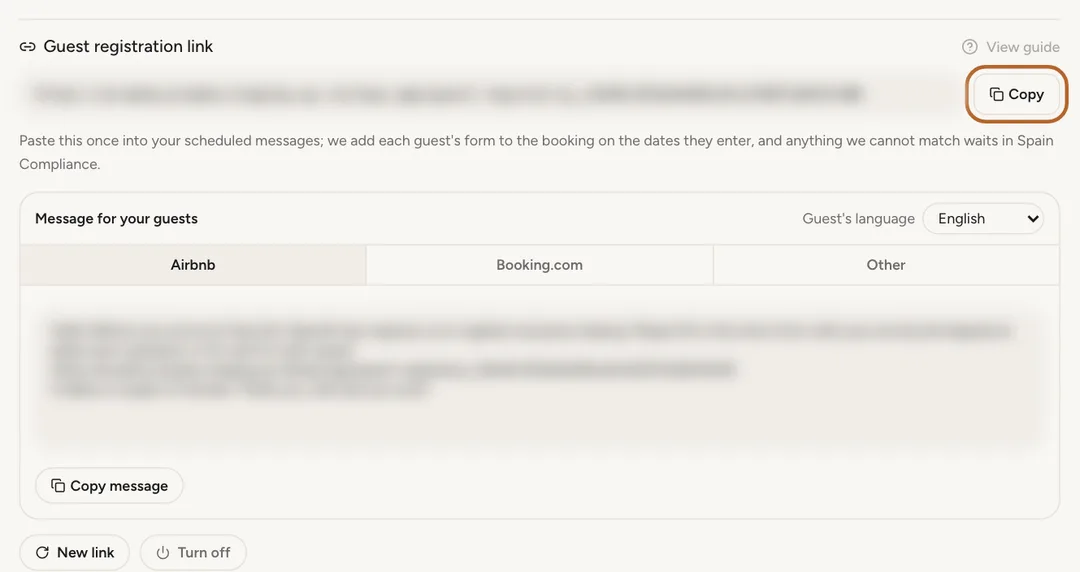
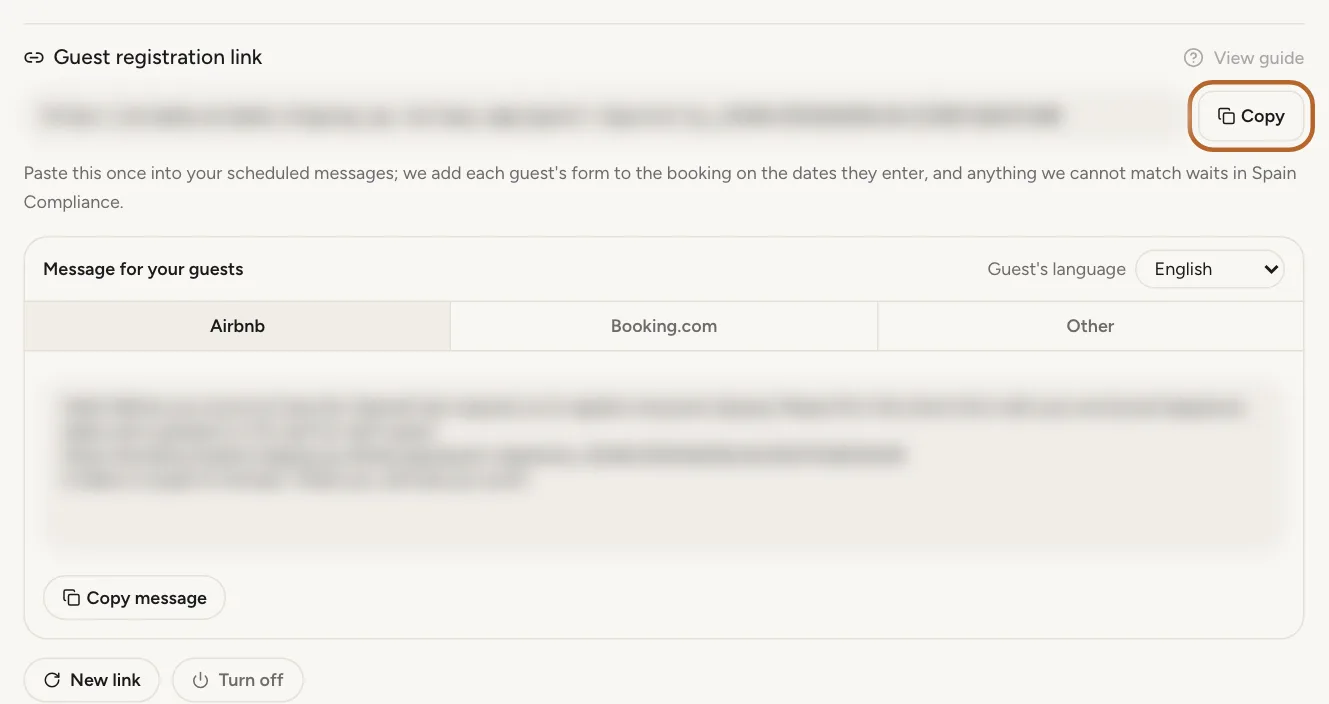
Open the property. In the Spain Compliance Setup card, under Guest registration link, click Create link. The link appears with Copy next to it.
 Enlarge screenshot
Good to know: The link is available from the Starter plan. Properties in other countries have one too, with a shorter form: see Registration link: one link for every guest. Your guest enters their arrival and departure dates and fills in a form for every guest.
Step 13
Paste it into Airbnb
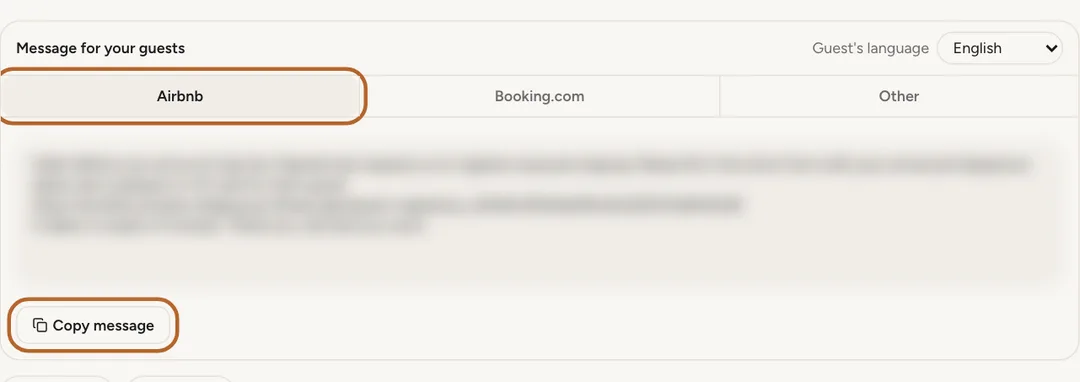
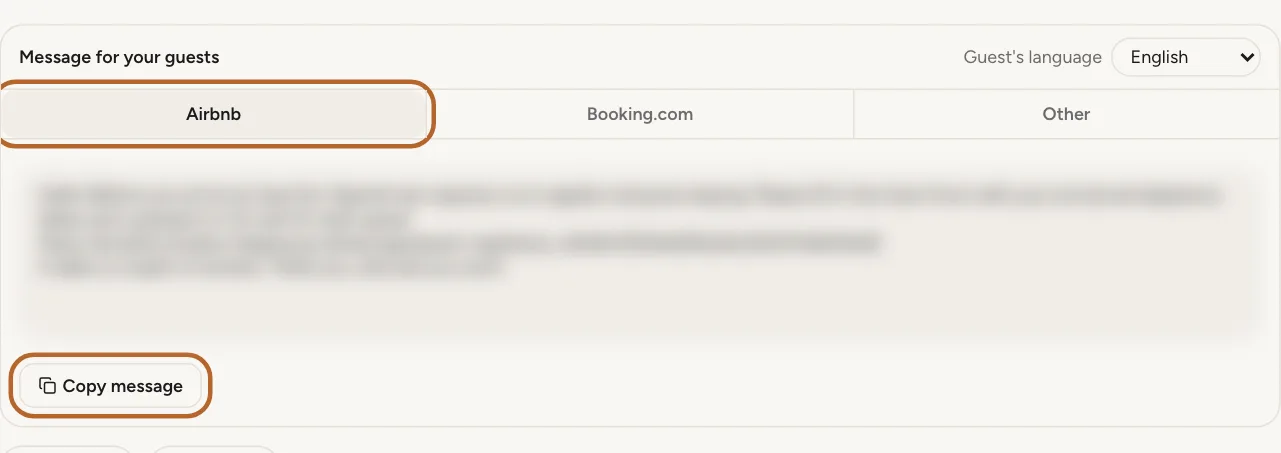
Under Message for your guests, keep the Airbnb tab, choose the Guest's language and click Copy message. The message already holds the link. In Airbnb, paste it into a scheduled message for the listing, set to go out a few days before check-in.
 Enlarge screenshot
Good to know: Airbnb may then send it to each guest of that listing. How scheduled messages work is up to Airbnb, so check there that your guests receive it.
Step 14
Paste it into Booking.com
Choose the Booking.com tab, copy the message the same way and add it to the messages Booking.com sends your guests before arrival.
Tip: The Other tab has a message for email, WhatsApp or any other channel.
Good to know: Booking.com may ask you to approve the link once in your extranet before guests receive it.
Step 15
Make a new link, or turn it off
New link replaces the link: the old one stops working straight away, so paste the new one everywhere you used the old one. Turn off switches the link off: guests who open it can no longer send their details. Casitana asks you to confirm both. You can create a new link at any time.
Step 16
Confirm the guest, or say it is not yours
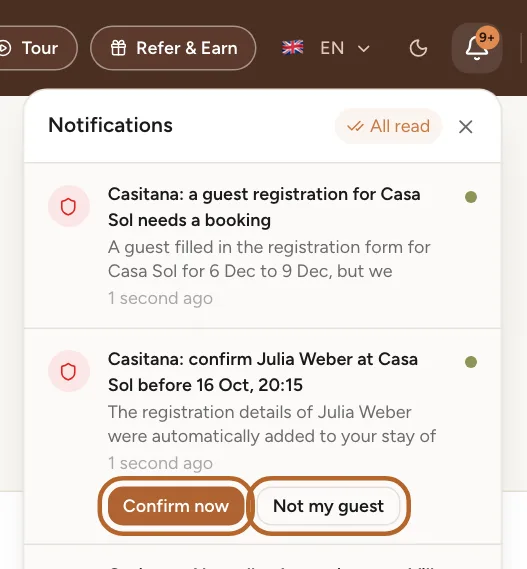
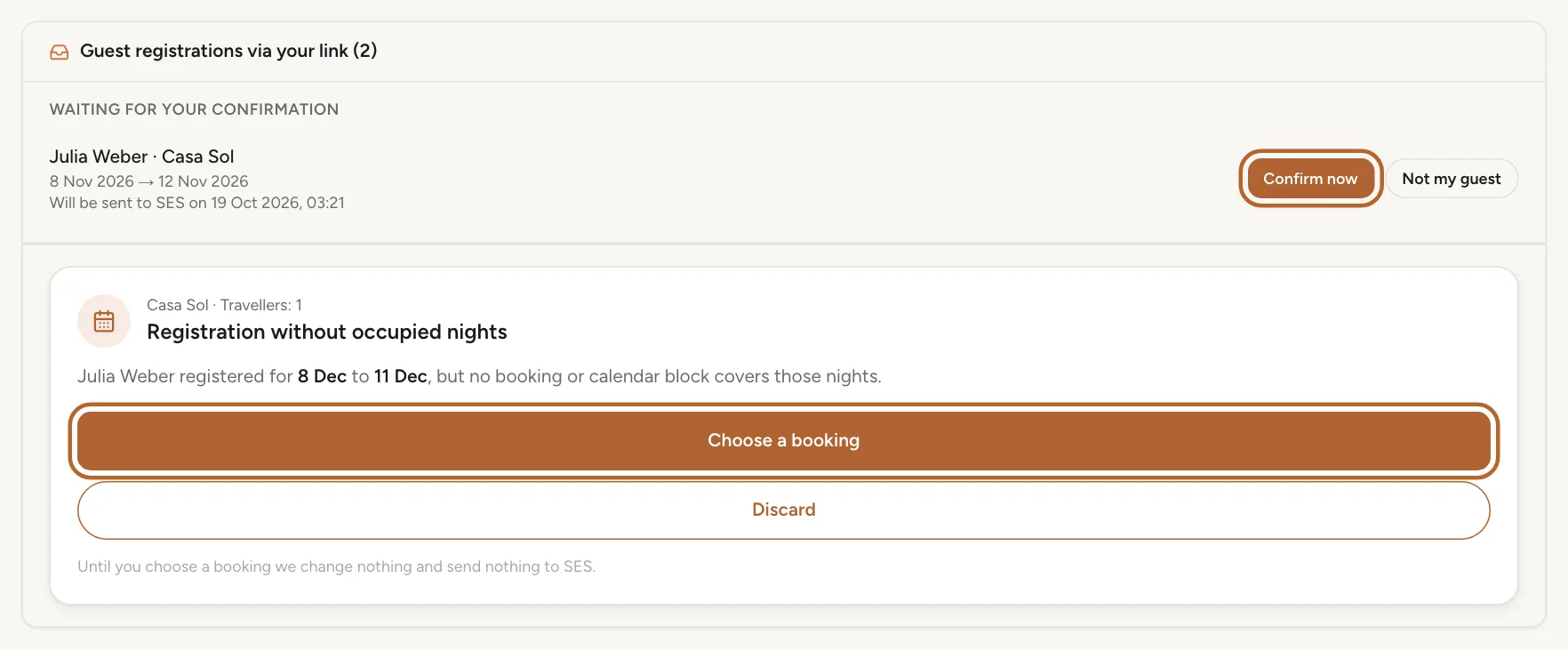
When a guest’s arrival and departure dates match one of your bookings exactly, Casitana adds the travellers to that booking and lets you know, in the bell and by email. The notification names the guest, the stay and the time the booking will be filed. In the bell, Confirm now files the booking (Fase 1) with SES Hospedajes straight away. Not my guest opens Spain Compliance and asks you to confirm before the travellers are taken off the booking and their details deleted; nothing has been sent to SES Hospedajes. The email has the same two buttons: they open Spain Compliance and ask you there.
 Enlarge screenshot
Tip: Casitana adds a form to a booking by itself only when the dates match exactly, the booking has no travellers yet, and the guest’s last name matches the name on the booking, if it has one. After five such matches in 24 hours for one property, it stops for the day and tells you. Everything else waits in the inbox, below.
Good to know: If you do nothing, the booking is filed at the time the notification names: 12 hours after the guest sent the form, or 24 hours before check-in if that comes first. With check-in less than 24 hours away, it is filed at once. The guest details (Fase 2) are filed on the day of check-in, as usual. With SES Hospedajes switched off you get no notification, and the stay waits in the inbox: Confirm a guest from the bell.
Step 17
The inbox on the SES tab
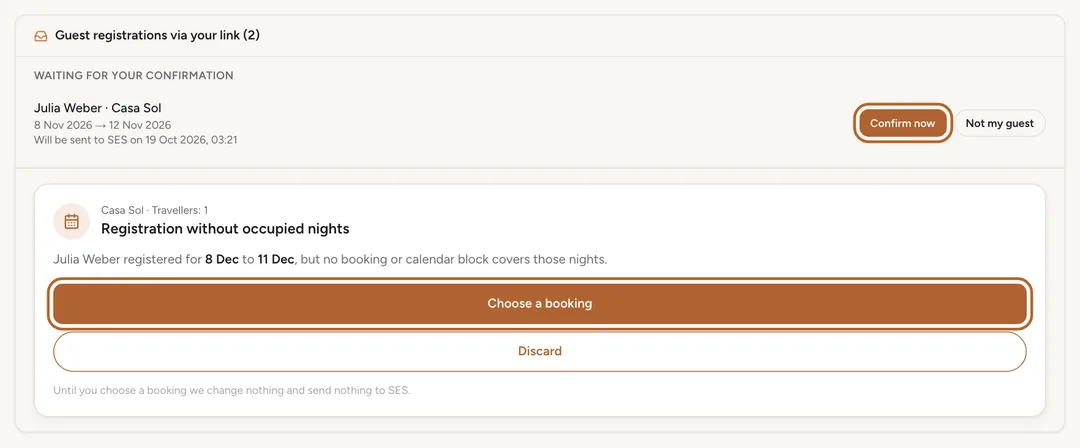
In Spain Compliance, click Open SES Hospedajes. Forms from a property’s link that need you are at the top, under Guest registrations via your link (2); your dashboard shows the same under Guest registrations to check. Waiting for your confirmation lists the forms Casitana added to a booking by itself, with the time each will be filed and the buttons Confirm now and Not my guest. Each form Casitana could not add safely is a card of its own, with the reason: Registration without occupied nights, Close to a stay, on other dates or Registration waiting for a booking. Click Choose a booking to choose the booking yourself, or Discard to delete the travellers’ details.
 Enlarge screenshot
Tip: Choose a booking shows your bookings within a week of the guest’s dates. If the booking is not there yet, add it first. The inbox shows only while a form is waiting.
Good to know: Nothing on those cards is sent to SES Hospedajes. Once you choose a booking, Casitana files it as for any other stay. A form that is never placed is deleted 14 days after the departure the guest entered, or 60 days after it was sent if that comes first; Casitana tells you three days before. Every card is explained in Registrations to check.
When the guest details arrive
Step 18
See that the details have arrived
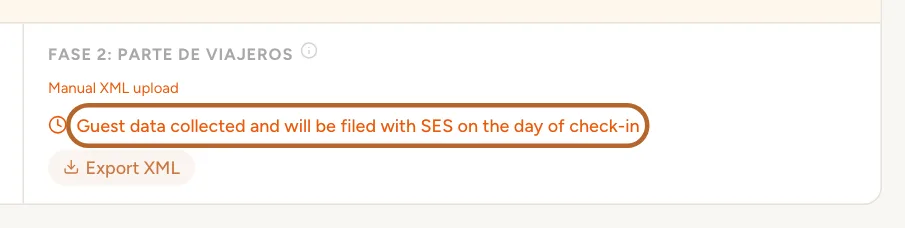
As soon as your guest submits the form, the stay shows Guest data collected and will be filed with SES on the day of check-in, or Guest data collected and queued for filing with SES on the day of check-in. Casitana files them then: see Filing the guest details. You also get a notification, unless you switched off SES Hospedajes in your notification settings.
 Enlarge screenshot
Good to know: Casitana files the guest details only for a property with an establishment code and a connected arrendador (see above). The booking itself (Fase 1) needs the arrendador, and the establishment code or the property’s type and full address.
Step 19
Check who registered
Under Recent SES Registrations, click the stay to open it. Registered guests lists every guest with their document.
 Enlarge screenshot

Enter or correct details yourself
The guest details Casitana files (Fase 2) come from the registration form your guest fills in. You can correct what a guest entered, and name the lead guest of the booking yourself.
Step 20
Name the lead guest of the booking
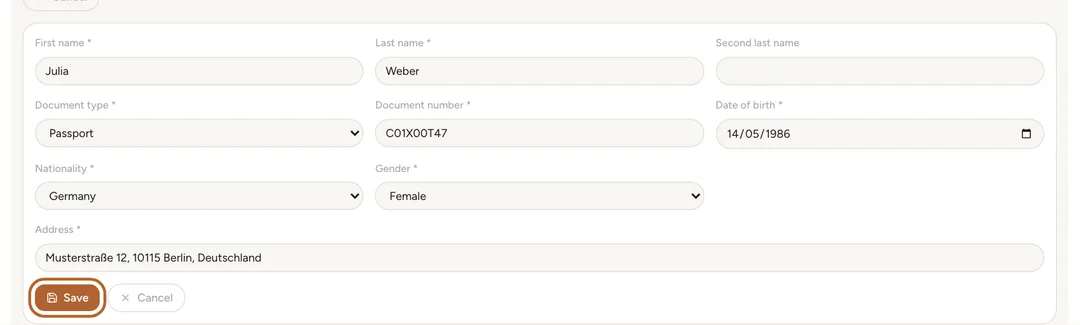
Under Recent SES Registrations, open the stay and click Edit booking guest. Fill in the lead guest’s name, document, date of birth, nationality and address, and click Save. Casitana uses this person as the guest when it files the booking itself (Fase 1).
 Enlarge screenshot
Tip: The lead guest is also the tenant on the stay’s rental contract: see A contract for a stay.
Good to know: This does not register your guests: the details filed on the day of check-in are the ones under Registered guests. A stay is listed under Recent SES Registrations once its registration link has been shared.
Step 21
Correct a registered guest
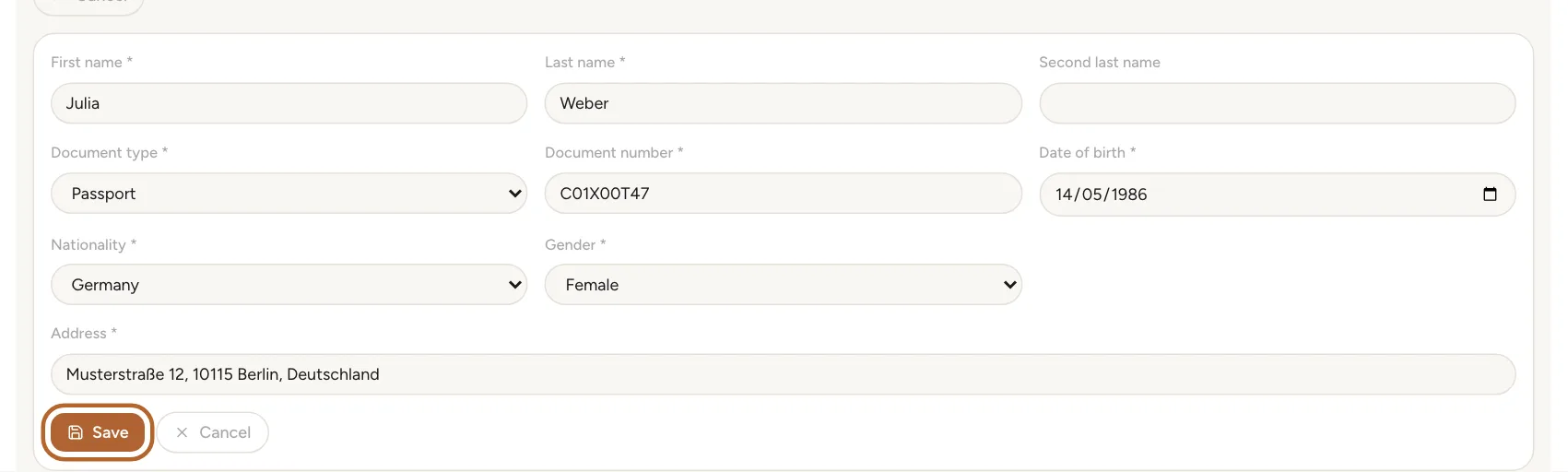
Under Registered guests, click Edit next to the guest, correct the details and click Save. These are the details Casitana files on the day of check-in.
Good to know: Once the guest details have been filed with SES Hospedajes, they can no longer be changed in Casitana. See What Casitana cannot withdraw.
Filing the guest details
Step 22
Casitana files them on the day of check-in
On the day of check-in, Casitana sends the guests’ details to SES Hospedajes by itself and shows the result on the stay. To file earlier, once the details are in, click Submit Parte on the stay.
Step 23
When automatic filing has stopped
Casitana files by itself only up to 24 hours after check-in. Guest details that arrive later, or could not be filed in time, are not filed automatically: the stay turns red and reads Guest data collected but not filed, and the automatic filing window has closed. Submit it now. Click Submit Parte to file them.
Good to know: SES Hospedajes expects the guest details within 24 hours of check-in.
Step 24
If filing fails
If something is missing, or SES Hospedajes refuses the details, the stay reads Failed or Rejected by SES with the reason, and Casitana lets you know by email and notification. Correct the details (see Enter or correct details yourself) and click Retry.
Step 25
File it yourself in SES Hospedajes
You can also file in the SES Hospedajes portal yourself. Click Export XML on the stay, upload the file at hospedajes.ses.mir.es, then click I have uploaded this to SES portal. The stay reads Submitted manually, and Casitana does not file it again.
Withdraw a filing
What has been filed with SES Hospedajes stays there until it is withdrawn (an anulación). When a stay is cancelled, whatever was filed for it must be withdrawn. Casitana withdraws a filing only when you ask it to.
Step 26
Cancel the stay
Casitana offers the withdrawal on a cancelled stay. Cancel it in the calendar: click the stay, then Cancel booking (see Cancel a booking). A filed stay that was imported from your booking platform’s calendar is cancelled for you when it disappears from that calendar. Cancelling withdraws nothing: the stay then shows Still registered with SES in the calendar, with a Withdraw → link that opens Spain Compliance.
Good to know: A stay that has been filed cannot be deleted, not even after its filings are withdrawn: Casitana keeps it as the record of what was filed and withdrawn. Cancel it instead. For the same reason, a property with filed stays cannot be deleted.
Step 27
Find what is still registered
In Spain Compliance, click Open SES Hospedajes. For each filing still registered, the booking (Fase 1, the reserva) and the guest details (Fase 2, the parte), the cancelled stay says it must be withdrawn and has its own Withdraw from SES button. The same buttons sit on the stay’s card under Recent SES Registrations, next to the Reserva and Parte lines, and the card reads Cancelled, but still registered with SES.
Tip: Until it is withdrawn, such a stay counts under Need action.
Step 28
Confirm the withdrawal
Click Withdraw from SES next to the filing. The window Withdraw this filing from SES? names the filing, with its código de comunicación, or with its lote while SES Hospedajes has not assigned a code yet. Type a reason of at least 10 characters, and click Withdraw from SES.
Good to know: A withdrawal cannot be undone from Casitana. It withdraws only the filing you chose: the reserva and the parte are separate filings.
Step 29
Withdraw the other filing too
If both the booking and the guest details were filed, each must be withdrawn. After the first, Casitana tells you the other one is still registered and offers Withdraw it now →, or use its own Withdraw from SES button. Once everything is withdrawn, the stay’s card reads Cancelled and withdrawn from SES.
Step 30
If the withdrawal does not go through
The window tells you why, and until a withdrawal succeeds, the filing still stands with SES Hospedajes. If SES Hospedajes could not be reached, nothing was sent: try again in a few minutes. If SES Hospedajes refused, the message includes the reason it gave: withdraw the filing there instead, at hospedajes.ses.mir.es.
Good to know: Casitana withdraws with the SES details of the property’s arrendador. If they are missing, add them under Settings, SES Hospedajes: see Connect your SES Hospedajes account.
Step 31
What Casitana cannot withdraw
Casitana withdraws only what it filed itself, and only for a cancelled stay. Guest details you filed by hand in SES Hospedajes must be withdrawn there. If a stay is going ahead and something already filed for it is wrong, its guest details are locked in Casitana: open a support ticket and say what needs correcting (Open a ticket).
Good to know: Withdrawing, like filing, needs the Starter plan or above. On the Free plan, withdraw at hospedajes.ses.mir.es.