
What it is
Step 1
Who a property owner is
A property owner is the person or company who legally owns a property you manage, for example a client whose holiday home you let. A property can have several, each with their own share, because co-ownership is common in Spain. You, the account holder, are the person who logs in and pays for Casitana.
Step 2
Part of Pro
Property owners are available on the Pro plan. On another plan, see Choose a paid plan.
Step 3
Where property owners are used
The Modelo 210 dossier lists the property owners as filers (Co-owned properties), a booking's rental contract names them as the landlords (Co-owned properties), and owner statements send them the monthly overview of their property. SES Hospedajes and your own monthly overviews still use your own details, as before.
Good to know: A property owner's IBAN is for paying them out. It is never part of the Modelo 210 dossier.
Add a property owner
Step 4
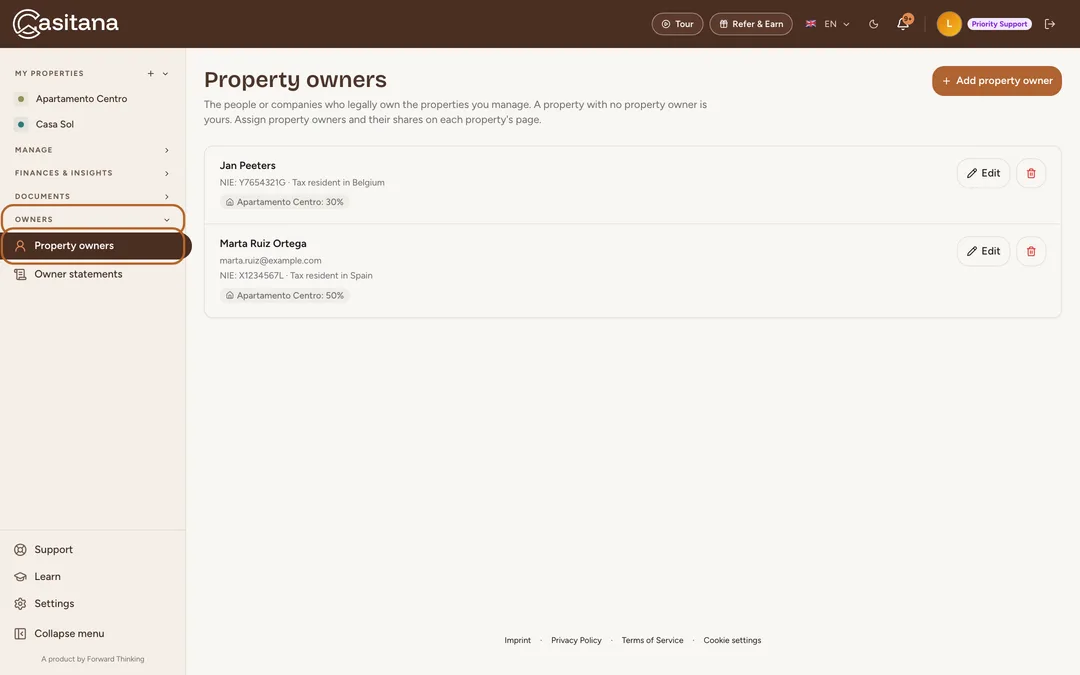
Open the list
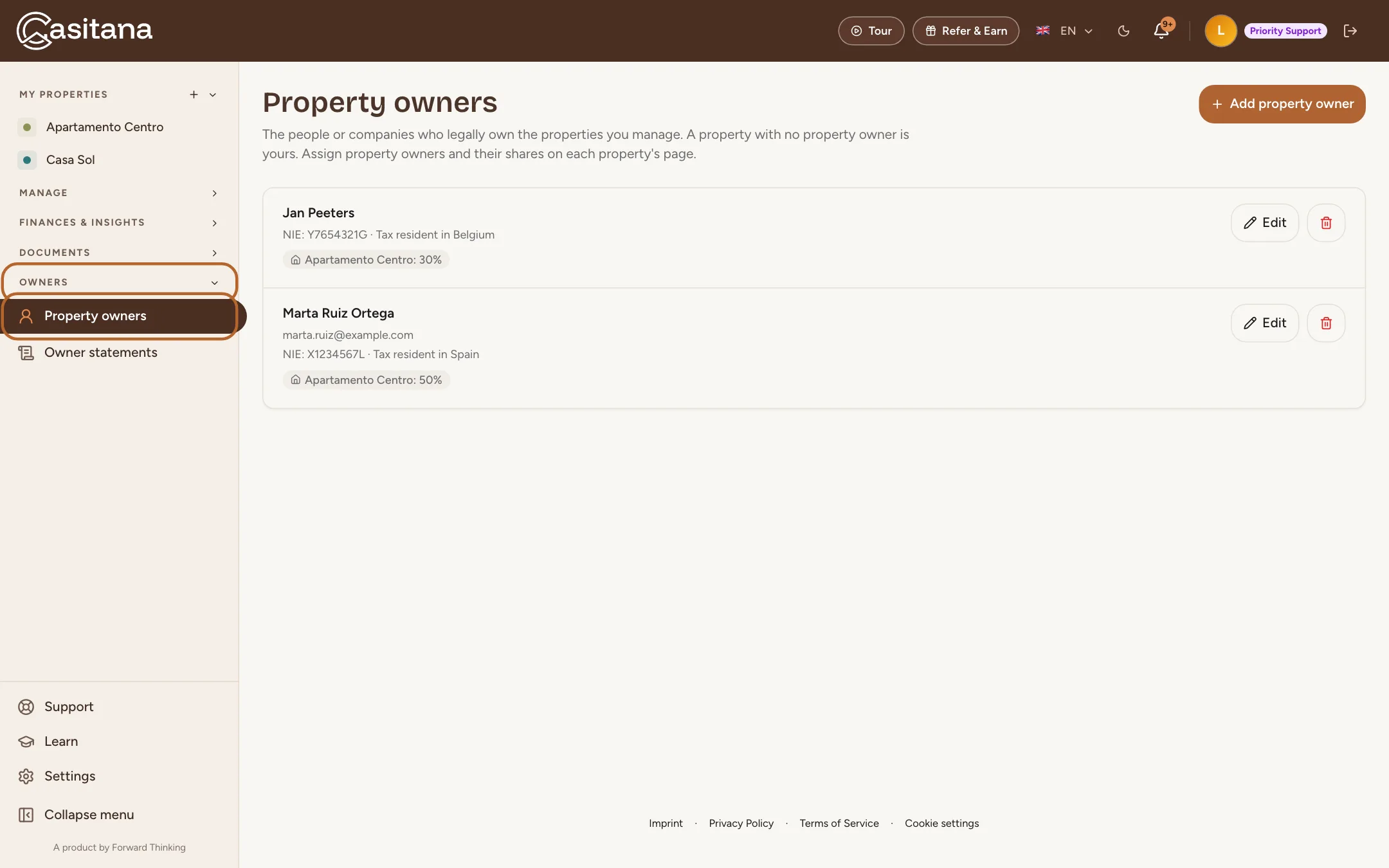
In the sidebar, under OWNERS, click Property owners. You can also open any property, find the Property owners card on its overview and click All property owners. The page lists every property owner in your account and the properties each one is assigned to.
 Enlarge screenshot
Step 5
Fill in the details
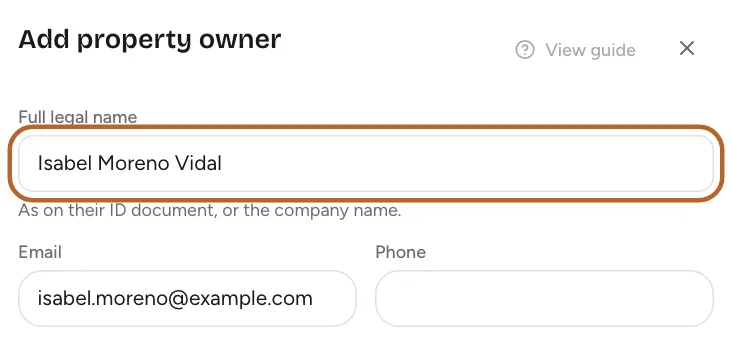
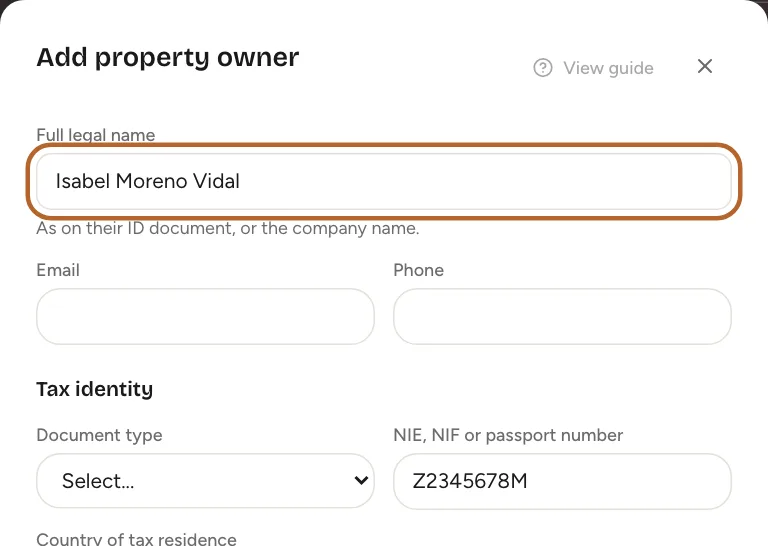
Click Add property owner. Only the full legal name is required: as on their ID document, or the company name. Add what you know of the rest: email, phone, tax identity, address, the language for their statements and your management commission. The commission is for your own records and does not appear on statements. Then click Save.
 Enlarge screenshot
Step 6
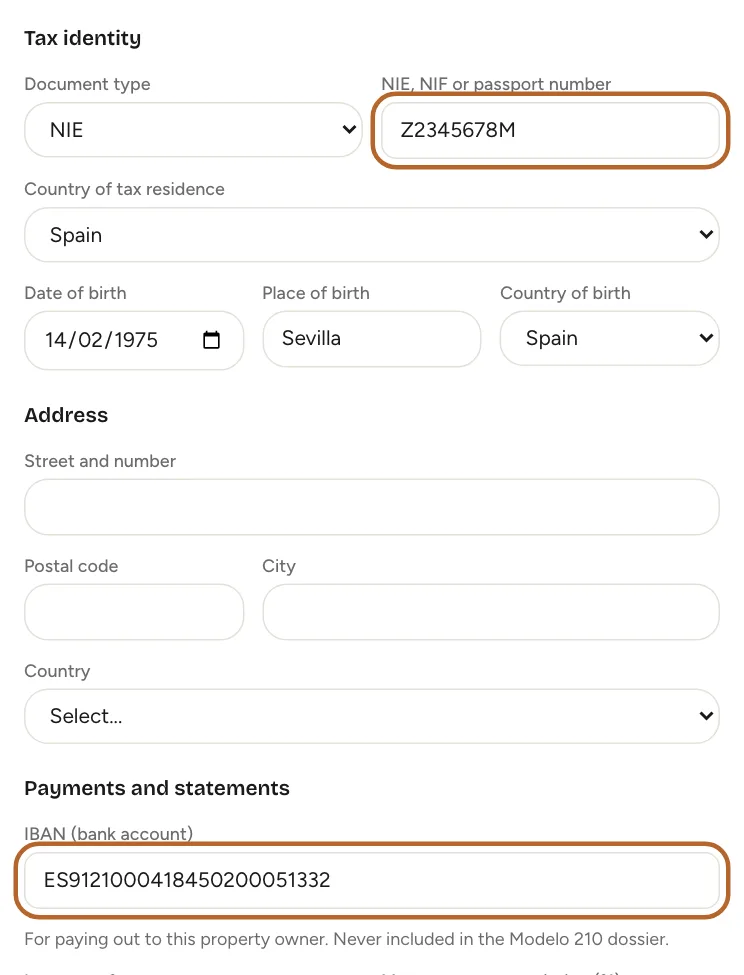
Tax ID and IBAN
The NIE, NIF or passport number and the IBAN are stored encrypted. Choose the country where the property owner is tax resident under Country of tax residence.
 Enlarge screenshot
Step 7
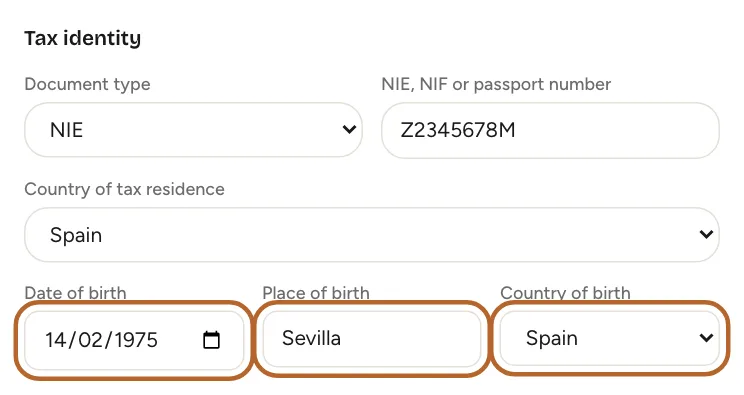
Date and place of birth
Under Country of tax residence, add Date of birth, Place of birth and Country of birth. Casitana does not require them, but the Modelo 210 asks for them for non-resident filers. The Modelo 210 dossier lists them for each filer, so your gestor has them for the form (Co-owned properties).
 Enlarge screenshot
Step 8
Edit or delete
Click Edit on a property owner to change their details. To delete one, first remove them from every property they are assigned to: Casitana refuses to delete a property owner who still owns part of a property, so no property is left with shares that do not add up.
Assign property owners to a property
Step 9
Open the property
Open the property and find the Property owners card on its overview. Click Edit on the card.
 Enlarge screenshot
Step 10
Add property owners and their shares
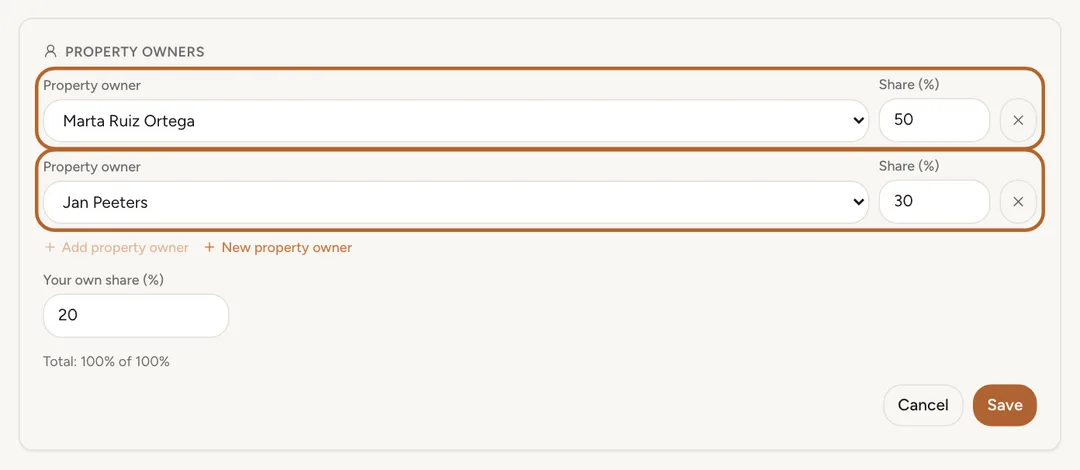
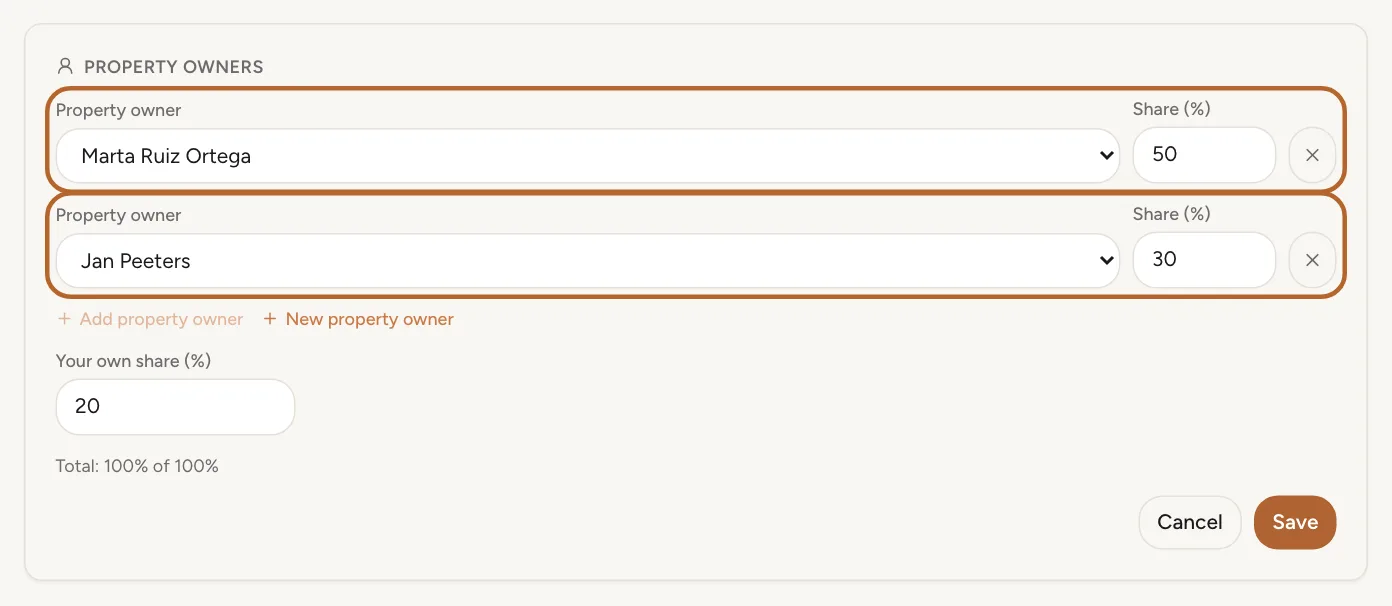
Click Add property owner, choose a property owner and type their share in percent. Add a line for each co-owner. To create a new one without leaving the property, click New property owner. Then click Save.
 Enlarge screenshot
Step 11
Your own share
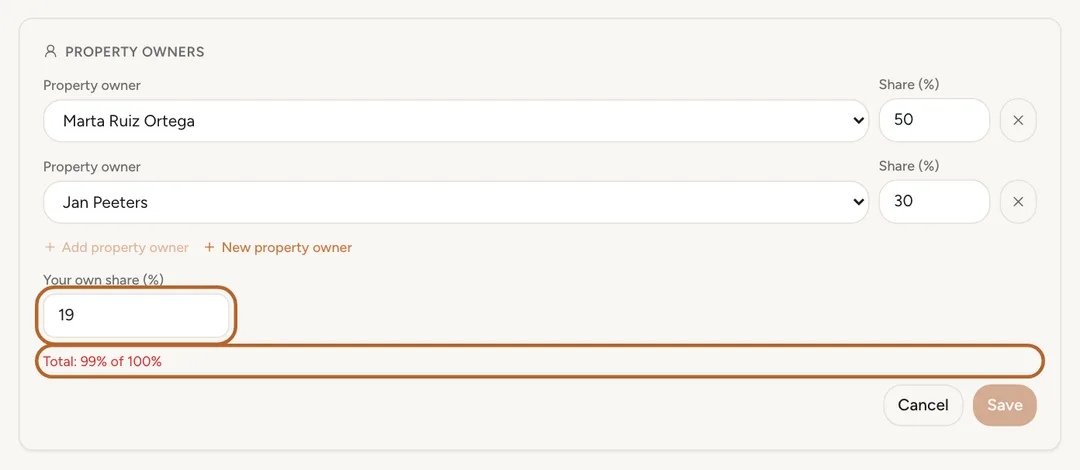
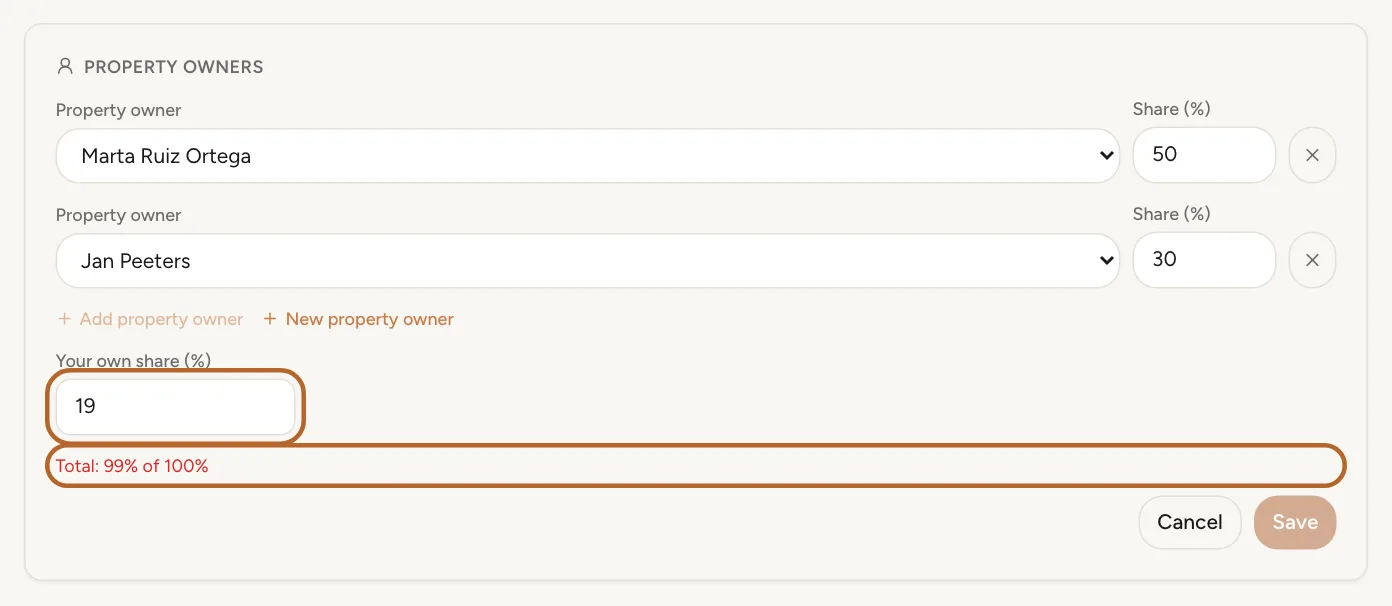
If you own part of the property yourself, type it under Your own share (%). The property owners' shares and yours must add up to exactly 100%, and the card shows the total as you type. Two decimals are allowed, so three equal co-owners are 33.33, 33.33 and 33.34.
 Enlarge screenshot
Tip: Remove every property owner and the property is yours again.
Step 12
Create one from the property's details
If the property already has a landlord for its rental contracts, or details under Default details for new property owners in its form, the card offers to create a property owner from them. Click it, check the details in the form, and save. Nothing is created until you do, and the property's own details stay as they are.
 Enlarge screenshot

Send owner statements
Step 13
Open owner statements
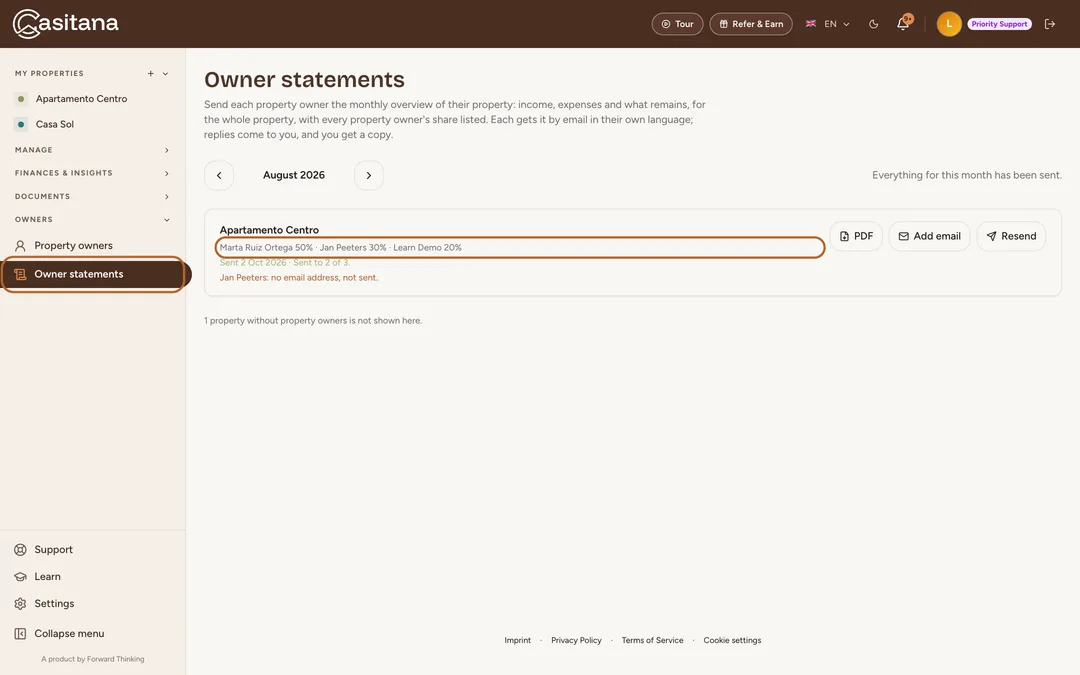
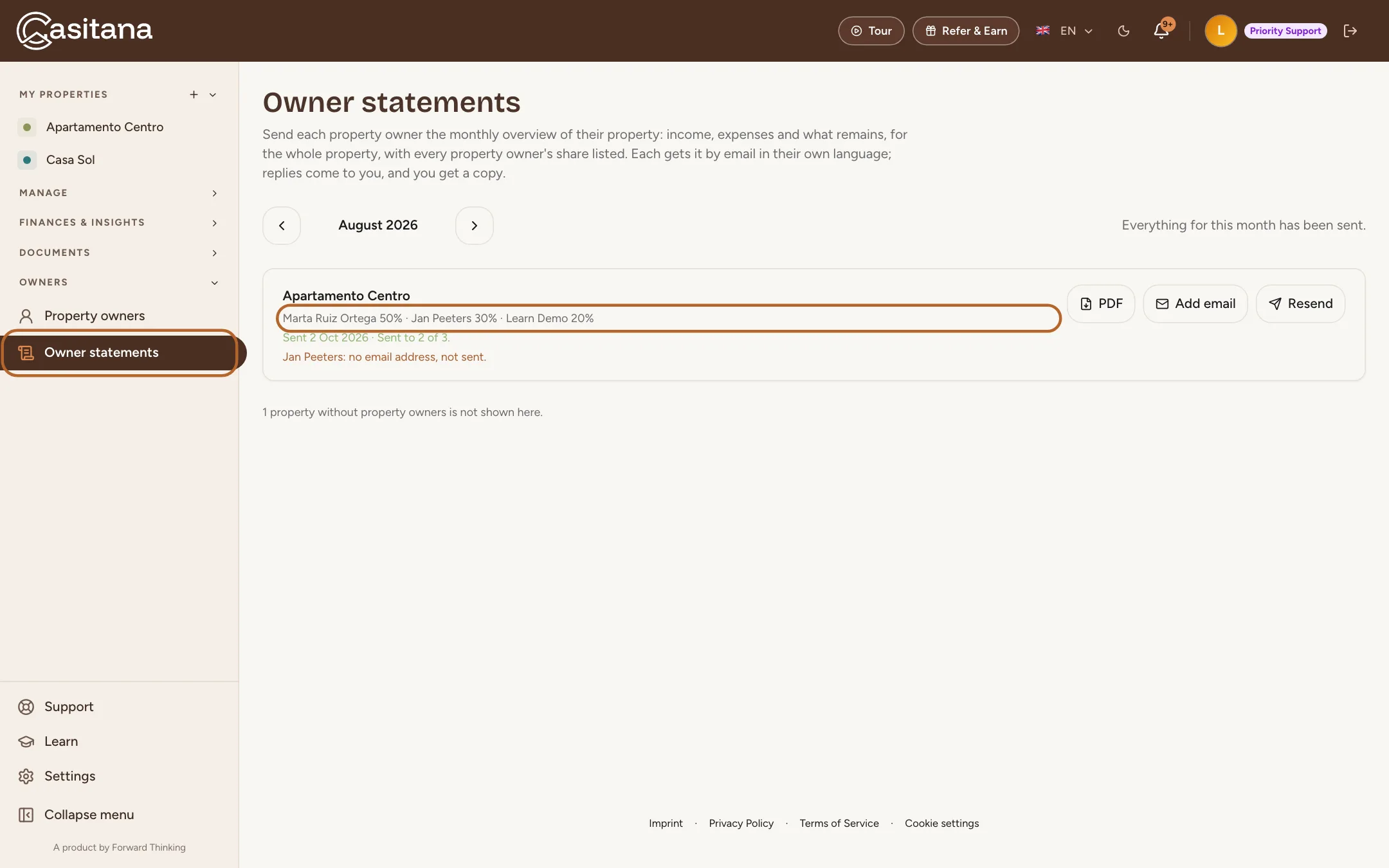
In the sidebar, under OWNERS, click Owner statements. The page shows one month at a time, starting with the month that just ended, and every property that has property owners, with the names and shares its statement lists. Use the arrows to change the month.
 Enlarge screenshot
Step 14
Send one property's statement
Click Review and send on a property. Casitana shows the email and the PDF exactly as they will arrive; click Send statement to send them. Each property owner with an email address gets the statement as a PDF attached to an email, in the language set on their record. Replies come to you, and you get a copy. The row then shows the date it was sent.
 Enlarge screenshot
Tip: Who receives it, a personal message, highlights and notes on expenses: Owner statements.
Step 15
Send the whole month
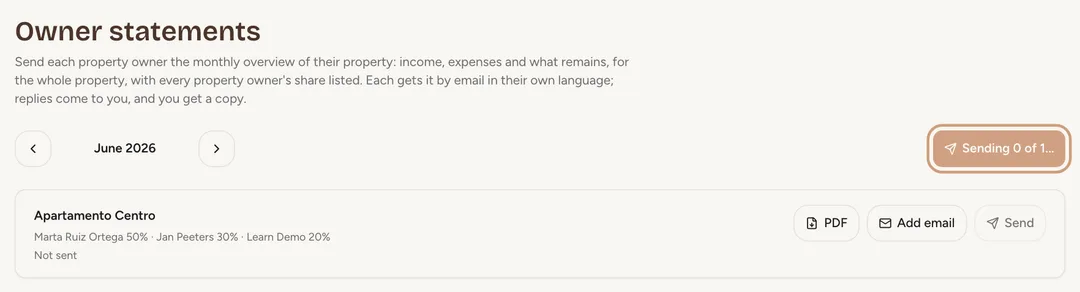
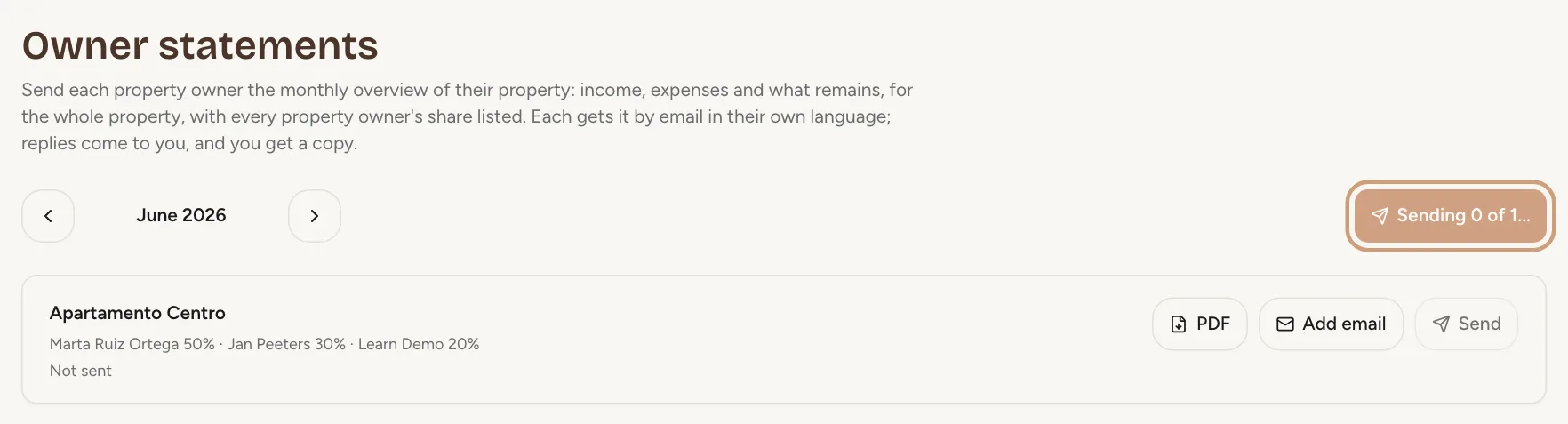
The button at the top of the page opens a review of every statement for the month that has not been sent yet. Its own button then sends them one property after another and shows how far it is. Statements already sent are skipped, so pressing it again after an interruption sends nothing twice.
 Enlarge screenshot
Step 16
Who gets it
A property owner without an email address, or whose address is blocked, is skipped and named on the page, and the others still get theirs. Add the address on their record and send again. If you own part of the property yourself, the email you receive as a co-owner is your copy.
Step 17
What the statement shows
The statement is the property's monthly overview: income, expenses and what remains, for the whole property, with your logo if you have added one. Under the figures it lists every property owner with their share. Casitana does not split the amounts by share and calculates no tax. PDF on a row downloads the PDF without sending anything.
 Enlarge screenshot
Tip: If you charge a management fee, record it as an expense of the property and it appears with the other expenses.


Plan changes
Step 18
If your plan changes
If you move to a plan below Pro, your property owners and their shares are kept but hidden, and every property behaves as yours. Nothing is deleted: move back to Pro and they are all there again.
Tip: What your staff see of your property owners: Your property owners.