Set up the guest page
Step 1
Open the guest page editor
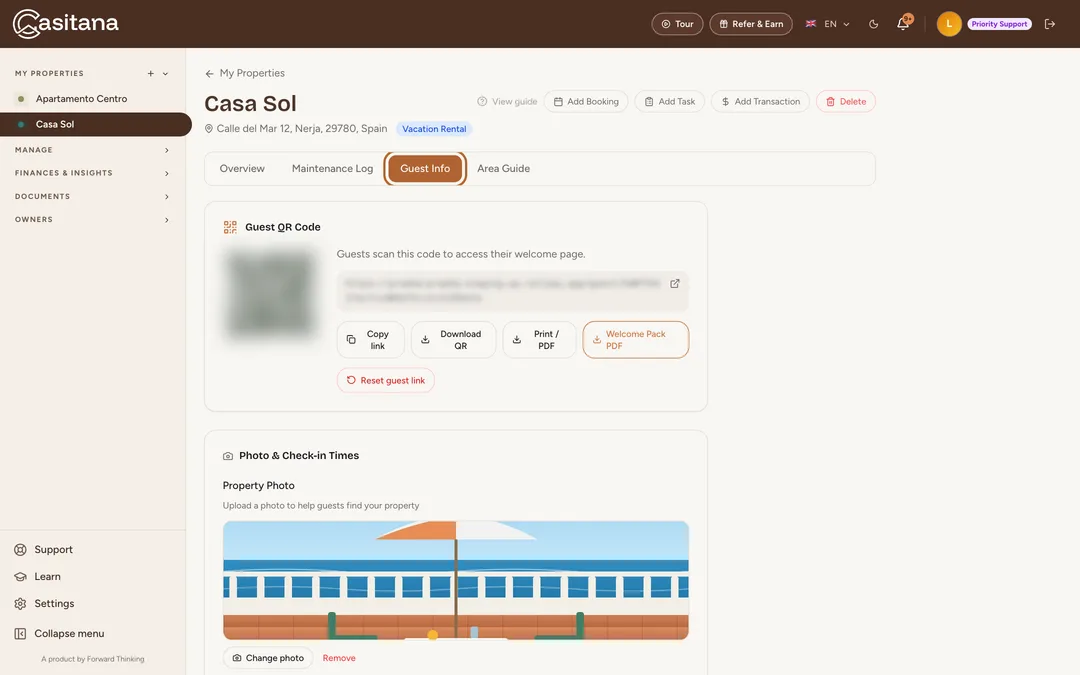
In the menu on the left, under My Properties, click the property, then the Guest Info tab. Everything on the page is for this one property.
 Enlarge screenshot
Step 2
Add a photo and your times
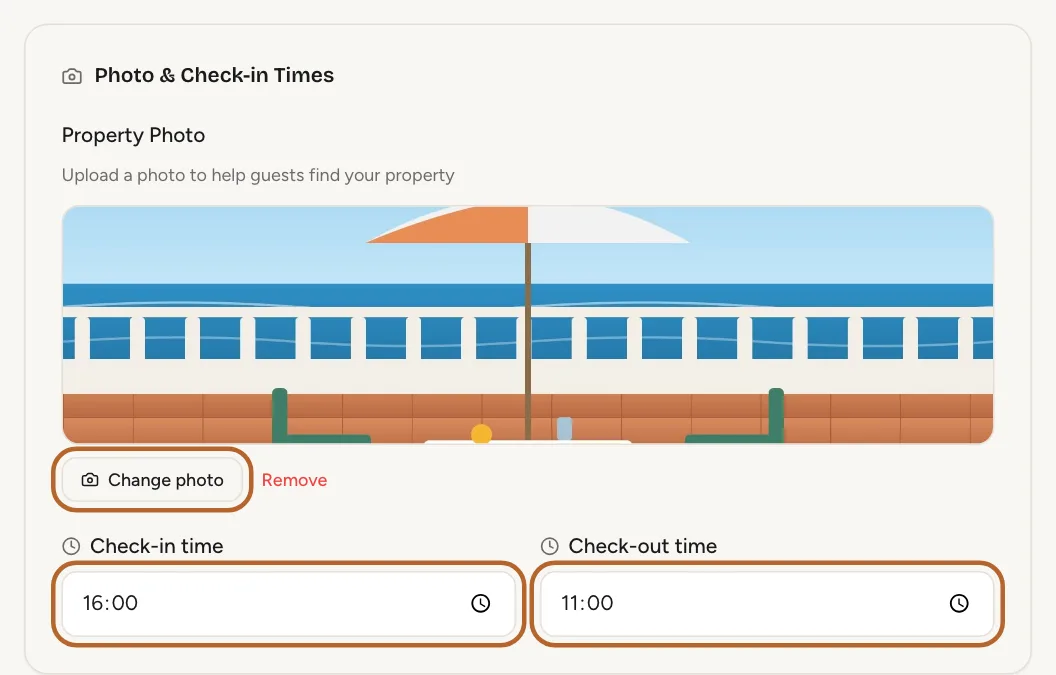
Under Photo & Check-in Times, click Upload photo (Upload custom photo if the property already has a photo) and choose a JPEG, PNG or WebP image of up to 10 MB. It is saved as soon as you choose it and becomes the large picture at the top of the guest page. To replace it later, click Change photo. Then set Check-in time and Check-out time.
 Enlarge screenshot
Tip: Without a photo of its own, the guest page uses the property’s photo (Upload or change the photo).
Good to know: Uploading a photo for the guest page is available from the Starter plan.
Step 3
Welcome message and location
Write a short Welcome message: guests read it over the photo. Under Location, type the address and click Find if no map shows yet. With a location, guests get a map and directions to the house. If the property already has its pin on the map (Move the pin and save), there is nothing to do.
Wi-Fi, key and house rules
Step 4
Wi-Fi, key code and check-in
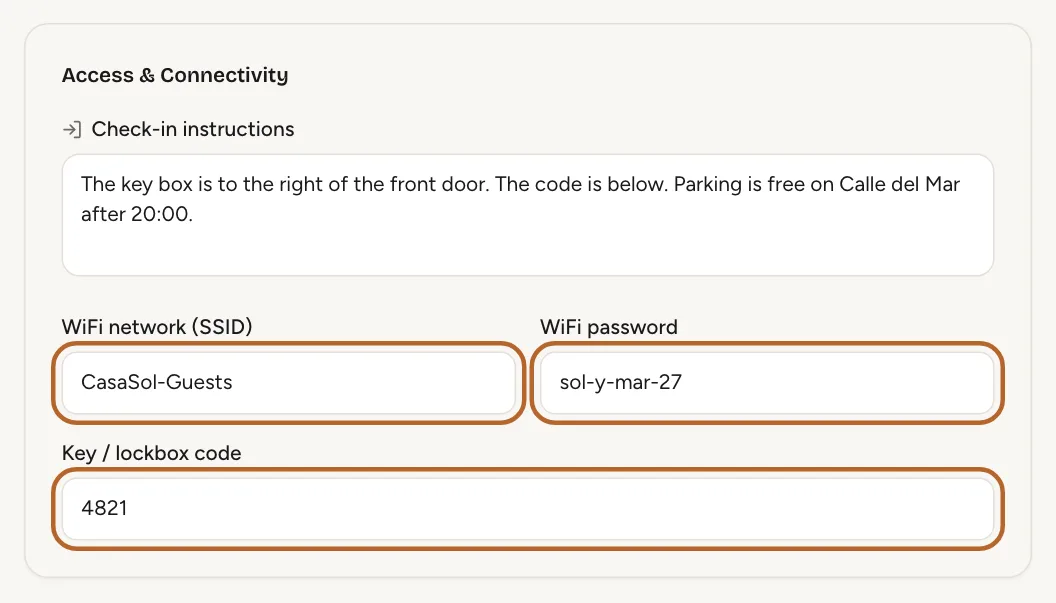
Under Access & Connectivity, describe how to get in under Check-in instructions, and fill in WiFi network (SSID), WiFi password and Key / lockbox code. Guests can copy the network and password straight from the page.
 Enlarge screenshot
Tip: The automatic emails take the Wi-Fi password from here, but the key code from the property's details: see Add the stay’s details.
Good to know: Casitana stores the Wi-Fi password and the key code encrypted.
Step 5
House rules, tips and emergency contacts
Add your House rules and Check-out instructions. Insider Tips for Guests takes one tip per line. Under Personalise Your Welcome Page you can list weekly local events and mention a welcome gift. Under Emergency contacts, click Add contact for each number a guest may need, such as 112 or your own.
Tip: Write in the language most of your guests read. Casitana translates the page’s headings and buttons into the guest’s language, but not your own text.
Step 6
Save
At the bottom, click Save changes. The first time, Casitana also creates the page’s link and QR code. You can change anything later: guests always see the latest version.
Share the link and the QR code
The link and the QR code appear once you have saved the page the first time.
Step 7
Share the link or the QR code
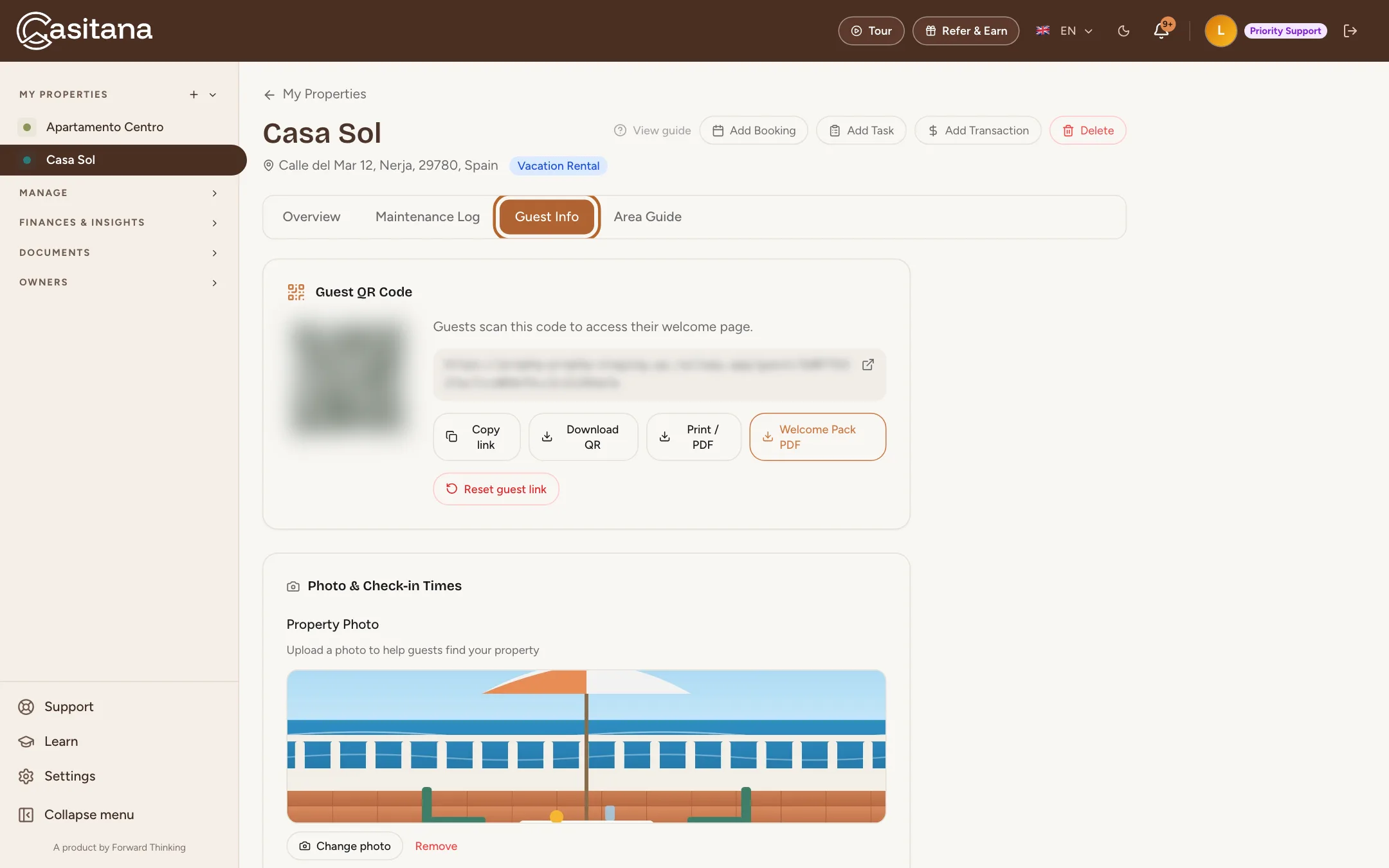
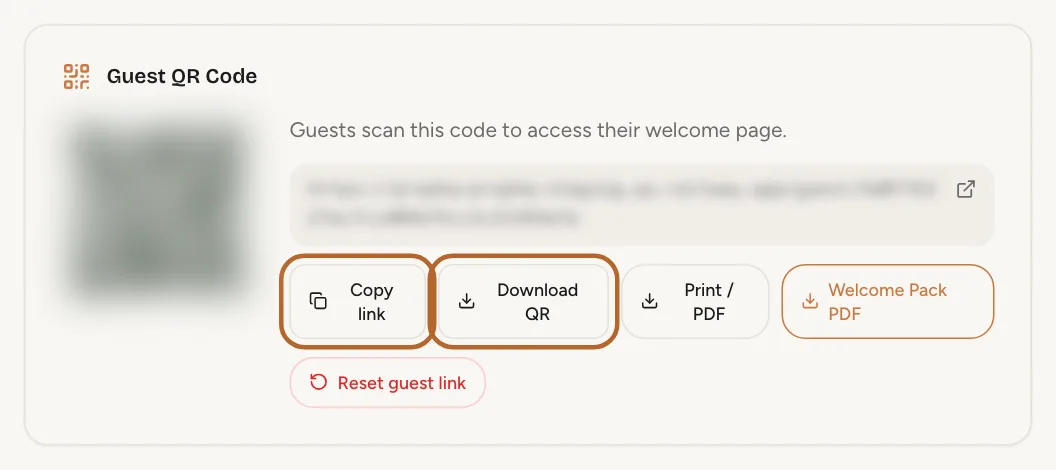
At the top of the editor, under Guest QR Code, click Copy link to paste the link into your booking message, or Download QR for an image you can print or add to a sign in the house.
 Enlarge screenshot
Good to know: In the screenshots the link and the QR code are blurred on purpose: they open a real guest page.
Step 8
Print it
Print / PDF opens a one-page printout with the QR code, to put up in the house. Welcome Pack PDF downloads a welcome pack with your times, Wi-Fi, key code, house rules and emergency contacts.
Tip: The welcome pack contains the Wi-Fi password and the key code. Leave it inside the house, not at the door.
Step 9
Reset the link
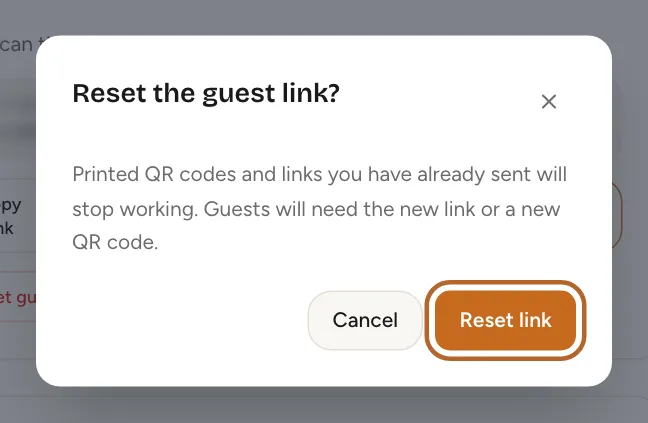
The link does not expire. If it has gone further than it should, for example with a former guest, click Reset guest link and confirm with Reset link. The old link and every QR code already printed stop working at once; share the new ones with your next guests.
 Enlarge screenshot
Add local places
The area guide is one list of places for all your properties. You tag each place to the properties it is near, and each property’s guests see only its own.
Step 10
Open the area guide
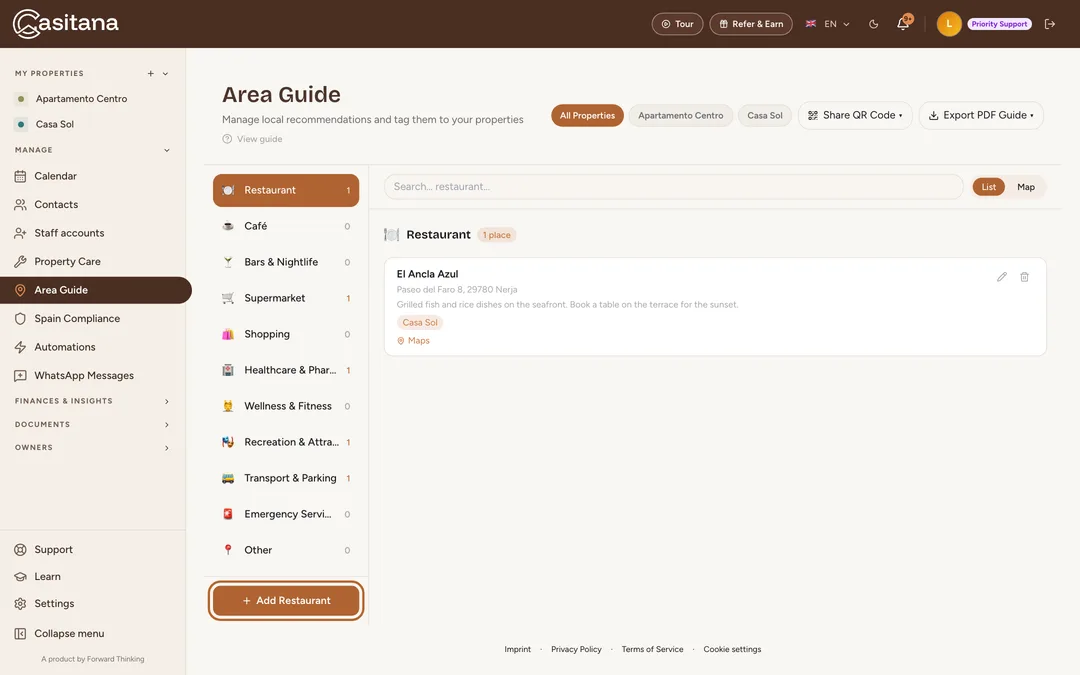
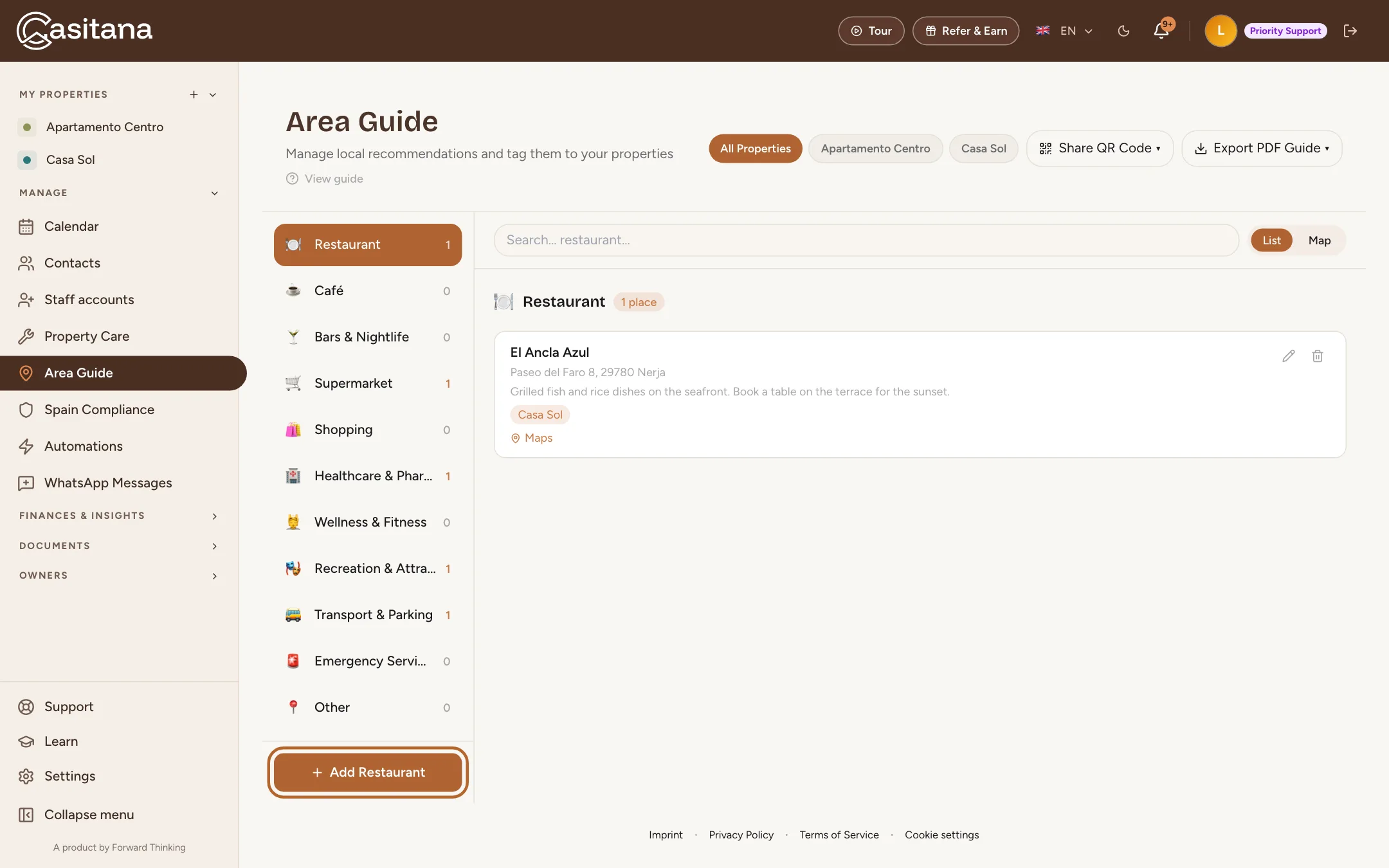
In the menu on the left, click Area Guide. The categories are on the left, with how many places each holds. Click a category to see its places.
 Enlarge screenshot
Step 11
Add a place
Choose the category, then click the button at the bottom of the list, for example Add Restaurant. Enter the Name, then type the Address and pick it from the list that appears. Add a Description in your own words: what to order, when to go.
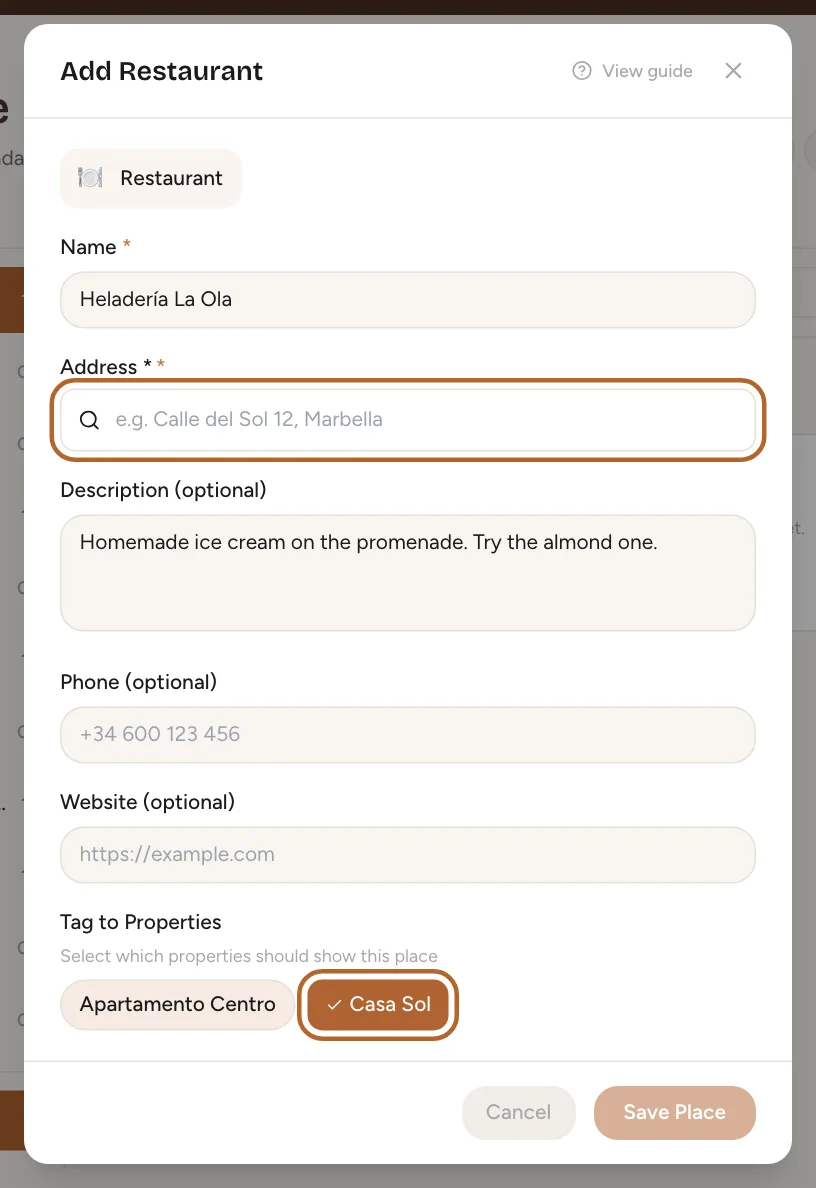 Enlarge screenshot
Tip: Picking the address also places the pin on the map. That pin is what your guests’ walking distance is worked out from.
Step 12
Tag it to your properties
Under Tag to Properties, click each property the place is near, then Save Place. A place tagged to no property shows on no guest’s page. To change a place later, click the pencil next to it: the same form opens.
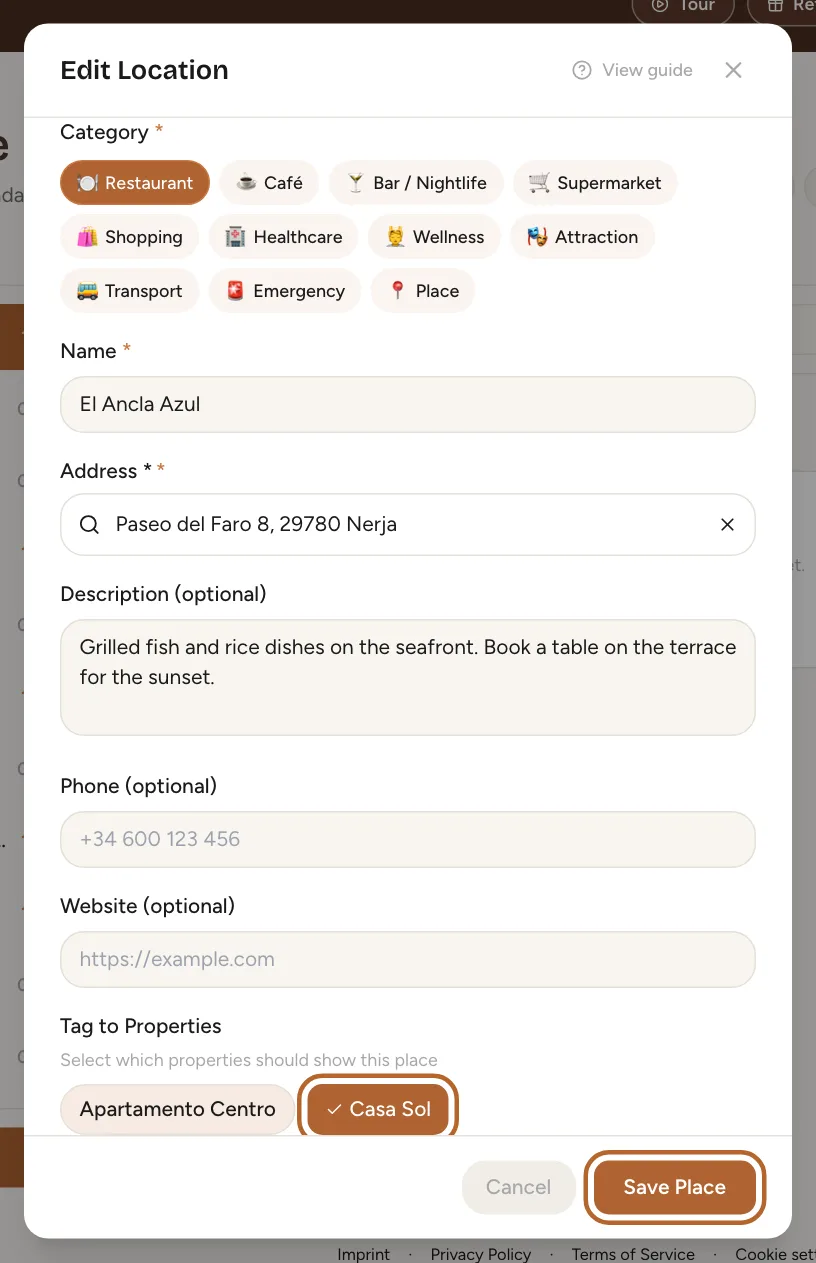 Enlarge screenshot
Tip: On a property’s own page, the Area Guide tab lists only the places tagged to it, with Export for Guests and Share QR Code for that property.
Step 13
Export a PDF
Click Export PDF Guide at the top and choose the property. Untick any categories you want to leave out, choose the Language of the PDF and whether to Include QR code in PDF, then click Generate PDF.
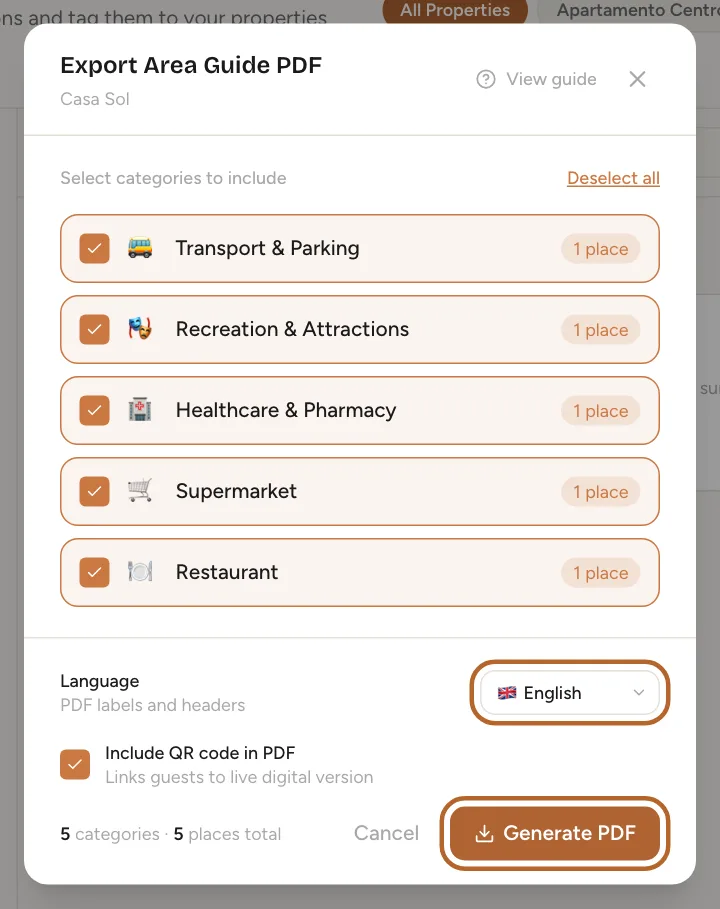 Enlarge screenshot
What your guests see
Step 15
The guest page
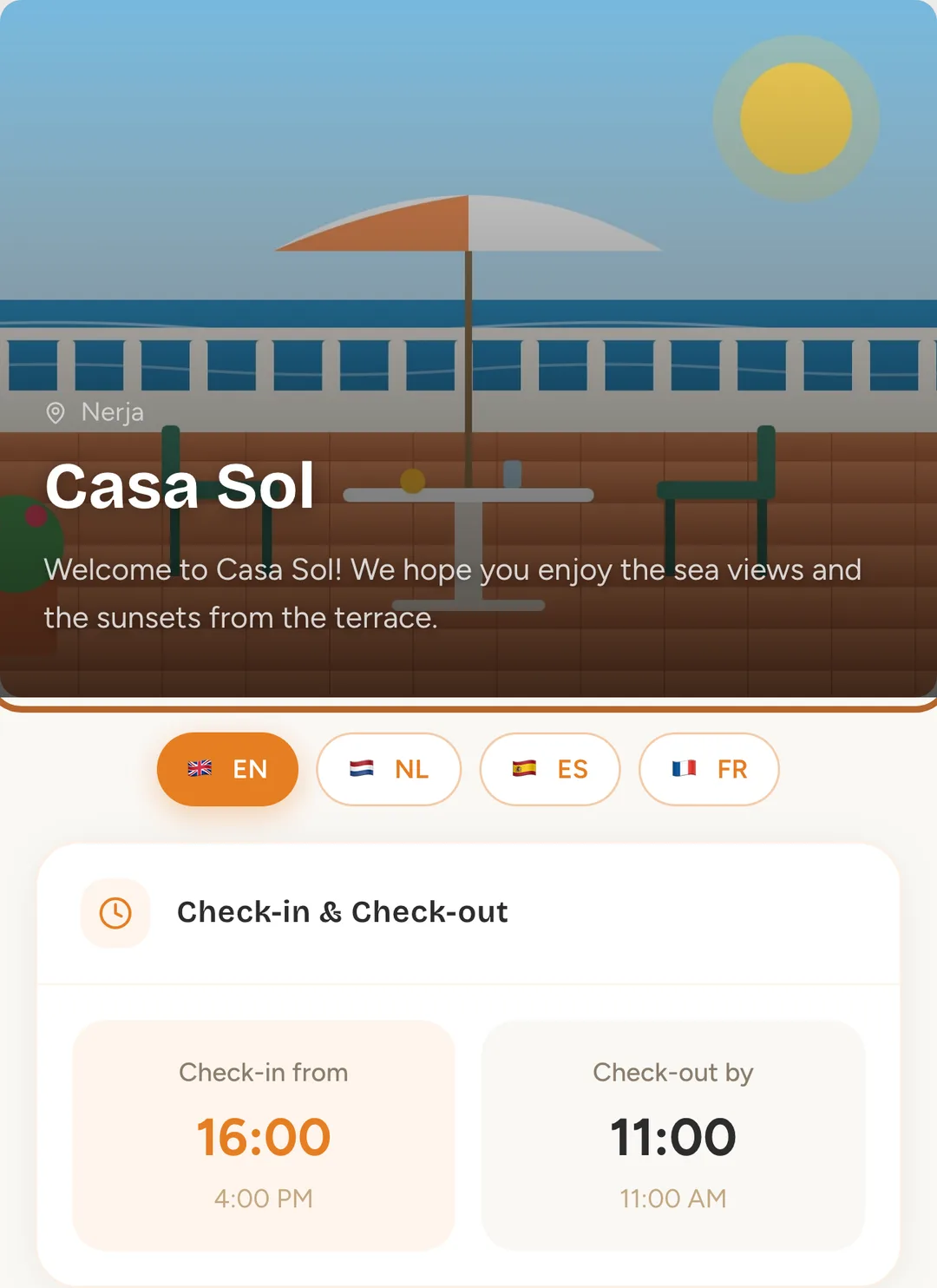
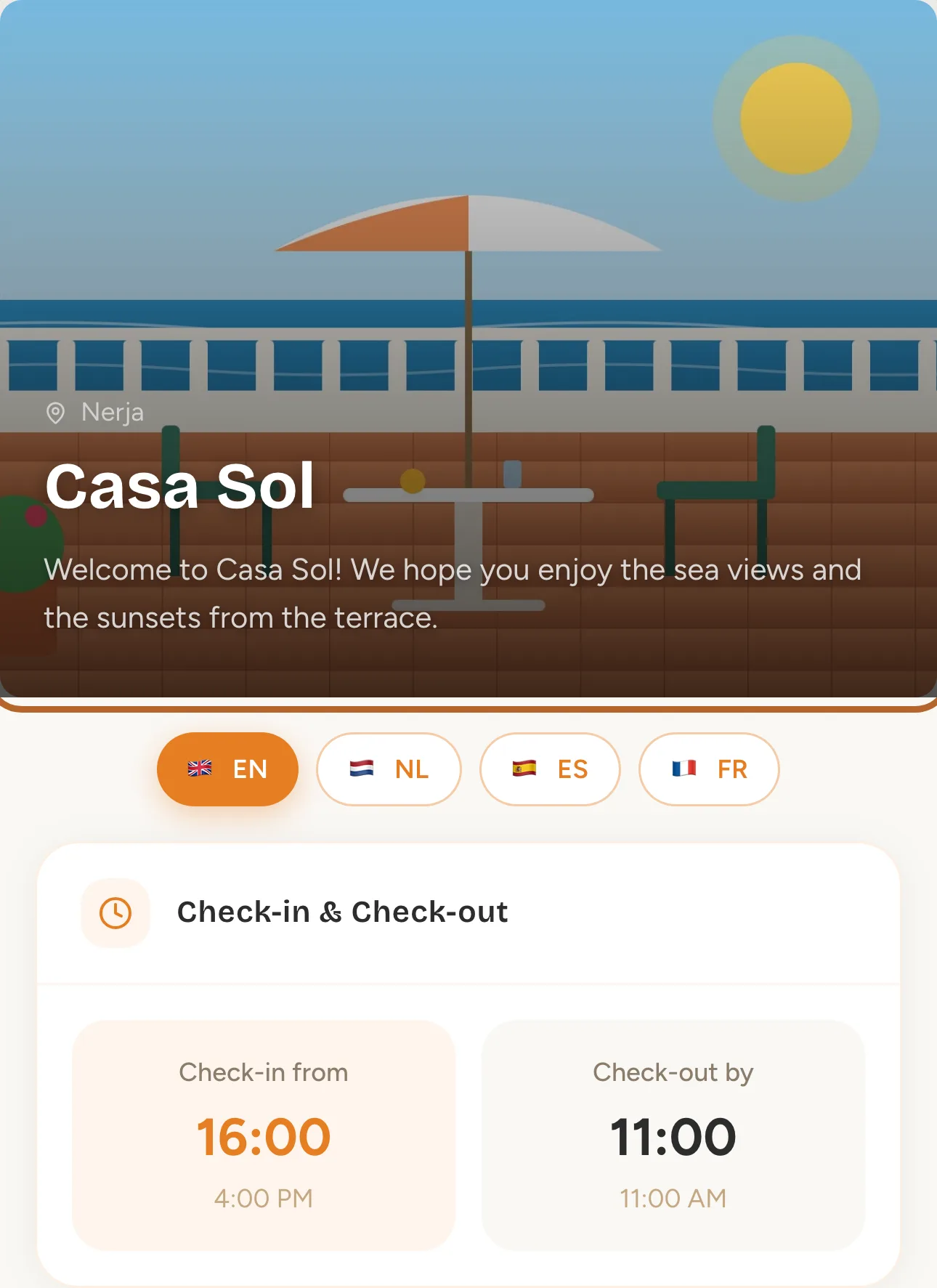
Your guests open the page on their phone, in their own language: your photo and welcome message at the top, then the times, the Wi-Fi, the key and the rest. Use the guest page walks through it from the guest’s side, and you can send them that guide too.
 Enlarge screenshot
Tip: To check the page yourself, click the small icon next to the link under Guest QR Code: it opens the page in a new tab, as a guest sees it.
Step 16
The area guide
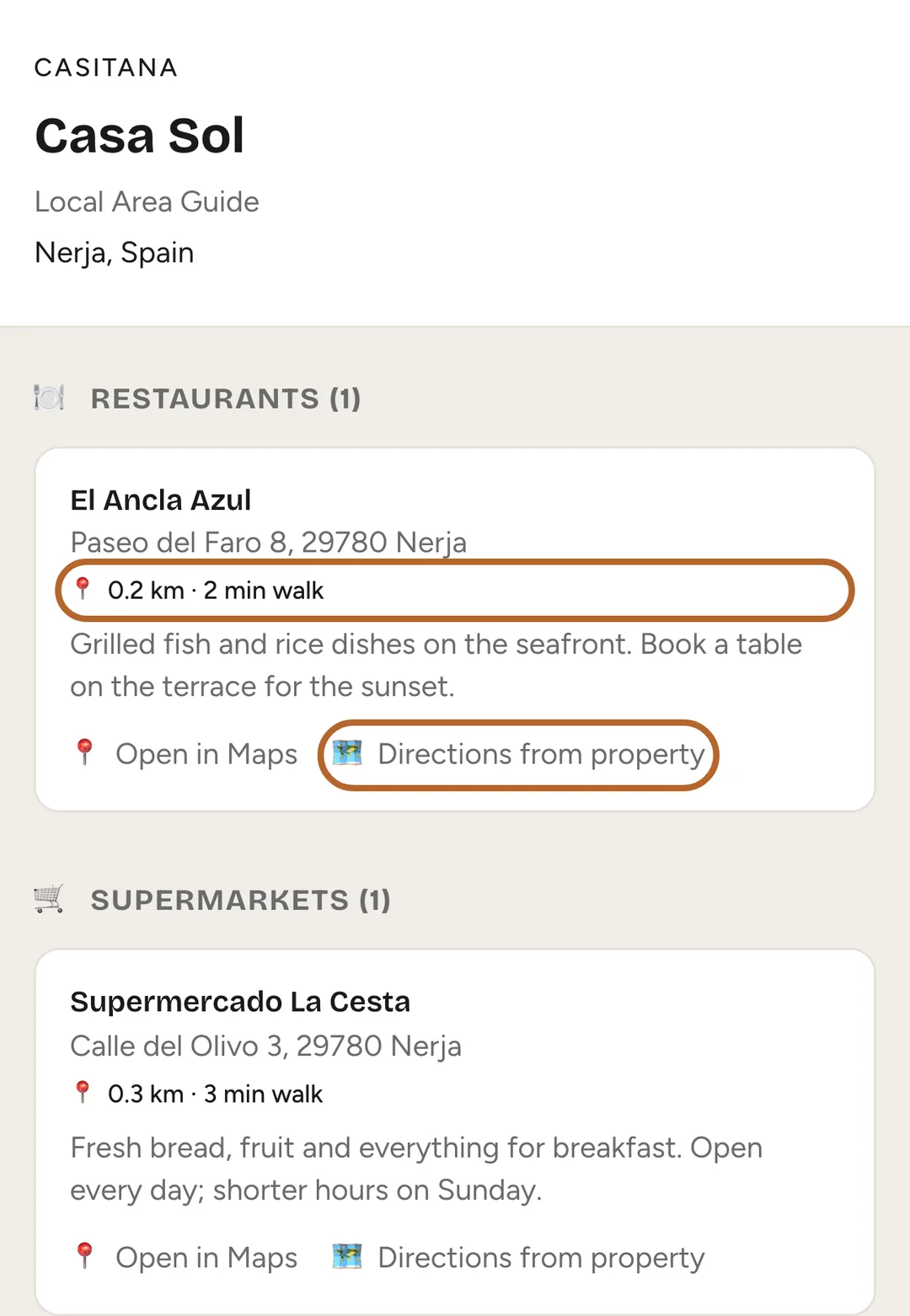
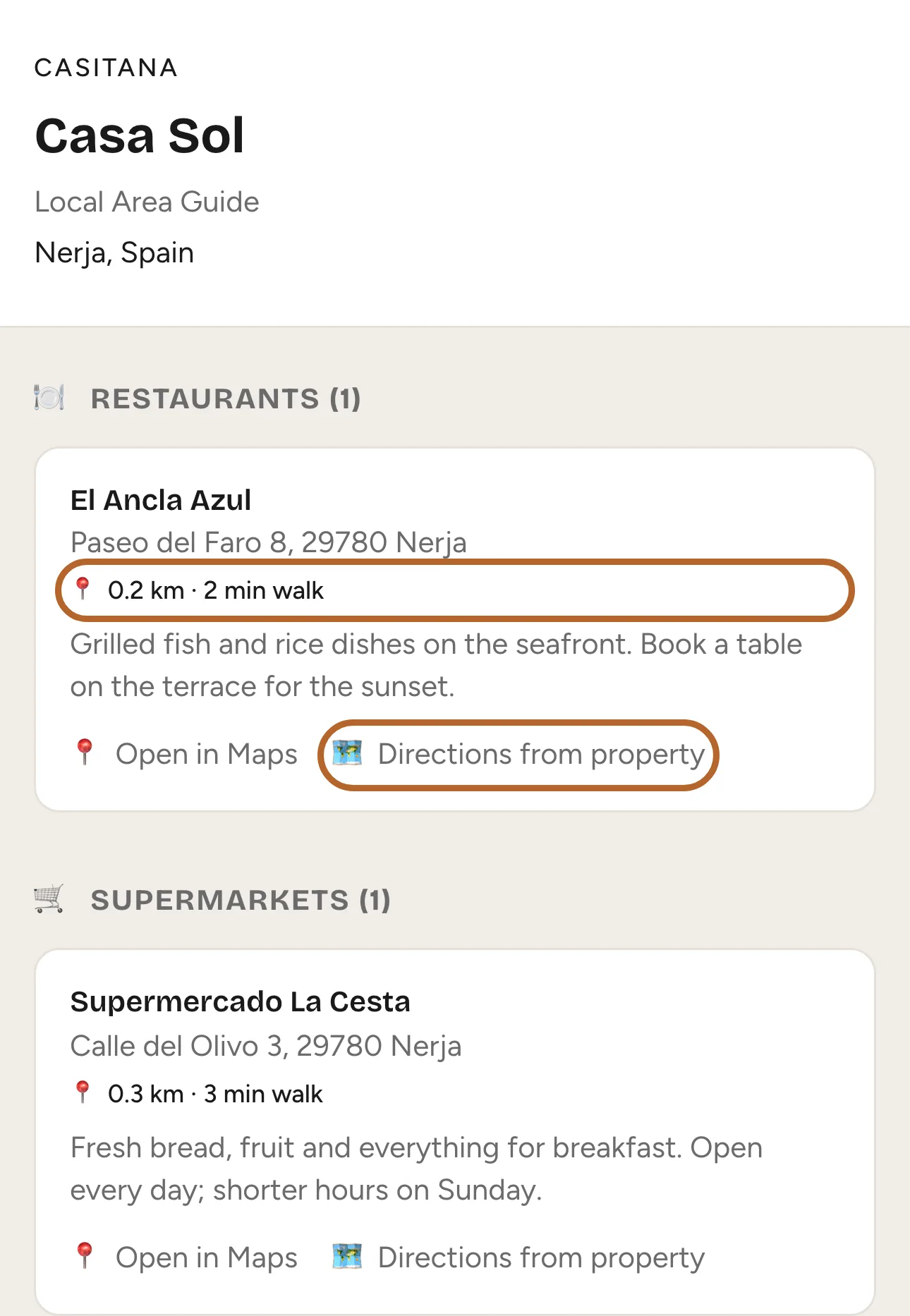
View Area Guide on the guest page opens the property’s area guide: its places by category, each with how far it is and how long the walk takes from the house, Open in Maps and Directions from property.
 Enlarge screenshot
Good to know: The distance and the directions need the property’s location, set under Location in the guest page editor.
In the appApp
Step 1
On the property’s page
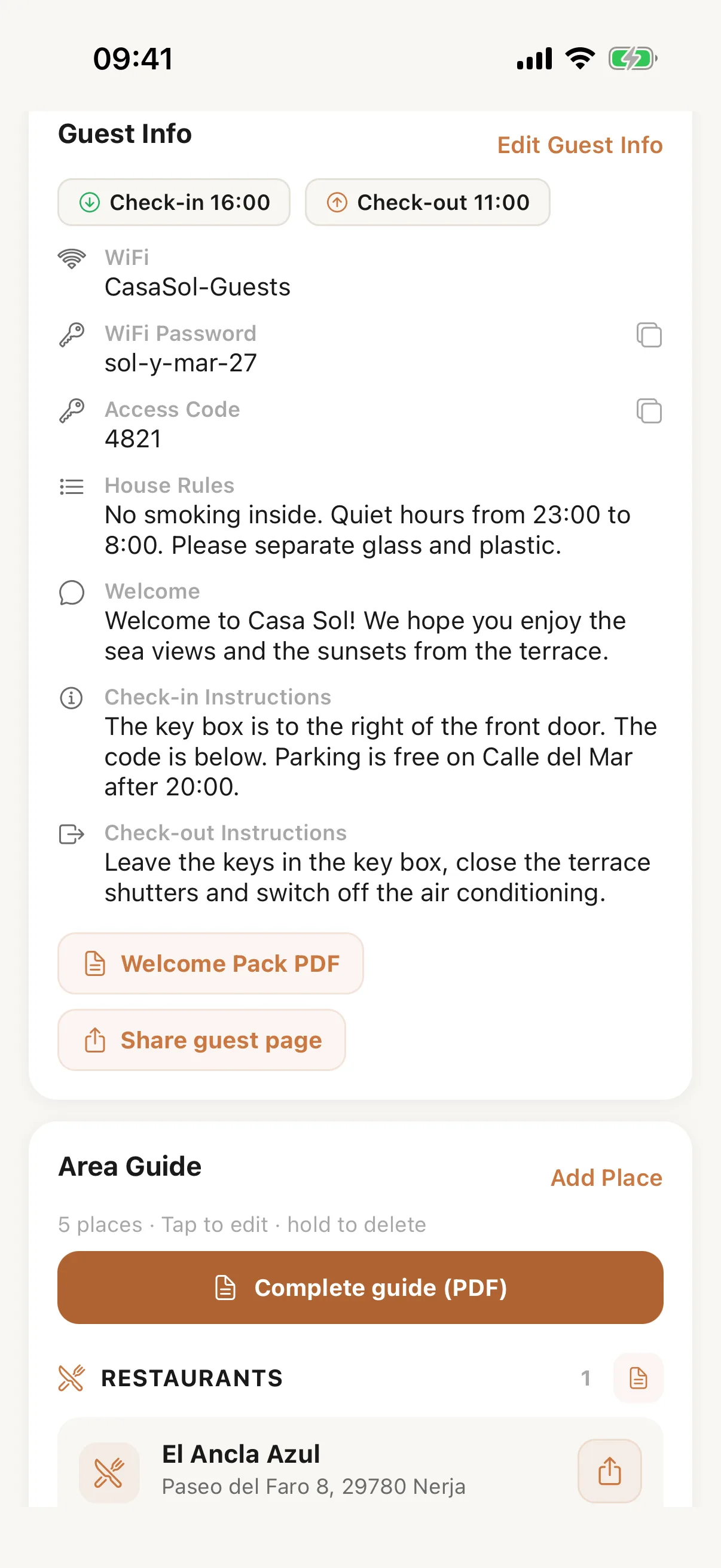
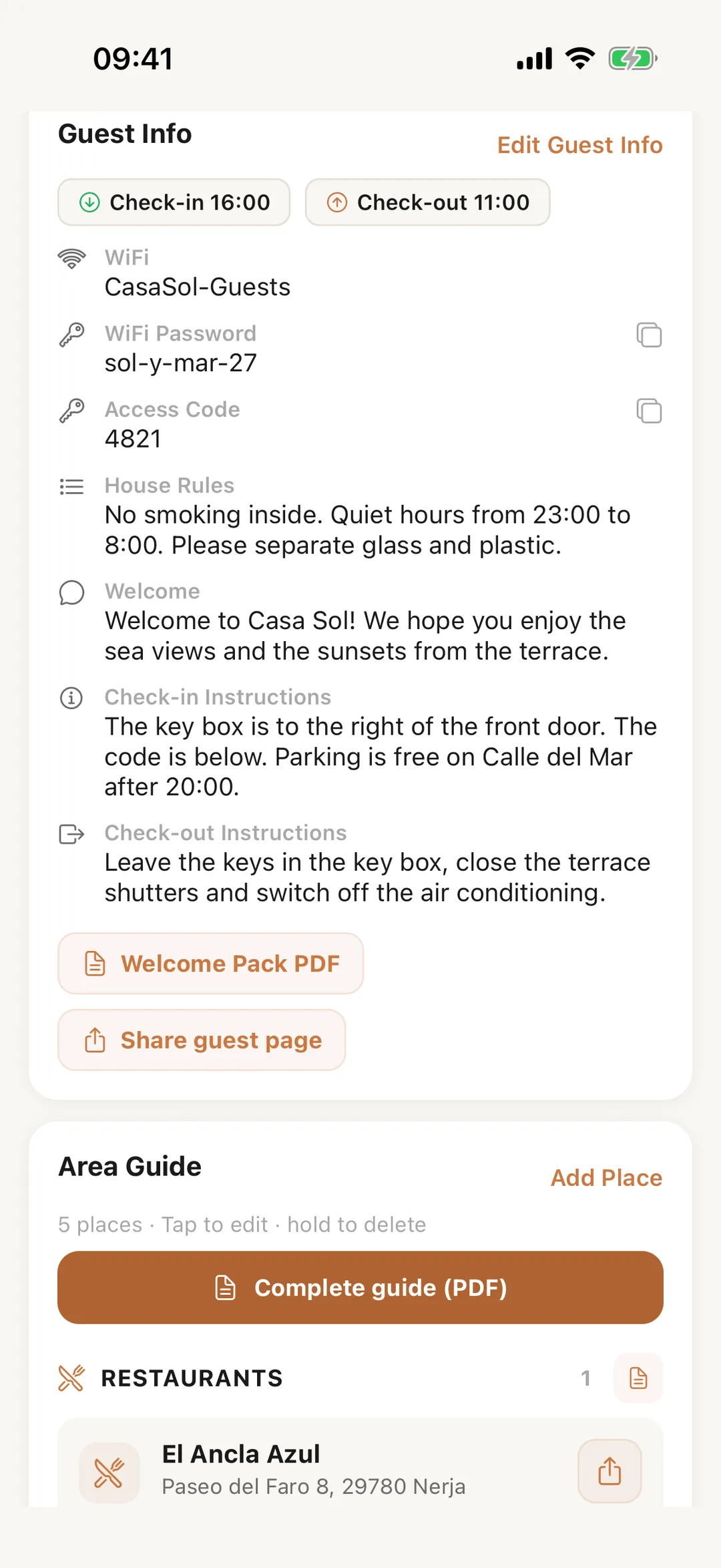
In the Casitana app, open a property: its guest information, area guide and guest PDFs are on its page. Change the Wi-Fi, the door code, the times and the instructions, add a place to the area guide, or make the area guide or welcome pack PDF to share. In the Host layout, More also has Guest info & area guide, which asks which property first.
 Enlarge screenshot
Step 2
Send it to a guest
On a booking, tap … and Send guest info. The app writes a message with the guest’s name, the stay’s dates and the link to the guest page, and opens your phone’s share sheet: pick WhatsApp, Mail or any other app. A property without guest information yet asks you to add it first.