Open the form
Step 1
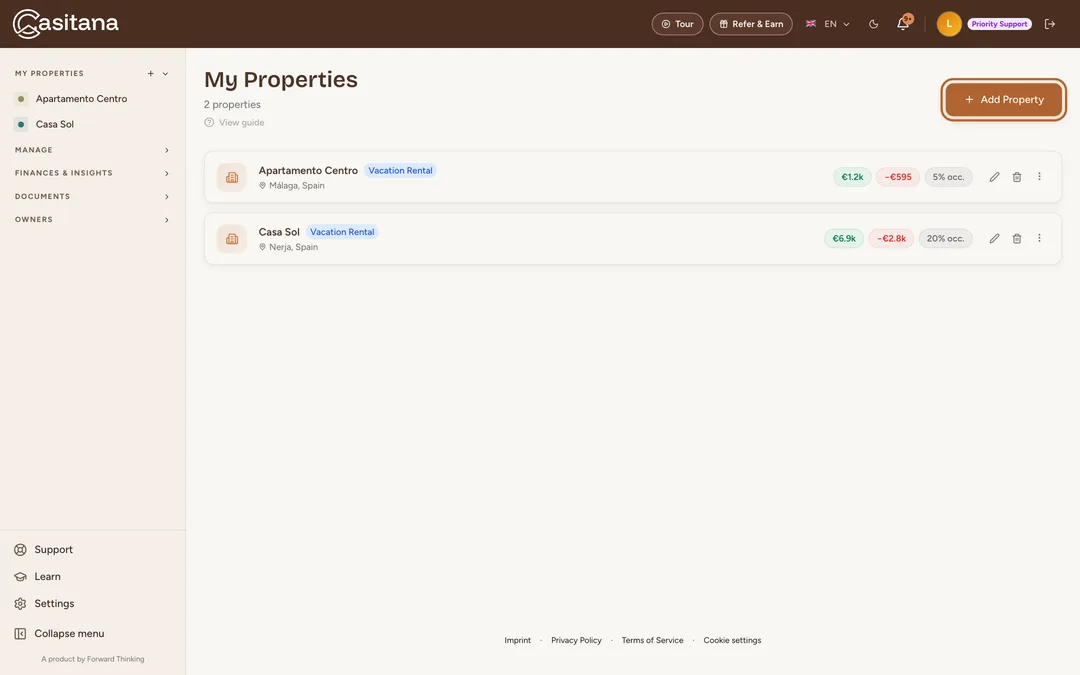
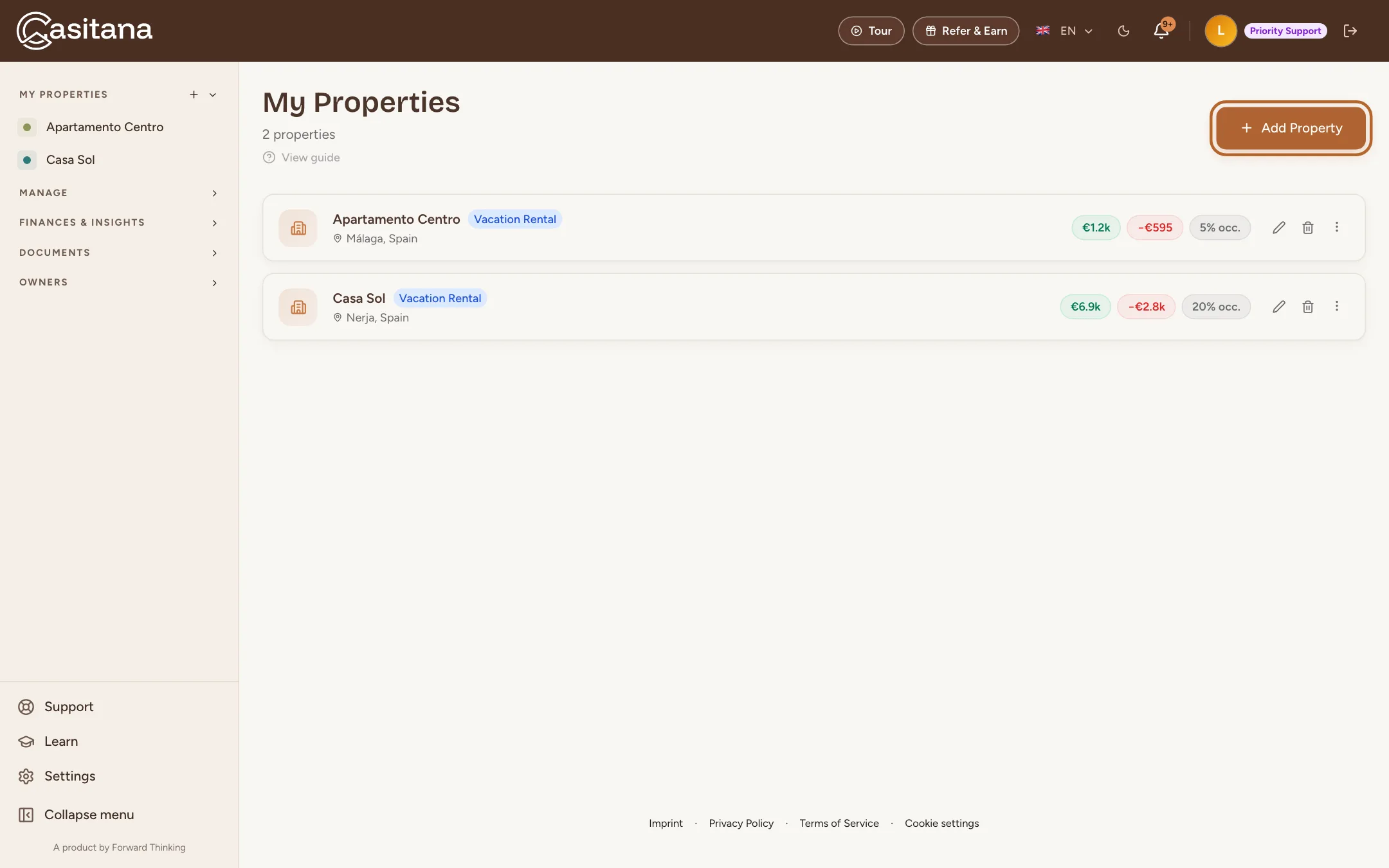
Click Add Property
On the My Properties page, where Casitana opens after you log in, click + Add Property in the top right corner.
 Enlarge screenshot
Tip: You can also click the + next to My Properties in the menu on the left.
Give your property a name
Step 2
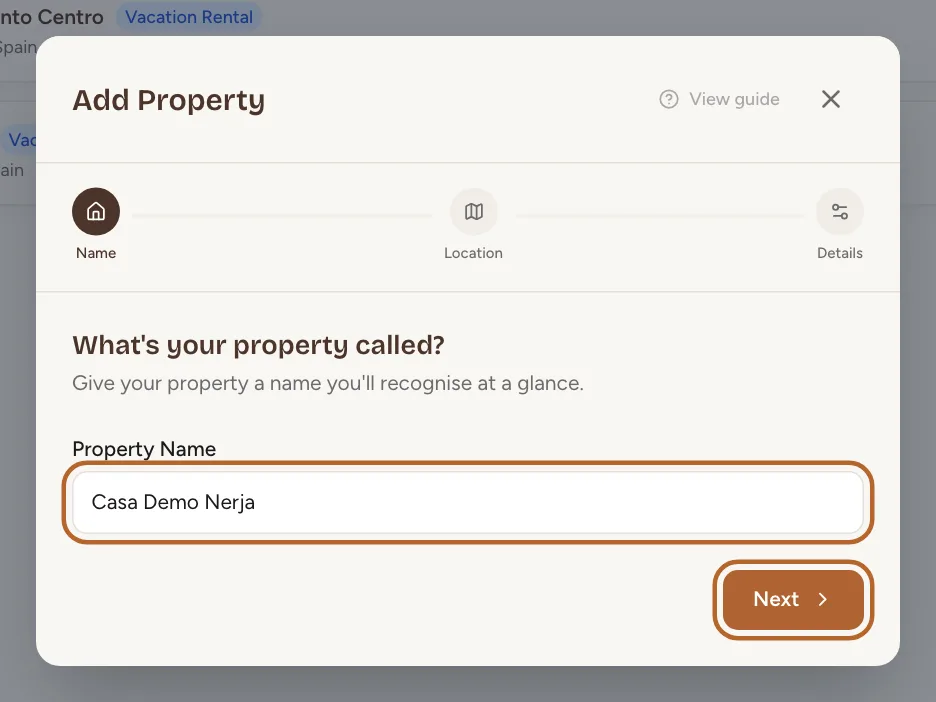
Enter a name
Under Property Name, enter a name you’ll recognise at a glance, for example “Marbella Beachfront”. Then click Next.
 Enlarge screenshot
Set the location
Casitana places your property on a map from its address. The address is also what appears on contracts and guest pages.
Step 3
Search for the address
Type the address or town in the search field and choose it from the suggestions.
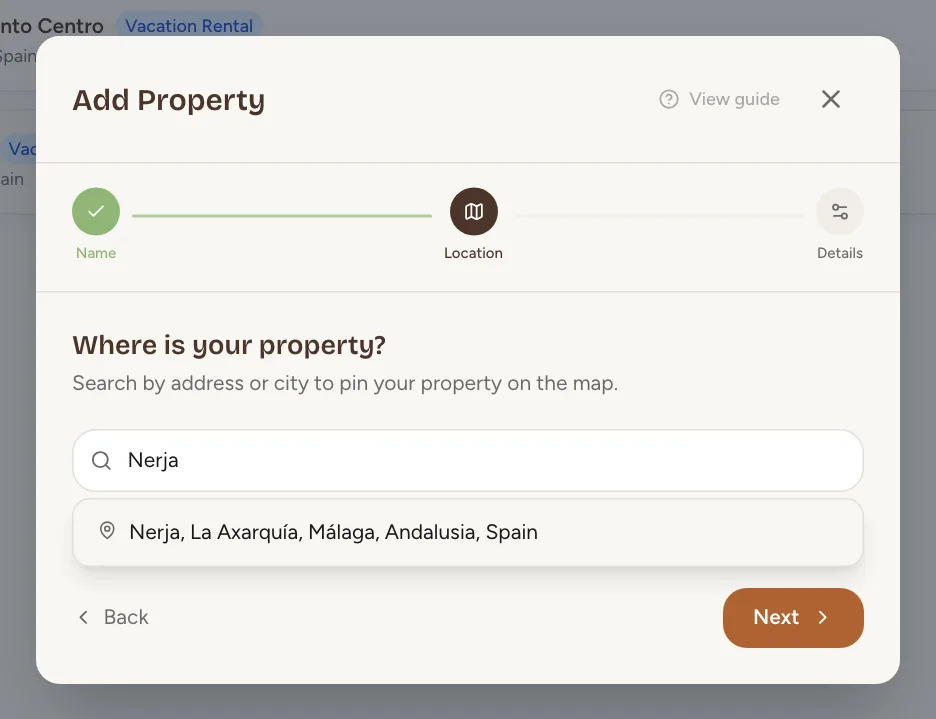 Enlarge screenshot
Tip: Can’t find your address? Click Enter address manually instead below the search field.
Step 4
Check the pin
A map appears under Confirm location. Check the pin, and drag it to the exact spot if needed. Then click Next.
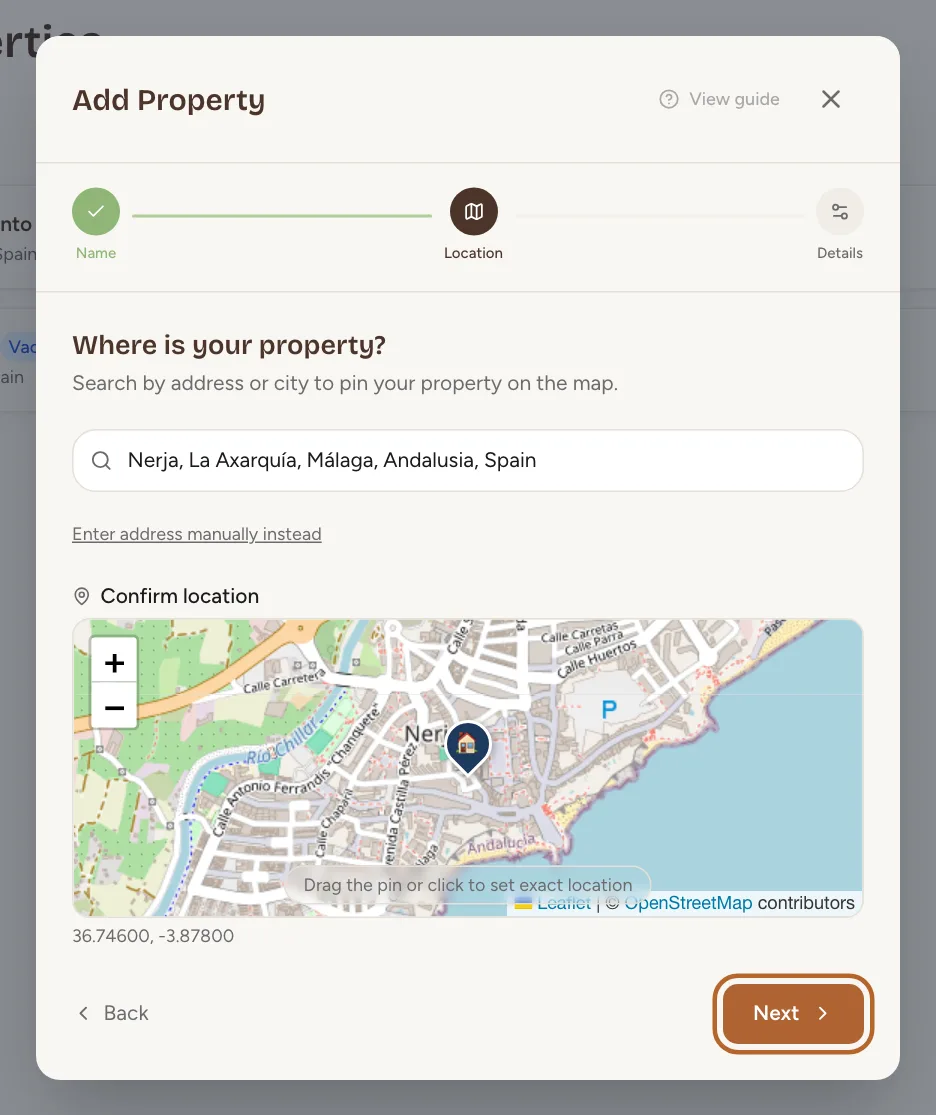 Enlarge screenshot
Tip: The country comes from the address you chose, and it decides which country’s guest registration tools Casitana shows for the property: see Countries. If the suggestion has the wrong country, click Enter address manually instead below the search field and choose the Country yourself.
Add the details
Step 5
Choose the type and create
Choose the Property type: Vacation Rental, Long-term Rental or Own Use. The Key Code and Notes are optional: you can add them later in the property settings. Click Create Property.
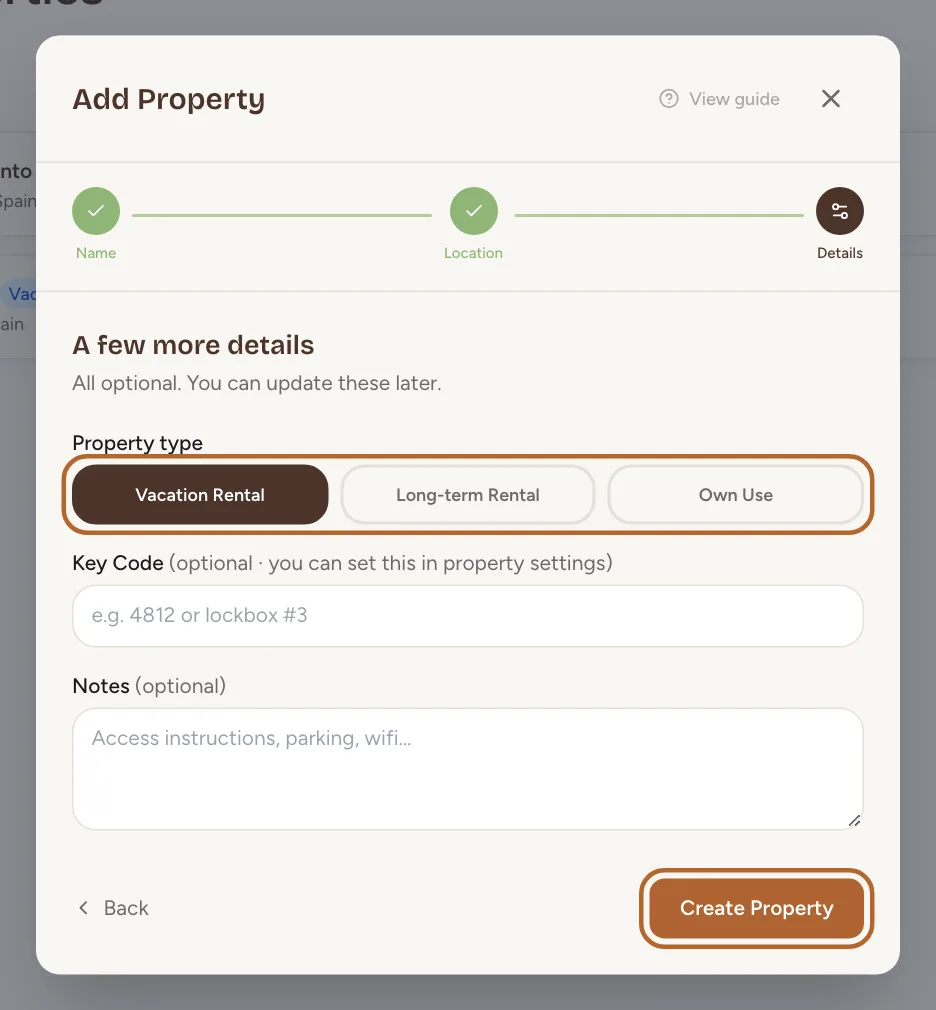 Enlarge screenshot
Done
Step 6
Find your new property
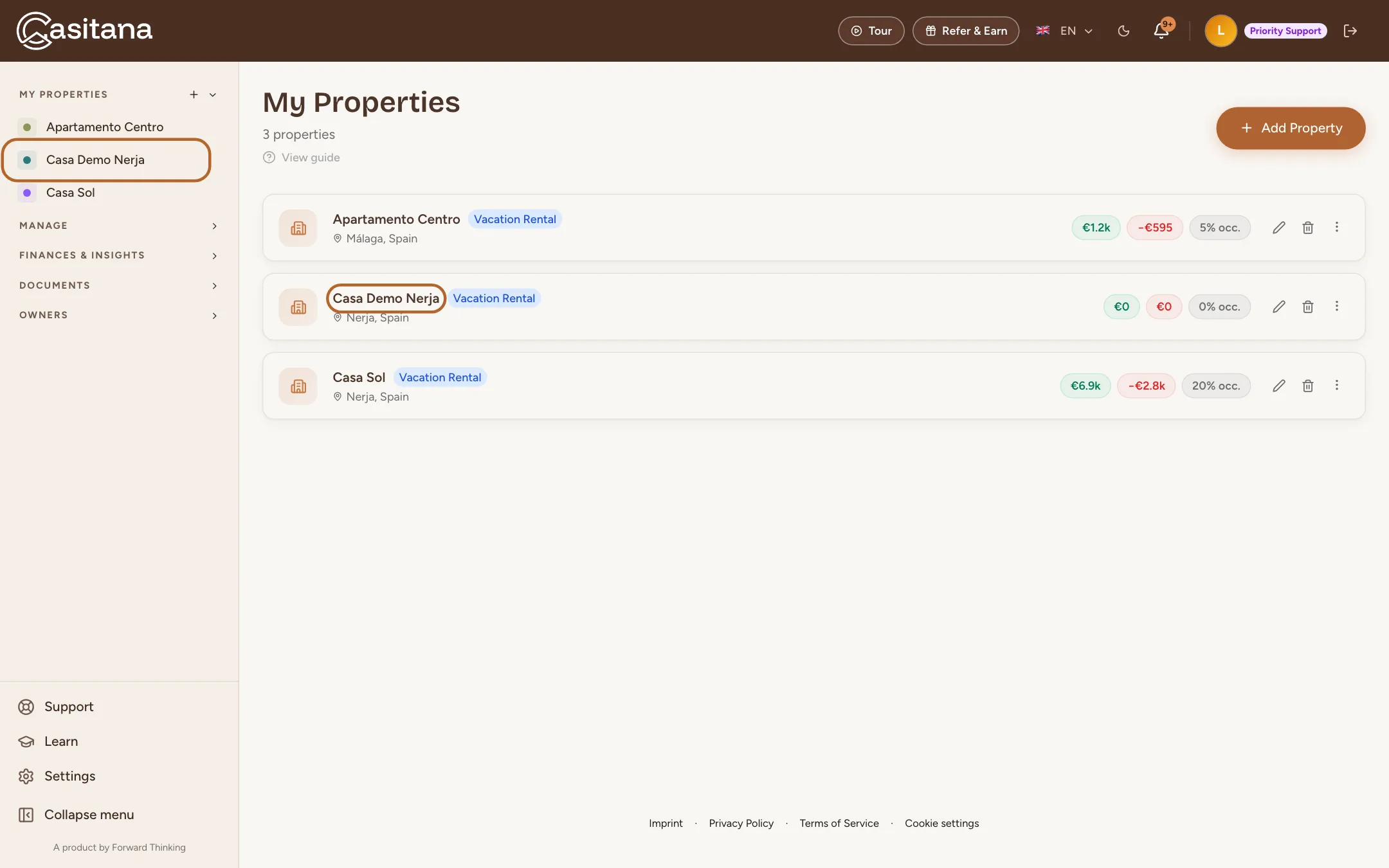
Your new property now appears in your property list and in the menu on the left. Click it to open the property and continue setting it up.
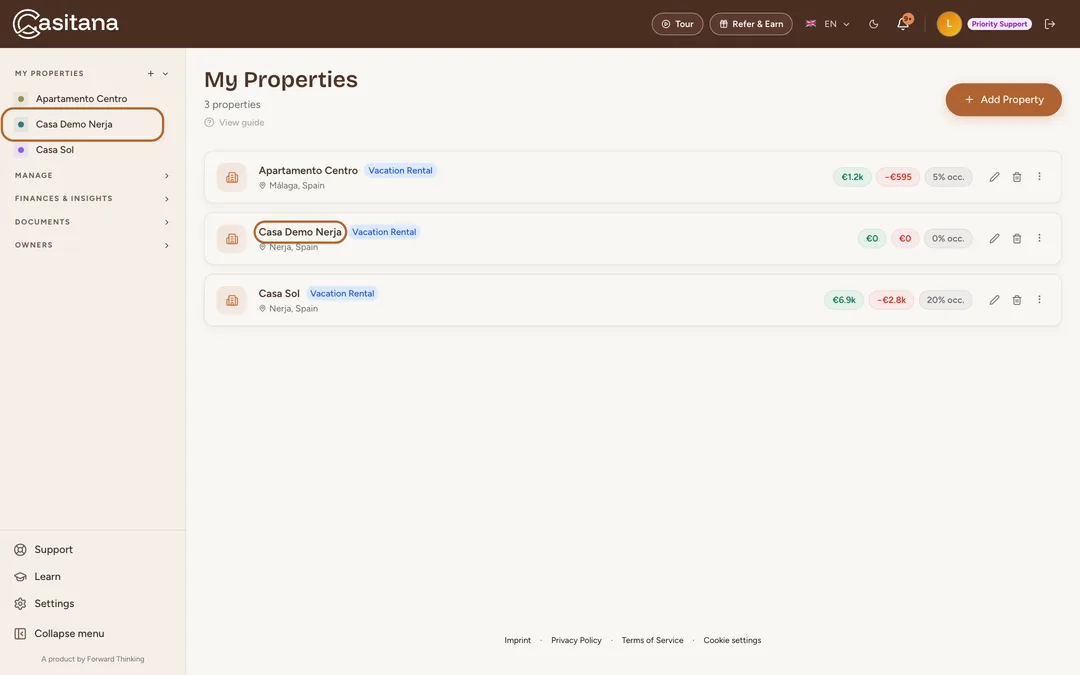 Enlarge screenshot
Tip: Next, add its first booking: see Add a booking.
In the appApp
Step 1
Add a property in the app
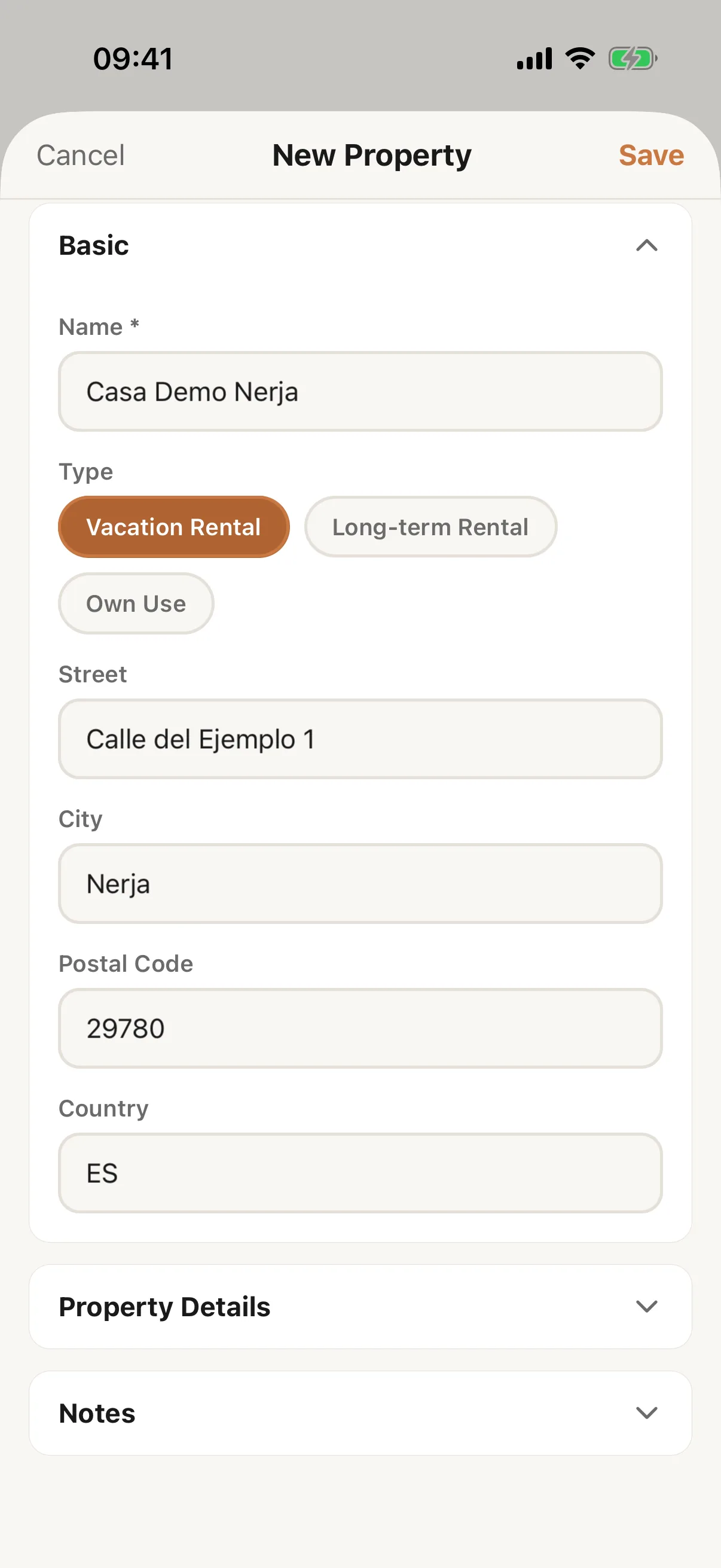
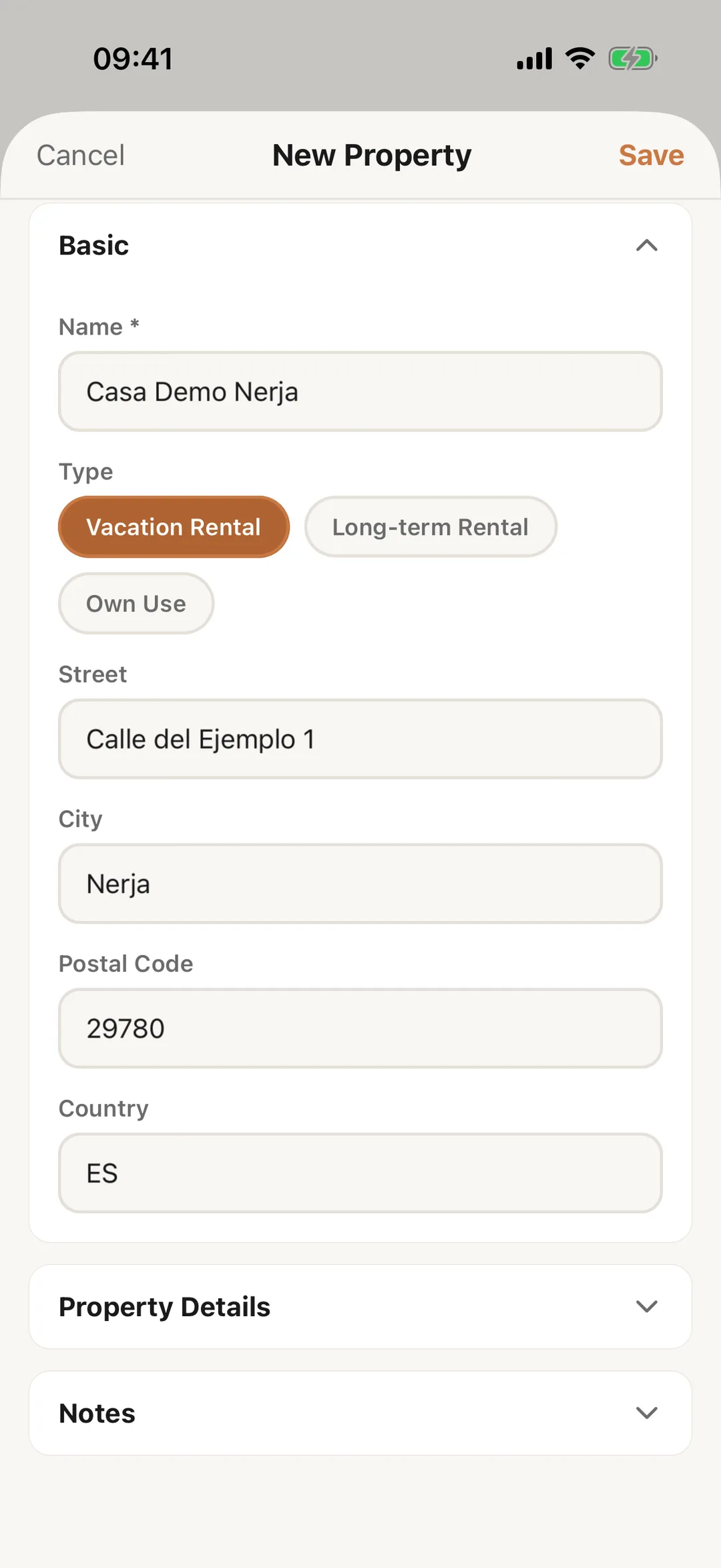
Open Properties: in the Manager layout it is a tab, in the Host layout it is a tile under More. Tap the + at the bottom right; it is an icon, with no text. The form New Property opens, all on one screen.
Good to know: When your plan’s property limit is reached, the + is greyed out. Tapping it shows Property Limit Reached and the plans: Choose a paid plan.
Step 2
Fill in the form
Name is required. Choose the Type: Vacation Rental, Long-term Rental or Own Use. Add the Street, City, Postal Code and Country, typing the country as a code, for example ES. The country cannot be left empty. Under Property Details you can add the Access code, and under Notes the Internal notes. Tap Save; the app says Property added.
 Enlarge screenshot
Step 3
The map stays on the website
The app has no map. To check the property’s place on the map, edit it on the website: Edit or delete a property. The photo can be added in the app, from the property’s page: In the app.