In the app
Step 1
Add a property in the app
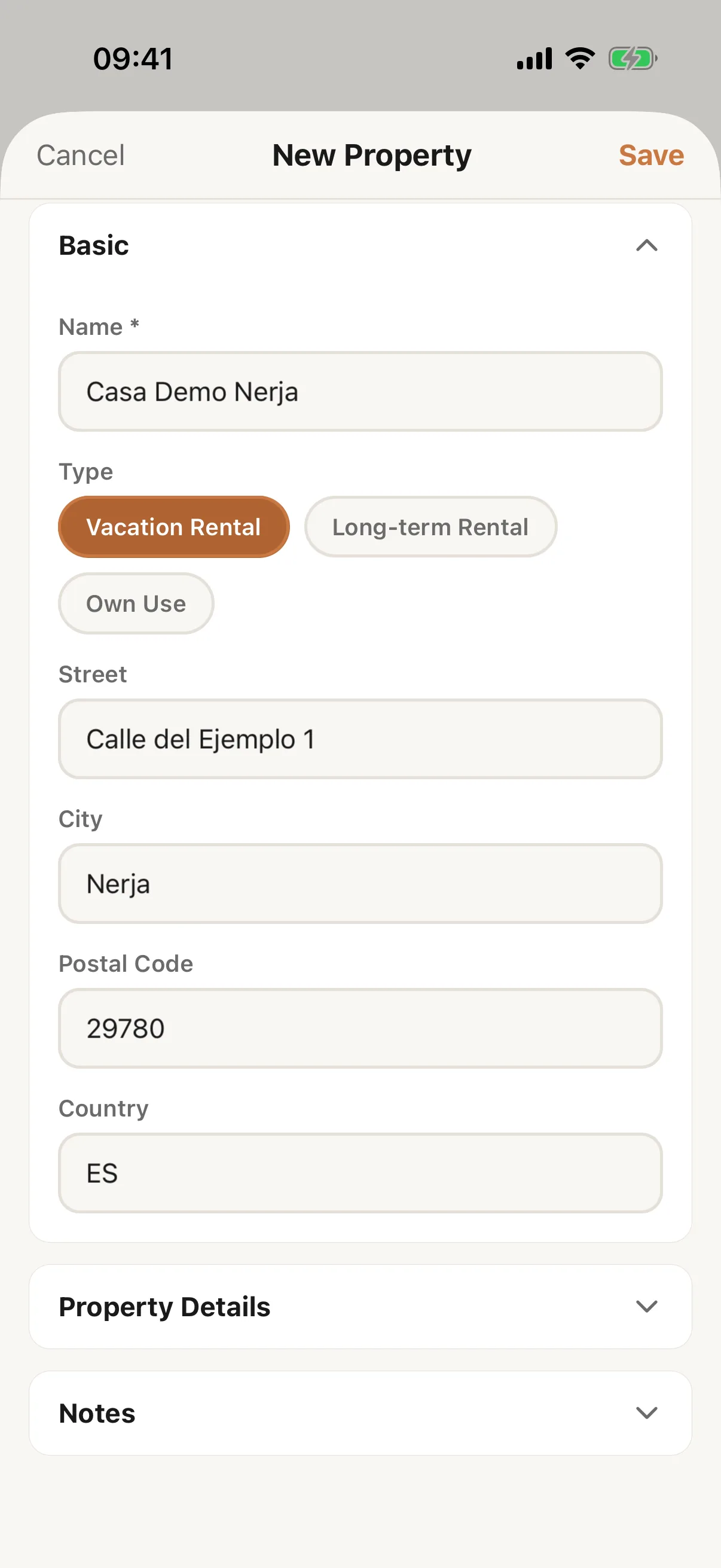
Open Properties: in the Manager layout it is a tab, in the Host layout it is a tile under More. Tap the + at the bottom right; it is an icon, with no text. The form New Property opens, all on one screen.
Good to know: When your plan’s property limit is reached, the + is greyed out. Tapping it shows Property Limit Reached and the plans: Choose a paid plan.
Step 2
Fill in the form
Name is required. Choose the Type: Vacation Rental, Long-term Rental or Own Use. Add the Street, City, Postal Code and Country, typing the country as a code, for example ES. The country cannot be left empty. Under Property Details you can add the Access code, and under Notes the Internal notes. Tap Save; the app says Property added.
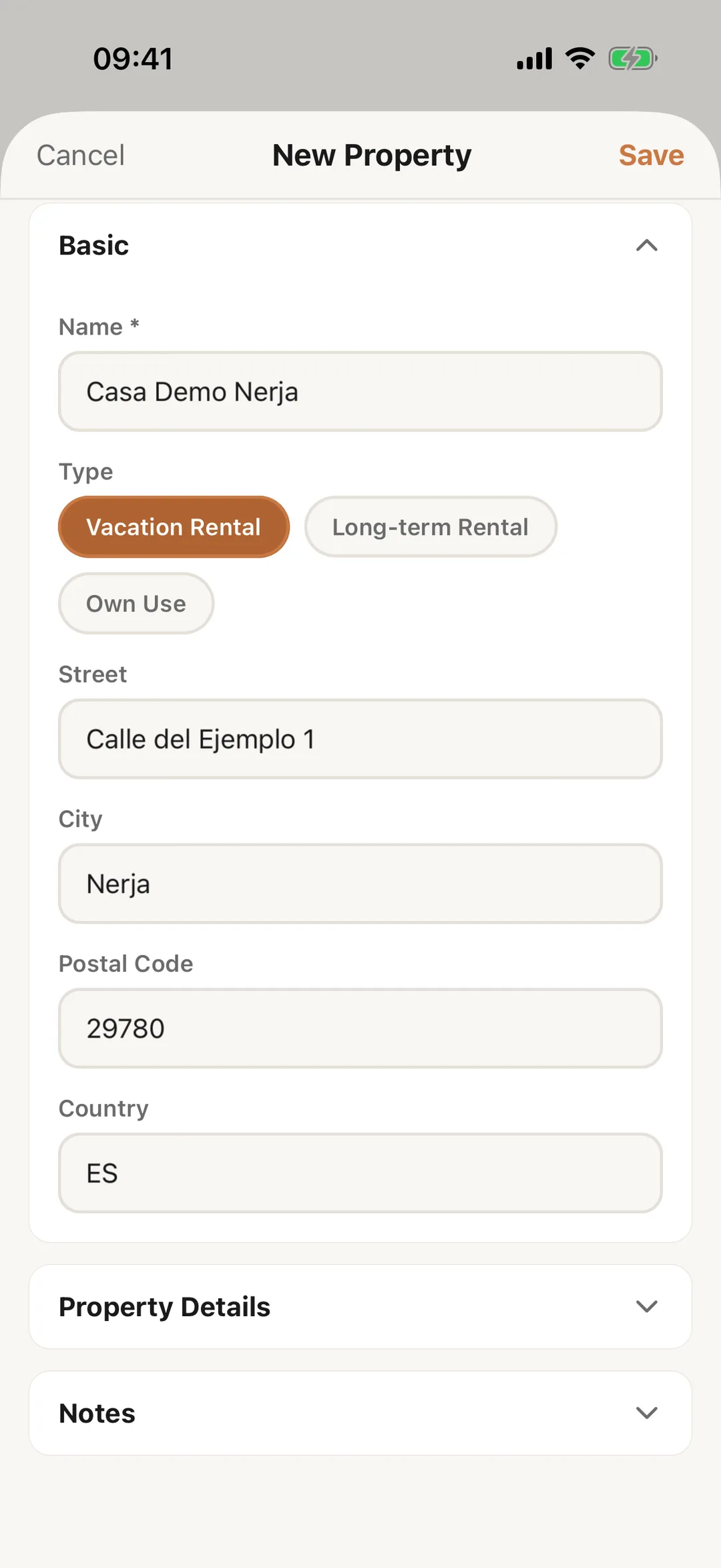 Enlarge screenshot
Step 3
The map stays on the website
The app has no map. To check the property’s place on the map, edit it on the website: Edit or delete a property. The photo can be added in the app, from the property’s page: In the app.