
How it works
Step 1
One link for every guest
The link belongs to the property, not to a stay, and it does not expire. Every guest of the property opens the same link, picks their arrival and departure dates and fills in the form. Casitana then adds the form to the booking on those dates.
Tip: For a property in Spain, you can still send the link of a single stay: see Send your guest the registration link.
Step 2
Starter and above
The registration link is part of the Starter plan and above. On Free, the card shows a short note and View plans instead of the link. To change plan, see Choose a paid plan.
Create the link
Step 3
Find the card
Open the property. For a property in Spain, the link is inside the Spain Compliance Setup card, under Guest registration link. For a property in another country, Guest registration link is a card of its own on the property’s page.
Good to know: No card? Check that the property’s country is filled in: see Name, address and key code.
Step 4
Create and copy the link
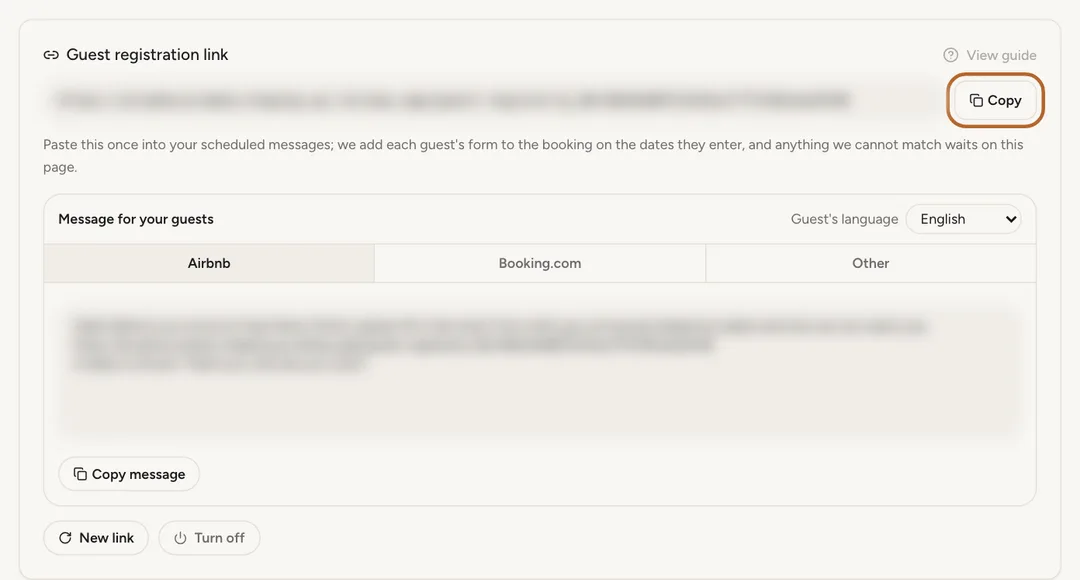
Click Create link. The link appears with Copy next to it. That link stays the same for every guest until you replace it.
 Enlarge screenshot
Step 5
Make a new link, or turn it off
New link replaces the link: the old one stops working at once, so paste the new one everywhere you used the old one. Turn off switches the link off: guests who open it can no longer send their details. Casitana asks you to confirm both, and you can create a new link at any time.
Step 6
From the welcome tour
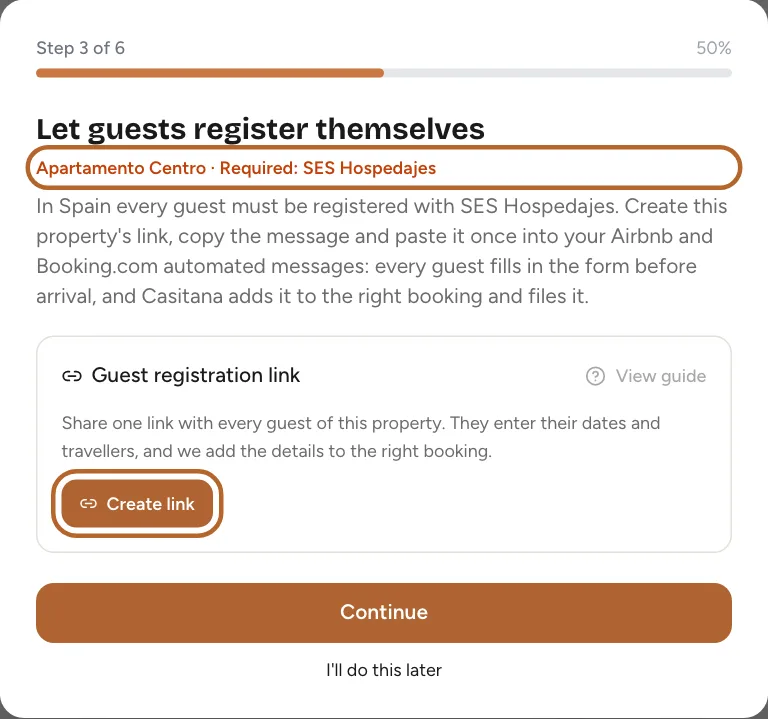
When you start out, the welcome tour offers this step right after your bookings, for your first property. Create the link and copy the message there, or choose I'll do this later and come back to the property’s page whenever you like.
 Enlarge screenshot
Paste it once into your messages
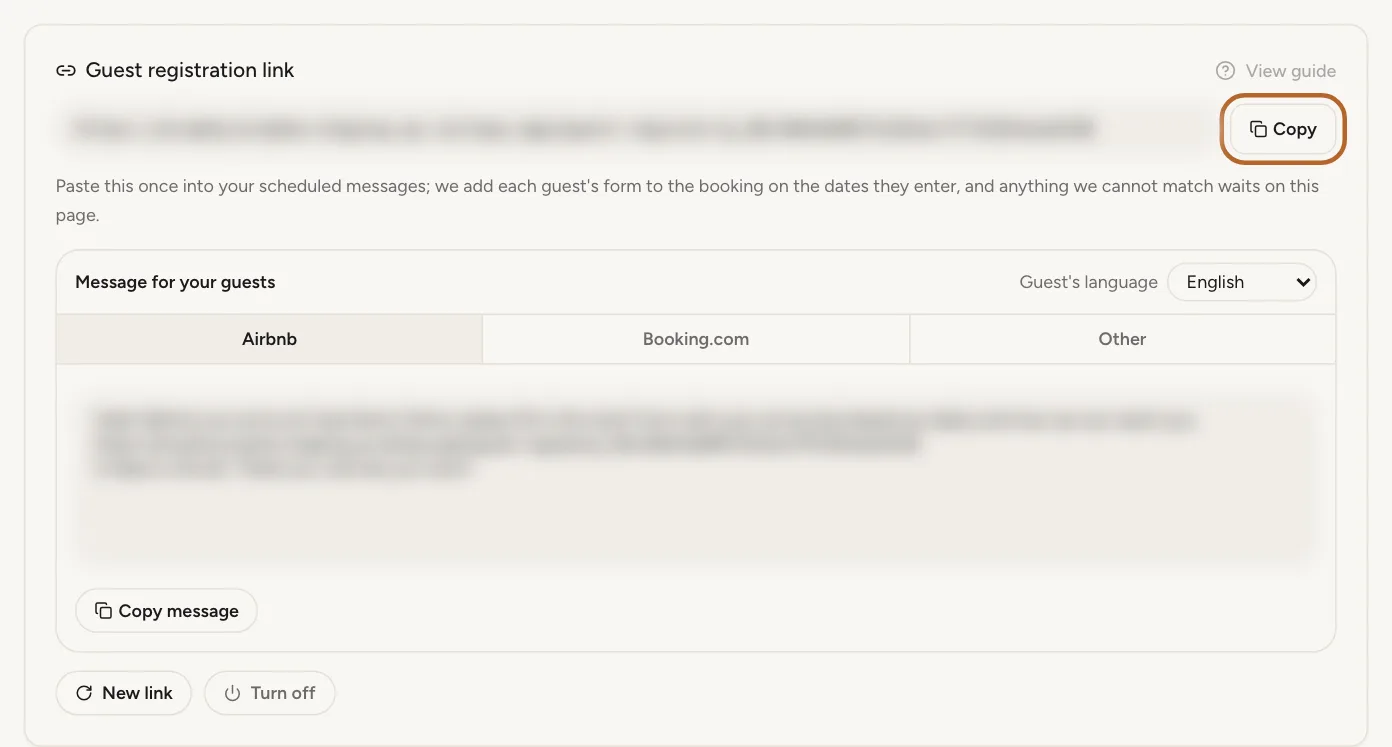
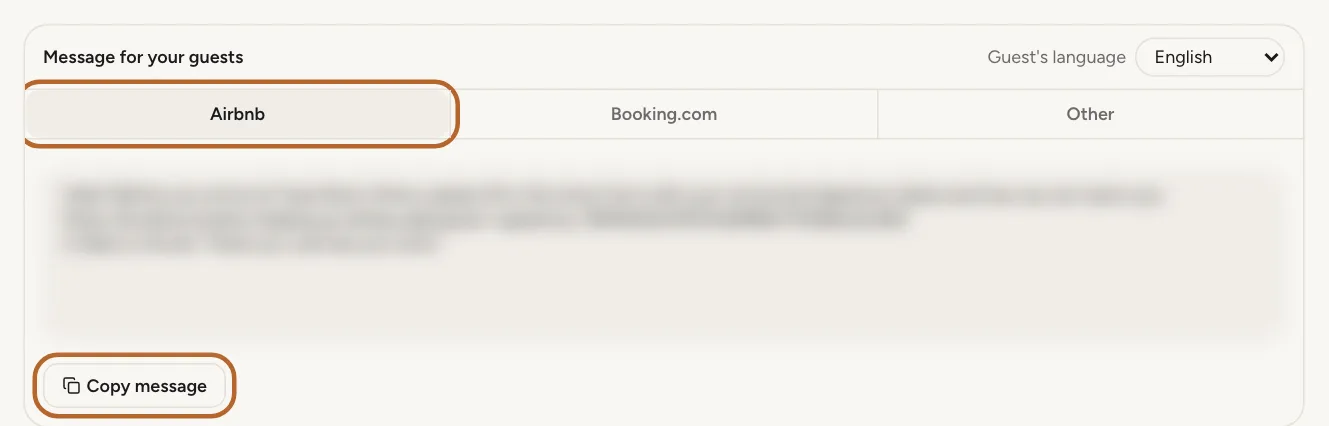
The card has a ready-made message for each platform, in your guest’s language, with the link already in it.
Step 7
Copy the ready-made message
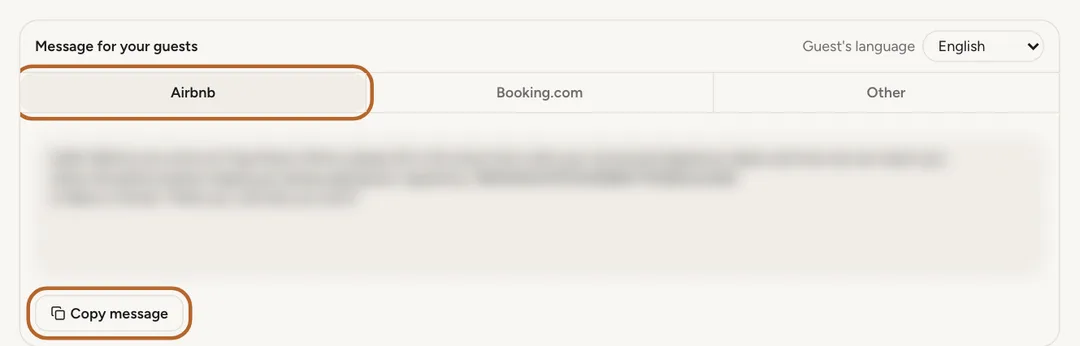
Under Message for your guests, choose the platform tab (Airbnb, Booking.com or Other) and the Guest's language: English, Spanish, Dutch or French. Click Copy message.
 Enlarge screenshot
Step 8
Airbnb
Paste the message into a scheduled message for the listing, set to go out a few days before check-in.
Good to know: How scheduled messages work is up to Airbnb, so check there that your guests receive it.
Step 9
Booking.com
Add the message to the automated messages Booking.com sends your guests before arrival.
Good to know: Booking.com may ask you to approve the link once in your extranet before guests receive it.
Step 10
Any other channel
The Other tab has a message for everything else: your confirmation email, WhatsApp or another platform’s messages.
What your guests fill in
The form behind the link depends on the country of the property.
Step 11
In Spain: the SES Hospedajes form
Registering guests is mandatory in Spain (SES Hospedajes, Royal Decree 933/2021), so the link opens the full SES form, with a passport or ID document for every guest. Casitana adds the travellers to the matching booking and files them with SES Hospedajes.
Good to know: A booking matched automatically is held for up to 12 hours, and never past 24 hours before check-in, so you can click Confirm now or Not my guest before it is filed. With check-in less than 24 hours away, there is no hold. The whole Spanish side is in One link for every guest of a property.
Step 12
In France: the police form
In France every guest who is not a French national fills in and signs a fiche de police. Through the link, the guest gives the name the booking is under, the dates, and a form for each guest who needs one; French adults only give their name; children under 15 who are not French nationals still need a form. The signed forms are added to the booking and kept six months after check-out, as the ones sent from France Compliance (Send the form to your guests). A form matched automatically is held for up to 12 hours, and never past 24 hours before check-in: until then you can click Confirm now or Not my guest. The form through the link never closes the stay's own police form: if the guest also fills that in, both are kept and you choose which set is correct; the other is deleted. A booking whose own police form is already signed takes no form through the link. Every step of it is in Through the registration link.
Step 13
In any other country: a short check-in form
Registration through Casitana is optional here, so the link opens a short check-in form: the main guest’s name, email address and phone number, and the number of guests. It asks for no ID document and no nationality.
Good to know: What the guest enters is written onto the booking only. Nothing is sent to any authority.
How a form reaches its booking
Step 14
Added automatically, when it is safe
Casitana adds a form to a booking by itself only when the booking is on exactly the dates the guest entered, has no guest details yet, and the guest’s last name does not contradict the name on the booking. Casitana lets you know when it does.
Step 15
Everything else waits for you
A form Casitana cannot add safely waits for you, with the reason, until you choose its booking or delete it: see Registrations to check.
Step 16
Close dates are only a suggestion
When the guest’s dates are close to a booking but not the same, Casitana shows that booking as a suggestion. It never attaches the form to it by itself: you decide.
Step 17
Calendar blocks become bookings
When a form is attached to dates imported from your booking platform’s calendar, Casitana turns that block into a booking with the guest’s details. For the imported calendar itself, see Sync your calendar with Airbnb, Booking.com, Vrbo and other platforms.
Registrations to check
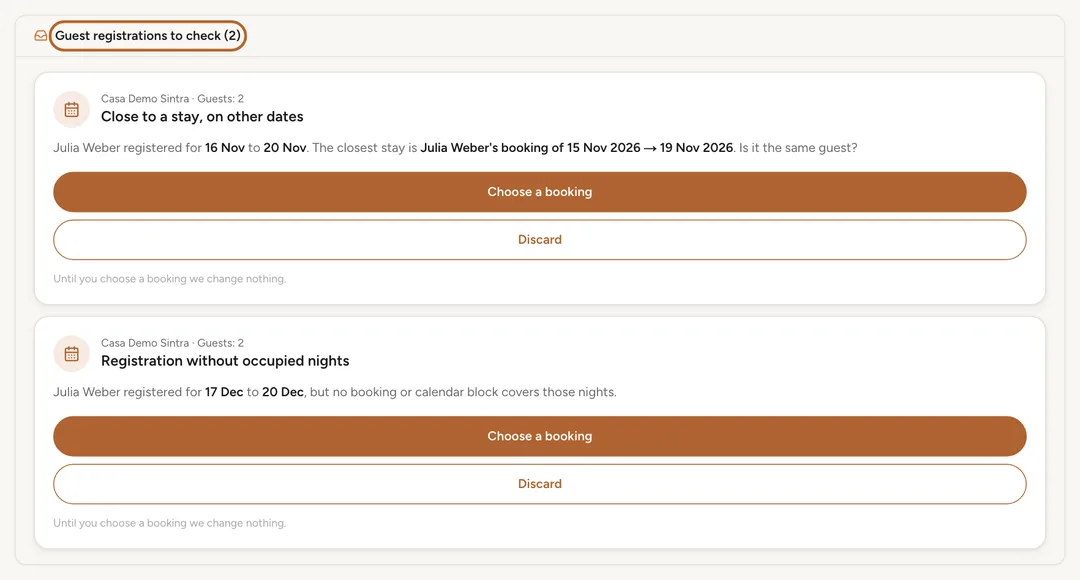
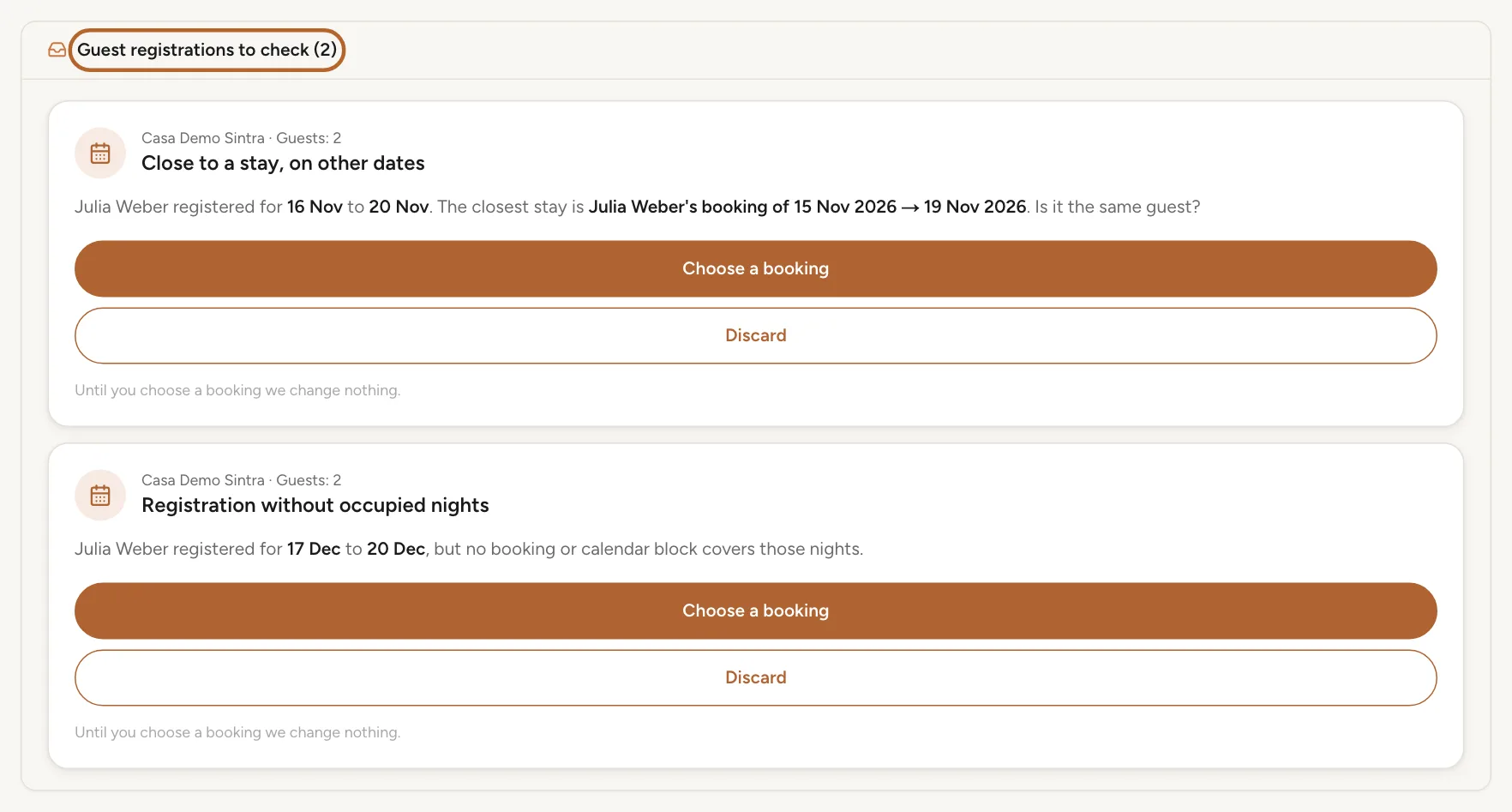
Every form Casitana did not add to a booking by itself becomes a card that waits for you. Until you choose a booking, nothing changes on any booking.
Step 18
Where they wait
Your dashboard shows them under Guest registrations to check, for all your properties. For a property in Spain, they are also in Spain Compliance, after Open SES Hospedajes (The inbox on the SES tab). For a property in another country, they are on the property’s page, below the link.
 Enlarge screenshot
Tip: Casitana also lets you know in your notifications, for example Casa Sol: a guest registration needs a booking.
Step 19
No booking on those nights
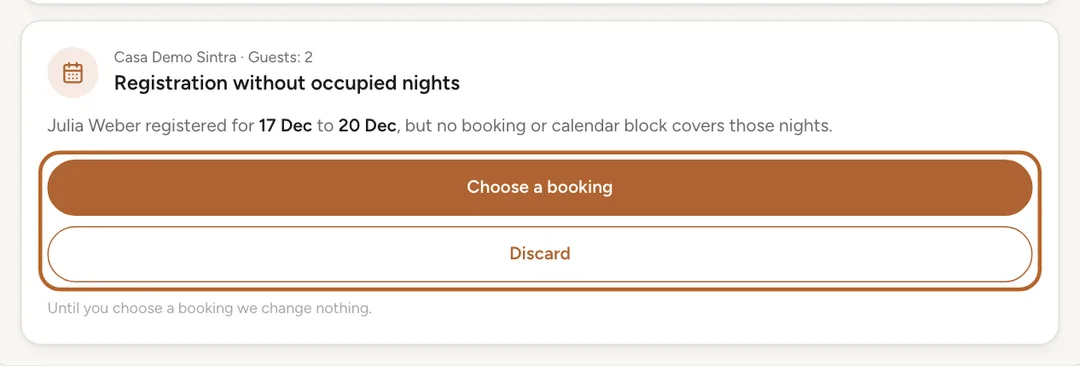
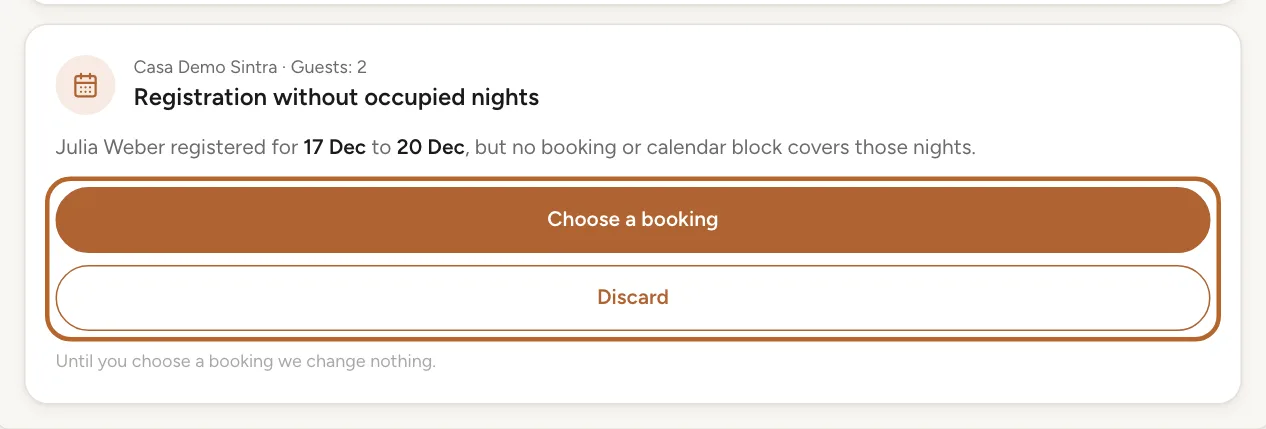
Registration without occupied nights means that no booking and no calendar block covers the nights the guest entered. Perhaps the booking is not in Casitana yet, or the guest typed the wrong dates. Add the booking and then choose it, or ask the guest to send the form again with the right dates and delete this one.
 Enlarge screenshot
Step 20
Close to a stay
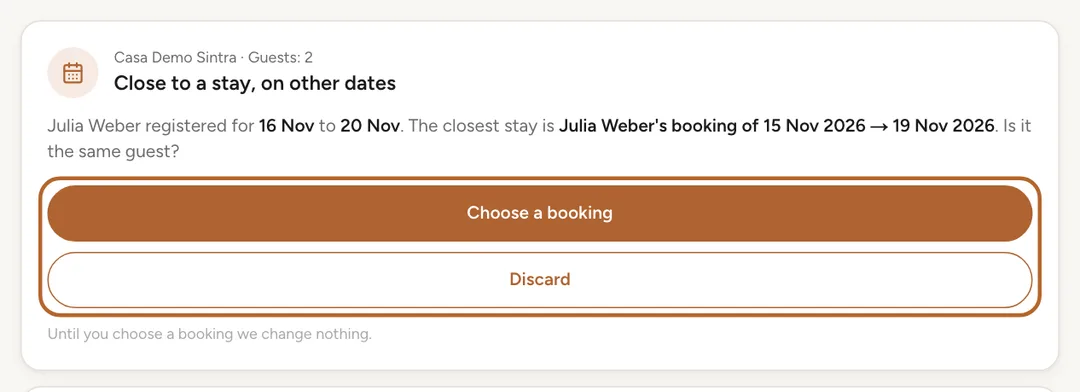
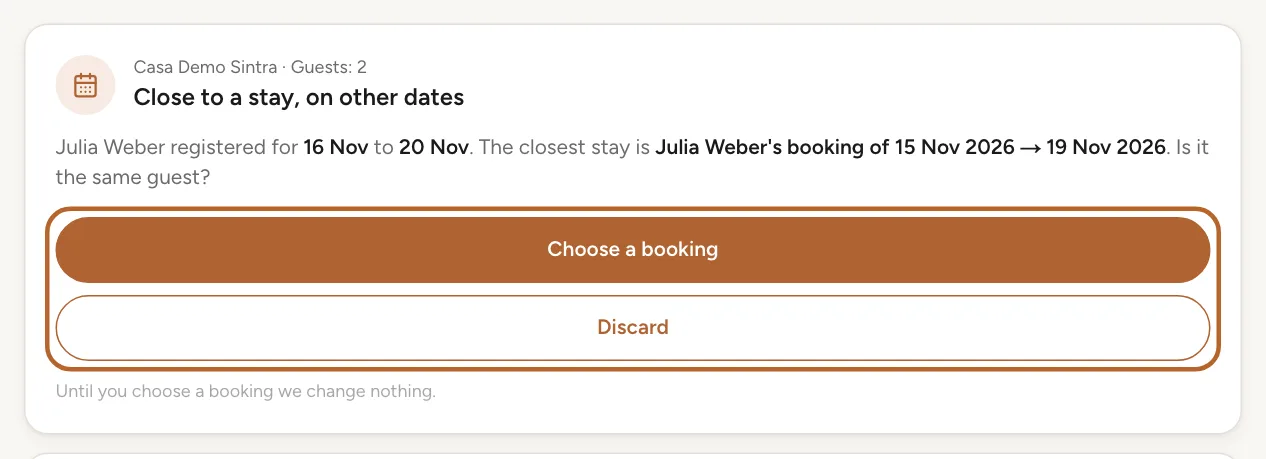
Close to a stay, on other dates means the guest’s dates are near a booking but not the same, one night off for example. The card names the closest stay and asks whether it is the same guest. If it is, choose that booking.
 Enlarge screenshot
Step 21
Other reasons
Registration waiting for a booking says why Casitana did not add the form itself, for example The name differs from the booking's guest, The booking on these dates is cancelled or Automatic matching is paused for this property.
Step 22
Choose a booking, or delete the form
Click Choose a booking to see your bookings within a week of the guest’s dates, and pick one. If that booking already has guest details, Casitana asks before it replaces them. Discard deletes the form instead.
Tip: The booking is not in the list? Add it first, then come back to the card.
Step 23
Forms Casitana added by itself
For a property in Spain, a form Casitana added by itself is held before it is filed: it is listed under Waiting for your confirmation, with Confirm now and Not my guest. See The inbox on the SES tab. The short check-in form is added straight away and Casitana lets you know: nothing is held, because nothing is sent anywhere.
Safety limits
Step 24
Five automatic matches a day
Casitana adds at most five forms a day by itself for each property. After that, it stops for the day and tells you, and further forms wait for you.
Step 25
Forms nobody assigns are deleted
A form that never reaches a booking is deleted 14 days after the departure date the guest entered, or 60 days after it was sent if that comes first. Casitana tells you three days before.
Step 26
Not your guest
Not my guest undoes only what the form brought, and only what is still as the form left it. The travellers the form created are deleted, and the guest details it wrote on the booking are cleared unless someone has changed them since. Anything you or your guest added or changed afterwards stays, such as travellers entered through the booking’s own SES form, or a phone number you corrected.
Good to know: Once something has been filed with SES Hospedajes, it can no longer be removed this way. If the form replaced travellers who were already on the booking, Casitana cannot undo that by itself: correct the booking yourself.