Report a repair
Step 1
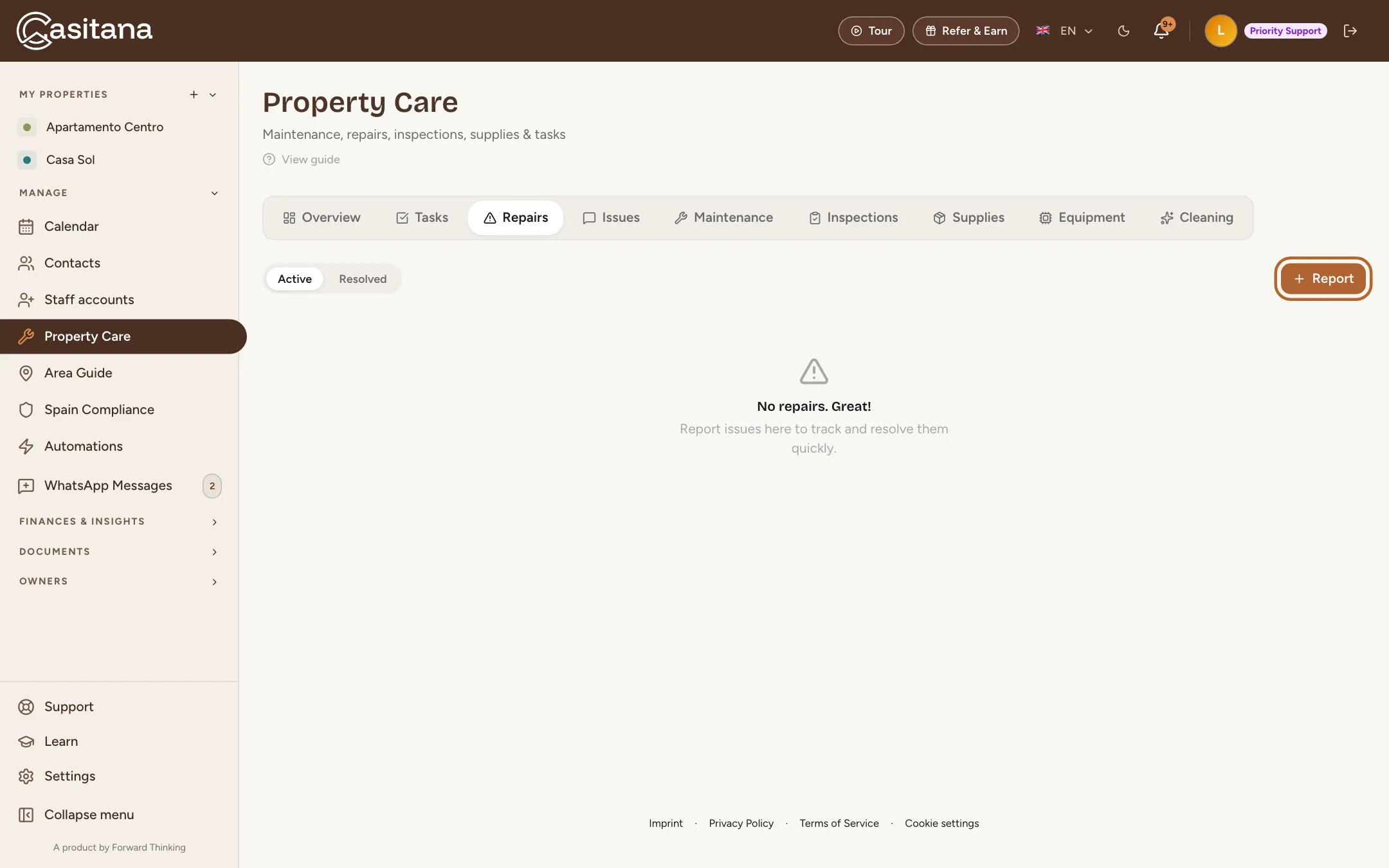
Open Property Care
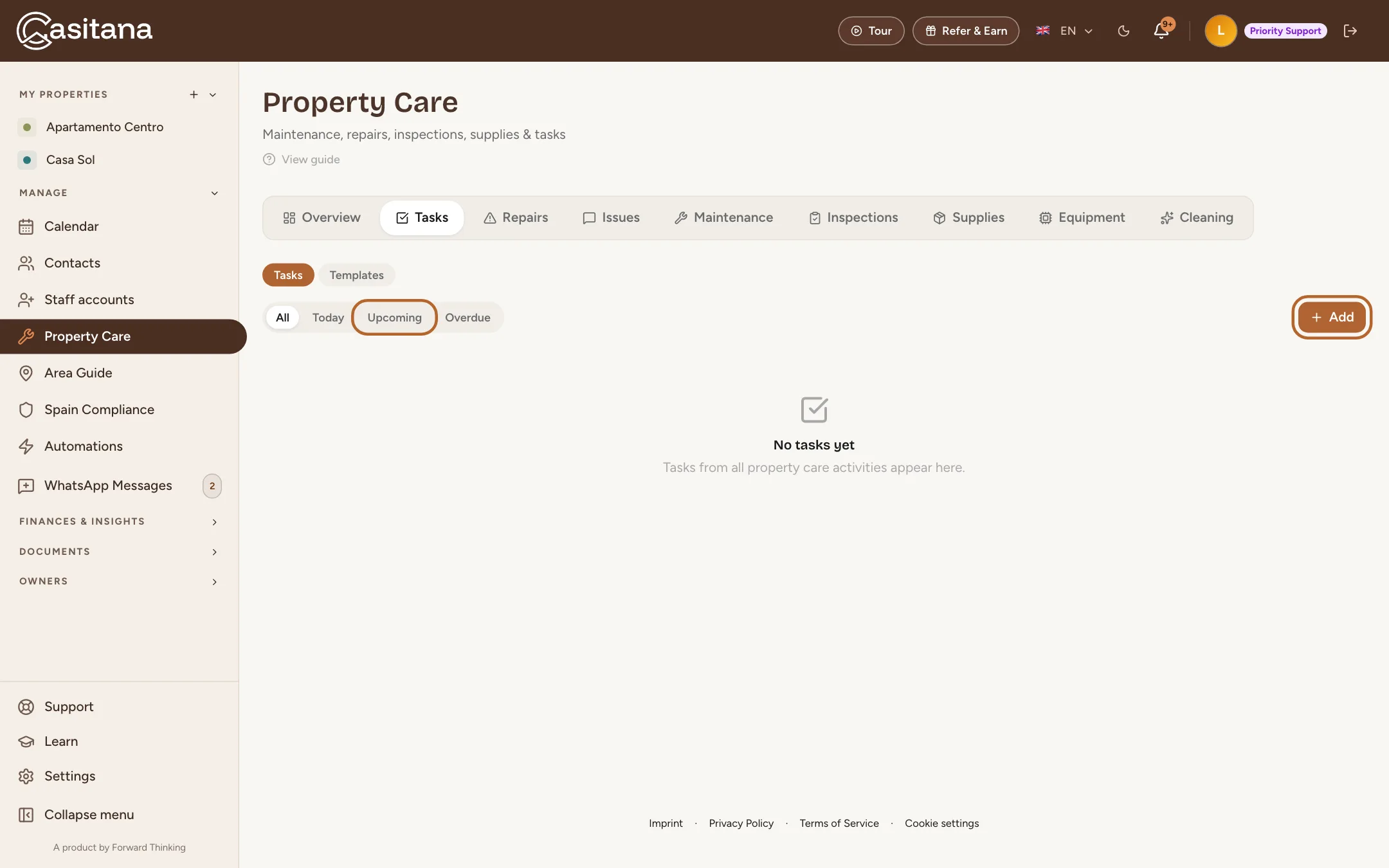
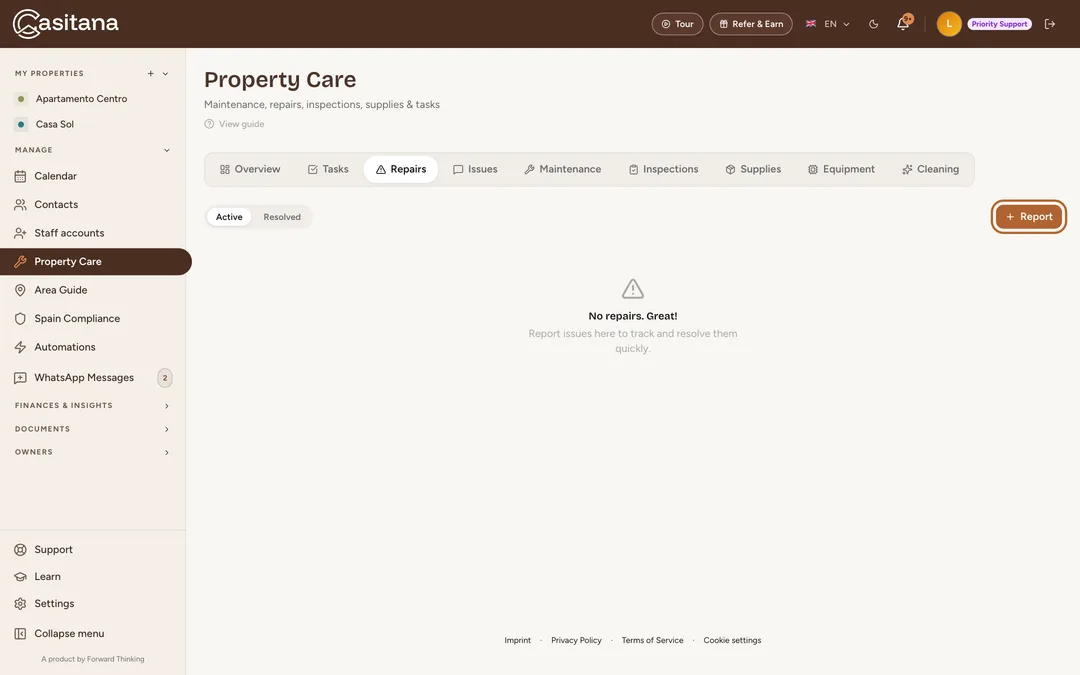
In the menu on the left, click Property Care, then the Repairs tab. Click + Report.
 Enlarge screenshot
Tip: The other tabs, for your equipment, maintenance, inspections and supplies, are explained in Look after the house: equipment, maintenance and supplies.
Step 2
Describe the repair
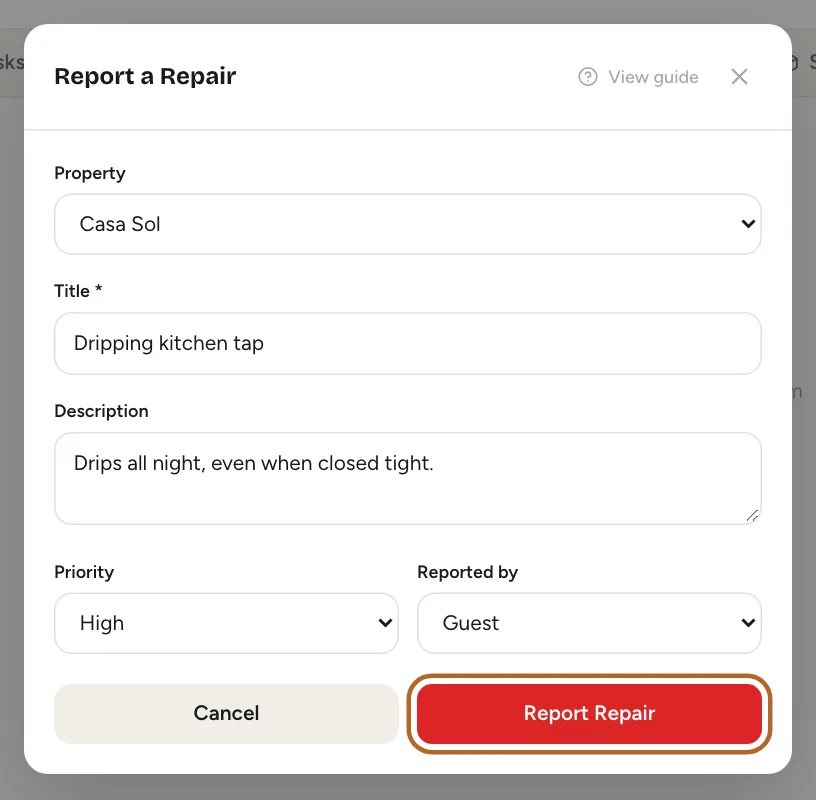
Choose the property and give the repair a short title, like “Dripping kitchen tap”. Add details if they help, set Priority and who reported it, then click Report Repair.
 Enlarge screenshot
Step 3
Add a photo
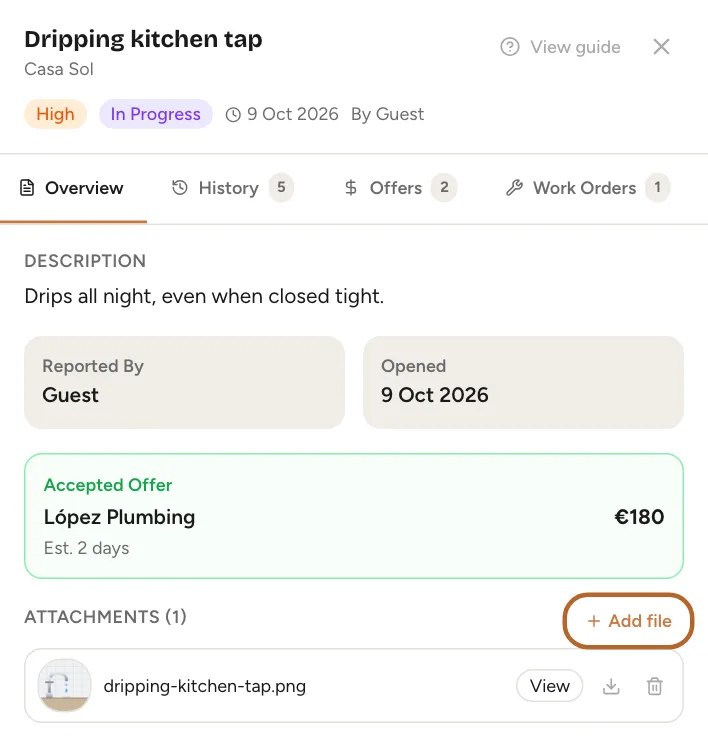
Click the repair to open it. Under Attachments, click Add file and choose a photo or a PDF. A photo helps a contractor quote without a visit first.
 Enlarge screenshot
Offers, work orders and the history
Open a repair to see everything about it. Click it in the list: a panel opens on the right.
Step 4
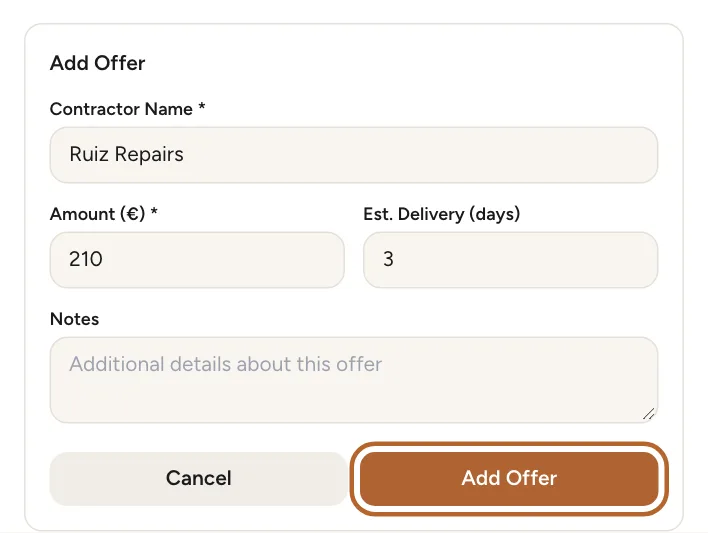
Record a contractor’s offer
In the Offers tab, click Add Offer. Enter Contractor Name, the amount and how many days the work will take. Add each offer you receive: they are listed side by side, so you can compare them.
 Enlarge screenshot
Step 5
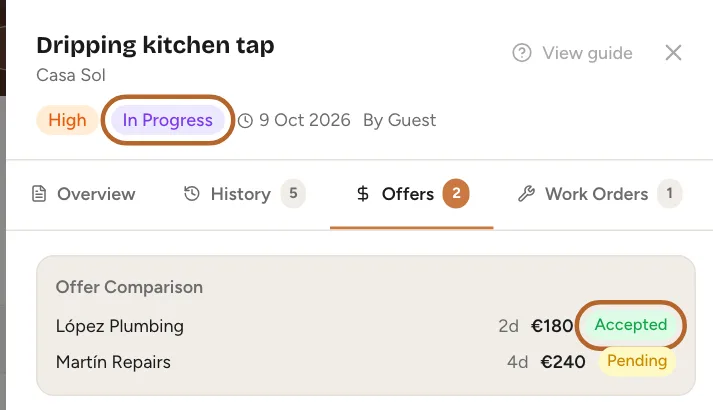
Accept an offer
Click Accept on the offer you choose. It is marked Accepted, and an open repair moves to In Progress.
 Enlarge screenshot
Step 6
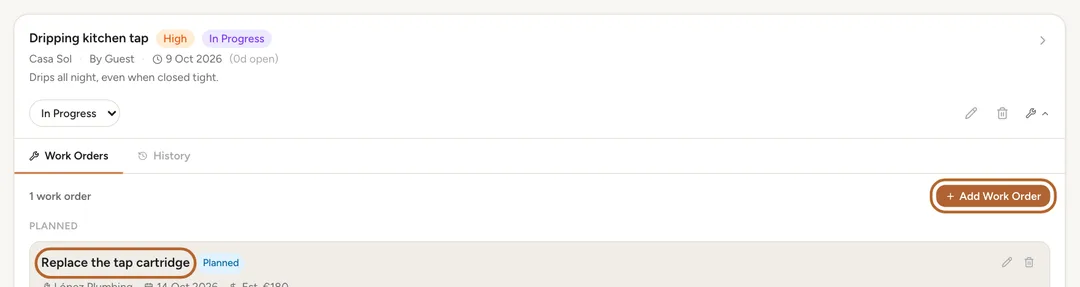
Plan the work
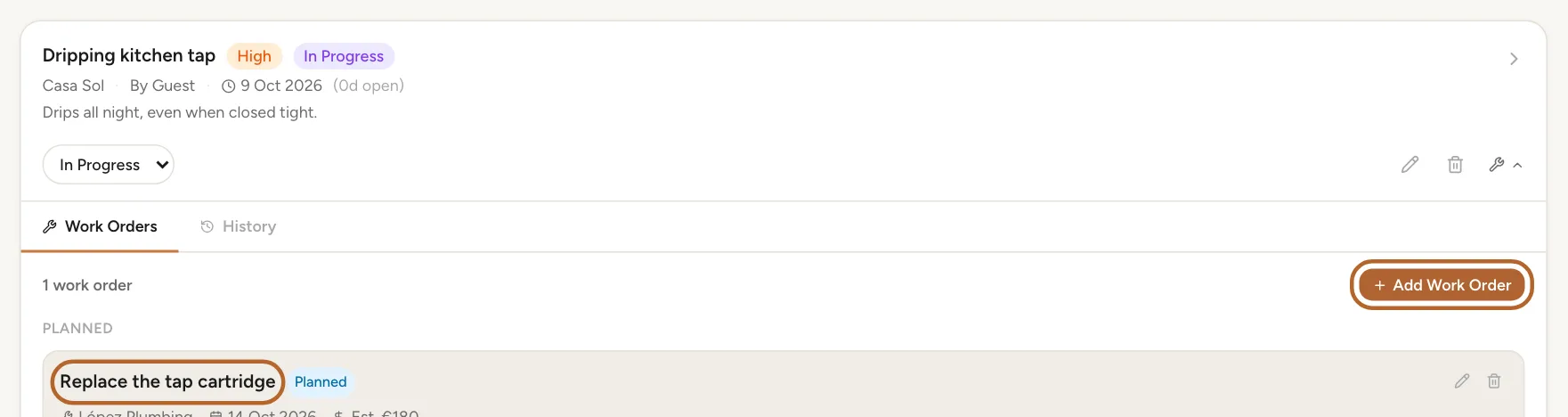
Close the panel and click the arrow on the repair in the list to expand it. Click Add Work Order and enter what will be done, when and by whom, and what it will cost. When the work is done, add the actual cost and the invoice number.
 Enlarge screenshot
Step 7
Follow the history
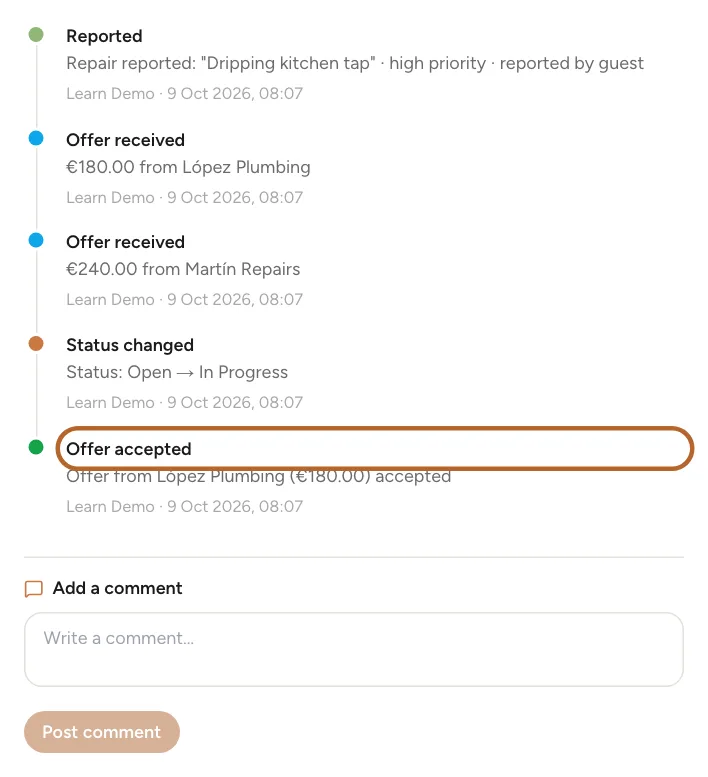
Open the repair again and click History. Every step is there with its date: when it was reported, each offer, each change of status. Use Add a comment to add a note of your own.
 Enlarge screenshot
Issues
Step 8
Issues reported by guests and your team
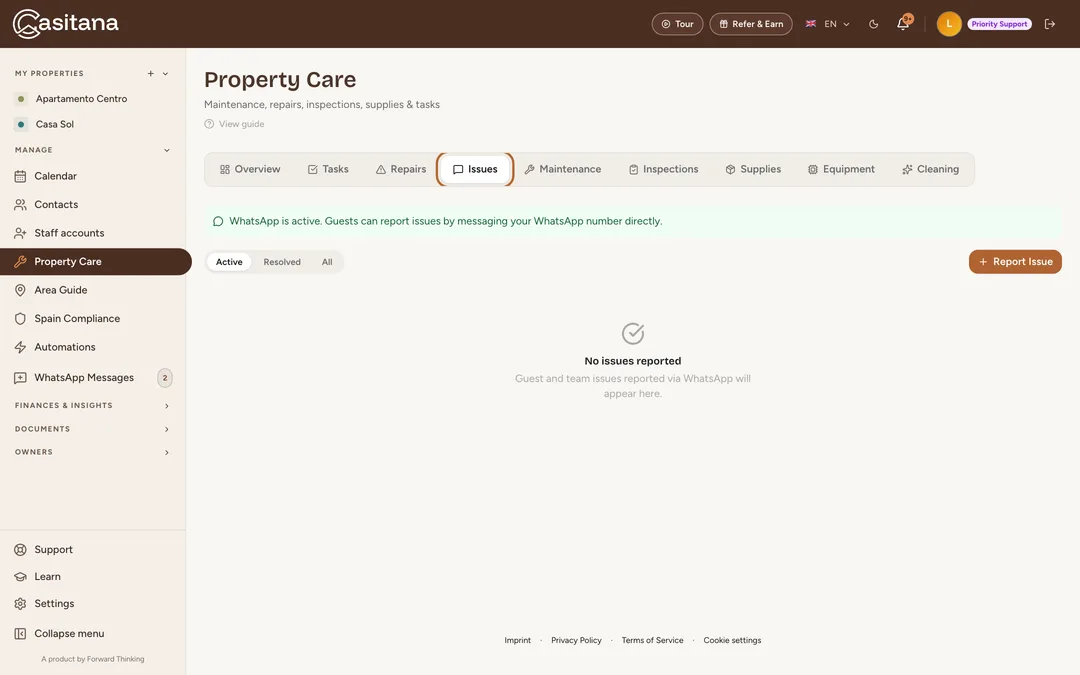
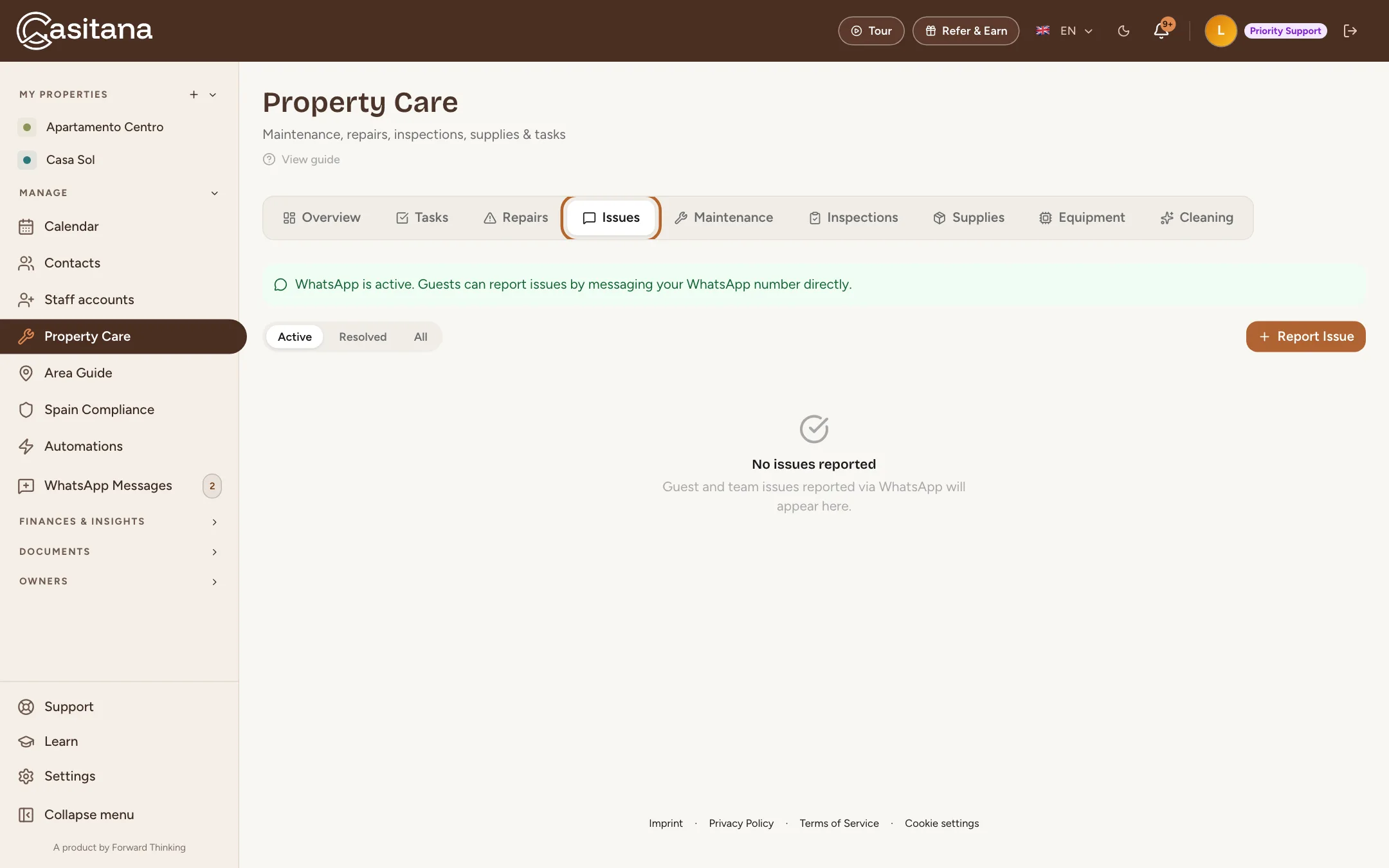
The Issues tab collects problems reported to you, including by guests and your team over WhatsApp when WhatsApp is set up. You can also report one yourself with Report Issue. Change an issue’s status as you deal with it.
 Enlarge screenshot
Tasks
Step 9
Your tasks
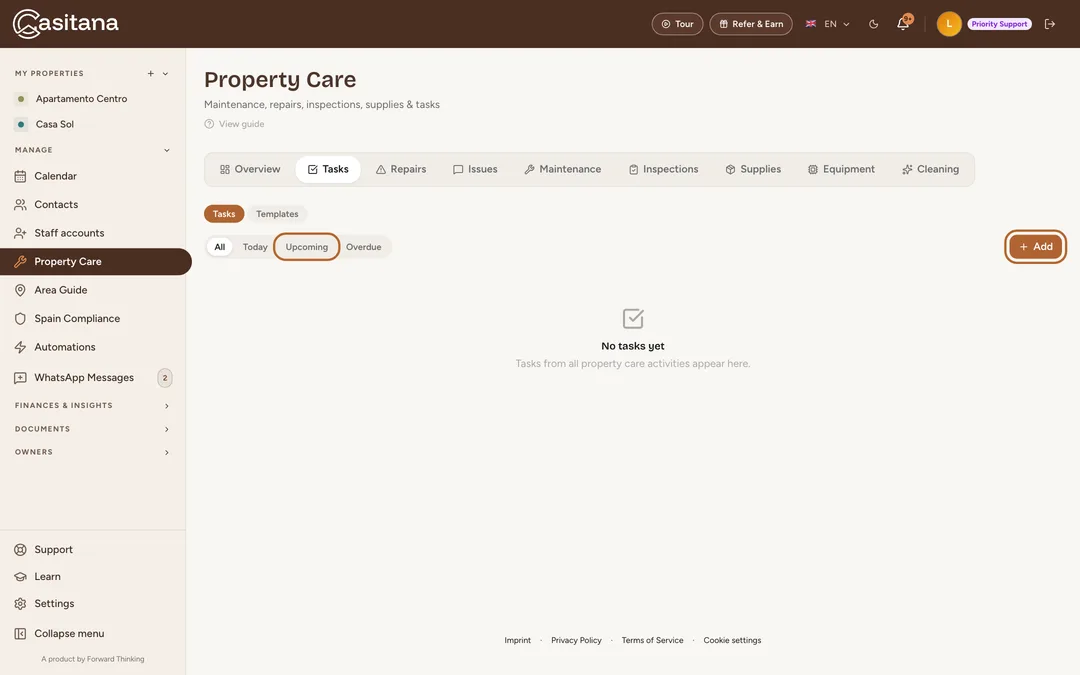
Open the Tasks tab. Filter on Today, Upcoming or Overdue, or see them all.
 Enlarge screenshot
Step 10
Add a task
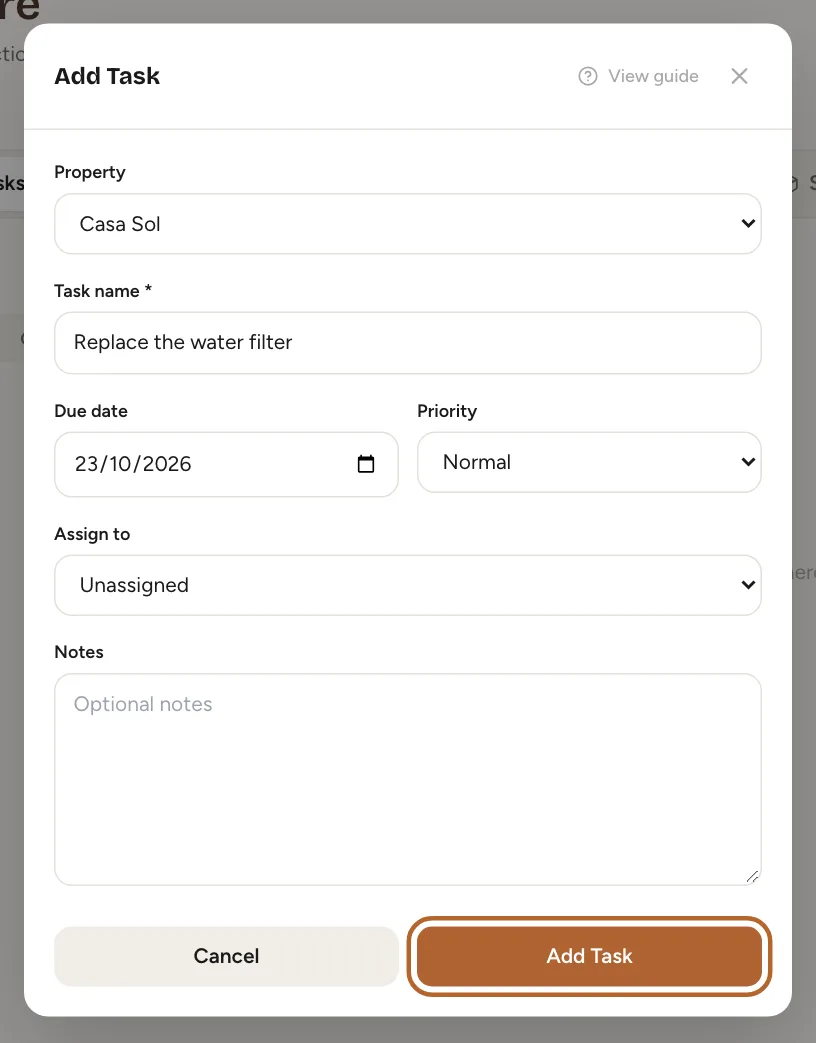
Click + Add, choose the property, describe the task, and set a due date and priority. Under Assign to you can pick one of your contacts. Click Add Task.
 Enlarge screenshot
Tip: Templates holds ready-made checklists to start a task from, and you can save your own. Templates are available from the Starter plan.
Good to know: On the Free plan you can have up to 10 open tasks at a time, and reopening a task you ticked off counts as adding one. At the limit, Casitana tells you so: tick off or delete a task to make room, or upgrade for as many as you need.
Step 11
A task that comes back
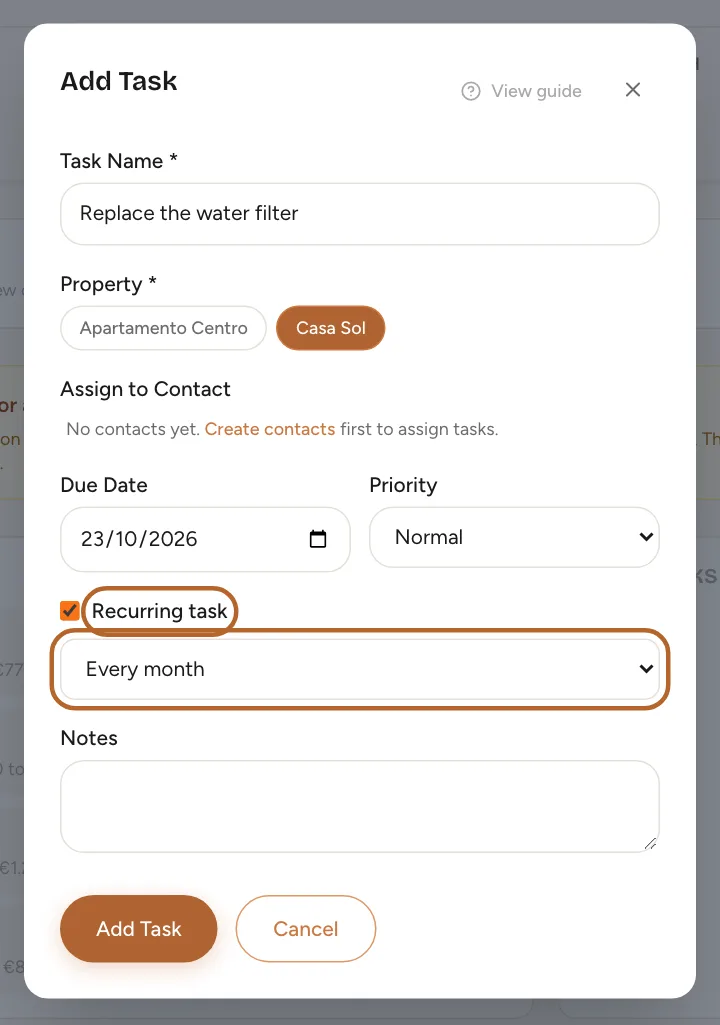
For something that comes back, like a filter to replace, add the task from the home page (click the Casitana logo at the top of the menu): under Quick Actions, click + Task, tick Recurring task and choose how often, from Every week to Every year. Recurring tasks are available from the Starter plan.
 Enlarge screenshot
Step 12
Tick it off
Click the circle in front of a task to mark it done. For a recurring task, Casitana adds the next one straight away, due one interval after this one.
 Enlarge screenshot