
The bell
Step 1
What the bell collects
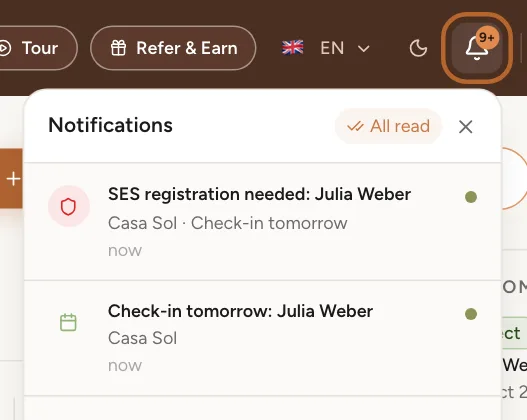
The bell at the top of every screen shows how many notifications you have not read. Click it to see them: new, changed and cancelled bookings, guests arriving tomorrow, tasks due tomorrow, guests still to register with SES, guests who filled in their registration form, SES filings sent or failed, payments, and replies to your support tickets. What you did yourself is not listed.
 Enlarge screenshot
Step 2
Open one
Click a notification to go straight to it: the calendar for a booking, the compliance page for a filing, the ticket for a reply. It is then marked as read. All read marks them all as read at once.
Step 3
Confirm a guest from the bell
When a guest fills in a property’s registration link and Casitana adds them to one of your bookings by itself, the notification names the guest, the stay and the time the booking will be filed with SES Hospedajes. Two buttons sit under it: Confirm now files it straight away, and Not my guest opens Spain Compliance to take the travellers off the booking. If you do nothing, it is filed at that time. More in Confirm the guest, or say it is not yours.
Tip: This notification follows SES Hospedajes. Unlike an SES filing, it stops everywhere when that switch is off, the bell included. The stay then waits for you in Spain Compliance.
Good to know: The same notification comes by email, with the same two buttons. There they open Spain Compliance and ask you once more before anything happens.
Step 4
See them all
At the bottom of the list, See all notifications opens the full page, with the older ones too. Mark all read clears everything; the page then says All caught up.
Choose what you get, and how
Step 5
Open Email reminders
In Settings, on the General tab, open Email reminders.
 Enlarge screenshot
Step 6
Email, push or both
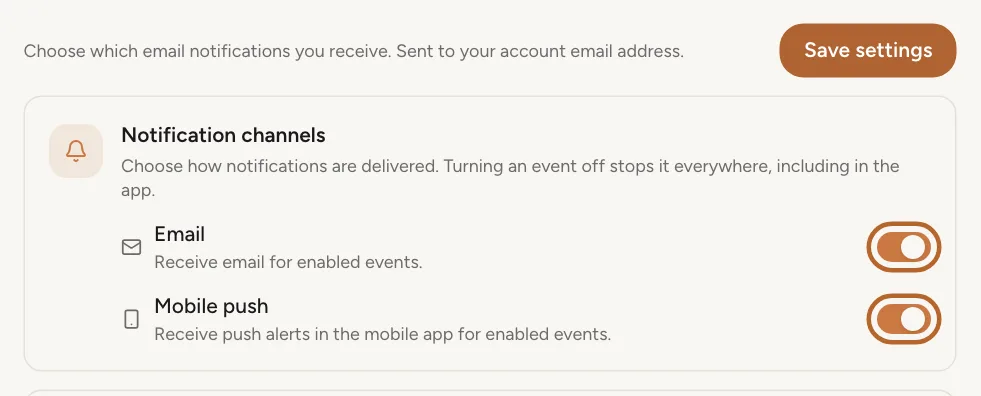
Under Notification channels, Email sends the events you keep on to your account’s email address, and Mobile push to the Casitana app on your phone. Push only reaches a phone where the app is installed, you are logged in and you allowed notifications.
Step 7
Switch events on or off
Each event has its own switch: Task Reminders, Check-In Reminders, Check-Out Reminders, New Booking Synced (new, changed and cancelled bookings, whether you added them or they came from a synced calendar), SES Hospedajes and WhatsApp Messages. An event you switch off stops everywhere: no email, no push, and no line in the bell.
Good to know: WhatsApp messages from guests come as push only, never by email.
Step 8
Reminders and when they come
With a reminder switched on, choose how long before it arrives: 1 day before, 2 days before, 3 days before or 1 week before.
Good to know: Reminders are sent on the Growth plan and above. On a lower plan the three reminder rows say Reminders start on Growth: you can set them already, and they start once you are on Growth.
Step 9
Save
Click Save settings. Nothing changes until you do.
What always reaches you
Step 10
SES filings stay in the bell
A filing to SES Hospedajes that was sent or that failed always appears in the bell, even with SES Hospedajes off: that switch only stops the email and the push. A failed filing is a legal obligation you need to see.
Step 11
Emails that keep your account safe
Emails you asked for or that protect your account always come: confirming your email address, resetting your password and similar. Emails with news and tips are separate; you choose those in Email & consent (News and tips).