
What your guests receive
Step 1
Open Automations
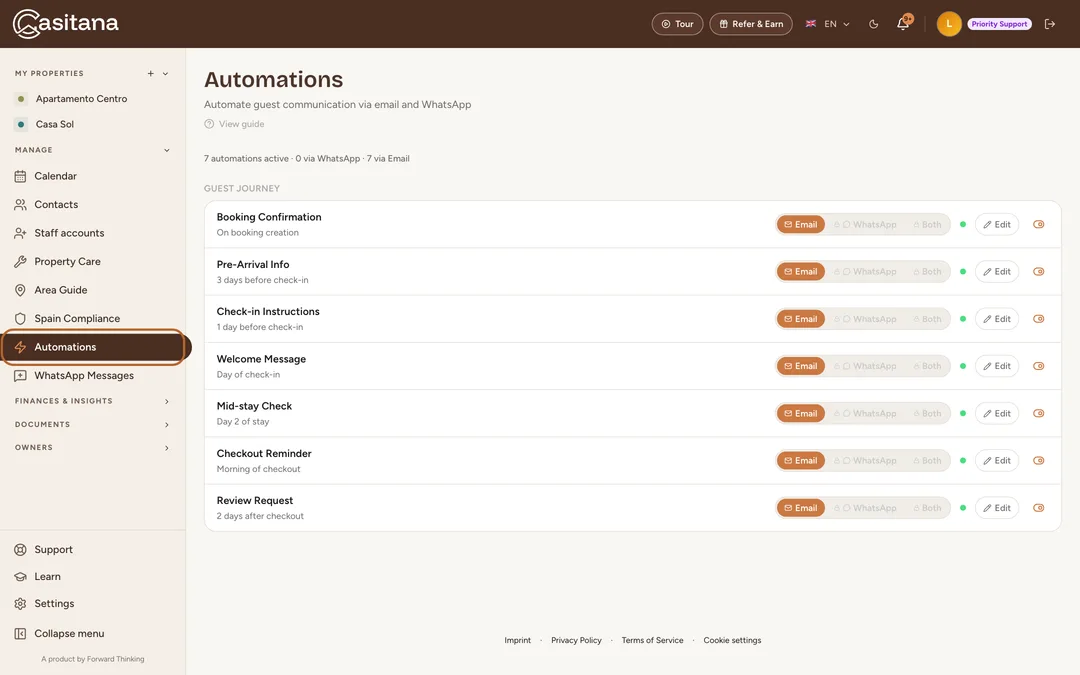
In the menu on the left, click Automations. The first time you open it, Casitana creates the seven messages for you, all switched on: from then on, every stay with an email address gets them.
 Enlarge screenshot
Step 2
The seven messages
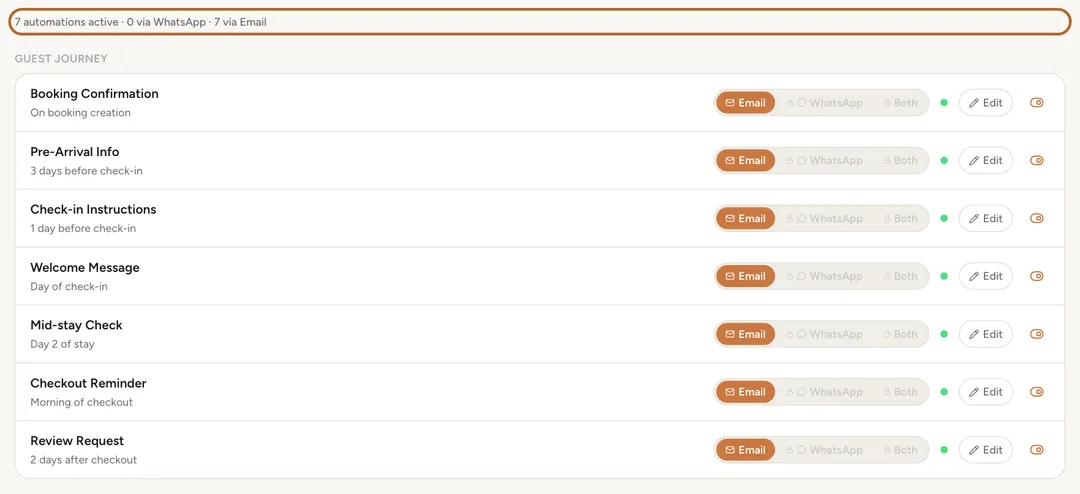
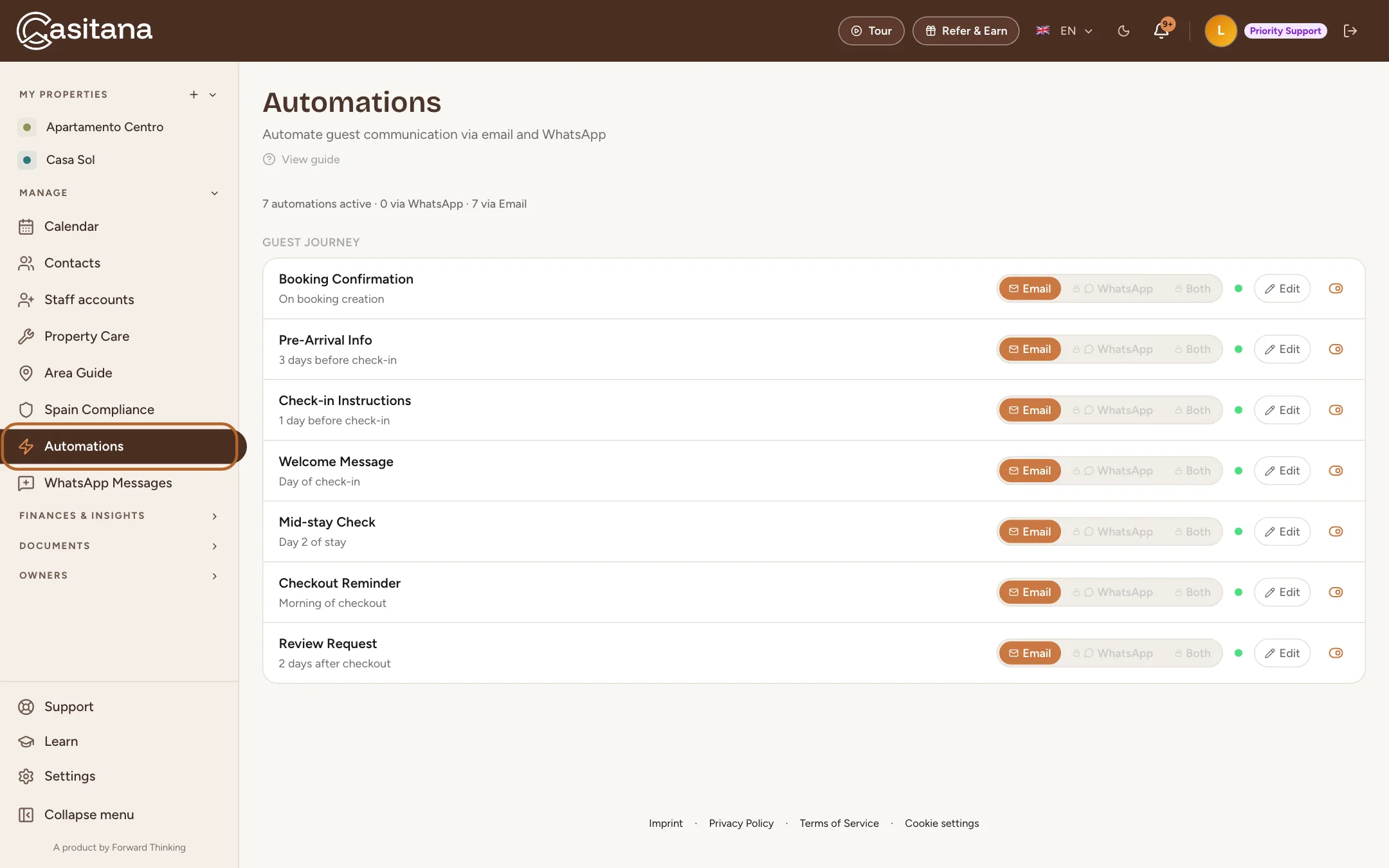
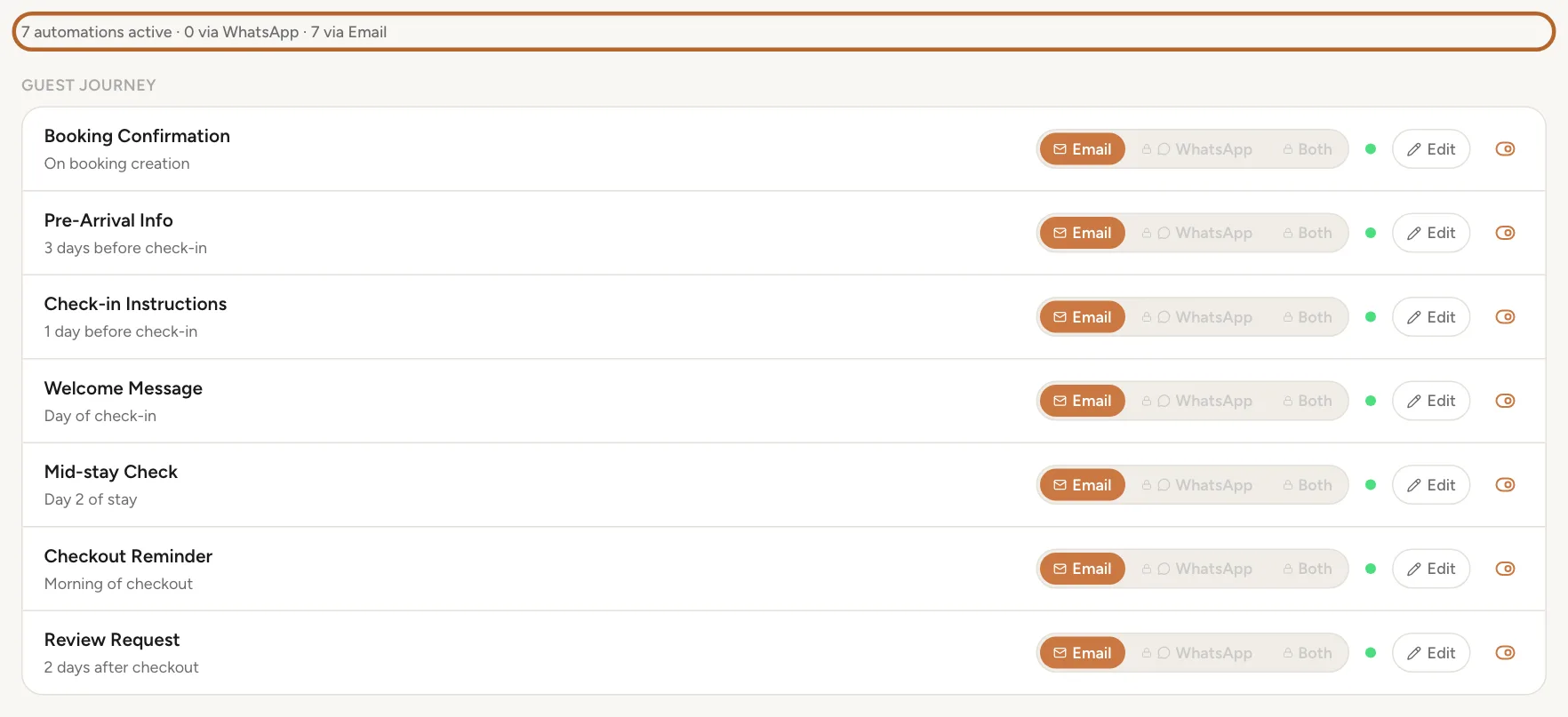
The list shows each message with the moment it goes out. Above it, a line counts how many are switched on and how many go by email or by WhatsApp. The messages apply to all your properties.
 Enlarge screenshot
Step 3
Who receives them
Each message goes to the email address on the booking, and only there. A stay without an email address receives nothing, and neither does a cancelled one. You add the address when you create the booking: see Fill in the stay.
Tip: The reminders Casitana sends to you, such as an arrival tomorrow, are something else: you choose them in Reminders by email.
Step 4
When they go out
The booking confirmation goes as soon as a booking is added, by you or from a connected calendar. The others go once a day, in the morning, on their day: arrival information 3 days before check-in, check-in instructions the day before, the welcome on check-in day, a mid-stay check 2 days before check-out, the check-out reminder on check-out day, and the review request 2 days after check-out. Each message goes once per stay.
Good to know: These moments are fixed. A message whose day has already passed when you add the booking is not sent late. The page describes the mid-stay check as day 2 of the stay; it goes 2 days before check-out.
Switch a message on or off
Step 5
Switch a message on or off
Click the switch at the end of a message’s row. A message that is off is greyed out, and its green dot turns grey. Nothing is deleted: switch it on again whenever you like, and its text is still there.
 Enlarge screenshot

Change what a message says
Each message comes with a ready-made text in English. Change it to your own words and language.
Step 6
Open the editor
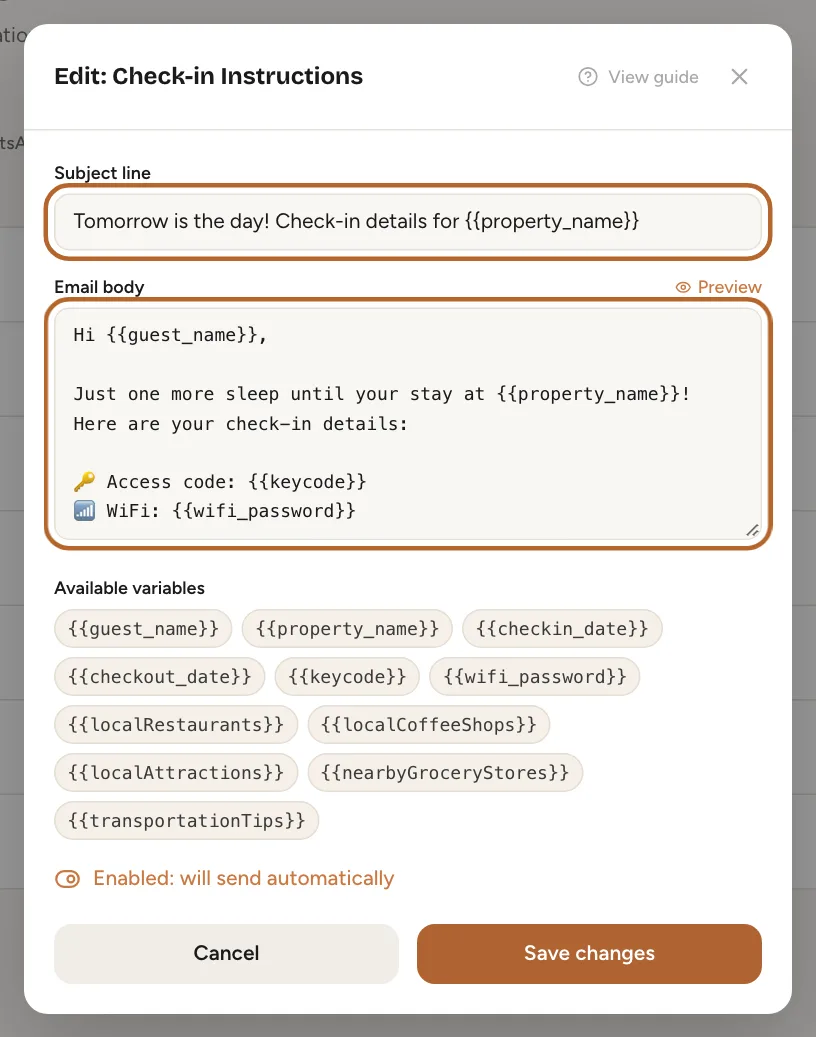
Click Edit on a message’s row. The editor shows the subject line and the text of the email.
 Enlarge screenshot
Step 7
Add the stay’s details
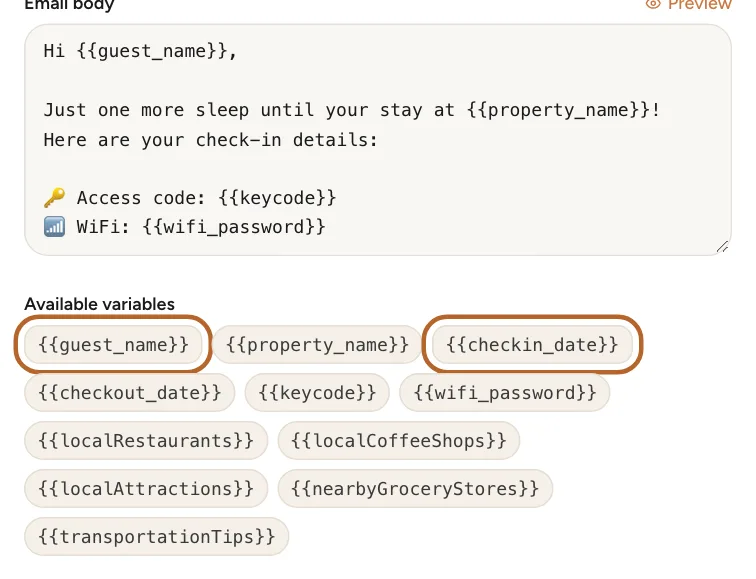
Under the text, the grey buttons, such as guest_name or checkin_date, are placeholders. Click in the text where you want one, then click the button. When the email is sent, each placeholder is replaced by that stay’s details: the guest’s name, the property’s name, the dates, the Key Code from the property’s details (Name, address and key code) and the WiFi password from its guest page (Wi-Fi, key code and check-in).
 Enlarge screenshot
Tip: Use only those six. The buttons for local places, such as localRestaurants, stay empty in the email: they do not read your area guide, even though the preview fills them with example places. The guest page has a key code of its own; the emails use the one in the property’s details. A placeholder whose information is missing stays empty too, so fill in the property first or leave that line out.
Step 8
Preview the email
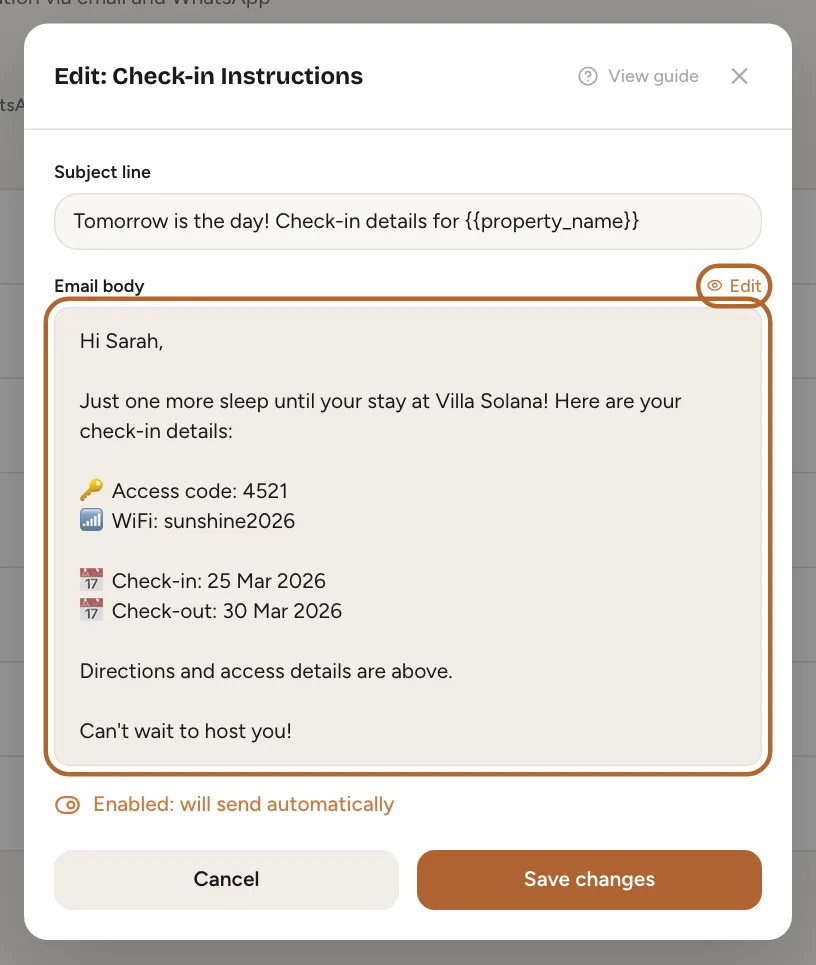
Click the preview button above the text to read the email with example details in place of the placeholders. Click it again to go back to editing.
 Enlarge screenshot
Step 9
Save your changes
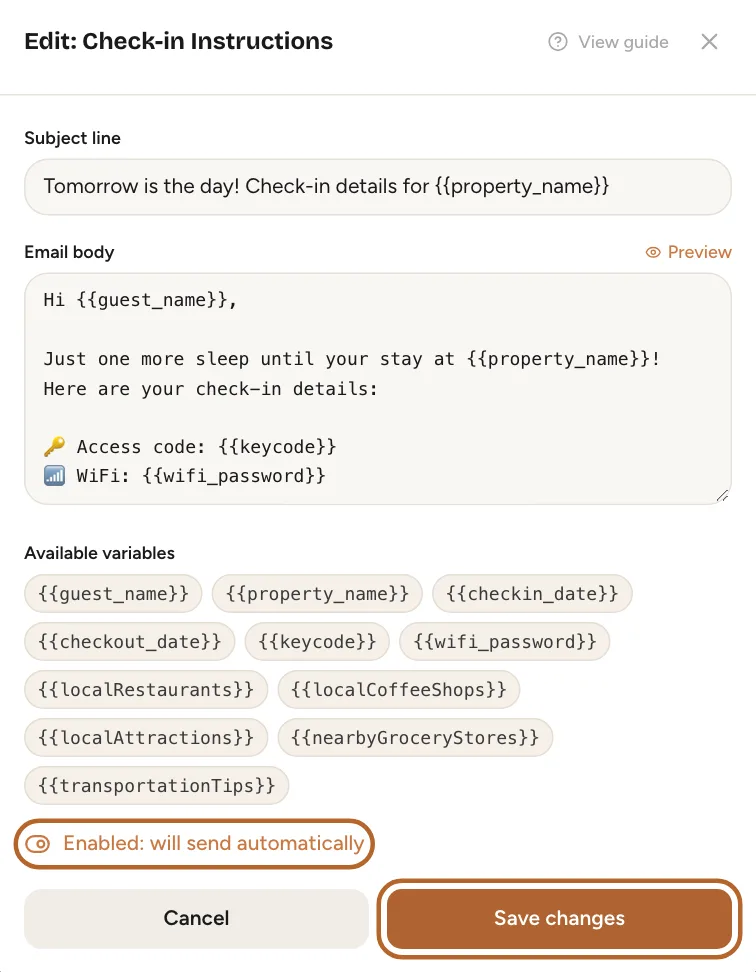
Below the placeholders, the email has its own switch: it must be on for the email to go. Save with the button beside Cancel, or click Cancel to close without saving.
 Enlarge screenshot
Email or WhatsAppIncluded from the Growth plan
Step 10
Choose how each message goes
Each row has three buttons: email, WhatsApp, or both. The booking confirmation always goes by email. WhatsApp needs a WhatsApp number of your own first; until then, its buttons are locked, with a padlock.
 Enlarge screenshot
Good to know: If a message is set to WhatsApp and your account has no WhatsApp number, Casitana sends it by email instead, and the page says so.
Step 11
Getting WhatsApp
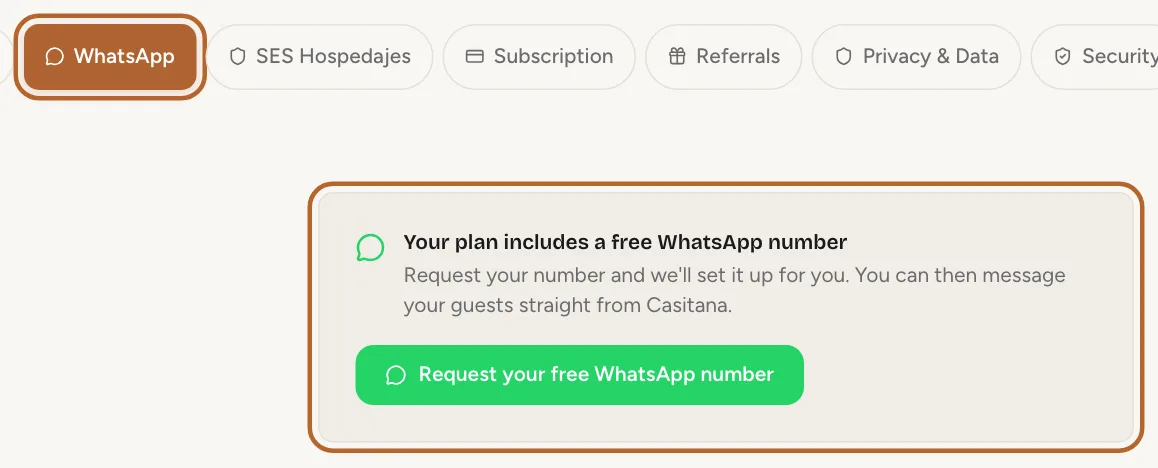
WhatsApp comes with the Growth and Pro plans, with a free WhatsApp number that the account holder requests. How to request it, and what happens until it is ready: Your WhatsApp number. On the Starter plan, your messages go by email: see Choose a paid plan.
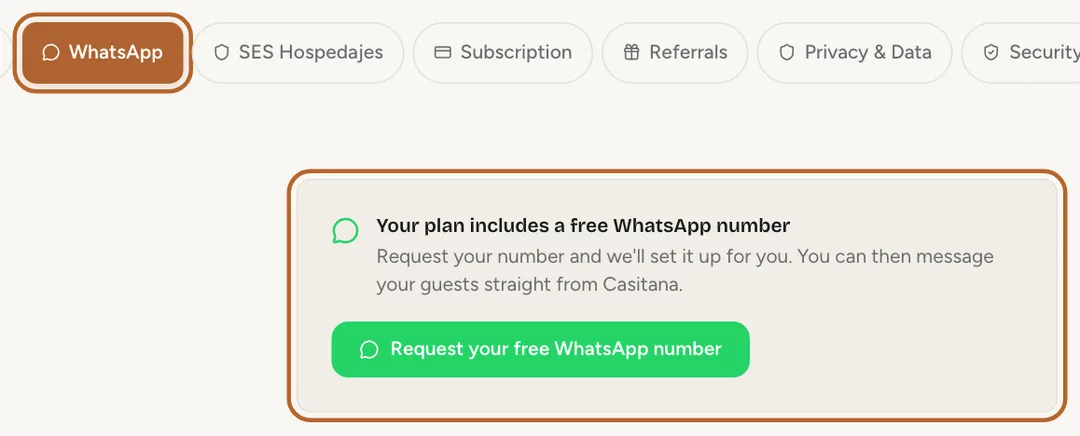 Enlarge screenshot

Checking what was sent
Step 12
No list of sent messages yet
Casitana does not yet show a list of the emails it sent to your guests. To be sure a guest receives them, check that their booking has an email address and that the messages are switched on. If you move to the Free plan, your messages are kept but no longer sent; they start again when you upgrade.