Your WhatsApp number
Step 1
Part of Growth and Pro
WhatsApp comes with the Growth and Pro plans, with a free WhatsApp number for your account. On the Starter plan, your guest messages go by email: to change plan, see Choose a paid plan.
Step 2
Request your number
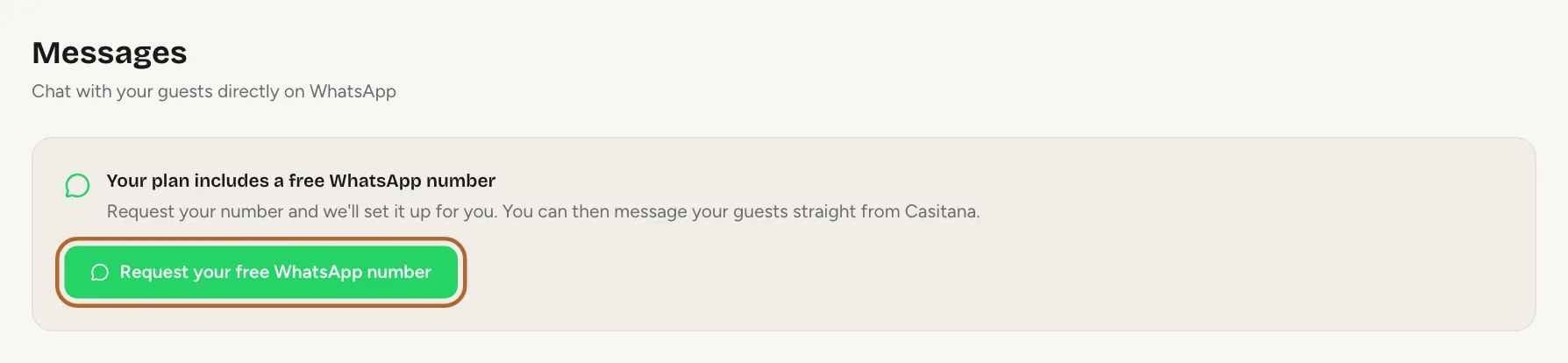
Open Settings, then WhatsApp, and click Request your free WhatsApp number. The same button is in WhatsApp Messages. Only the account holder can request it.
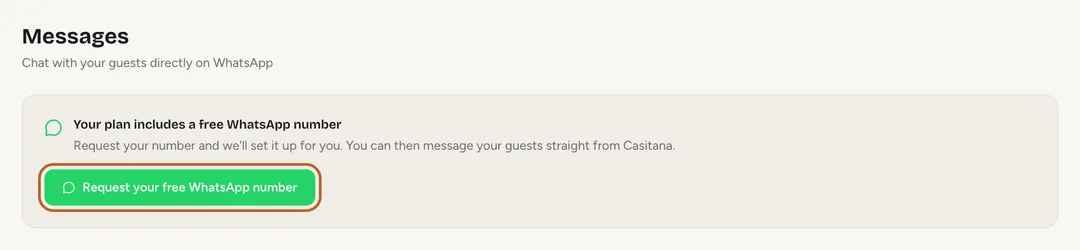 Enlarge screenshot
Step 3
While you wait
Casitana assigns each number by hand, so it is not instant. Until your number is ready, the page says Request received. We'll set up your number and let you know. Your guest messages keep going by email in the meantime, and the WhatsApp buttons in Email or WhatsApp stay locked.
Step 4
What your guests see
Your messages come from your own number, with Casitana shown as the sender’s name. When a guest replies, the reply arrives in Casitana, on the website and in the app.
Step 5
If WhatsApp is switched off
If WhatsApp has been switched off for your account, the page says so and offers Contact support: see Get support from the Casitana team.
Reading and answering
Step 6
Open your messages
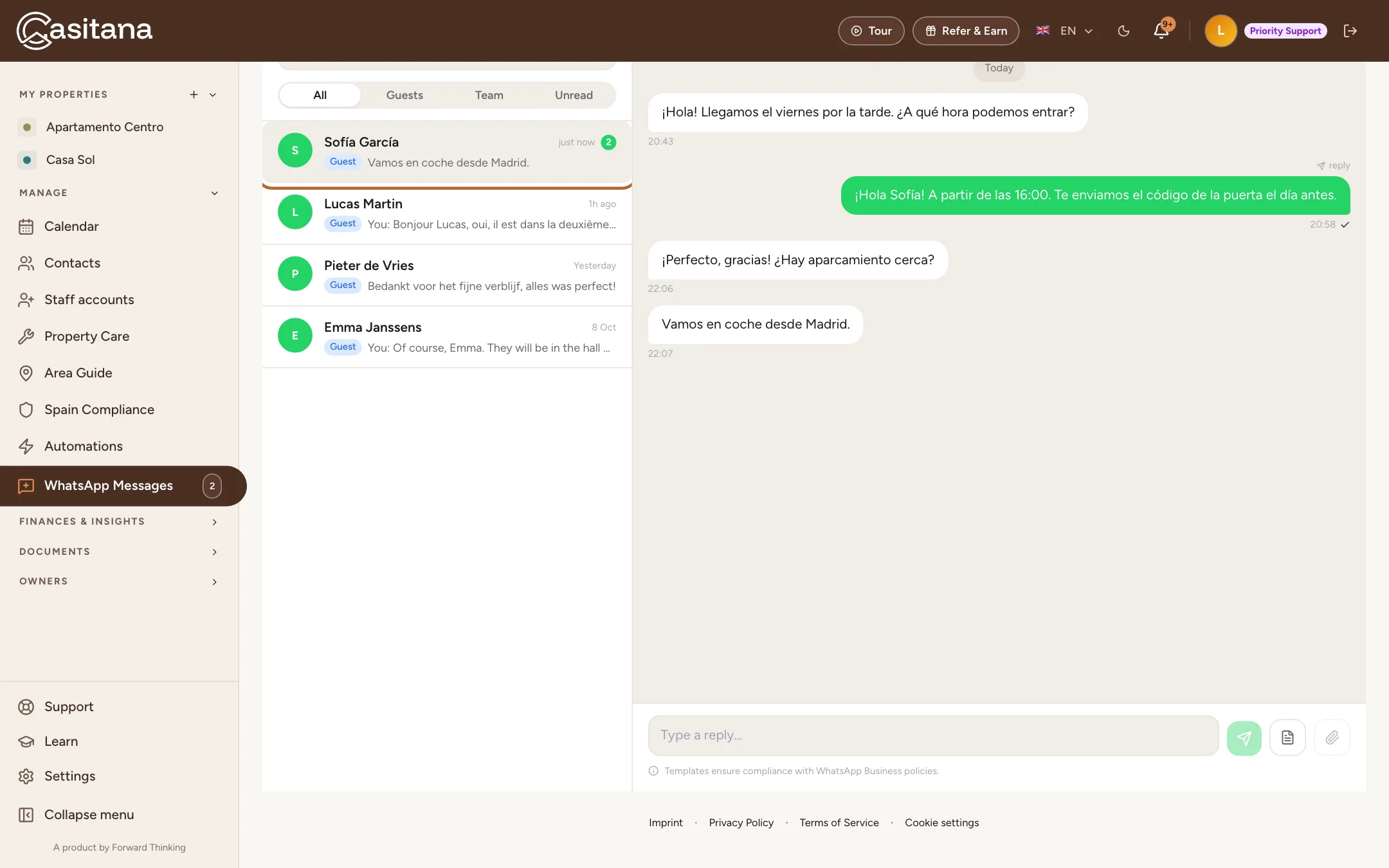
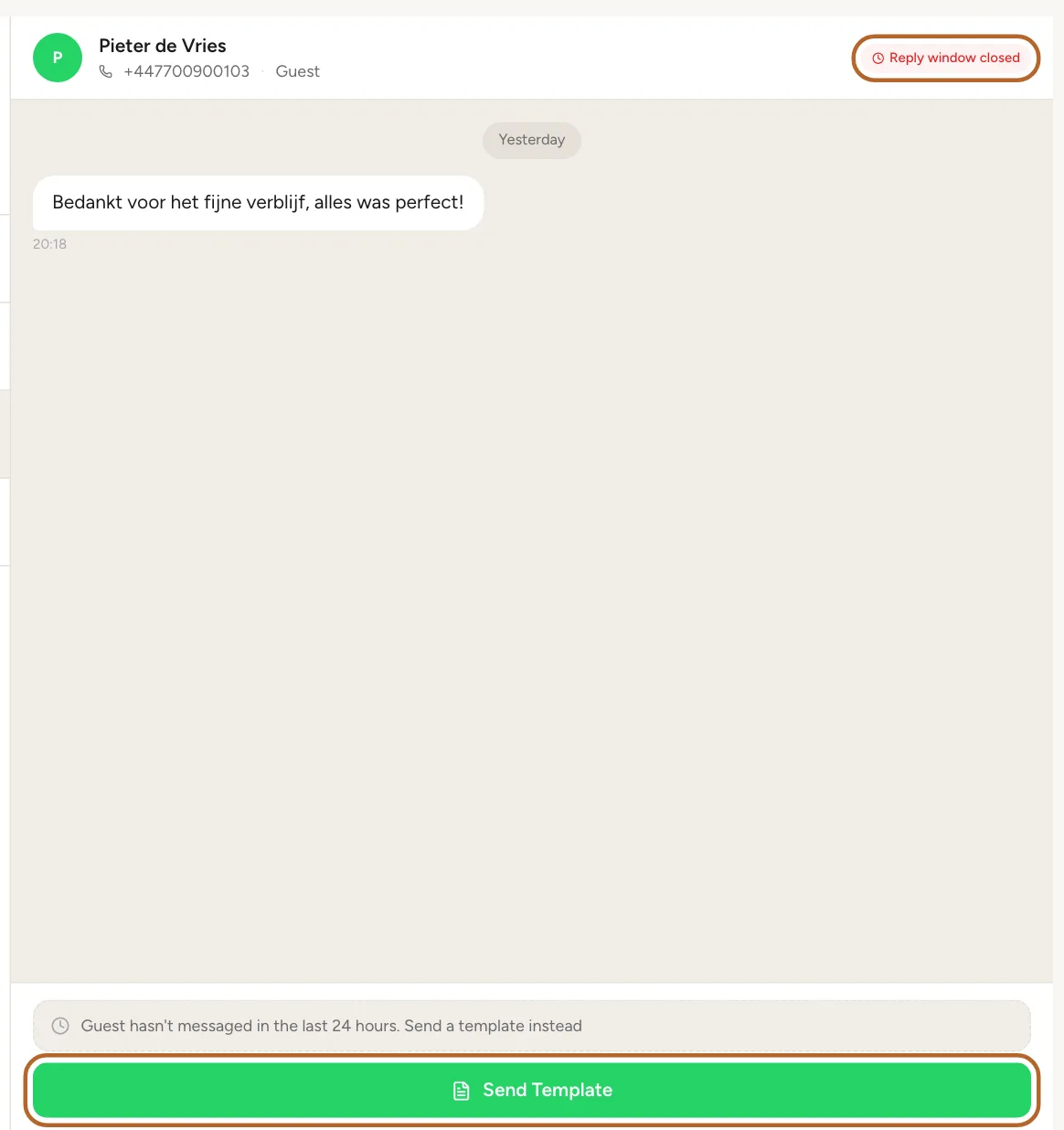
In the menu on the left, open MANAGE and click WhatsApp Messages. Choose a conversation to read it and to answer.
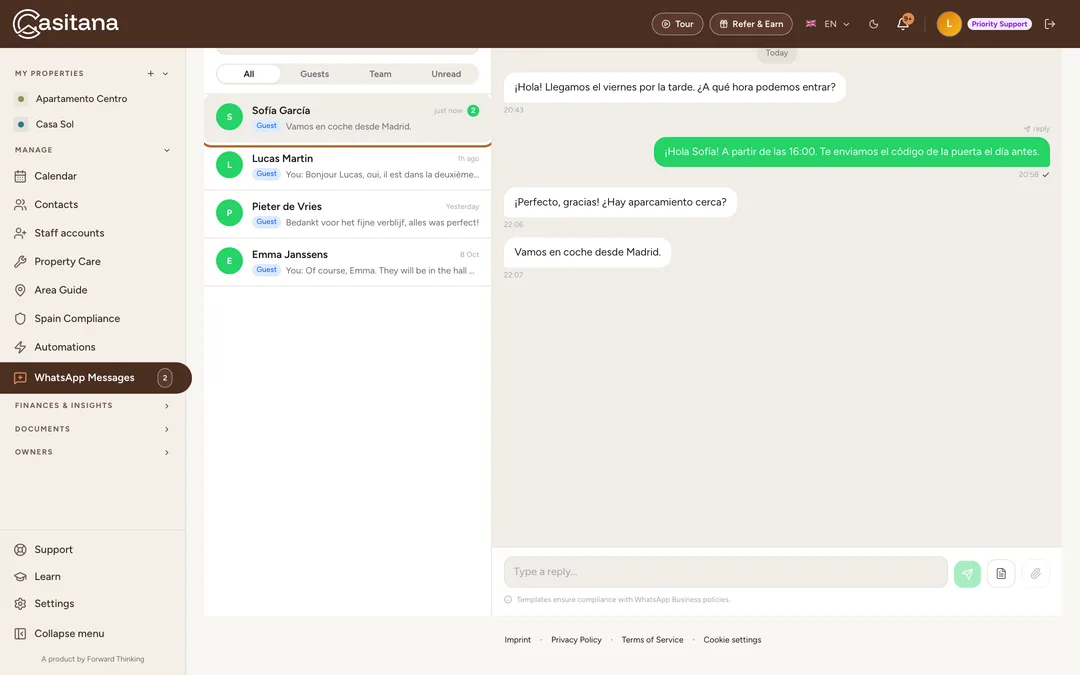 Enlarge screenshot
Step 8
Automatic messages by WhatsApp
To send the automatic guest messages by WhatsApp, choose WhatsApp, or both, on each message: see Email or WhatsApp.
In the appApp
Step 1
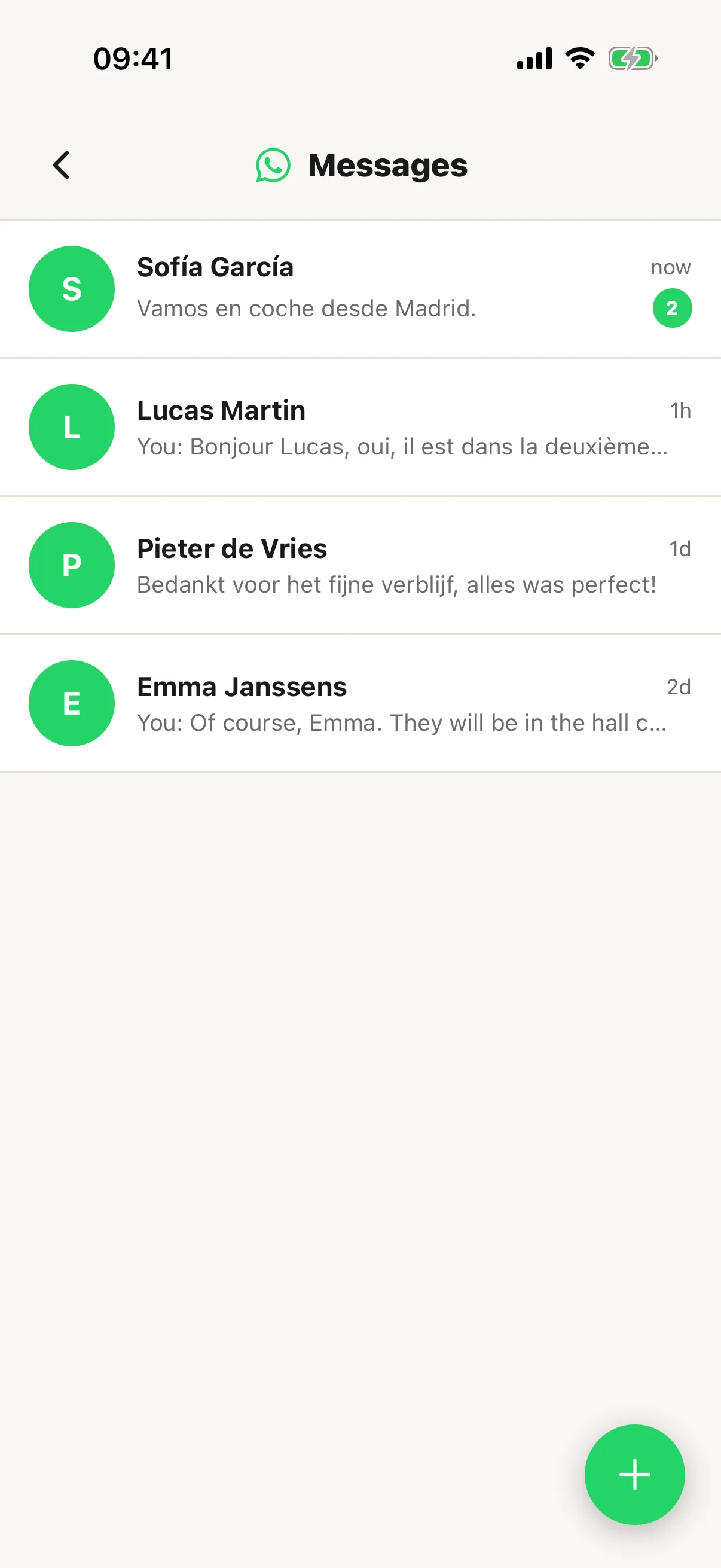
Messages in the app
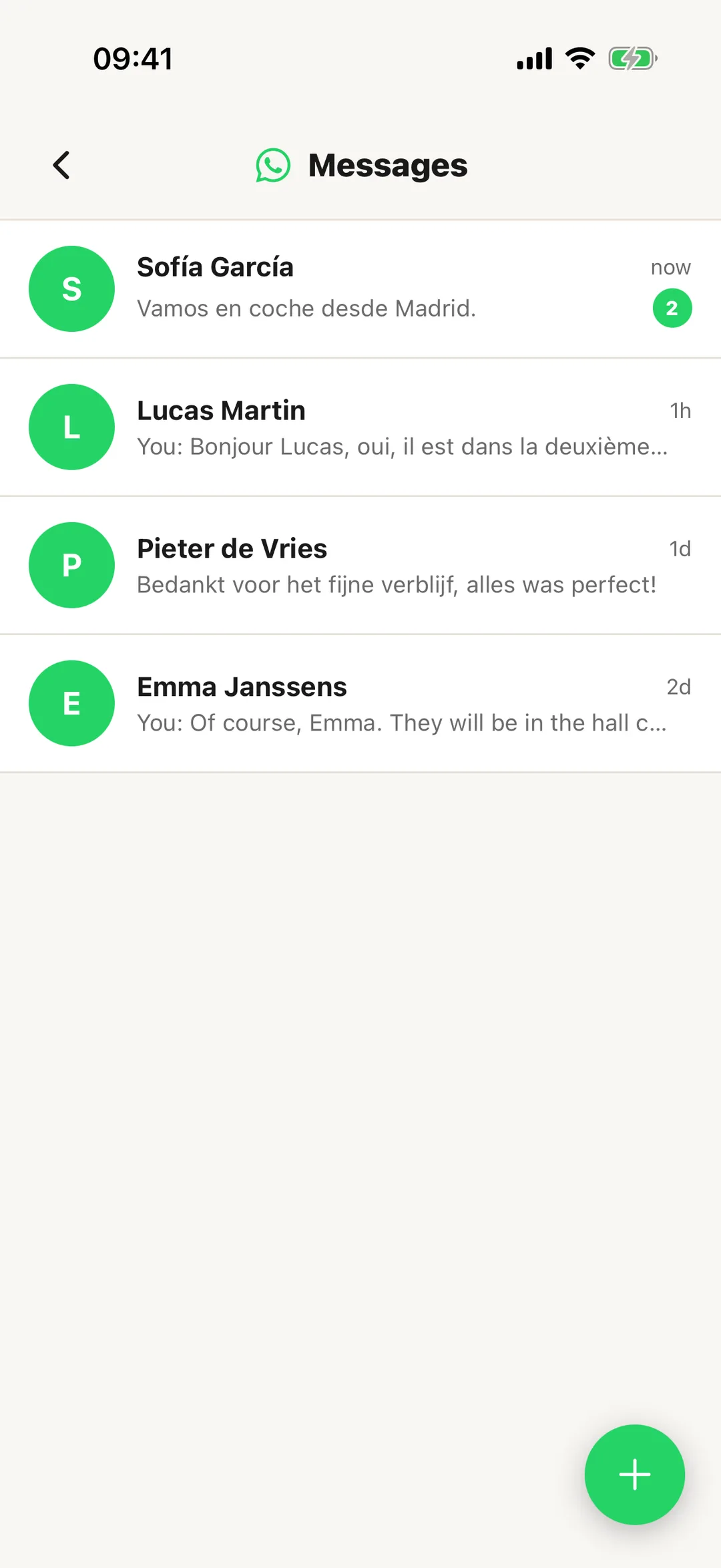
Open More, then Messages. On Growth and Pro it opens your WhatsApp conversations, with a count of unread messages. On Starter the row says Available on Growth.
 Enlarge screenshot
Step 2
Get your WhatsApp number
Before your number is ready, the screen says Your plan includes a free WhatsApp number, and the account holder taps Request your free WhatsApp number; it then reads WhatsApp number requested. If WhatsApp is switched off for the account, the screen says WhatsApp is switched off, with Contact support, which opens a new support ticket.
Step 4
Start a new conversation
The + starts a new conversation. Pick a guest from your bookings or type a phone number, then choose a template. Check the Message preview and tap Send via WhatsApp.