The year at a glance
This is what the tab shows on the Starter plan. On Growth and Pro it shows more; see the last chapter.
Step 1
Open the tax summary
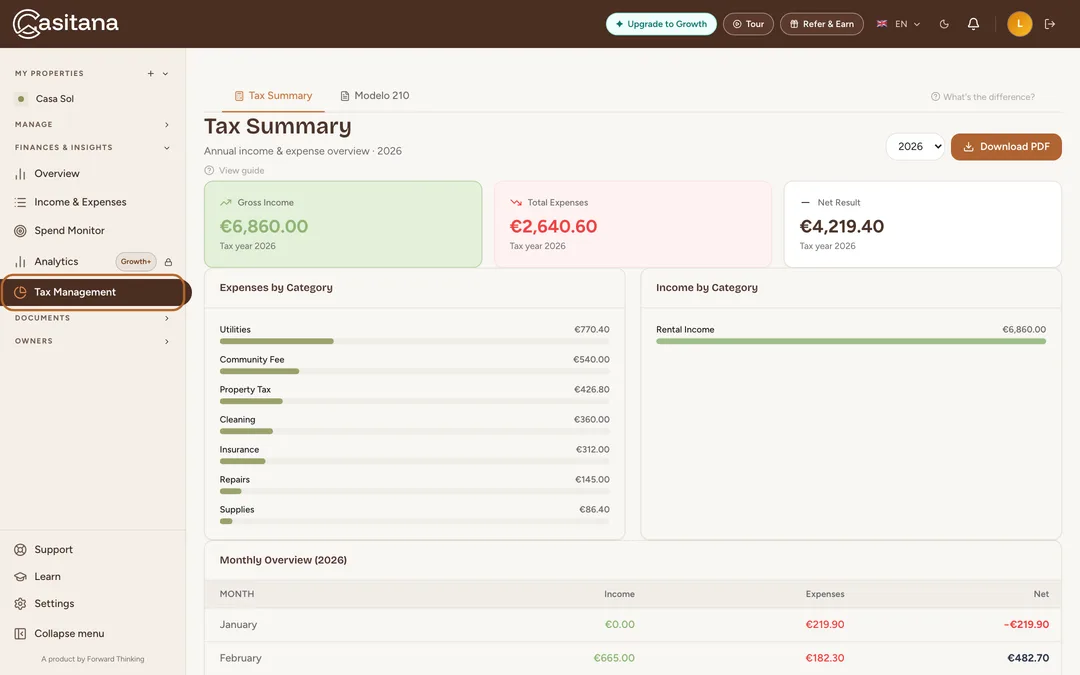
In the menu on the left, click Tax Management. The Tax Summary tab opens first. The other tab, Modelo 210, has a guide of its own: Modelo 210: prepare the file for your gestor.
 Enlarge screenshot
Tip: On the Free plan, Tax Management is locked: the page shows sample figures, not yours, and how to upgrade.
Step 2
Choose the year and the property
Choose the year at the top. The list always has this year and last year, plus any other year in which you recorded something. If you have more than one property, click a property’s name to see only that one, or All to see them together.
Step 3
Read the totals
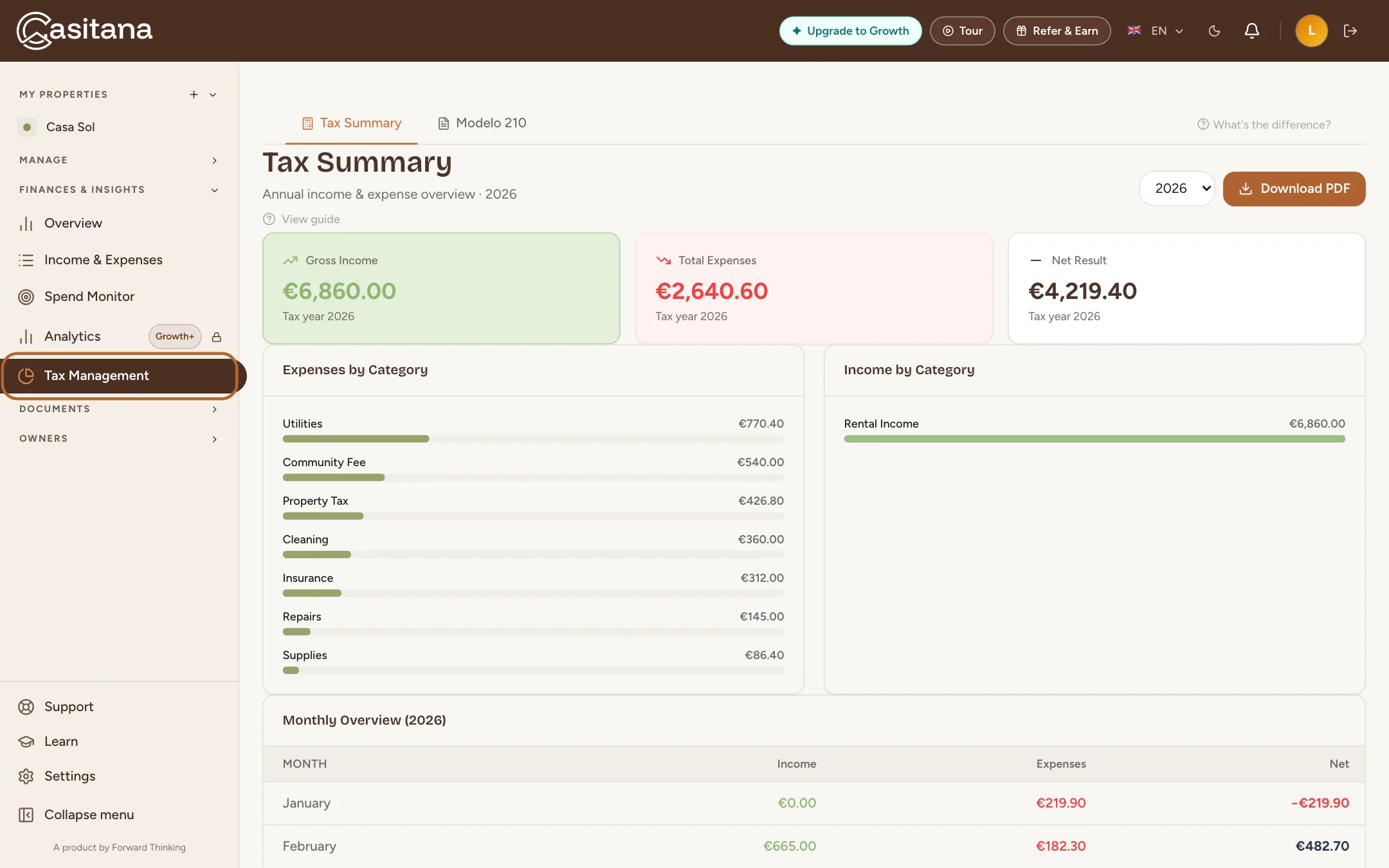
Three cards show the year’s Gross Income, Total Expenses and Net Result, which is the income less the costs. Below them, Expenses by Category and Income by Category add up each category you used, and Monthly Overview lists every month in which you recorded something, with the total for the year.
 Enlarge screenshot

What is counted, and what is left out
Step 4
What the summary counts
Every income and cost you recorded under Income & Expenses with a date in that year, from 1 January to 31 December. A booking on its own adds nothing here: what counts is the income you recorded for it. Nothing is sorted into deductible or not; every cost you recorded is there.
Step 5
Leave a cost out
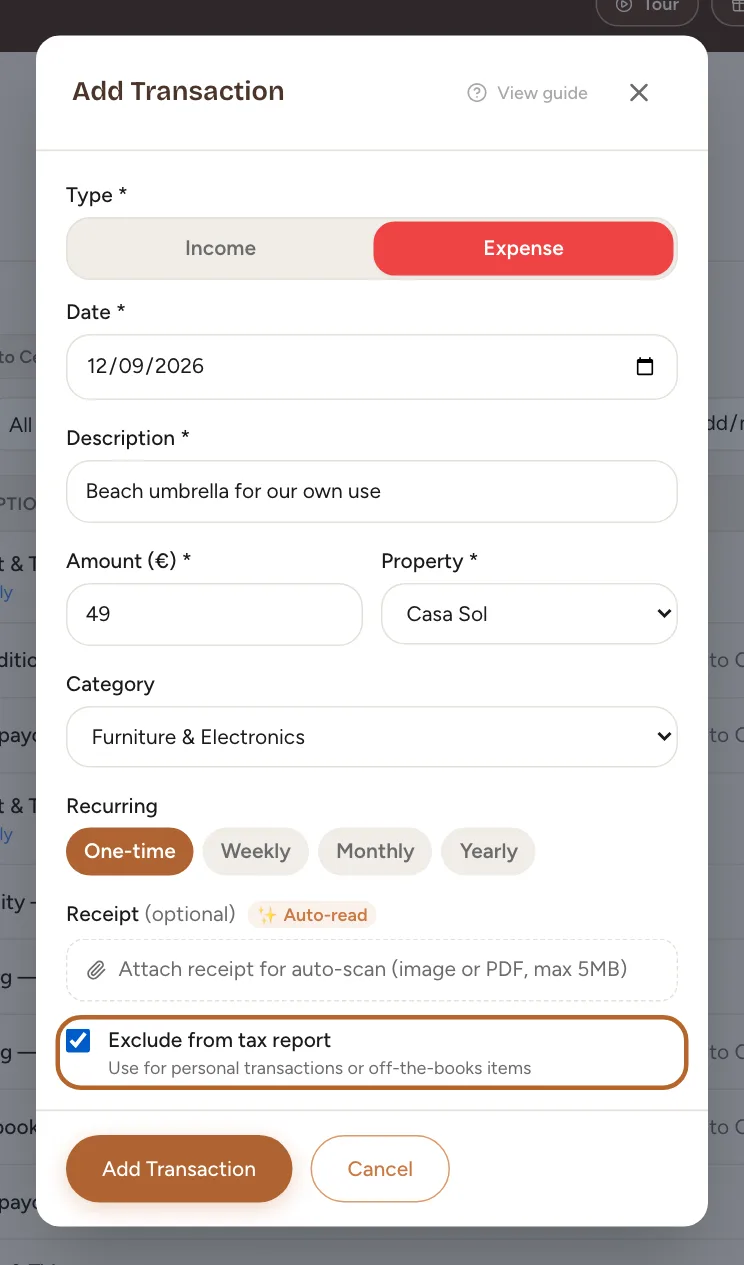
A cost that has nothing to do with letting the property, like a personal purchase, can stay in your records and still be left out here. Open it under Income & Expenses and tick Exclude from tax report. In your list it is then marked tax excl., and the summary and its PDF leave it out. How to do it: Keep a personal purchase out of the tax report.
 Enlarge screenshot
Download the PDF
Step 6
Download the PDF
Choose the year and, if you want, the property, then click Download PDF. The PDF holds the three totals, the income and costs of each property, and the costs by category. Send it to your accountant as it is.
 Enlarge screenshot
Good to know: The PDF is in English, whatever language you use Casitana in. It is a summary of your records, not a tax return.

More on the Growth and Pro plansIncluded from the Growth plan
On Growth and Pro, the same tab shows your costs in more detail and adds a package for your adviser. On Starter, the box at the bottom of the tab, Unlock full Tax Preparation with Growth, lists what Growth adds.
Step 7
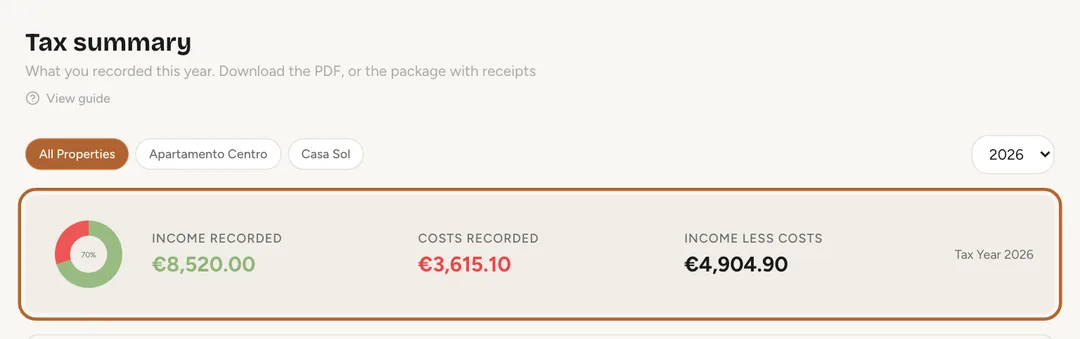
Totals per property
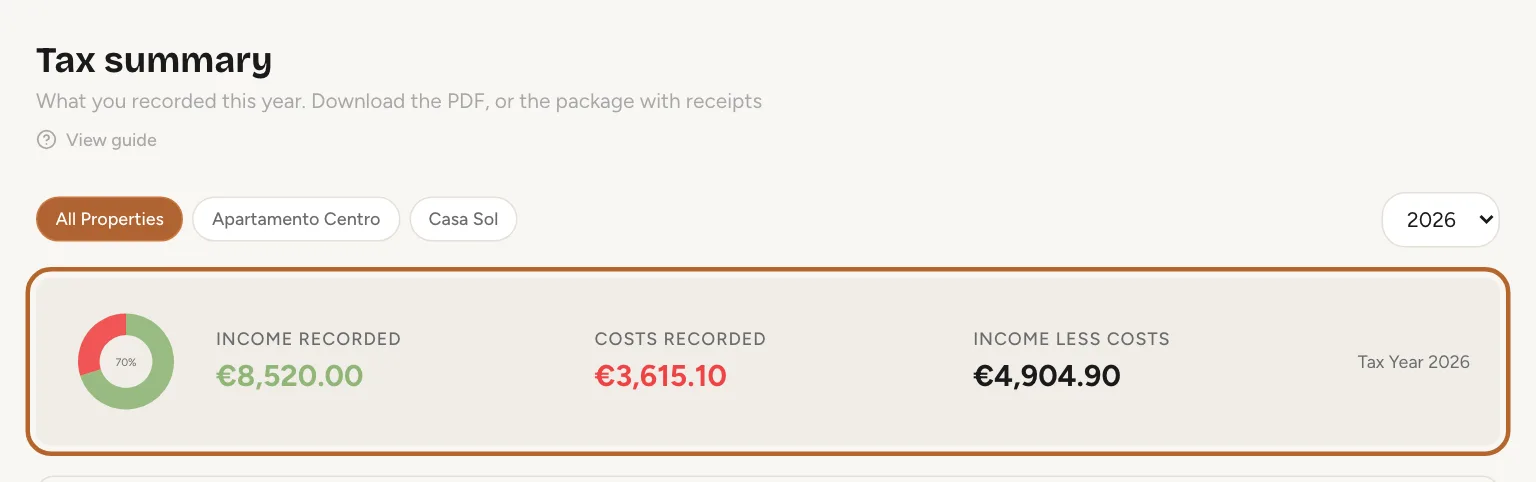
At the top, Income recorded, Costs recorded and Income less costs for the year. Click a property’s name to see only that one, or All Properties. Further down, Income & costs by property puts each property’s income, costs and net side by side.
 Enlarge screenshot
Step 8
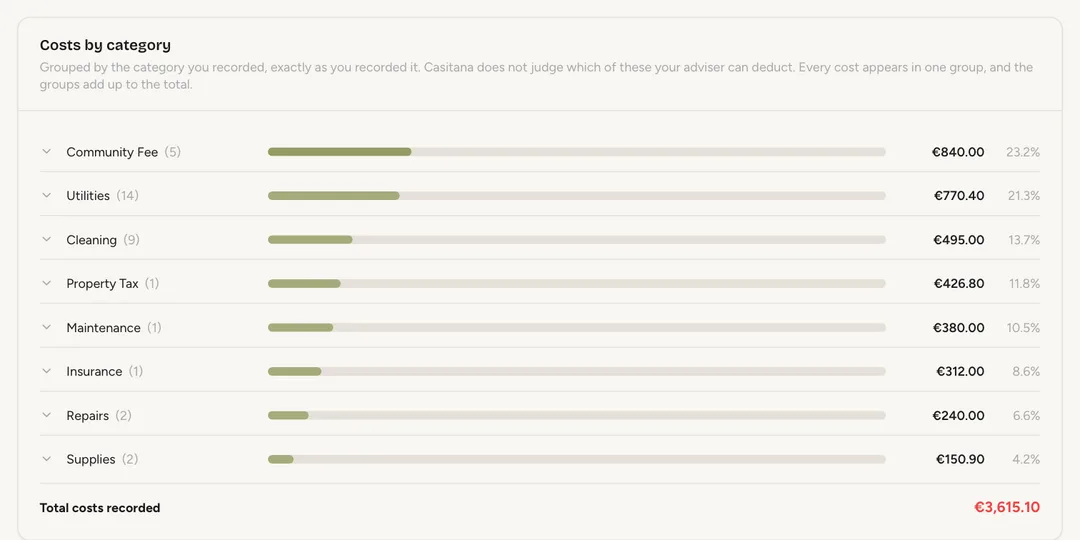
Costs by category
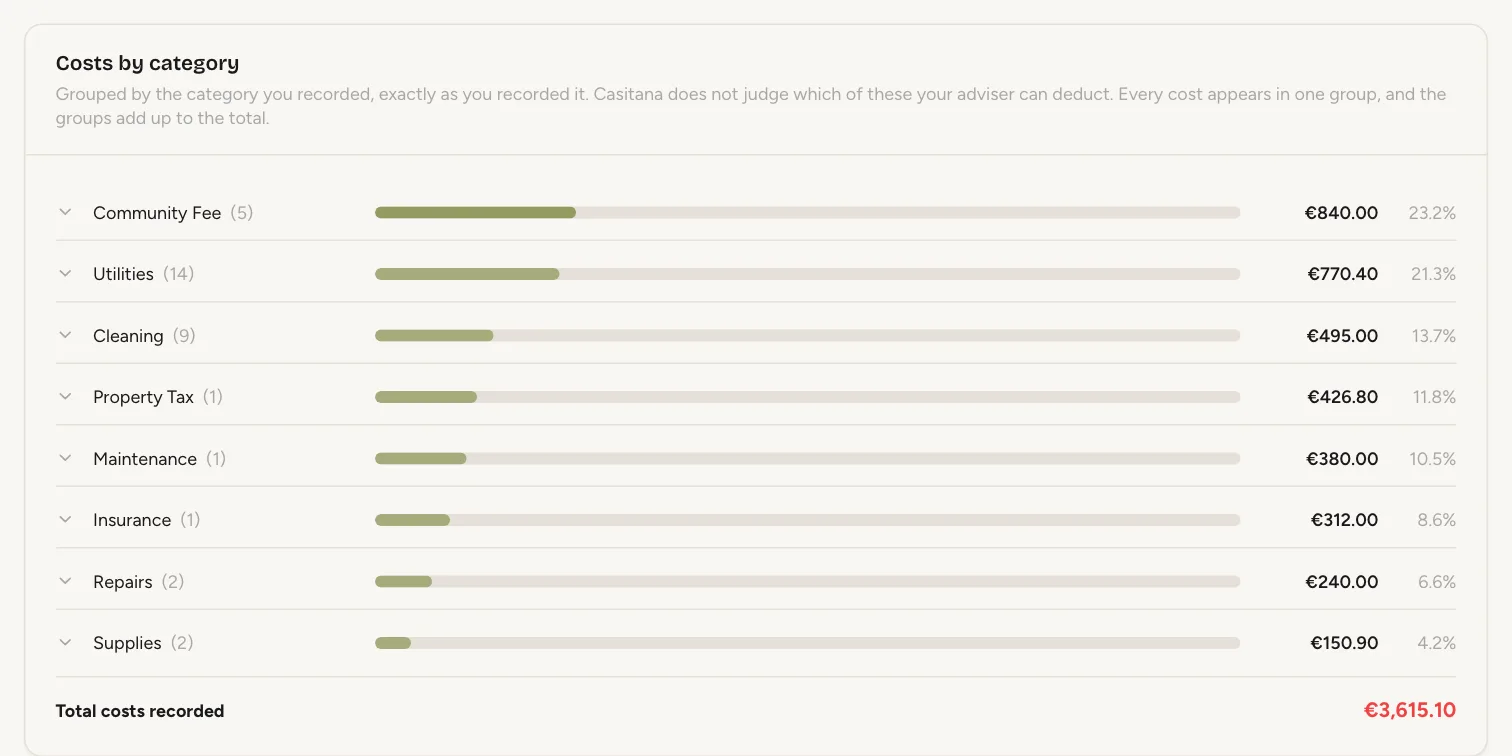
Costs by category groups your costs under the category you gave each one, exactly as you recorded it. Click a category to see its lines. The groups add up to Total costs recorded; Casitana does not judge which of them you can deduct.
 Enlarge screenshot
Tip: Open What this is, and what it is not, near the bottom, for what this page does and does not do.
Step 9
Properties in Spain
When the property you chose is in Spain, or all your properties are, a Filing in Spain? box appears with a link: Open the Modelo 210 dossier. That dossier is what your gestor files a non-resident’s Modelo 210 from: see Modelo 210: prepare the file for your gestor.
Step 10
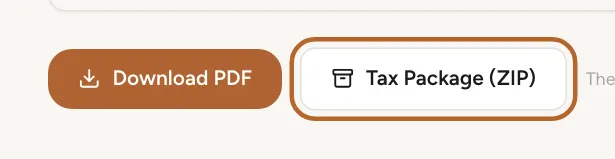
The tax package
At the bottom, next to Download PDF, click Tax Package (ZIP). You get one ZIP file for the year and the property you chose: a Modelo 210 dossier as a PDF for each property, the receipts you attached to that year’s transactions, your certificate of tax residence if you uploaded one, and a read-me that lists anything still missing.
 Enlarge screenshot
Tip: The package does not hold the summary PDF. Download that too if your accountant wants it.