Before you start
A contract names you as the owner, with your ID number.
Step 1
Add your details to the property
Open the property and, in the Spain Compliance Setup card, click Edit. Scroll down to Rental Contract Template, enter your name under Owner legal name, your ID under Owner NIE/DNI/Passport and your address under Owner address, and click Save Changes.
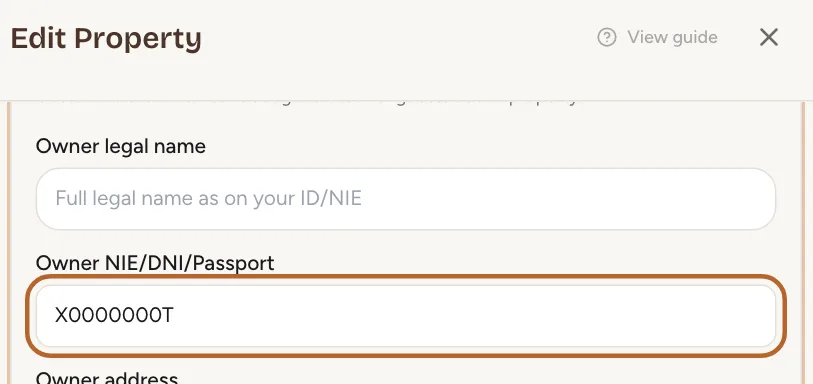 Enlarge screenshot
Tip: A field left empty takes your details from Modelo 210 instead: your legal name, your NIE and your tax residence. With neither, Generate is refused and says what is missing, with Edit property → to add it. The overview in Spain Compliance lists the properties it would refuse. For a property with property owners, the contract takes each one’s ID and address from their property owner record (Tax ID and IBAN), and yours from Modelo 210.
A contract for a stay
For stays at your Spanish properties, contracts live in the compliance hub, next to the guest registration.
Step 2
Open the contracts tab
In the menu on the left, click Spain Compliance, then the Rental Contracts tab on that page. The menu item of the same name opens the contract wizard’s list instead. Every upcoming stay shows its contract status. A stay shows Missing guest data until your guest’s name, document and address are known; once your guest has registered, or you entered the details yourself, it shows Ready to generate.
 Enlarge screenshot
Tip: How your guest registers, and how to enter the details yourself: Send your guest the registration link.
Step 3
Generate the contract
Click Generate. Casitana writes the contract from the booking and your guest’s details; the stay then shows Ready, not sent yet, and View opens the PDF. If the booking already has your guest’s email address, the button reads Generate & Send instead and also sends it for signature (next step).
 Enlarge screenshot
Step 4
Send it for signature
Your guest signs online, from a link Casitana emails them, so the booking needs your guest’s email address. Without one, the stay shows Add guest email first: click Add email and enter it. With it, the button reads Generate & Send and does both at once; for a contract you already generated, click Send for signature. The stay then shows Sent, awaiting signature.
Tip: What your guest sees when they sign: Sign your rental contract.
Step 5
See it signed
When your guest has signed, the stay shows Signed, and View opens the signed contract. You also receive an email.
 Enlarge screenshot
Good to know: The signing link works until the end of the check-out day. If your guest has not signed by then, the stay shows Expired. The stay is over, so no new link can be made; only if the check-out moves to a later date does Generate come back.



Co-owned propertiesIncluded in the Pro plan
For Pro accounts that record property owners. When a property has property owners, you prepare its contract and they sign it with the tenant, so these steps replace sending it for signature. Assign the property owners and your own share on the property page first: see Assign property owners to a property.
Step 6
Who the landlords are
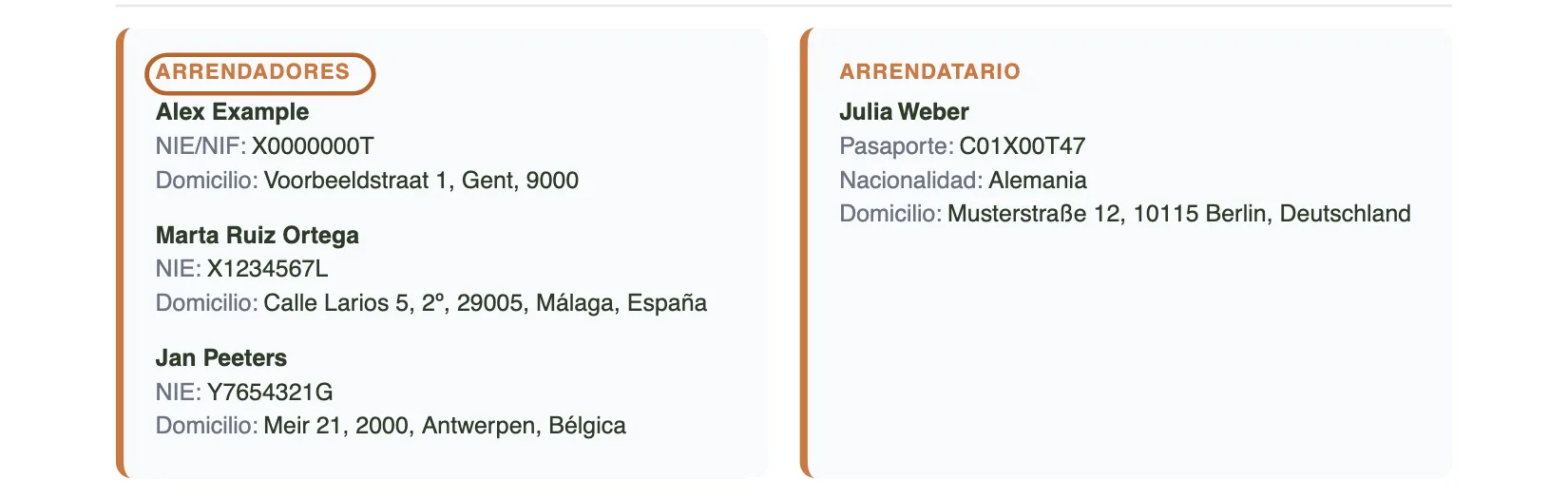
When a property has property owners, its contract names them as the landlords, instead of the landlord details under Rental Contract Template. You are named first when you own part of the property yourself; otherwise you only prepare the contract and do not sign it. No ownership share is printed. A “Preparado por” (Prepared by) line shows the company name from Company branding, or your own name if there is none.
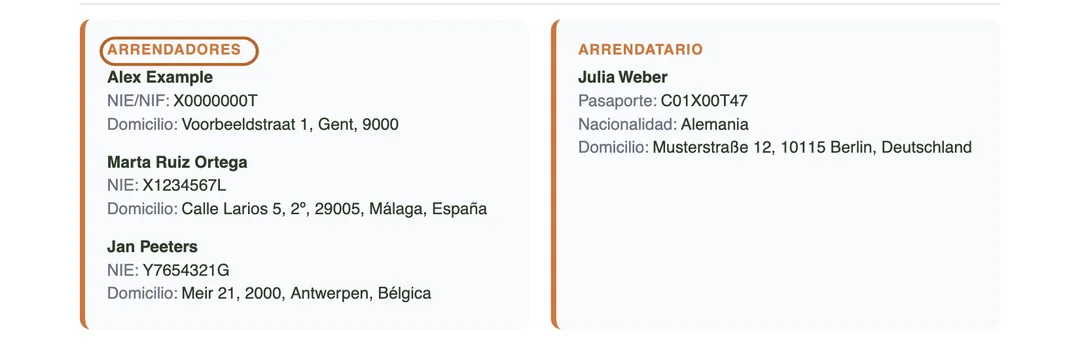 Enlarge screenshot
Tip: Every landlord needs an ID number and an address. If one is missing, Generate names them: add it to their property owner record (Tax ID and IBAN), or, for yourself, your NIE and tax residence in Modelo 210.
Step 7
Generate it, then send it
Click Generate: for a co-owned property this only writes the contract and emails nobody. Check it with View, then click Send to landlords and tenant. Casitana emails the PDF, attached, to the tenant and to every landlord with an email address, and sends you a copy. Replies come to your own email address. The stay then shows Sent to landlords and tenant.
 Enlarge screenshot
Tip: Sending needs your guest’s email address on the booking. Without it, the stay shows Add guest email first: click Add email.
Good to know: Each receives it in their own language: a property owner in the one chosen under Language for statements on their record, else your account’s; the tenant in your guest’s language.
Step 8
A landlord who was not sent it
A landlord with no email address on their property owner record, or whose address has bounced or reported spam before, is skipped and named under the stay. The others still receive it. Click View to download the PDF, and send it to them yourself.
Tip: Add their email address to their property owner record, so the next contract reaches them: Edit or delete.
Step 9
Signing it
The landlords and the tenant sign the contract outside Casitana, for example on paper. There is no online signing link for a co-owned property; under the stay you see Co-owned: the landlords and the tenant sign outside Casitana.
 Enlarge screenshot
Step 10
Mark it as signed
Once the landlords and the tenant have signed, click Mark as signed under the stay. Choose the date under Signed on (today unless you change it) and, if you like, add the signed copy under Signed copy (optional): a PDF, JPG or PNG of up to 10 MB. Then click Mark as signed in the dialog to confirm. The stay then shows Signed with the date, and Signed copy opens the copy, which is also kept in Documents.
Tip: The button appears once the contract is sent. Marked it by mistake? Undo signed puts it back to sent; a copy you uploaded stays in Documents.


Long-term and seasonal contracts
For a let that is not a holiday stay, or for a contract you want to word yourself, use the contract wizard.
Step 11
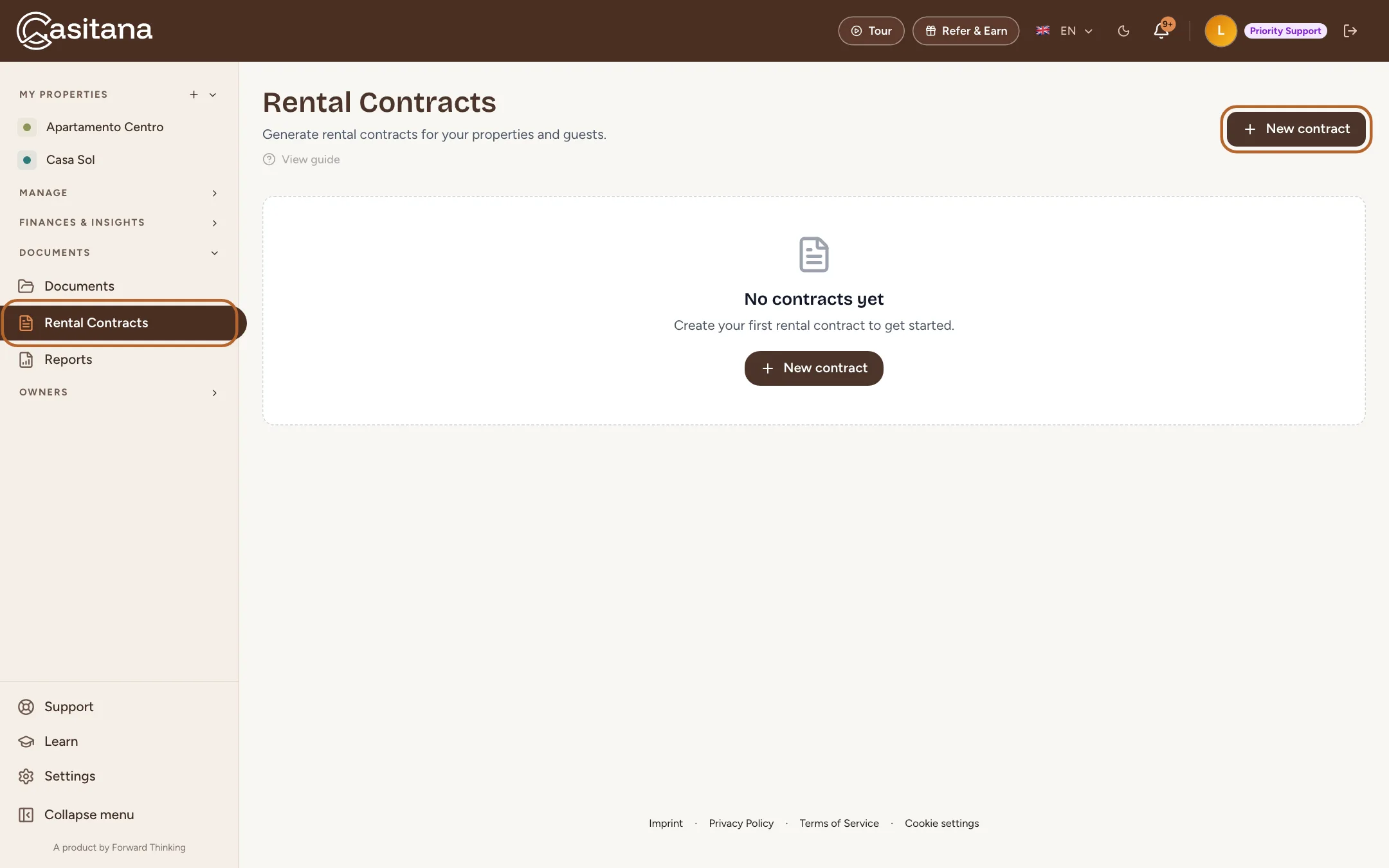
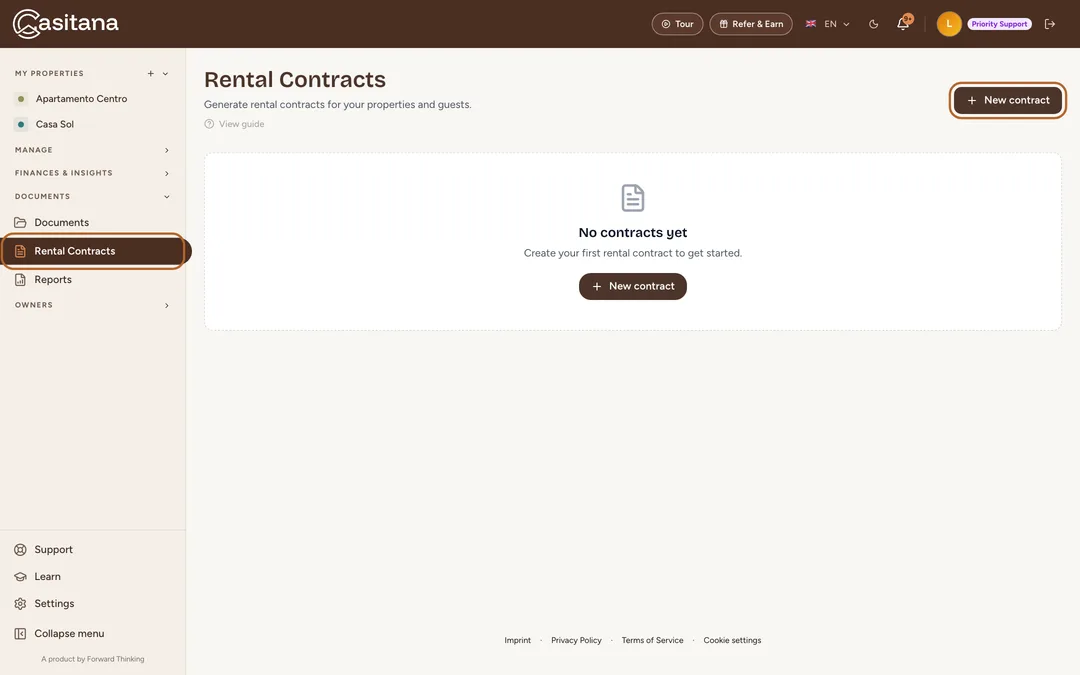
Open Rental Contracts
In the menu on the left, click Rental Contracts, then New contract.
 Enlarge screenshot
Step 12
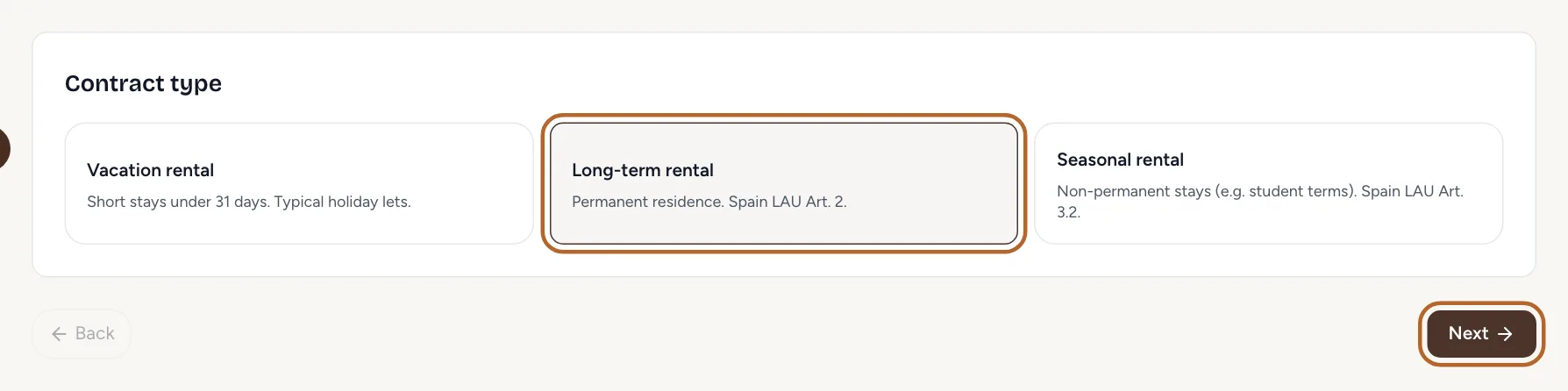
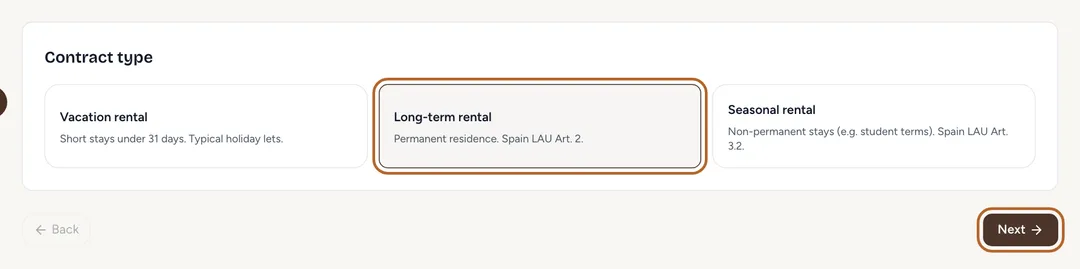
Choose the type and the property
Choose Vacation rental, Long-term rental or Seasonal rental, and click Next. Then choose the property (the first one is already selected), and click Next again.
 Enlarge screenshot
Step 13
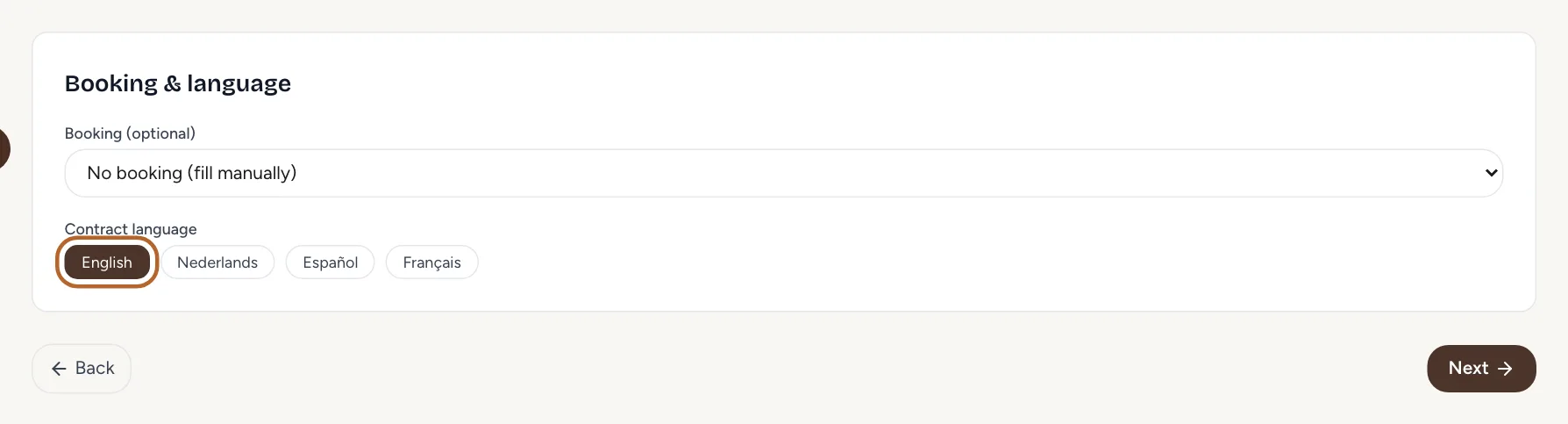
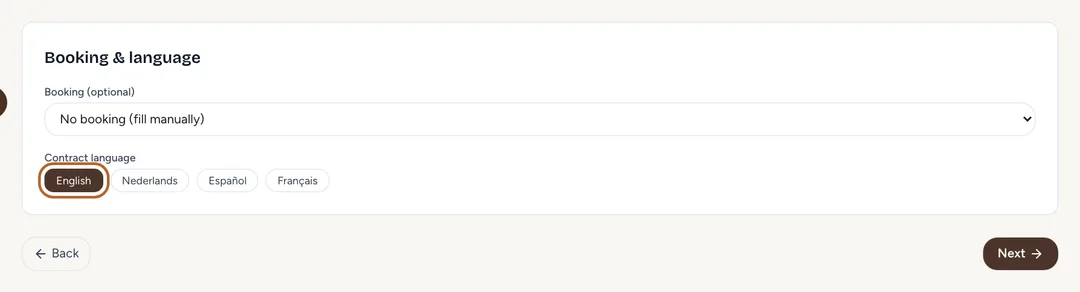
Pick a booking and the language
Link a booking if there is one, or choose No booking (fill manually) under Booking (optional) to fill in the tenant yourself. Choose the Contract language: English, Dutch, Spanish or French.
 Enlarge screenshot
Step 14
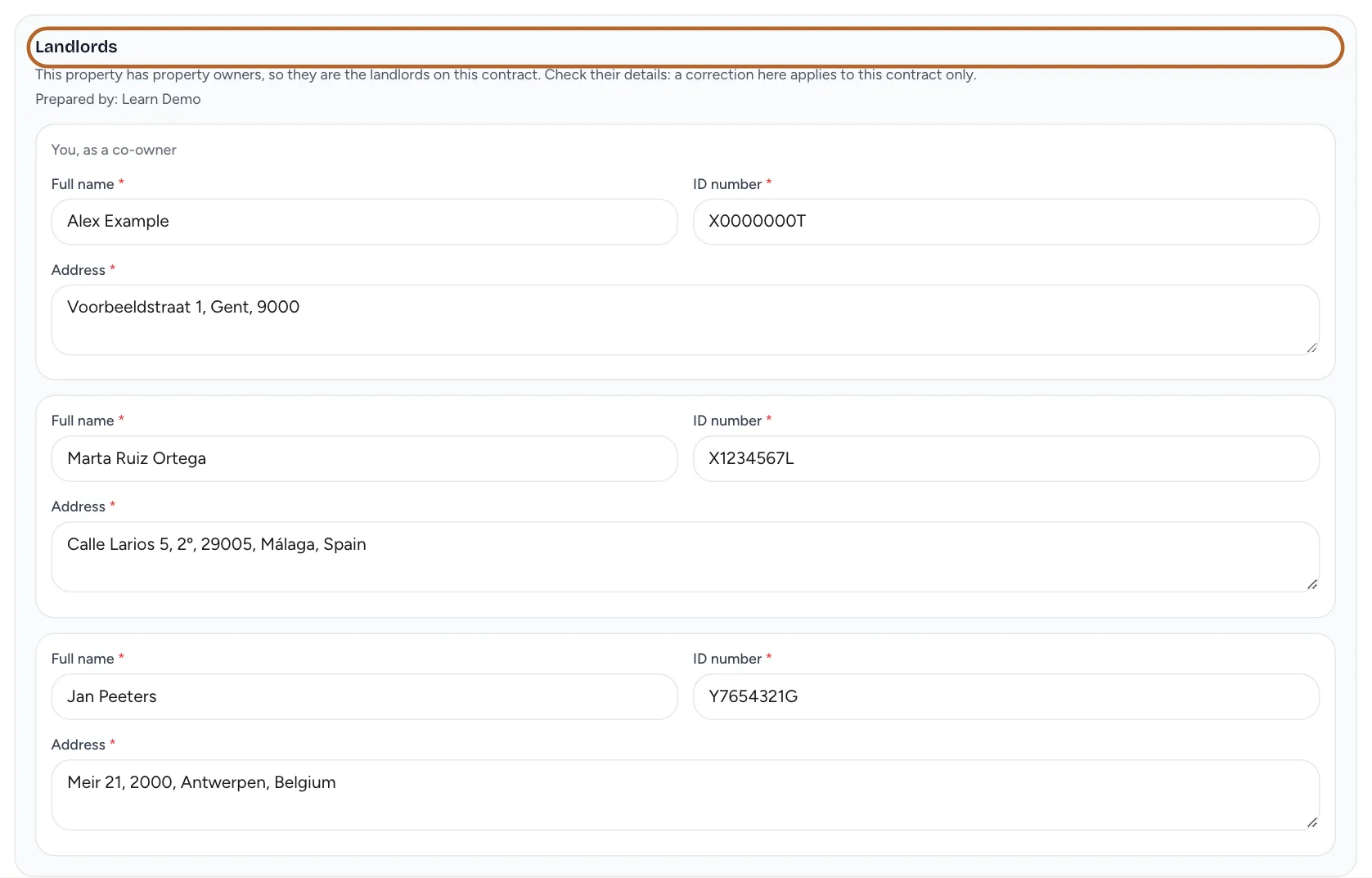
Check the landlords
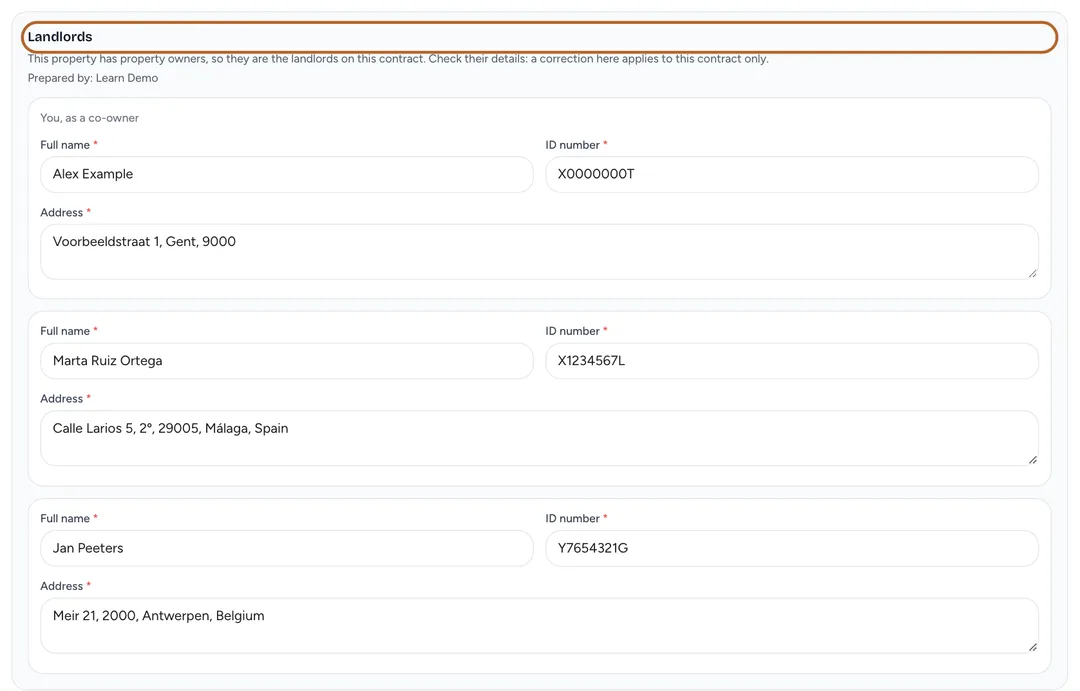
For a property with property owners, the details step lists them under Landlords (Landlord when there is one), with the ID numbers and addresses from their property owner records, and you first when you own part of the property yourself. Correct a detail here if this contract needs it: their records do not change. The contract names every landlord, gives each a signature line beside the tenant’s, and carries a “Prepared by” line with your company name from Company branding, or your own name if there is none. No ownership share is printed.
 Enlarge screenshot
Tip: Every landlord needs a full name, an ID number and an address before you can go on.
Step 15
Complete the details
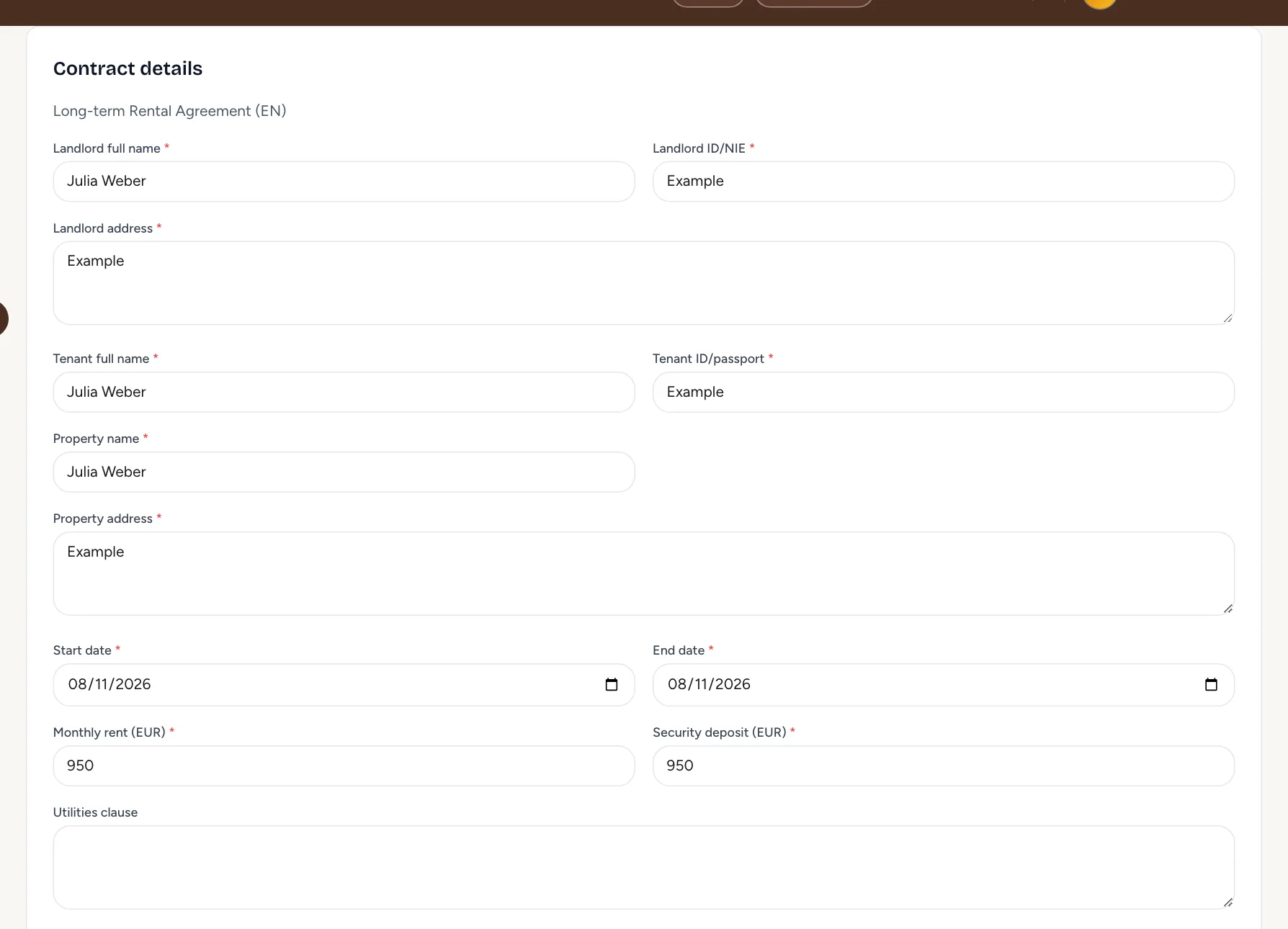
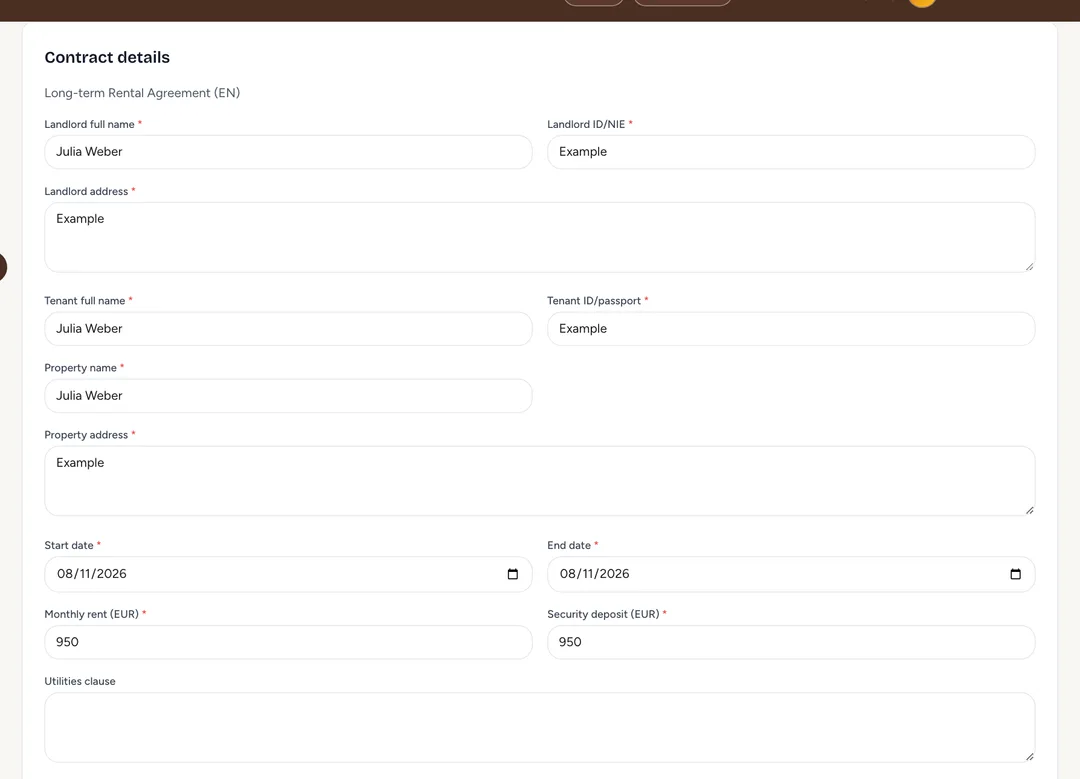
Casitana fills in what it knows from the property and the booking. Your name, ID and address as the landlord come from the property’s Rental Contract Template, or else from Modelo 210. Complete the fields marked with an asterisk: Next stays greyed out until every one is filled. Then click Next.
 Enlarge screenshot
Step 16
Generate it
Casitana fills in a Contract title; change it if you like. Choose Use default template for Casitana’s wording, or Write your own, and click Next. Then click Generate contract.
 Enlarge screenshot
Step 17
Download it, send it, record it
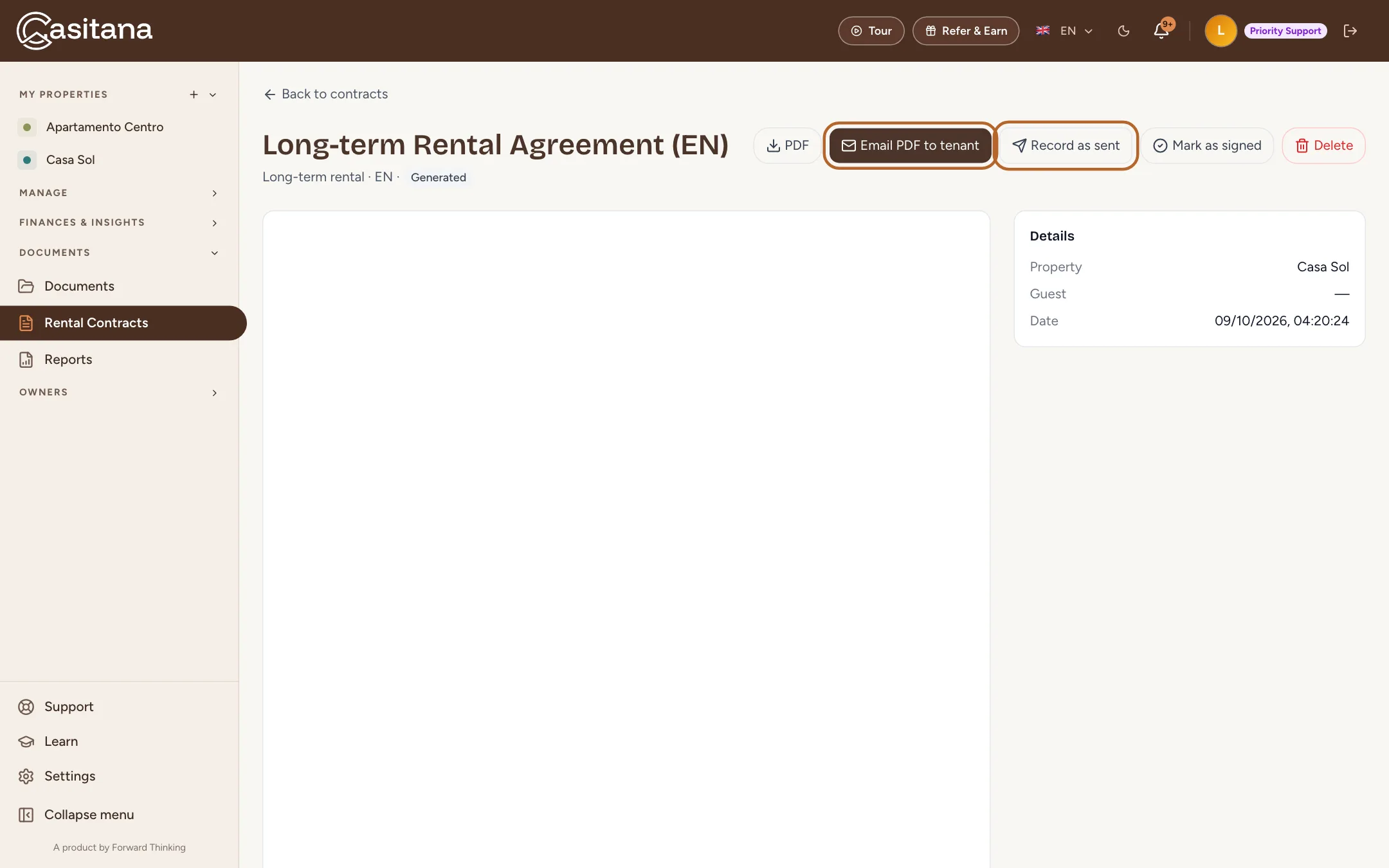
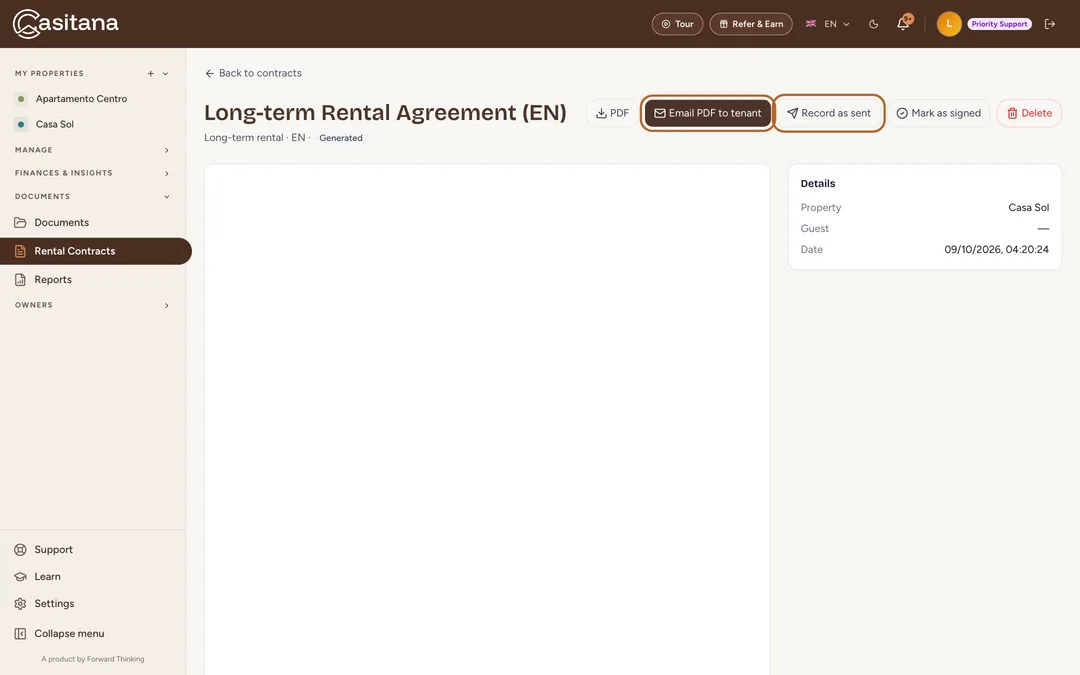
The contract opens with its PDF; PDF downloads it. Email PDF to tenant emails it to the tenant. With no booking linked, it first asks for the tenant’s email address, used once and not saved: type it and click Send. If you sent it another way, click Record as sent.
 Enlarge screenshot
Good to know: These contracts are not signed online: Record as sent and Mark as signed record what you did yourself.
Step 18
Send it to every landlord
For a property with property owners, the contract shows Send to landlords and tenant instead of Email PDF to tenant. Click it; with no booking linked, type the tenant’s email address and click Send. As for a stay’s contract, Casitana emails the PDF to the tenant and to every landlord with an email address, each in their own language, and sends you a copy. A landlord without an address is named, so you can send it to them yourself.
 Enlarge screenshot
Step 19
Mark it as signed
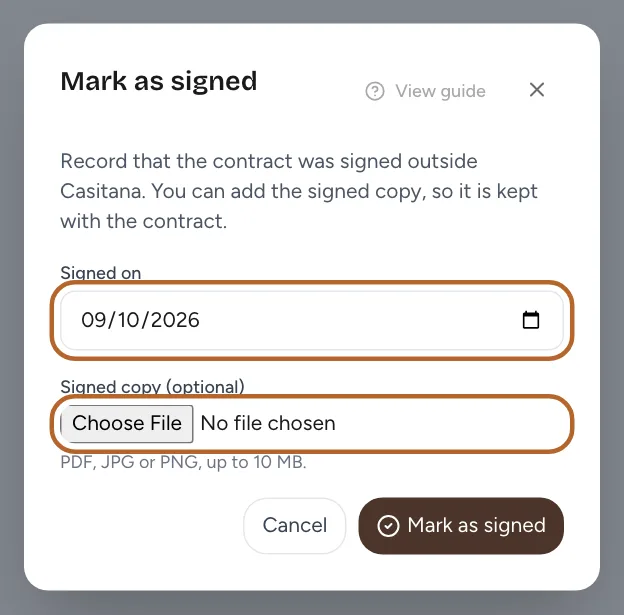
Once it is signed, click Mark as signed. Choose the date under Signed on (today unless you change it) and, if you like, add the signed copy under Signed copy (optional): a PDF, JPG or PNG of up to 10 MB. Then click Mark as signed in the dialog to confirm. The contract then shows when it was signed, and Signed copy opens the copy, which is also kept in Documents.
 Enlarge screenshot
Tip: Marked it by mistake? Undo signed puts it back to sent, or to generated if you never sent it; a copy you uploaded stays in Documents.