Find support
Step 1
Open Support
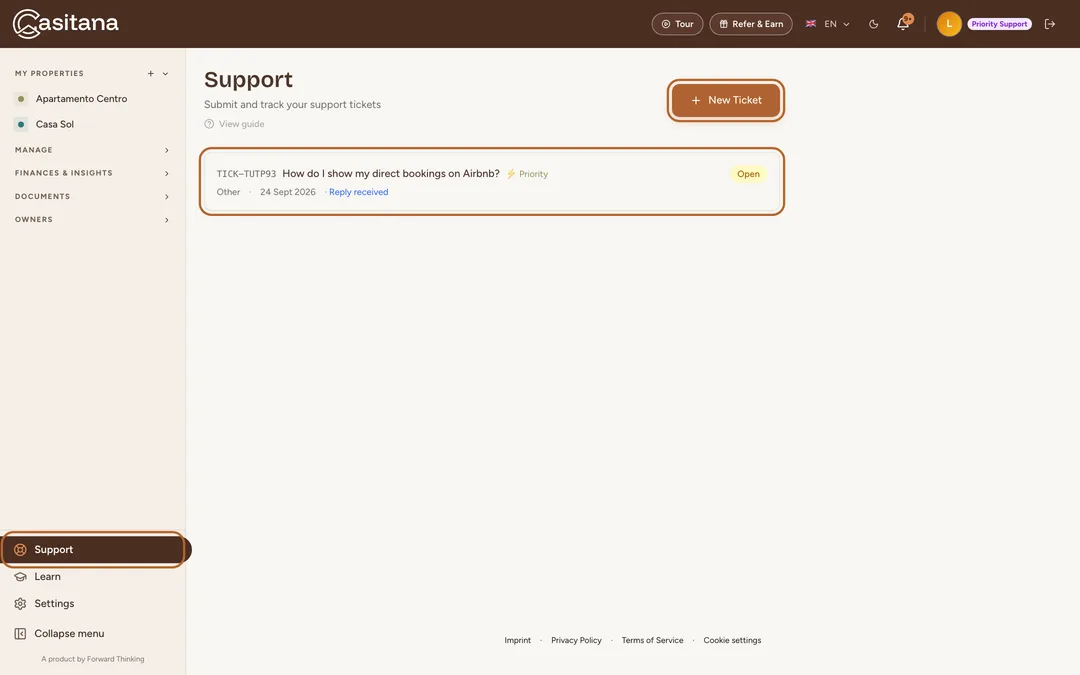
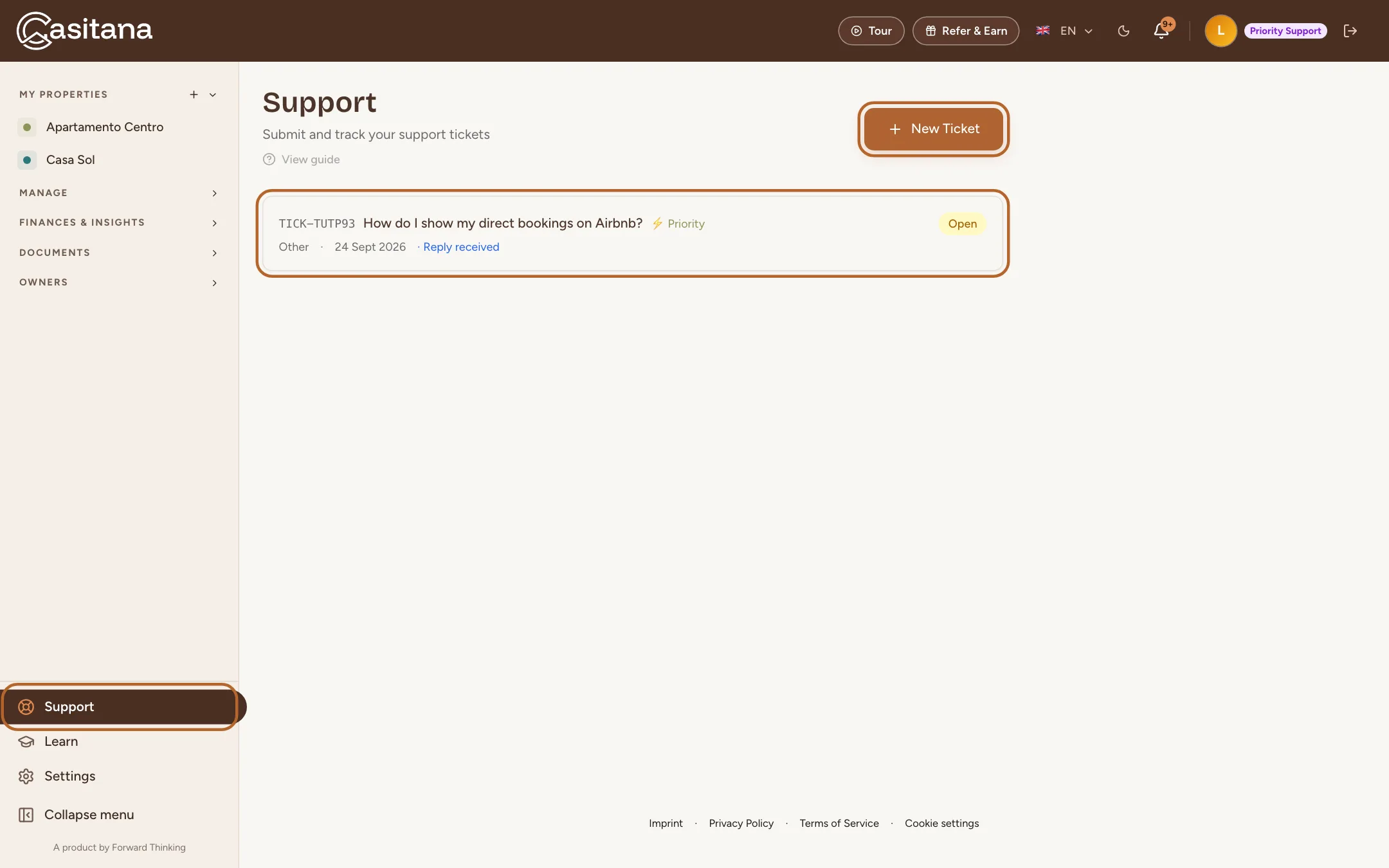
At the bottom of the menu on the left, click Support. You see every ticket you opened, with its status. Tickets the team has answered say Reply received.
 Enlarge screenshot
Open a ticket
Step 2
Describe your question or problem
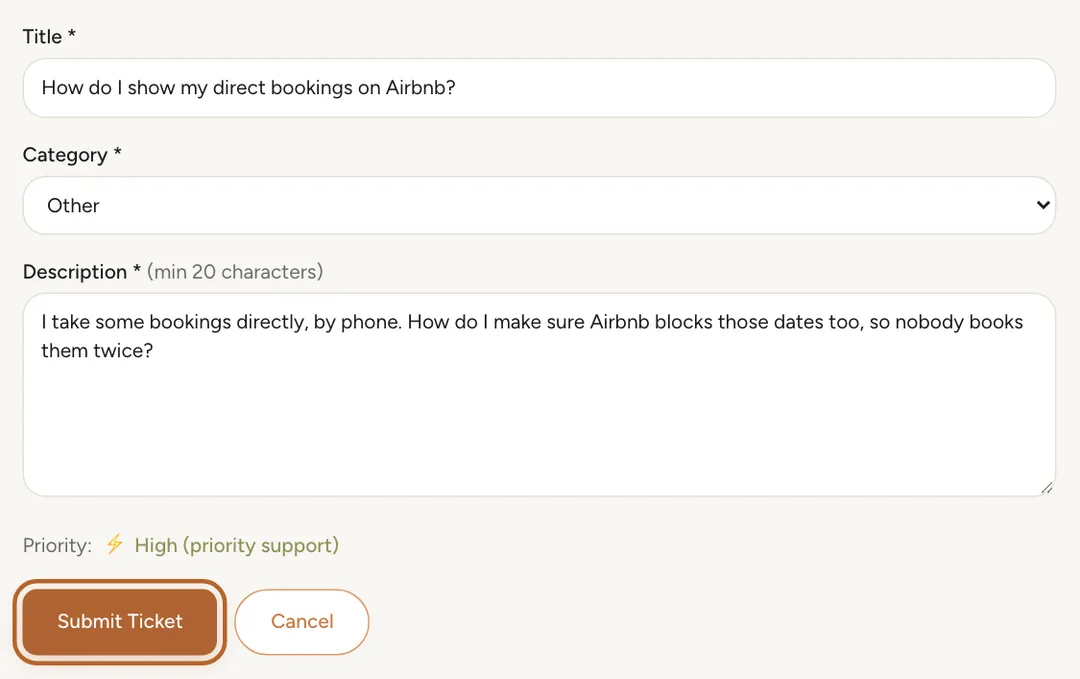
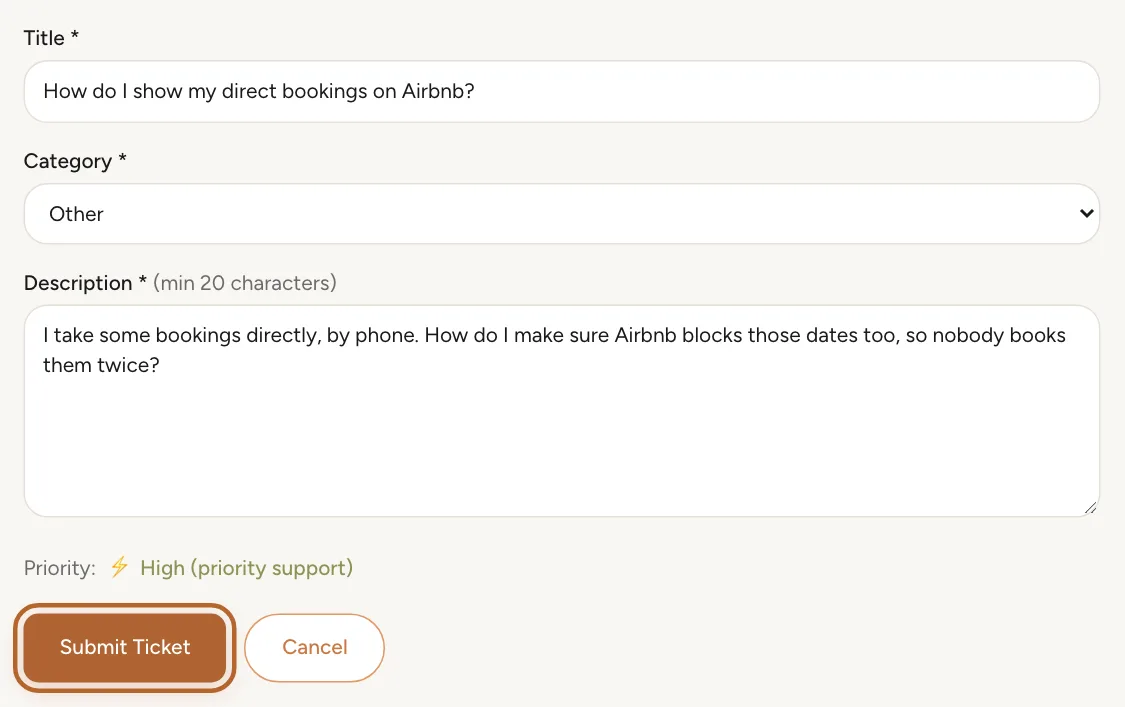
Click + New Ticket. Give the ticket a short title, choose a Category and describe what happened: what you did, what you expected and what you saw. Then click Submit Ticket.
 Enlarge screenshot
Tip: The more precise the description, the faster the answer: the property, the booking or the screen concerned, and the date.
Step 3
After you send it
Casitana shows the ticket’s number and adds it to your list with the status Open. You can close the page: the team’s reply comes to you.
The reply, and your answer
Step 4
Read the reply
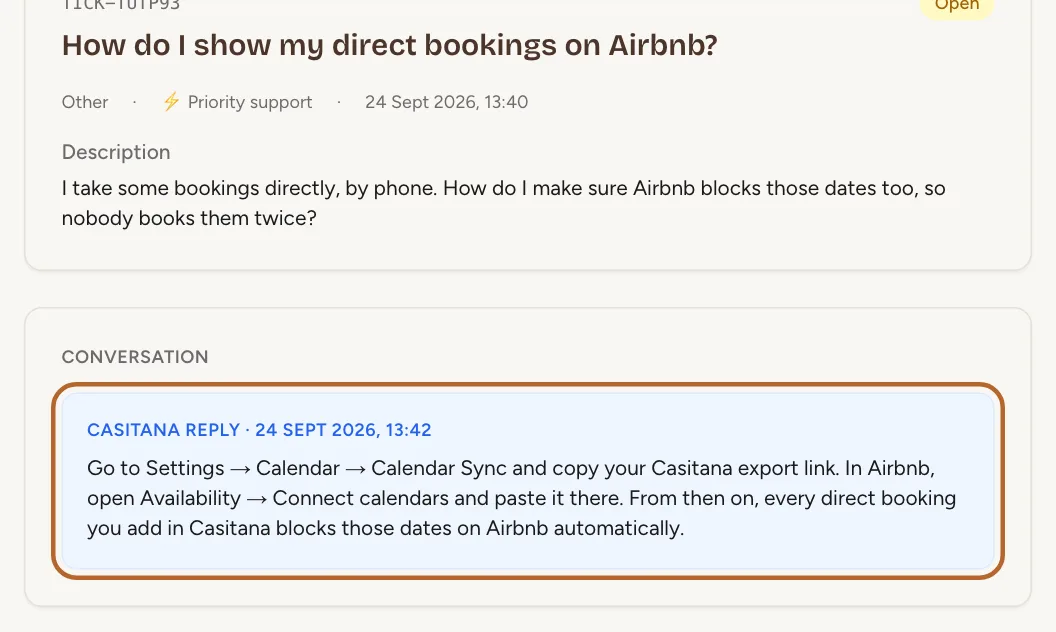
When the team answers, the ticket moves to In Progress and the bell at the top of the screen shows a notification. Click it, or the ticket in your list: the reply is under your description, with its date.
 Enlarge screenshot
Step 5
Answer in the same ticket
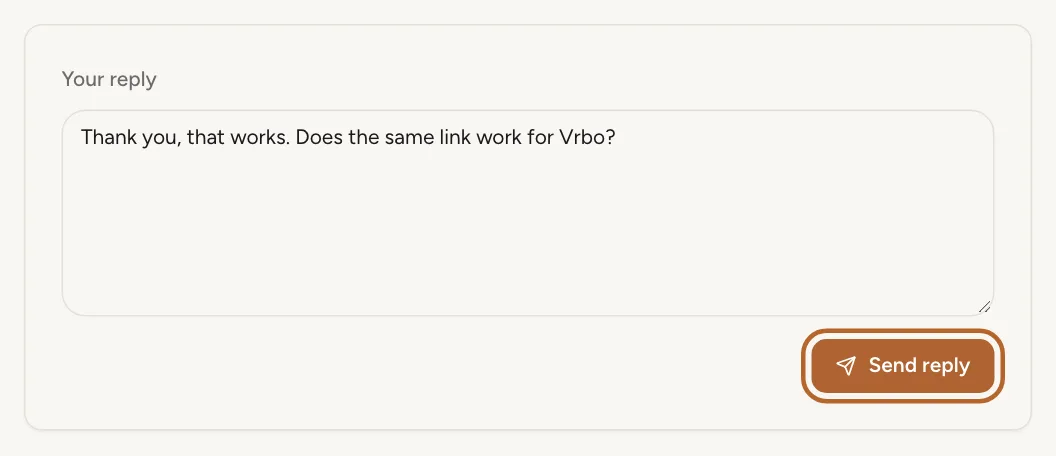
Need to add something, or answer a question from the team? Type it in the box under the conversation and send it. It stays in the same ticket, with everything said before.
 Enlarge screenshot
Step 6
A closed ticket
When your question is settled, the team closes the ticket. A closed ticket can no longer be answered: open a new one if something else comes up.
In the appApp
Step 1
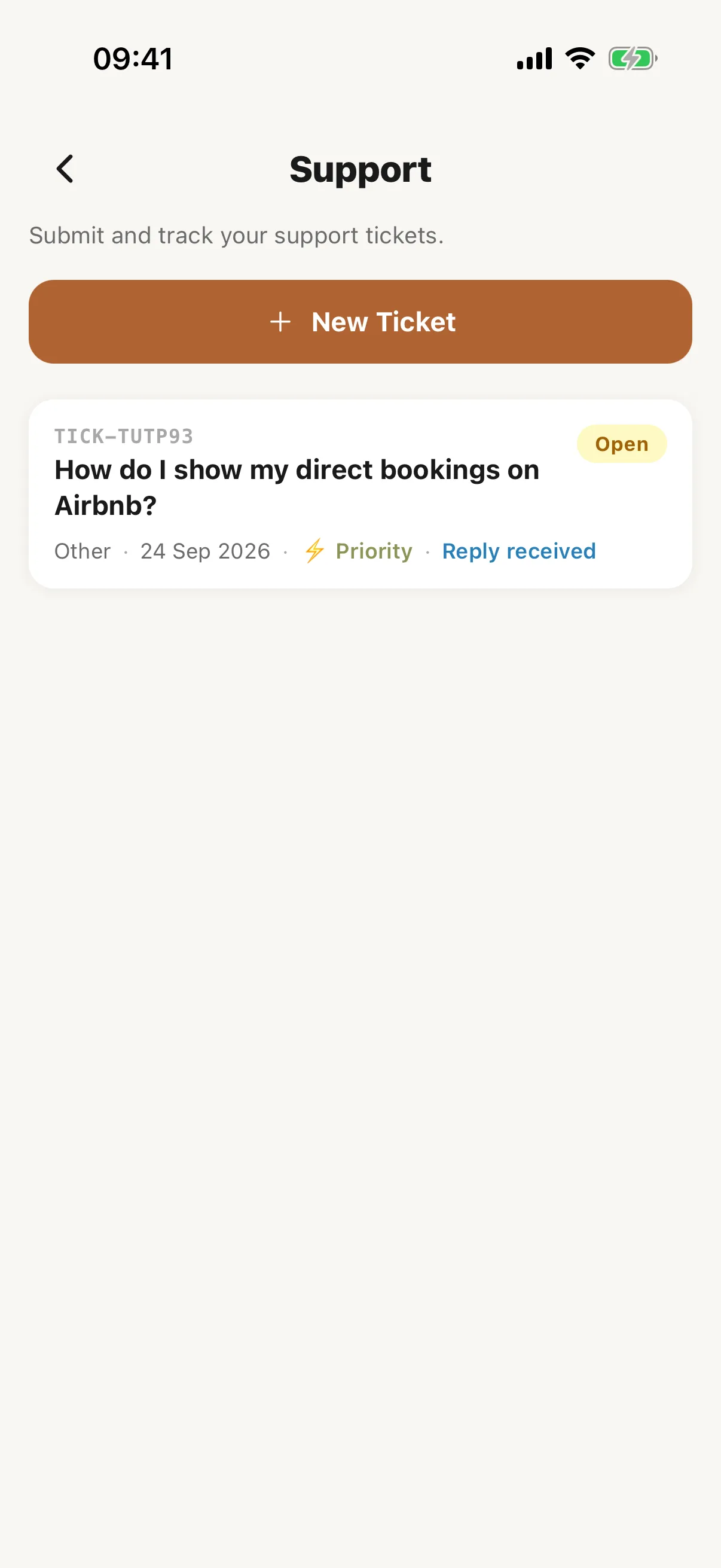
Open Support in the app
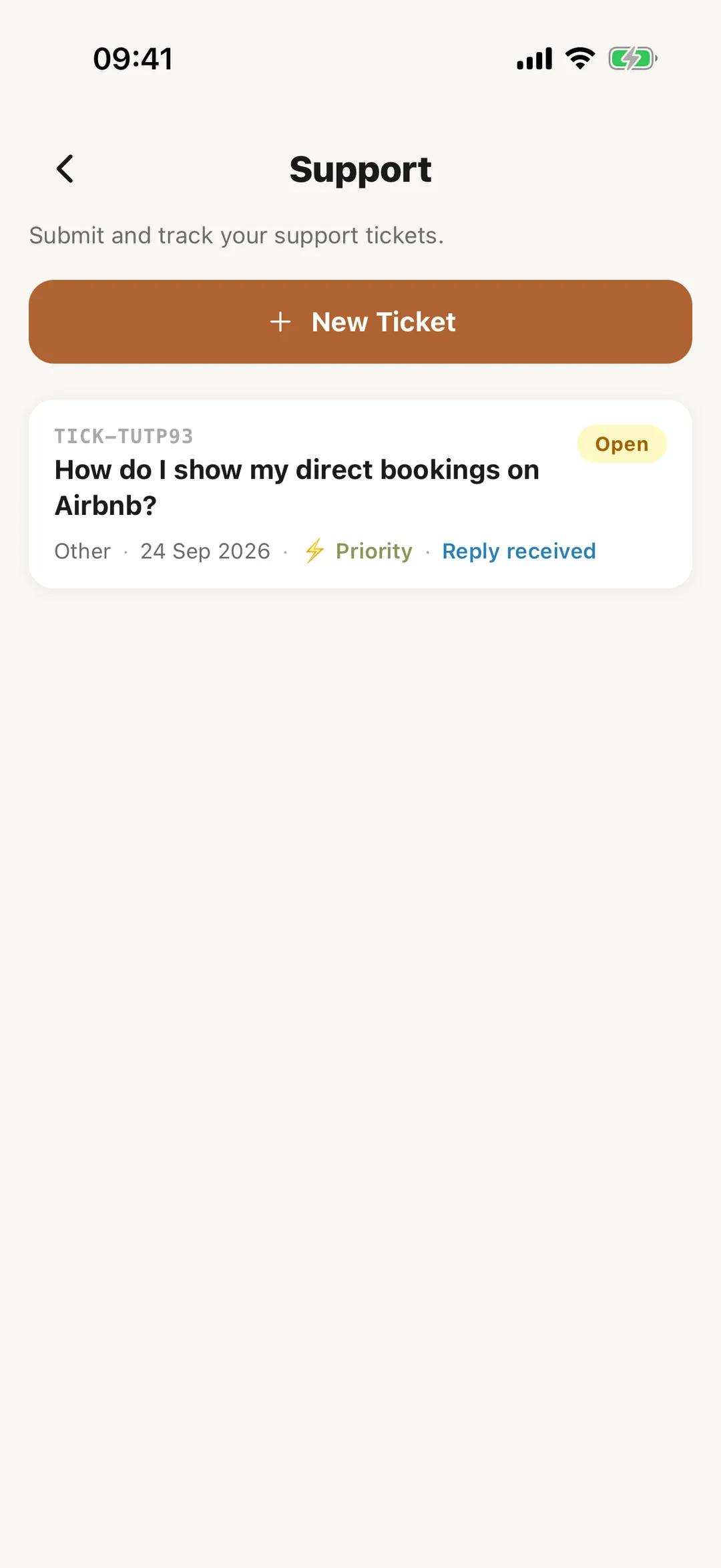
Open More, then Support under Help. These are the same tickets as on the website. Each one shows its status (Open, In progress, Resolved or Closed), and an answered one says Reply received.
 Enlarge screenshot
Step 2
Open a new ticket
Tap New Ticket and fill in Subject, Category (Bug report, Feature request, Billing or Other) and Message, which needs at least 20 characters. Tap Create ticket; the app shows Ticket created with its number. Reply email shows the address your replies are emailed to.