
Upload a document
Step 1
Open Documents
In the menu on the left, click Documents. Click Upload at the top right.
 Enlarge screenshot
Step 2
Choose the file and describe it
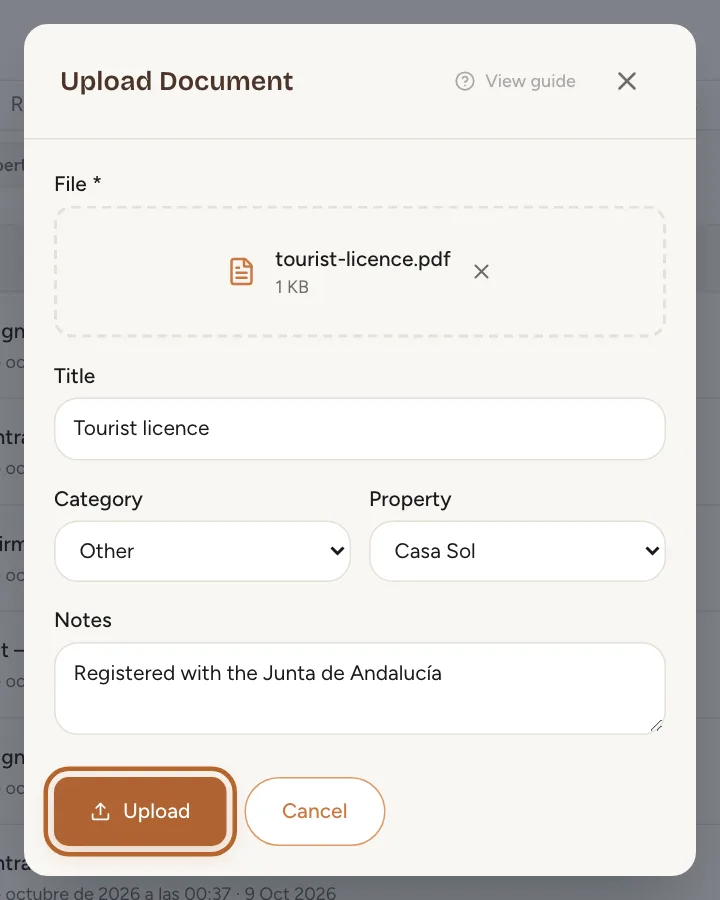
Click the dashed box and choose a file on your computer. Give it a Title you will recognise, pick a Category (your tourist licence goes under Licence), and under Property choose the property it belongs to, or General for a paper that is not about one property. Add Notes if they help, then click Upload.
 Enlarge screenshot
Tip: Leave the title empty and Casitana uses the file’s name.

Find and download a document
Step 3
Find a document
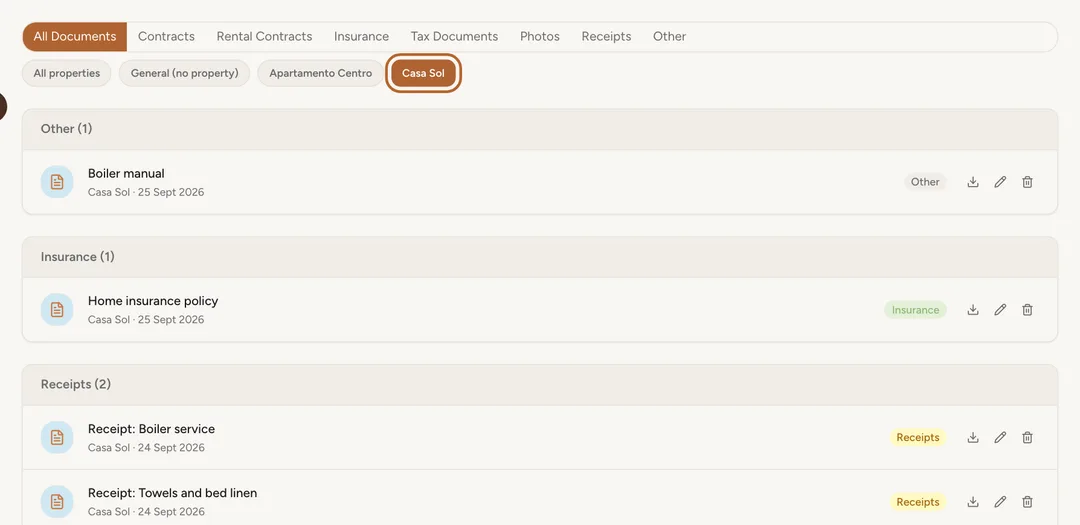
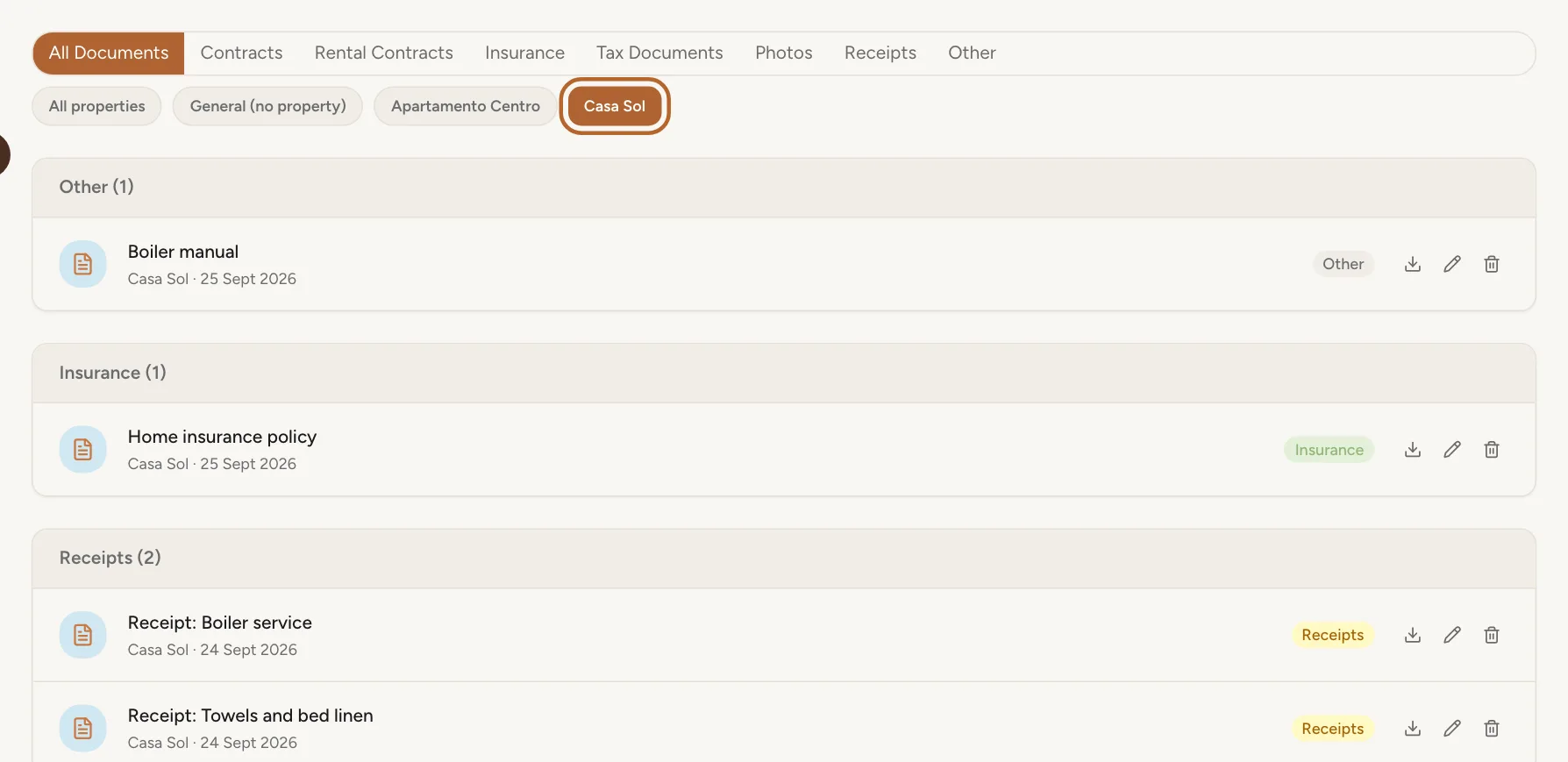
Your documents are grouped by category. Click a category in the row at the top, such as Insurance, to see only those. Click a property’s name under it to see only that property’s documents, or General (no property) for the rest. All Documents and All properties show everything again. To find one by name, type part of its title in the Search by title box above the categories. A long list shows its first documents; Load more at the bottom shows the next ones.
 Enlarge screenshot
Step 4
Recognise a photo at a glance
A photo shows a small preview at the start of its row, so you can tell which one it is without opening it. A PDF or a Word document shows the icon of its type.
Step 5
Open a document
Click a document’s name, or its preview, to open it in Casitana. Photos and PDFs show straight away. With the previous and next arrows, or the ← and → keys, you move through the documents in the order of the list, and Download saves the one you are looking at. A Word document cannot be shown and offers Download instead.
Tip: Photos and files you add to a repair in Property Care open in the same viewer.
Step 6
Download a document
Click the arrow at the end of the document’s row, or Download in the open document. The file is saved on your computer, named after the document’s title.
 Enlarge screenshot
Step 7
Rename or delete a document
Click the pencil on a row to change the title or the category, then the tick to save. The bin moves the document to the trash once you confirm, and you can restore it from there for 30 days (The trash: restore what you deleted).

Receipts and repair files
Some documents arrive on their own: Casitana files a copy of them here for you.
Step 8
Receipts from your expenses
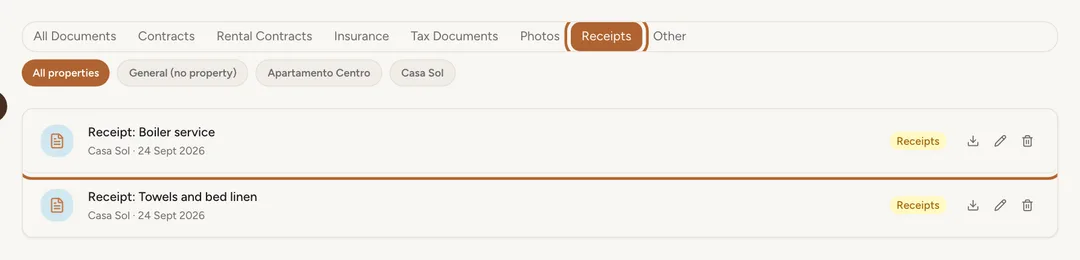
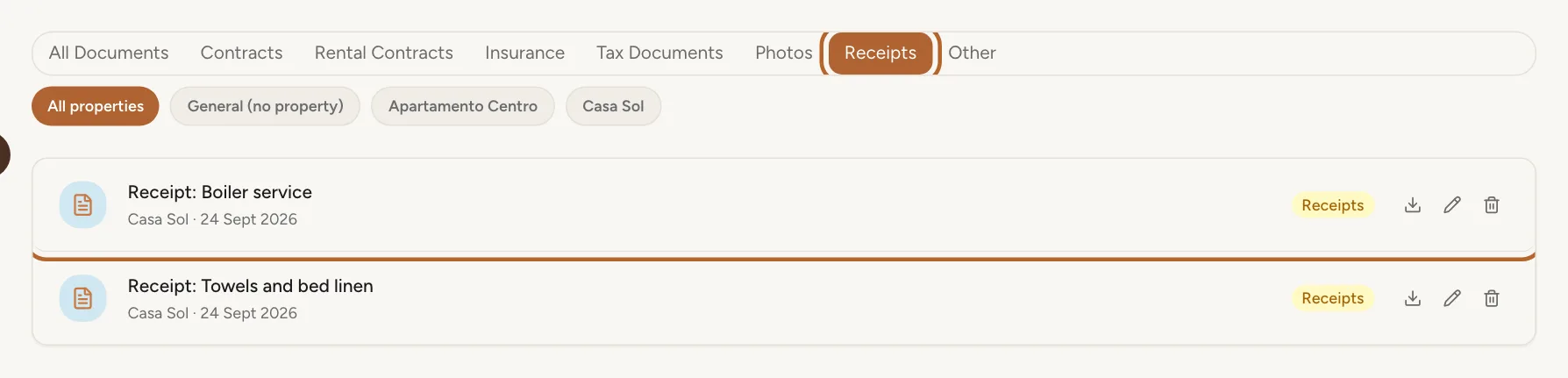
Every receipt you attach to an expense in Income & Expenses is also filed here, as “Receipt:” followed by the expense’s description. Click Receipts to see them all. How to attach one: Attach the receipt.
 Enlarge screenshot
Tip: A receipt belongs to its expense. Deleting it here also deletes the file, so the expense loses its receipt too. To replace or remove a receipt, open the expense in Income & Expenses.
Step 9
Repair files, stay contracts and your tax certificate
Photos and files you add to a repair in Property Care are filed here under their file name: see Add a photo. The contract you generate for a stay is filed under Rental Contracts: see Generate the contract. The certificate of tax residence you upload for your Modelo 210 is kept here as well: see The certificate of tax residence.
Step 10
Police forms for France
The police forms your guests in France signed are listed under Police forms (France). Click one to open its PDF. They are not files you uploaded: they cannot be renamed or deleted here, and they go on their own six months after check-out. More: Signed forms.
Limits
Step 11
How many documents your plan keeps
The Free plan keeps up to 50 documents, Starter 250 and Growth 1,000. Pro has no limit. On a plan with a limit, the line under the title shows how many you have used: it counts everything on the page, receipts, repair files and contracts included. When you reach the limit, Upload offers an upgrade instead of the form. Receipts you attach to an expense are still filed.
 Enlarge screenshot
Step 12
File size and file types
You can upload PDFs, photos (JPG, PNG, WebP or GIF) and Word documents, up to 5 MB each, as the upload window reminds you: “PDF, images, Word (max 5 MB)”. A larger file is refused and nothing is saved: scan the paper at a lower resolution, or split it into two files.
Good to know: Casitana accepts up to 50 uploads an hour: documents, receipts and property photos together. If you are adding a whole archive at once and reach that, wait a while and continue.
