
What it is
Step 1
Your brand on what you send
Your logo, and if you like your company name, CIF or VAT number and address, are kept with your account for the documents and emails Casitana sends on your behalf.
Step 2
Part of Pro
Company branding is available on the Pro plan. On another plan, see Choose a paid plan.
Step 3
Where your logo appears
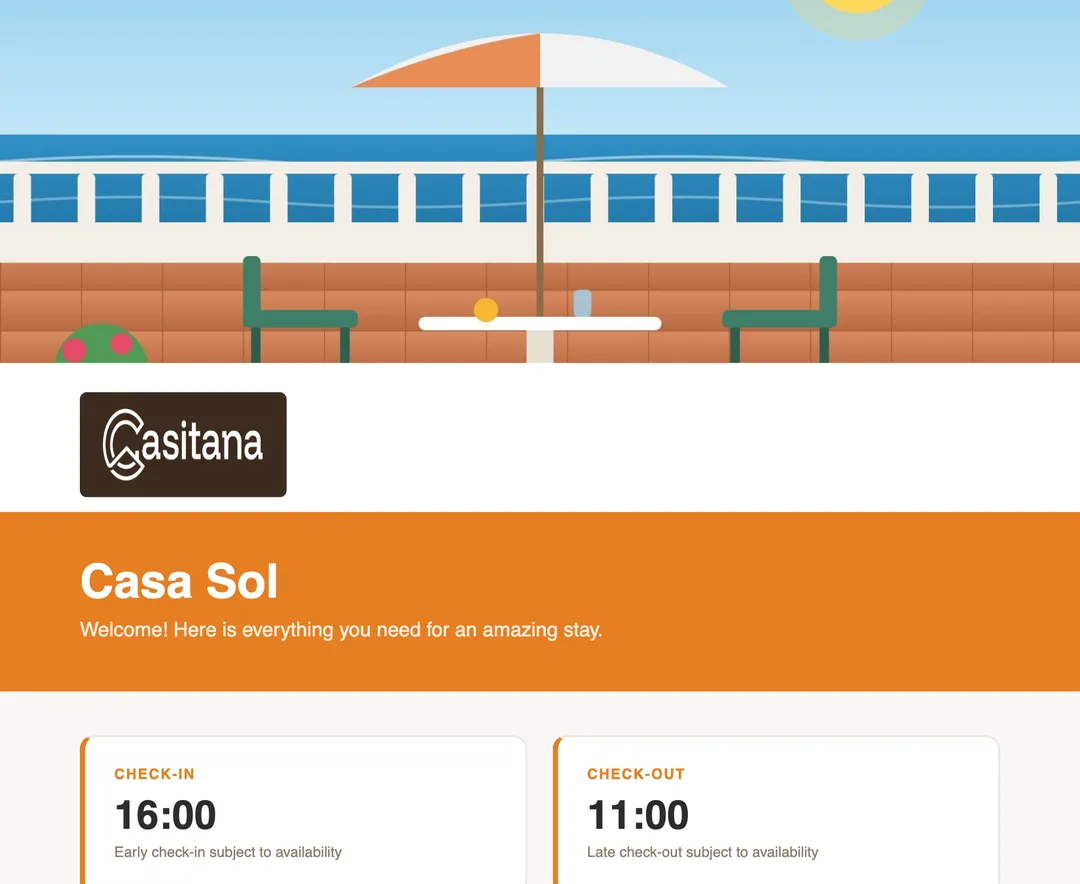
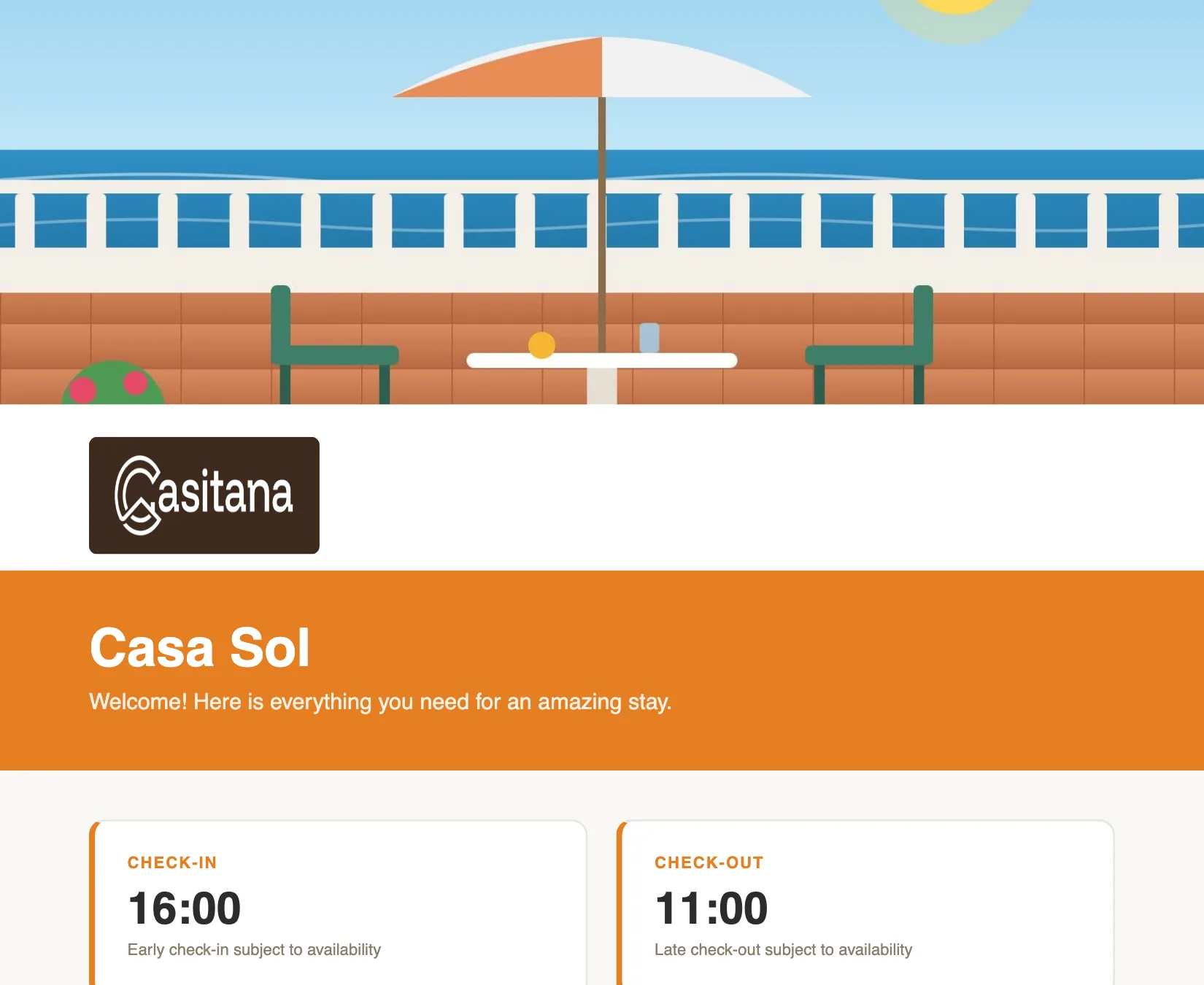
Your logo and company details appear on seven PDFs. For you and your gestor: the monthly overview (Monthly overviews) and the annual tax summary (Tax summary: your year in figures), whether you download them or send them by email, and the Modelo 210 dossier (Modelo 210: prepare the file for your gestor), both on its own and inside the tax package. For your guests: the welcome pack and the area guide (Your guest page and area guide), downloaded on the website or in the app, where your logo sits on the cover, under the photo. For your tenants and property owners: the rental contracts (Rental contracts), both the booking contract, including the copy your guest signs online, and the contracts you make with the contract wizard, where your logo heads the first page. On these documents your brand takes the place of Casitana's, and Casitana signs once, in a small "Made with Casitana" line at the bottom, in the document's language. The dossier keeps its line saying it is not a tax return, and a booking contract signed online keeps the line saying it was signed through Casitana. Your logo also heads the emails sent in your name: your automatic guest emails (Automations: the emails your guests receive), the guest registration form, the contract emails to your guests and property owners, the cleaning task email to your cleaners and the invitation to a new staff member. Your company name, if you added it, sits beside the logo. Casitana signs these once too, in a small "Sent with Casitana" line at the very bottom, after the usual footer that names the company behind Casitana. Some email programs hide images until the reader allows them: your company name, or your own name, is shown in the logo's place.
 Enlarge screenshot
Good to know: If you remove your logo, or your plan is no longer Pro, these documents and emails go back to exactly how they looked before, and emails you already sent no longer show the logo. A booking contract your guest signs later carries the logo you have when they sign.
Step 4
Without a logo
Until you add a logo, Casitana’s own name heads the monthly overview, the tax summary, the Modelo 210 dossier, the welcome pack and the area guide, in the place your logo would take. The rental contracts carry no logo at all, and a small line at the bottom names Casitana. The same holds if you move to a plan below Pro.
 Enlarge screenshot

Add your logo
Step 5
Open the card
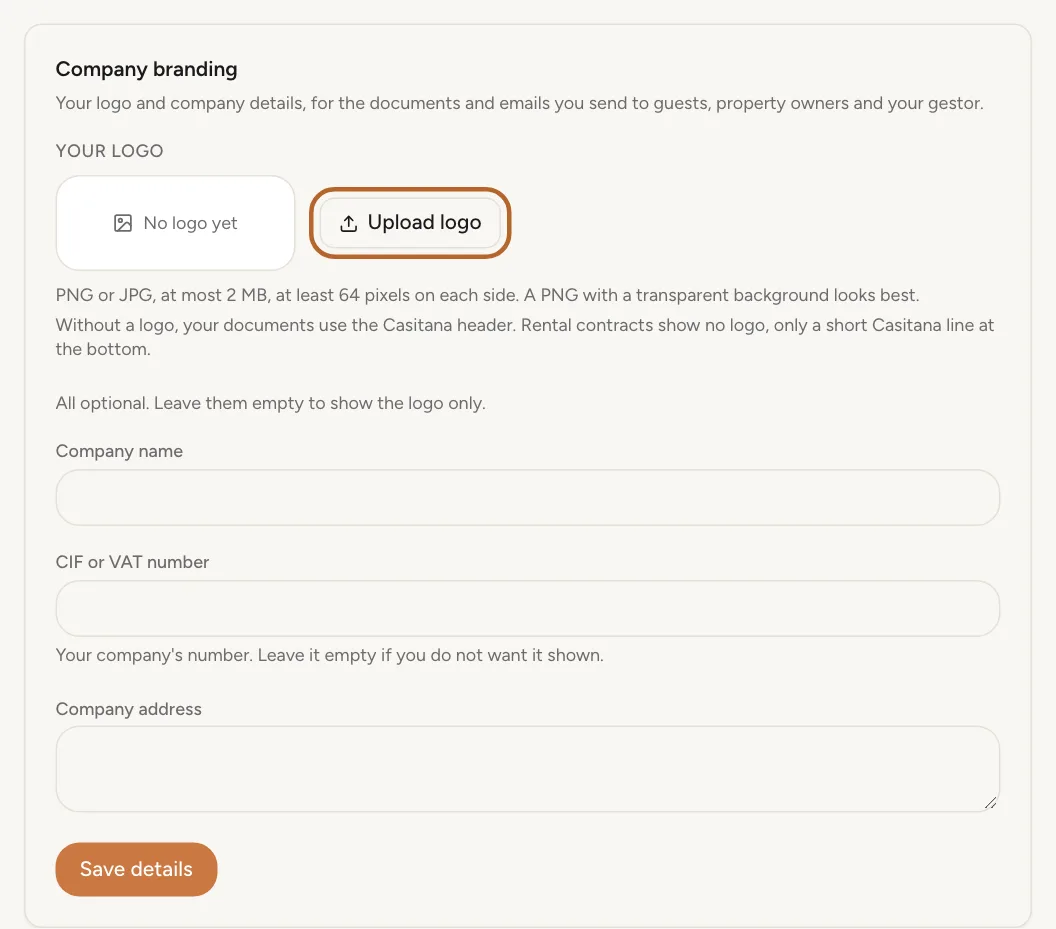
At the bottom of the menu on the left, click Settings. Under General, open Profile and find the Company branding card below your profile photo.
 Enlarge screenshot
Step 6
Upload your logo
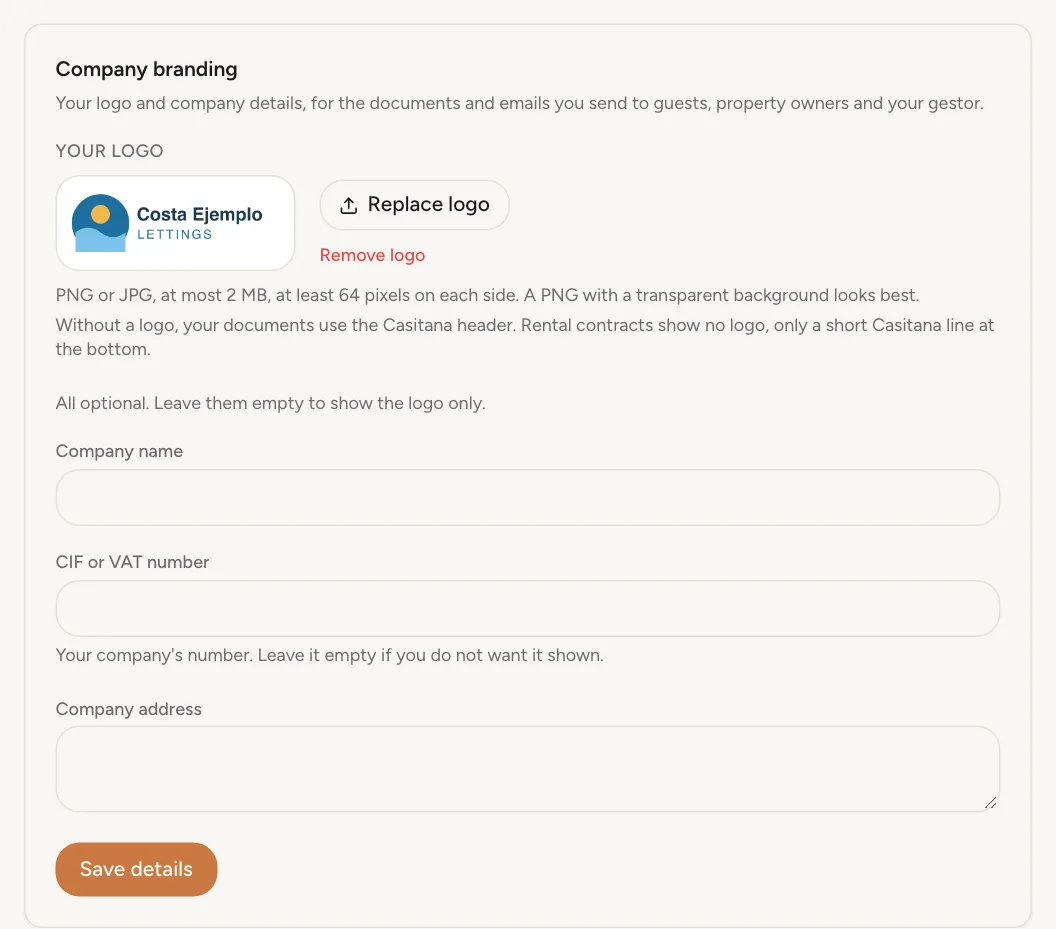
Click Upload logo and choose the file. Casitana checks it, prepares it for documents and shows a preview in the card.
 Enlarge screenshot
Step 7
Which files work
A PNG or JPG file of at most 2 MB, at least 64 pixels on each side and no more than 4096. The logo can be up to eight times as wide as it is tall, or up to twice as tall as it is wide. A PNG with a transparent background looks best on documents.
Good to know: Casitana removes the hidden information a photo can carry, such as location data, before storing your logo.
Step 8
Replace or remove it
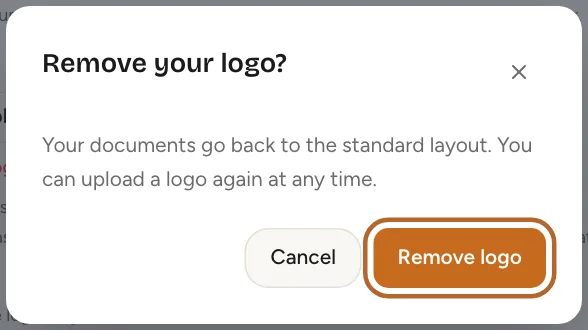
Click Replace logo to upload a new file: the old one is deleted straight away. Click Remove logo to take it off your account; your documents go back to the standard layout.
 Enlarge screenshot
Company details
Step 9
Add your company details
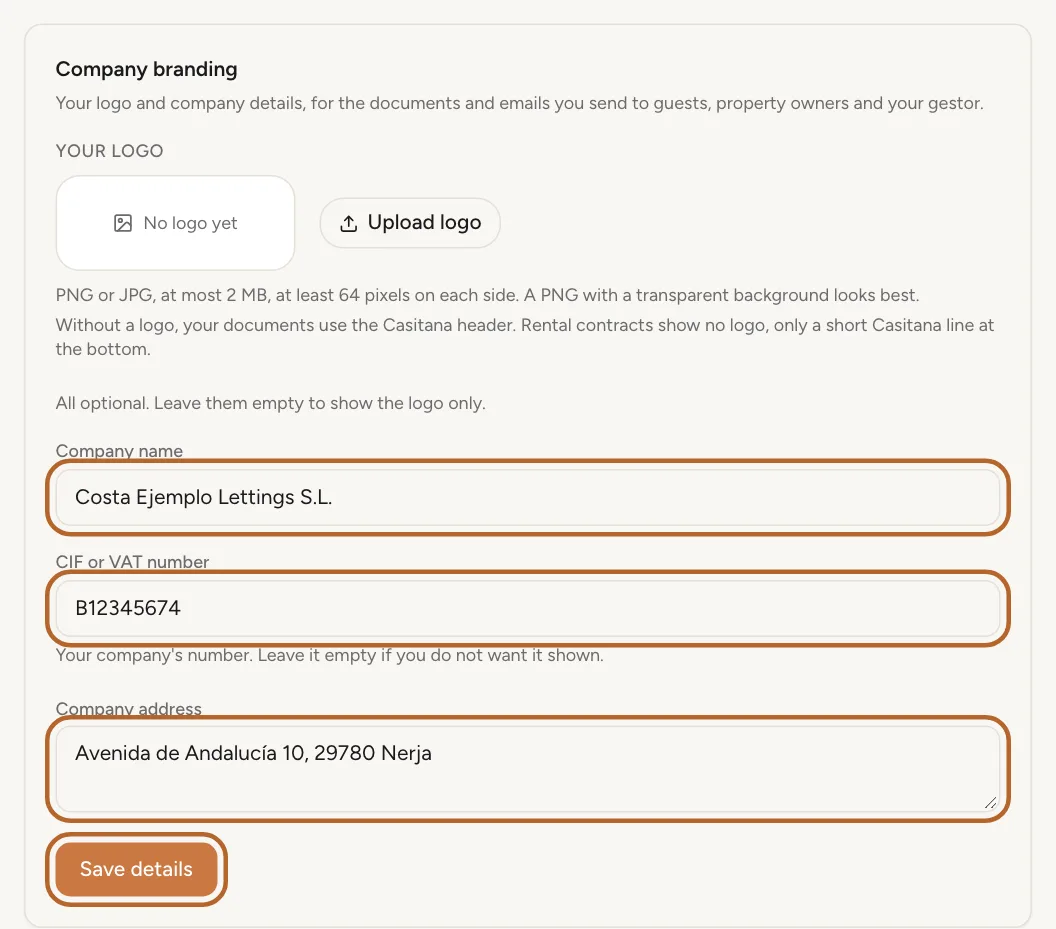
In the same card, fill in Company name, CIF or VAT number and Company address as you want them shown, then click Save details. The CIF or VAT number is stored encrypted.
 Enlarge screenshot
Step 10
Leave them empty for the logo only
Every company detail is optional. Leave a field empty and it is not shown; leave all three empty and only your logo appears. Casitana never uses the NIE from your tax profile here.
Plan changes
Step 11
If your plan changes
If you move to a plan below Pro, your logo and company details are kept but not shown, and your documents look as they did before. Nothing is deleted: move back to Pro and they are used again.
Tip: What your staff see of your logo: Your company logo.