Import bookings from a platform
Connect each platform once. Casitana then checks its calendar every hour and adds new bookings, changes and cancellations by itself.
Step 1
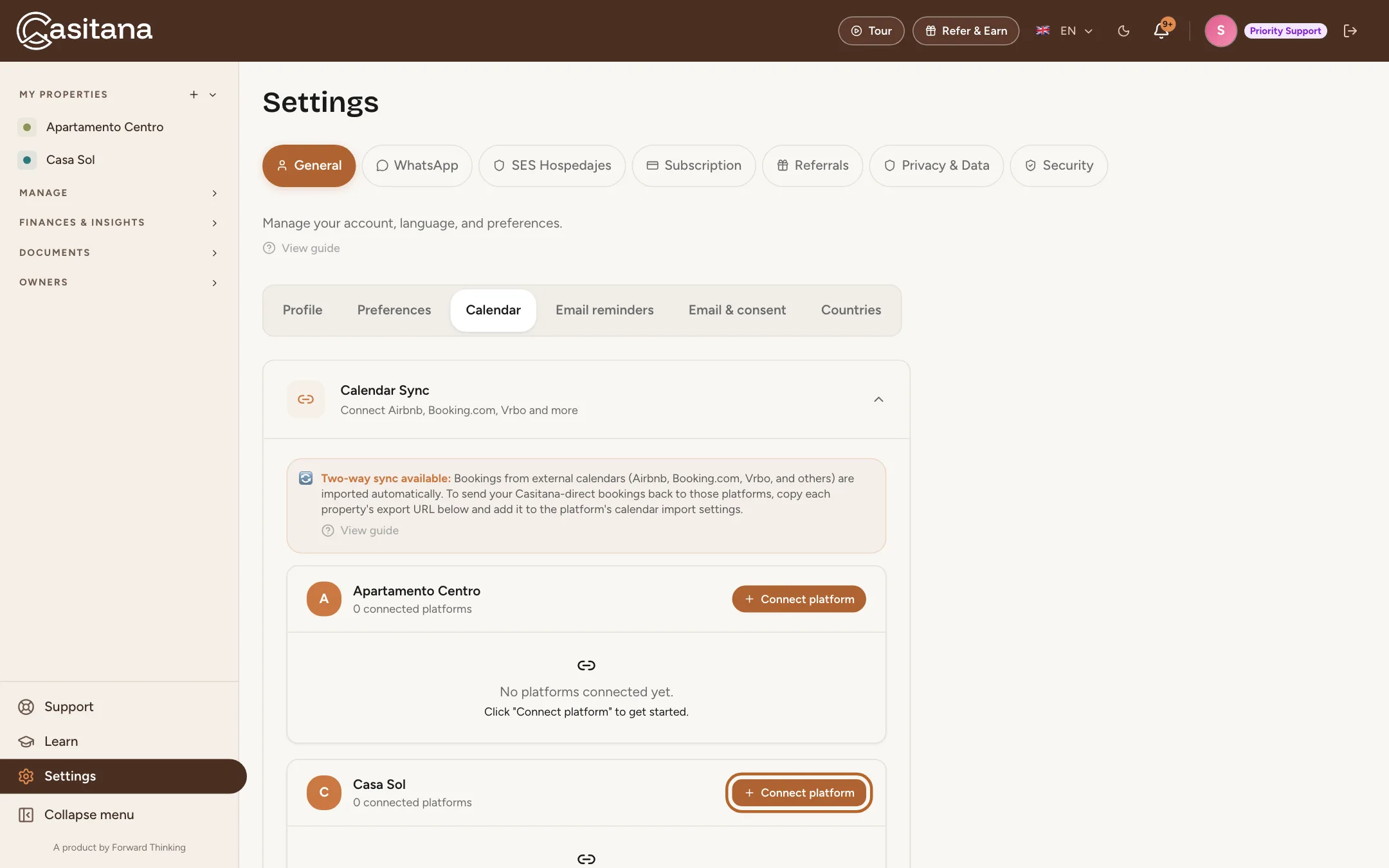
Open the calendar sync
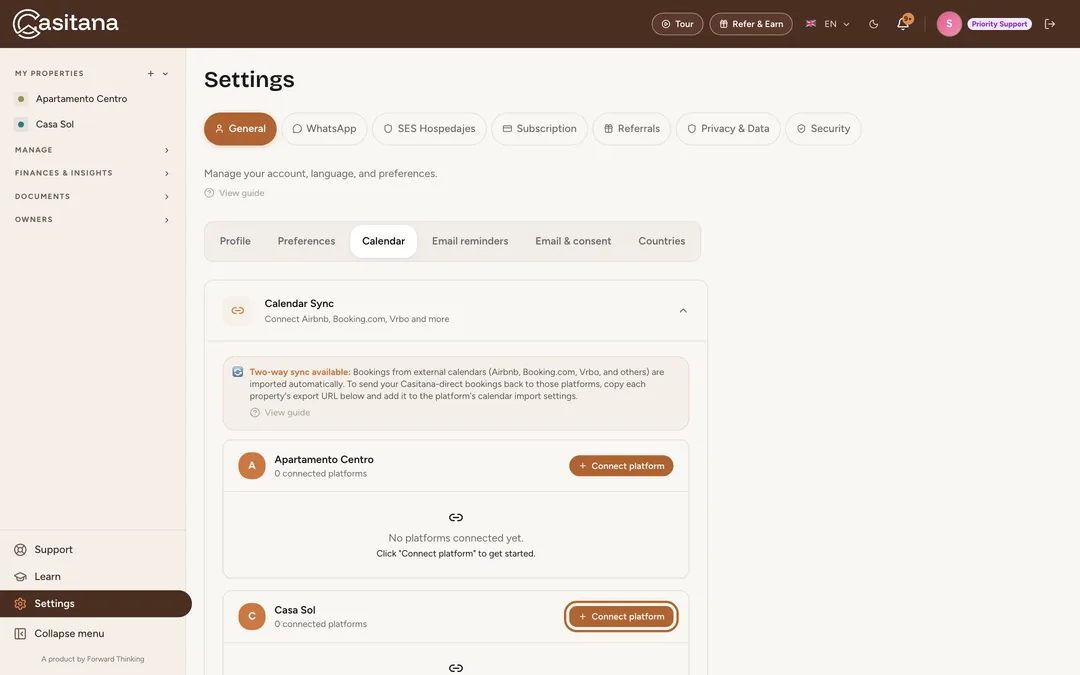
Go to Settings › General › Calendar, or click Manage feeds → in the calendar. Each property has its own block. Click + Connect platform next to the property you want to connect.
 Enlarge screenshot
Step 2
Choose the platform
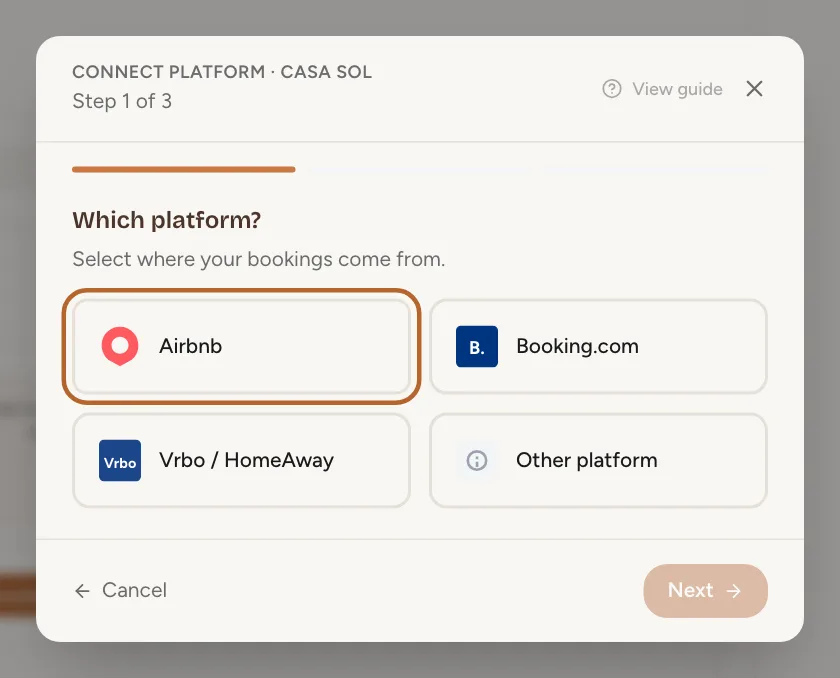
Choose where the bookings come from: Airbnb, Booking.com, Vrbo / HomeAway or Other platform. Choose Other platform for any other website or channel manager that gives you a calendar link (iCal).
 Enlarge screenshot
Step 3
Copy the calendar link from the platform
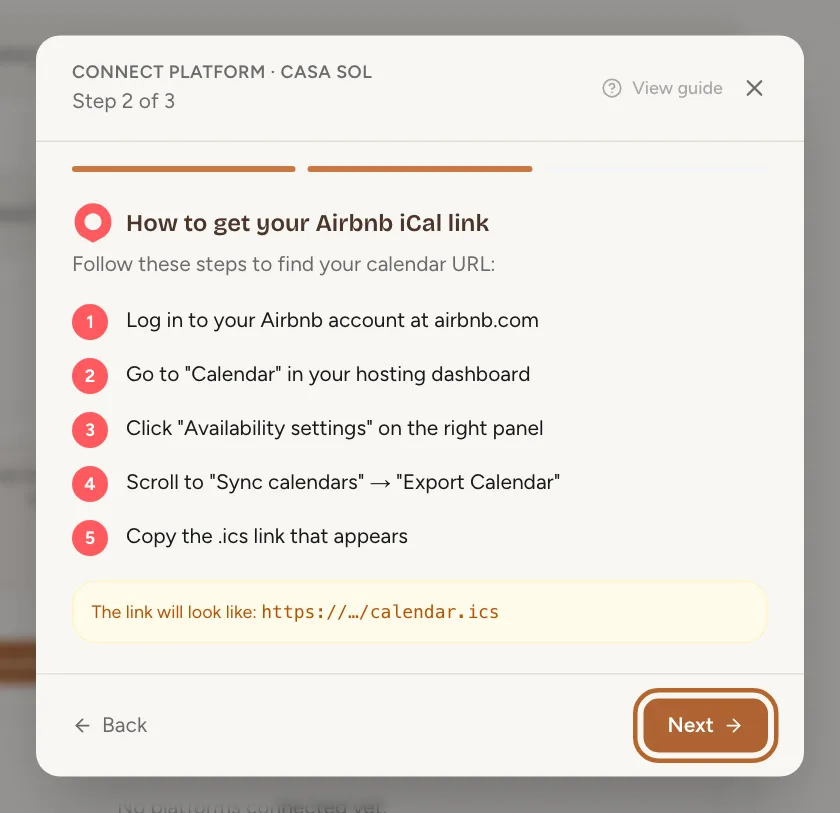
Casitana shows step by step where that platform keeps its calendar link, which ends in .ics. Log in to the platform in a separate window, copy the link and click Next.
 Enlarge screenshot
Step 4
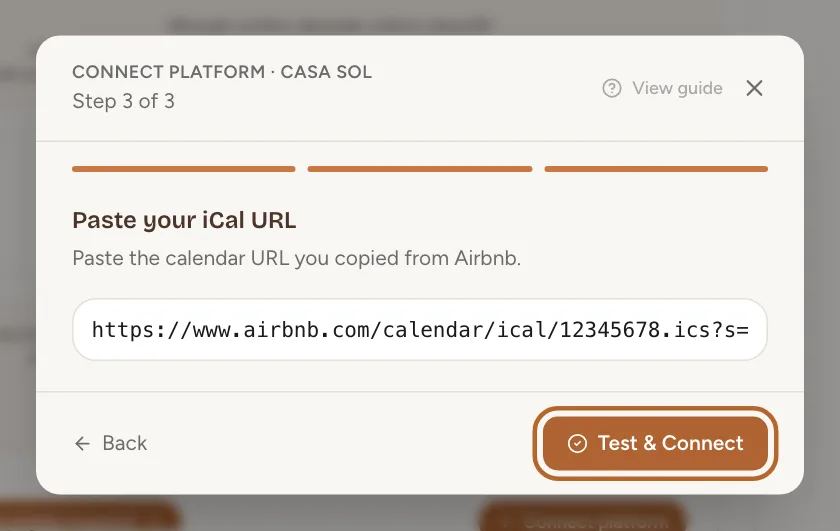
Paste the link and connect
Paste the link and click Test & Connect. Casitana saves it and imports the bookings straight away. Only bookings from the last 90 days and future bookings are imported.
 Enlarge screenshot
Tip: Repeat these steps for each platform where the property is listed: one link per platform.
Good to know: The link must start with https:// or http://. A link that starts with webcal:// is not accepted: replace webcal:// with https:// and paste it again. A link that redirects to another address does not sync either: use the address it ends up at.
Step 5
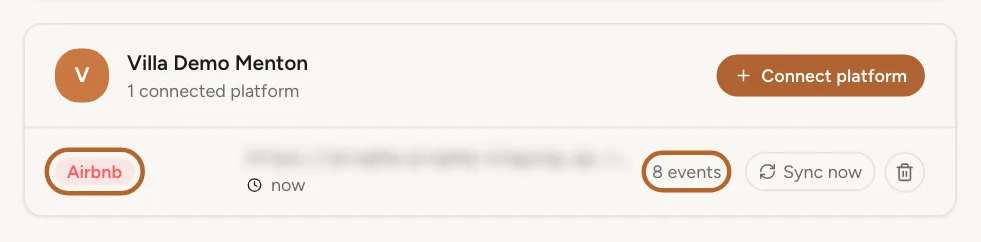
Check the connected platform
The platform now has its own row under the property: when it last synced, and how many bookings and blocked dates its calendar holds. From here on, Casitana syncs it every hour.
 Enlarge screenshot
Step 6
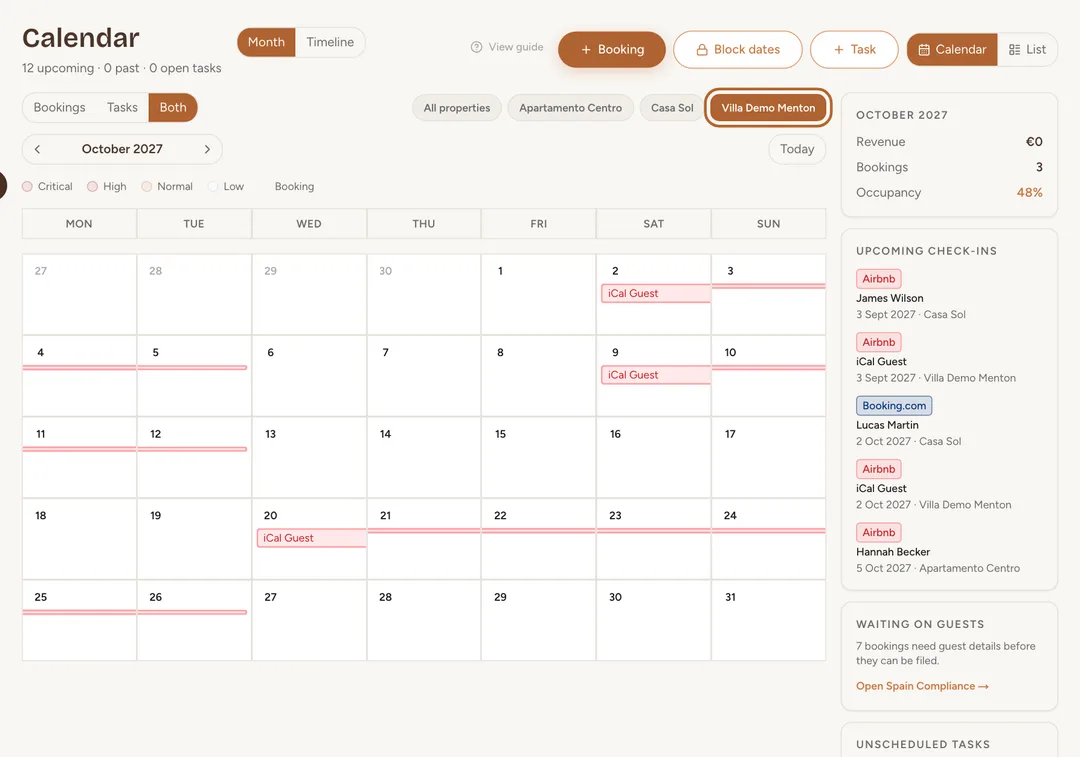
Find the imported bookings in your calendar
Imported bookings appear in the calendar like any other. A platform’s calendar link usually carries the dates and not the guest’s details, so open the booking and add the guest yourself when you need them.
 Enlarge screenshot
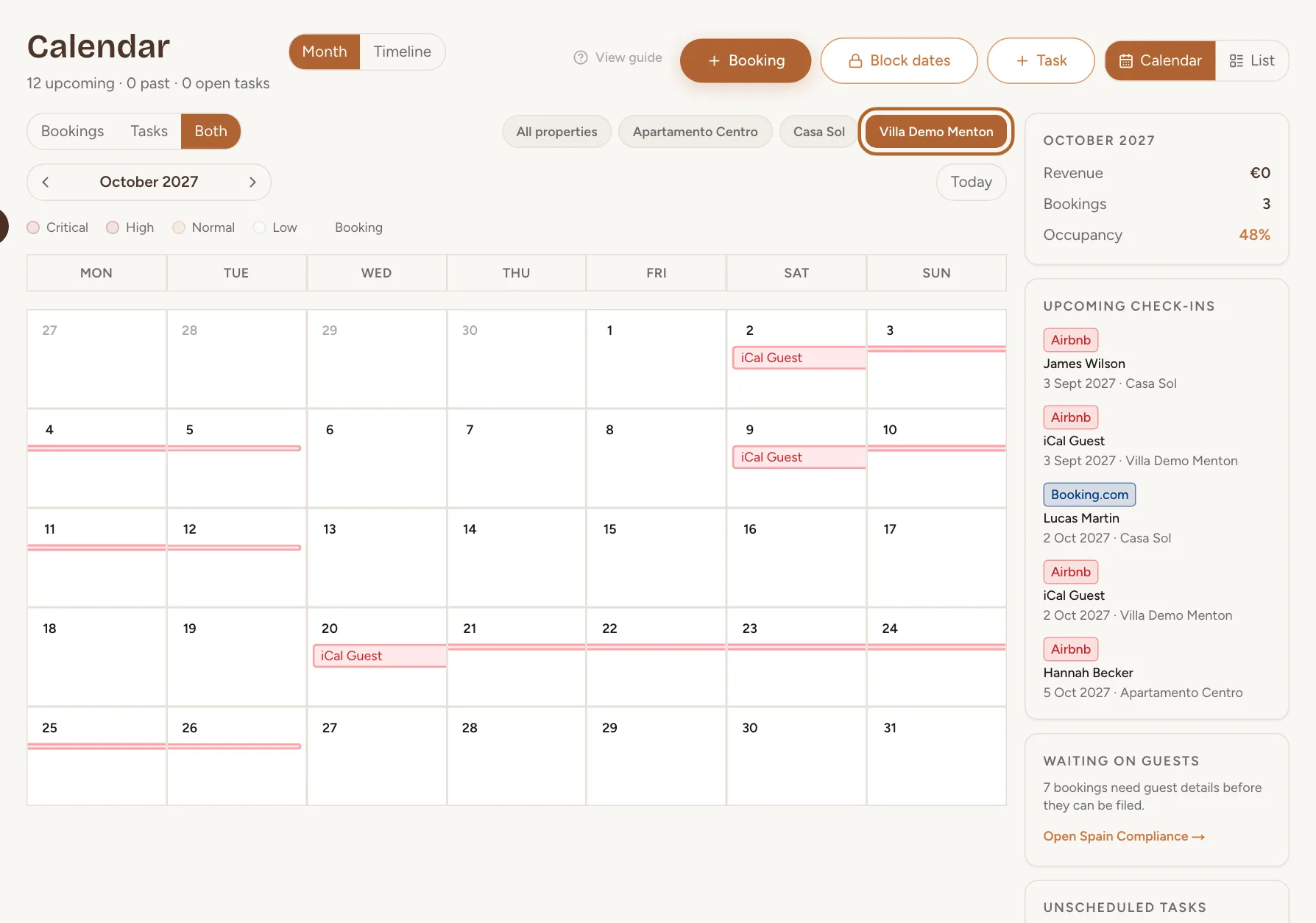
Turn blocked dates into a guest booking
Some platforms may send a guest’s stay to other calendars as blocked dates. Casitana then shows those dates as blocked, not as a booking. When you know they are a guest’s stay, mark them as a booking.
Step 7
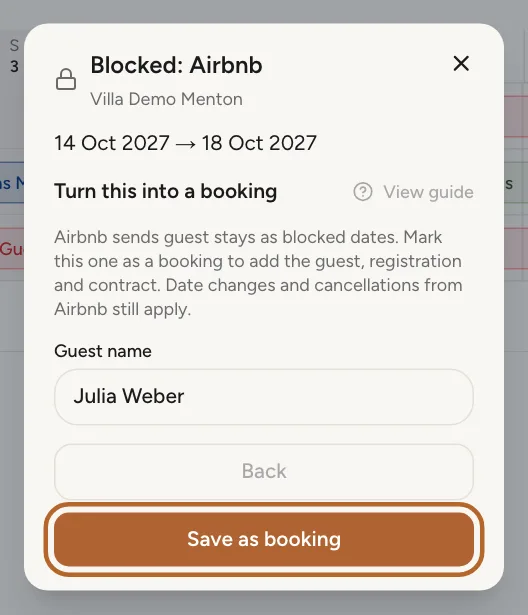
Mark the dates as a booking
In the calendar, click the blocked dates, in the month view or on the timeline. The window names the platform they come from, such as Blocked: Airbnb. Click This is a guest booking, type the Guest name and click Save as booking. The booking form then opens, so you can add the guest’s details. From then on it is a booking like any other.
 Enlarge screenshot
Tip: The dates stay linked to the platform, but Casitana never changes them by itself: when the platform’s calendar shows different dates for the stay, Casitana asks you first: When a platform changes a stay you marked as a booking. The booking’s platform is the one the dates come from; you can change it in the booking form.
Good to know: Only dates blocked by a connected platform can be marked as a booking, not dates you blocked yourself.
Step 8
Turn it back into blocked dates
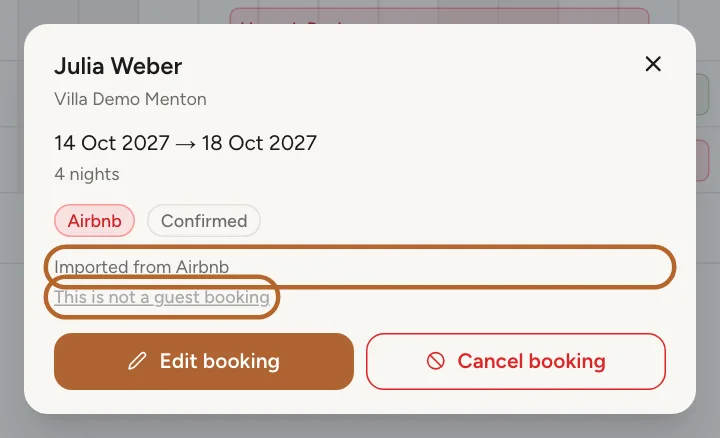
Click the booking. Under Imported from Airbnb you find This is not a guest booking: click it and the dates are the platform’s blocked dates again. Casitana offers this only while the booking holds nothing but the guest’s name. Once you have added guest details, a price, a registration, a contract or a task, cancel the booking instead: Change or cancel a booking.
 Enlarge screenshot
When a platform changes a stay you marked as a booking
A platform’s calendar says which nights are taken, not who takes them. So when the blocked dates of such a stay grow, shrink or disappear, Casitana keeps the booking as it is and asks you what happened.
Step 9
Casitana asks before it changes anything
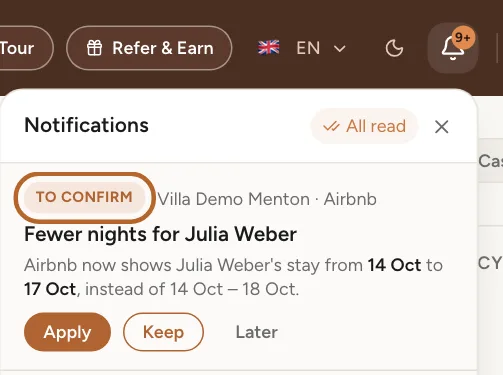
The question appears on your dashboard under Requires your attention and in your notifications, marked To confirm. Until you answer, the booking keeps its dates and nobody is emailed: Casitana sends no email or push message about it.
 Enlarge screenshot
Tip: You can answer in either place. The bell has the same buttons, with shorter names.
Step 10
Why a card appears
There are three cards: new nights next to the stay, fewer nights, and a stay that is gone from the platform’s calendar. When the platform moves a stay to other dates, you get the card for new nights if the new dates take nights the booking does not have, and the card for fewer nights if they only drop some.
Good to know: No card appears for nights that another booking, a block you added or another platform’s calendar already accounts for.
Step 11
New nights next to the stay
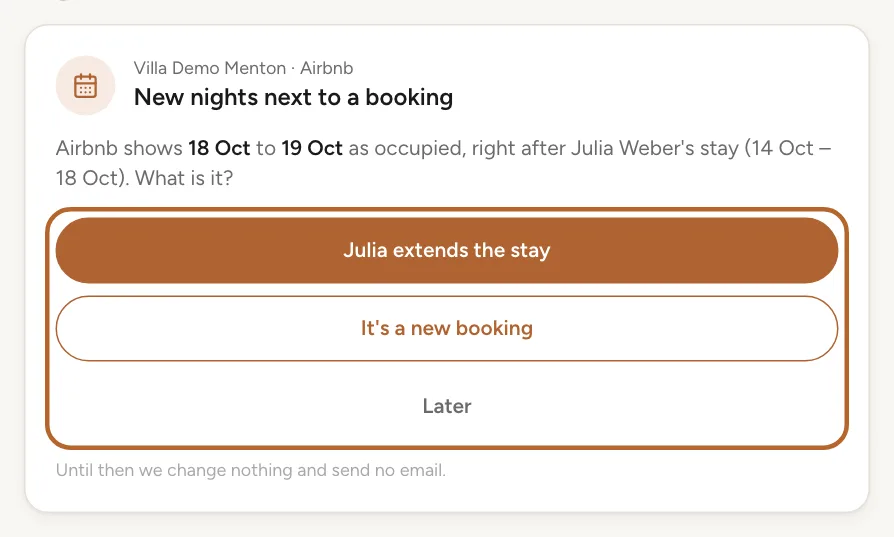
The card reads New nights next to a booking. Booking.com does this when it joins two stays that follow each other into one. Choose Ana extends the stay (in the bell, Extends the stay) to give the booking the new dates, or It's a new booking (New booking) to open the booking form with those nights filled in, for the other guest.
 Enlarge screenshot
Tip: Until you answer, the new nights show in the calendar as Occupied · to confirm, so nobody can book them twice.
Step 12
Fewer nights
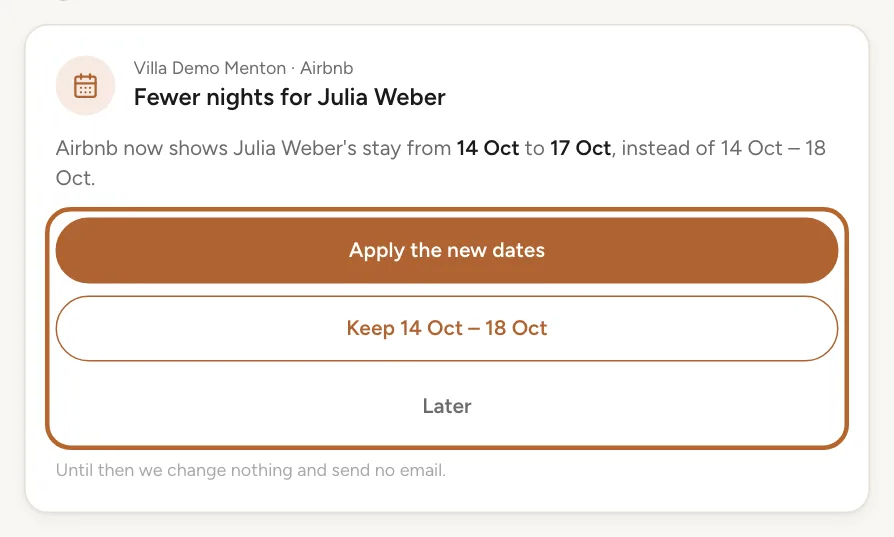
The card reads Fewer nights for Ana, with the platform’s dates and the booking’s. Choose Apply the new dates (in the bell, Apply) to give the booking the platform’s dates, as the booking form would. To leave the booking as it is, click the button that names the booking’s dates (in the bell, Keep).
 Enlarge screenshot
Step 13
A stay that is gone
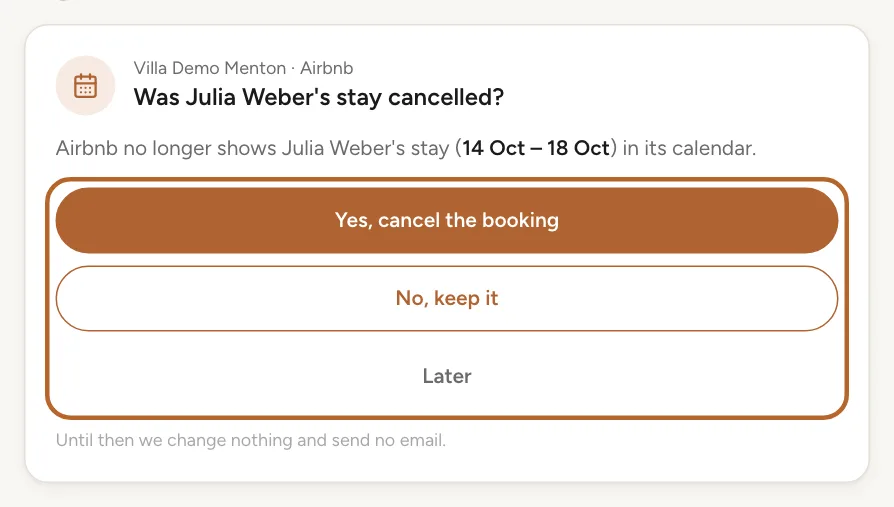
When the stay disappears from the platform’s calendar, the card asks Was Ana's stay cancelled? Yes, cancel the booking (in the bell, Cancel booking) cancels it as the booking form does. No, keep it (Keep) leaves it as it is.
 Enlarge screenshot
Good to know: For a stay whose parte was already sent to SES Hospedajes, the card says so: cancelling the booking then withdraws the parte there too.
Step 14
Answer later
Later takes the card off your dashboard. It stays in your notifications as Postponed until you answer, and the booking and the taken nights stay exactly as they are. If the platform’s calendar goes back to the booking’s dates, the question disappears by itself.
Good to know: The check-in of a stay that has already started never changes: platforms such as Airbnb remove past nights from their calendar every day.
Sync now, and when a sync fails
Step 15
Sync now
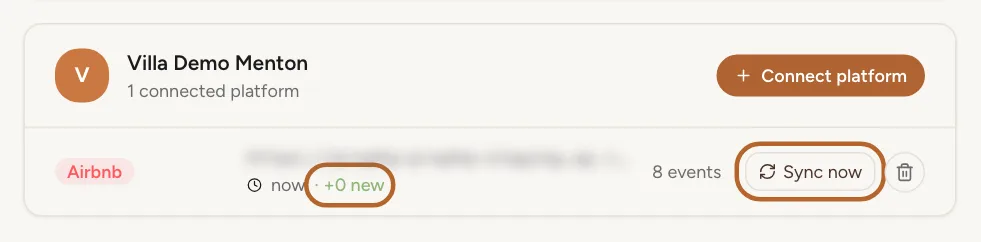
Do not want to wait for the next hourly sync? Click Sync now on the platform’s row. The row then shows what changed: new, updated and cancelled bookings.
 Enlarge screenshot
Step 16
When a sync fails
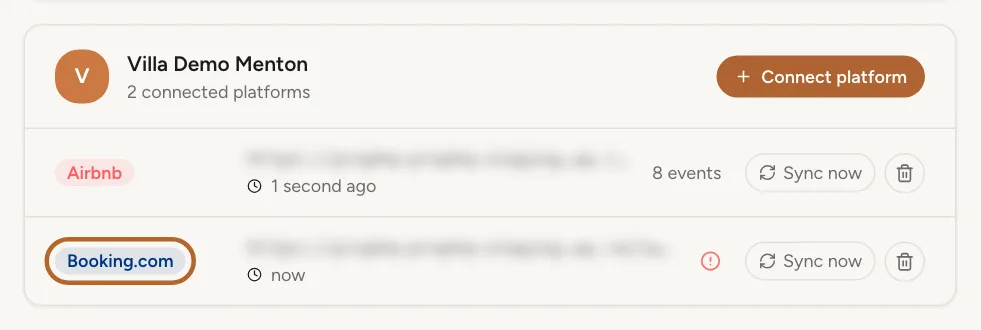
A red warning sign on the row means Casitana could not read that calendar, and you see Sync failed. Please check your iCal URL. when you sync. Point at the sign to see why. Usually the platform gave you a new link: copy it again, remove this row and connect the new link.
 Enlarge screenshot
Tip: If you see Some events from this calendar could not be imported. They will be retried on the next sync., the link works, but some bookings overlap a booking you already have for those nights. Casitana never double-books: check those dates on both sides.
Step 17
One link per platform
Connect each platform’s link once. If the same link is connected twice, the second row cannot import anything (its bookings are already there), and it shows the partial-sync message at every sync. Remove the extra row.
Stop syncing a platform
Step 18
Remove a platform, keep its bookings
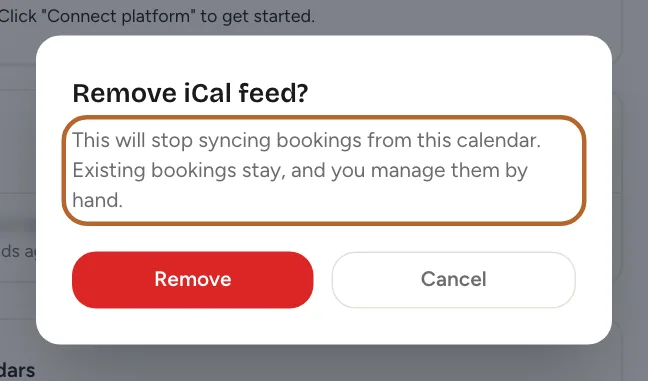
Click the bin on the platform’s row, then Remove. Casitana stops syncing that calendar. The bookings it already imported stay in your calendar, and from then on you change or cancel them yourself.
 Enlarge screenshot
Show your Casitana bookings on other platforms
Avoid double bookings: let your booking platforms, such as Airbnb, Booking.com and Vrbo, see the bookings you add directly in Casitana.
Step 19
Copy your export link
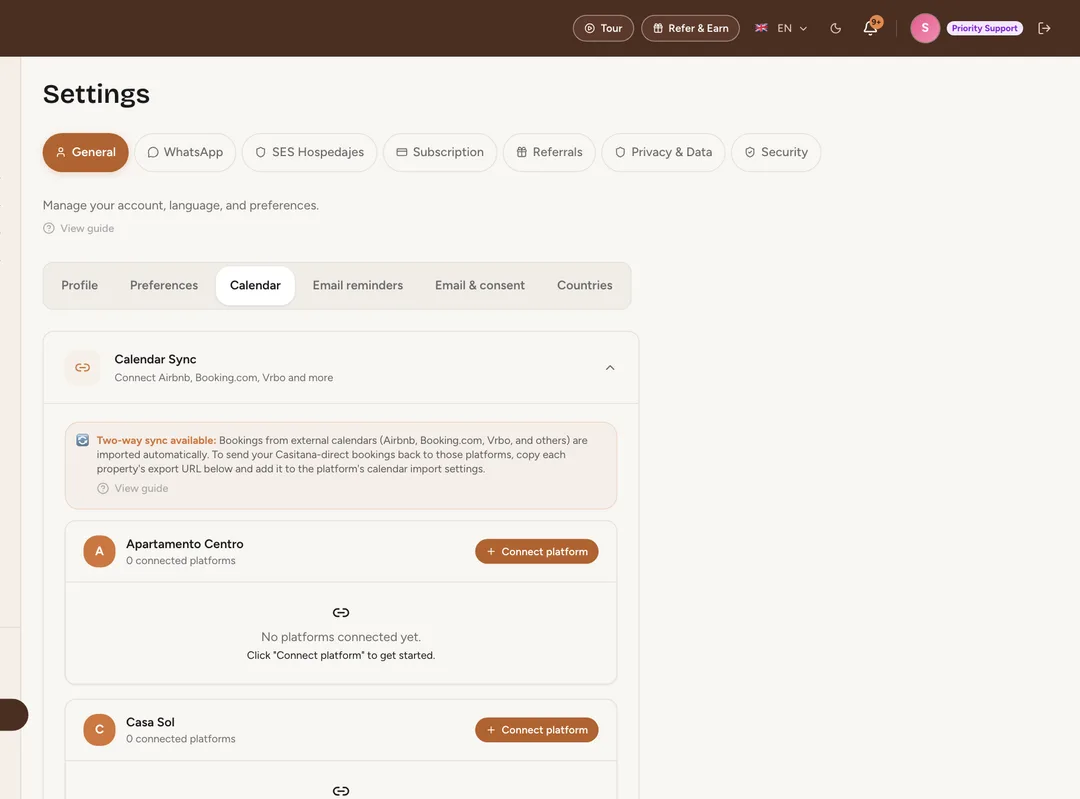
Under Export to other calendars, every property has its own link. Click Copy next to the property, then paste the link in the platform’s calendar import settings. How to add this URL to Airbnb, Booking.com, Vrbo shows where, per platform.
 Enlarge screenshot
Tip: Anyone with this link can see your booked dates, but not your guests’ names or contact details. Only share it with booking platforms.
Step 20
Get a new export link
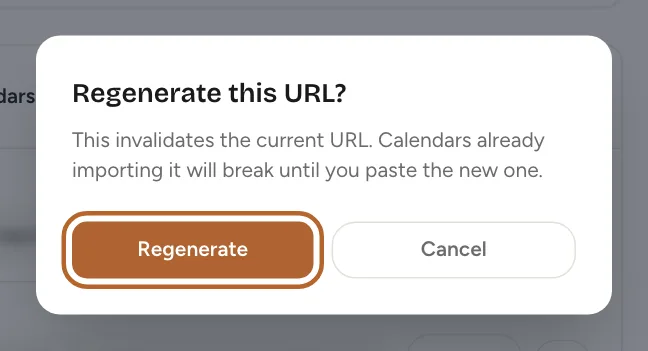
Shared a link by mistake? Click the arrow next to Copy, then Regenerate. The old link stops working at once, so paste the new one on every platform that used the old one.
 Enlarge screenshot