
Month or timeline
Step 1
Switch the view
Open Calendar and choose Month or Timeline next to the title. The timeline puts each property on its own row and each stay on a bar, so you see at a glance where there is room. Show 2 weeks, 1 month or 2 months, move with the arrows, and type in Filter properties to find a property by name or town. Casitana remembers the view you chose.
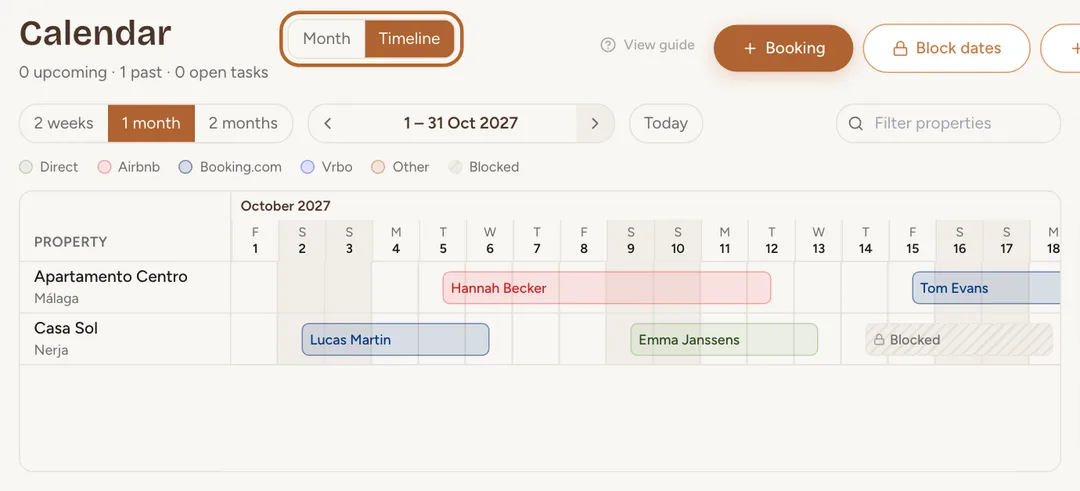 Enlarge screenshot
Tip: Click a bar to open the booking, as in the month view: Change or cancel a booking.
Book or block a free day
Step 2
On the website
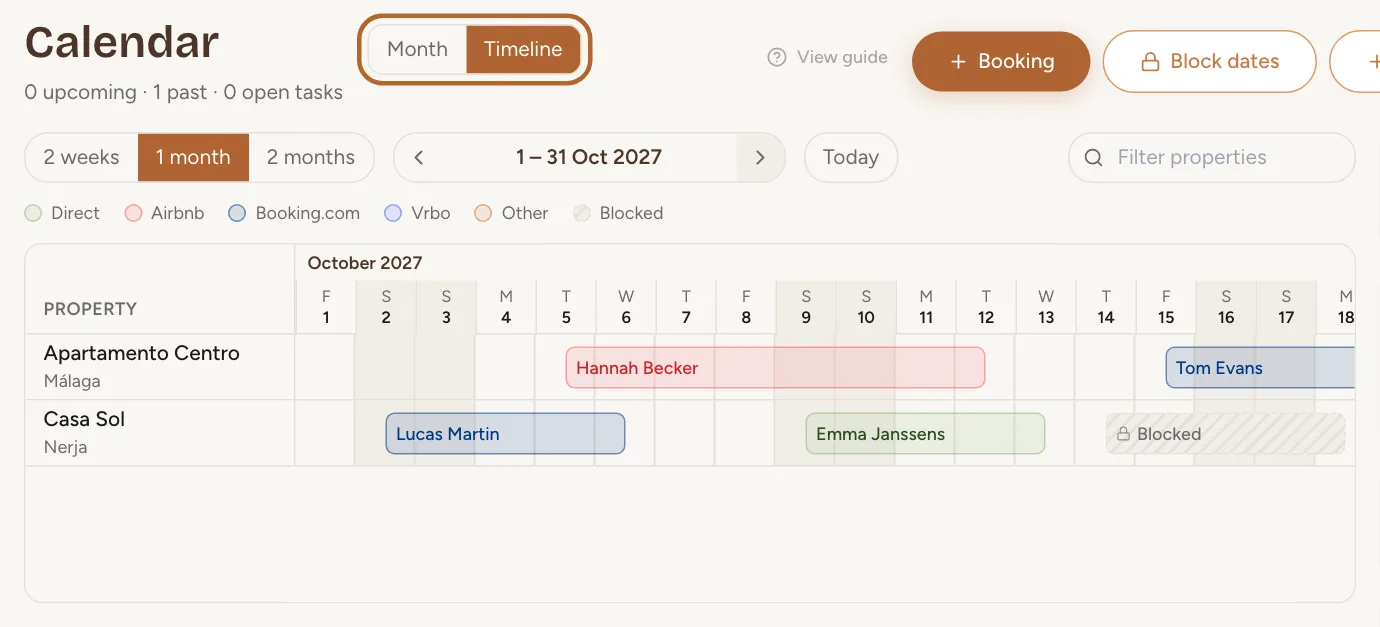
On the timeline, click an empty day on a property’s row and choose New booking or Block dates. The form opens with that property and that day already filled in.
Block dates
Step 3
Choose the dates
Click Block dates above the calendar, or start from a free day. Choose the property, then From and To: the nights from the first date up to the second are closed, as with a check-in and a check-out. Add an Internal note (optional) if you like, then click Block dates.
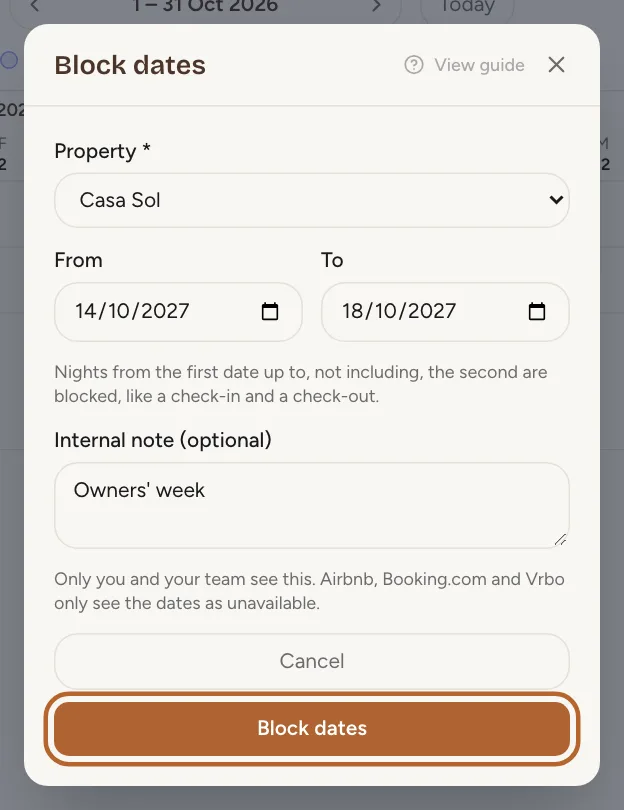 Enlarge screenshot
Good to know: Blocked dates cannot overlap a booking. One block covers at most 366 nights.
Step 4
What Airbnb, Booking.com and Vrbo see
A blocked period shows on the calendar as a dashed bar marked Blocked. Your calendar export lists the dates as unavailable, so every platform that imports it closes them too. The note stays in Casitana: only you and your team see it. Setting up the export: Sync your calendar with Airbnb, Booking.com, Vrbo and other platforms.
Change or reopen blocked dates
Step 5
Open a blocked period
Click the bar. Blocked in Casitana shows the dates and the note. Edit dates changes the dates; Delete block opens them again for bookings, after you confirm.
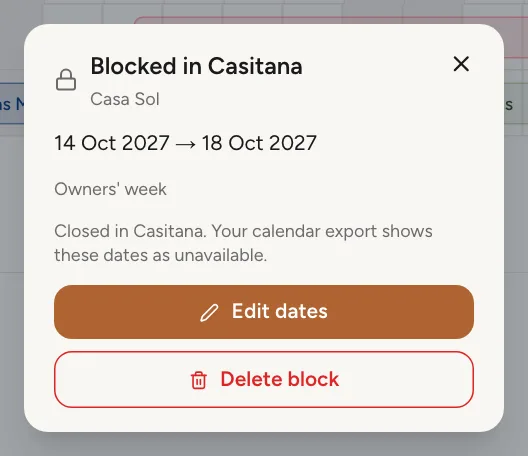 Enlarge screenshot
Step 6
Dates blocked by another calendar
Dates closed on Airbnb or another platform arrive through calendar sync and show as Blocked: Airbnb, with the platform’s name. You change or reopen them on that platform, not in Casitana. If they are a guest’s stay, you can mark them as a booking: Mark the dates as a booking.
Step 7
The platform on a blocked bar
On the timeline, dates a connected platform blocked read Blocked · Booking.com, in that platform’s colour. Dates you block yourself read Blocked. The label names the platform the dates come from: if Airbnb’s calendar also carries dates that another platform blocked, the bar names that other platform.
 Enlarge screenshot
