Month or timeline
Step 1
The month in the app
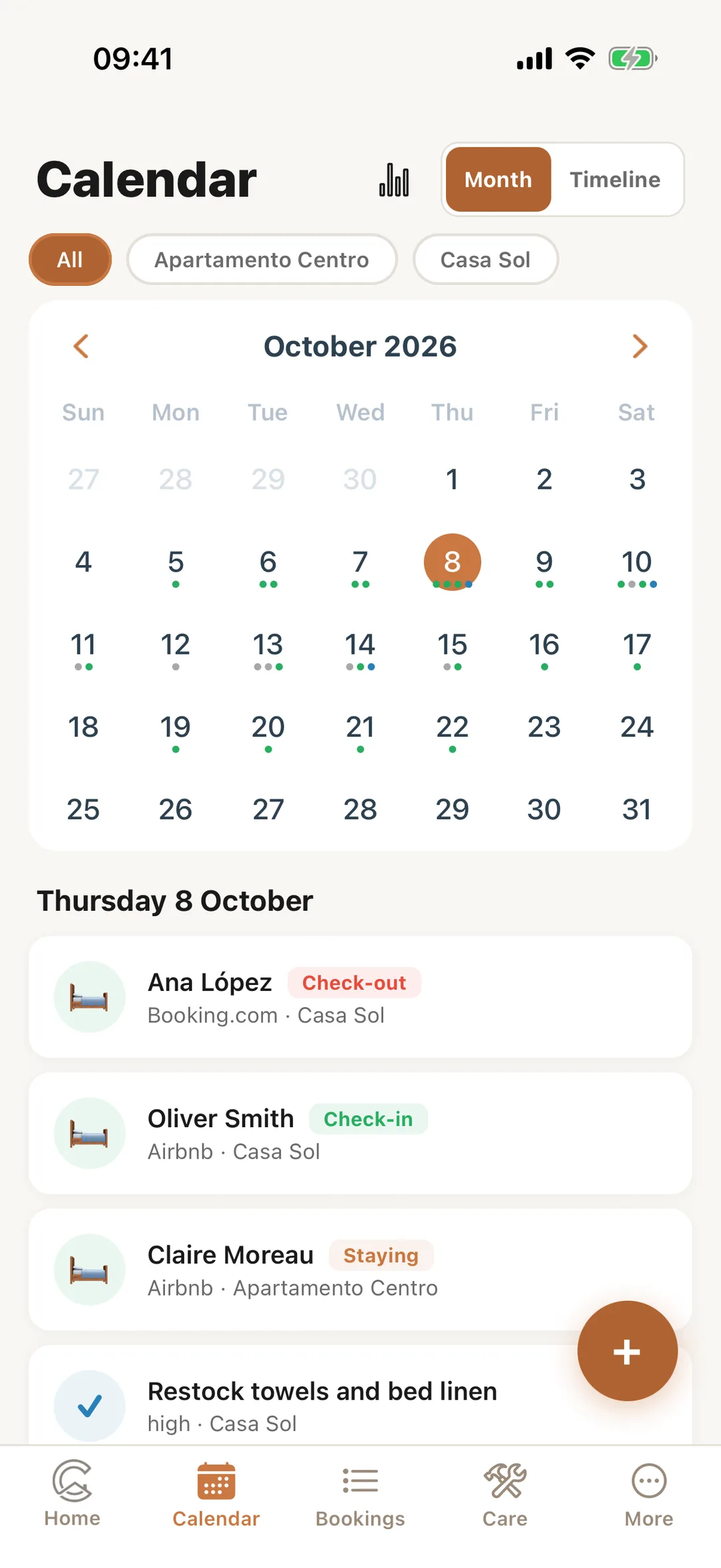
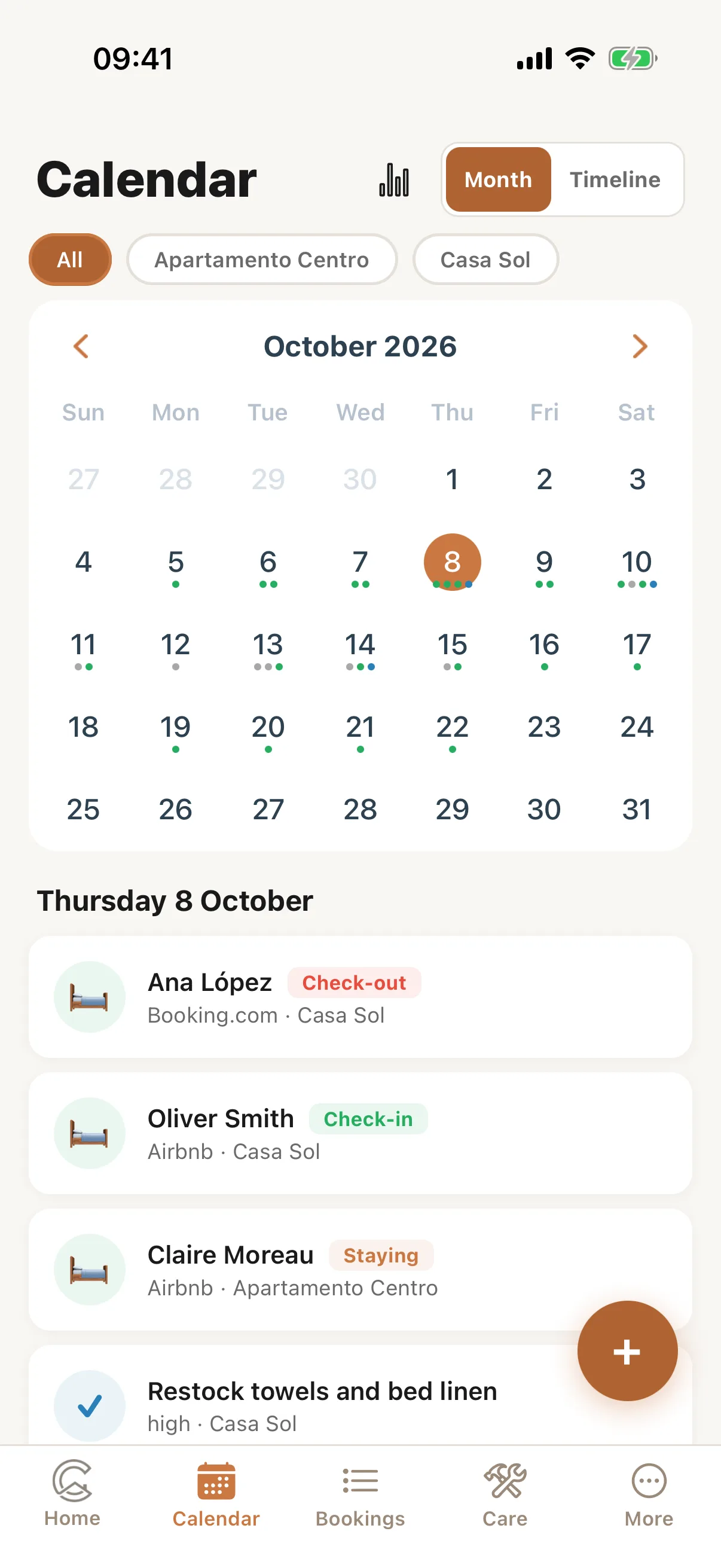
In the app, tap Calendar in the bottom bar. Month shows each day’s check-ins and check-outs; tap a day to see them.
 Enlarge screenshot
Step 2
The timeline in the app
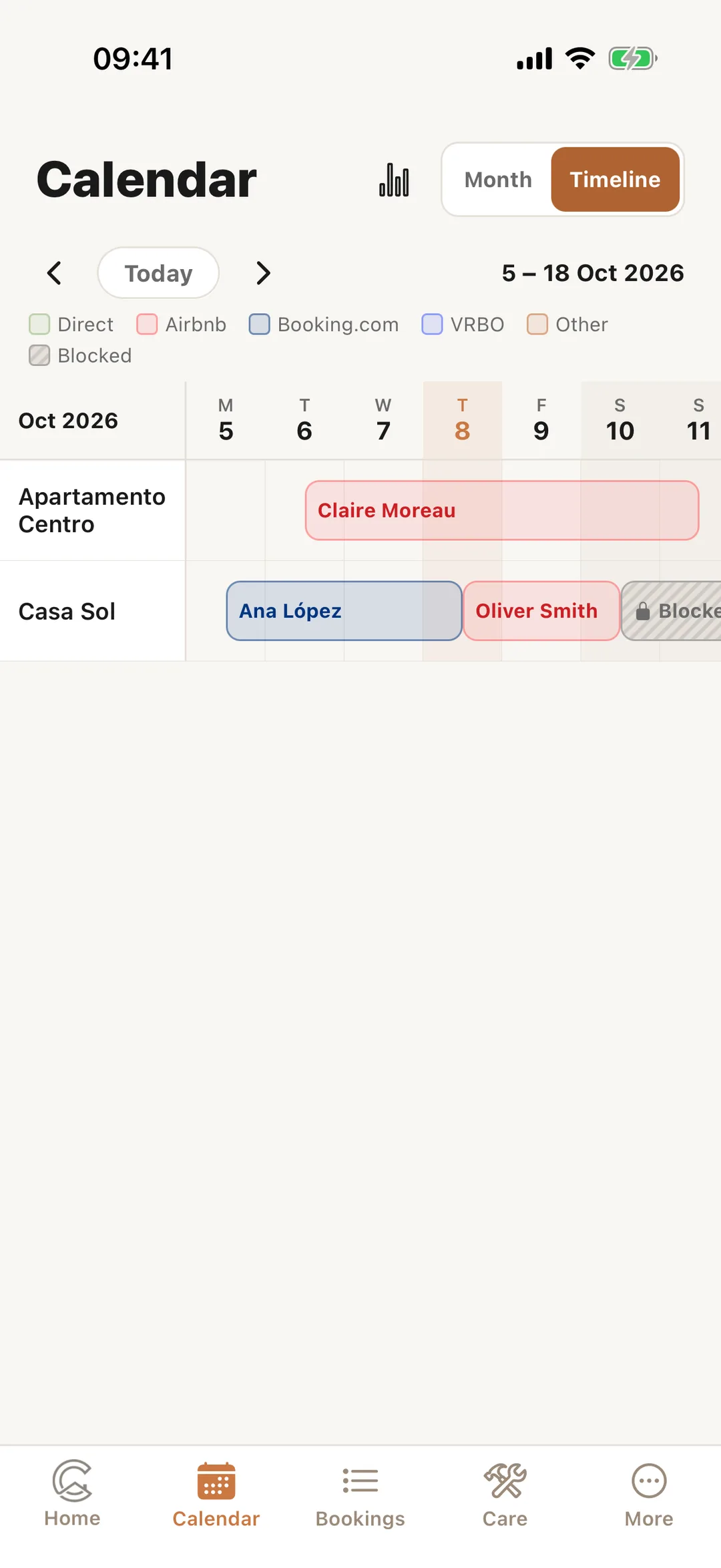
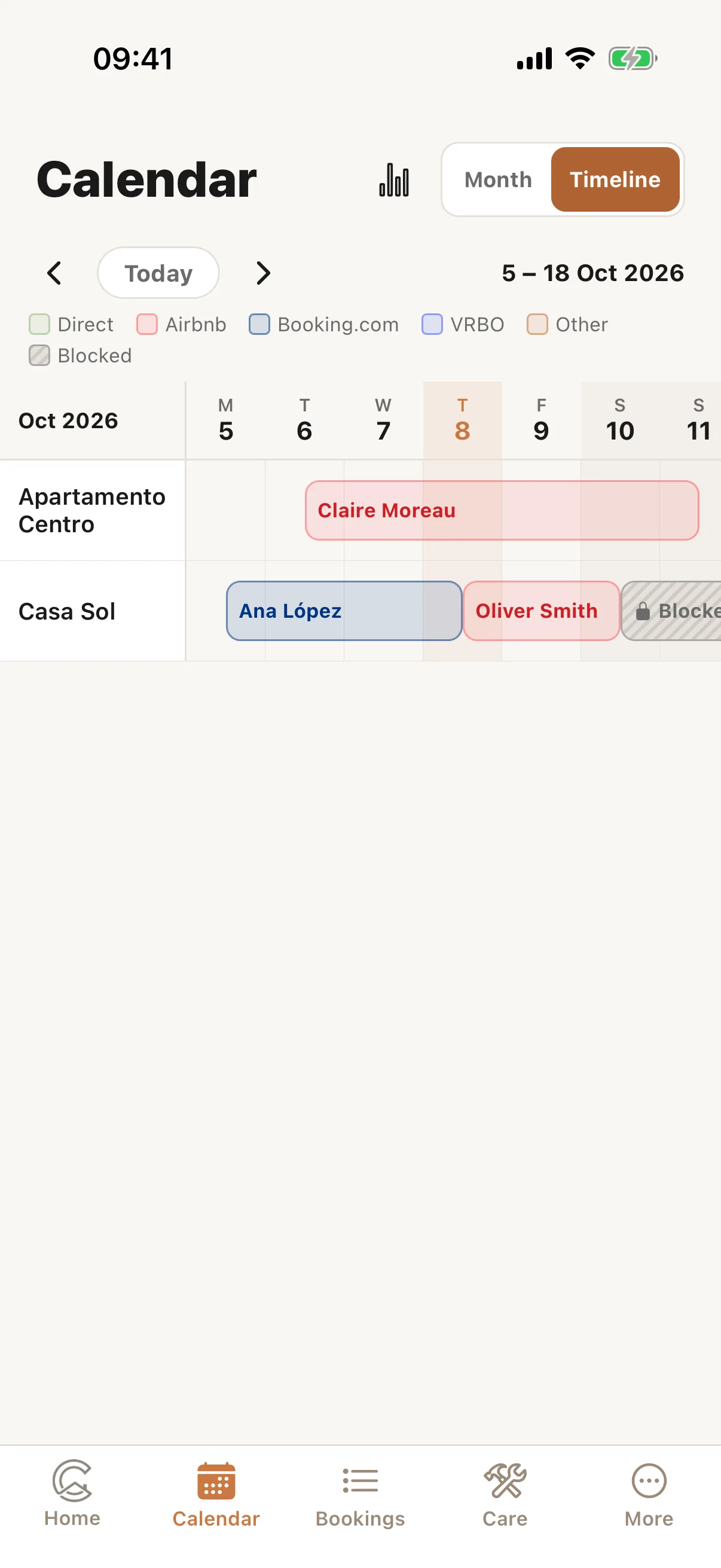
Tap Timeline at the top to see two weeks of every property. Turn your phone sideways for a wider calendar, in Month and Timeline; turned sideways, the timeline shows up to three weeks. The arrows move a whole screen back or ahead, and Today brings you back. Tap a bar to open its booking. Press and hold a booking, on the timeline or in a day’s list under Month, for Send guest info, Edit booking and Delete booking.
 Enlarge screenshot
Book or block a free day
Step 3
In the app
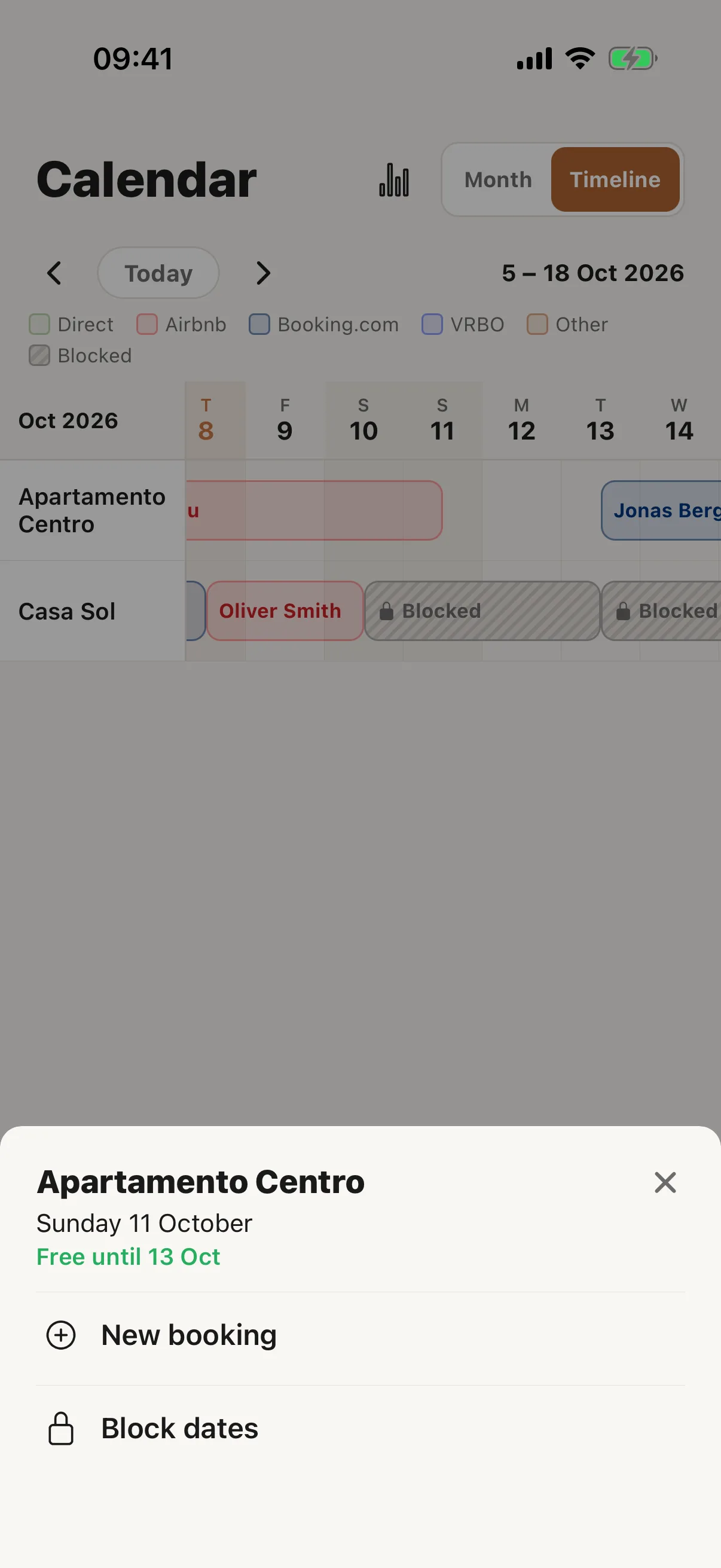
Tap an empty day on the timeline, or a day with nothing on it under Month. The app says how long the property is free from that day, and offers New booking and Block dates. With more than one property, Month first asks which.
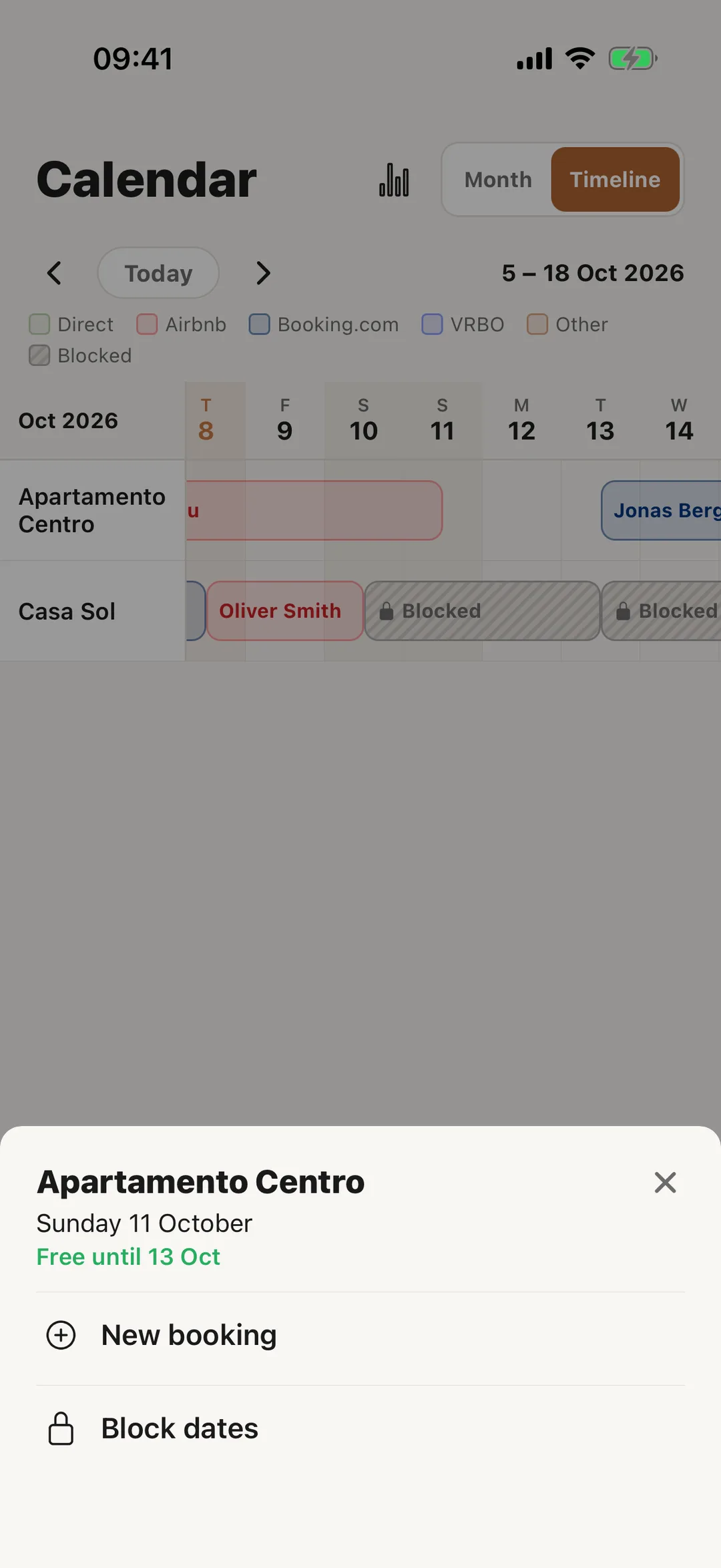 Enlarge screenshot
Block dates
Step 4
Block dates in the app
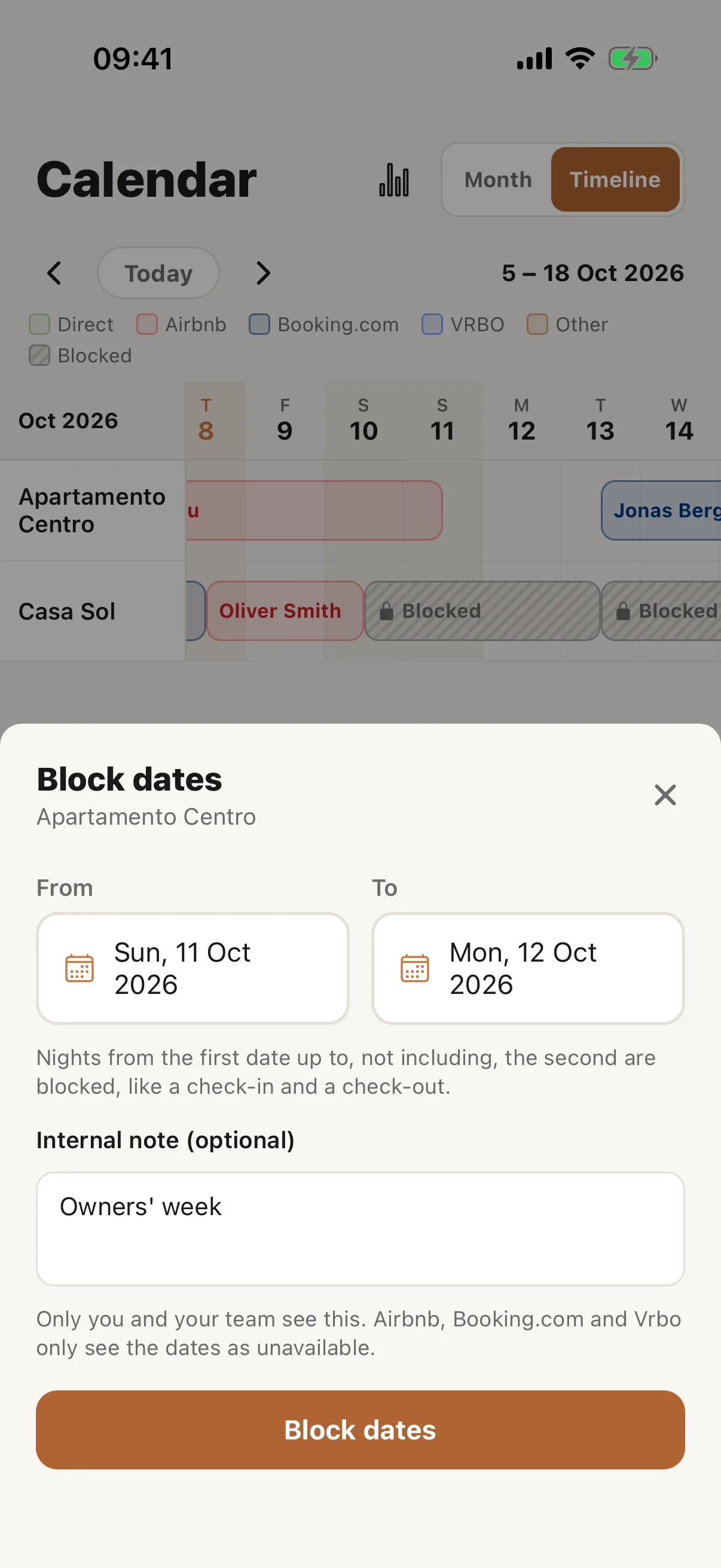
In the app, the same form opens from a free day on the timeline: From, To and the internal note. Tap Block dates to save.
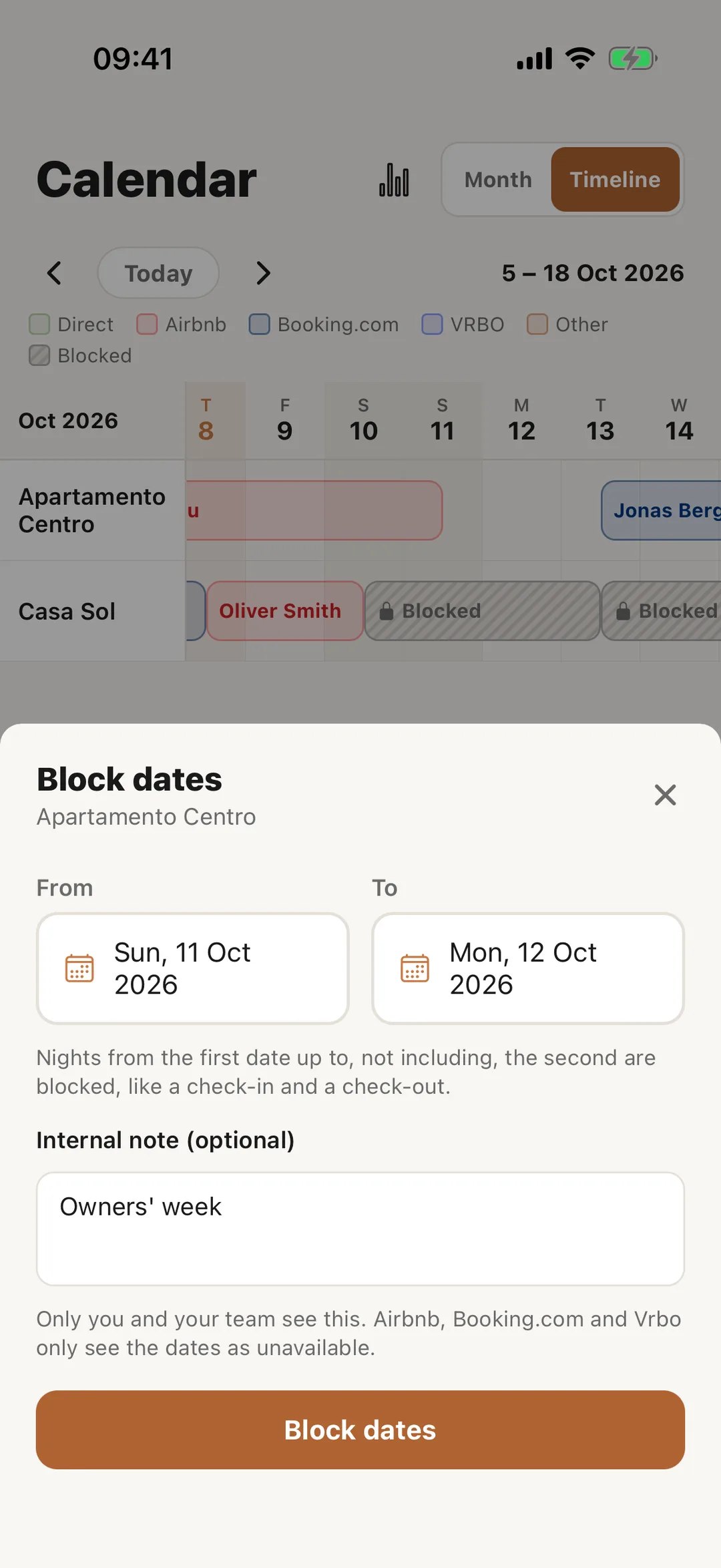 Enlarge screenshot
Step 5
What Airbnb, Booking.com and Vrbo see
A blocked period shows on the calendar as a dashed bar marked Blocked. Your calendar export lists the dates as unavailable, so every platform that imports it closes them too. The note stays in Casitana: only you and your team see it. Setting up the export: Sync your calendar with Airbnb, Booking.com, Vrbo and other platforms.
Change or reopen blocked dates
Step 6
In the app
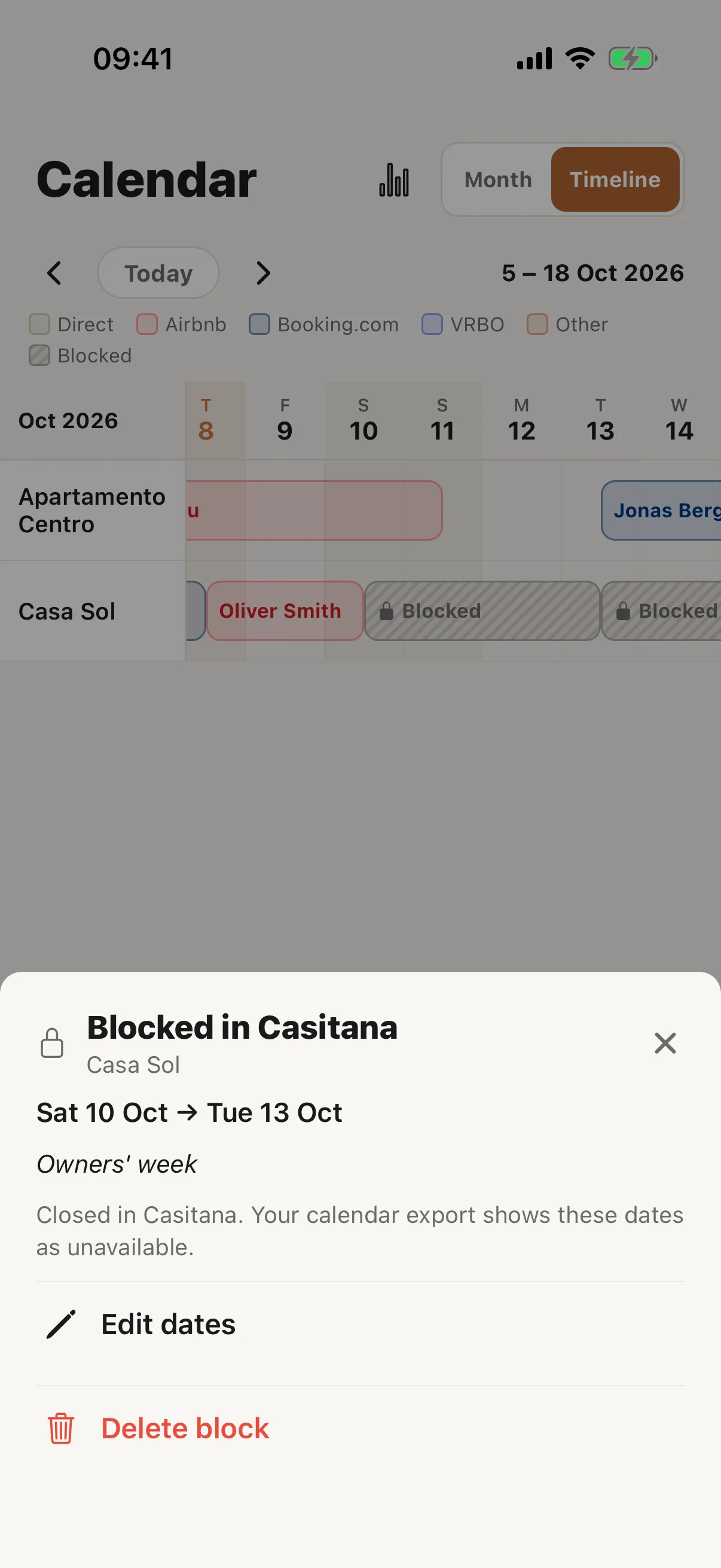
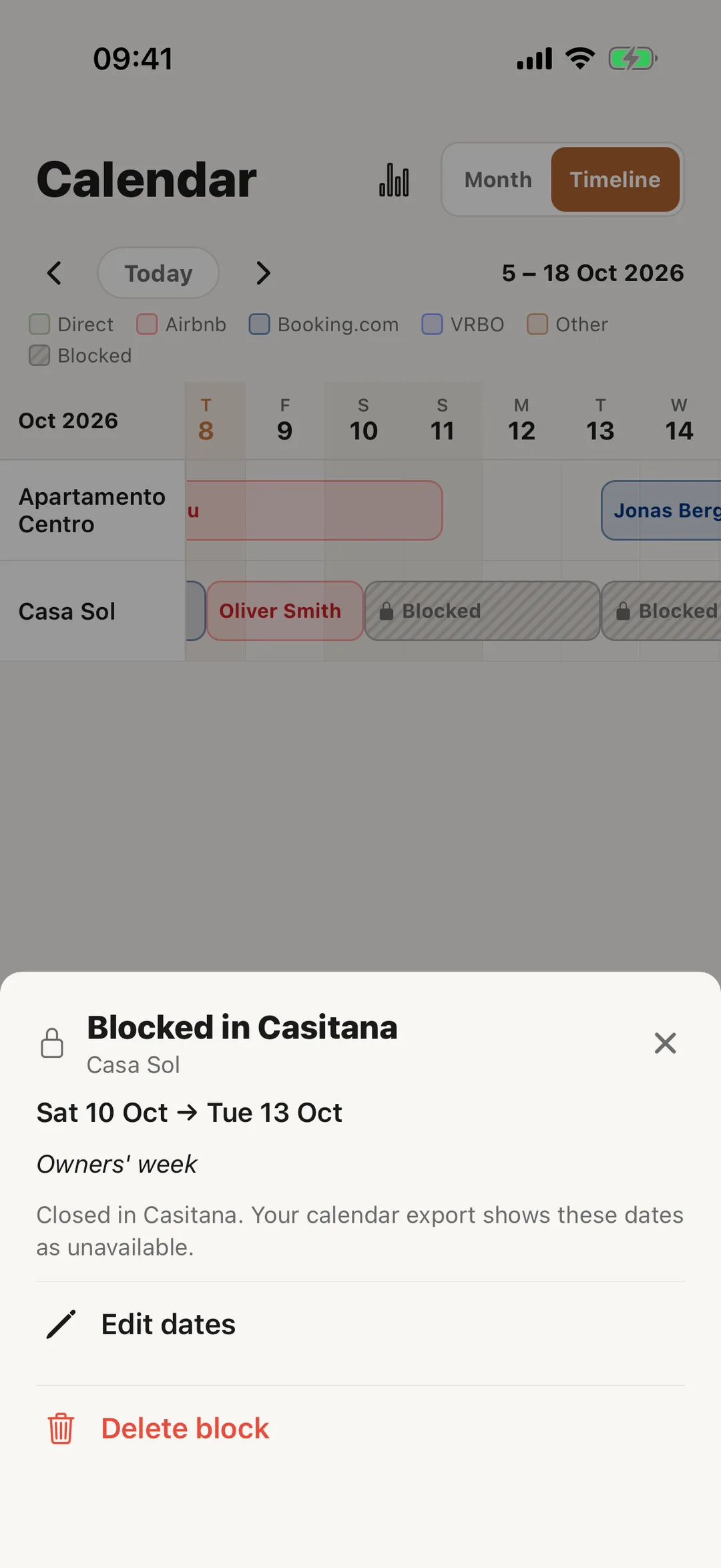
Tap the bar on the timeline. The app shows the same dates and note, with Edit dates and Delete block.
 Enlarge screenshot
Step 7
Dates blocked by another calendar
Dates closed on Airbnb or another platform arrive through calendar sync and show as Blocked: Airbnb, with the platform’s name. You change or reopen them on that platform, not in Casitana. If they are a guest’s stay, you can mark them as a booking: Mark the dates as a booking.