Save a guest in your contacts
Your guest list is your address book. Save a guest once and link them to every future stay.
Step 1
Open Contacts
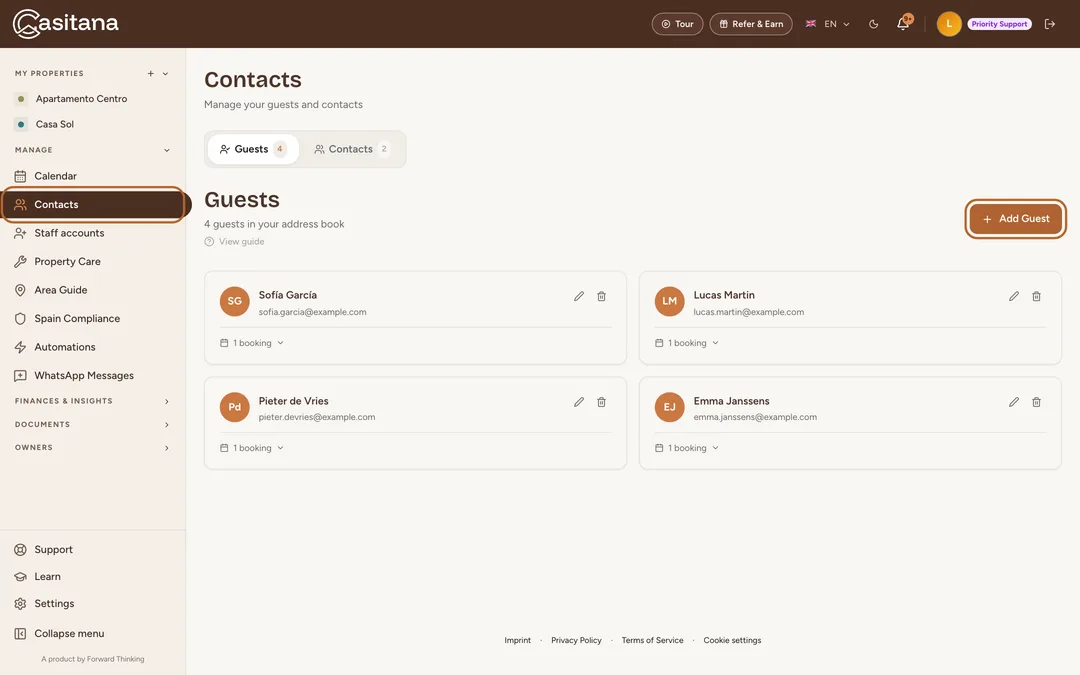
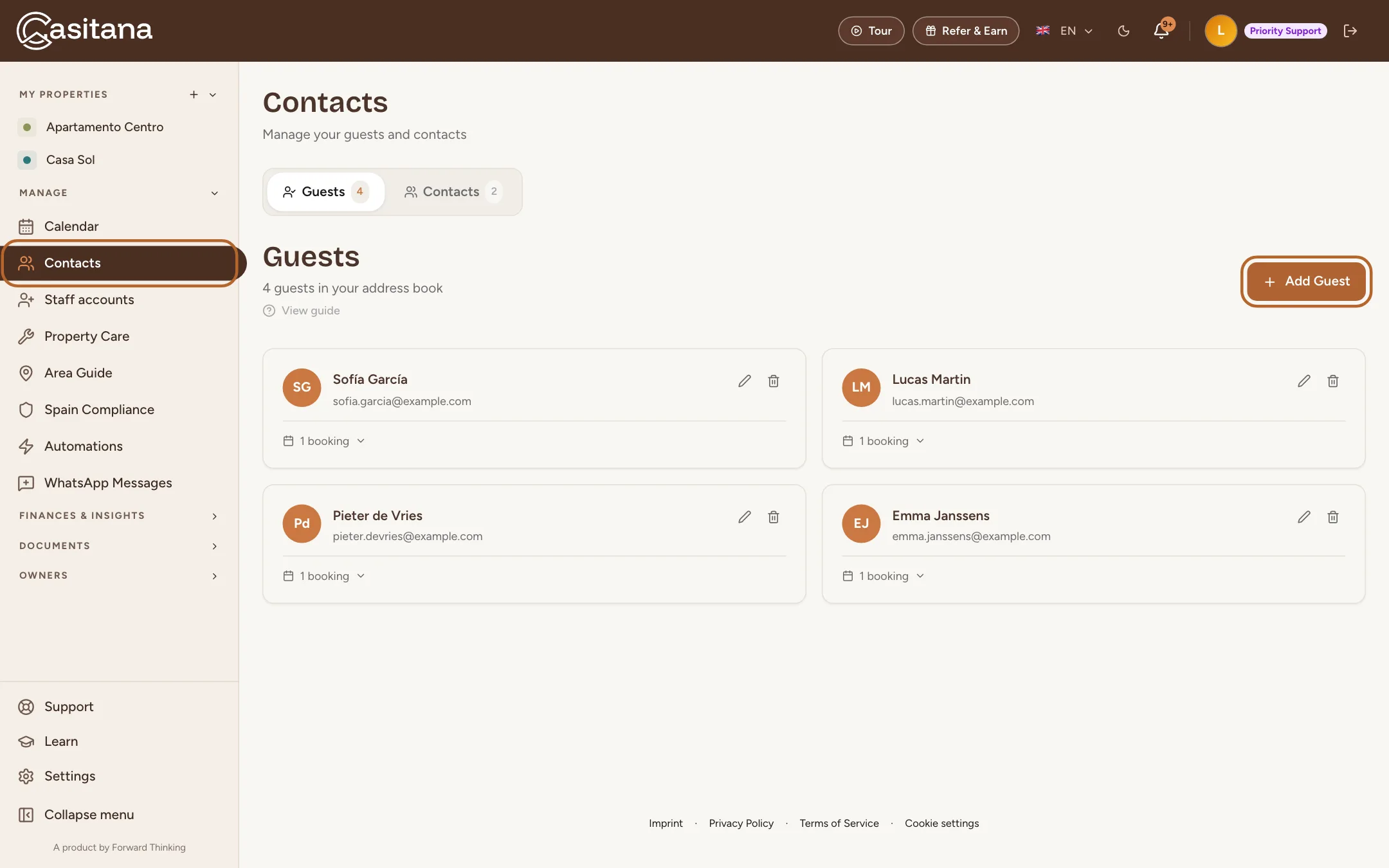
In the menu on the left, click Contacts. Then click + Add Guest on the right.
 Enlarge screenshot
Step 2
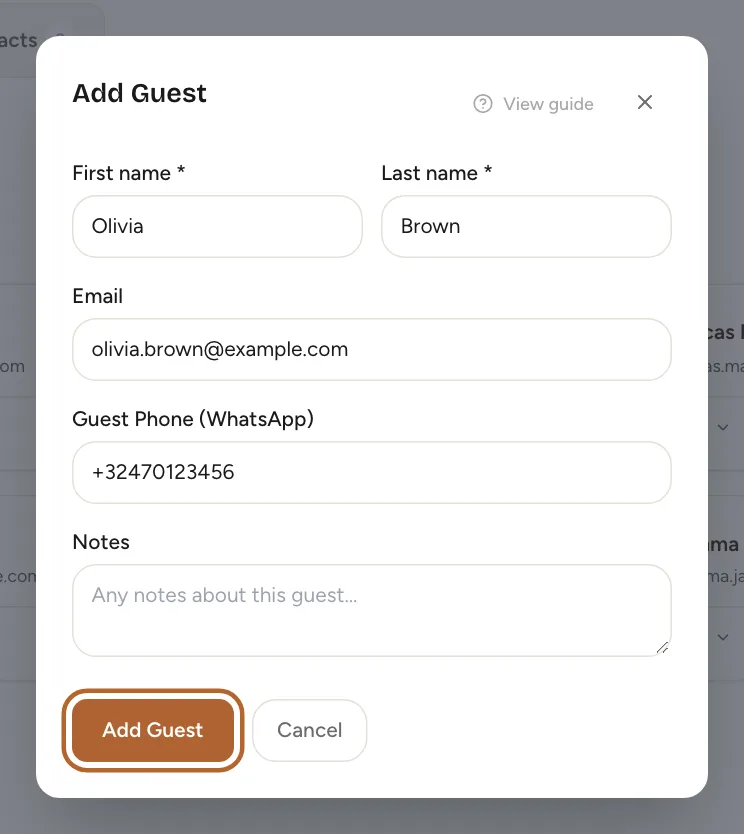
Fill in the guest’s details
Enter the first and last name. Email, phone number and notes are optional, but an email address is needed later for the SES Hospedajes registration. Enter the phone number in international format, without spaces (for example +32470123456). Click Add Guest.
 Enlarge screenshot
Step 3
See a guest’s stays
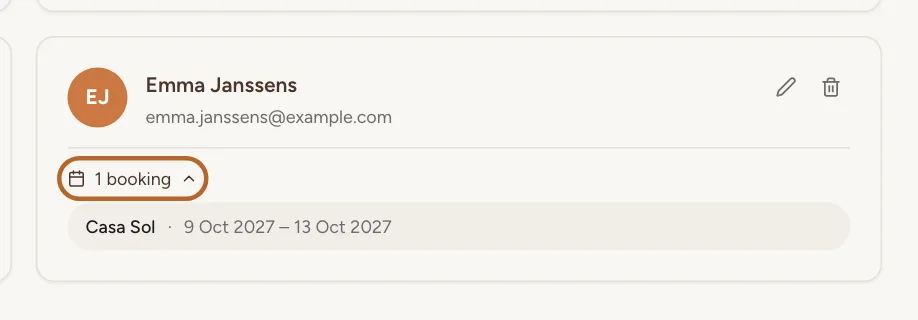
Each guest has a card in your contacts. Click 1 booking (or 2 bookings, and so on) under the guest to show their stays. Use the pencil icon to edit the guest and the bin icon to delete them.
 Enlarge screenshot
Tip: Your plumber, gardener and everyone else who works on your properties go in the Contacts tab of the same page: see Contacts and guests.
Add a booking
Add a booking you received directly, by phone or by email. Bookings from Airbnb, Booking.com or Vrbo can also be imported automatically: see Sync your calendar with Airbnb, Booking.com, Vrbo and other platforms.
Step 4
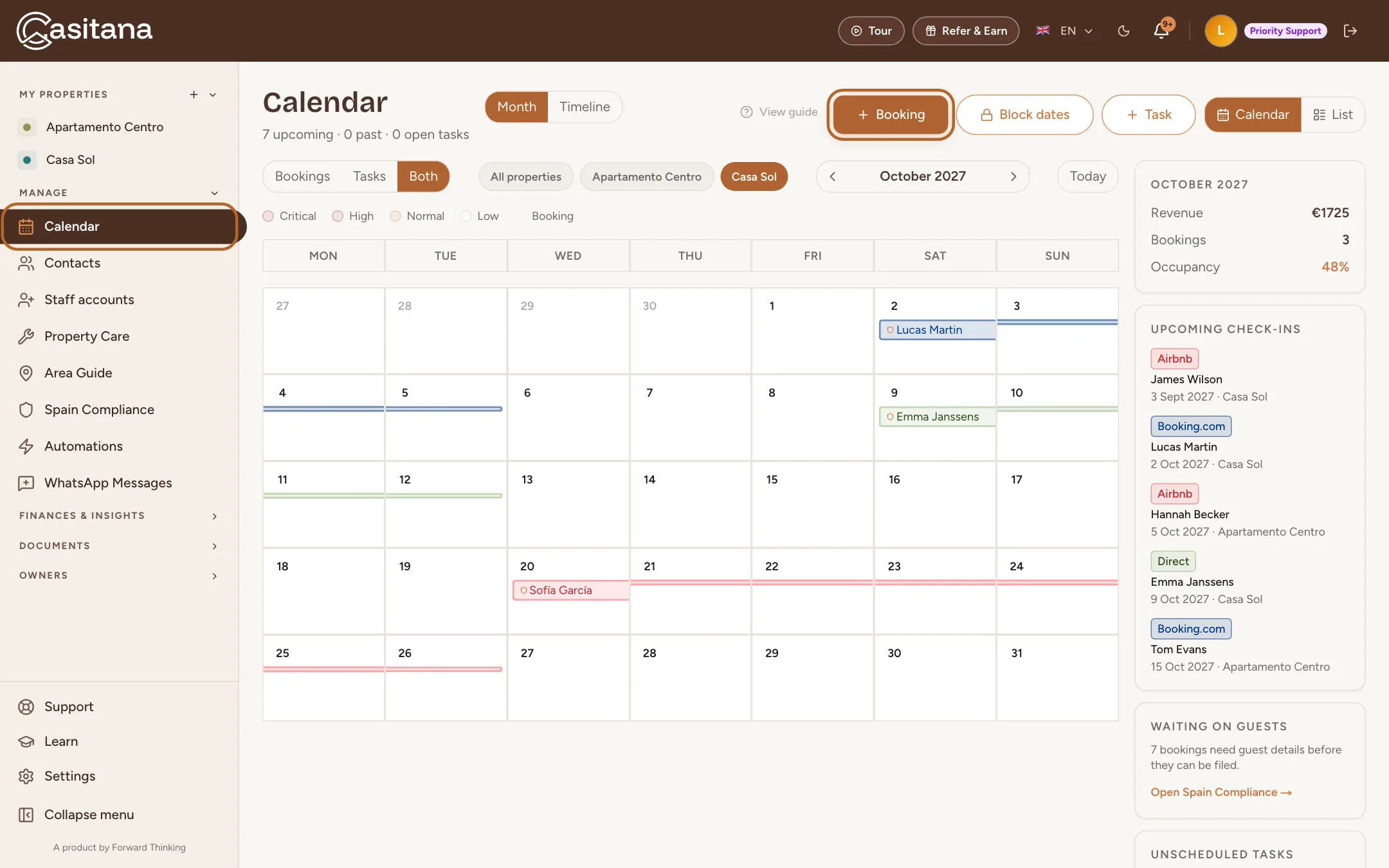
Open the calendar
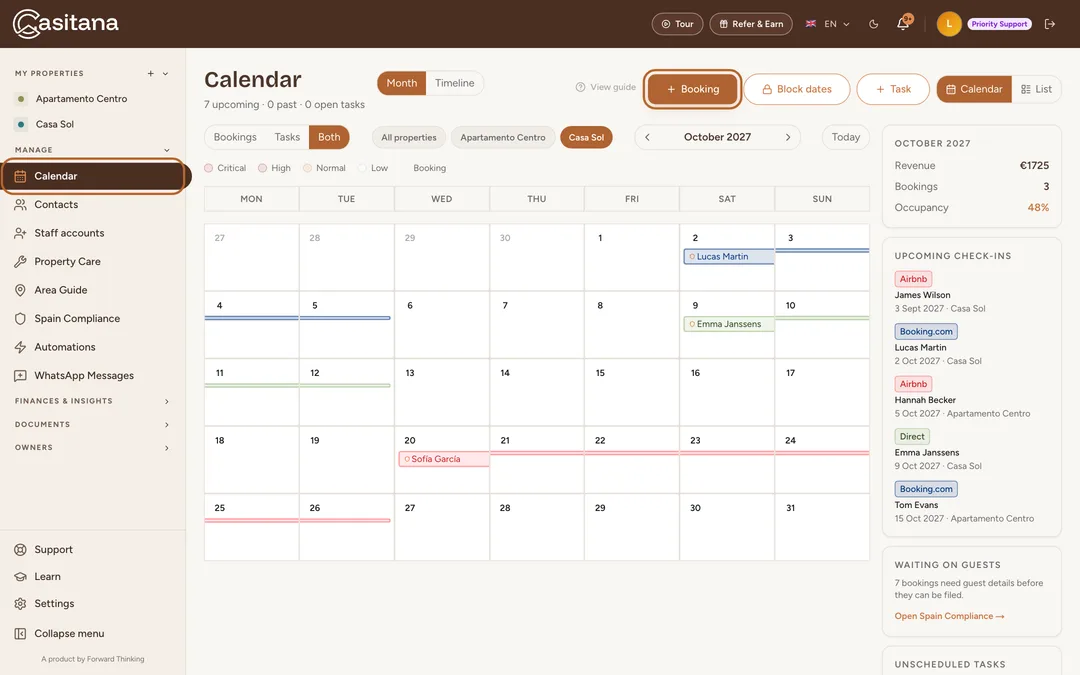
Click Calendar in the menu on the left. Then click + Booking at the top of the page.
 Enlarge screenshot
Tip: You can also click directly on a day in the calendar to start a booking on that date.
Step 5
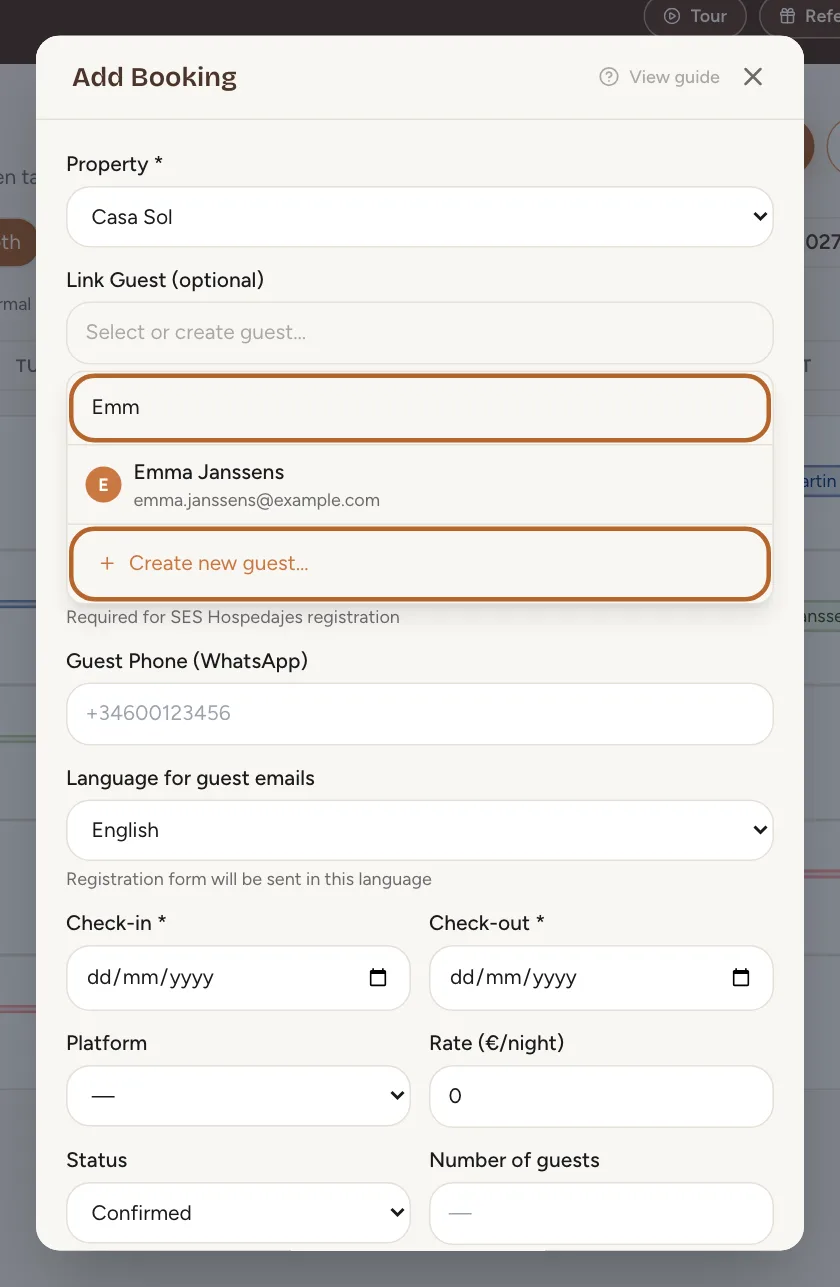
Link the guest
Under Link Guest (optional), click the field and start typing the guest’s name or email: Casitana searches all your contacts as you type. Choose the guest from the list. Their name and phone number are filled in for you. Is the guest new? Click + Create new guest….
 Enlarge screenshot
Step 6
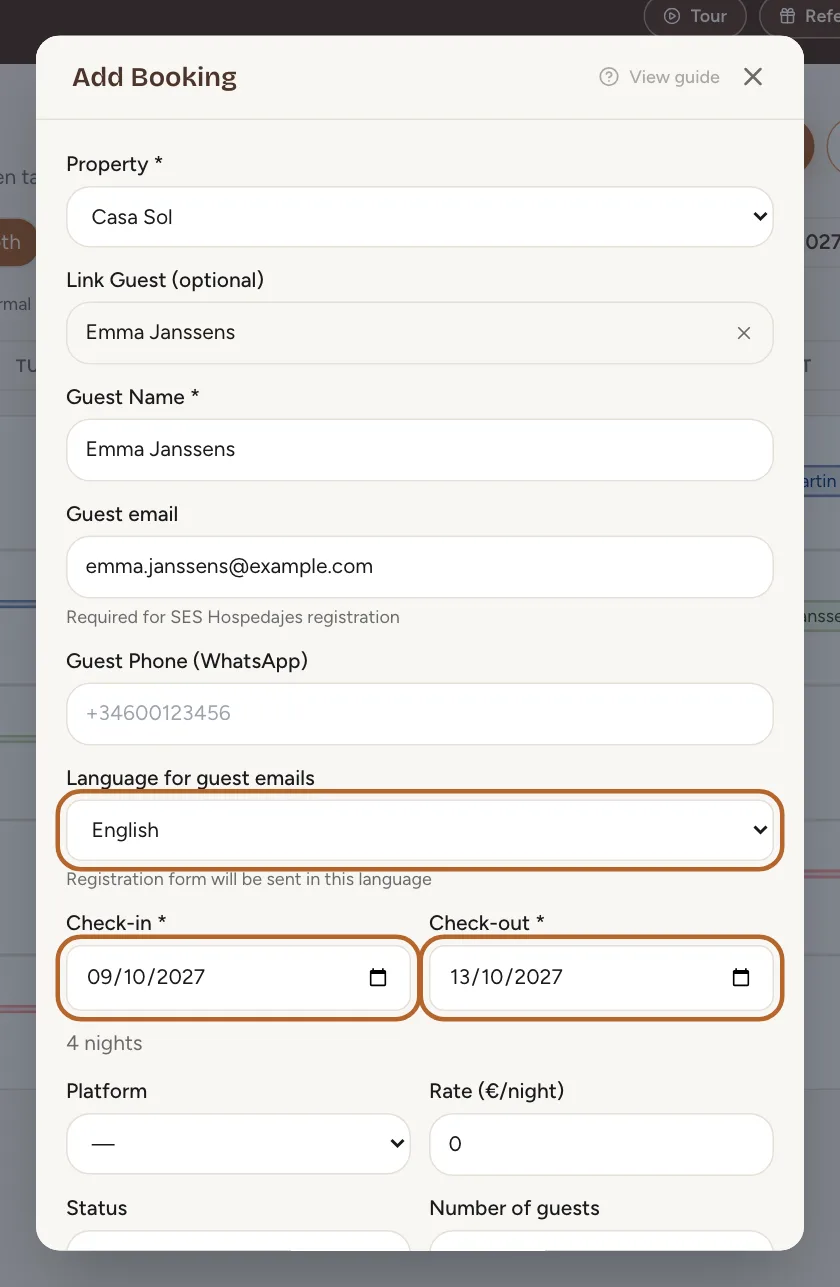
Fill in the stay
Check the guest’s details and add an email address if needed. Choose the Language for guest emails: the registration form is sent to the guest in this language. Then fill in the Check-in and Check-out dates. Casitana immediately shows the number of nights and the total.
 Enlarge screenshot
Step 7
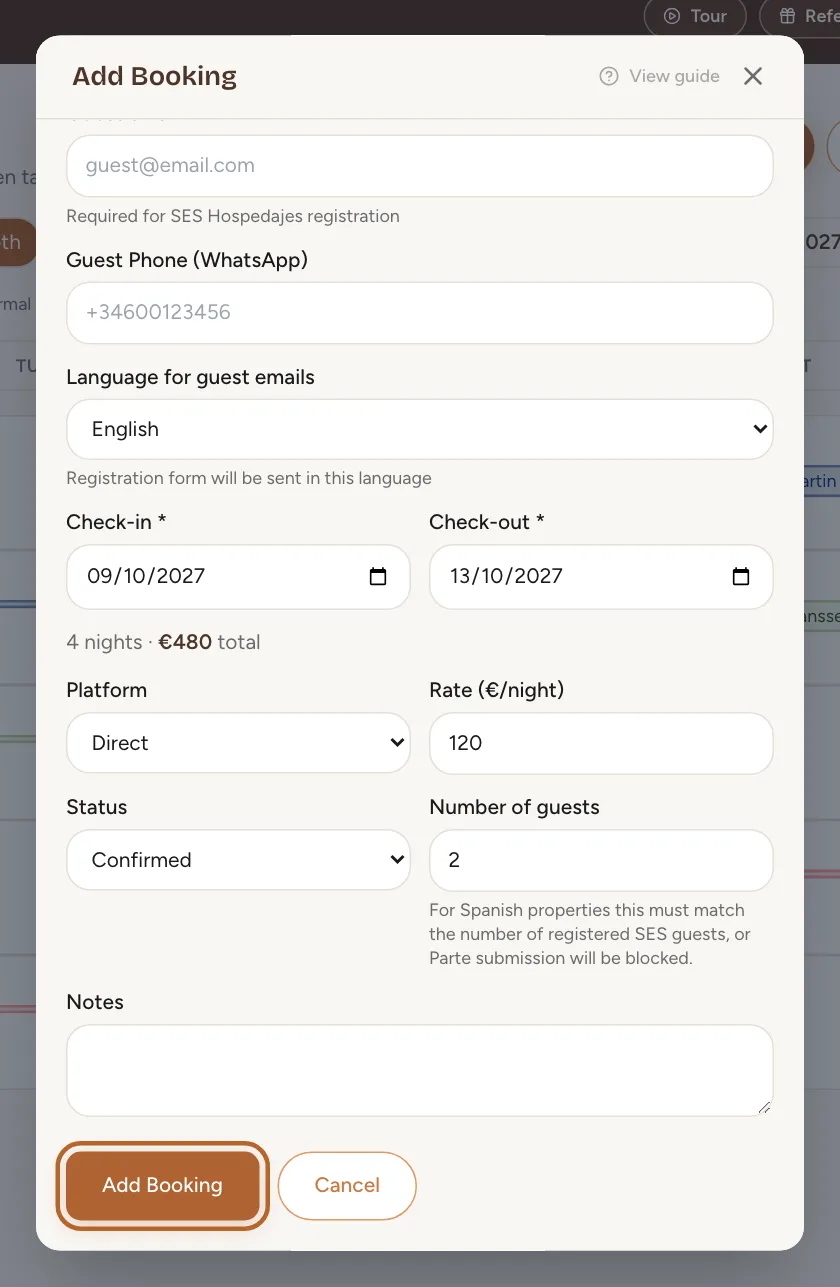
Add platform, price and save
Choose the Platform the booking came from, then enter the Rate (€/night) and the Number of guests. Leave the Status on Confirmed, or choose Pending if the booking is not final yet. Click Add Booking.
 Enlarge screenshot
Change or cancel a booking
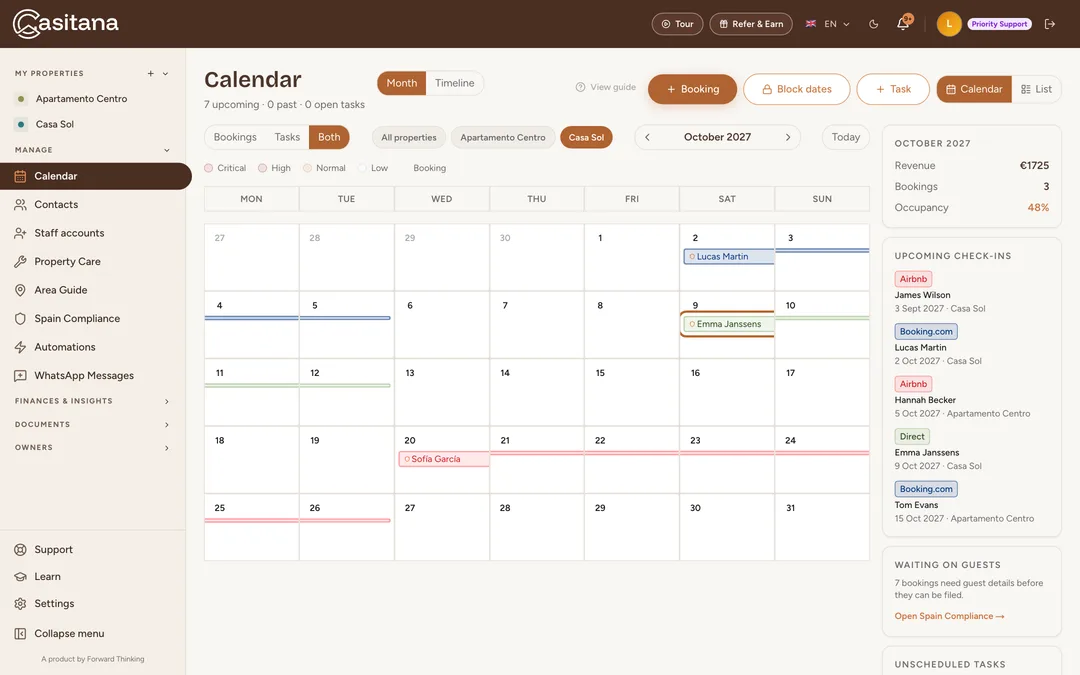
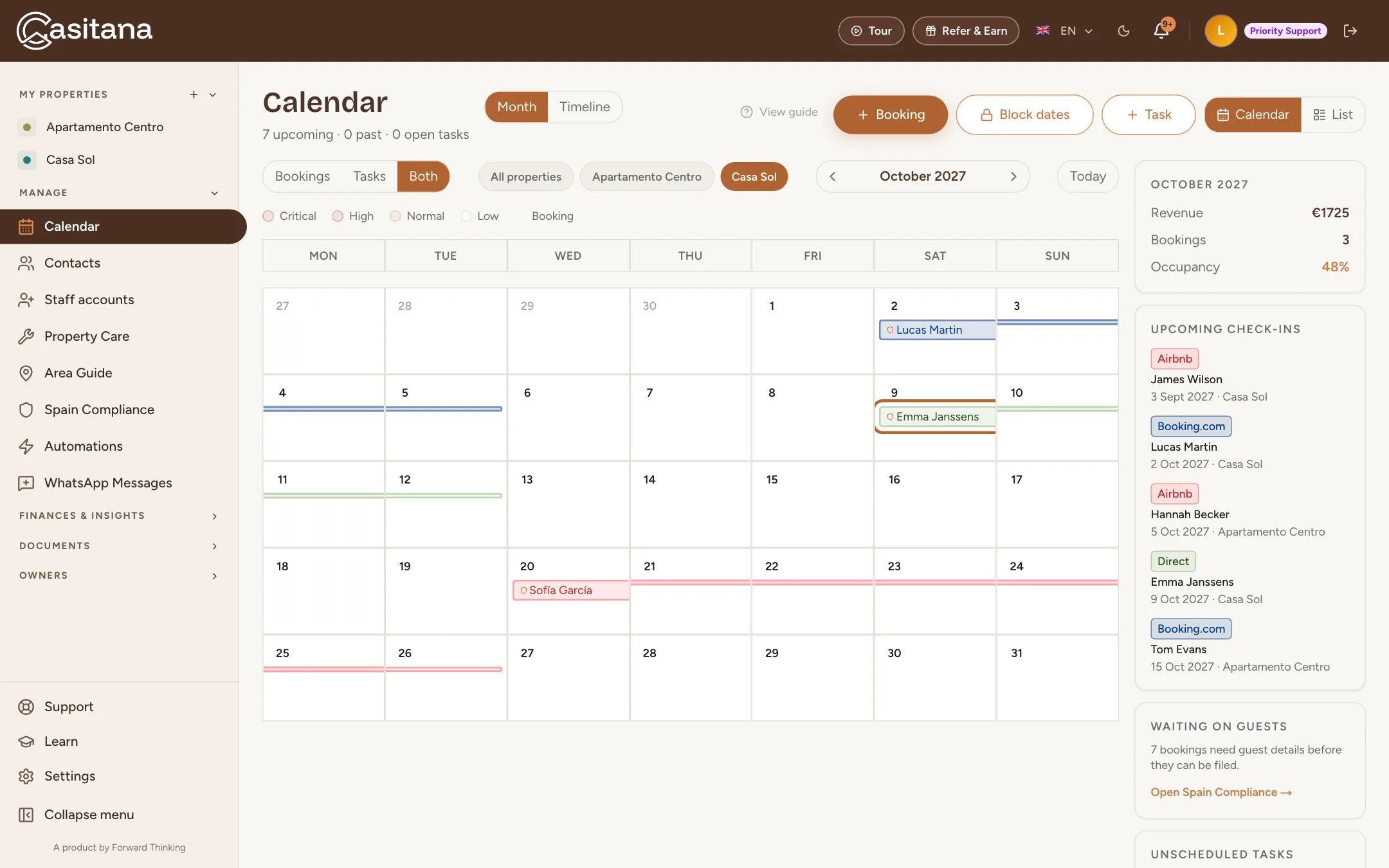
Every booking appears as a bar in the calendar. Click it to see the details.
Step 8
Open the booking
Go to the right month with the arrows next to the month name and click the booking bar.
 Enlarge screenshot
Step 9
Choose what you want to do
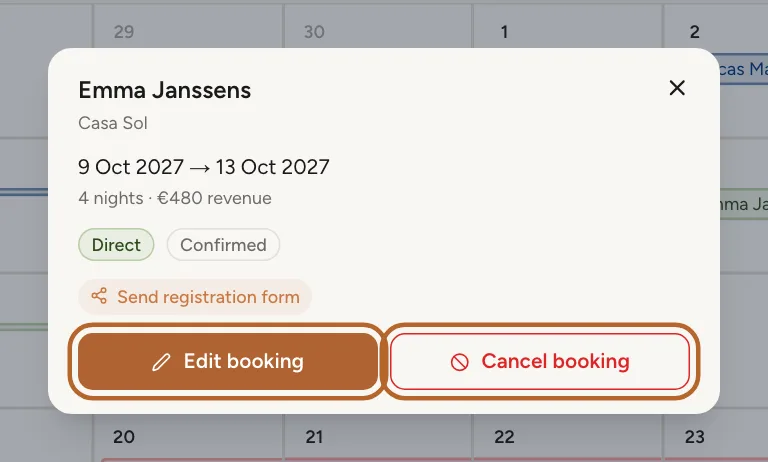
You see the dates, the number of nights, the revenue, the platform and the status. Click Edit booking to make changes or Cancel booking to cancel the stay.
 Enlarge screenshot
Step 10
Make your changes
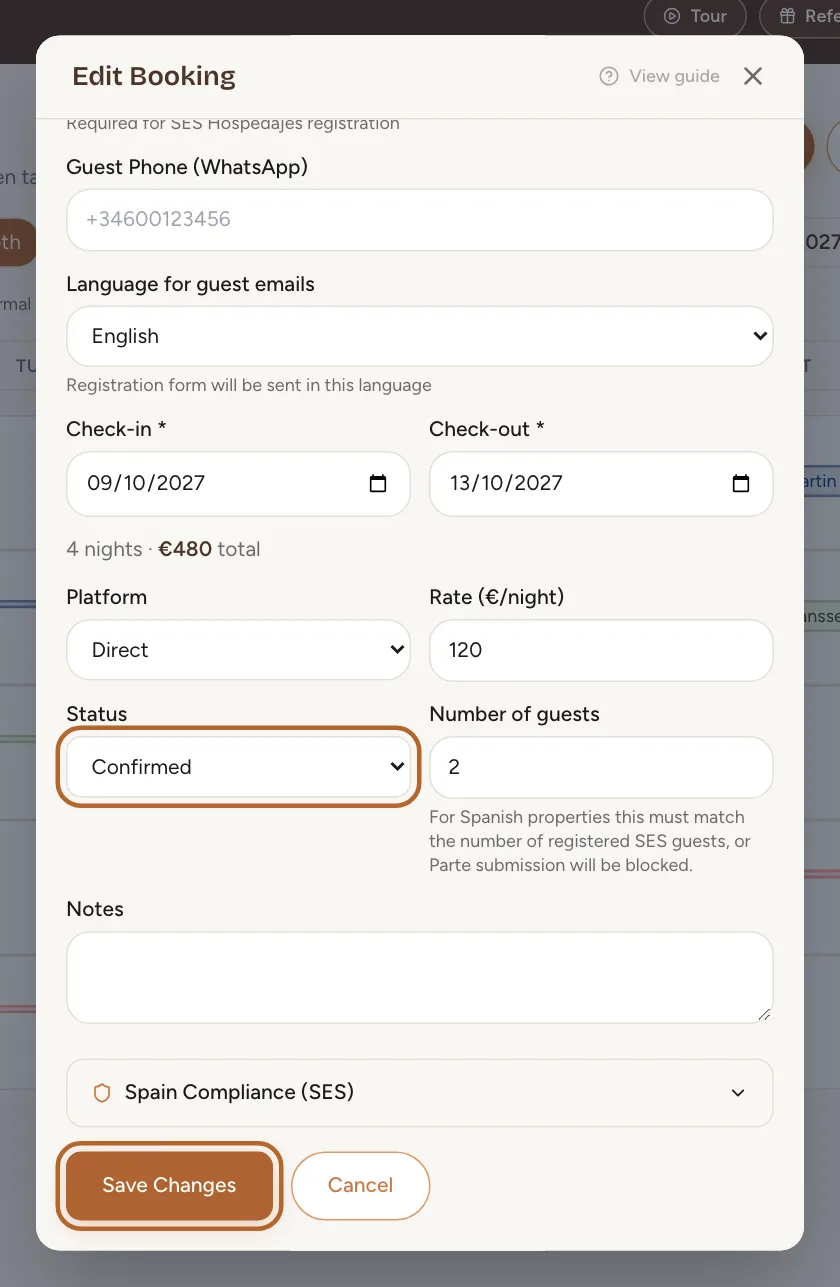
The same form as for a new booking opens. Change what you need, for example the dates or the Status, and click Save Changes.
 Enlarge screenshot
Step 11
Cancel a booking
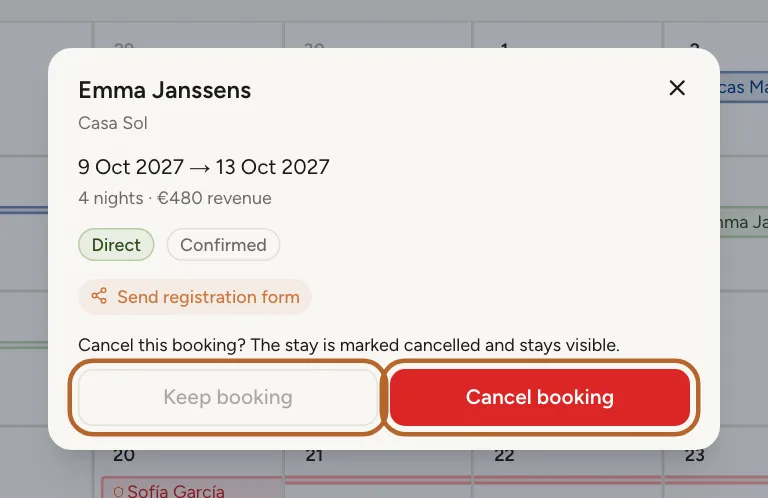
After clicking Cancel booking, Casitana asks you to confirm. Click Cancel booking to confirm, or Keep booking to go back. A cancelled booking stays visible, marked as cancelled.
 Enlarge screenshot
See all bookings in a list
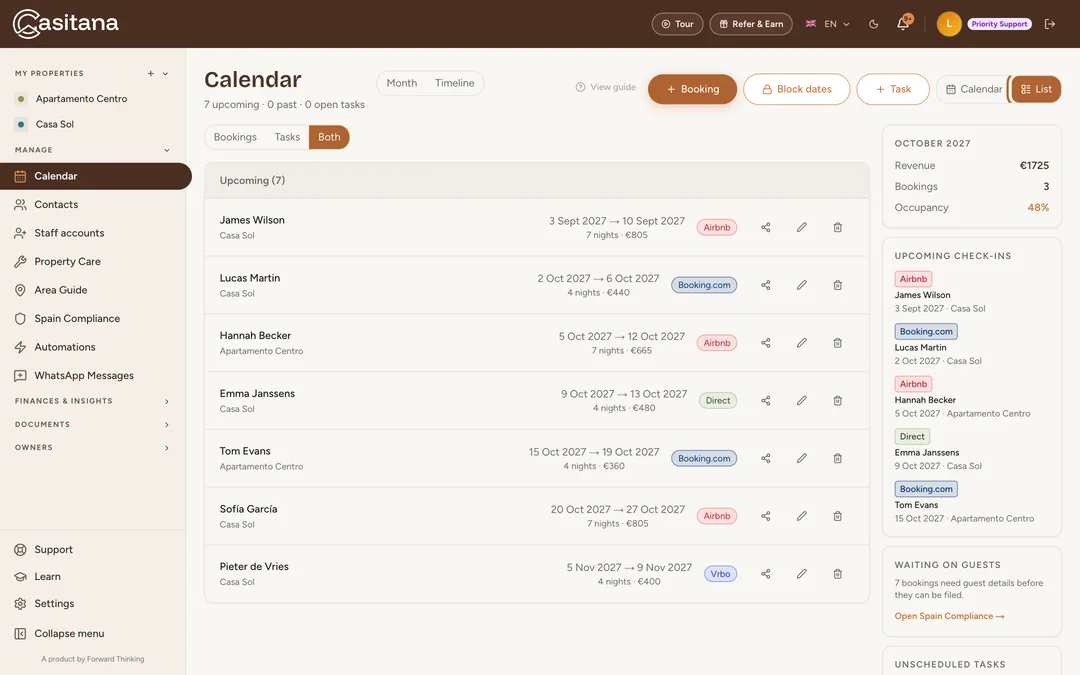
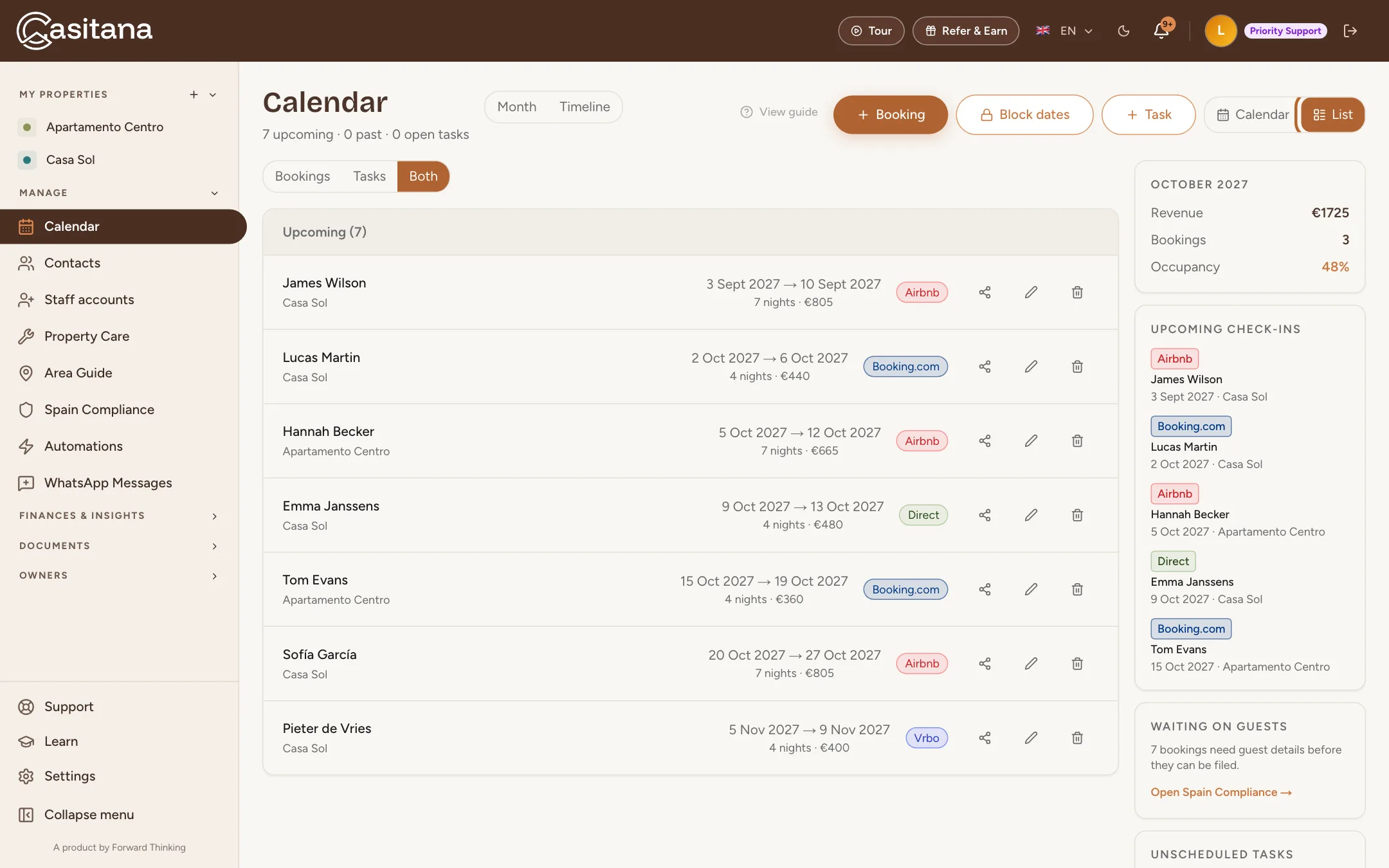
Prefer a list to a calendar? Switch to list view.
Step 12
Switch to List
In the calendar, click List in the top right corner. You see all upcoming bookings with dates, nights, amount and platform, followed by your open tasks. Click Calendar to go back. On the right you always see the revenue, number of bookings and occupancy for the month.
 Enlarge screenshot
Import bookings from Airbnb, Booking.com or Vrbo
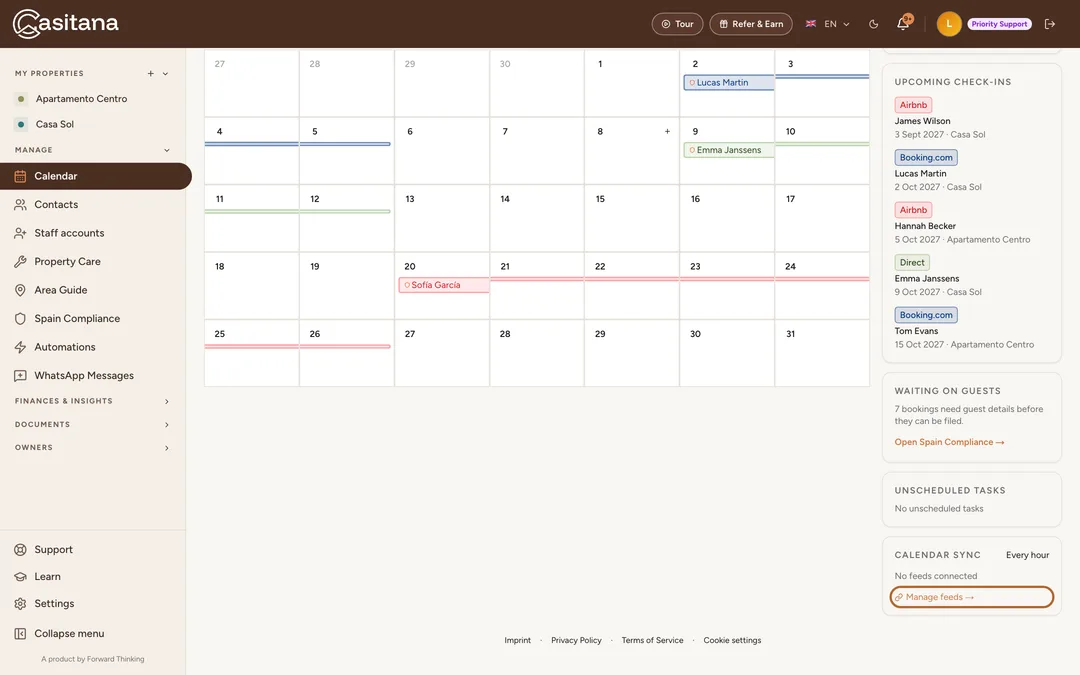
Connect your platforms once, and Casitana imports new bookings automatically every hour. This uses the platform’s calendar link (iCal).
Step 13
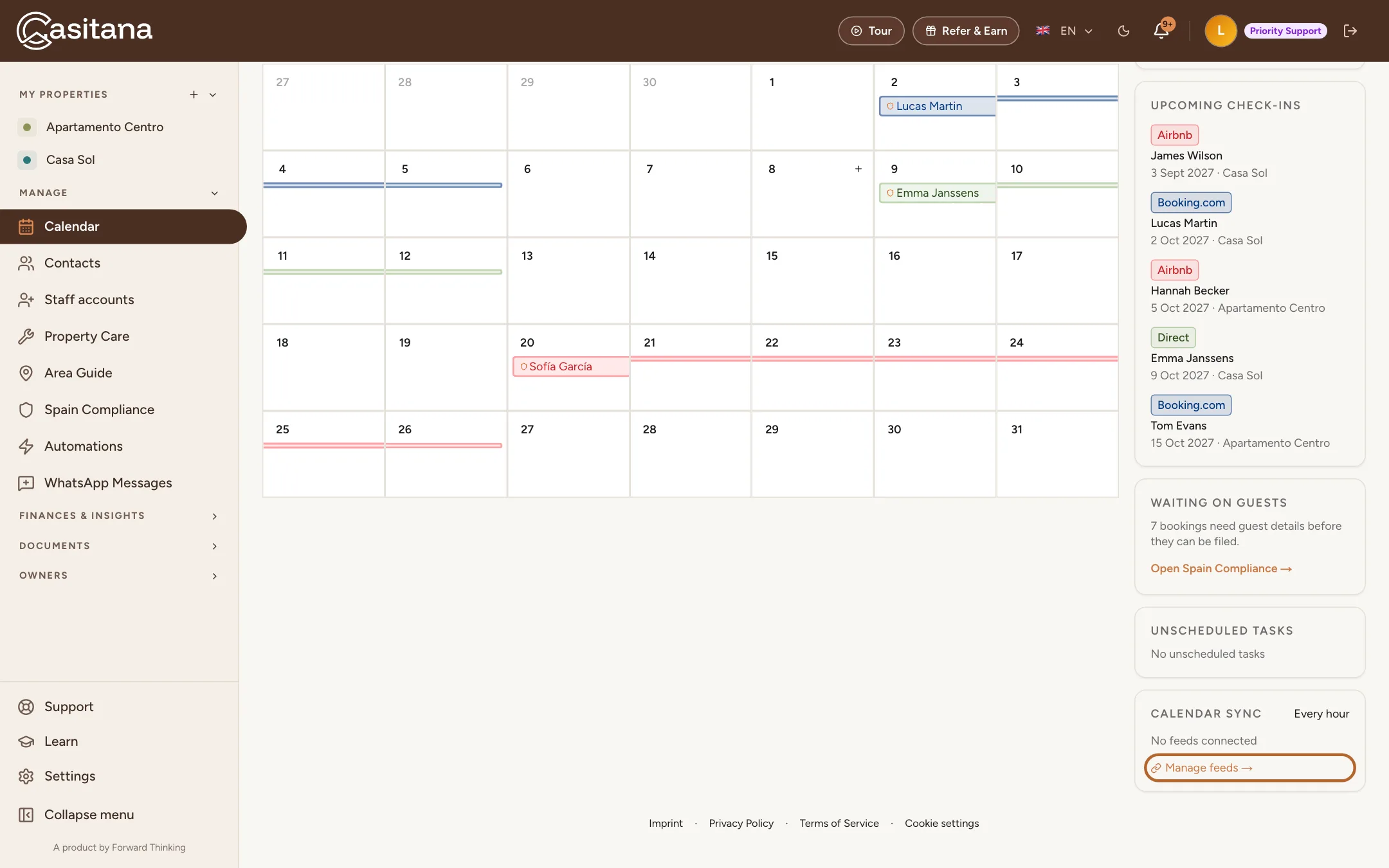
Open the calendar sync
In the calendar, click Manage feeds → on the right. You can also go to Settings › General › Calendar.
 Enlarge screenshot
Tip: Connecting a platform step by step, what to do when a sync fails, and how to show your Casitana bookings on the platforms: see Sync your calendar with Airbnb, Booking.com, Vrbo and other platforms.
In the appApp
Step 1
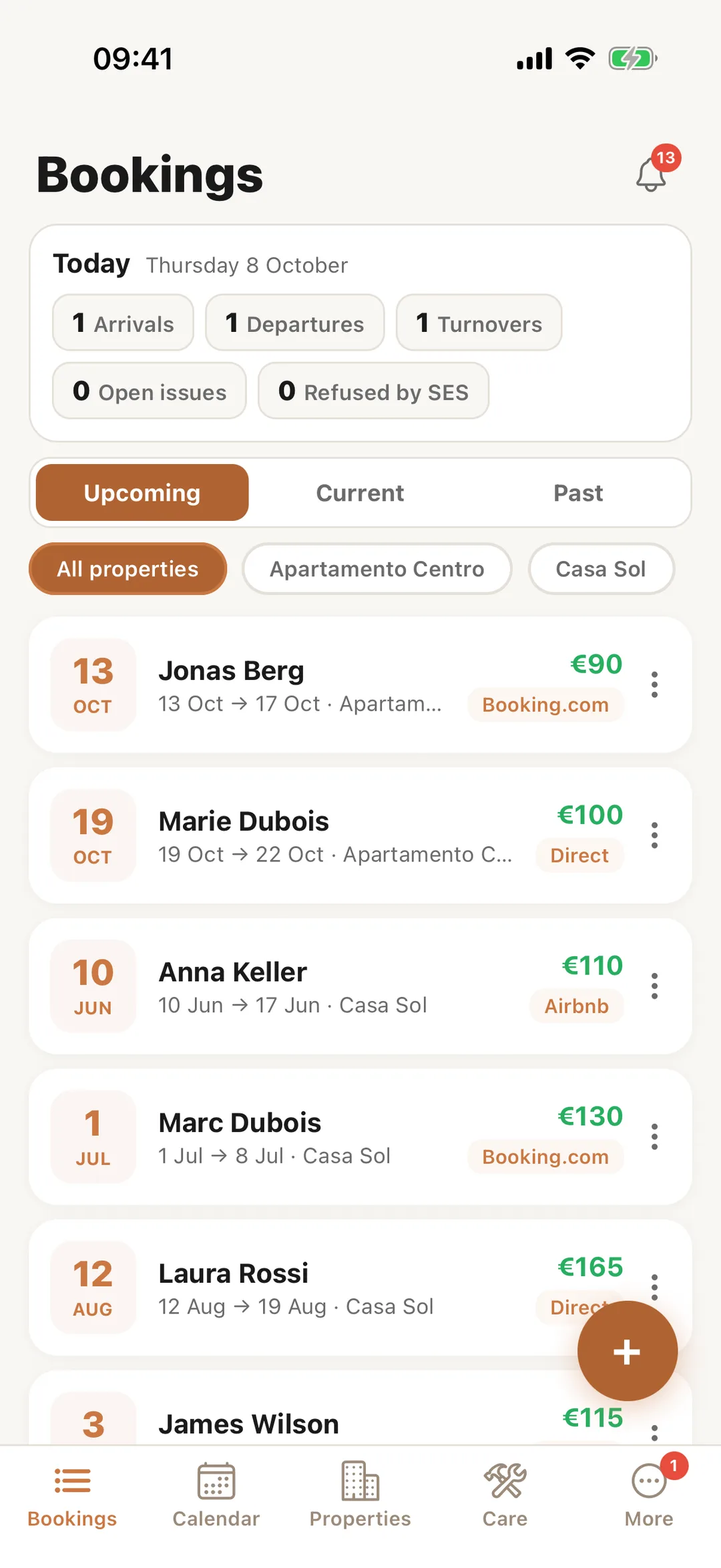
The Bookings tab
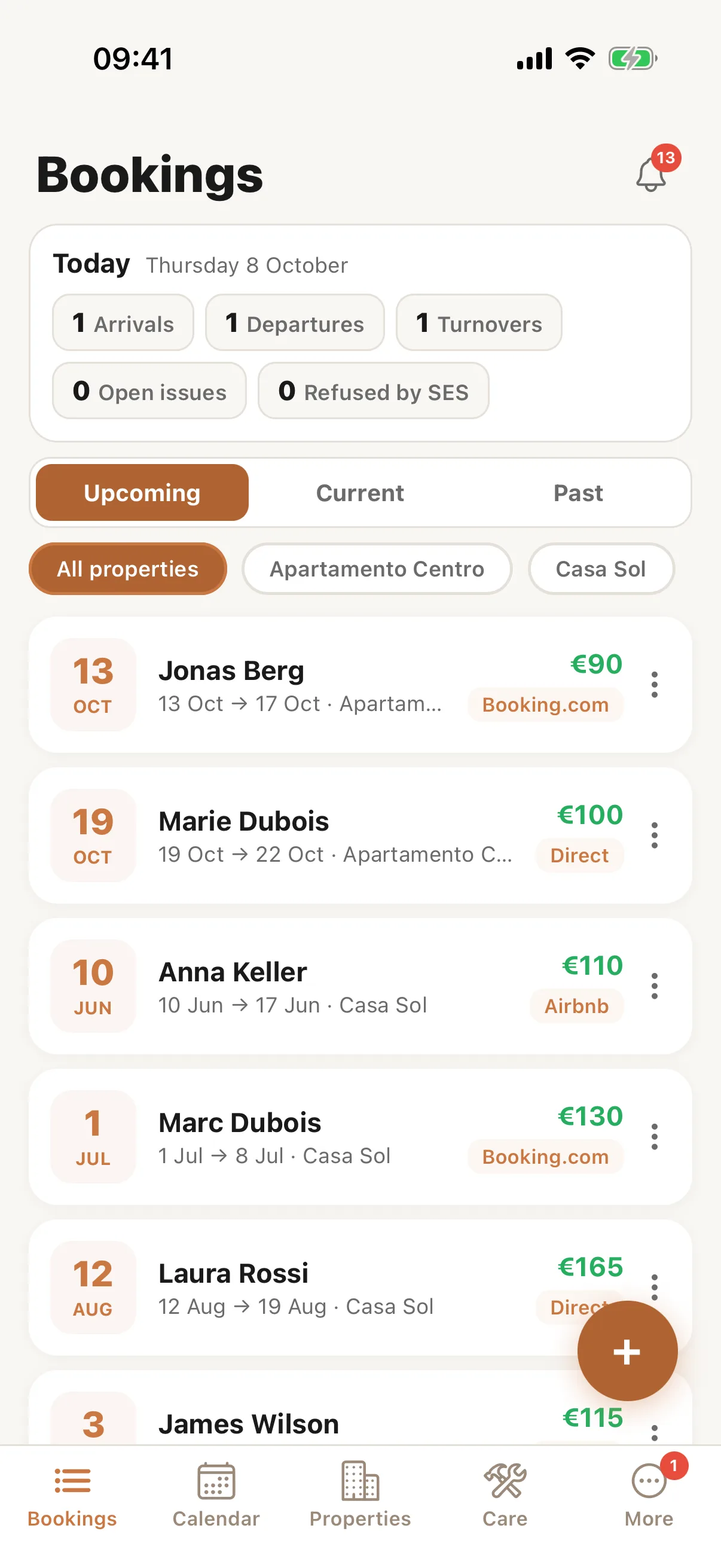
In the Casitana app, Bookings lists your stays under Upcoming, Current and Past, for all properties or one. At the top, Today counts the day’s arrivals, departures and changeovers; tap one to see who. The + button adds a booking.
 Enlarge screenshot
Step 2
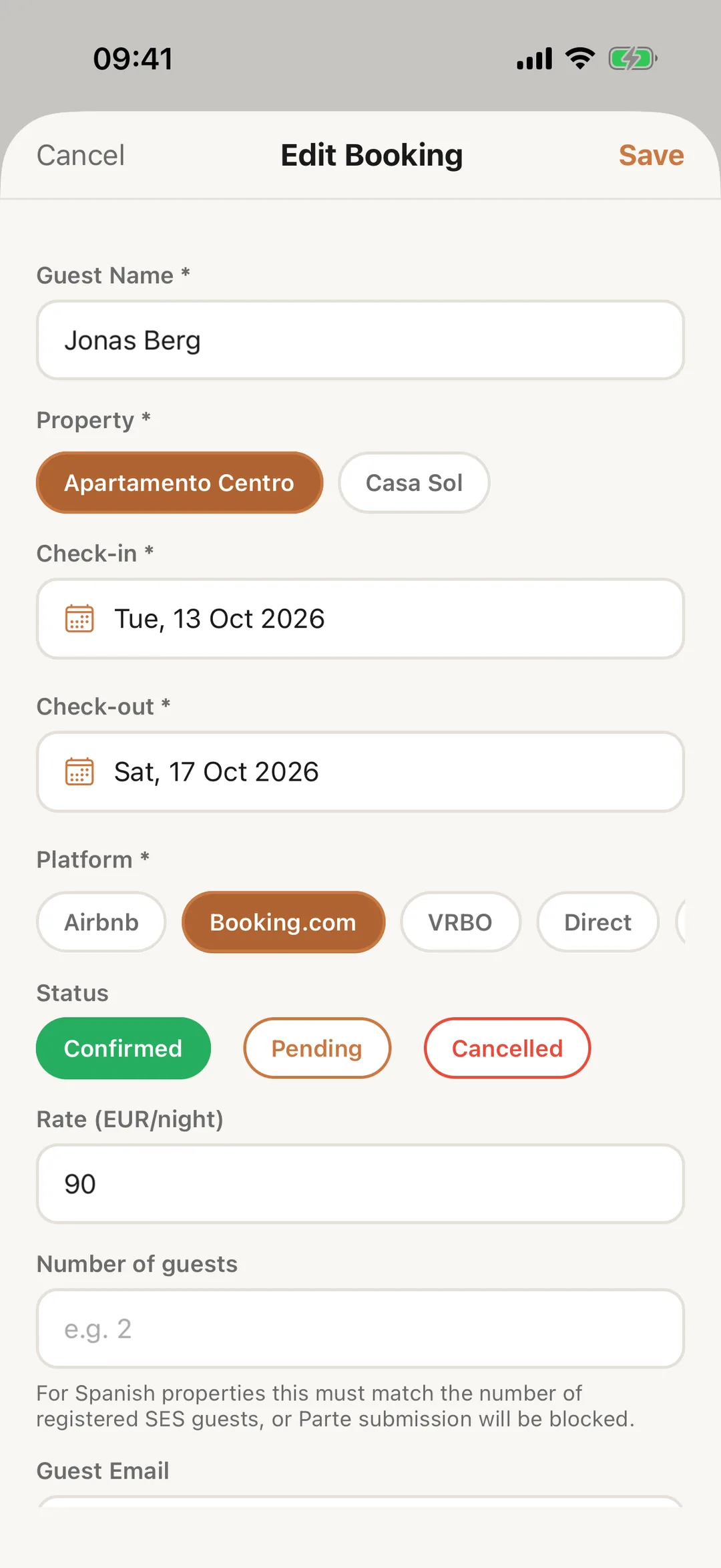
Open a booking
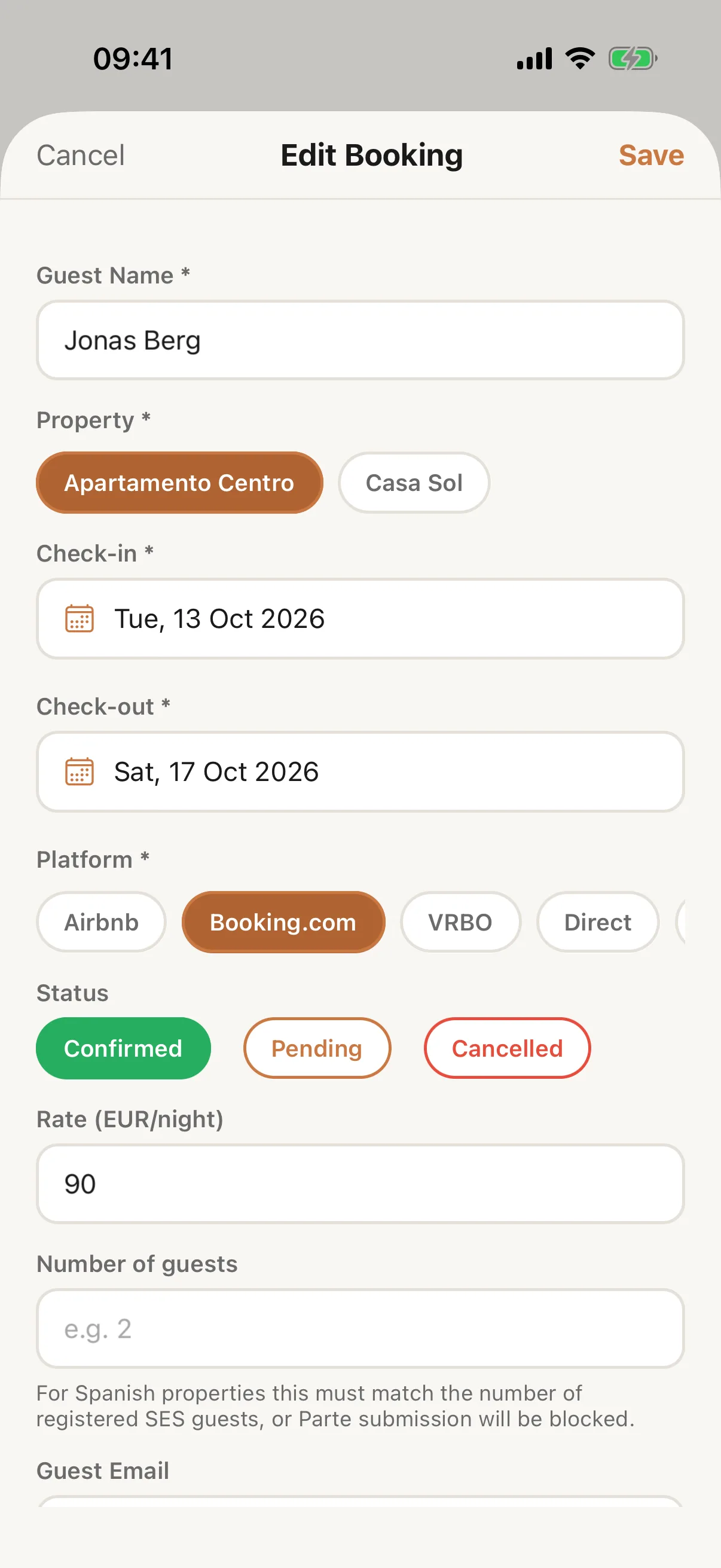
Tap a booking to see and change it: the guest, the property, the dates, the platform and the status. Tap Save when you are done.
 Enlarge screenshot
Step 3
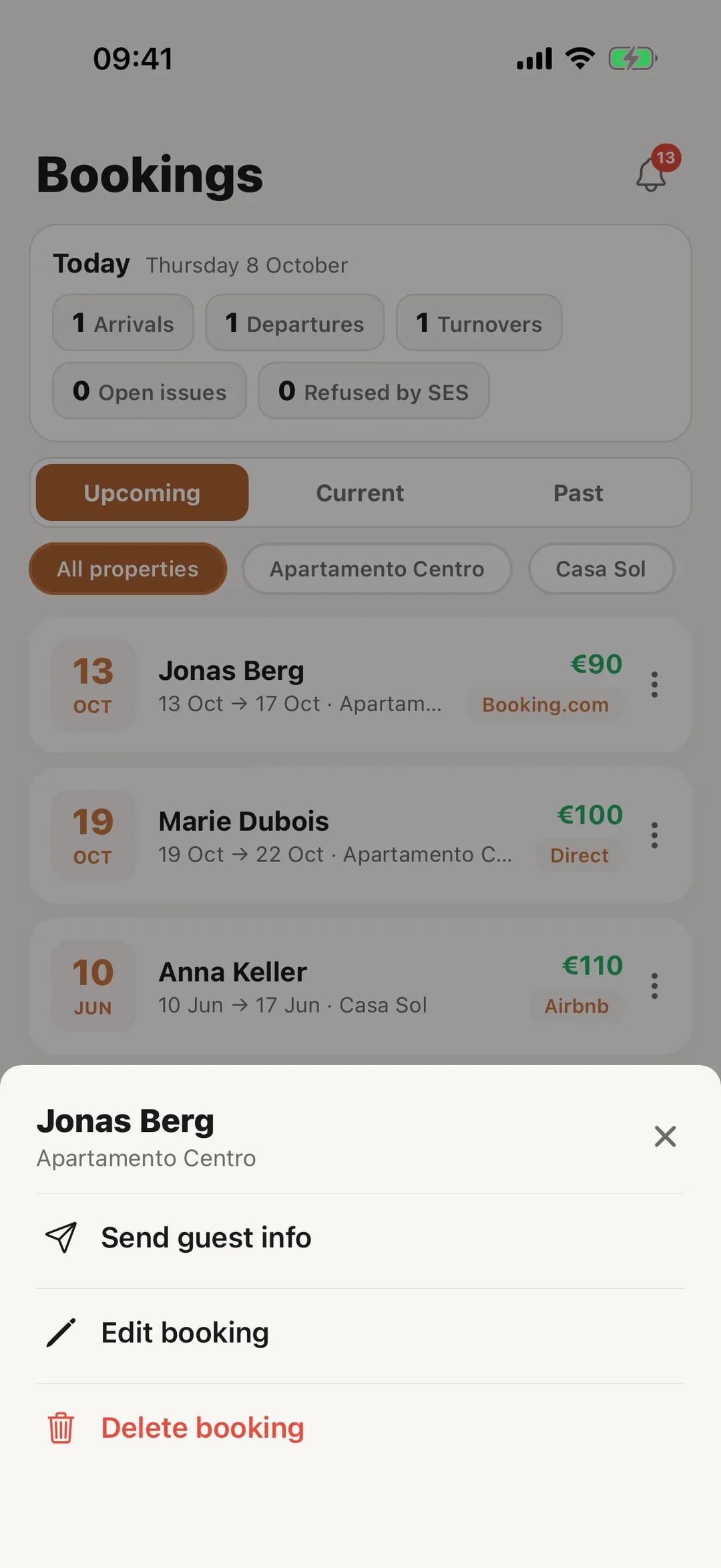
Send guest info, edit or delete
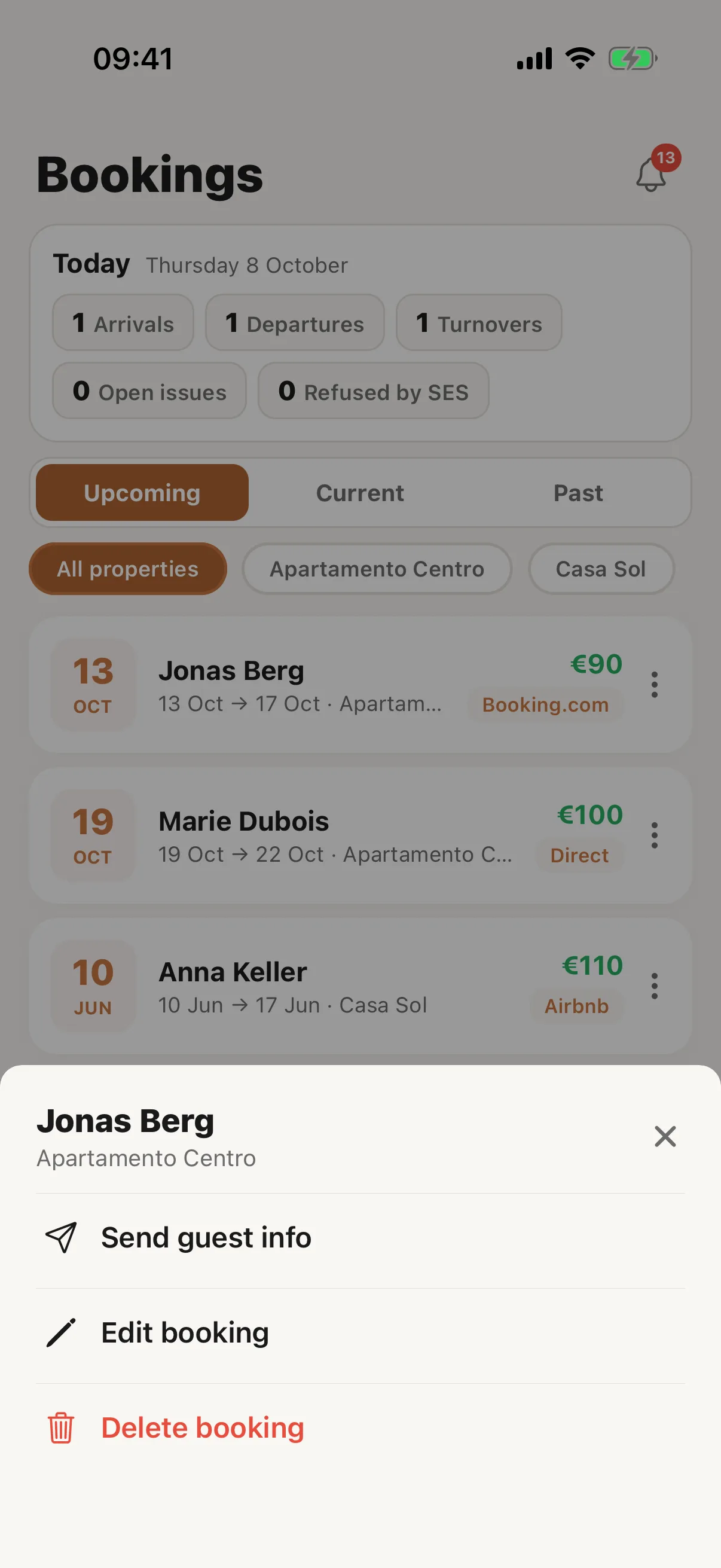
Tap ⋮ on a booking for Send guest info, Edit booking and Delete booking. Pressing and holding the booking opens the same list. Send guest info opens your phone’s share sheet with a message and the link to the property’s guest page, ready for WhatsApp, Mail or any other app: In the app.
 Enlarge screenshot