
Find the month
Step 1
Open Reports
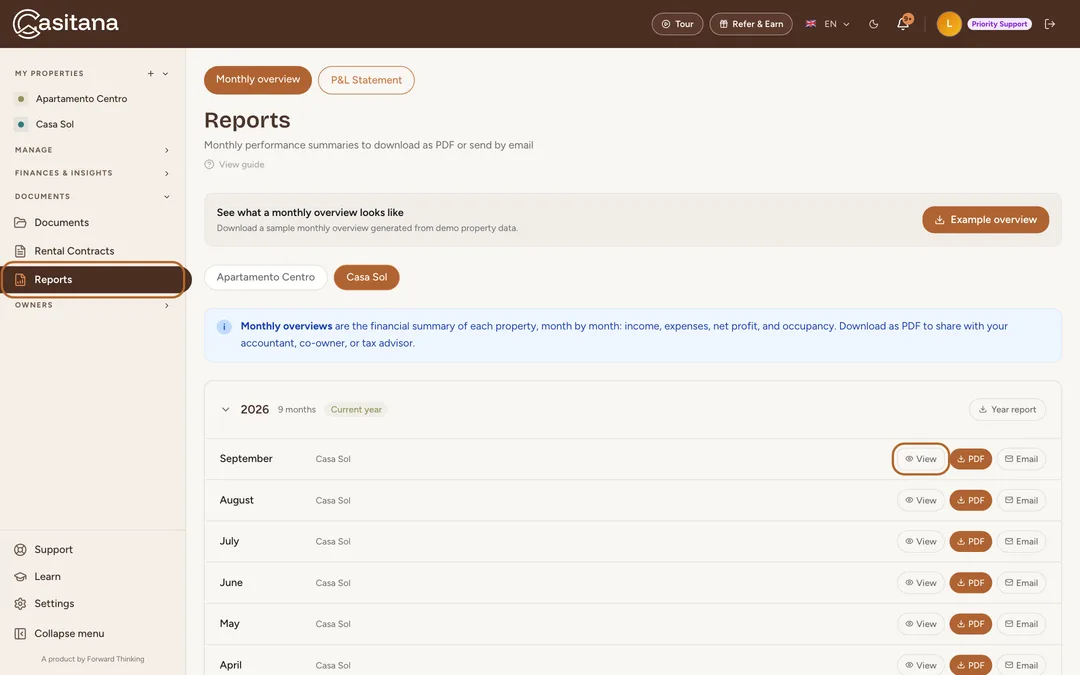
In the menu on the left, click Reports. Every month up to the last one is listed, going back two years. With more than one property, choose the property at the top, then click View next to the month.
 Enlarge screenshot
Tip: Year report, next to each year, downloads that year’s totals in one report.
Read a monthly overview
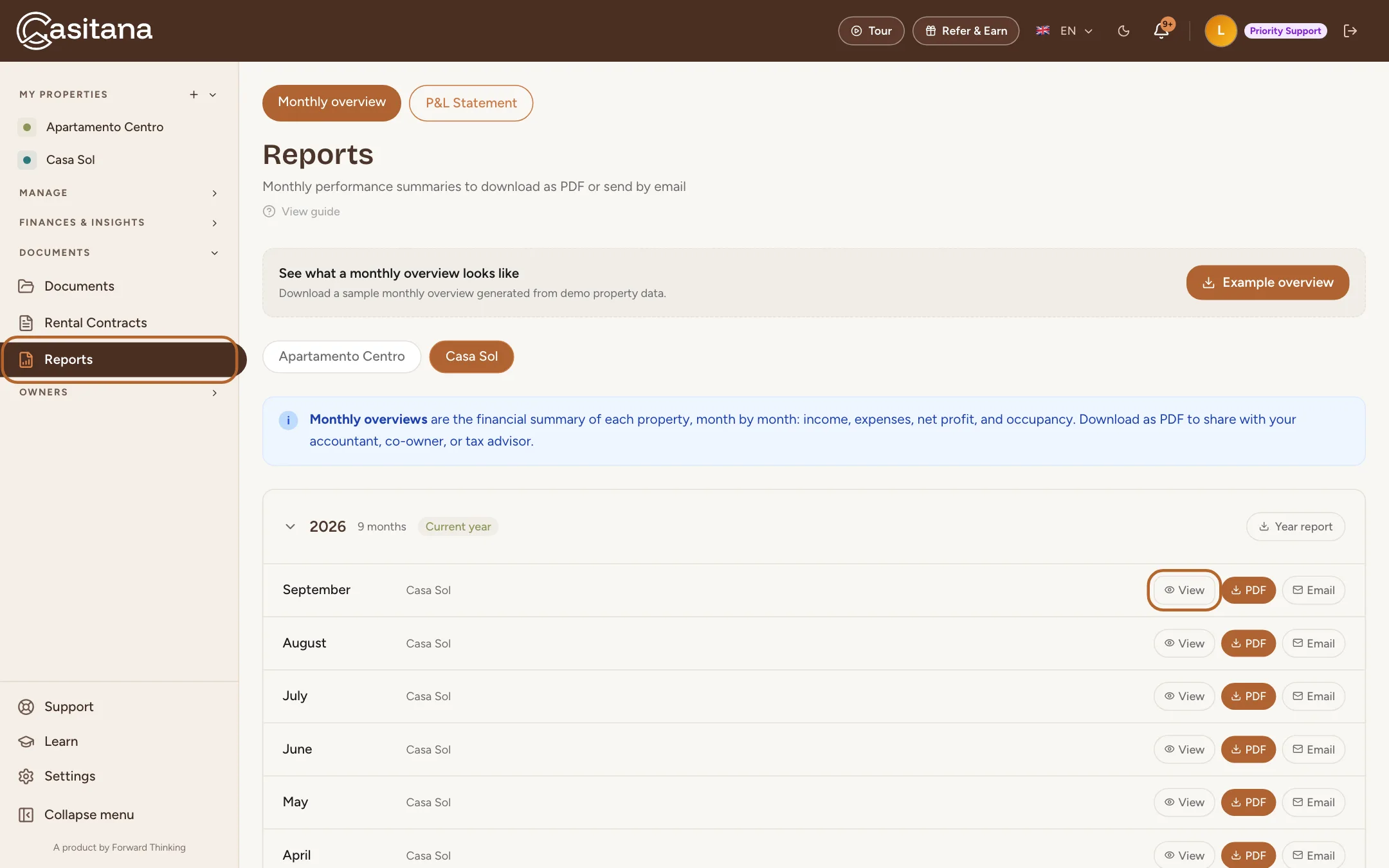
The income on a monthly overview is the income you recorded under Income & Expenses. A stay adds its nights and occupancy, not money: its payout counts once you record it.
Step 2
The month’s figures
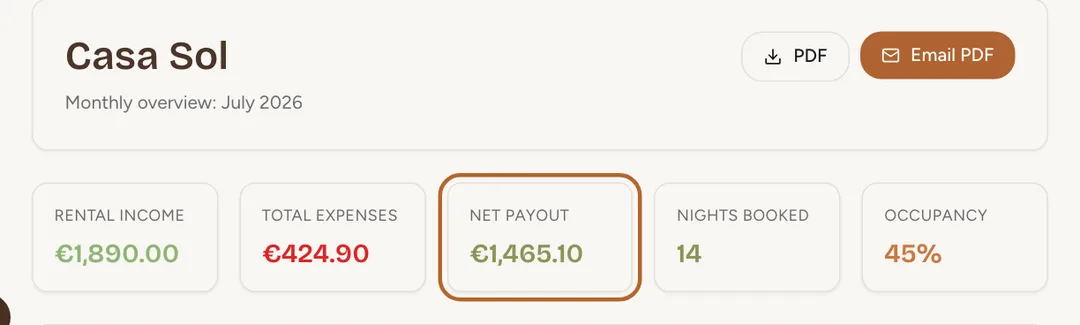
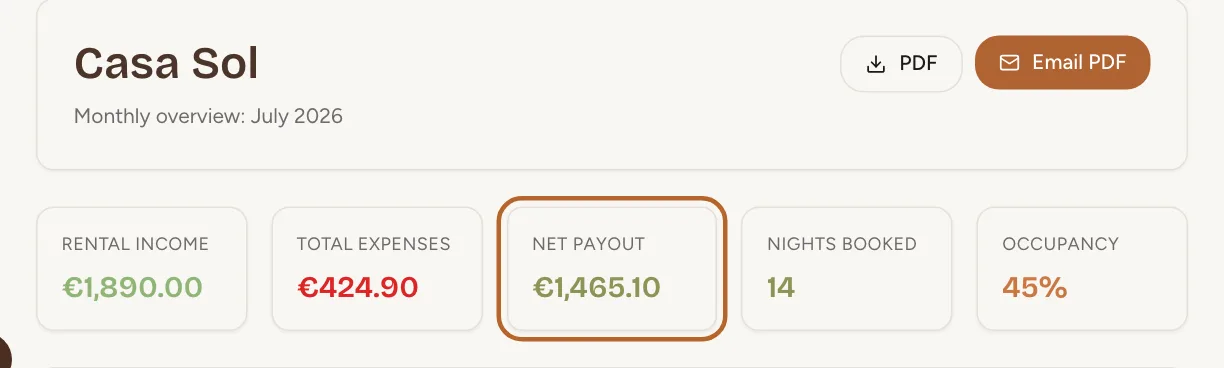
At the top: Rental Income, Total Expenses and Net Payout (what is left for you), then the Nights Booked and the Occupancy of the month.
 Enlarge screenshot
Step 3
The stays and transactions behind them
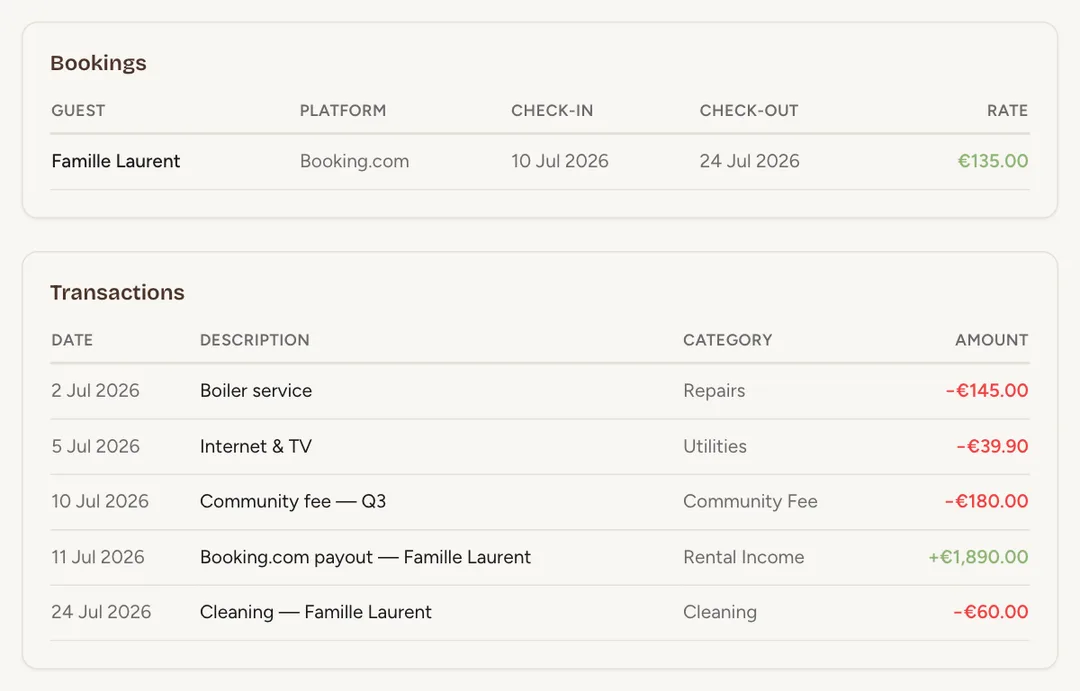
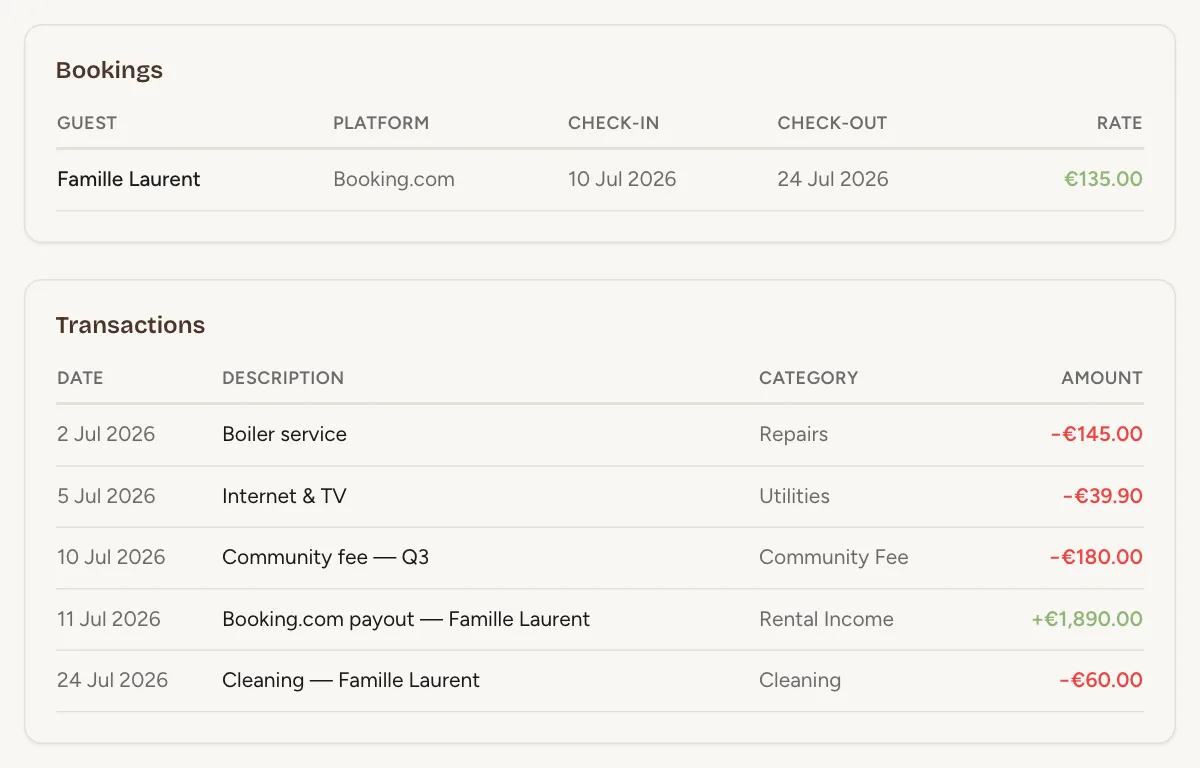
Below, Bookings lists every stay in the month with its nightly rate, and Transactions every income and expense, dated in the month. Summary ends with the Net Owner Payout.
 Enlarge screenshot
A stay that runs into the next month
Step 4
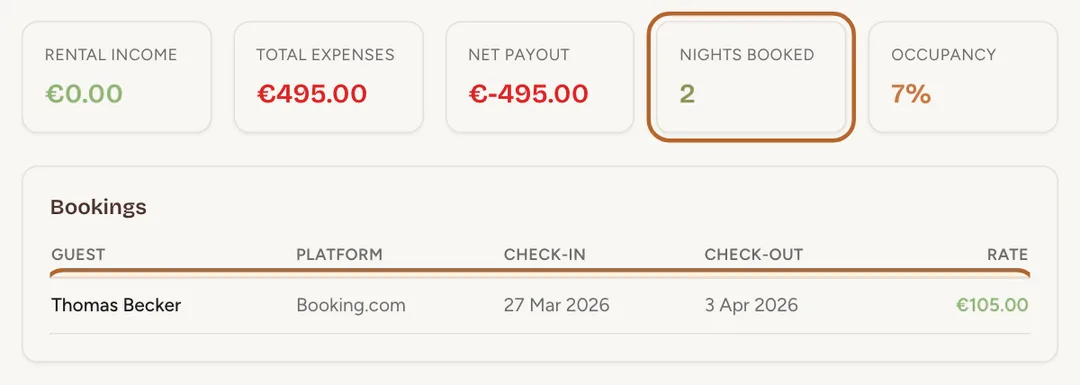
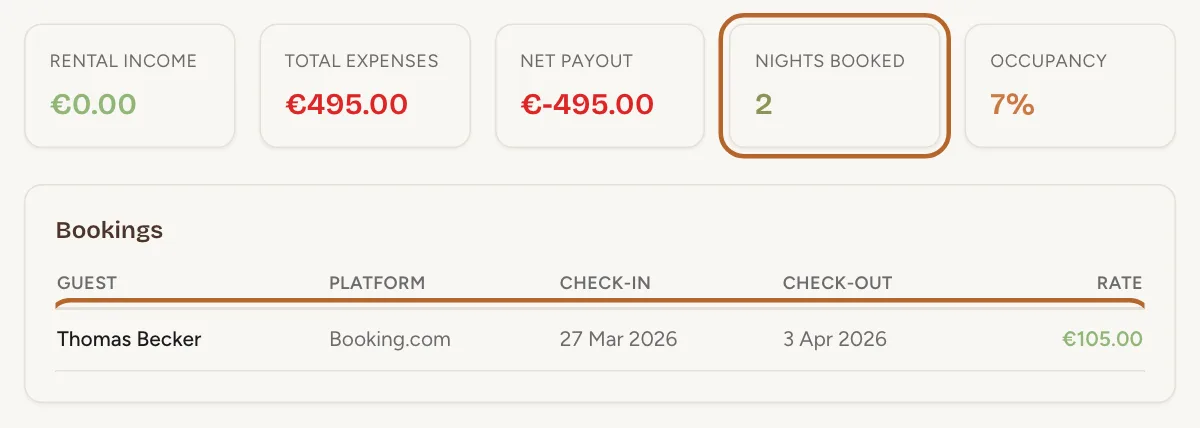
Each night counts in its own month
A stay from 27 March to 3 April has 5 nights in March and 2 in April: each night belongs to the month it begins in. So the stay appears on both monthly overviews, each with its own nights.
 Enlarge screenshot
Tip: Its income counts in the month you recorded the payout, whichever month that is.
Download or email it
Step 5
Download or email
Click PDF to download the monthly overview as a PDF, to send on or keep. Email PDF emails the same PDF to your own address.
 Enlarge screenshot
Tip: To send a property’s statement to its property owners, see Send owner statements.
Good to know: The PDF is in the language you use Casitana in.
