
Your Home screen
Step 1
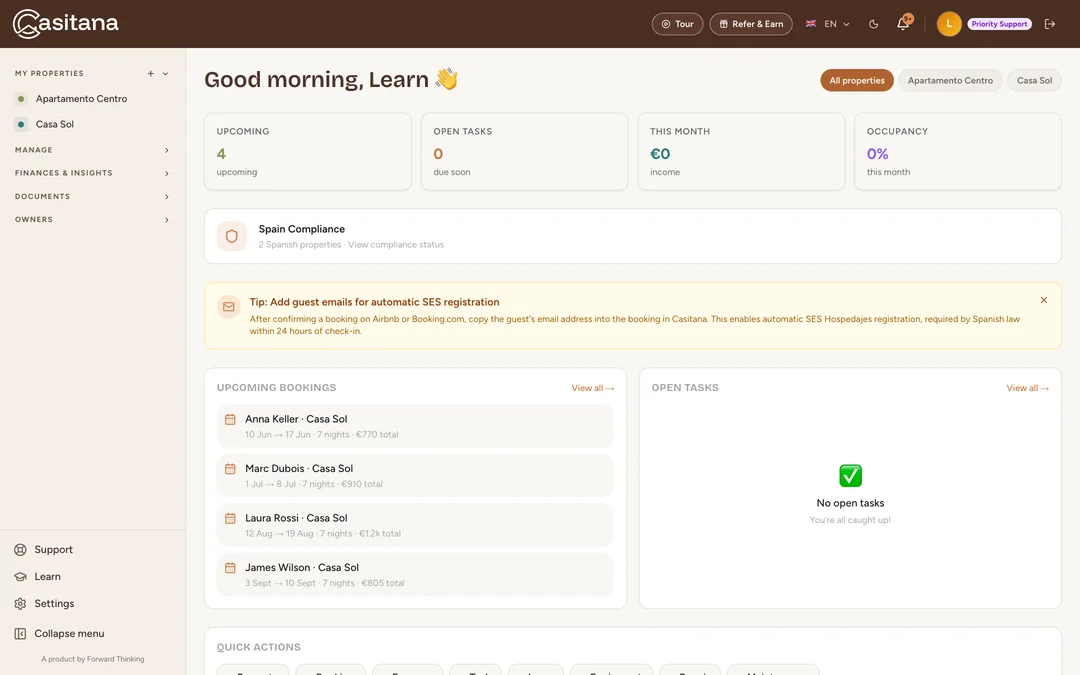
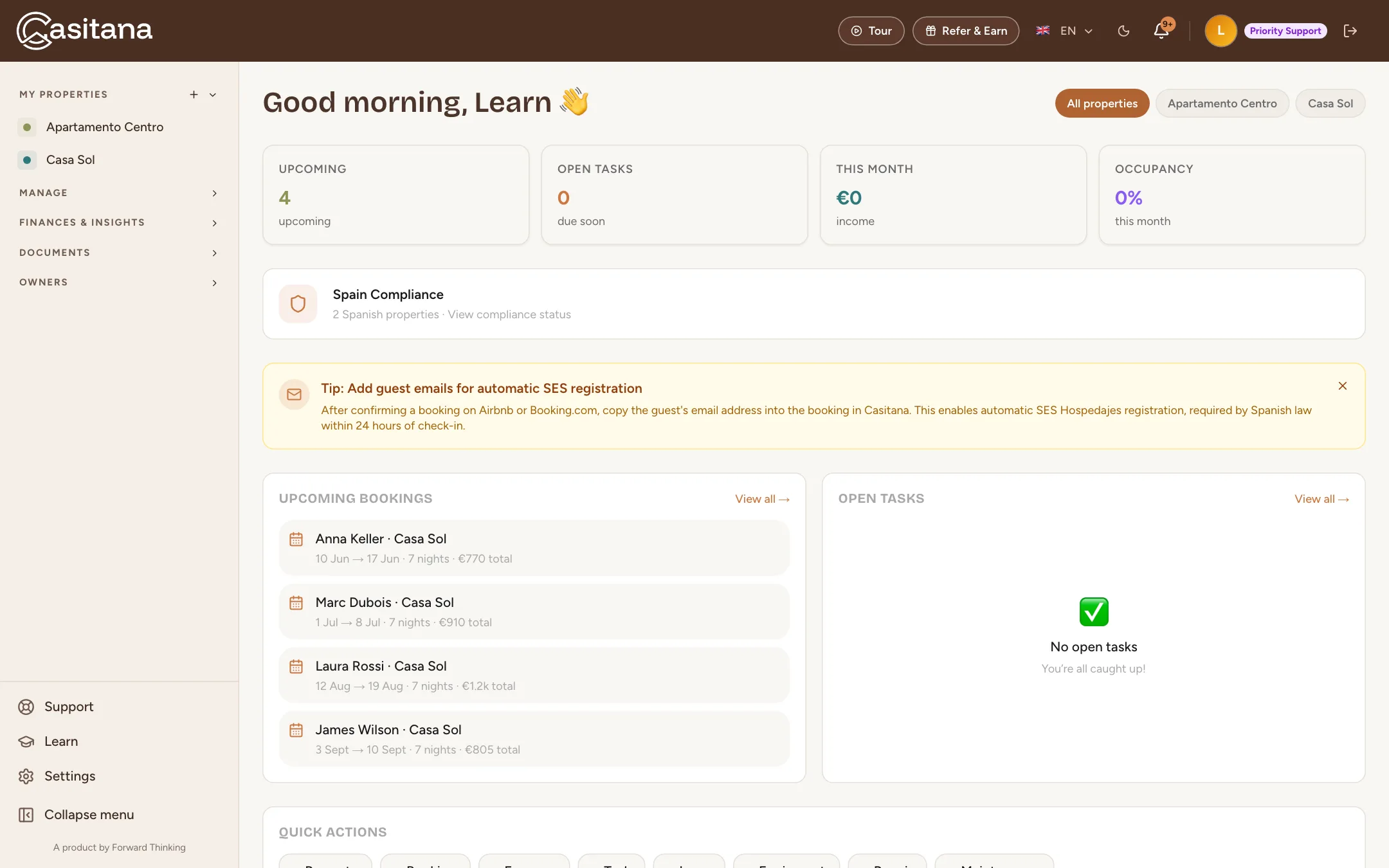
Four figures at the top
Upcoming counts the bookings still to come, Open Tasks the tasks not done yet, This Month the income recorded this month, and Occupancy how many nights of this month are booked. With more than one property, choose All properties or a single property above them.
 Enlarge screenshot
Step 2
The Spain Compliance card
When you have properties in Spain, a card shows how many and links to View compliance status: the page where you register your guests with SES Hospedajes. More in SES Hospedajes: register your guests.
Step 3
Upcoming bookings, open tasks, recent expenses
Upcoming Bookings lists your next stays, Open Tasks what is still to do, and Recent Expenses your latest costs. Each list has a link to its full page: the calendar, your tasks, and your income and expenses.
Step 4
Quick actions
Under Quick Actions, add a booking, an expense, a task, an issue, a repair, a piece of equipment or a maintenance job without leaving Home. The buttons work once you have added a property. A button with a lock names the plan that includes it.
 Enlarge screenshot

The getting-started checklist
New accounts on the Free plan see a checklist in the corner of the screen for their first 30 days.
Step 5
Six steps to a working account
The Getting started checklist ticks off creating your account and lists five more steps: Add your first property, Sync your calendar, Log five expenses or income entries, Create three tasks and Set up guest info. Click a step to go where it is done. It is ticked by itself once you have done it.
Step 6
Make it smaller, or close it
The arrow in its corner folds the checklist into a small button that shows how many steps are done; click that button to open it again. The cross closes it for good.
Step 7
When every step is done
Once all six are ticked, Casitana congratulates you and gives you a discount code for a paid plan. Click Copy to copy it, Explore Starter Features to choose a plan, or Maybe later to close it.