The menu
Step 1
Back to your home page
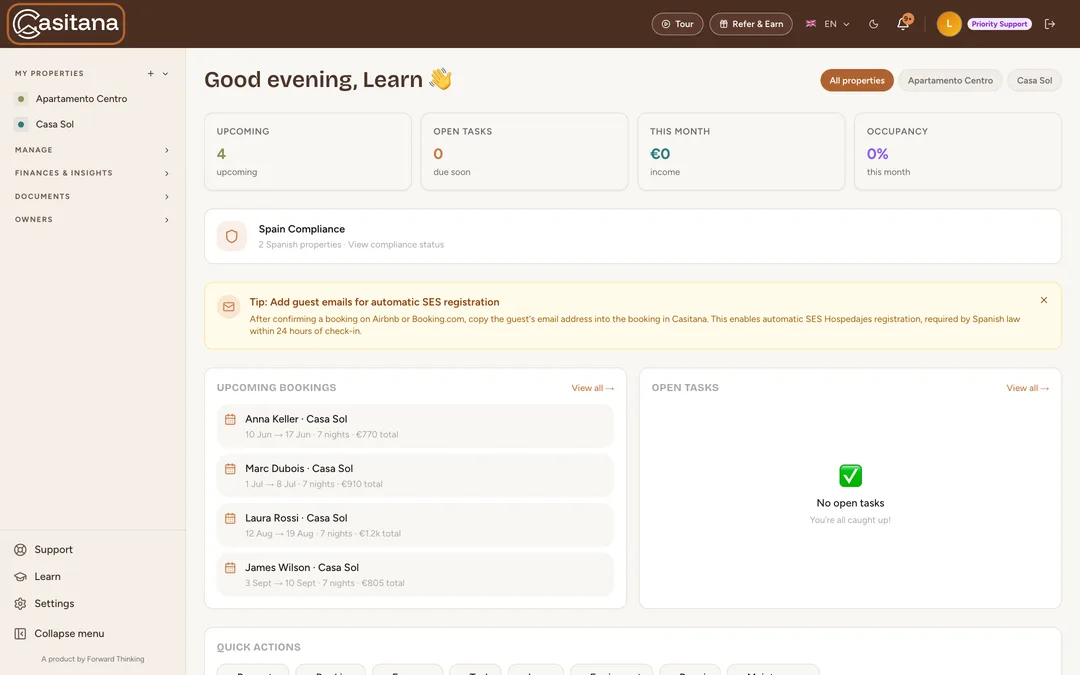
Click the Casitana logo at the top of the menu to go back to your home page.
 Enlarge screenshot
Step 2
Your properties
Under the logo, your properties are listed. Click one to open it, or point at it and click the pencil to edit it. The + next to the list adds a property: see Add a property.
Step 3
Open and close the sections
The rest of the menu is grouped in sections, such as your finances and your documents. Click a section’s name to open or close it. The section of the page you are on opens by itself.
Step 4
Items for another plan
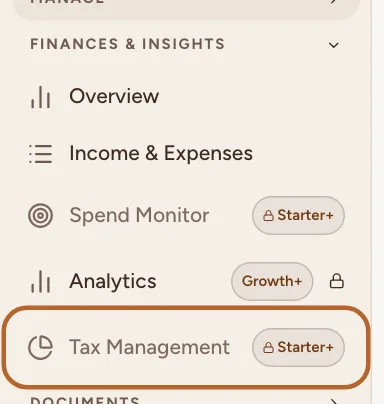
An item your plan does not include shows the plan it needs, such as Pro+.
 Enlarge screenshot
Step 5
Support, Learn and Settings
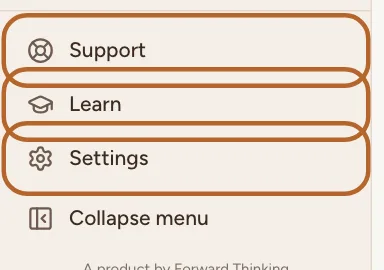
At the bottom of the menu, Support opens your support requests (Get support from the Casitana team), Learn opens these guides in a new tab, and Settings opens your settings.
 Enlarge screenshot
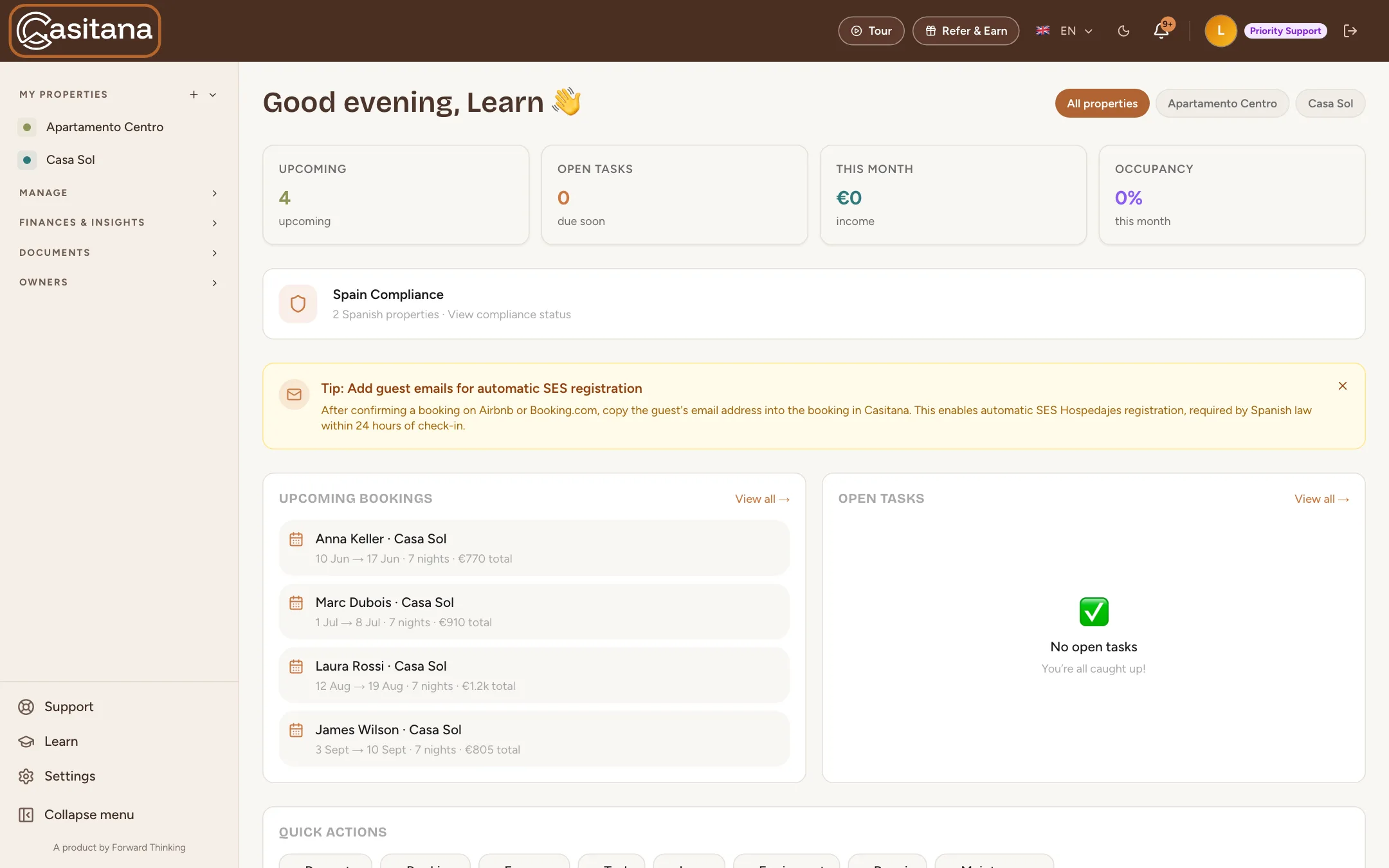
Make the menu smaller
Step 6
Collapse the menu
At the very bottom, click Collapse menu. The menu shrinks to its icons and leaves more room for the page. Point at an icon to see its name. Click Expand menu to bring the names back.
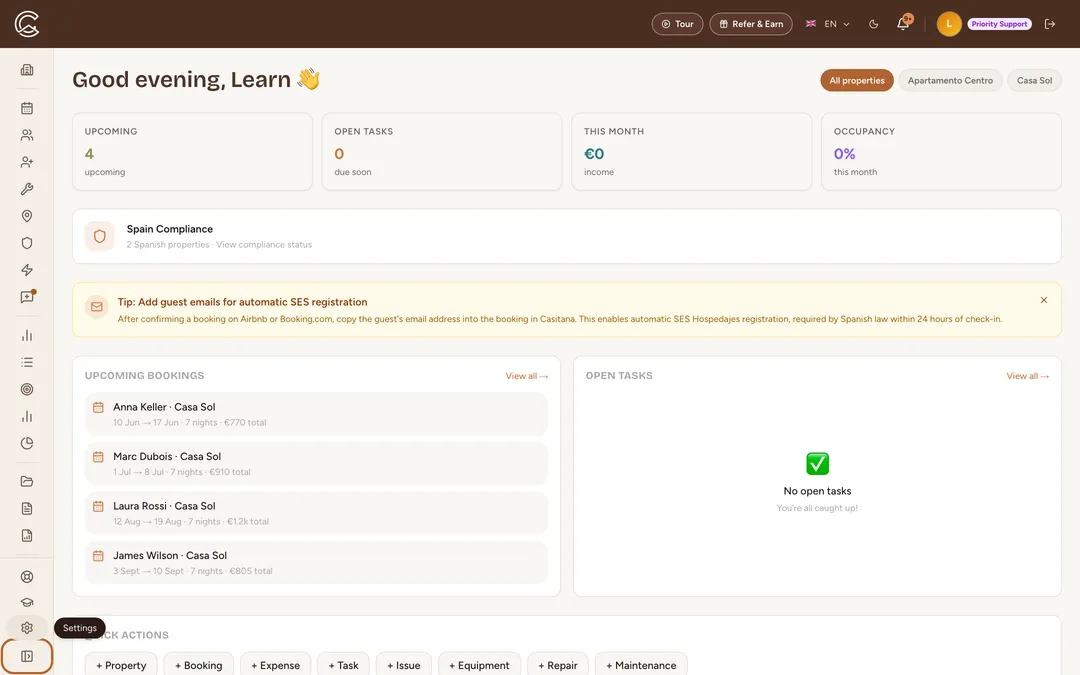 Enlarge screenshot
Step 7
Casitana remembers it
Your choice is kept in this browser, also the next time you open Casitana. Until you choose, the menu shows only its icons on a medium-sized screen, such as a tablet or a small laptop, and shows the names on a wider screen.
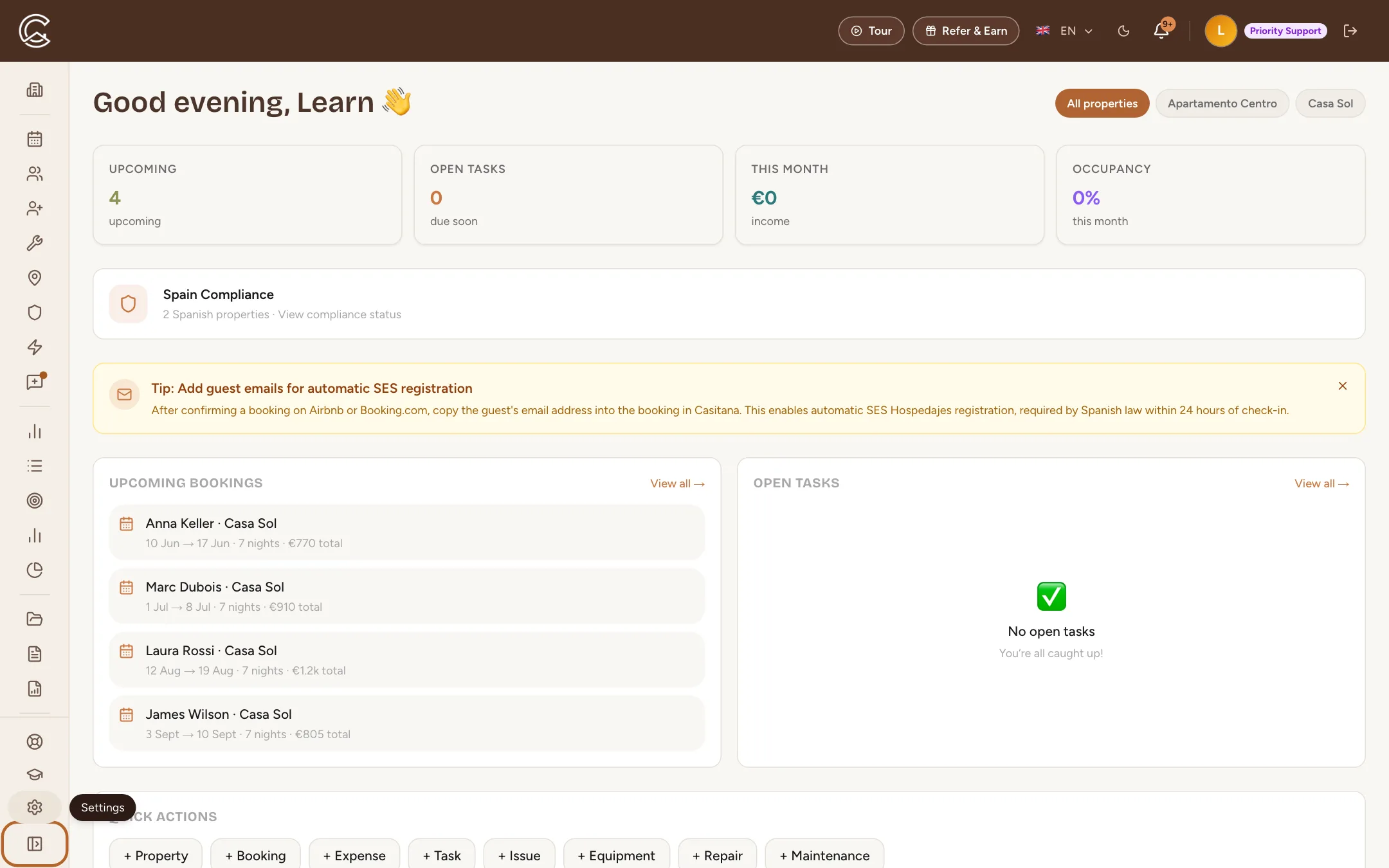
On a phone
Step 8
Open the menu on a phone
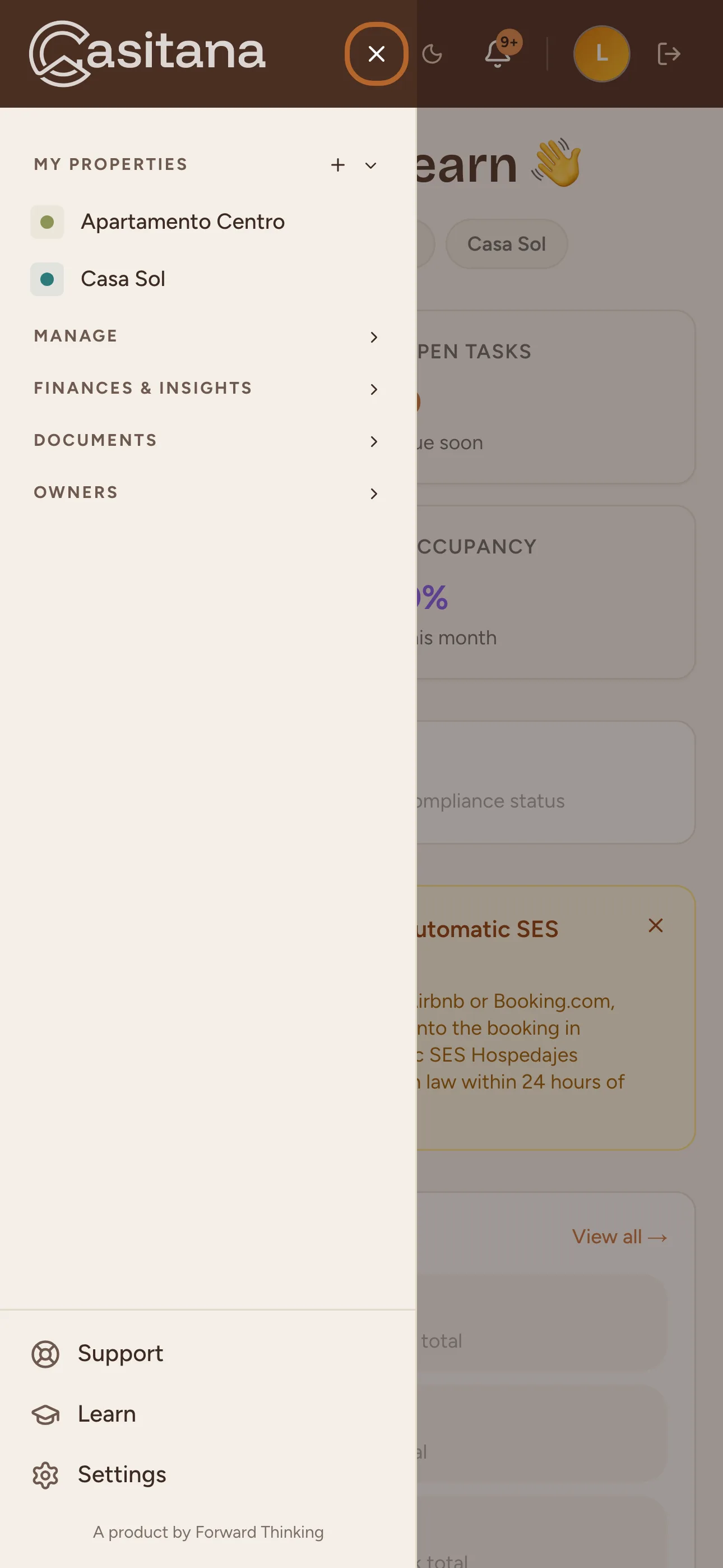
On a phone, the menu is hidden to leave room for the page. Tap the menu button at the top left to open it, and the cross to close it. On a phone, the menu always shows the names.
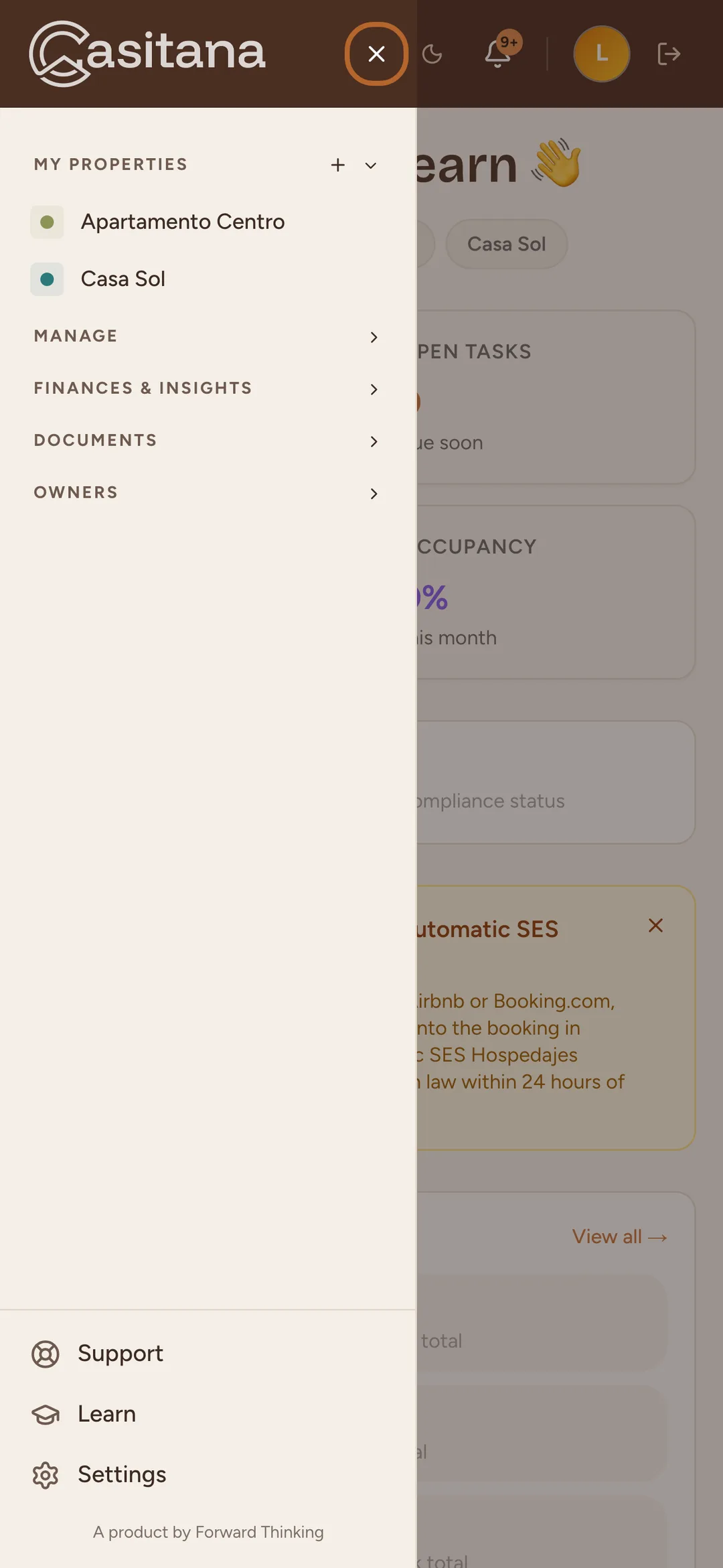 Enlarge screenshot
Tip: Using the Casitana app? It has its own menu: The Casitana app for iPhone and Android.