
Before you start
Step 1
What you need
To log in and sign, you need a digital certificate (certificado digital) installed in your browser, or Cl@ve, the Spanish government’s login system. The registration is free and takes place on the ministry’s website, not in Casitana.
Step 2
How you sign
Each registration ends with a signature. Choose AutoFirma, the government’s free signing app, if it is installed on your computer (you can download it from firmaelectronica.gob.es). Choose Cl@ve Firma only if you are registered for it.
Tip: If you choose Cl@ve Firma without being registered for it, the ministry shows Error 1: the user is not registered with the Cl@ve Firma provider. Click Volver and choose AutoFirma instead.
Open the registration
You start in the ministry’s Sede Electrónica, which takes you to the SES Hospedajes application.
Step 3
Find the procedure
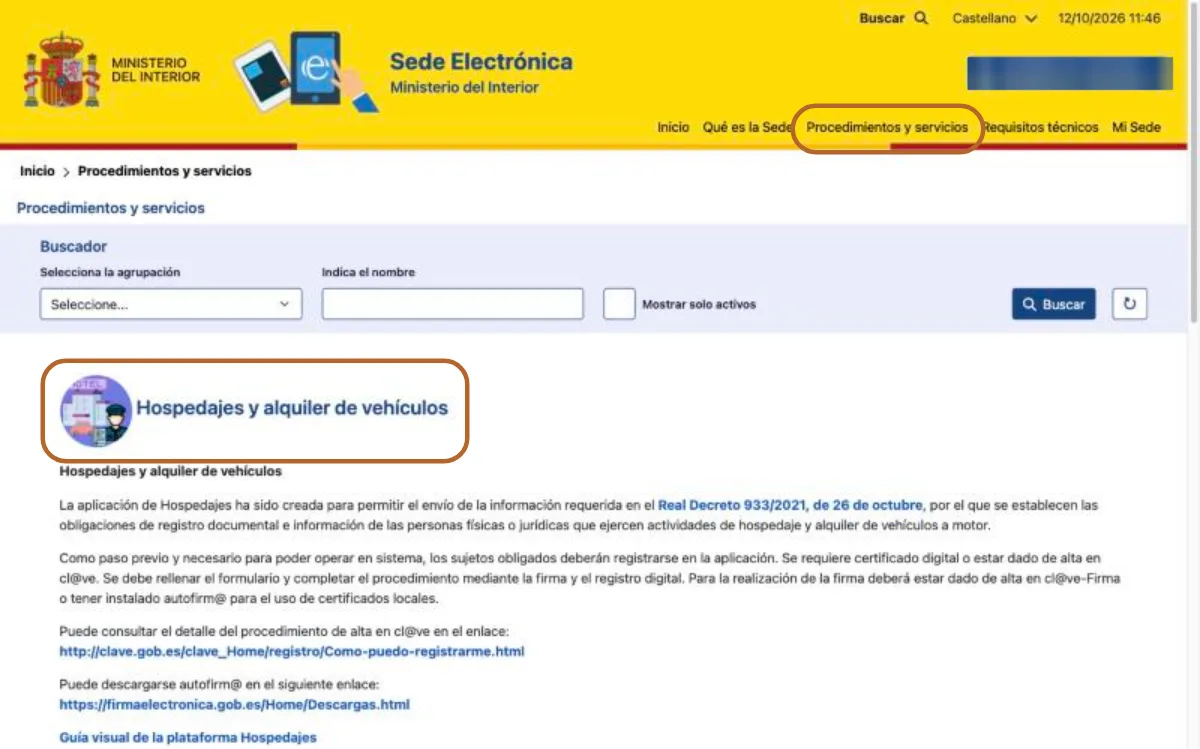
Go to sede.interior.gob.es/portal/sede and open Procedimientos y servicios. Find Hospedajes y alquiler de vehículos and open it.
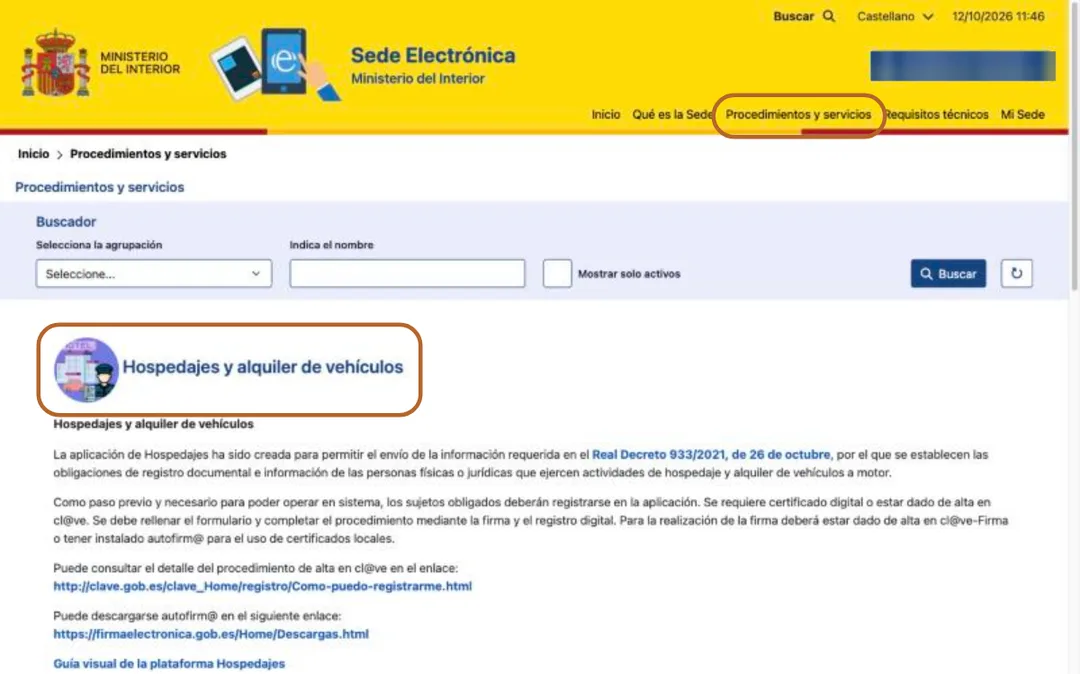 Enlarge screenshot
Step 4
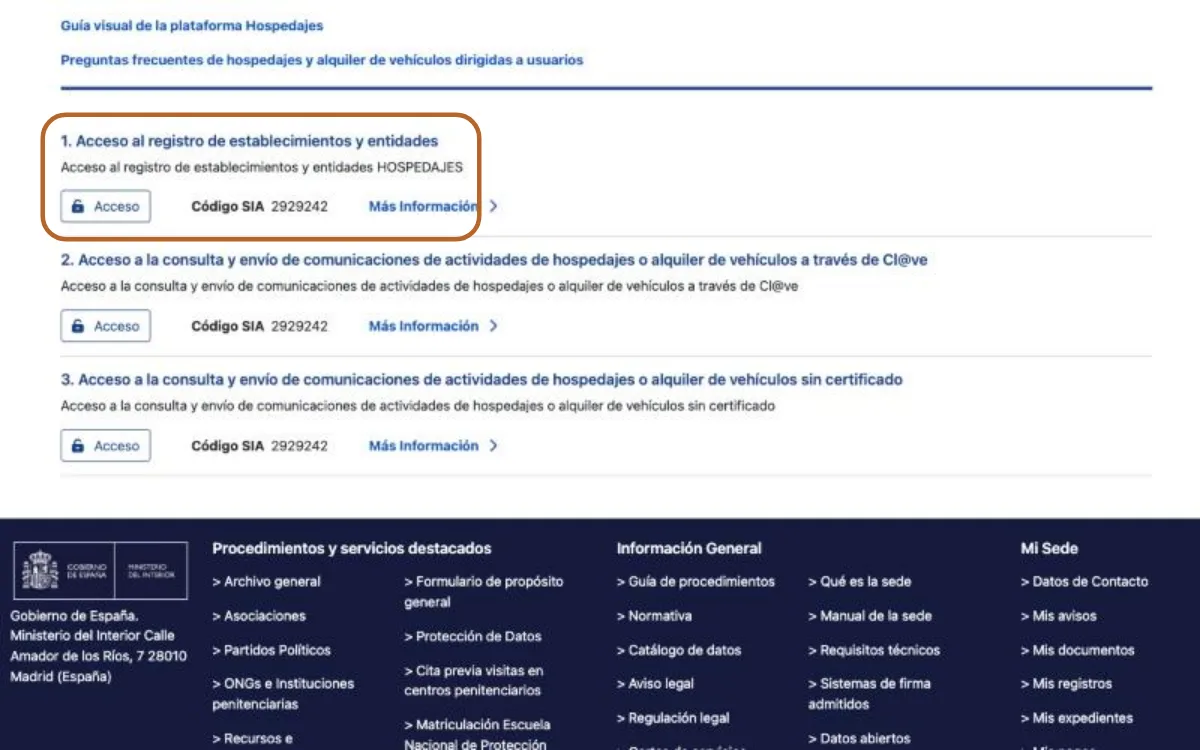
Choose the first access
Further down the page are three accesses. Under 1. Acceso al registro de establecimientos y entidades, click Acceso and log in with your certificate or Cl@ve. The ministry then takes you to the SES Hospedajes application, at hospedajes.ses.mir.es.
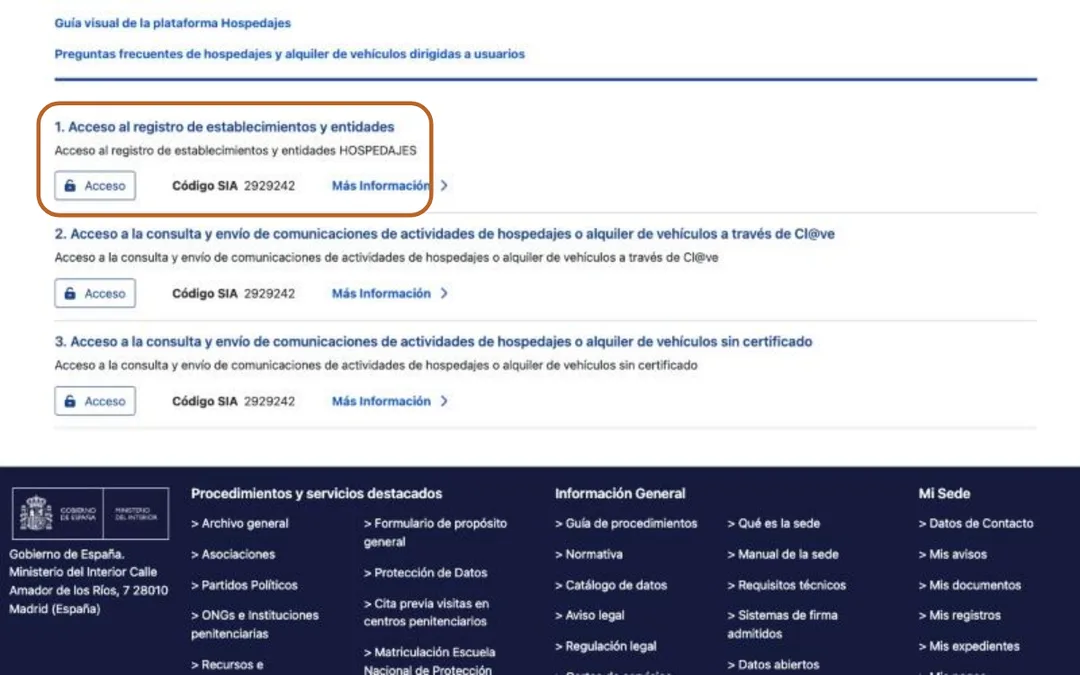 Enlarge screenshot
Good to know: The other two accesses are for sending communications yourself. Casitana sends them for you, so you only need the first.
Step 5
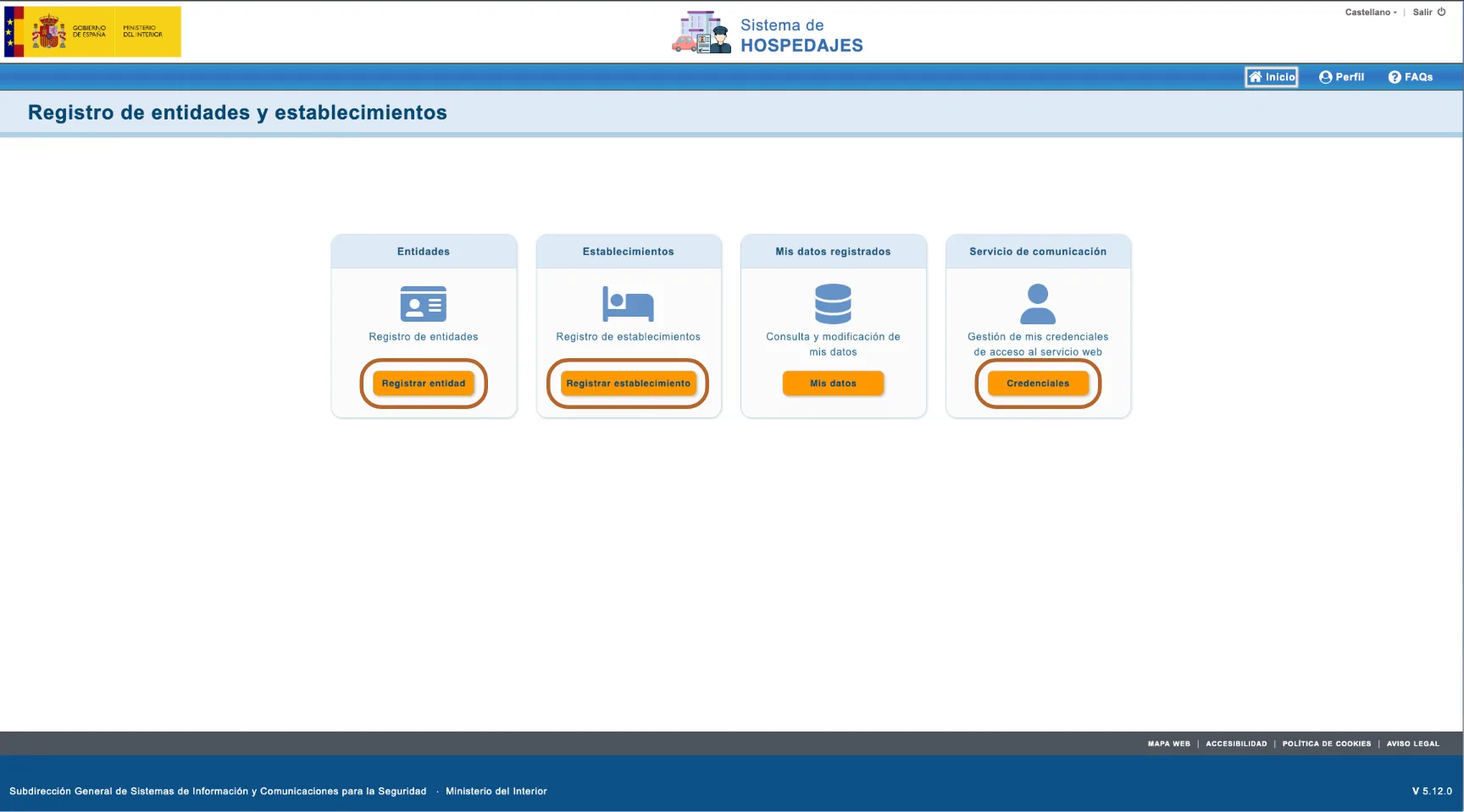
The registration home page
Registro de entidades y establecimientos has four blocks. This guide uses three: Registrar entidad registers you, once; Registrar establecimiento adds properties; Credenciales holds your web service login.
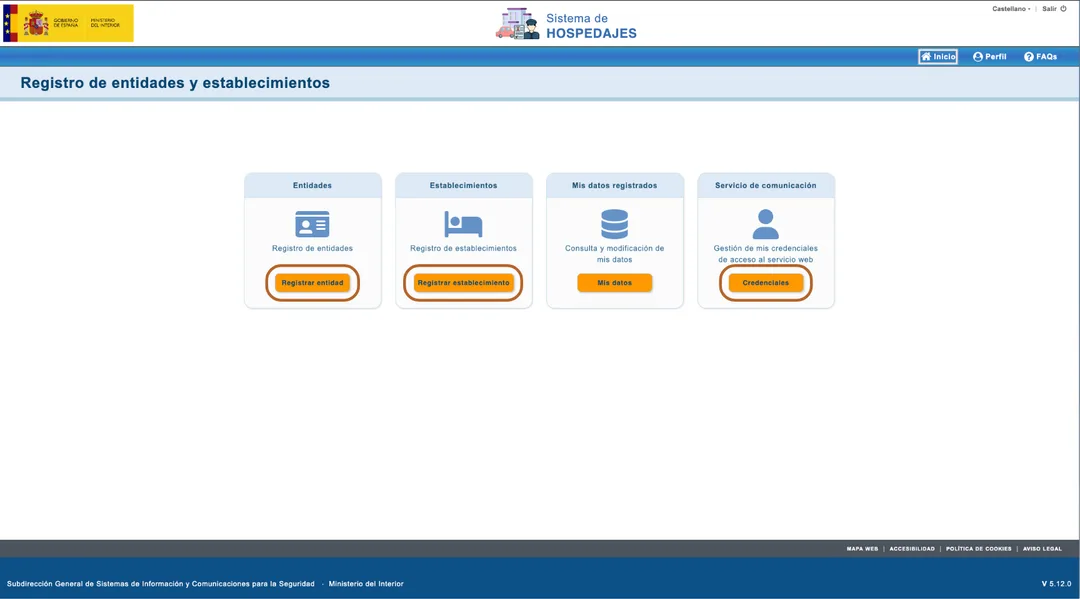 Enlarge screenshot
Register yourself as landlord, once
In SES Hospedajes, you or your company are the entidad: the arrendador. You register once, however many properties you have.
Step 6
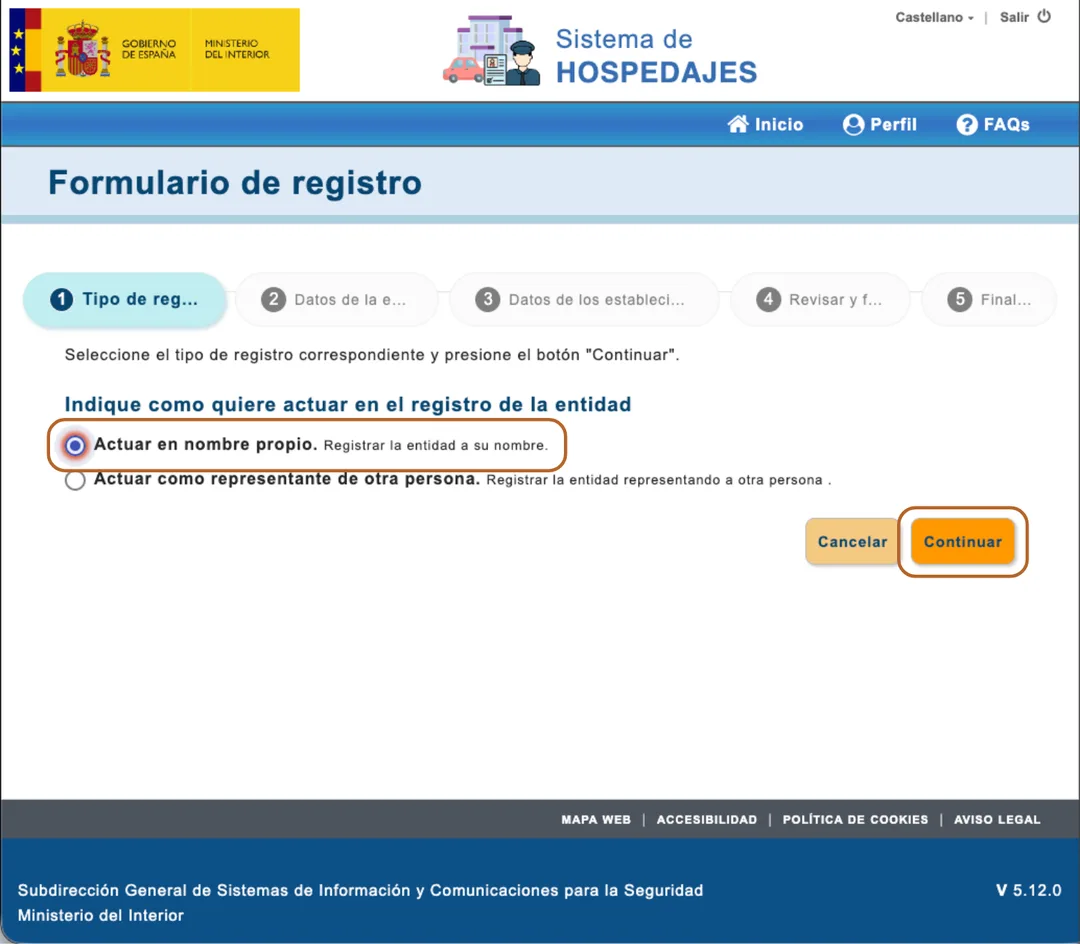
Choose how you register
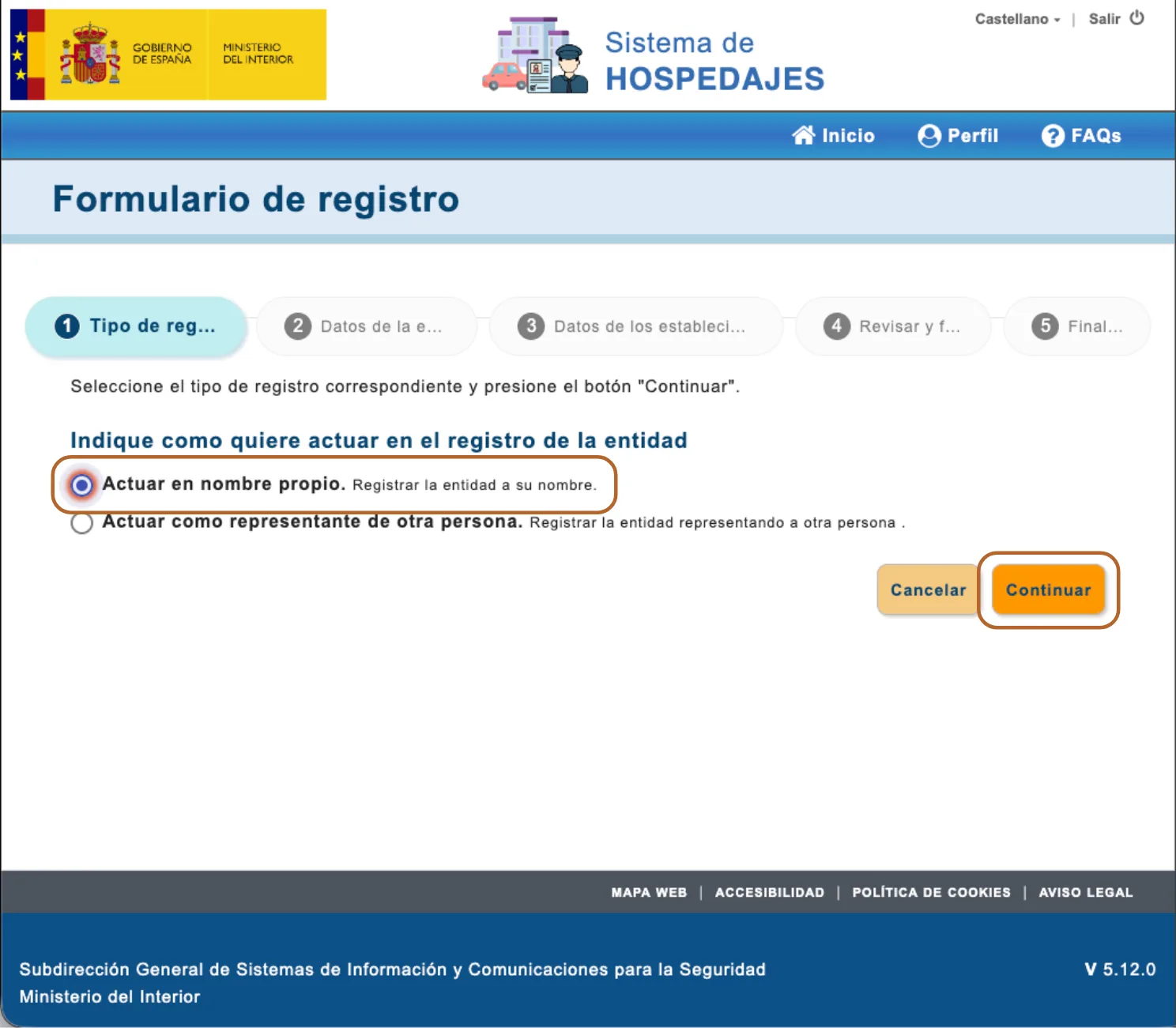
Click Registrar entidad. The form has five steps. On the first, Tipo de registro, choose Actuar en nombre propio to register yourself, and click Continuar.
 Enlarge screenshot
Tip: Registering for someone else, as their representative? Choose Actuar como representante de otra persona.
Step 7
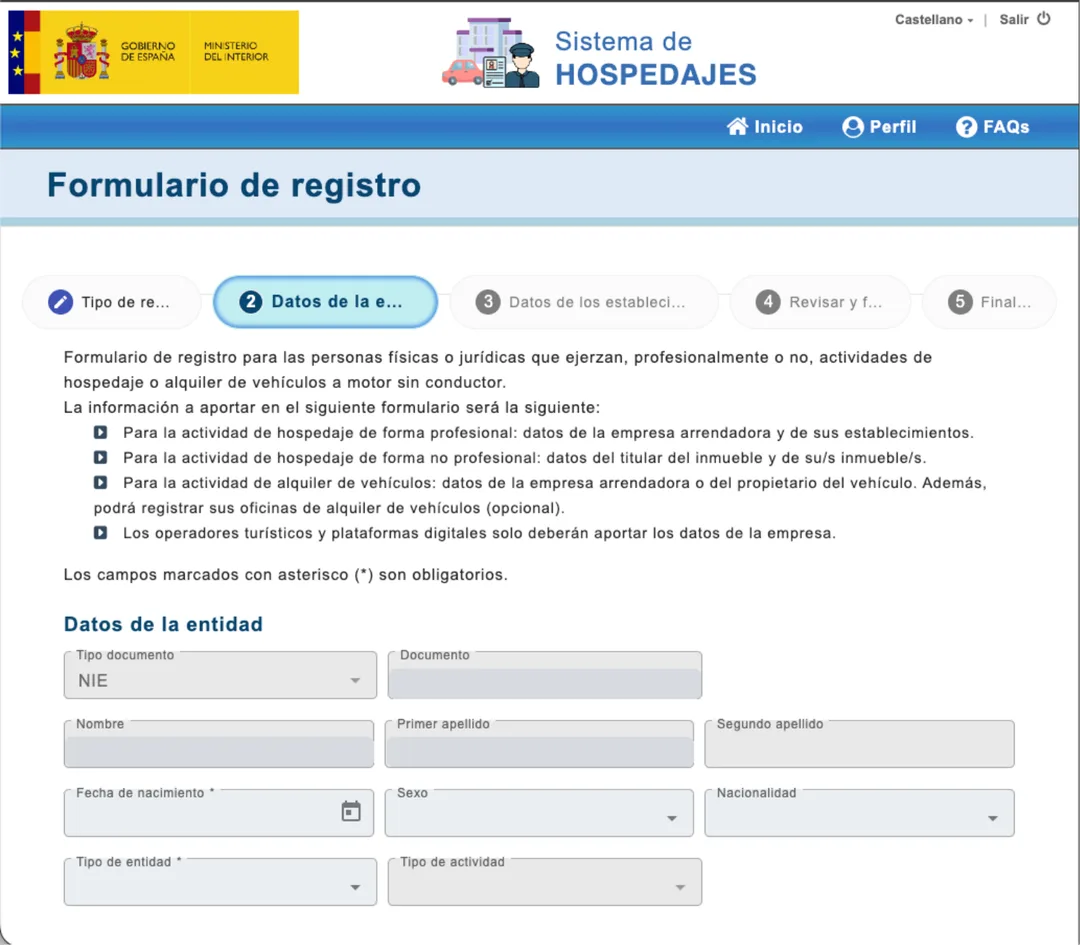
Fill in your details
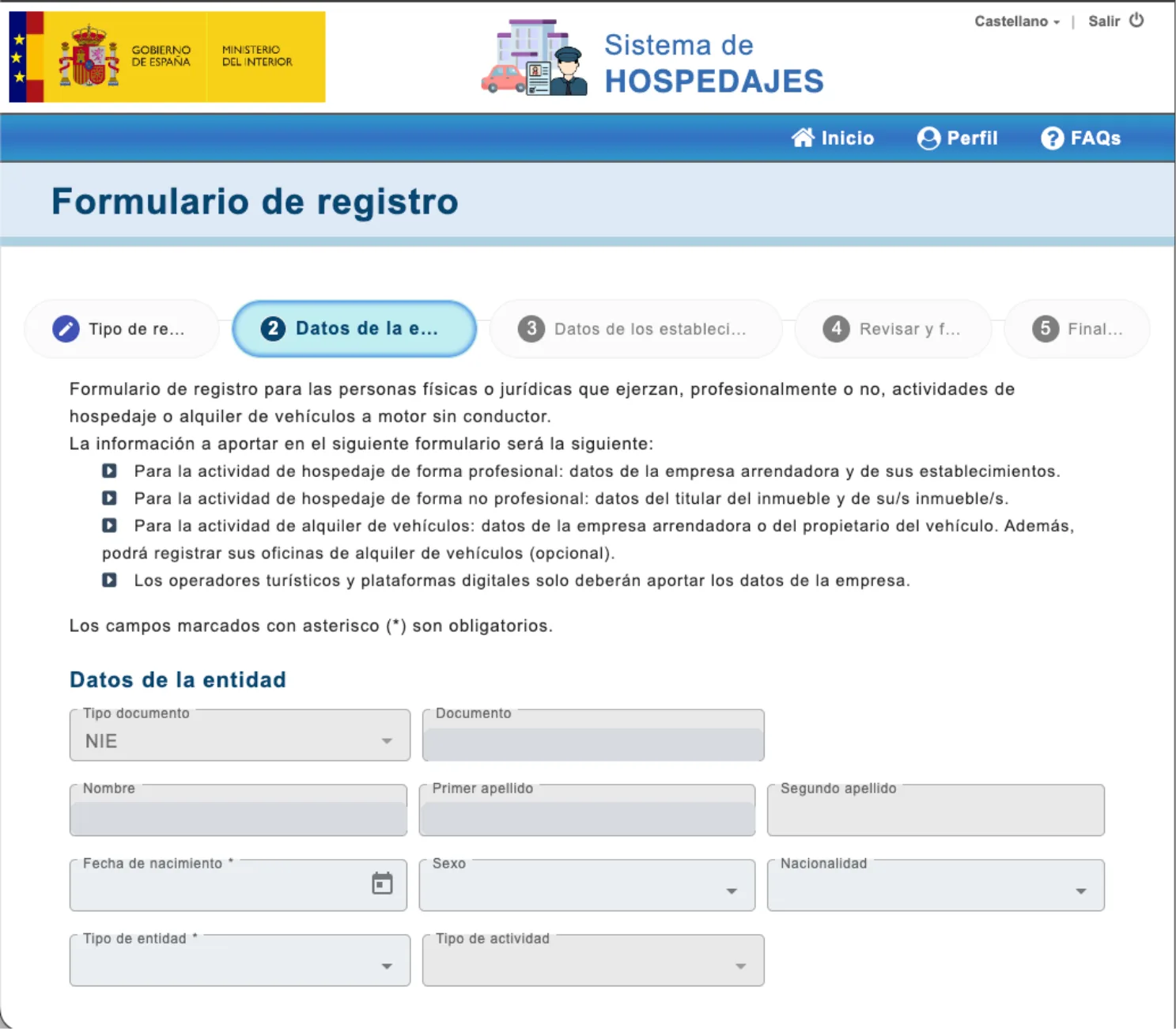
Under Datos de la entidad, fill in your document, name, date of birth, and the type of entity and activity. Fields marked with an asterisk (*) are required.
 Enlarge screenshot
Step 8
Turn on the web service
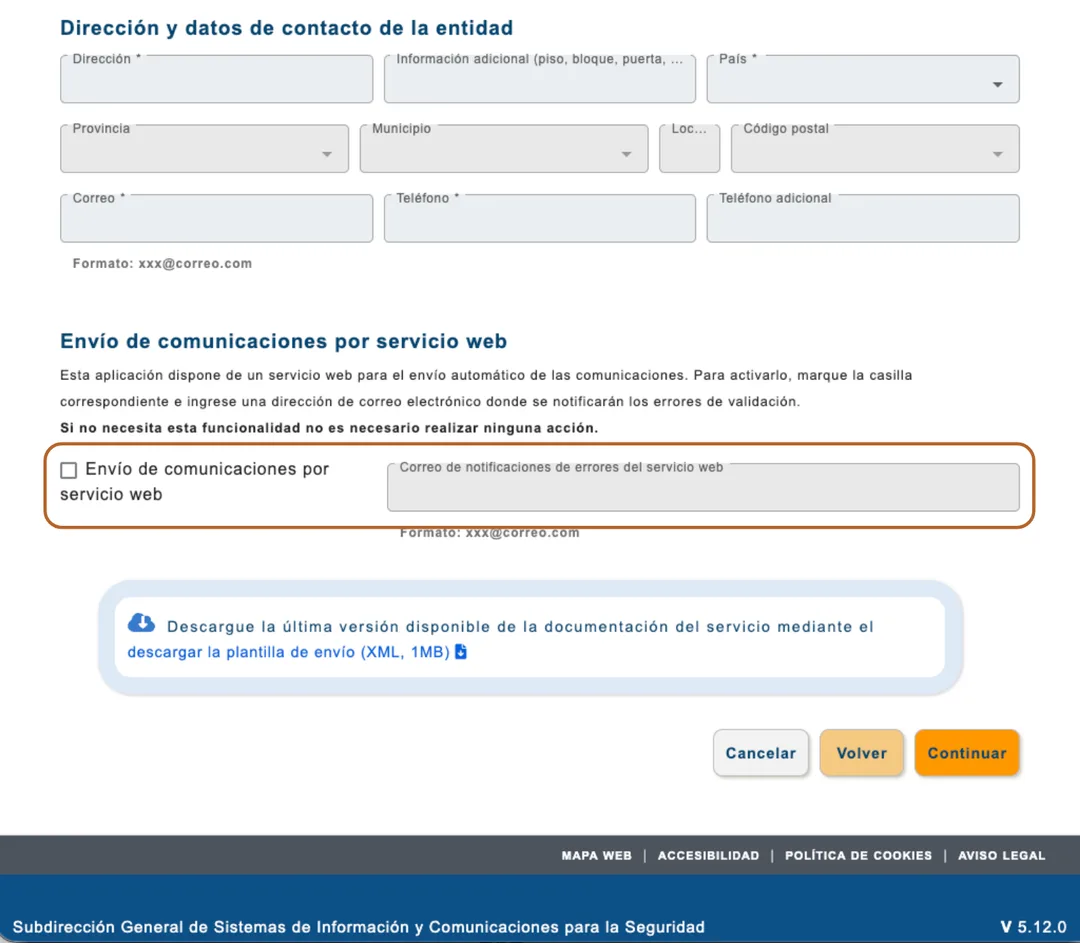
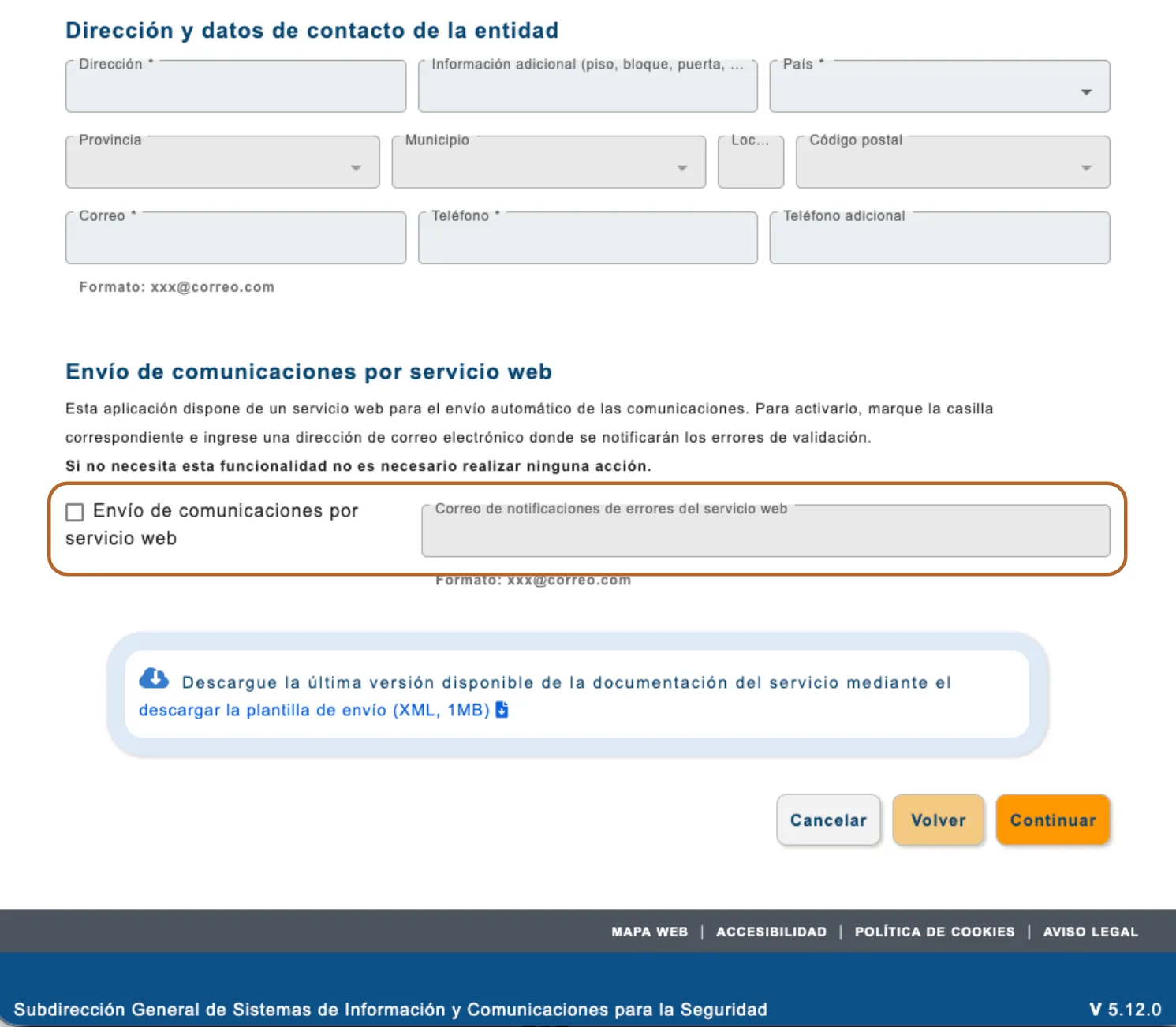
Under Dirección y datos de contacto de la entidad, fill in your address, email and phone. Then, under Envío de comunicaciones por servicio web, tick Envío de comunicaciones por servicio web and fill in Correo de notificaciones de errores del servicio web: the address SES Hospedajes writes to when a communication has an error.
Important: Without this box ticked, SES Hospedajes creates no web service username and password, and Casitana cannot file for you. The page says you can skip it; for Casitana, you cannot.
 Enlarge screenshot
Step 9
Add your properties, then sign
Click Continuar. In step 3, Datos de los establecimientos, you can register your properties in the same go: fill in each one and click Añadir a la lista, as in the next chapter. Then, in Revisar y firmar, check everything and sign (see How you sign). Finalizar shows the result.
Register each property
Every property is an establecimiento, with its own código de establecimiento. Register here the properties you did not add while registering yourself, now or later.
Step 10
Fill in the property
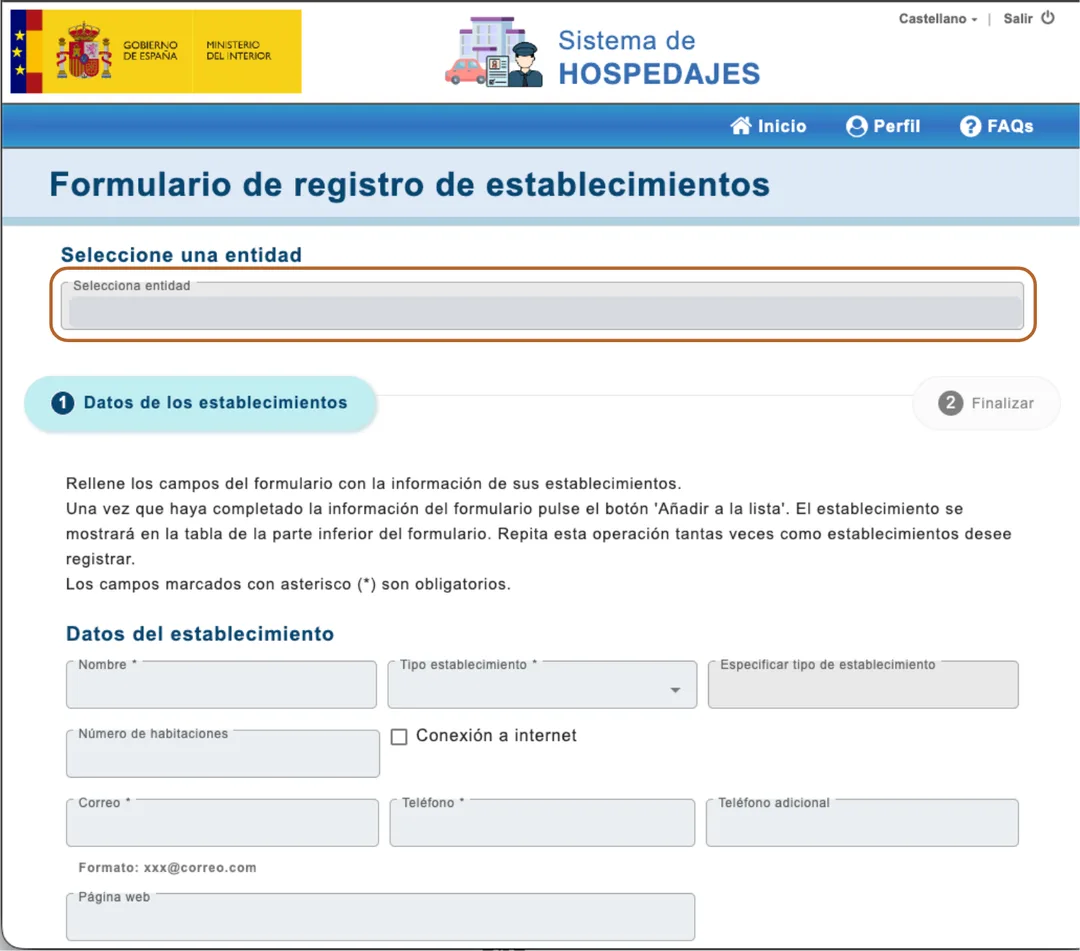
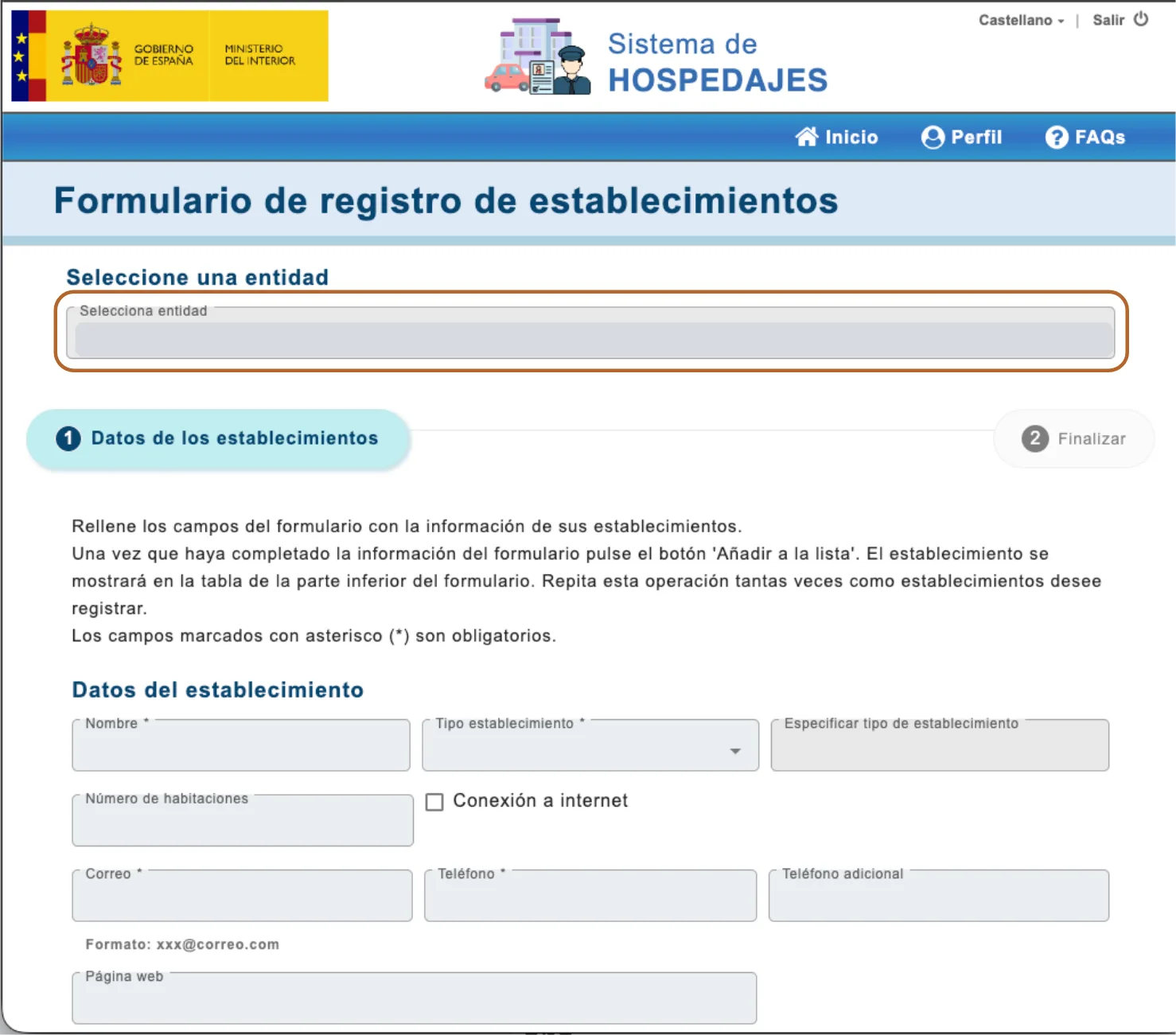
On the home page, click Registrar establecimiento. Choose yourself under Seleccione una entidad, then fill in Datos del establecimiento: the property’s name, its type and its contact details.
 Enlarge screenshot
Step 11
Add it to the list
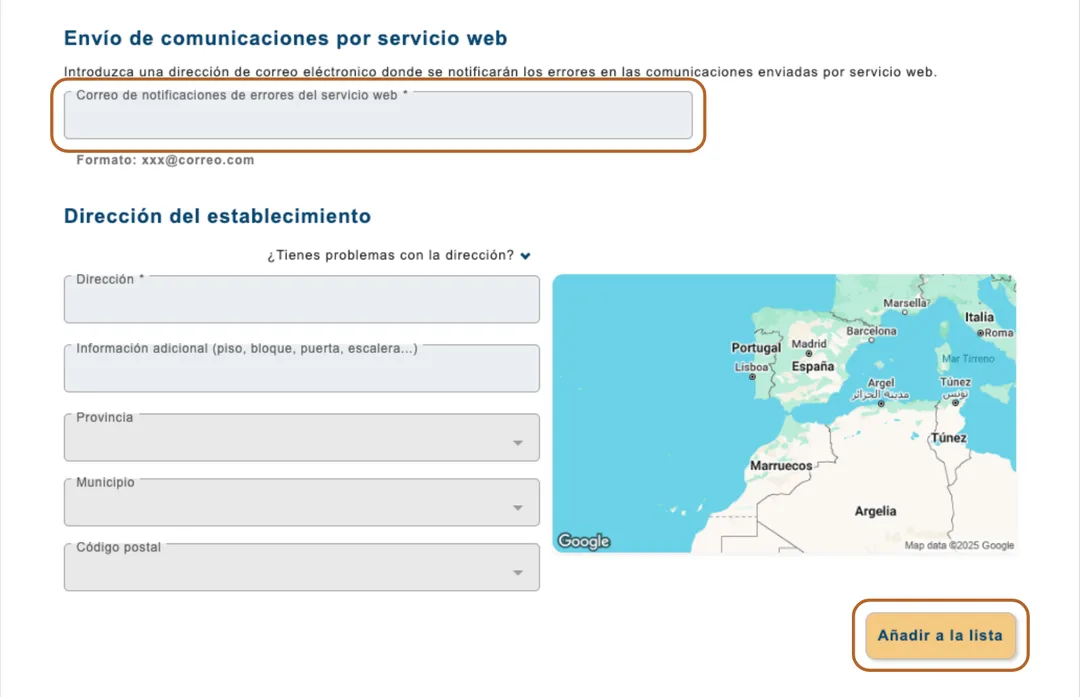
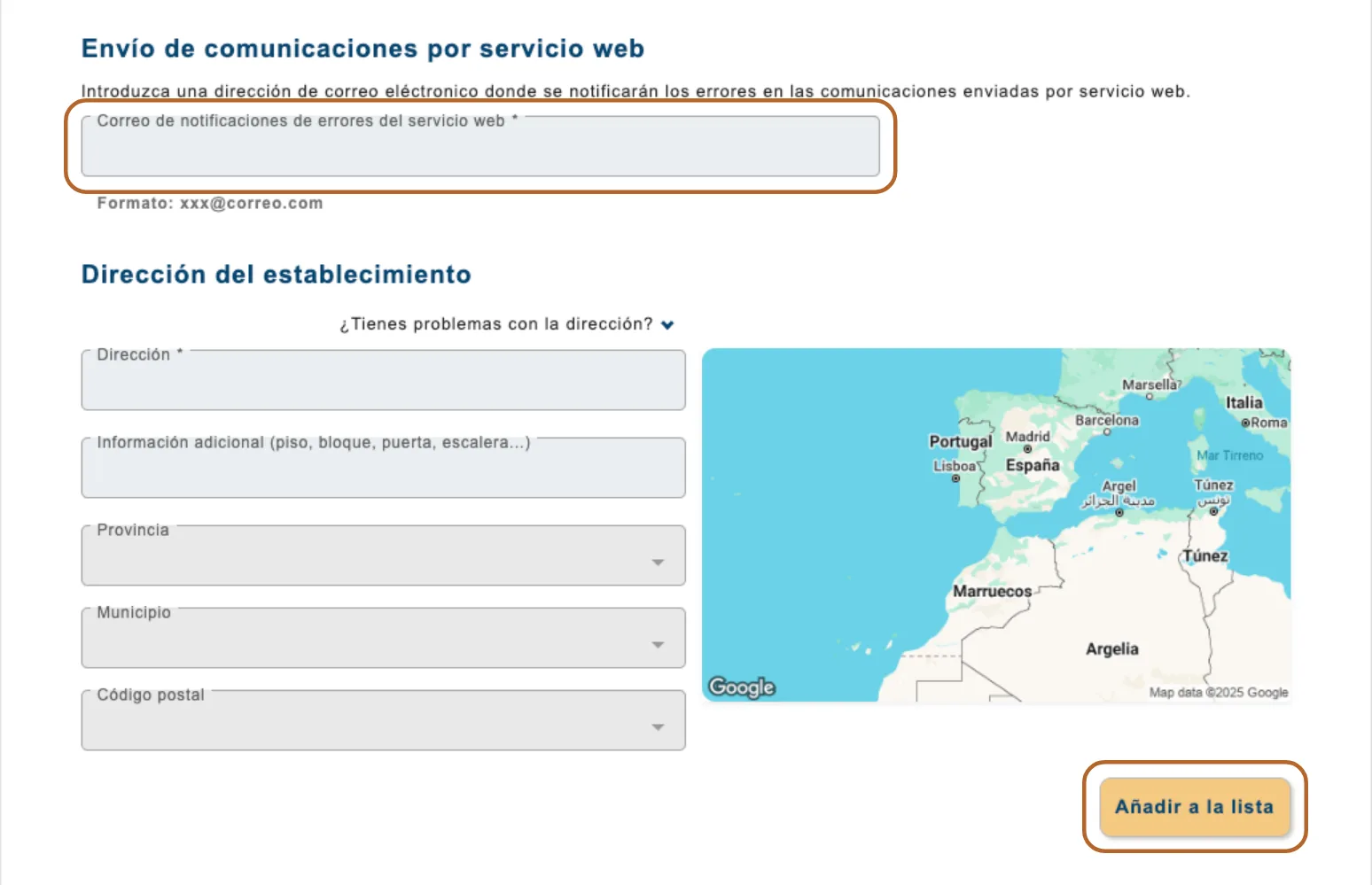
Fill in Correo de notificaciones de errores del servicio web and the property’s address under Dirección del establecimiento, then click Añadir a la lista. Repeat this for every property: each one appears in the list at the bottom of the form.
 Enlarge screenshot
Step 12
Sign
When every property is in the list, click Firmar and sign with AutoFirma or Cl@ve Firma (see How you sign).
Step 13
Write down the codes
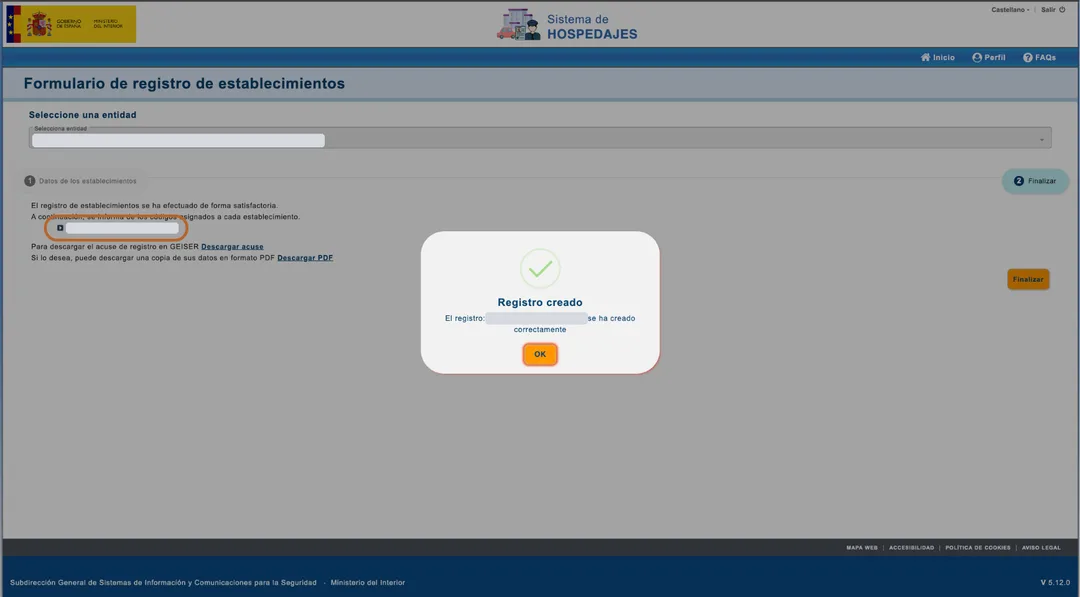
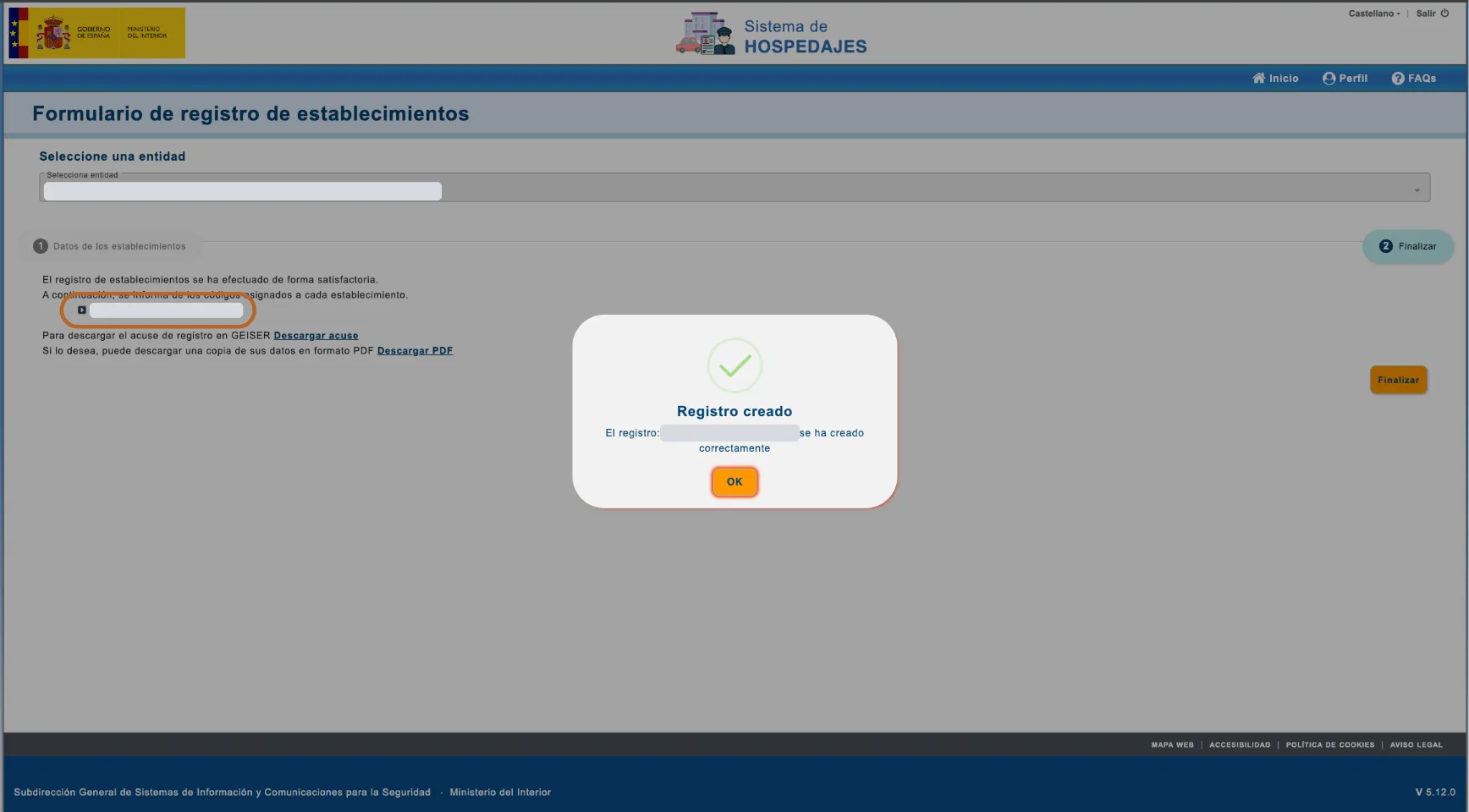
The last screen, Registro creado, lists the code assigned to each property. Write each code down next to the property’s name: it is that property’s código de establecimiento, and Casitana needs it for that property only.
 Enlarge screenshot
Good to know: Descargar PDF on the same screen saves a copy of your registration details.
Get your web service login
Casitana logs in to SES Hospedajes with the web service username and password of your entidad. You find them under Credenciales.
Step 14
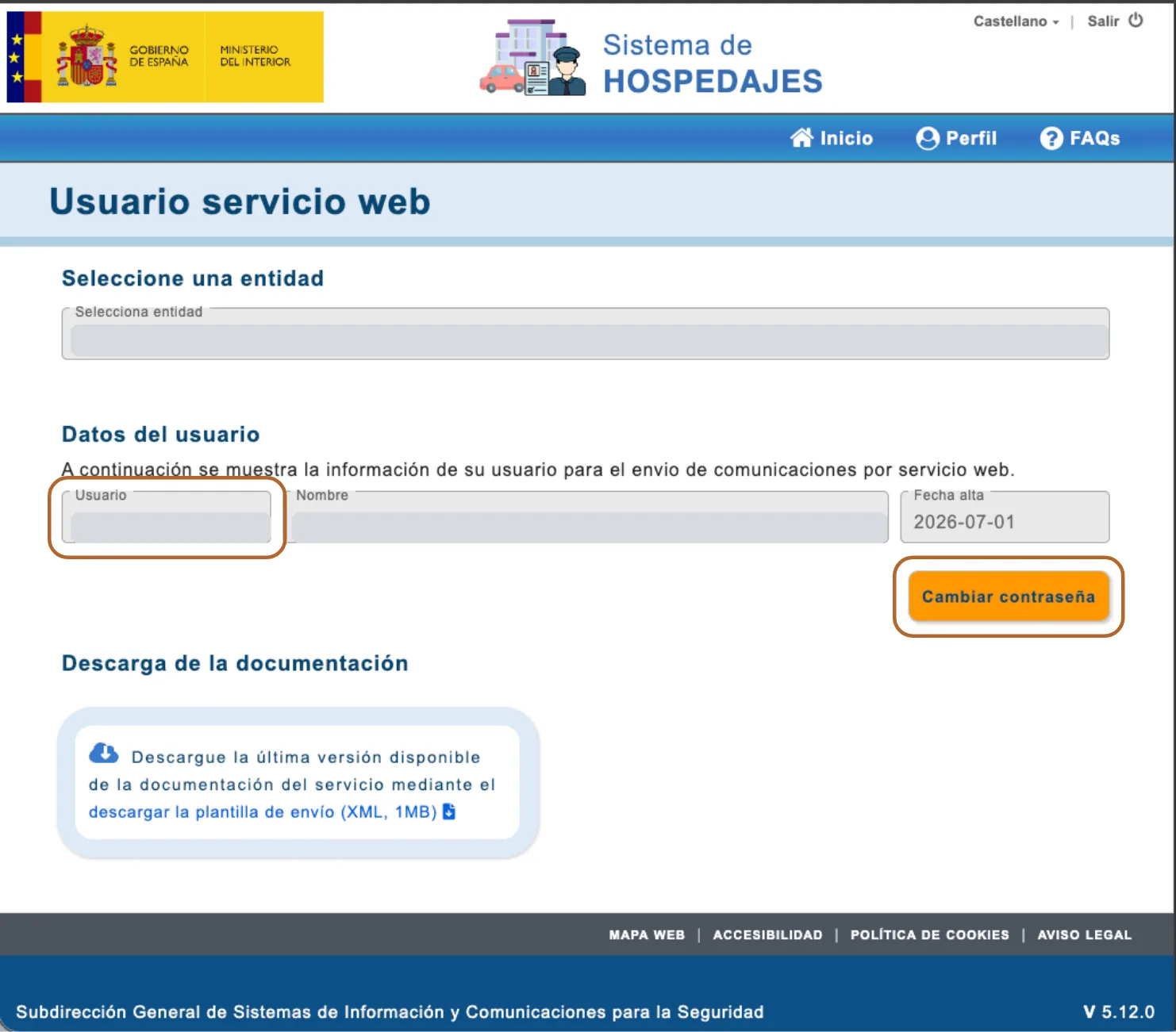
Find your username
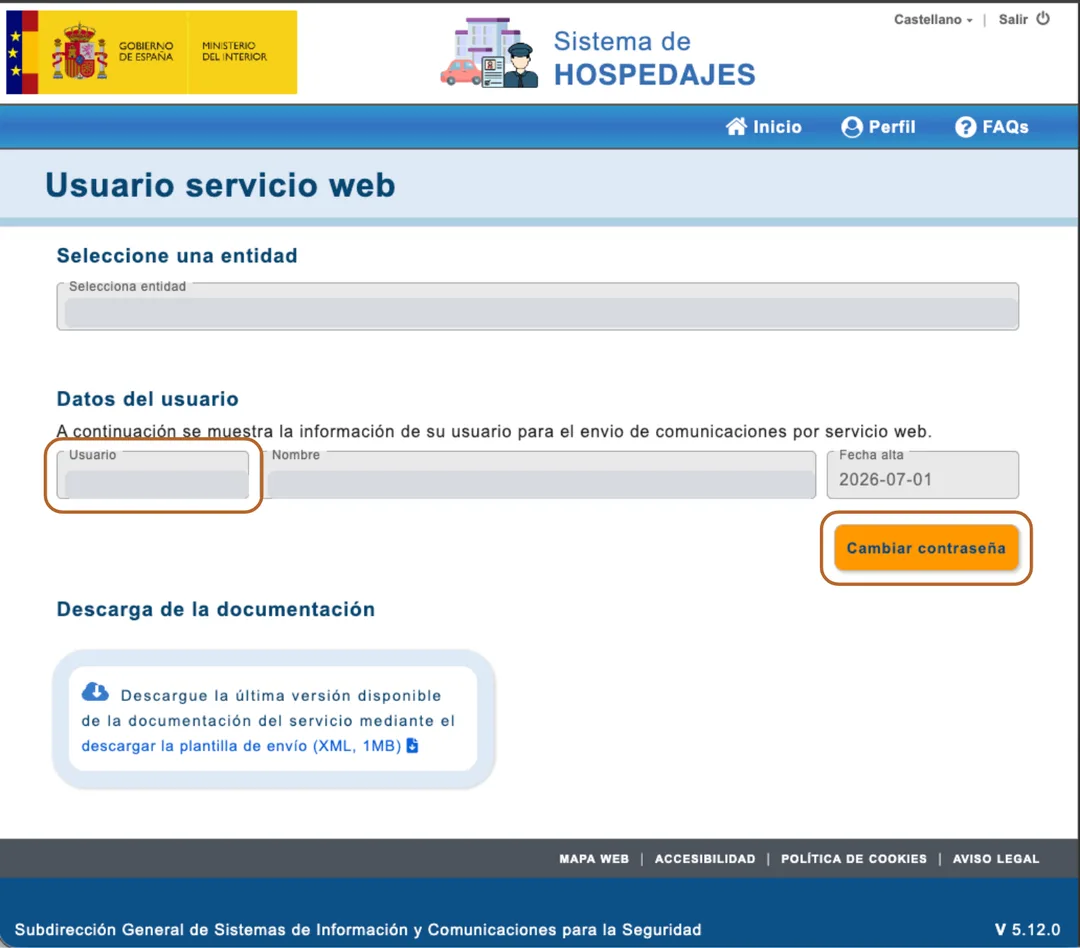
On the home page, click Credenciales. On Usuario servicio web, choose yourself under Seleccione una entidad. Usuario, under Datos del usuario, is your web service username: it ends in WS. The number at the start of Selecciona entidad, the 10 digits before your name (“0000123456 - NAME - Hospedaje - …”), is your código de arrendador. It is the same for all your properties: enter it once in Casitana, as Código de arrendador. Each property’s own código de establecimiento is the number on the last registration screen (see Write down the codes).
 Enlarge screenshot
Good to know: For privacy, the screenshot hides the Selecciona entidad line and the username.
Step 15
Set a password
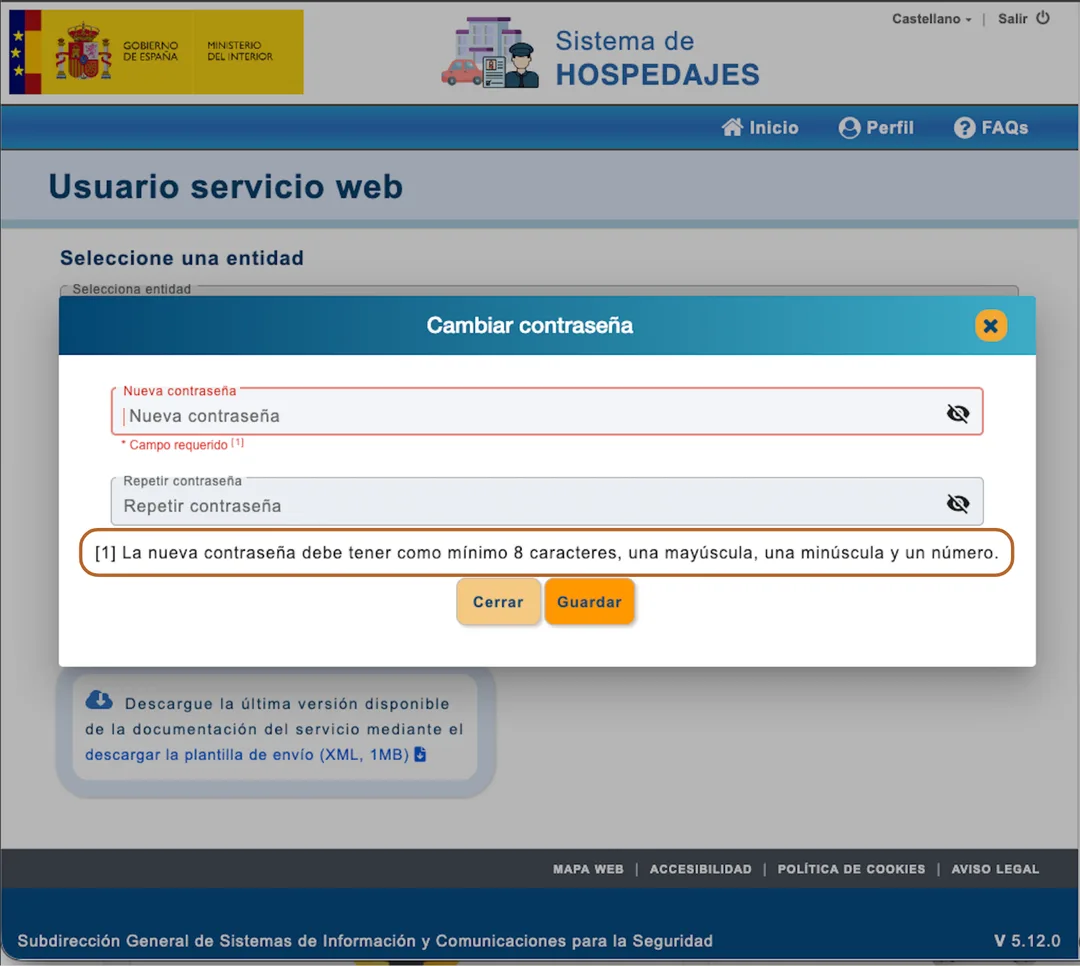
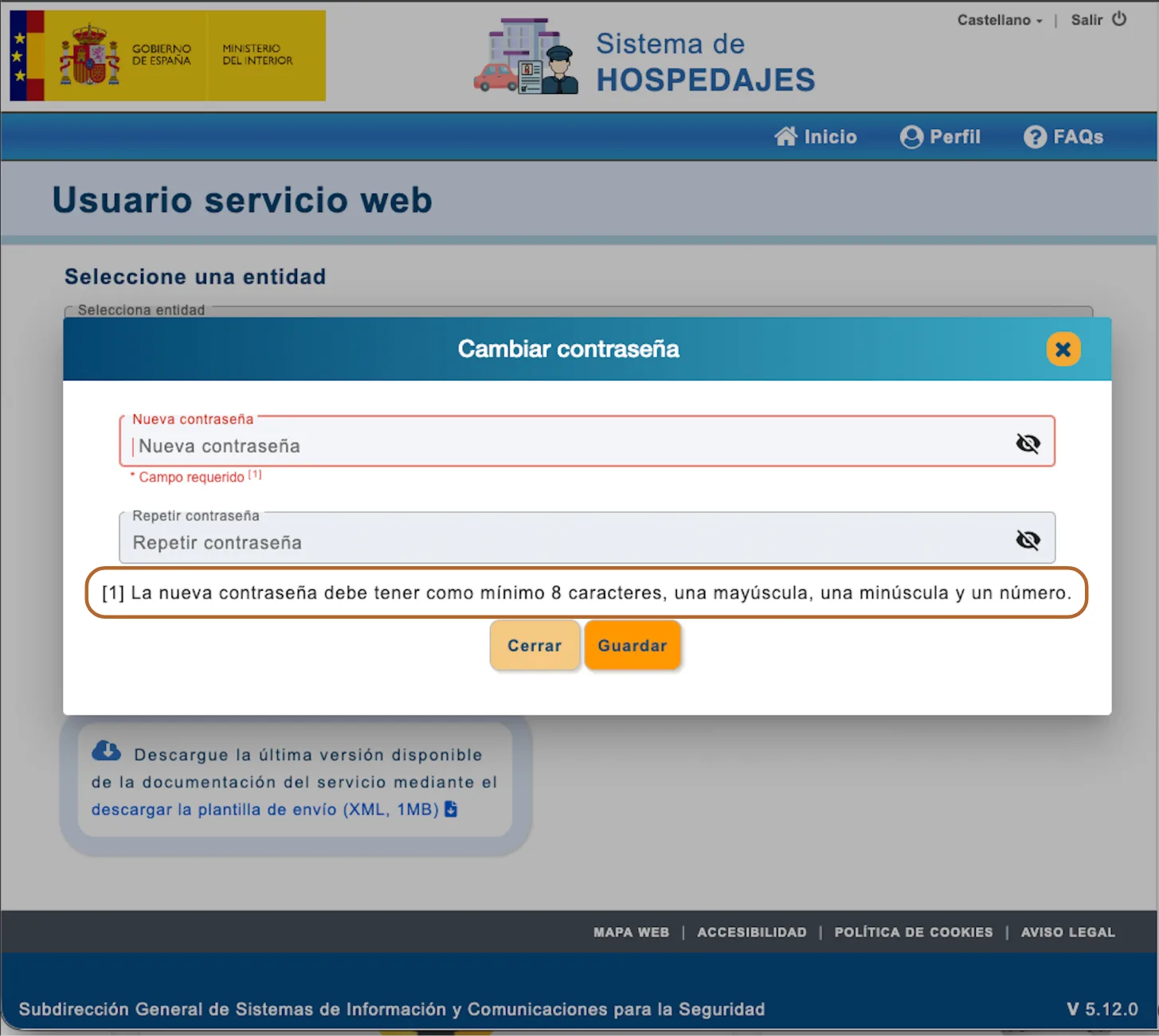
Click Cambiar contraseña, type the new password twice and click Guardar. It needs at least 8 characters, with a capital letter, a lowercase letter and a number.
Important: Casitana files with this password. If you change it later in SES Hospedajes, filing stops until you enter the new password in Casitana too (see the next chapter).
 Enlarge screenshot
Enter it all in Casitana
In Casitana, an arrendador holds your código de arrendador and your web service login. You create it once and link every property to it. The settings themselves are described in Connect your SES Hospedajes account.
Step 16
One arrendador for all your properties
Click Settings at the bottom of the menu, then the SES Hospedajes tab. Under SES arrendadores you need exactly one arrendador: you, as landlord. In the example, one arrendador covers two properties.
Important: One arrendador is you as landlord: one código de arrendador and one web service login. Never create an arrendador for each property, and never put a código de establecimiento in Código de arrendador. If Casitana says An arrendador with this código already exists., you already have the arrendador: link the property to it instead.
From SES Hospedajes Where it goes in Casitana Código de arrendador: one, for you Código de arrendador, in the arrendador Usuario under Credenciales, ending in WS WebService username, in the arrendador The password you set with Cambiar contraseña WebService password, in the arrendador Código de establecimiento: one for each property SES Establishment Code, on that property  Enlarge screenshot
Tip: Name the arrendador after the landlord, not after a property: give your own name, or your company’s, as its Label.
Step 17
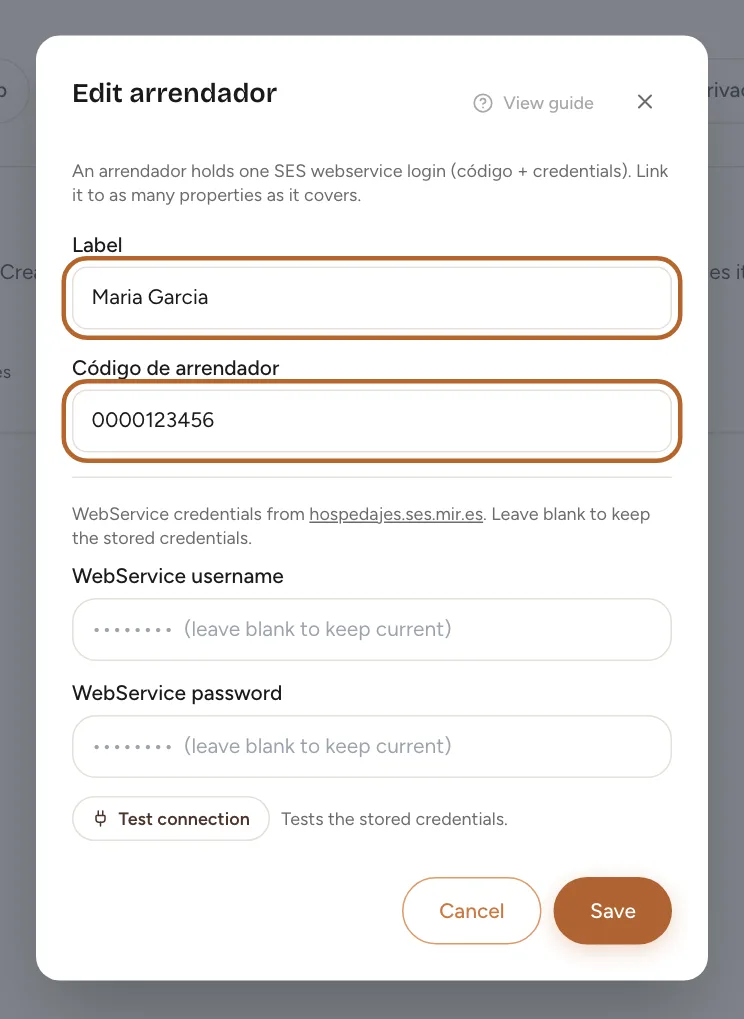
Fill in the arrendador
Click New arrendador or, to change your arrendador, the pencil next to it (Edit arrendador). Fill in Label, Código de arrendador, WebService username and WebService password, then click Create arrendador, or Save when you edit.
 Enlarge screenshot
Good to know: When you edit, leave the username and password empty to keep the ones stored. After changing your password in SES Hospedajes, enter the new one here.
Step 18
Link each property to it
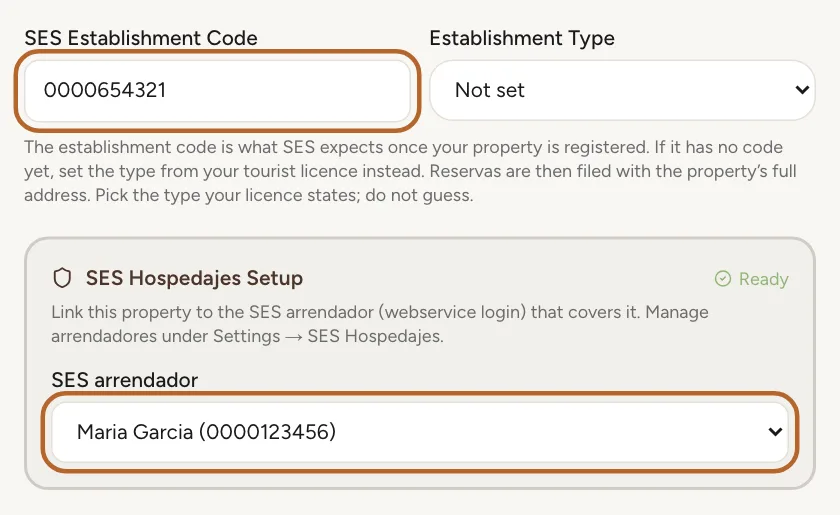
Open the property, and in the Spain Compliance Setup card click Edit. Enter that property’s own código de establecimiento in SES Establishment Code. Under SES Hospedajes Setup, choose your arrendador in SES arrendador and click Save Changes. Do the same for every property, always with the same arrendador.
 Enlarge screenshot
Tip: With its code and a complete arrendador, the property’s block reads Ready.

Test the connection
Last, check that SES Hospedajes accepts your web service login.
Step 19
Run the test
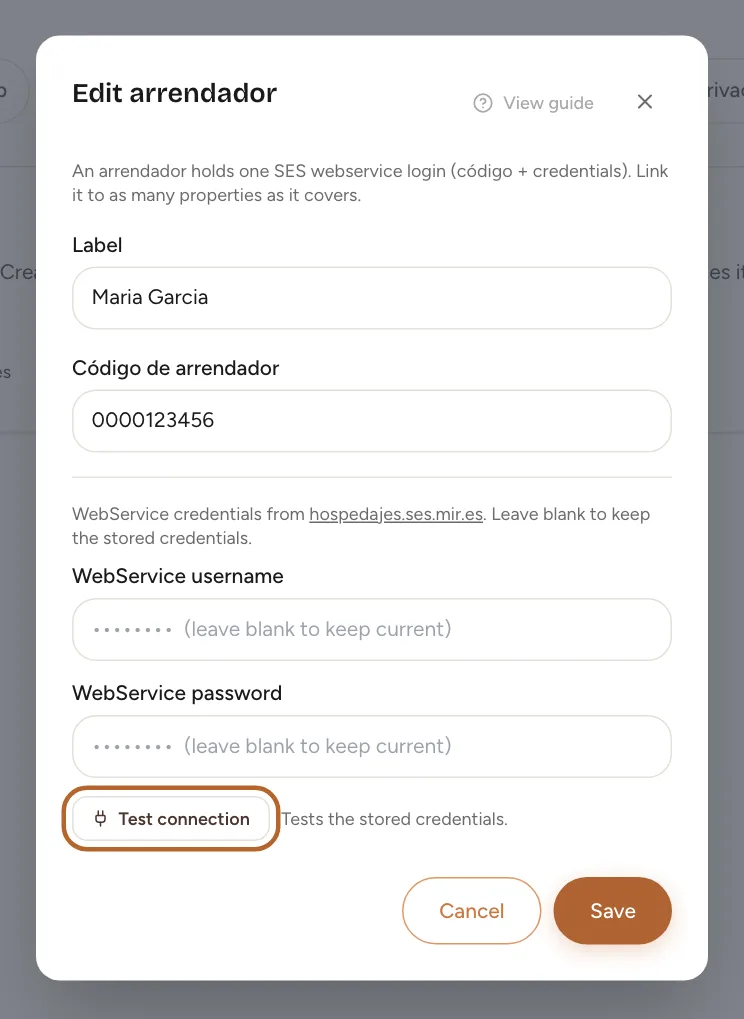
In Settings, SES Hospedajes, click the pencil next to your arrendador (Edit arrendador), then Test connection. With the username and password left empty, it tests the ones stored. When they work, Casitana shows SES accepted these credentials.
 Enlarge screenshot
Good to know: The test checks the username and password only. It does not check your código de arrendador or your establishment codes: compare those with what SES Hospedajes gave you.
Step 20
If the test fails
SES rejected this username and password. Check them against the credentials issued for your arrendador. means SES Hospedajes refused the login. Check the username (it ends in WS) and the password, and enter them again in the arrendador. If Credenciales in SES Hospedajes shows no username, check that Envío de comunicaciones por servicio web was ticked when you registered (see Turn on the web service).
Tip: Could not reach SES. This does not mean your credentials are wrong. Try again in a few minutes. Messages like this one, or SES refused the test request. This is probably not your credentials. Our team has been notified., are not about your details.
Good to know: A wrong código de arrendador or establishment code does not show in the test. It shows when Casitana files, as a refusal on the stay: see If filing fails.