
Your address book
Step 1
Open Contacts
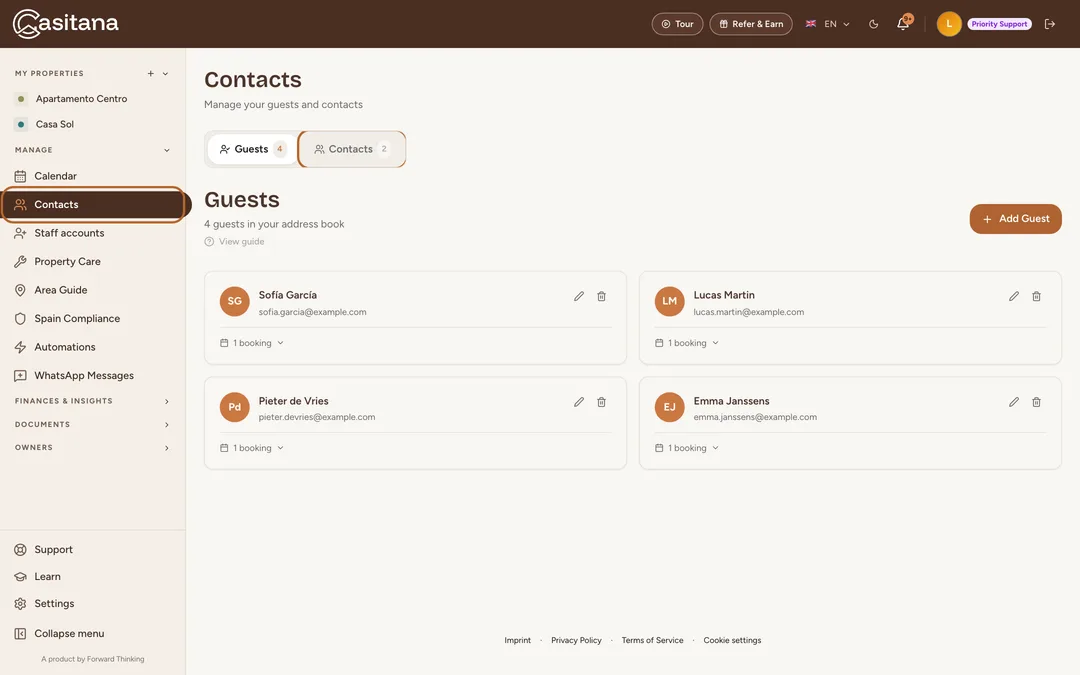
In the menu on the left, click Contacts. The first tab lists your guests. The second, Contacts, lists everyone else you work with. The number beside each tab tells you how many people it holds.
 Enlarge screenshot
Save a contact
Keep everyone who works on your properties in one place, with what they do, which properties they know and your own notes.
Step 2
Add a contact
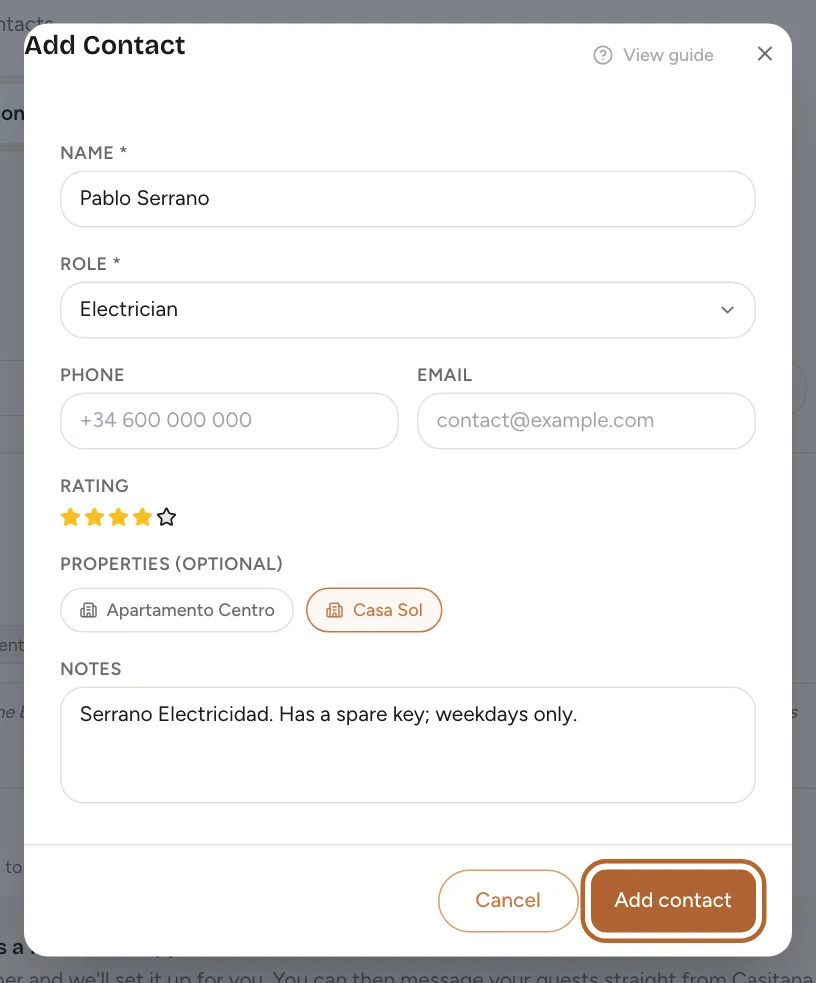
Open the Contacts tab and click + Add contact. Enter the Name and choose a Role, such as a plumber or a gardener. For anything else, choose the last option in the list and type your own. Phone and email are optional. Give a Rating if you like, pick the properties they work at under Properties (optional), add Notes, and click Add contact.
 Enlarge screenshot
Tip: Put the company name in the notes: a contact has no separate field for it.
Step 3
Your contacts at a glance
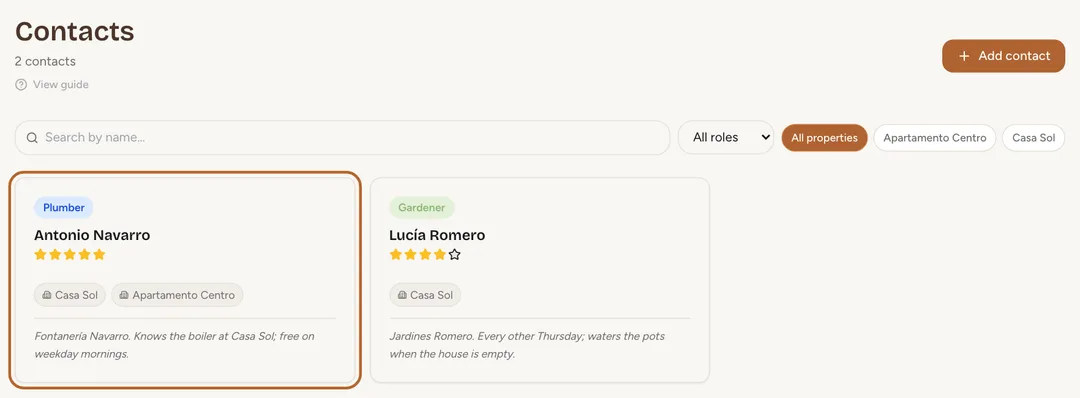
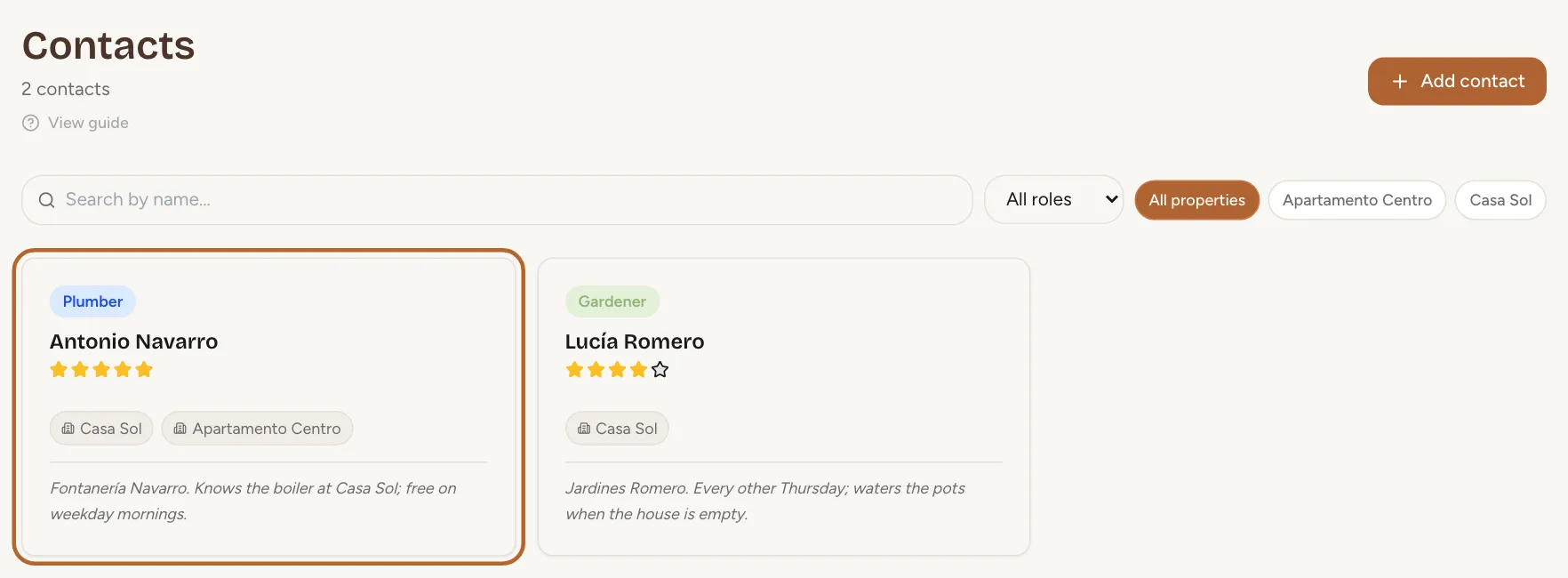
Each contact has a card with their role, name, rating, properties and notes. When you saved a phone number or an email address, the card also has Call and Email buttons.
 Enlarge screenshot
Tip: When you add a task in Property Care, you can assign it to one of your contacts: see Add a task.
Step 4
Edit or delete a contact
Point at a card: a pencil and a bin appear in its top-right corner. The pencil opens the same form, filled in. The bin asks Delete contact? first, then moves the contact to the trash, where you can restore it for 30 days (The trash: restore what you deleted).
Good to know: If you add a contact with the same name as one you already have, Casitana asks Add this contact anyway? before it saves a second one.
Guests and their stays
Step 5
Your guests
Every guest you save appears in the first tab, with the number of bookings they have. How to save a guest and see their stays is explained in Save a guest in your contacts. To link a guest to a booking, see Link the guest.
Step 6
Delete a guest
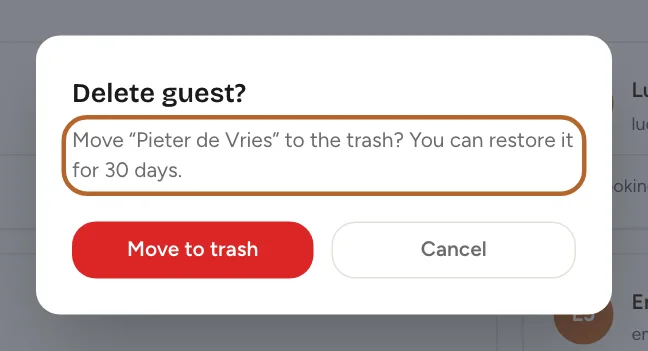
Click the bin on the guest’s card and confirm with Move to trash, or click Cancel to keep the guest. The guest goes to the trash for 30 days. Their bookings stay, only unlinked from the guest, and are linked again if you restore them.
 Enlarge screenshot
Find someone
Step 7
Search your contacts
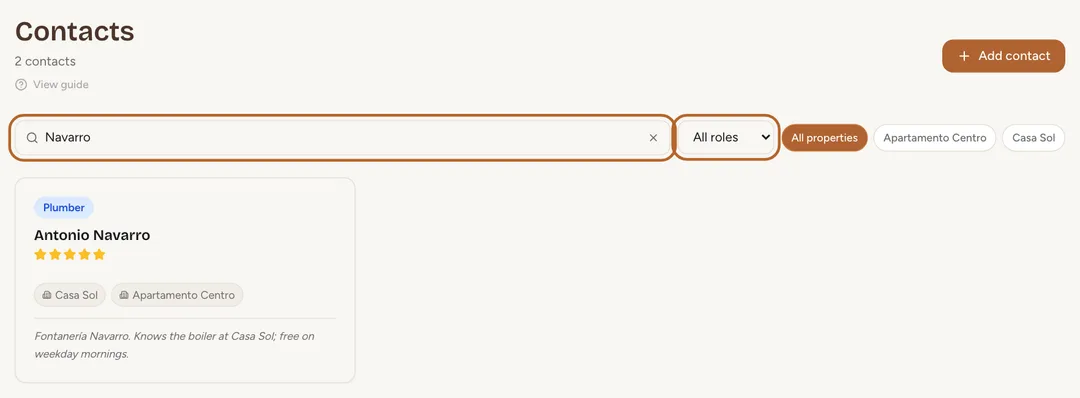
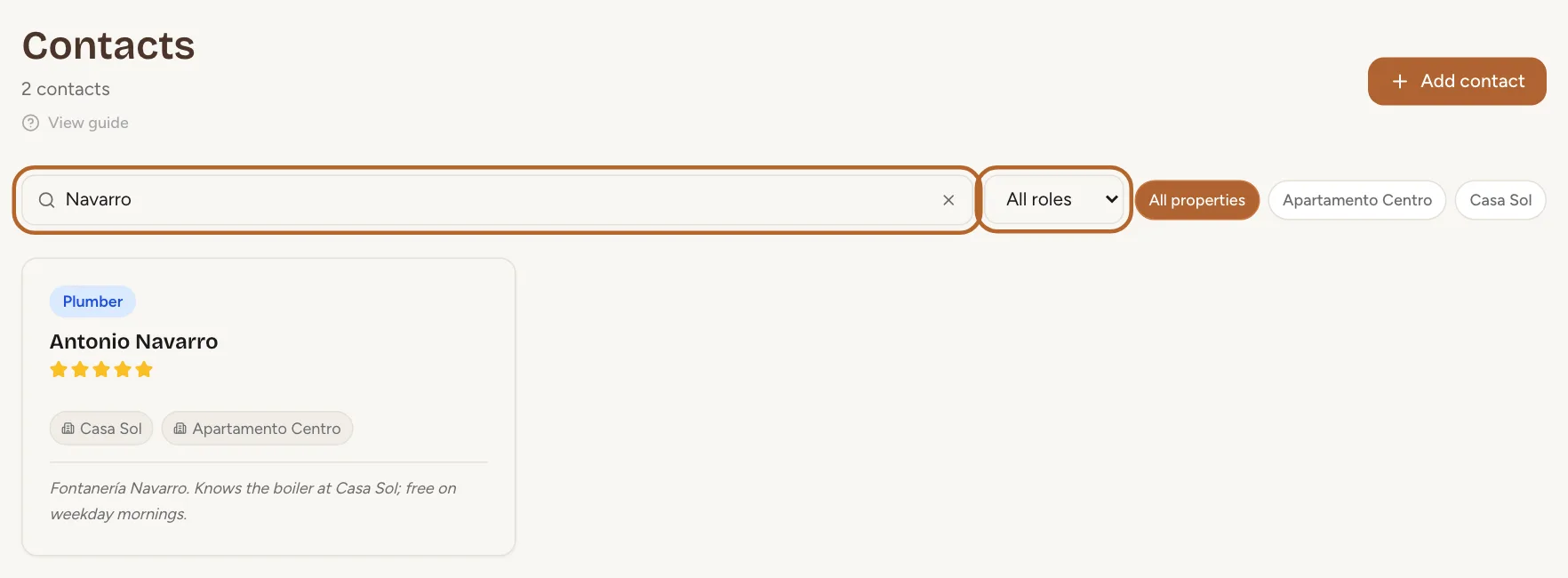
In the Contacts tab, type part of a name in the search box. Next to it, choose a role instead of All roles to see only, say, your plumbers. With more than one property, click a property’s name to see only the people who work there, or All properties to see everyone again.
 Enlarge screenshot
Step 8
Search your guests
Once you have more than five guests, a search box appears above the list. Type part of a first name, a last name, an email address or a phone number. When you add a booking, the guest field searches your whole address book as you type.
How many contacts you can save
Step 9
Contacts per plan
The Free plan holds 15 contacts, Starter 30, Growth 100, and Pro as many as you need. On a plan with a limit, the top of the Contacts tab shows how many you have out of how many, for example 3/15. When you reach it, Add contact shows which plan holds more, with a link to the plans, instead of the form.
 Enlarge screenshot
Good to know: The limit counts contacts only. There is no limit on the number of guests you can save. To change plan, see Choose a paid plan.
