What is this for?
A spending limit is a ceiling, not a goal. You set the most you want to spend on one kind of cost, like cleaning or repairs. Spending less is always fine: the limit only tells you when costs run higher than you planned.
Step 1
A ceiling, not a goal
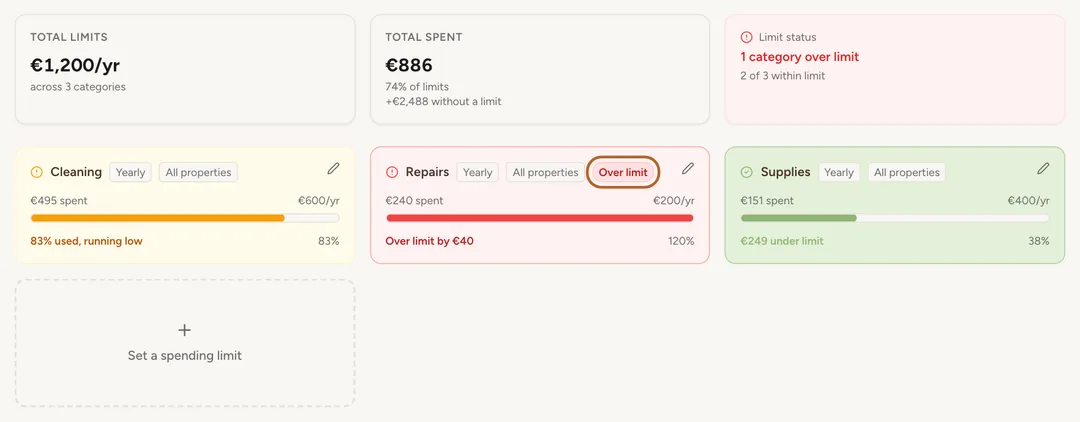
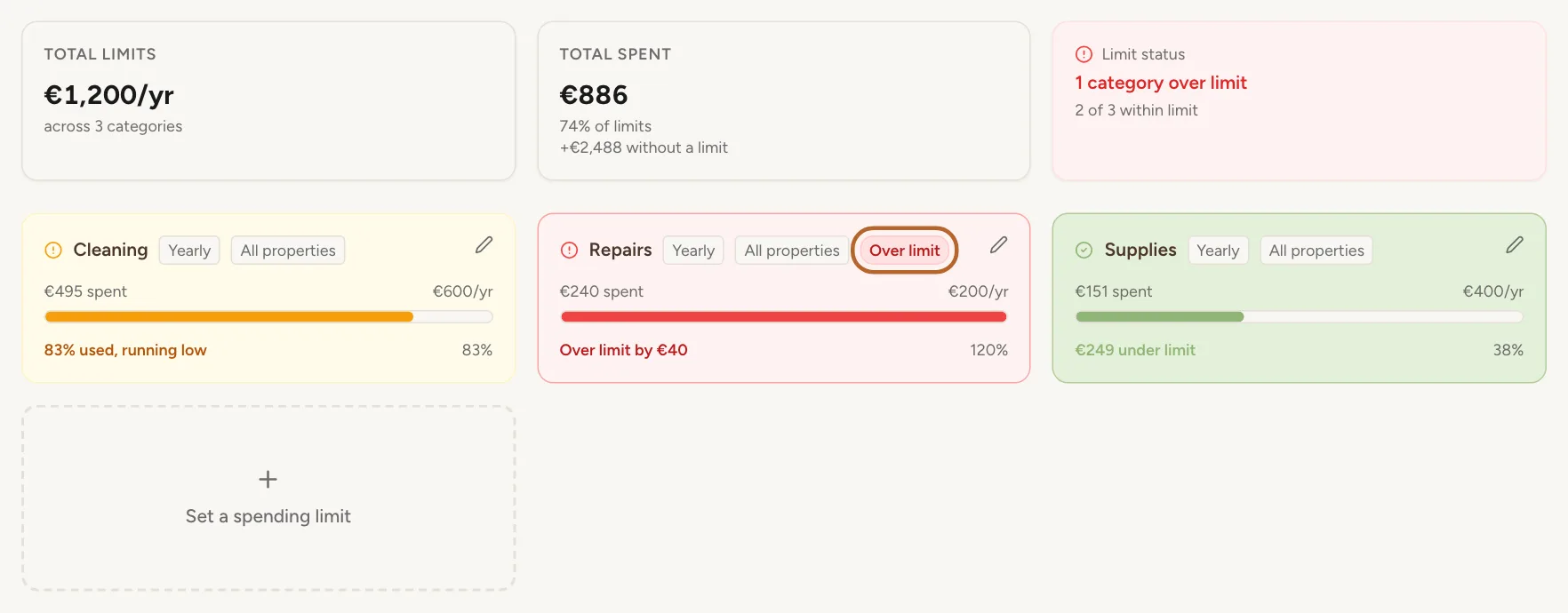
You do not have to reach a limit, and there is nothing to gain by using it up. A card stays green while you are well under the limit, turns amber from 80% and red once you go over. Amber means you are getting close. Red means you went over, and that is the moment to look at what happened.
Set a spending limit
A spending limit is the most you want to spend on one category of costs, per month or per year, across all your properties.
Step 2
Open the Spend Monitor
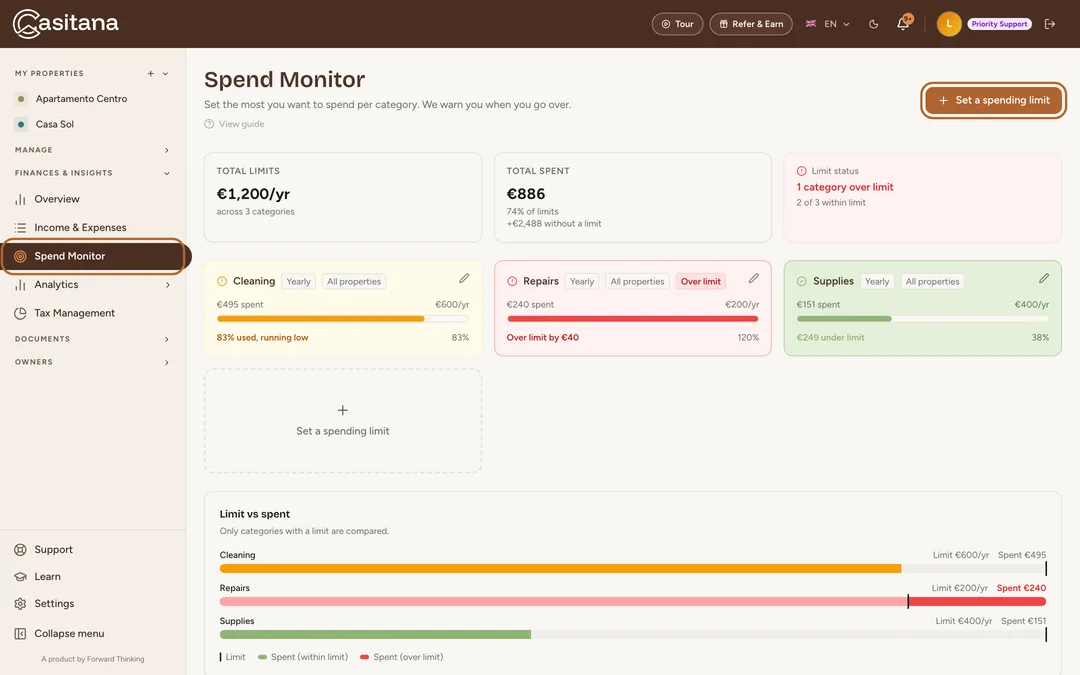
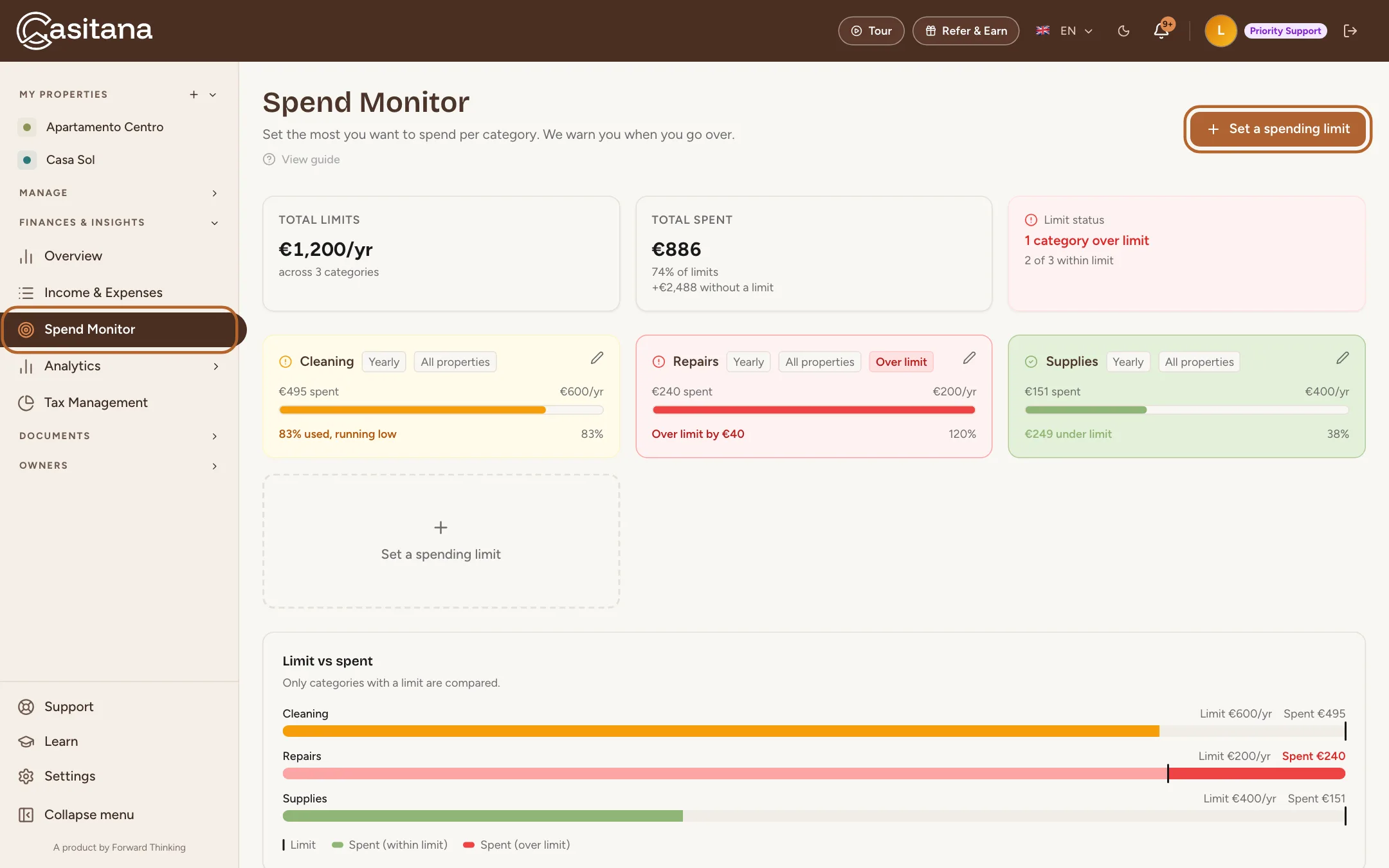
In the menu on the left, click Spend Monitor, then Set a spending limit.
 Enlarge screenshot
Step 3
Choose a category and an amount
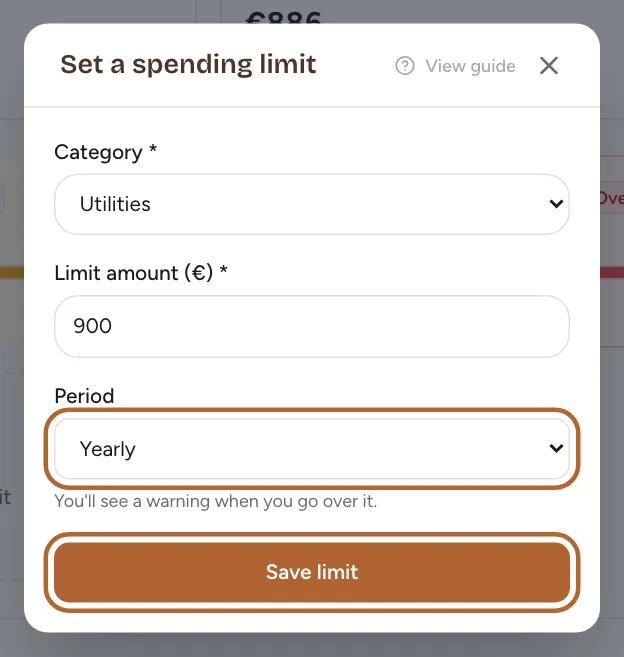
Choose the Category and enter the Limit amount (€). Under Period, Monthly compares the limit with this calendar month’s costs, Yearly with this calendar year’s so far. Click Save limit.
 Enlarge screenshot
Tip: The list offers every category you can record a cost under, plus any other category your costs already use. The limit counts the costs in that category on all your properties.
Good to know: An older limit on a category no cost can be recorded under stays on the page, with this line on its card: “No cost can be recorded under this category, so this limit tracks nothing. Remove it, or set one on a category your costs use.”
Step 4
A limit for a category you already spend on
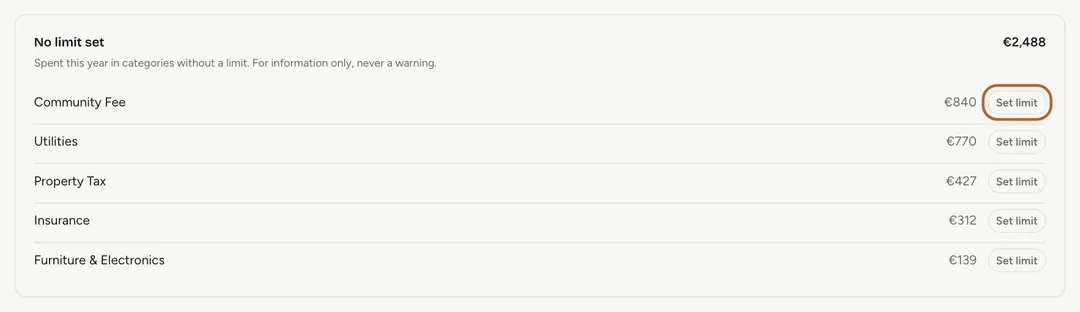
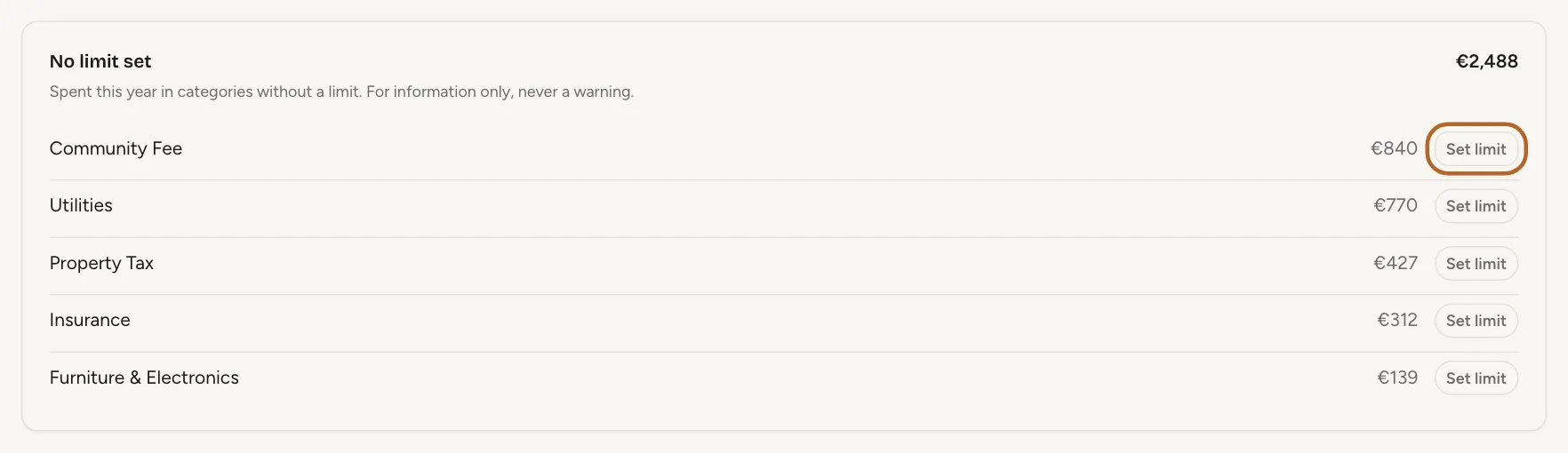
Under No limit set, the page lists the categories you recorded costs in this year without setting a limit, with what you spent on each since 1 January. This is for your information only: it never turns anything amber or red. Click Set limit next to one: the same window opens with that category chosen.
 Enlarge screenshot
Your limits against what you spent
Step 5
See where you stand
Each limit has its own card: what you spent, the limit and a bar. The card turns amber from 80% of the limit and red once you go over, marked Over limit. A monthly limit counts this month’s costs, a yearly one this year’s so far. Above the cards, three boxes sum it all up: Total limits adds up your limits per year (a monthly limit counts twelve times), Total spent is what you spent this year in categories with a limit, and Limit status tells you how many limits you stayed under.
 Enlarge screenshot
Tip: Under Total spent, a second line shows what you spent this year in categories without a limit. It is not part of the percentage and never counts as going over.
Good to know: The page shows where you stand when you open it, and Casitana sends you no email or message when you go over a limit. When you record a cost that takes a limit to 80% or more, a warning appears at the top of Income & Expenses.
Step 6
All limits in one chart
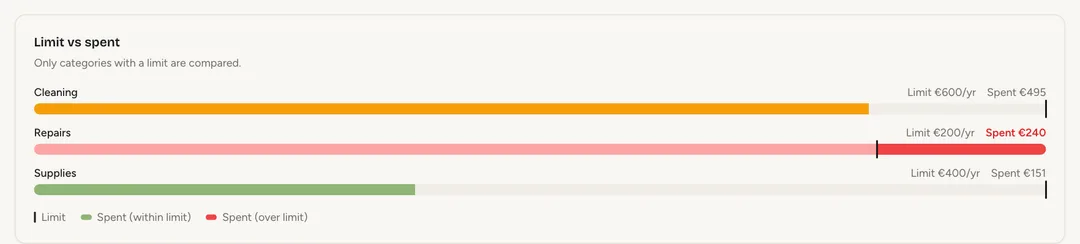
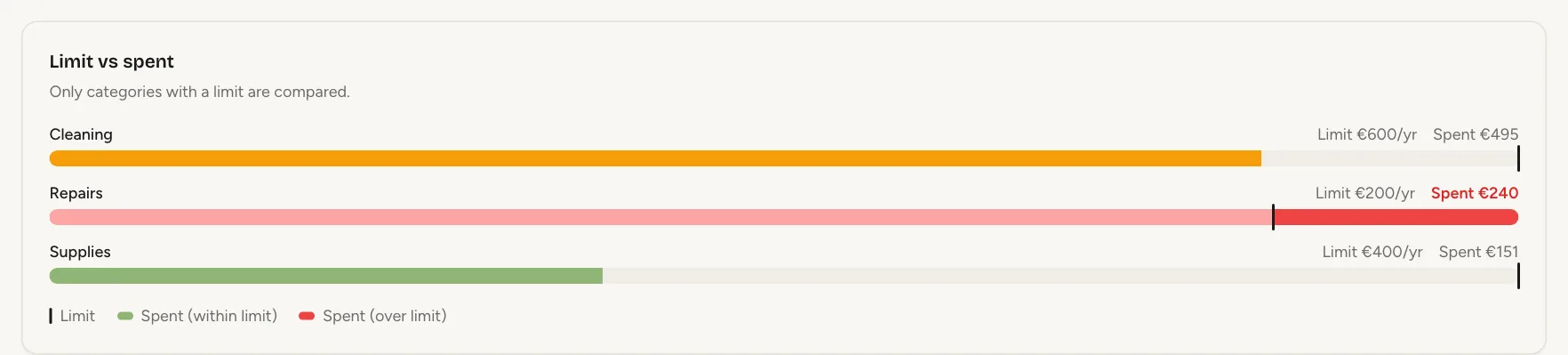
Limit vs spent shows one bar per limit, each measured against its own limit. The thin line is the limit. Up to it, the bar shows what you spent; if you went over, the bar fills up and the part past the line is red. Only categories with a limit are compared.
 Enlarge screenshot
Step 7
Change or remove a limit
Click the pencil on a card. Change the amount or the period and click Update limit. The category cannot be changed: remove the limit and set a new one. To remove it, click the bin and confirm with Remove. Your recorded costs stay as they are.
Revenue and occupancyIncluded from the Growth plan
Revenue, expenses and profit on these pages are the income and expenses you recorded, not the prices of your bookings. Nights, occupancy and bookings come from your calendar.
Step 8
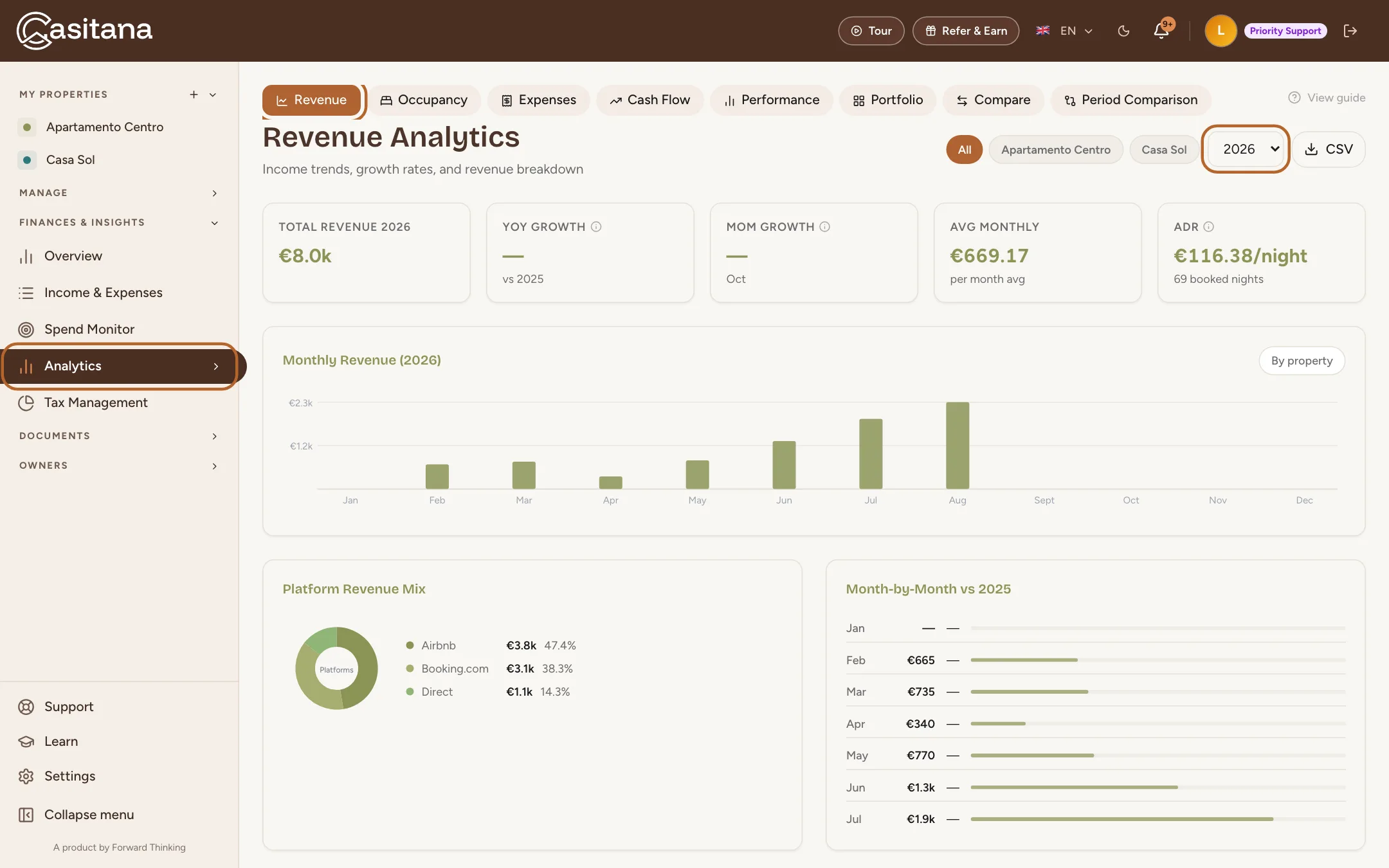
Open Analytics
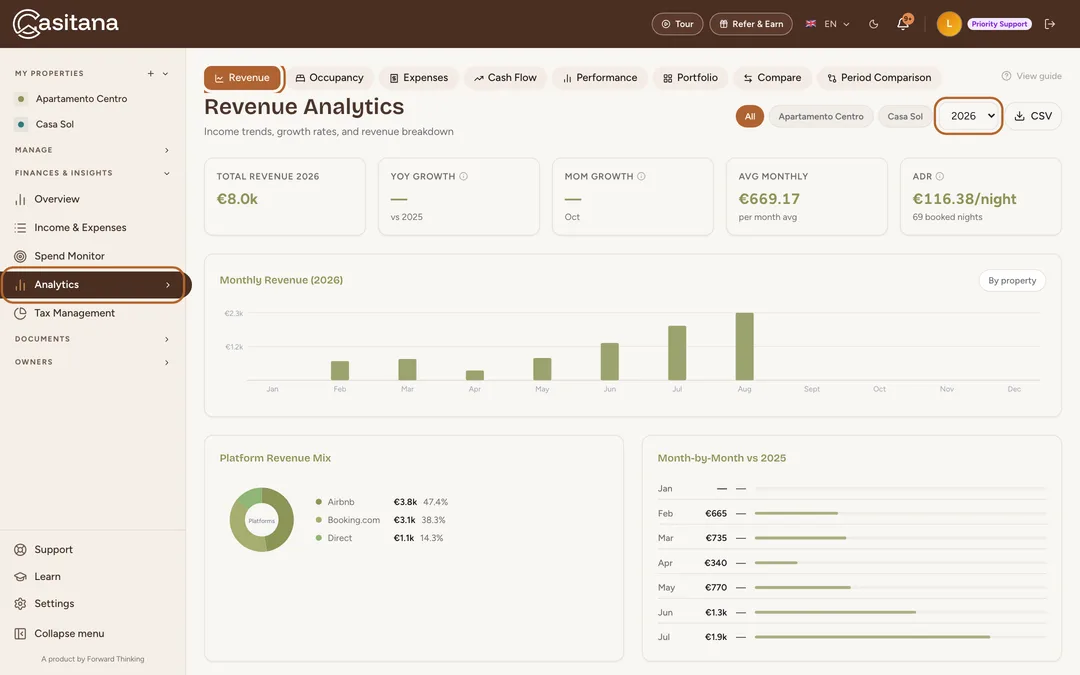
In the menu on the left, click Analytics, then Revenue. The row of tabs at the top takes you to every other analytics page. Choose the year at the top right, and a property if you want to see just that one.
 Enlarge screenshot
Tip: The revenue page compares each month with the same month a year earlier. Revenue by Property, at the bottom, shows what each property brought in.
Step 9
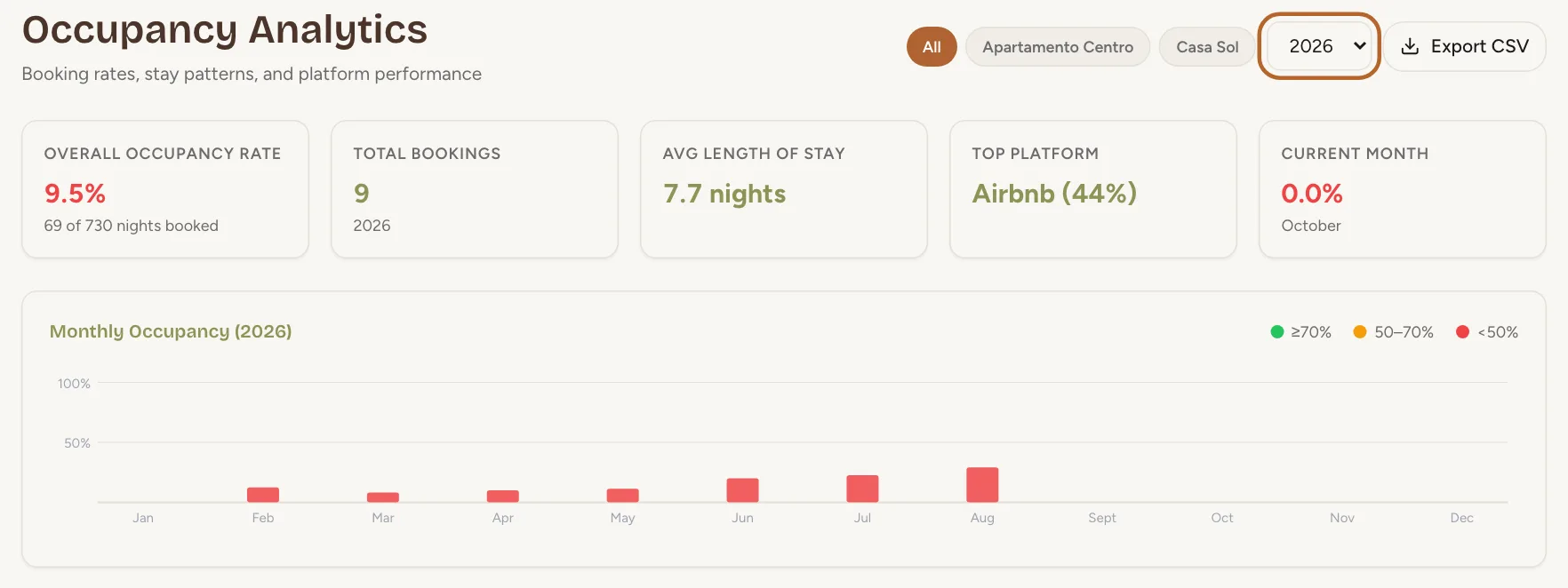
Occupancy
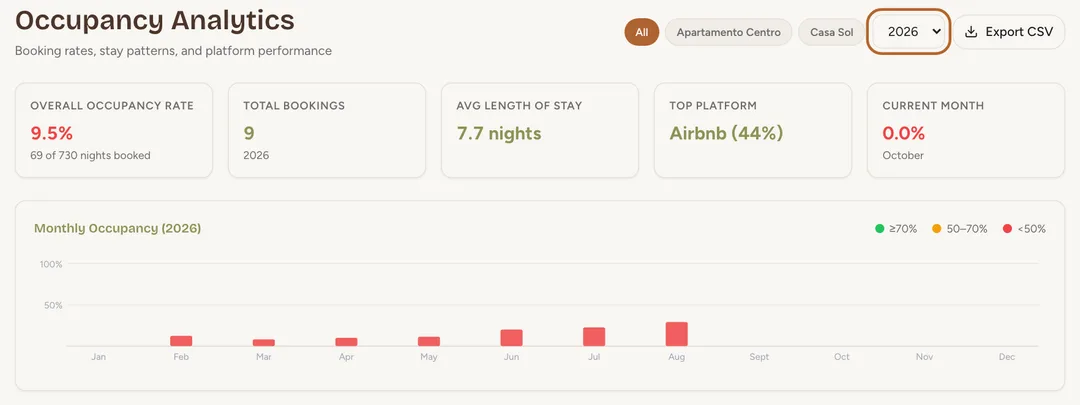
Occupancy counts the booked nights in your calendar: the share of nights booked each month, how long guests stay, which platforms they book through and on which day they arrive. Cancelled bookings are left out.
 Enlarge screenshot
Expenses and cash flowIncluded from the Growth plan
Step 10
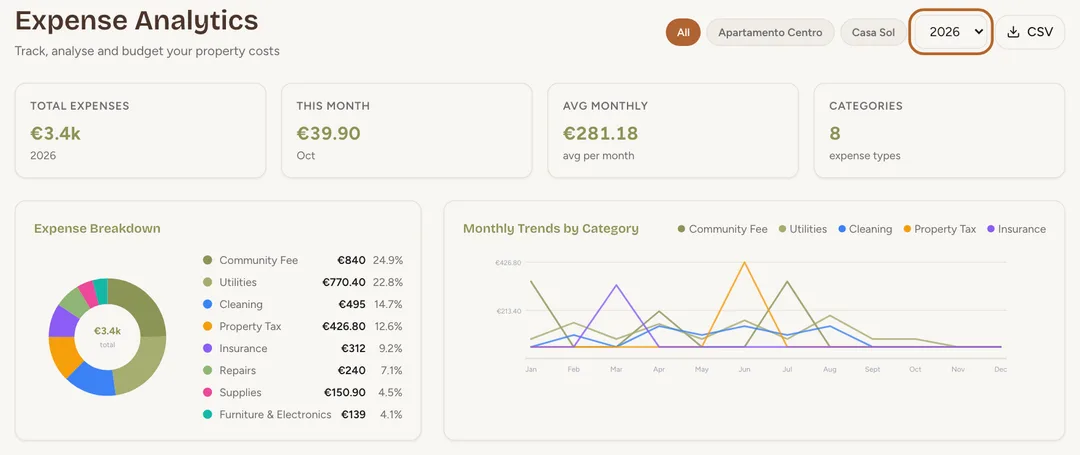
Expenses
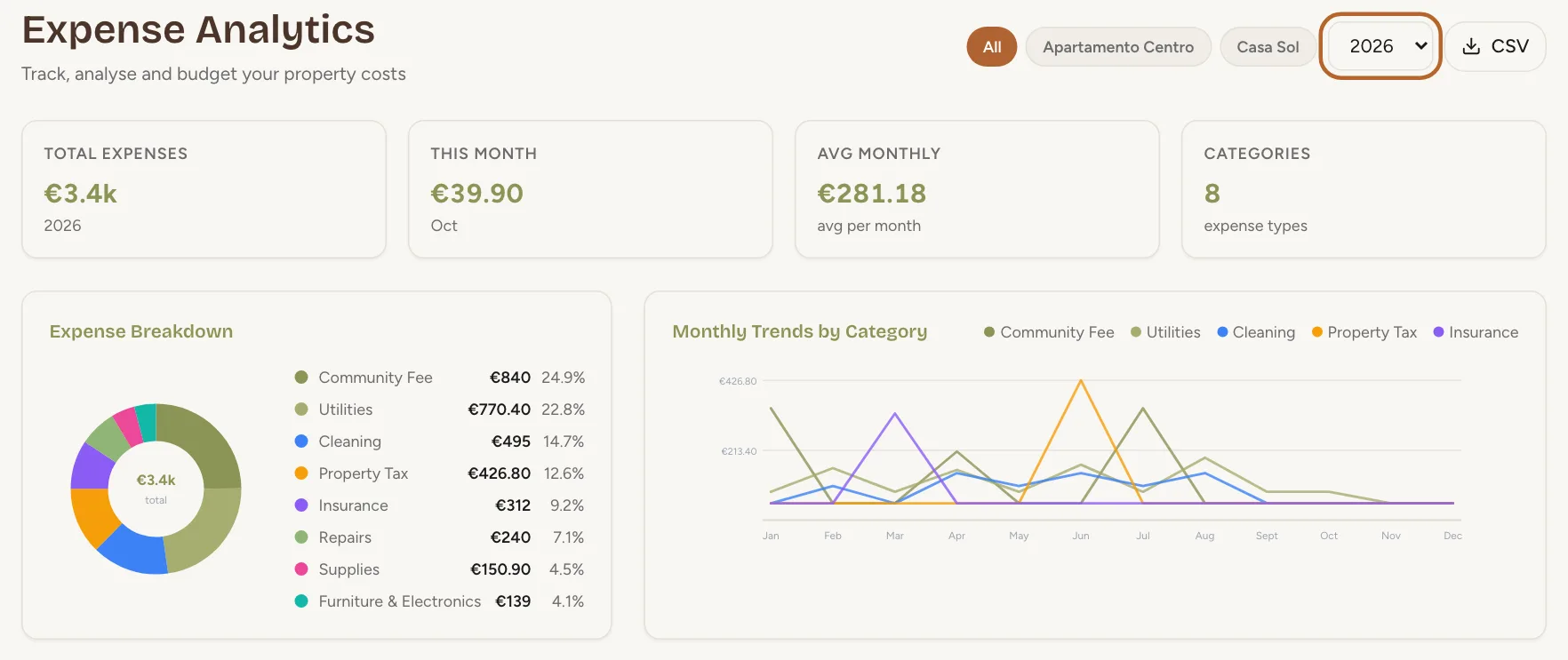
Expenses splits the year’s costs by category, shows how each category moves month by month, and lists your largest expenses. With more than one property, it also compares their costs.
 Enlarge screenshot
Step 11
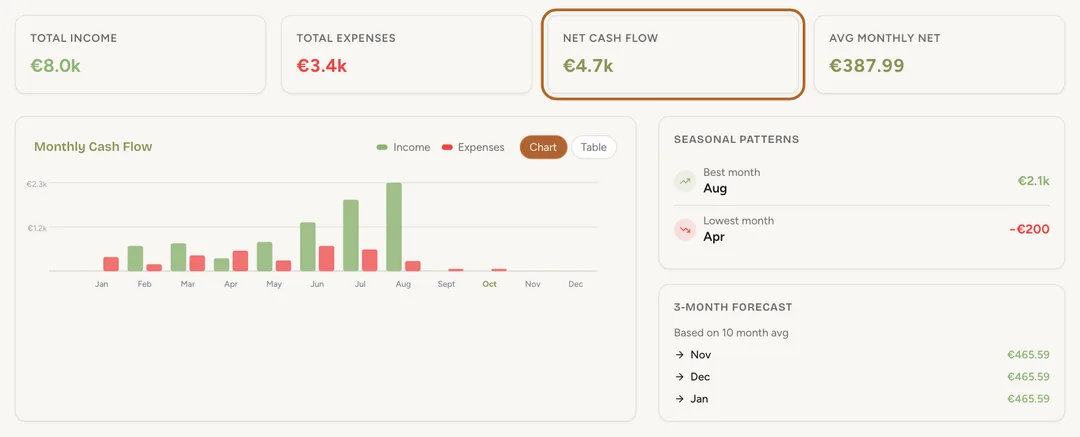
Cash flow
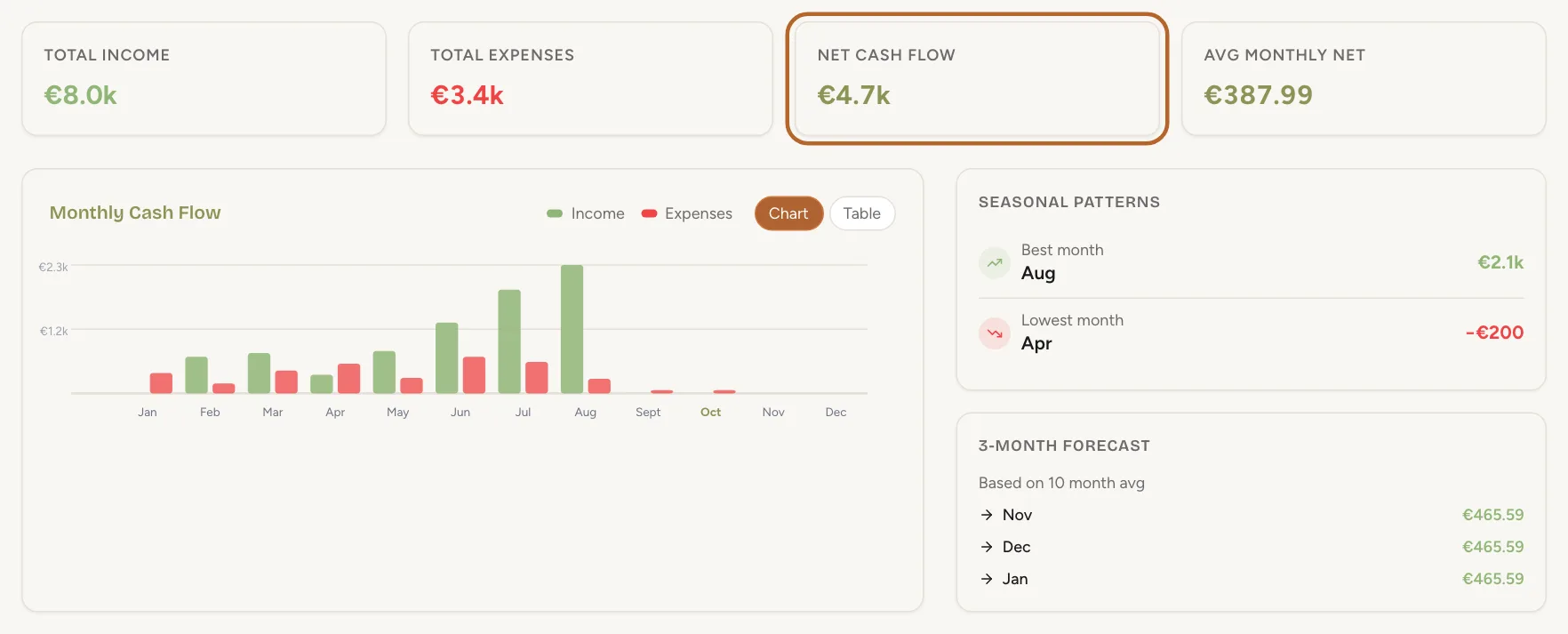
Cash Flow sets income against expenses for each month of the year. Net Cash Flow is what is left. Switch the chart to Table to see the figures.
 Enlarge screenshot
Tip: The 3-Month Forecast, shown for the current year only, is the average of the months so far, not a prediction from your bookings.
Compare properties and periodsIncluded from the Growth plan
Step 12
Compare your properties
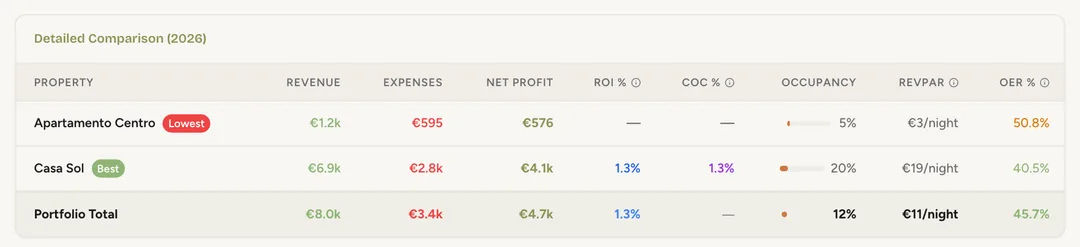
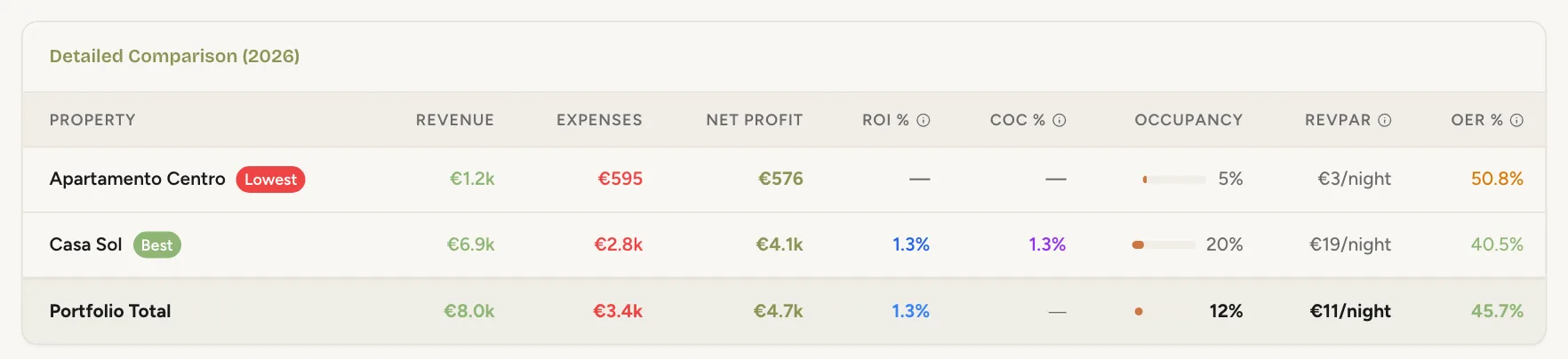
Compare puts your properties side by side for the year: revenue, expenses, net profit, occupancy and more.
 Enlarge screenshot
Tip: ROI % uses the purchase price in the property’s details. Without one, it reads 0.
Step 13
Compare two periods
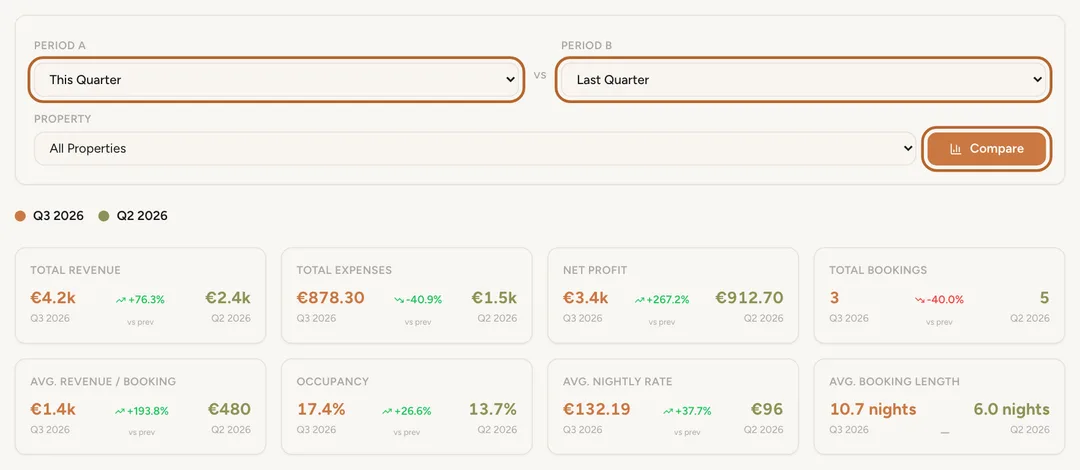
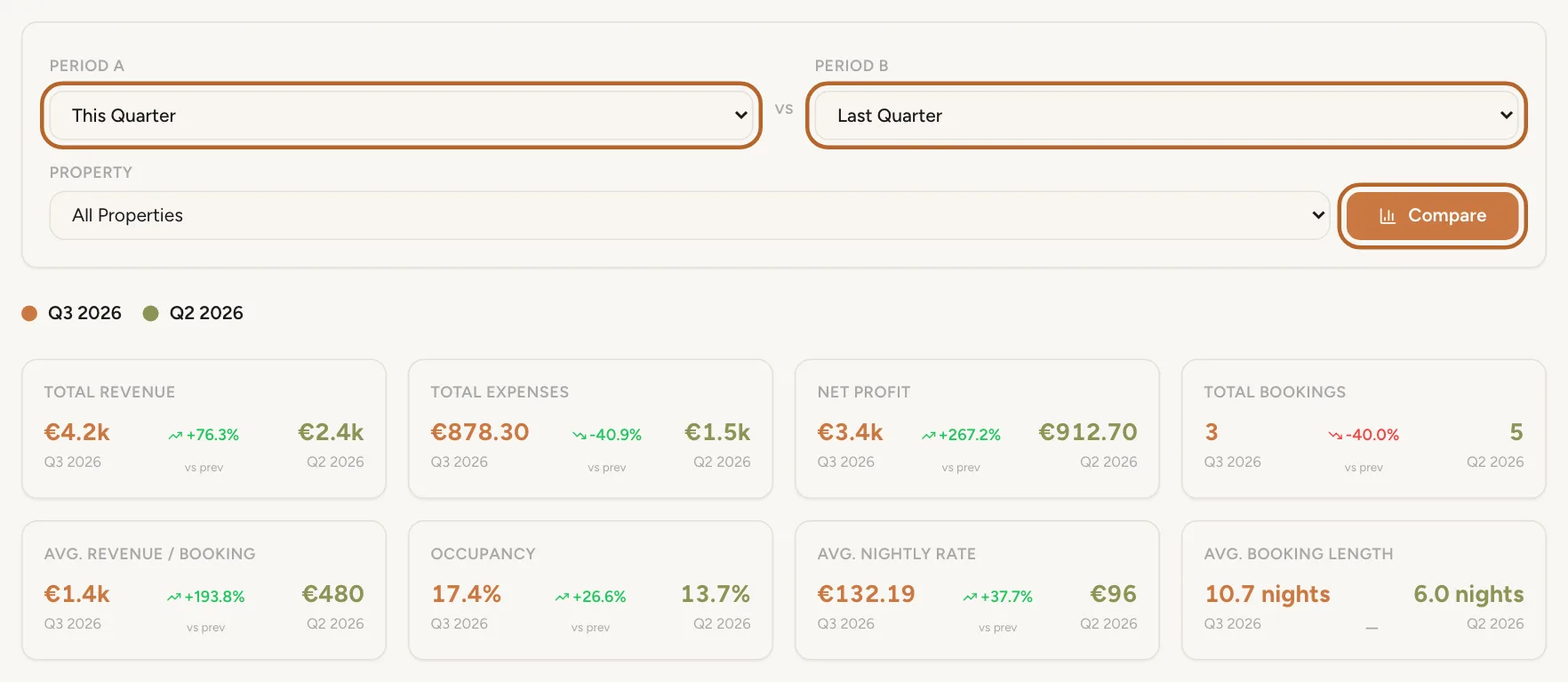
In Period Comparison, choose Period A and Period B, for example This Quarter against Last Quarter, and one property or all of them. Click Compare.
 Enlarge screenshot
Good to know: Only one of the two periods can be a Custom Range.
Profit and lossIncluded from the Growth plan
Step 14
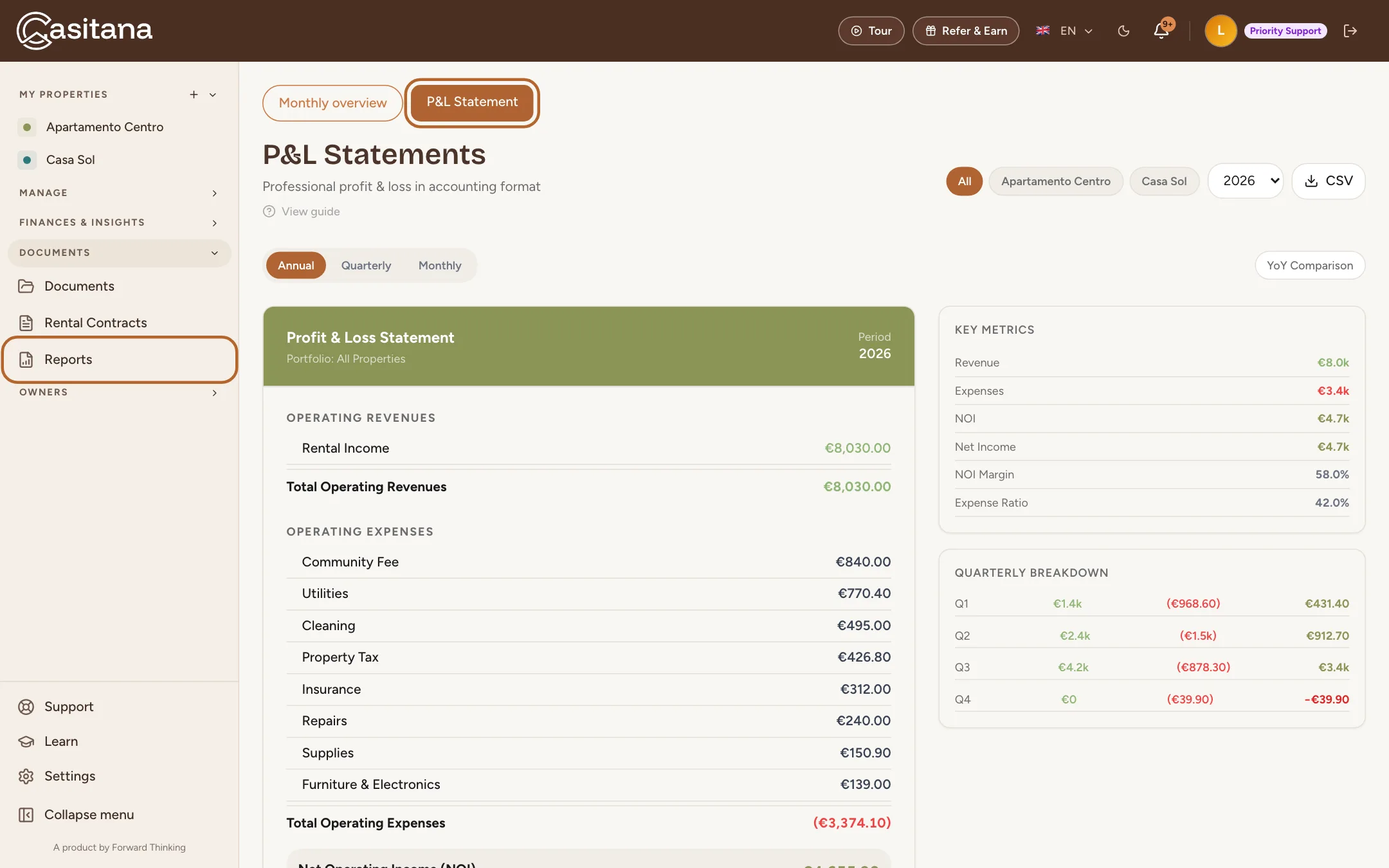
The P&L statement
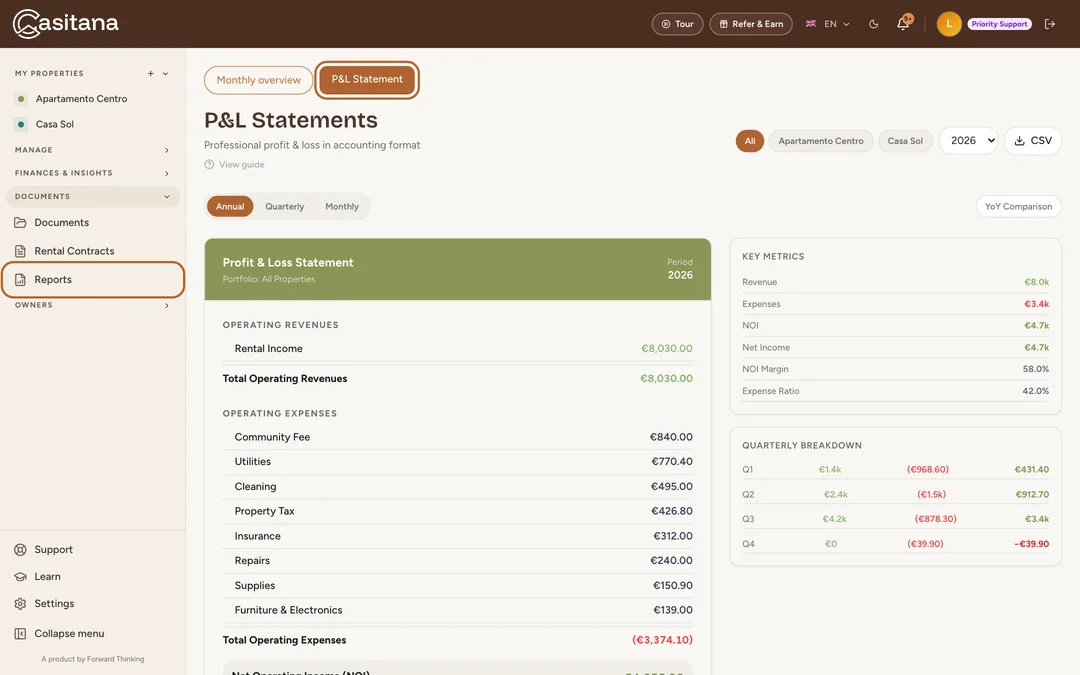
In the menu on the left, click Reports, then P&L Statement. It sets out the year as an accountant would: your revenue by category, your expenses by category, and the result. Choose Annual, Quarterly or Monthly, and click YoY Comparison to set it against the year before.
 Enlarge screenshot
Step 15
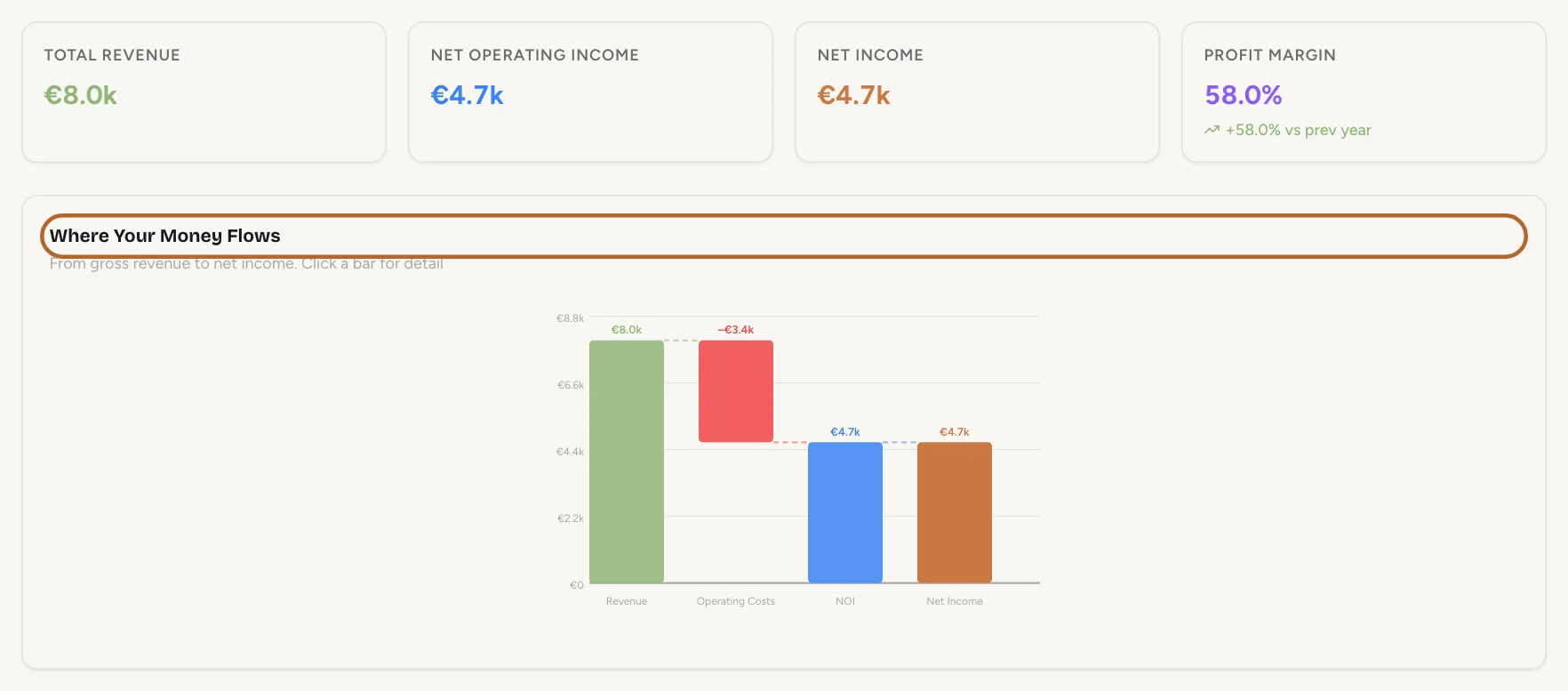
The same year in charts
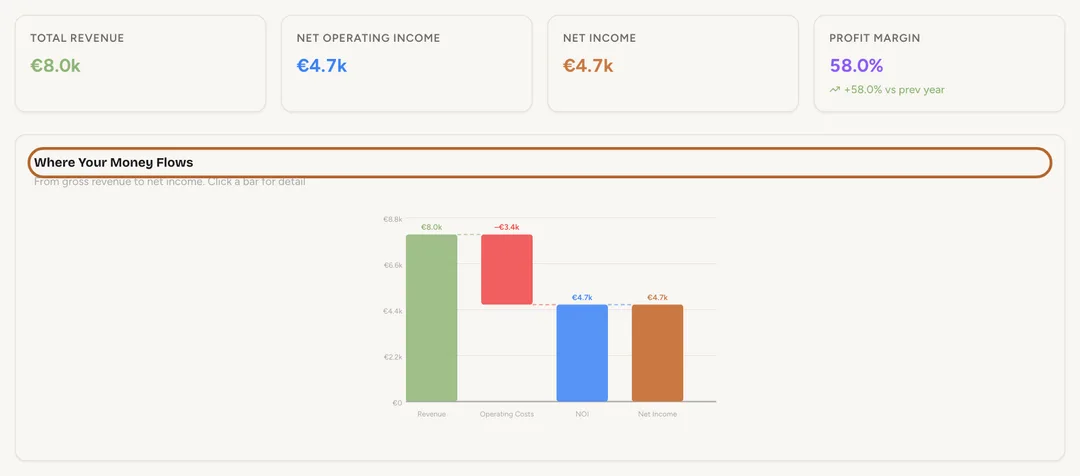
Performance shows the year as charts. Where Your Money Flows runs from your revenue, through each kind of cost, to what is left. Click a bar to see what is in it.
 Enlarge screenshot
Your portfolio over the last 30 daysIncluded from the Growth plan
Step 16
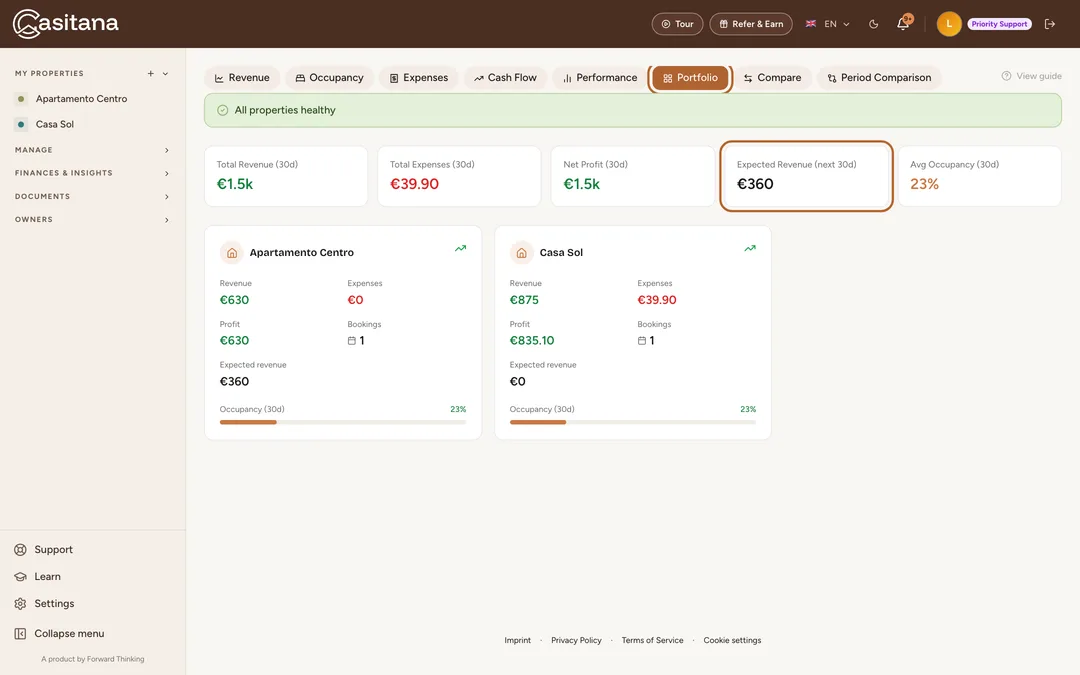
All your properties at a glance
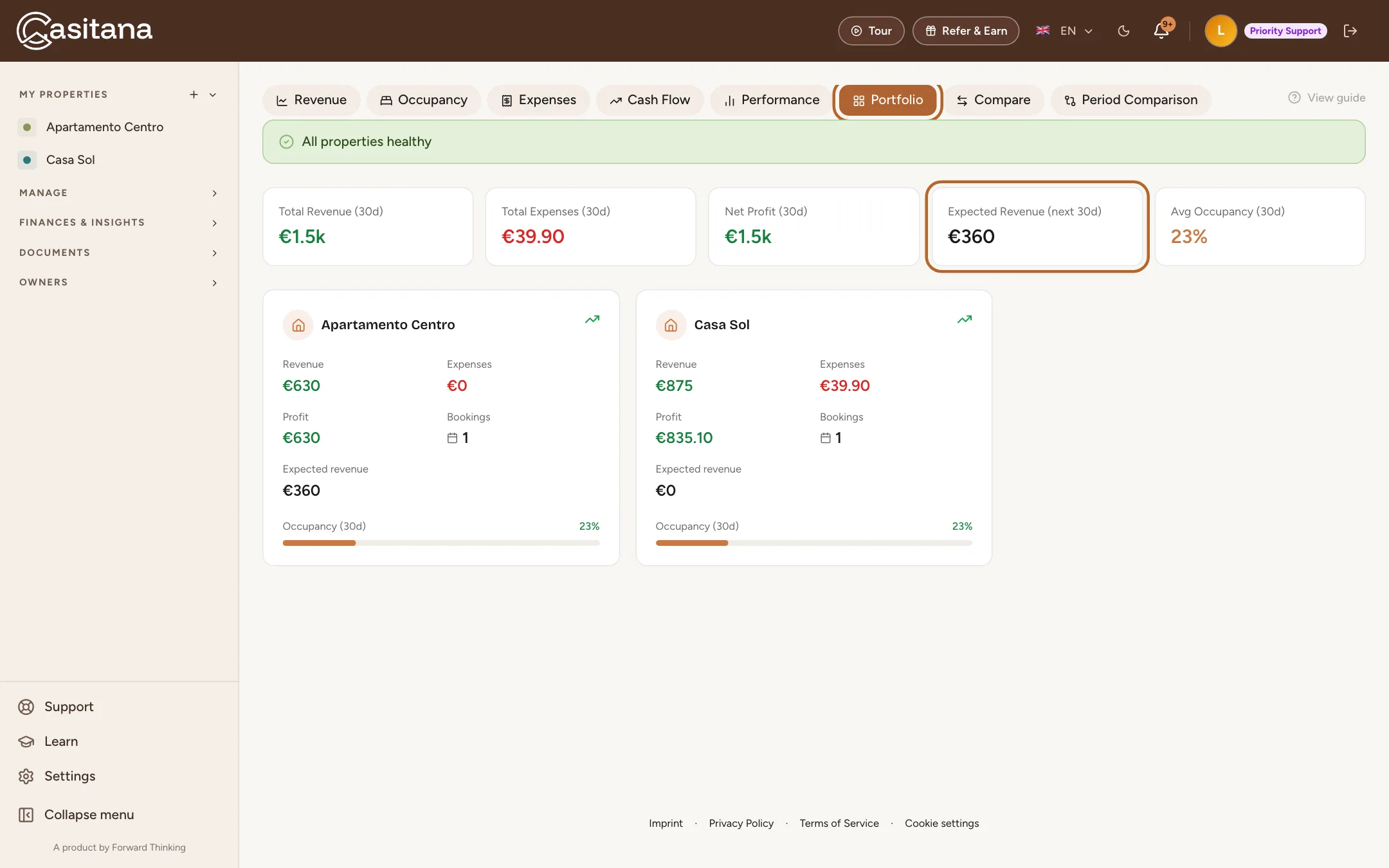
Open the Portfolio tab. It covers the last 30 days, not a year: per property, the income and expenses you recorded, the bookings and the occupancy. Expected revenue is kept apart: Confirmed stays in the next 30 nights × nightly rate. Not yet in your recorded income.
 Enlarge screenshot
Tip: A payout you have not recorded yet does not count here, even when the stay is over. How to record it: Enter the income.